Approving a comp or void ensures that discounts and cancellations are properly authorized before printing a check for the customer. When a non-manager profile requests a comp or void, a manager's approval will be required. There are multiple ways to approve a comp or void on the PAD: from the Map Screen, Table Screen, or Check Screen.
All the steps below require the manager to log in with their user. If the restaurant uses facial recognition for managers, comps, and voids can be approved directly from the server’s PAD. For more information, visit our Getting manager approval without changing user article
Follow the steps below to approve comps and voids:
From the Map Screen
-
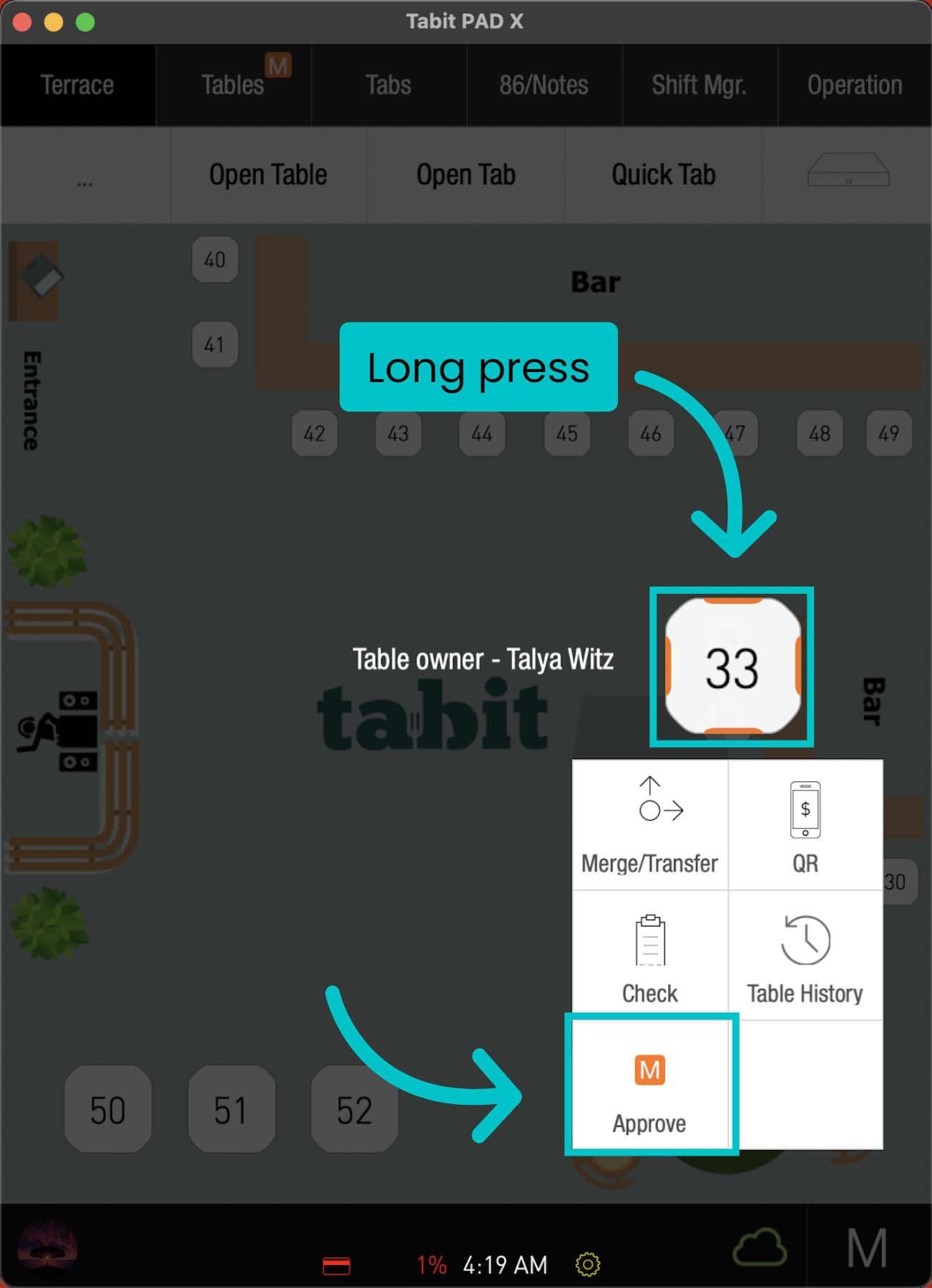
From the Map Screen, long-press the relevant table, and select Approve
A table pending manager approval will appear in orange
-
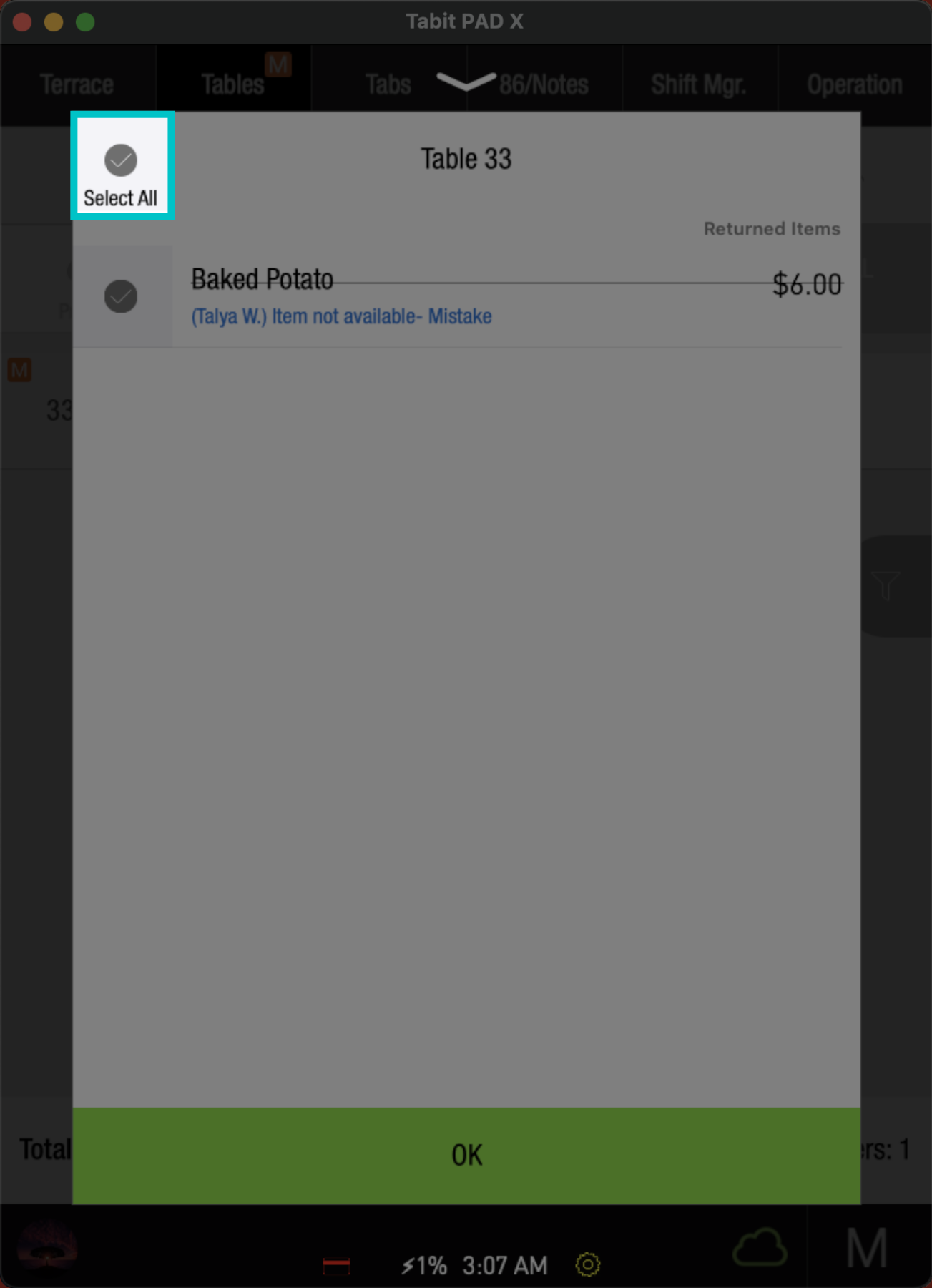
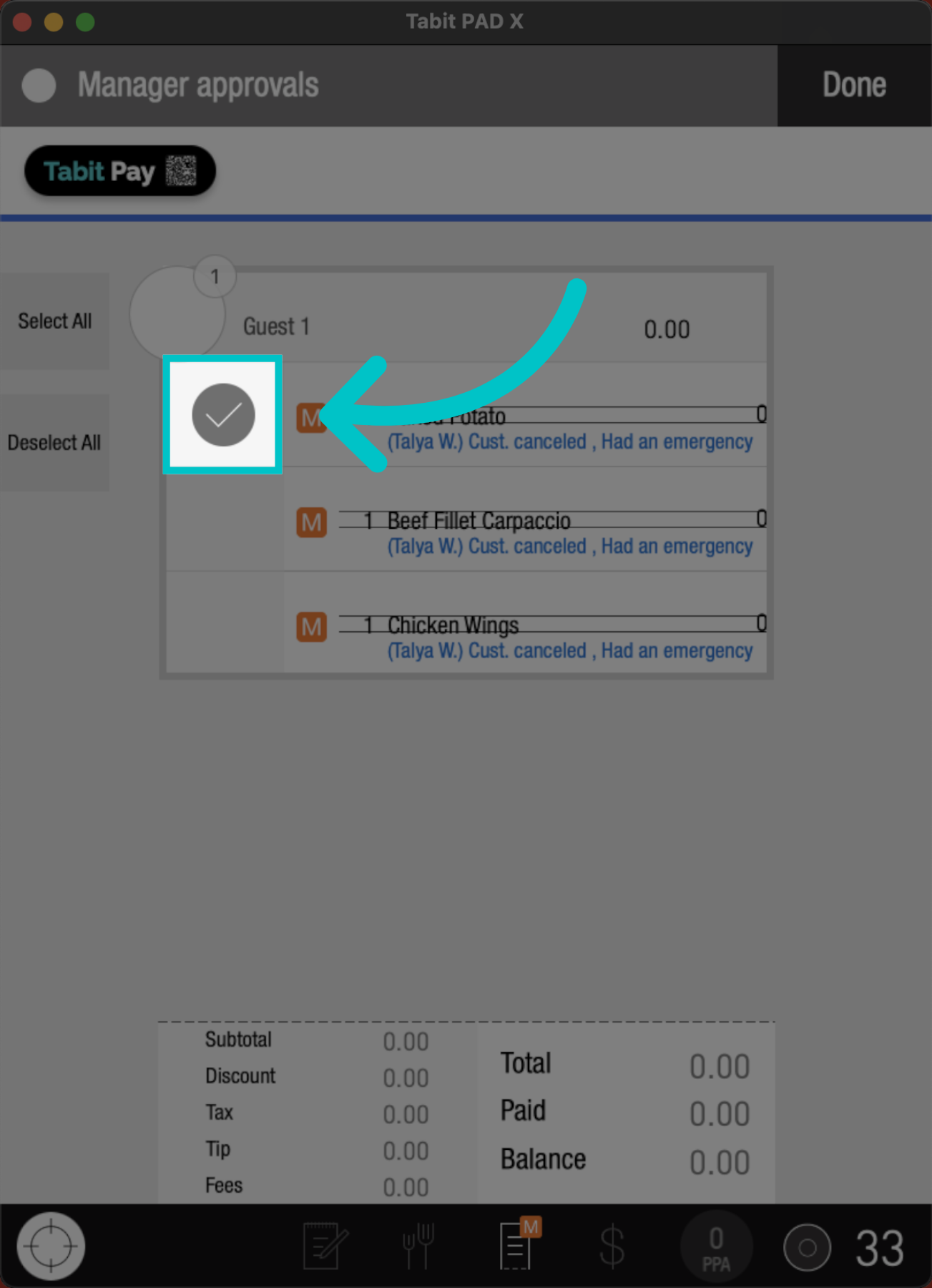
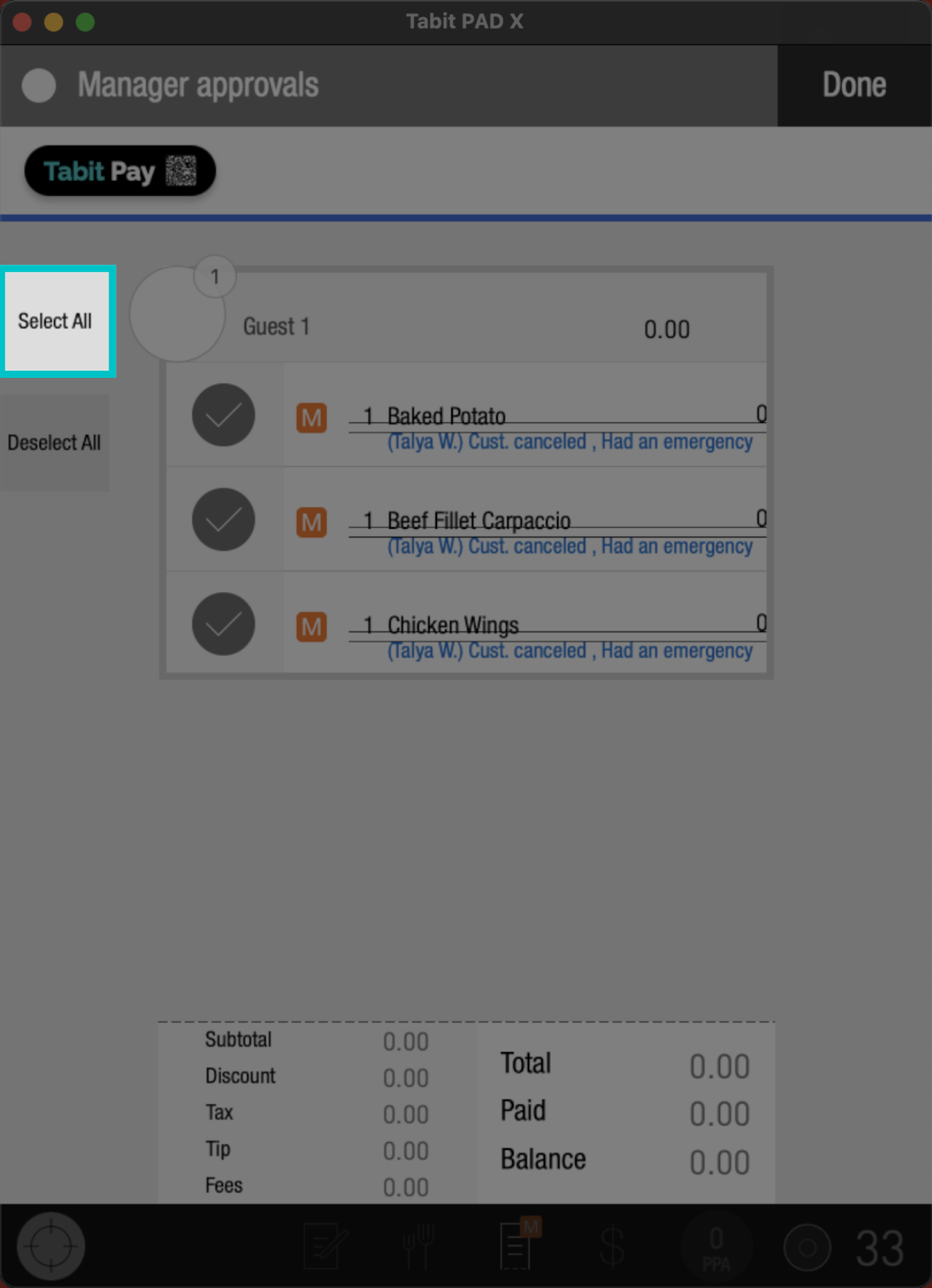
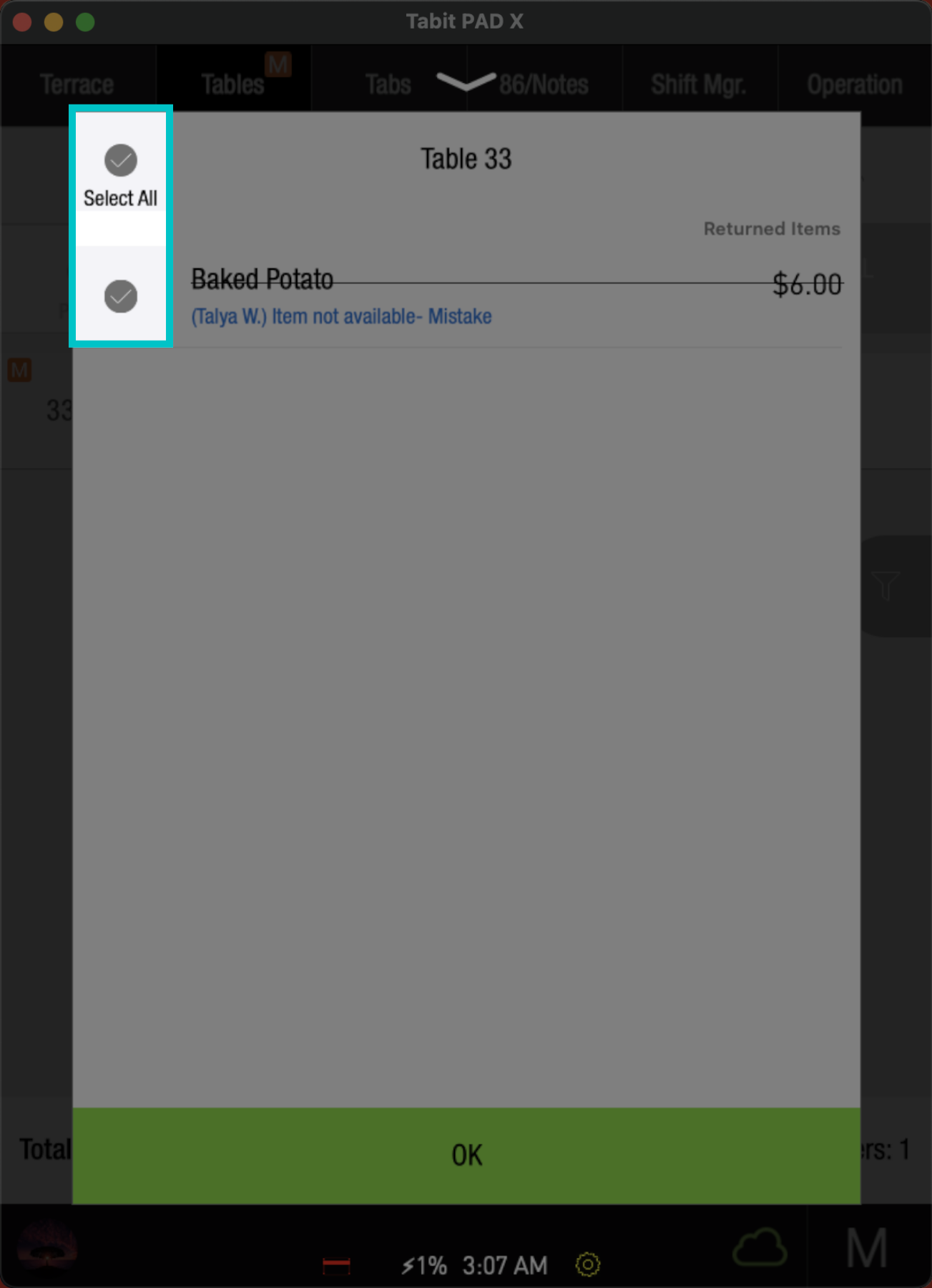
Now, check the box of the Item(s) you want to comp or void. To approve all items, tap Select All
-
Now, tap OK to complete the process
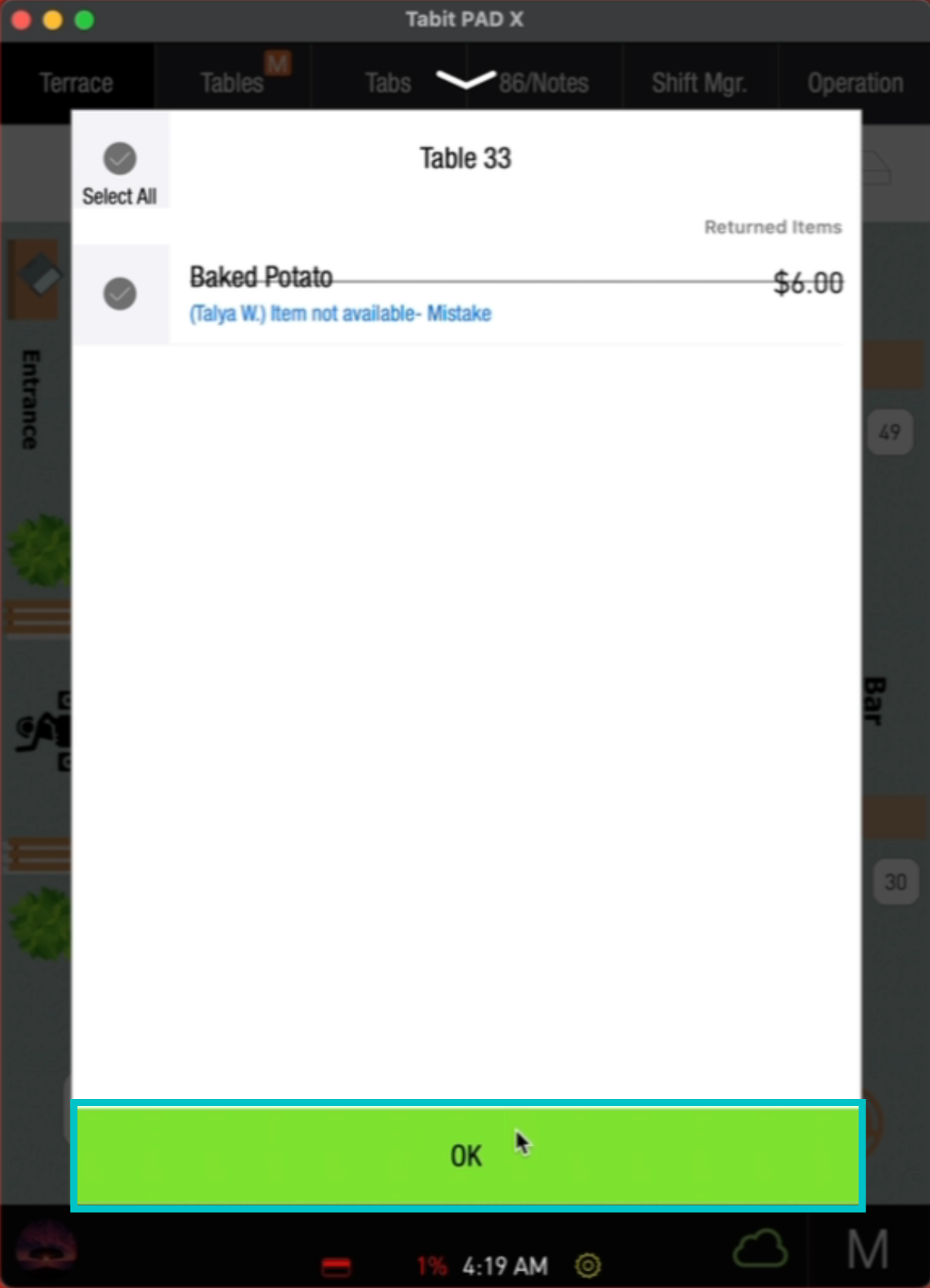
- The bill will now update accordingly
From the Table Screen
-
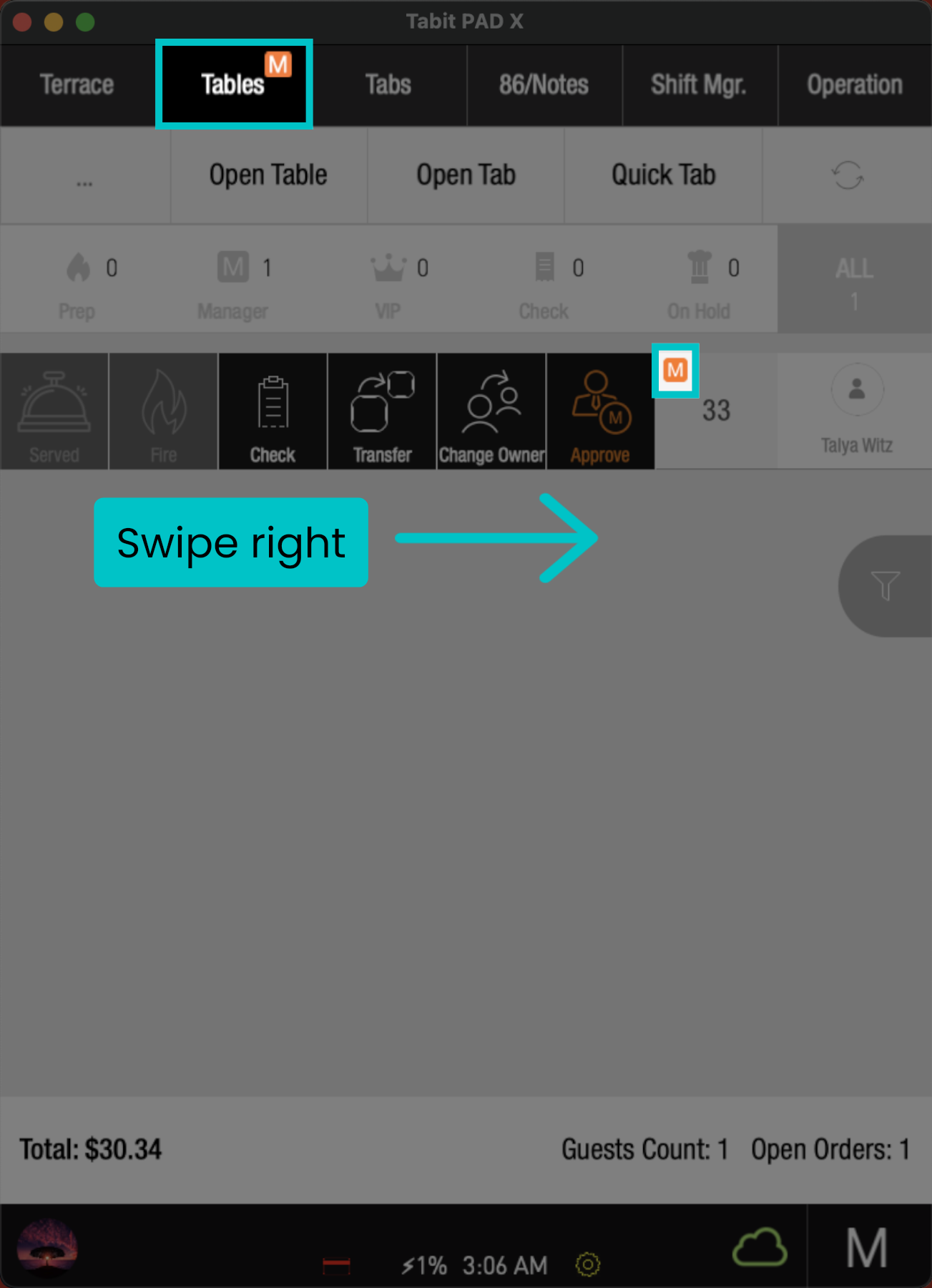
From the Tables tab, swipe right the order displaying an orange M
-
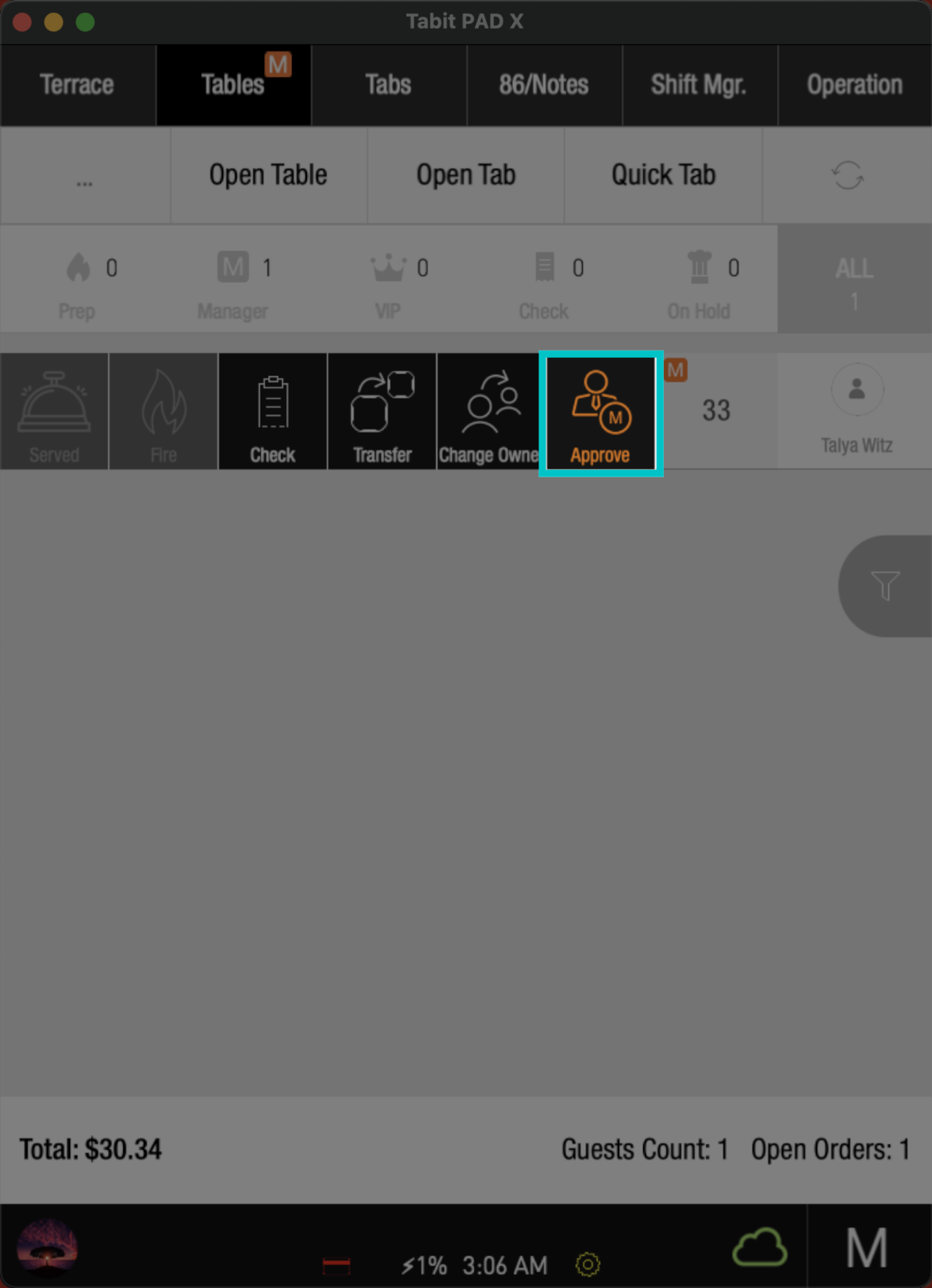
Select Approve
-
Now, check the box of the Item(s) you want to comp or void. To approve all items, tap Select All
-
Then, select OK to complete the process
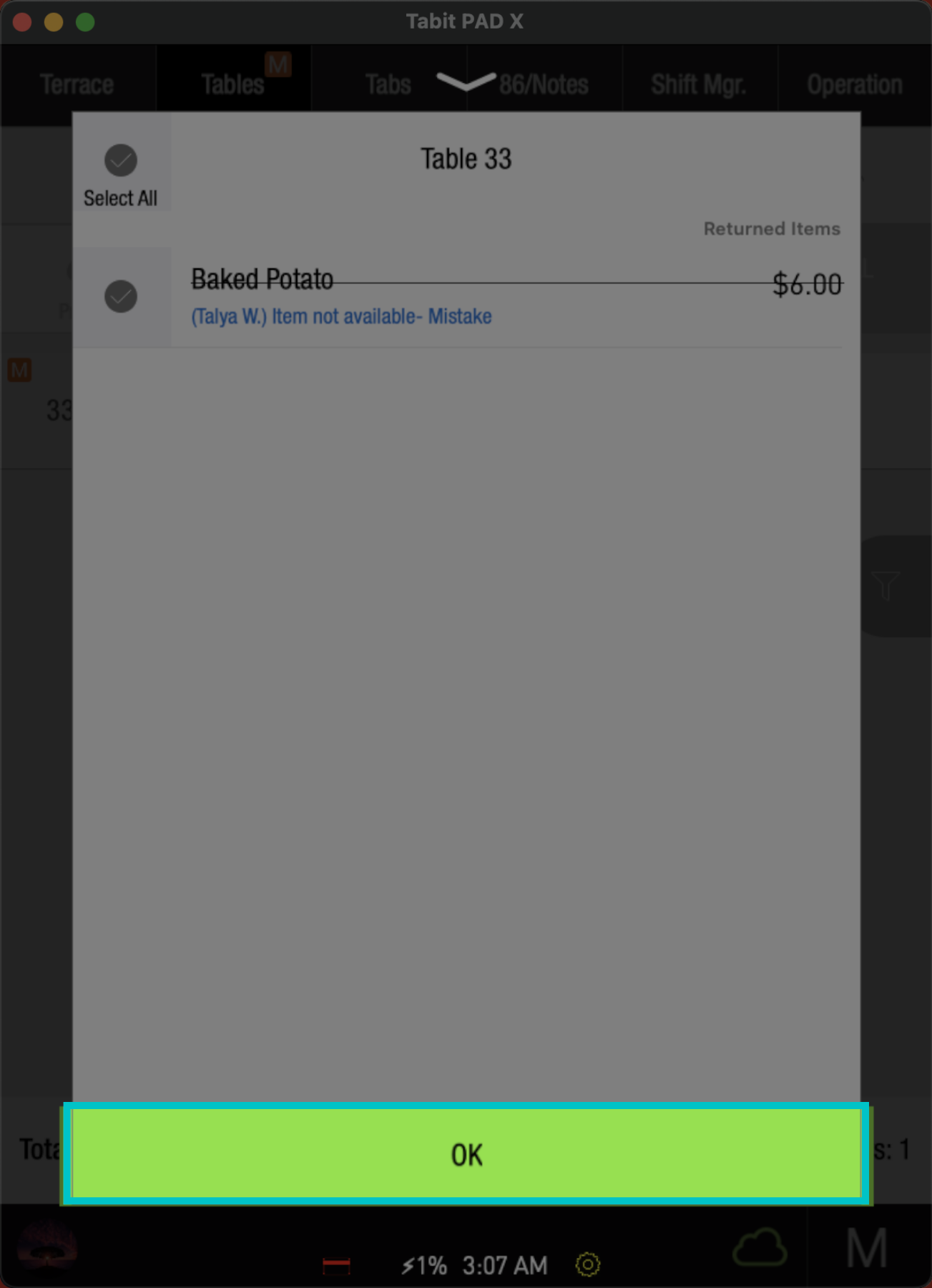
- The bill will now update accordingly
From the Check Screen
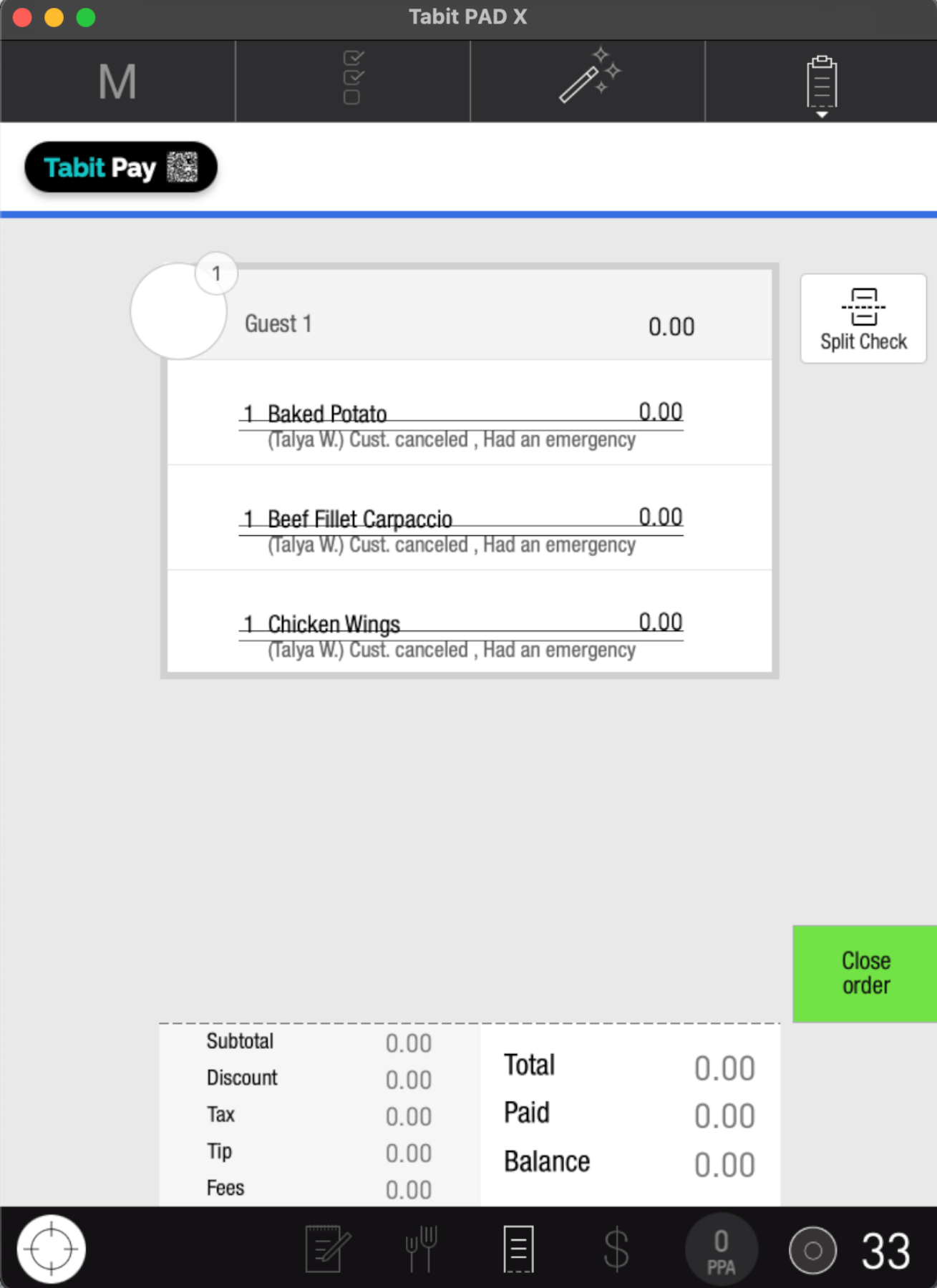
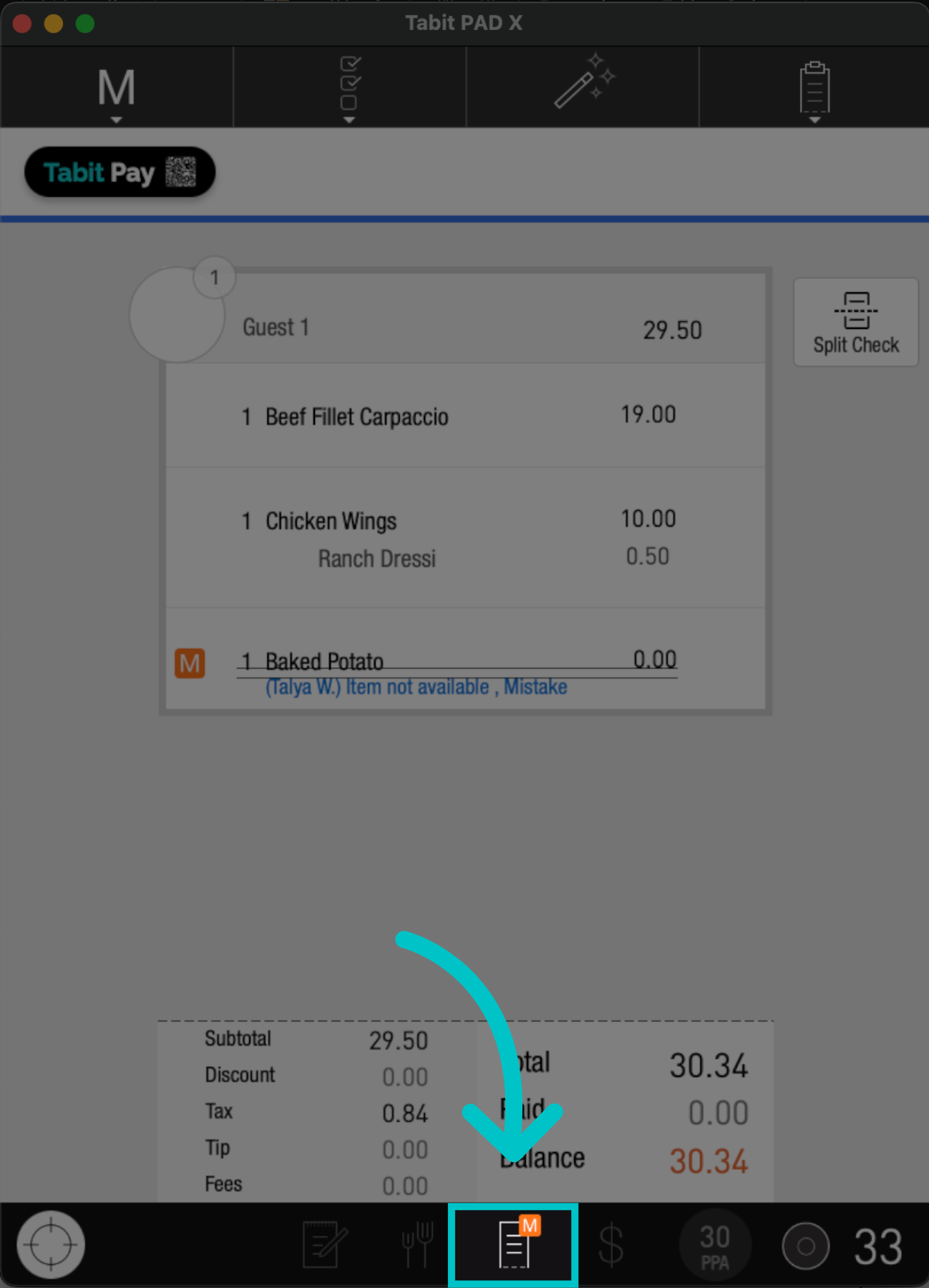
Any item that has been requested for a comp or void will indicate with an orange M
-
Go to the Check Screen, and continue accordingly
-
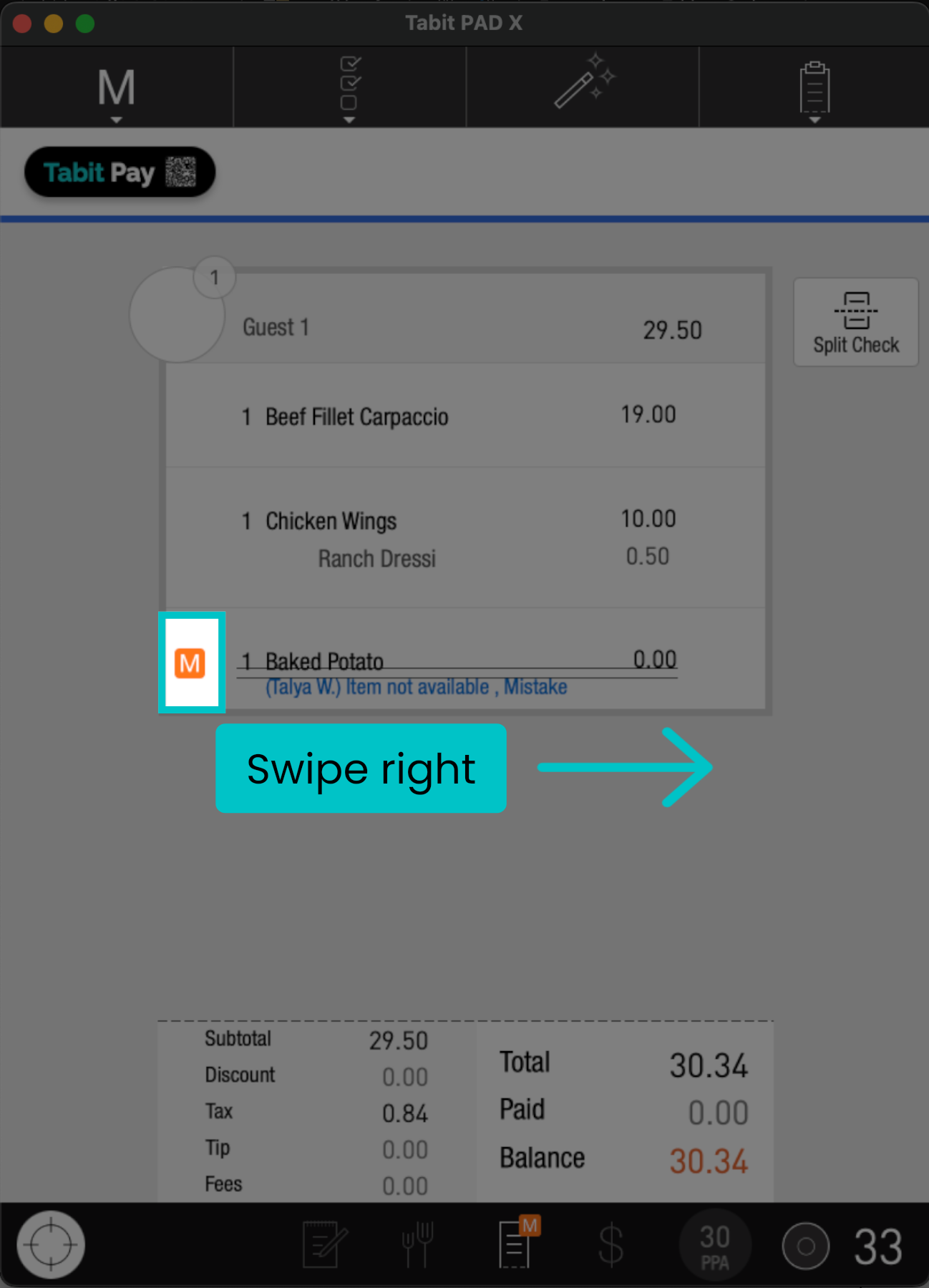
To approve a single item, swipe right the item displaying an orange M
-
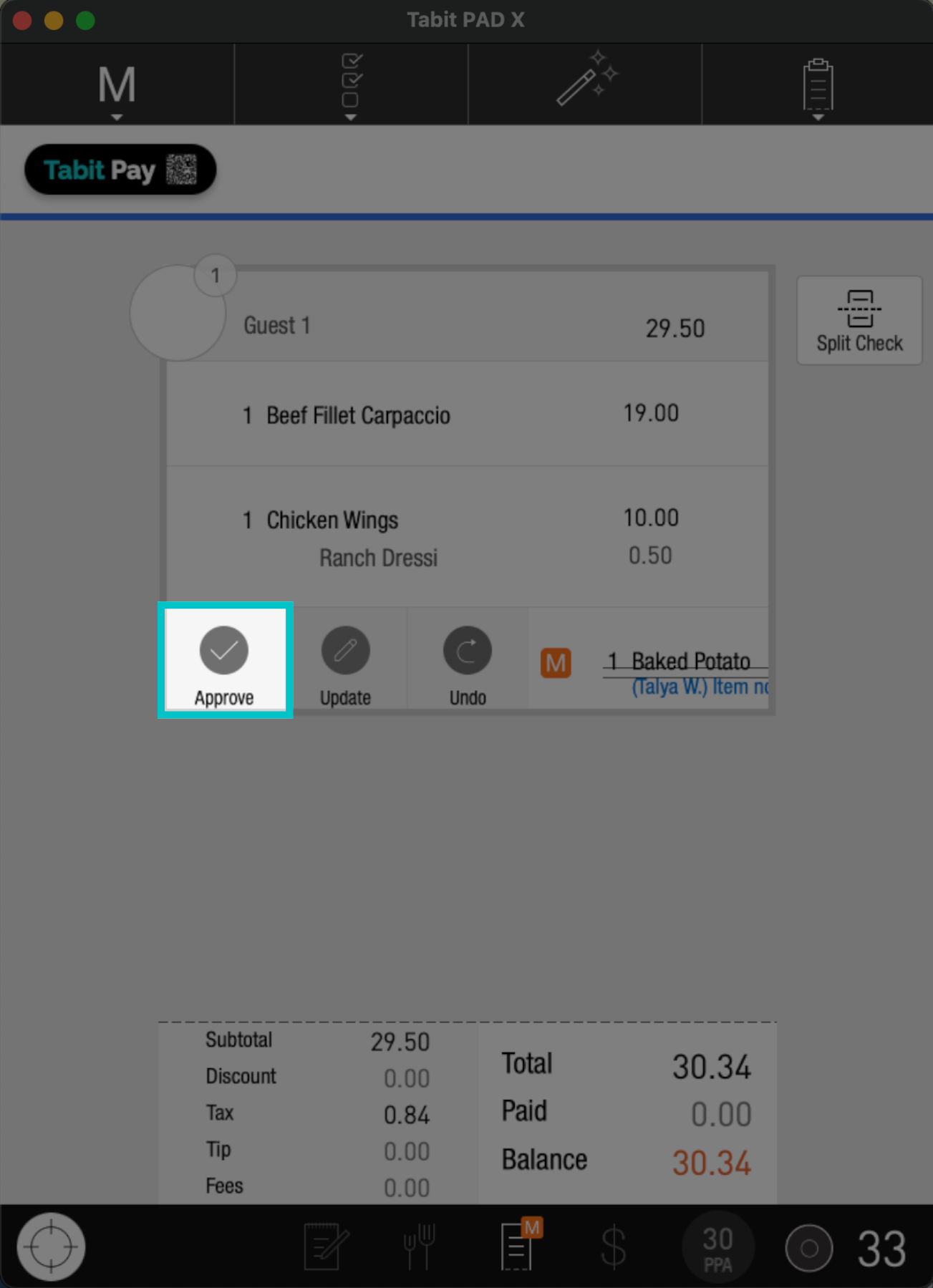
And tap Approve
-
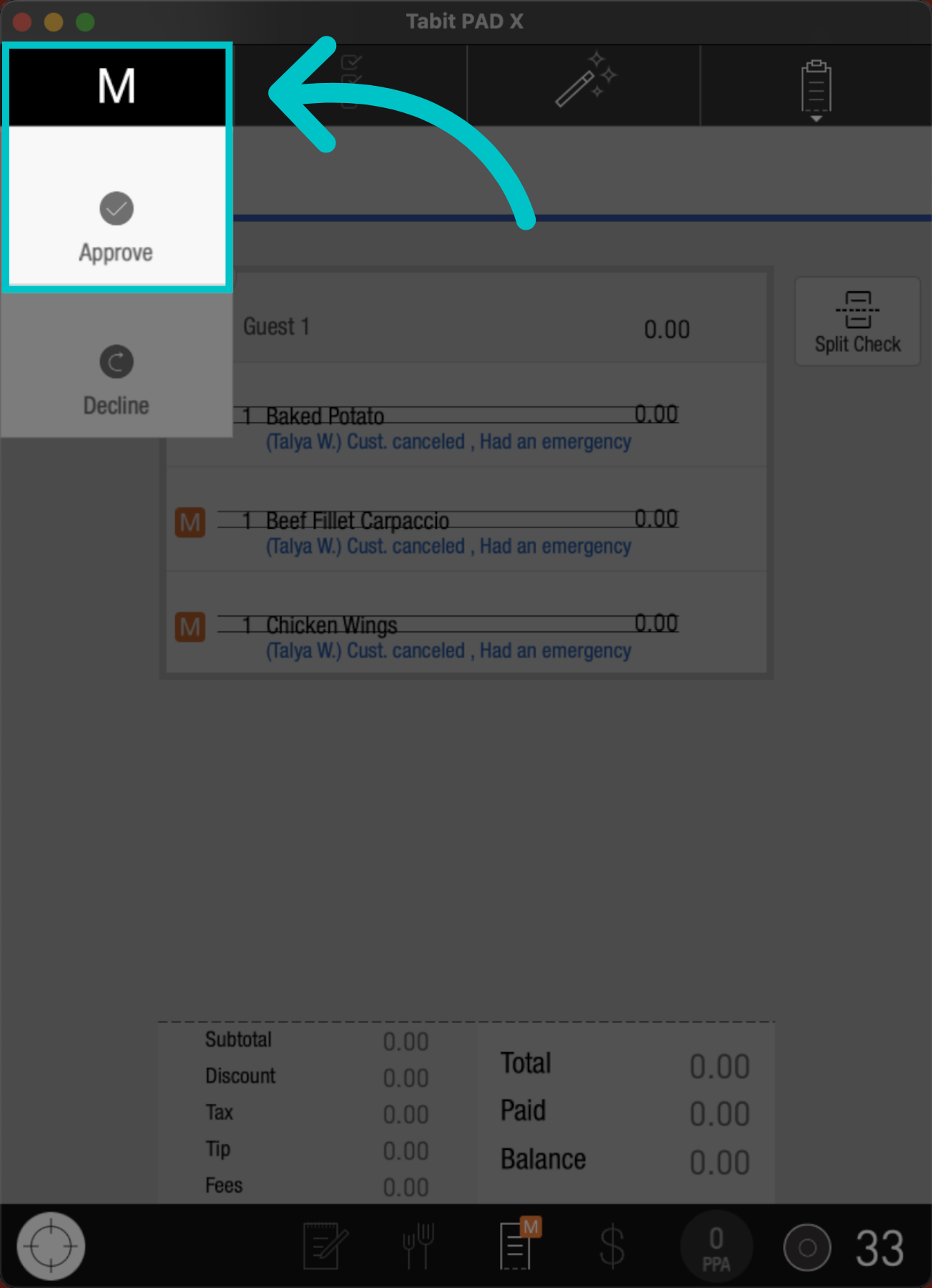
To approve multiple items, go to the M tab at the top and select Approve
-
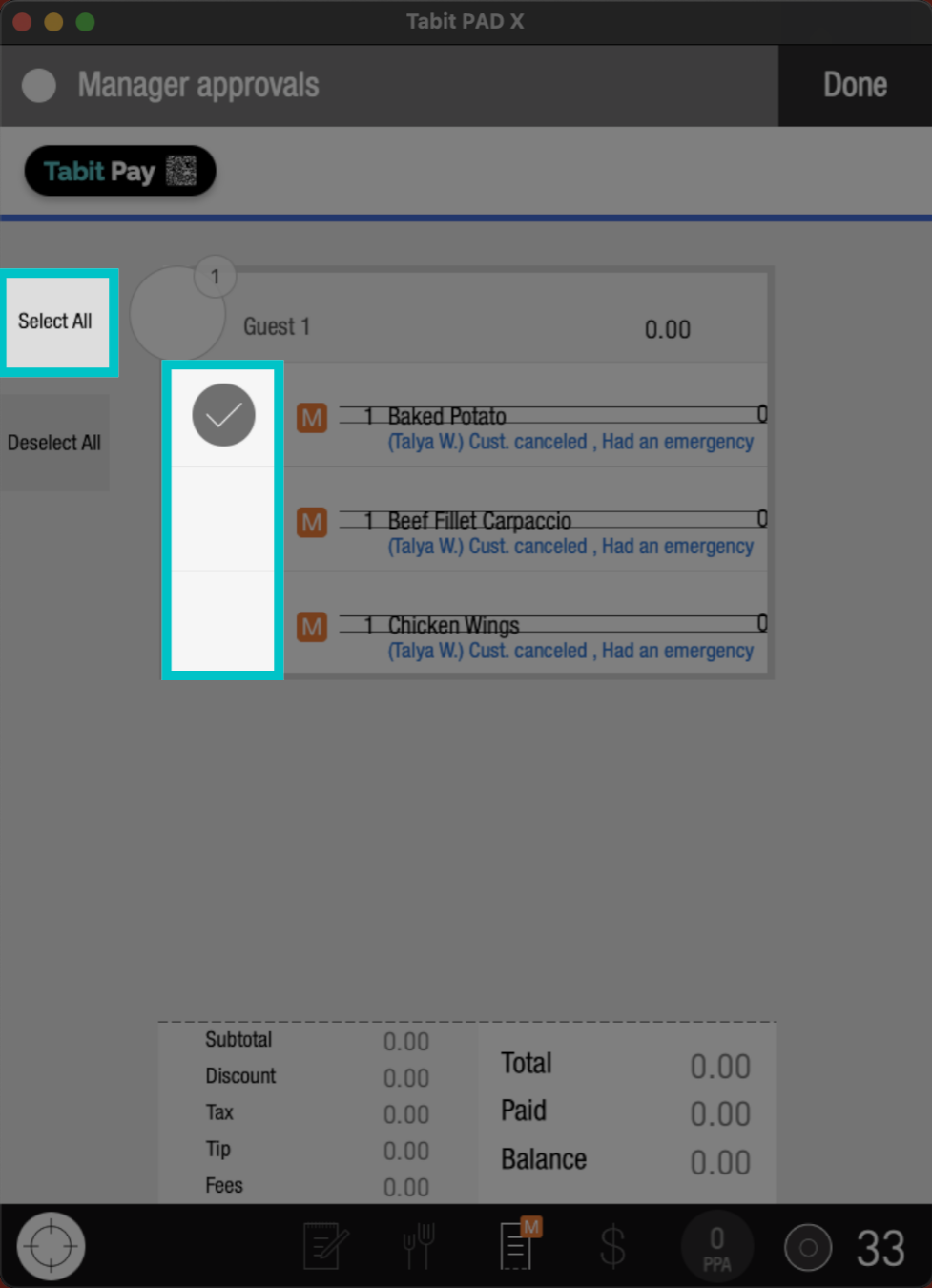
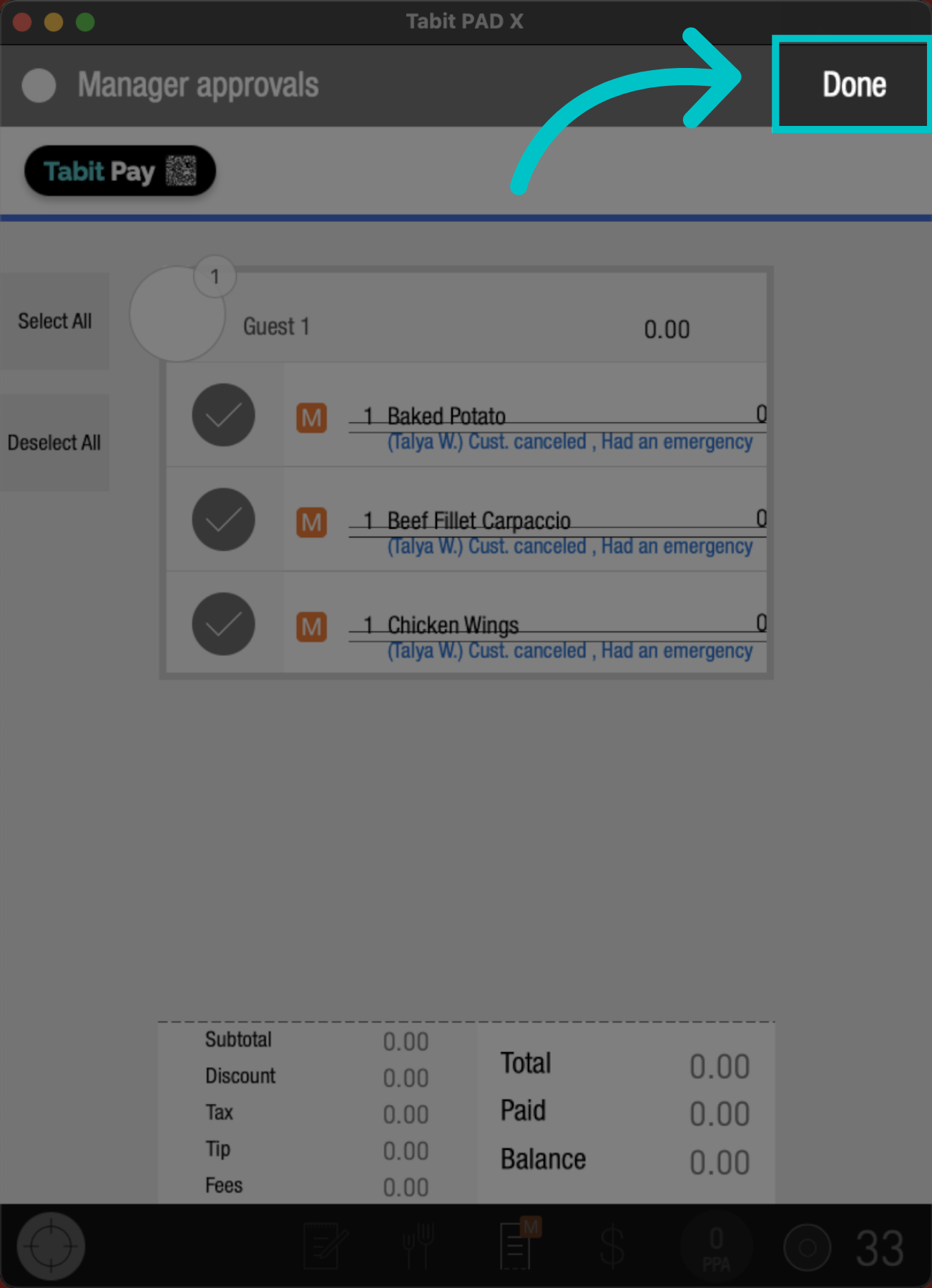
Now, check the box of the Item(s) you want to comp or void or tap Select All to approve all the items on the list
-
Select Done to complete the process
-
Now the bill will update accordingly