Orders are locked to prevent multiple employees from accessing the same order at the same time. Orders can remain permanently locked if the PAD runs out of battery or if the internet connection is lost while a user is in the table.
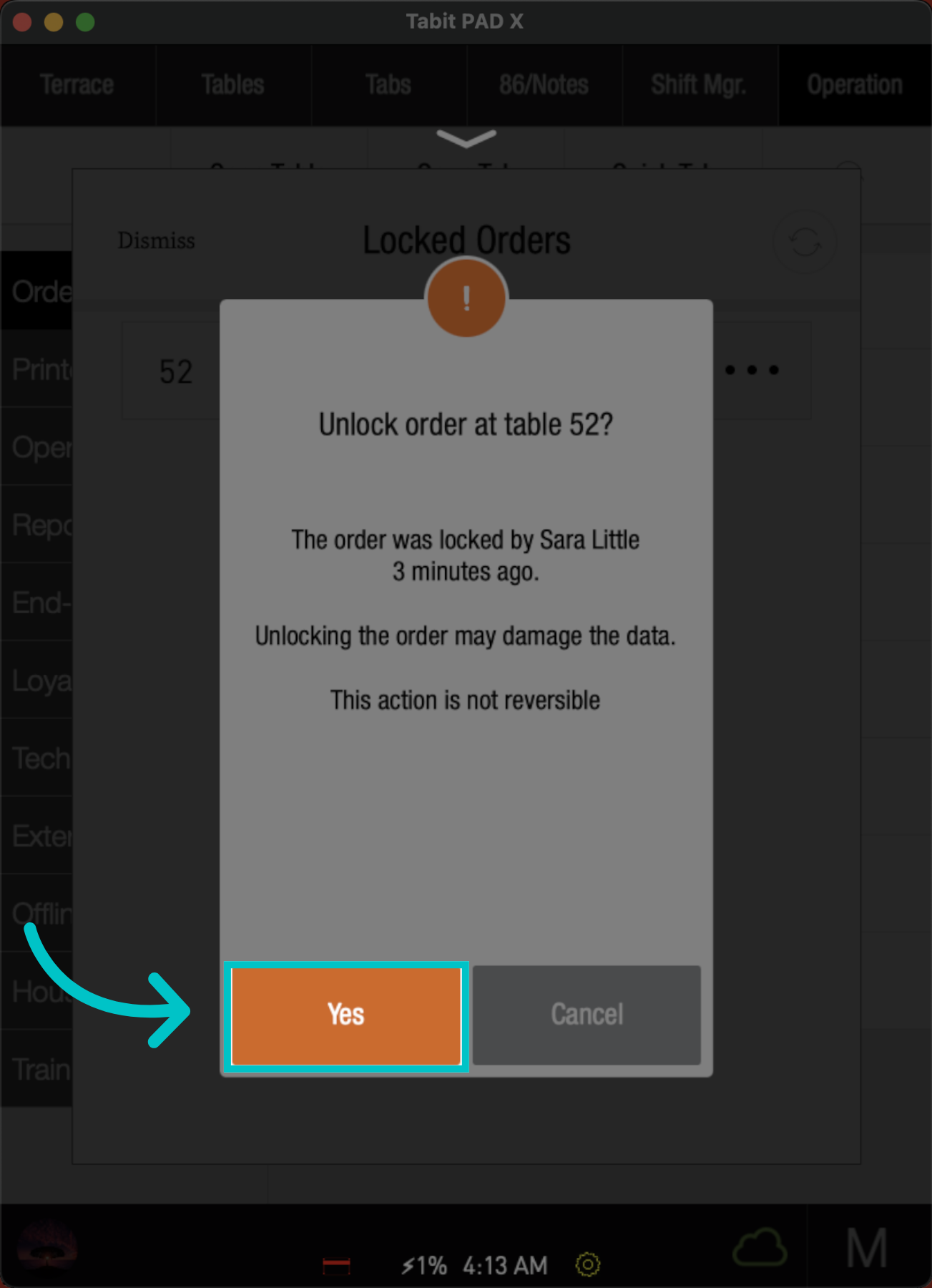
Confirm no one is in the order before unlocking it. Unlocking an order while payment is being processed may cause damage to the order
If an order is locked, it will display the following message:
Follow the steps below to unlock an order:
-
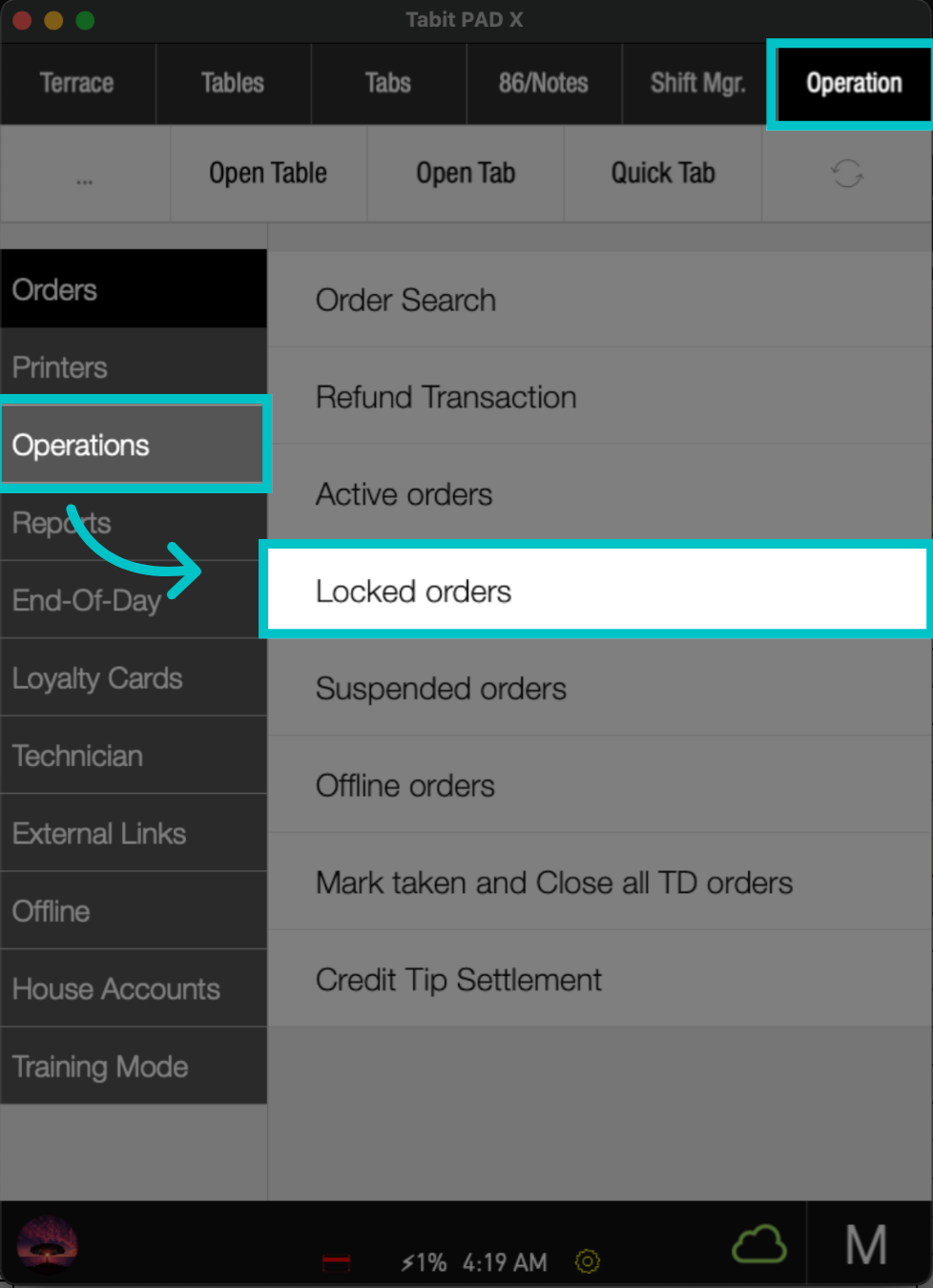
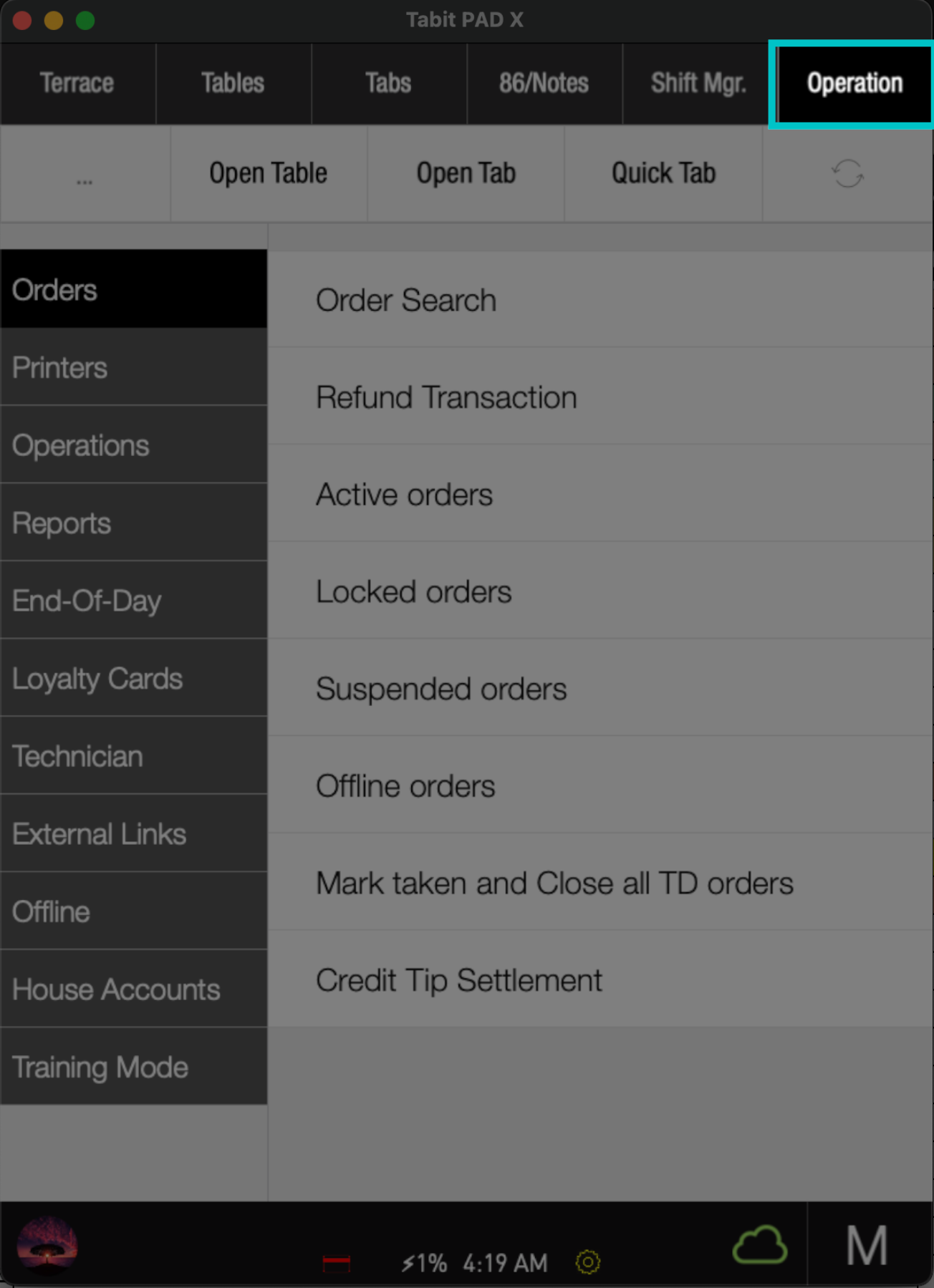
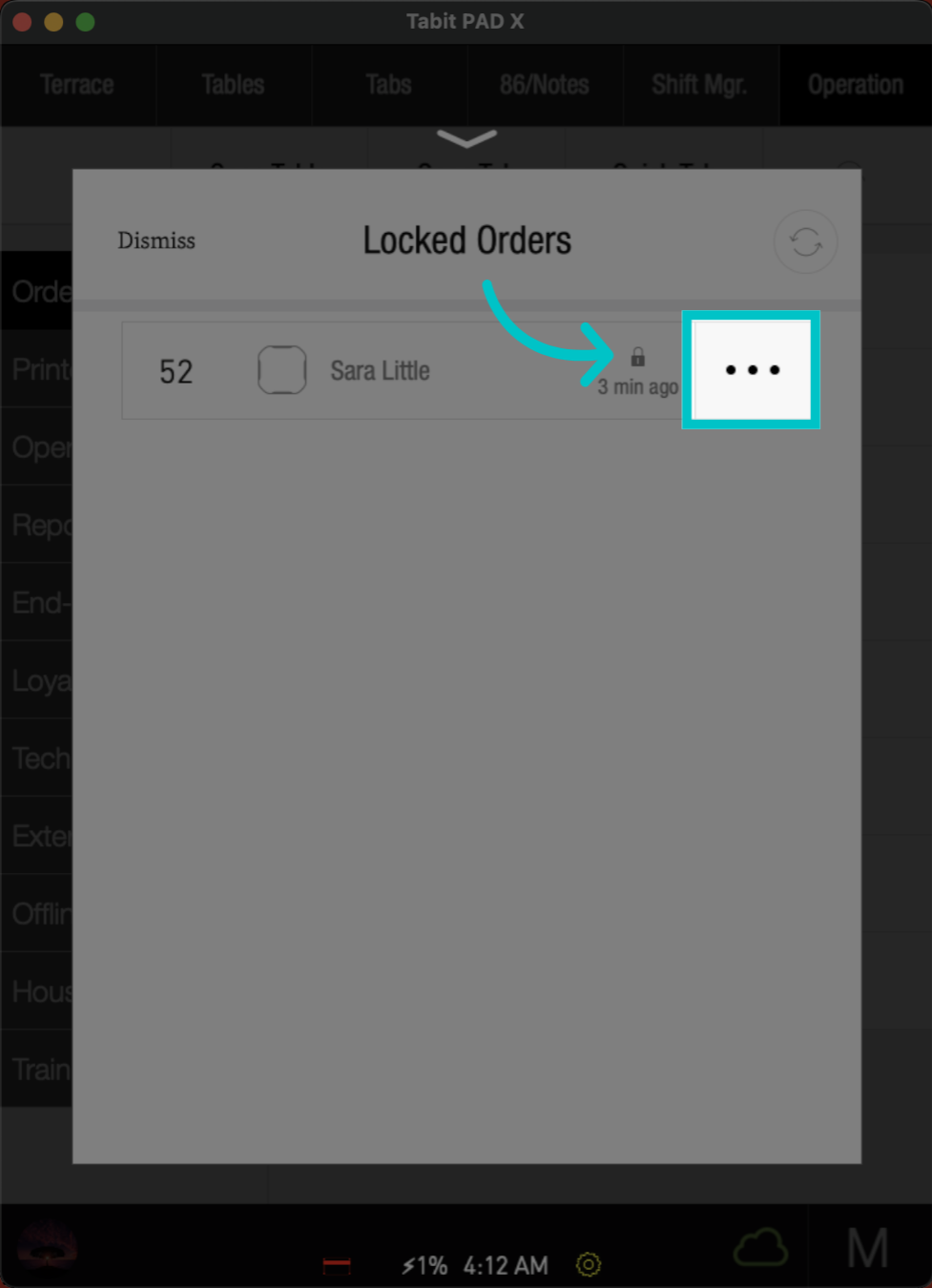
From a manager profile, go to Operation > Orders > Locked Orders
-
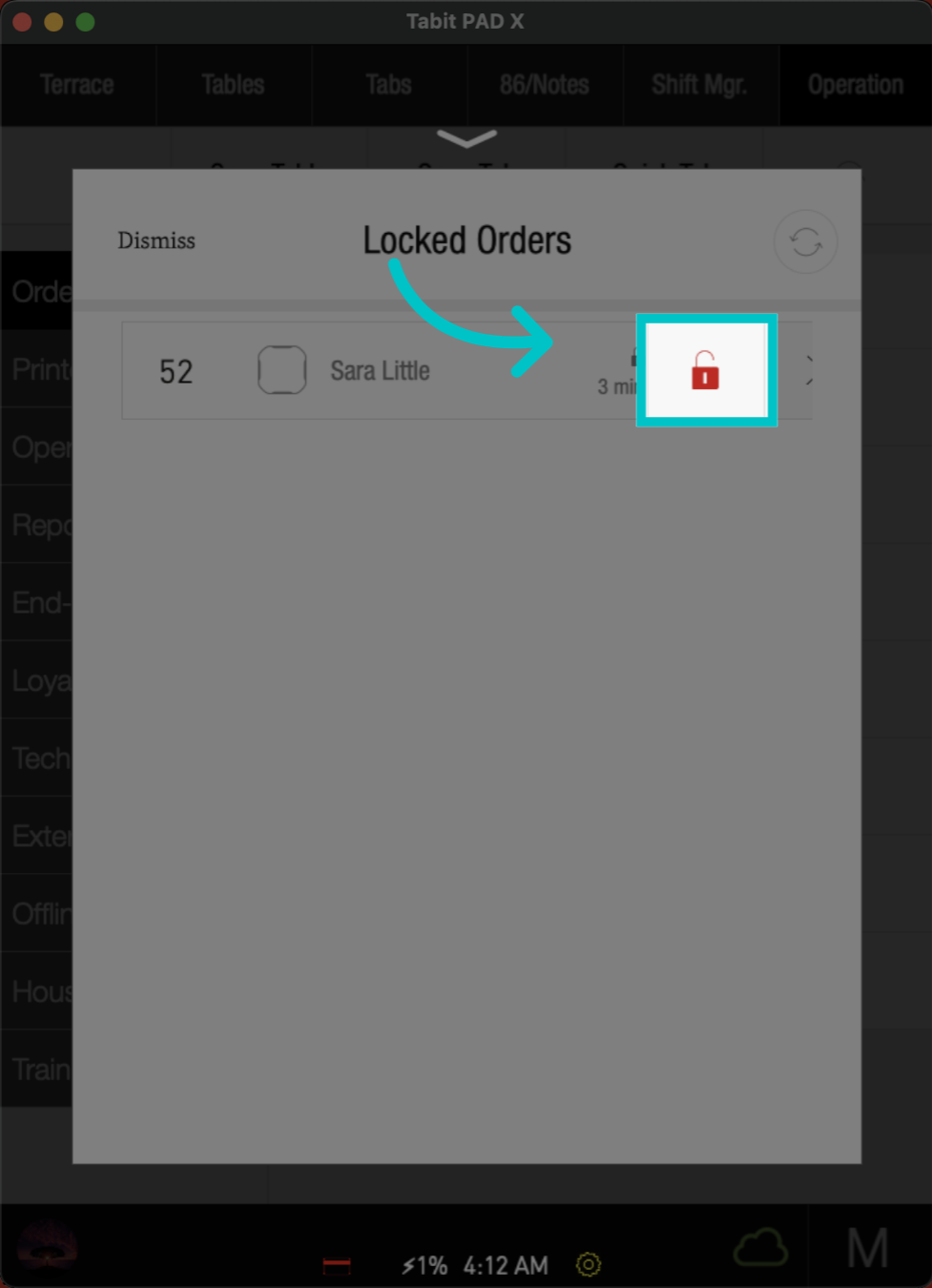
Locate the order, tap the three dots, and select the Lock icon to unlock it
-
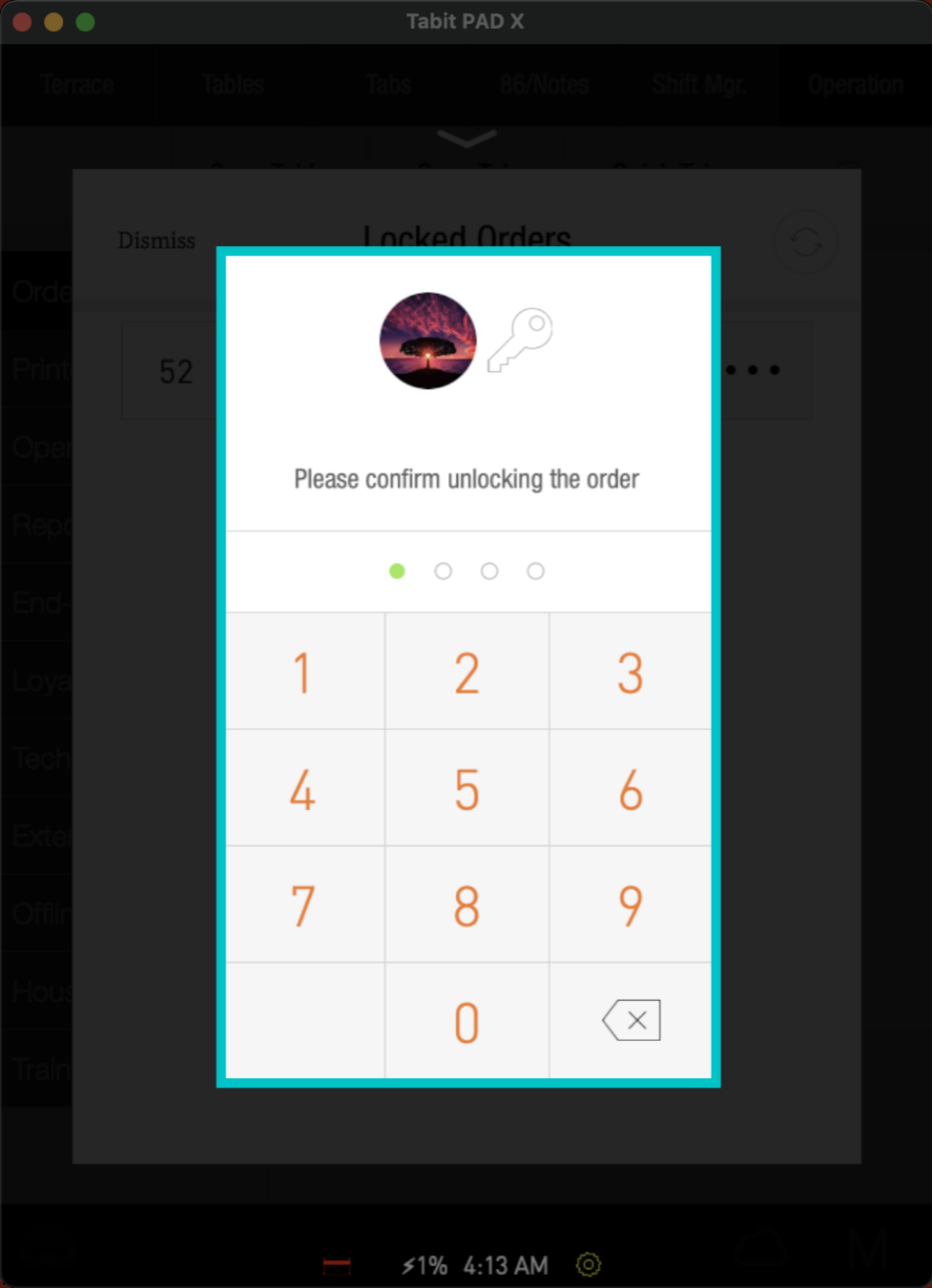
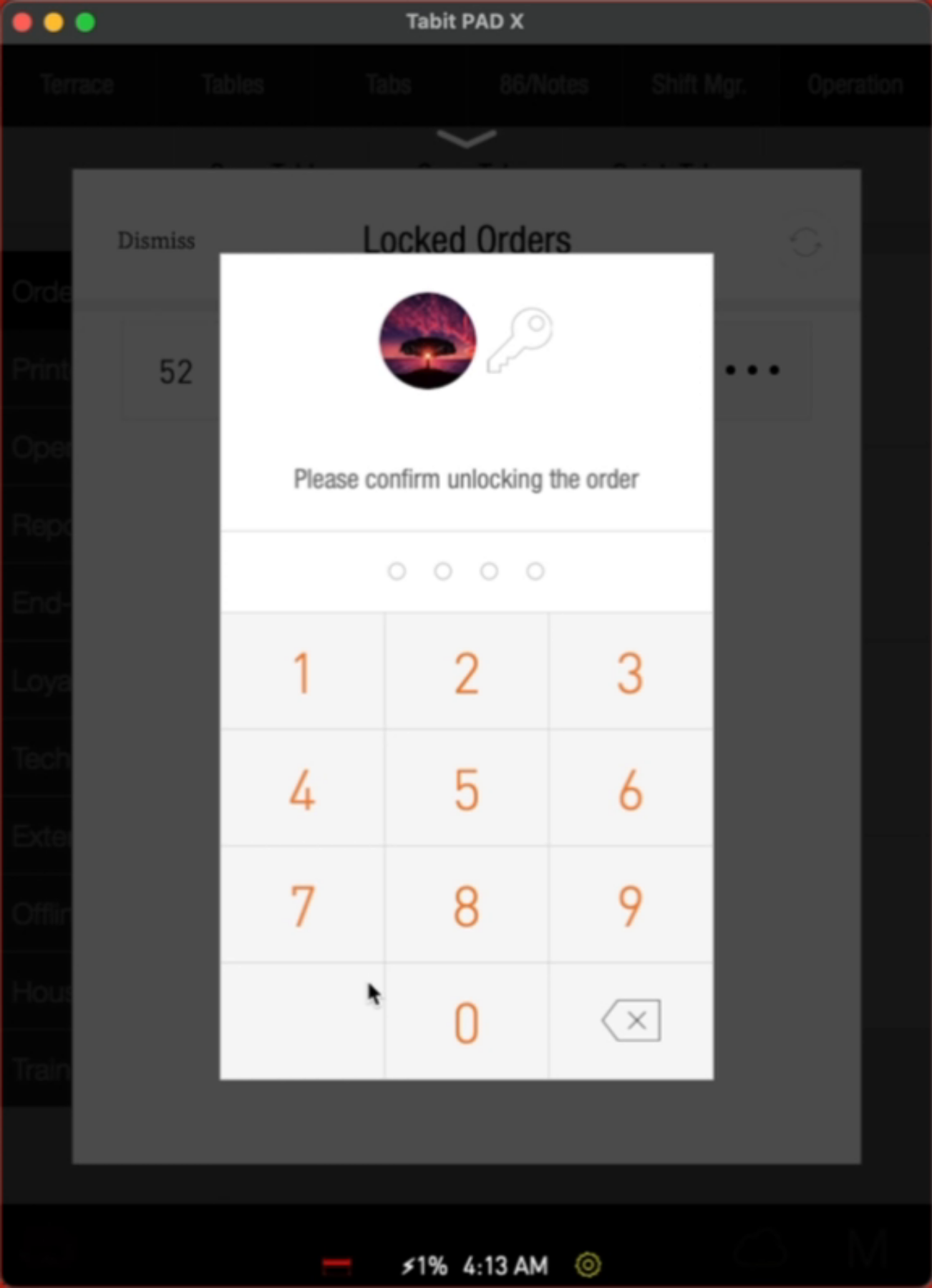
Now, approve to continue.
-
Type in your Code to complete the process
- The order is now unlocked, and you will be able to access the table
Learn here how to resume a suspended order