There are times during service when you may need to move an order to a different table. This can happen if guests change seats, tables are rearranged, or a mistake was made when entering the order.
Table transfers can be set to require manager approval. To enable this feature, please reach out to your Tabit Representative
The transfer only to the order's items and does not include any other order setting
Tables can be transferred from multiple places on the PAD:
Follow the steps below to transfer a table:
Map screen
-
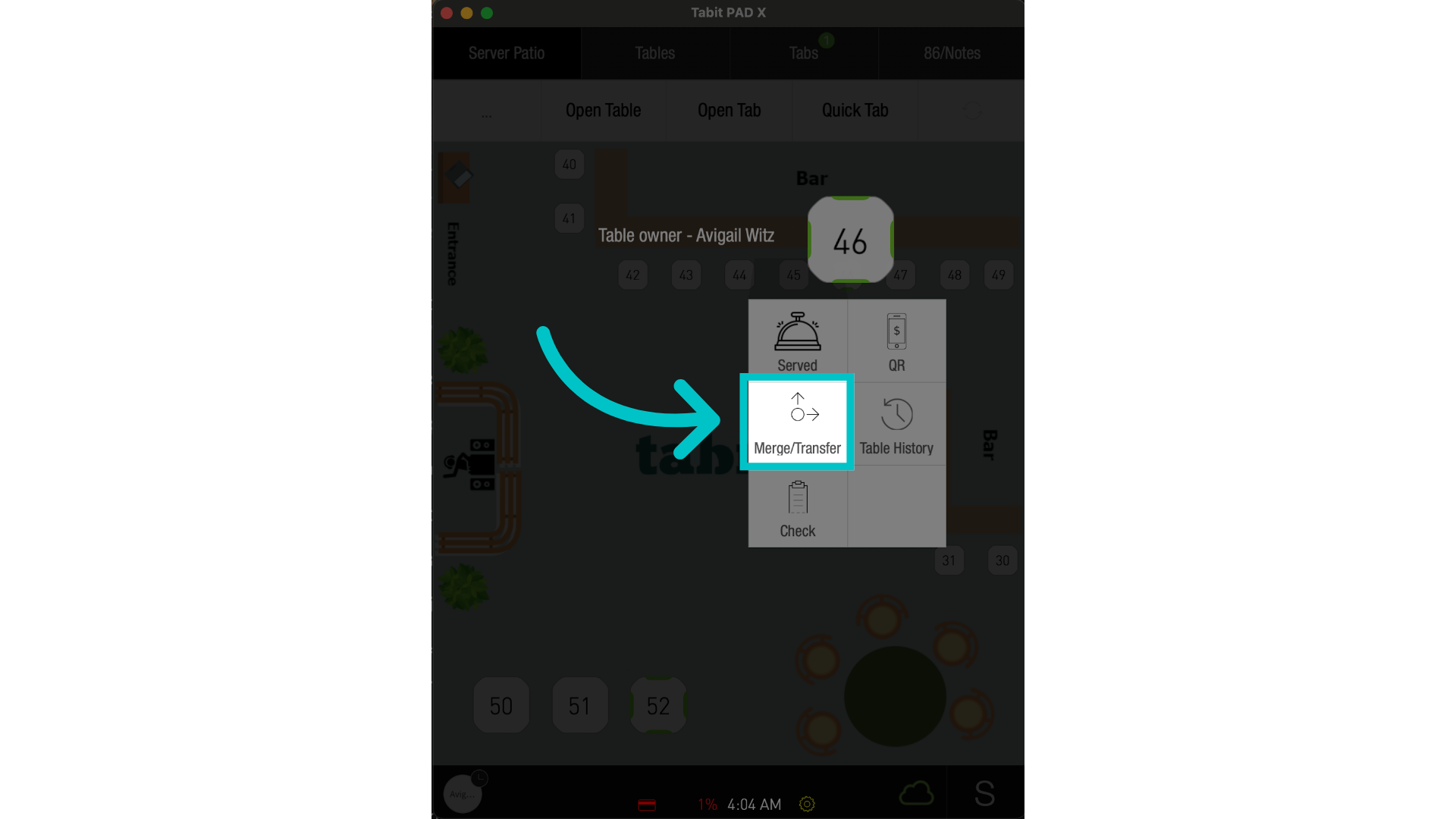
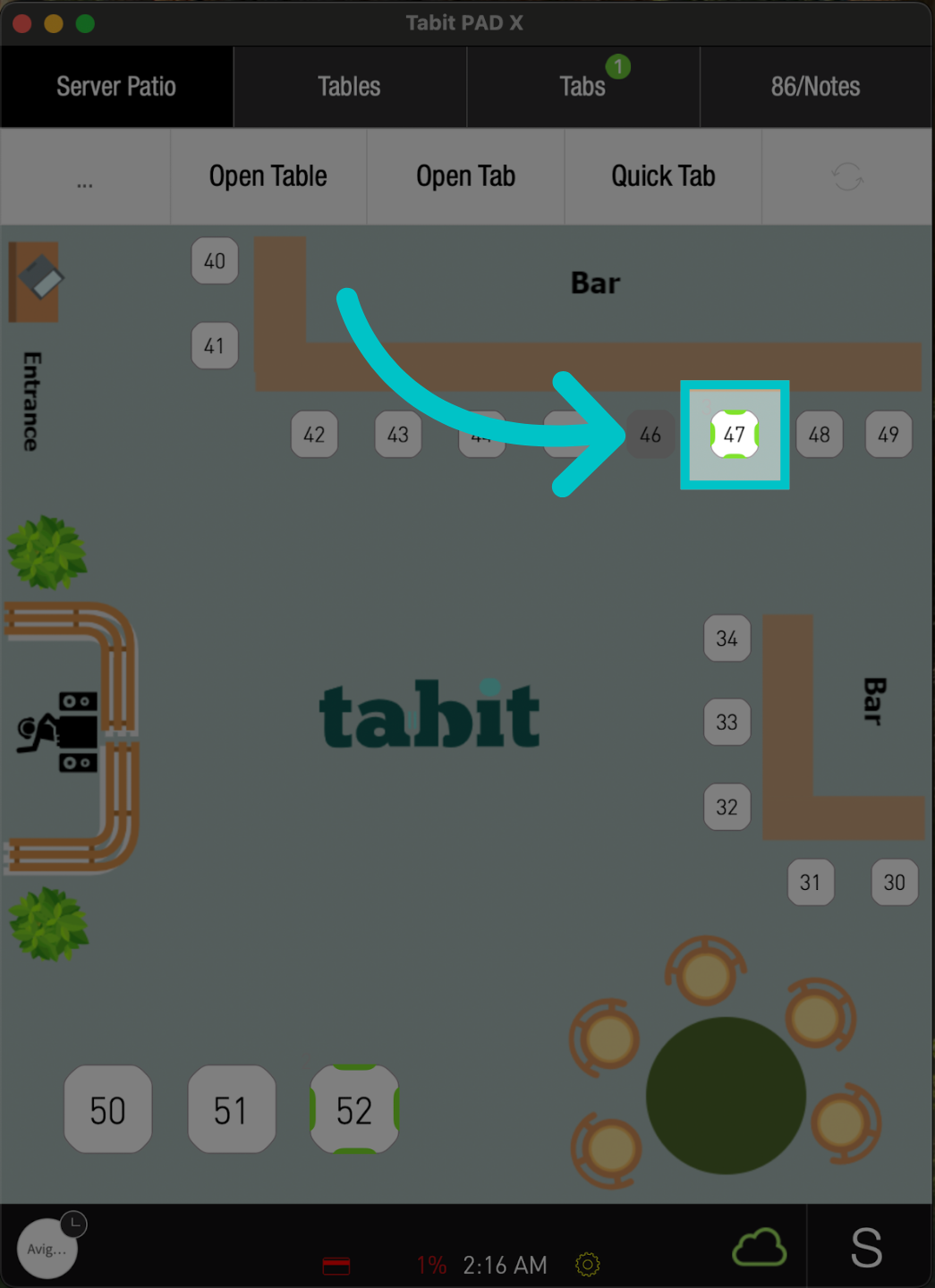
On the PAD, long-press the relevant table and select Merge/Transfer
-
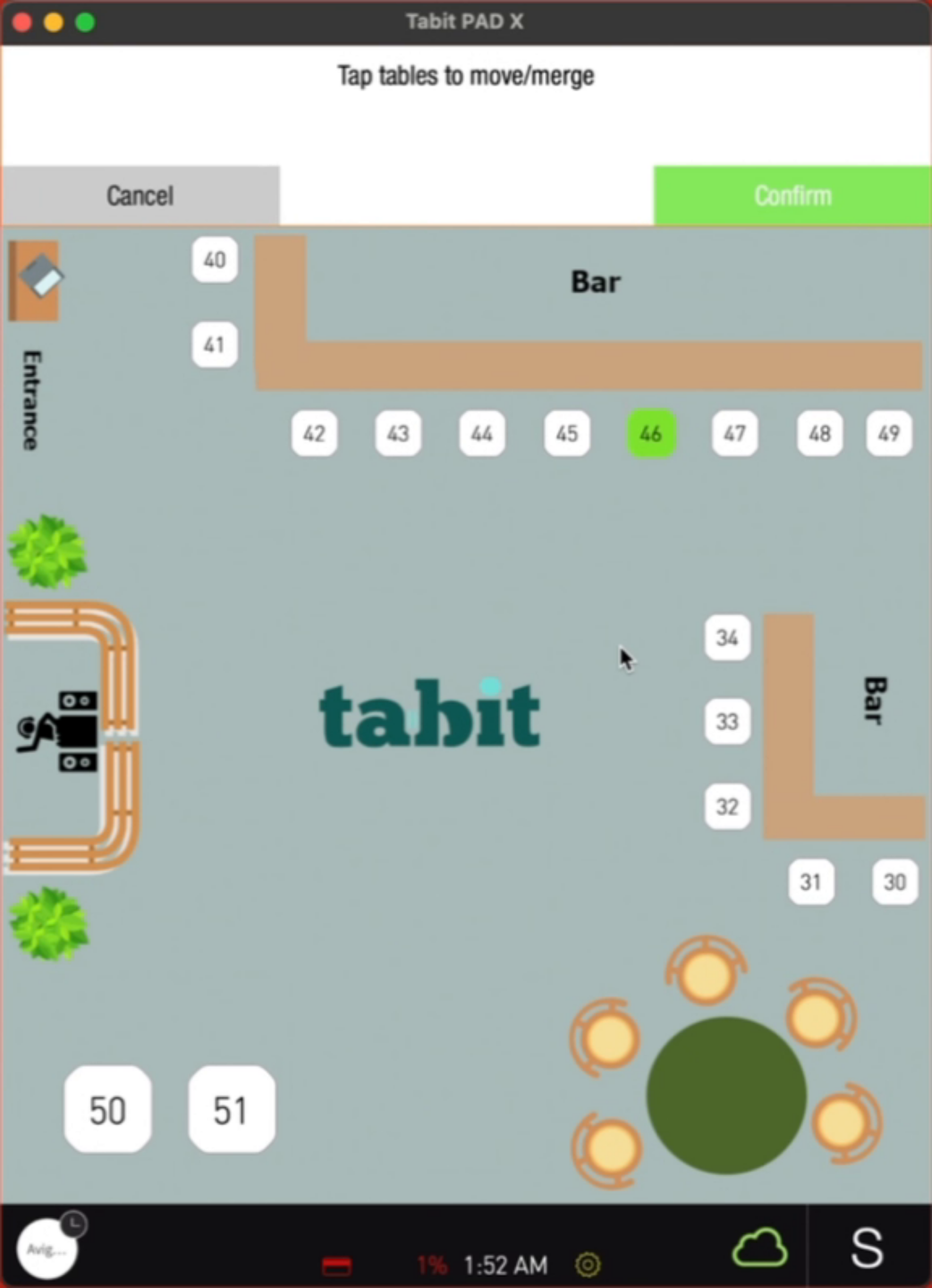
Mark the table you want to move the order to, and unmark the table you no longer wish to use
-
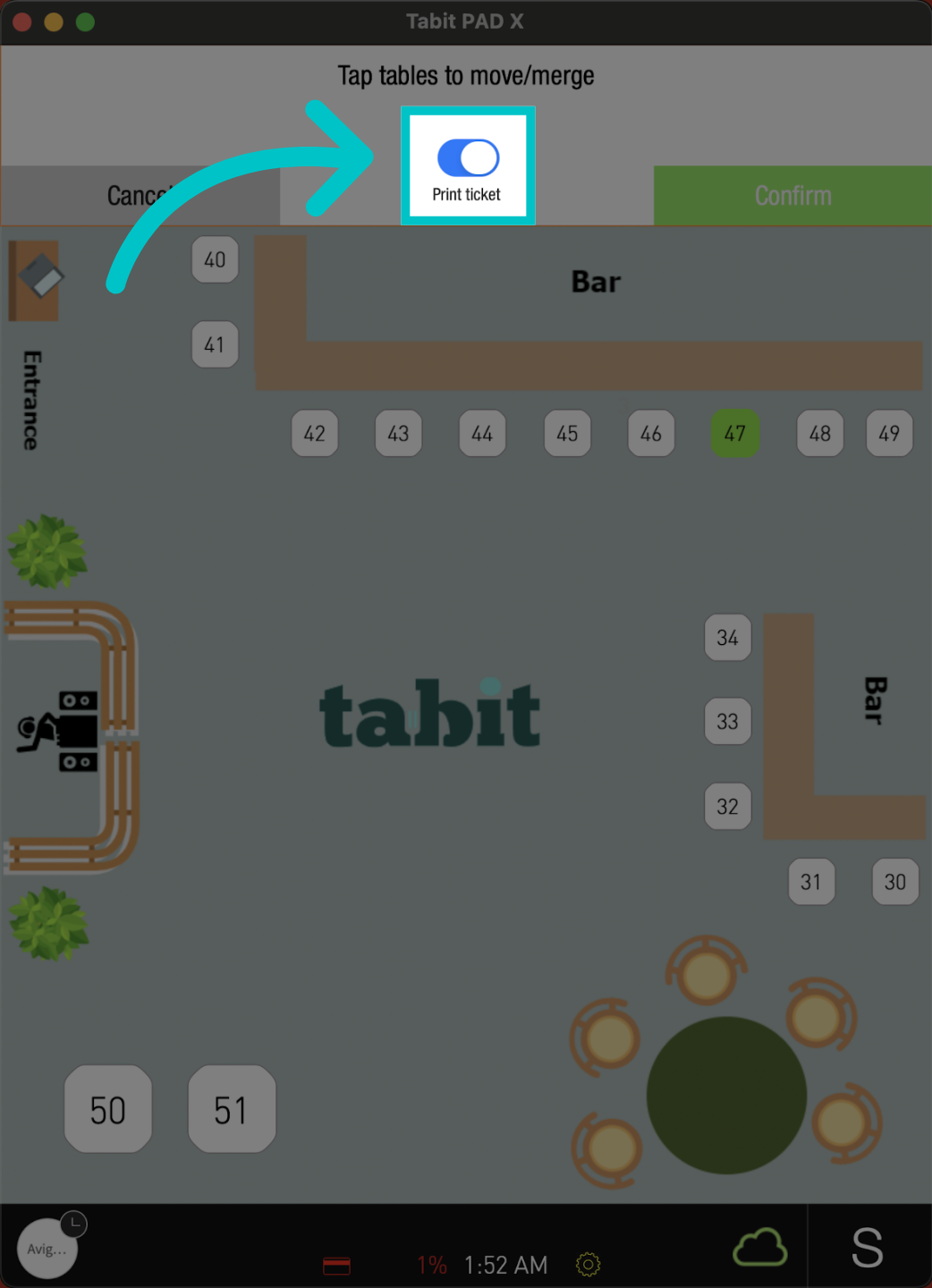
Notice a toggle will be automatically set to print a notification to the kitchen. Turn it off to disable printing
-
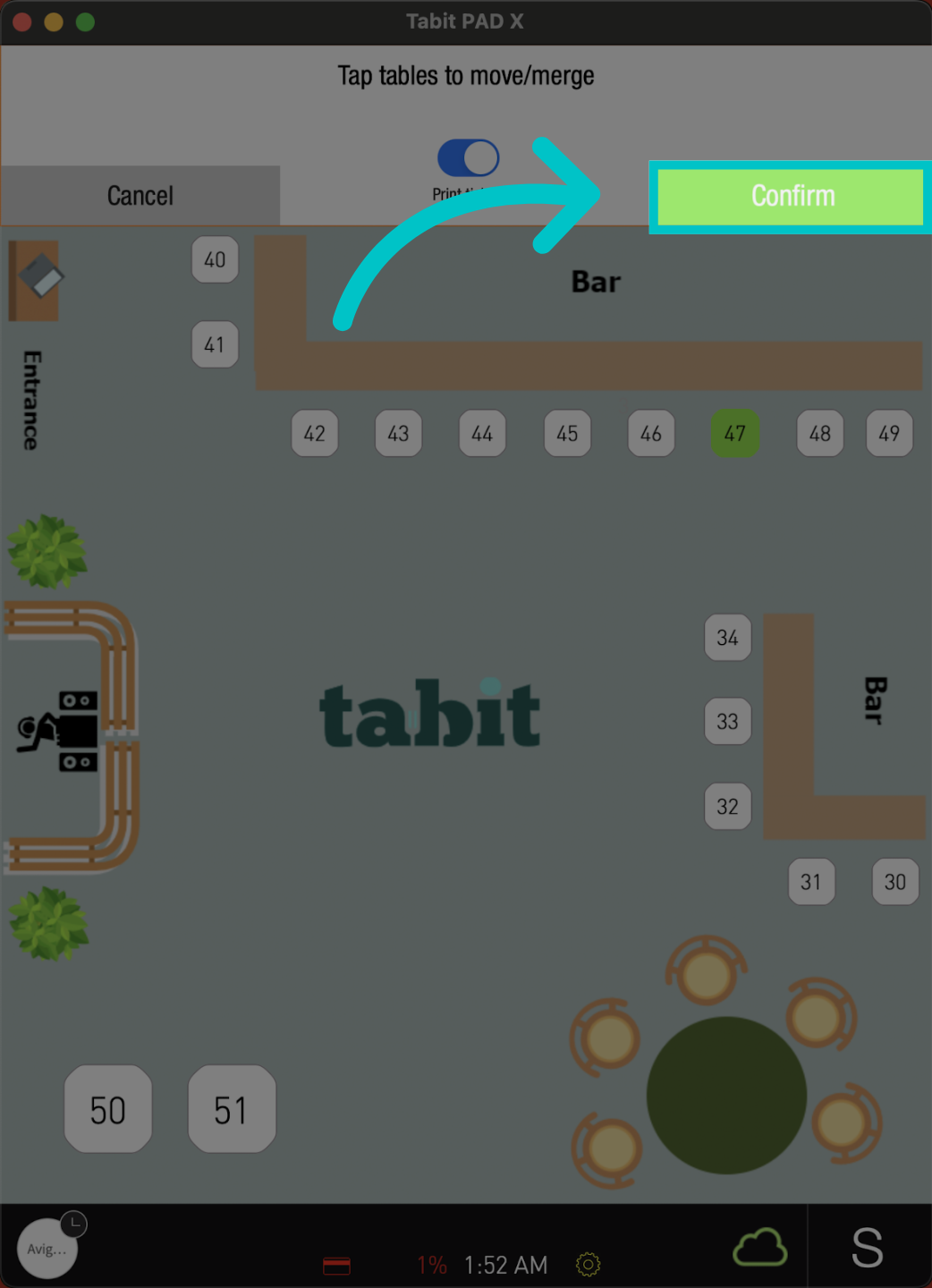
Tap Confirm to complete the transfer
-
The transfer is now completed, and the order has moved to the desired table
Learn here how to transfer an item to another table, tab, or guest
Table screen
-
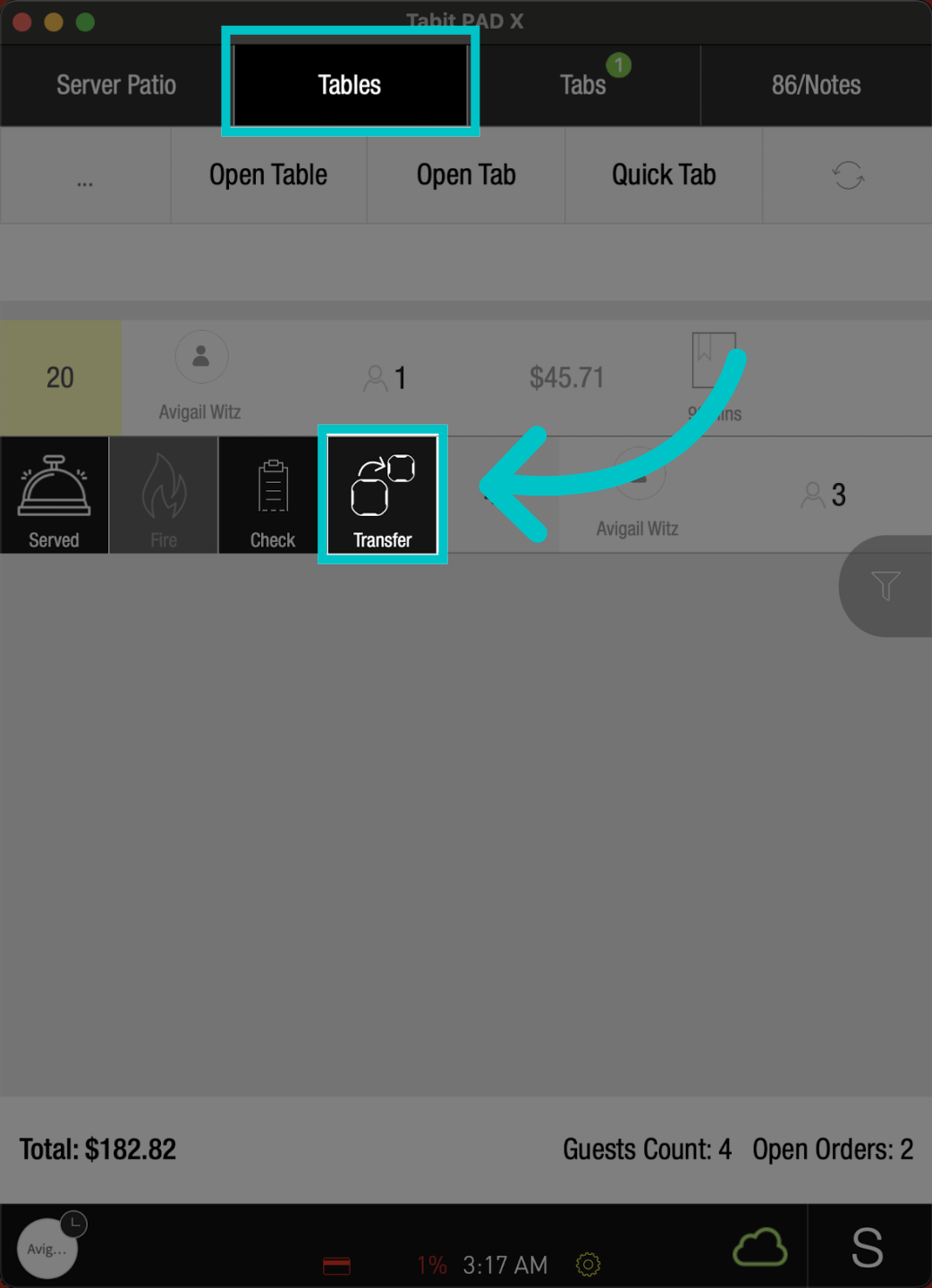
From the Tables screen on the PAD, swipe the relevant table to the right, and select Transfer
-
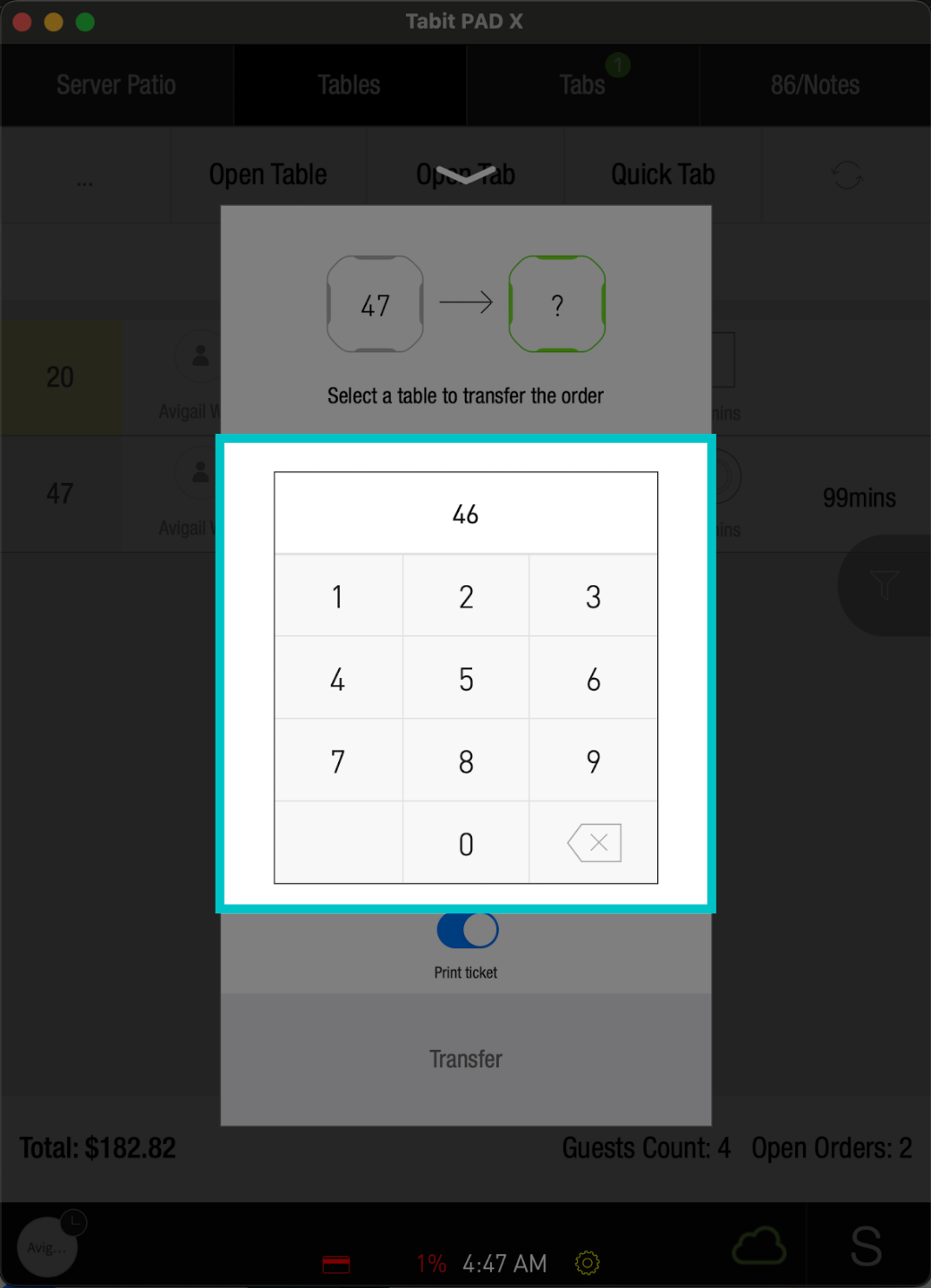
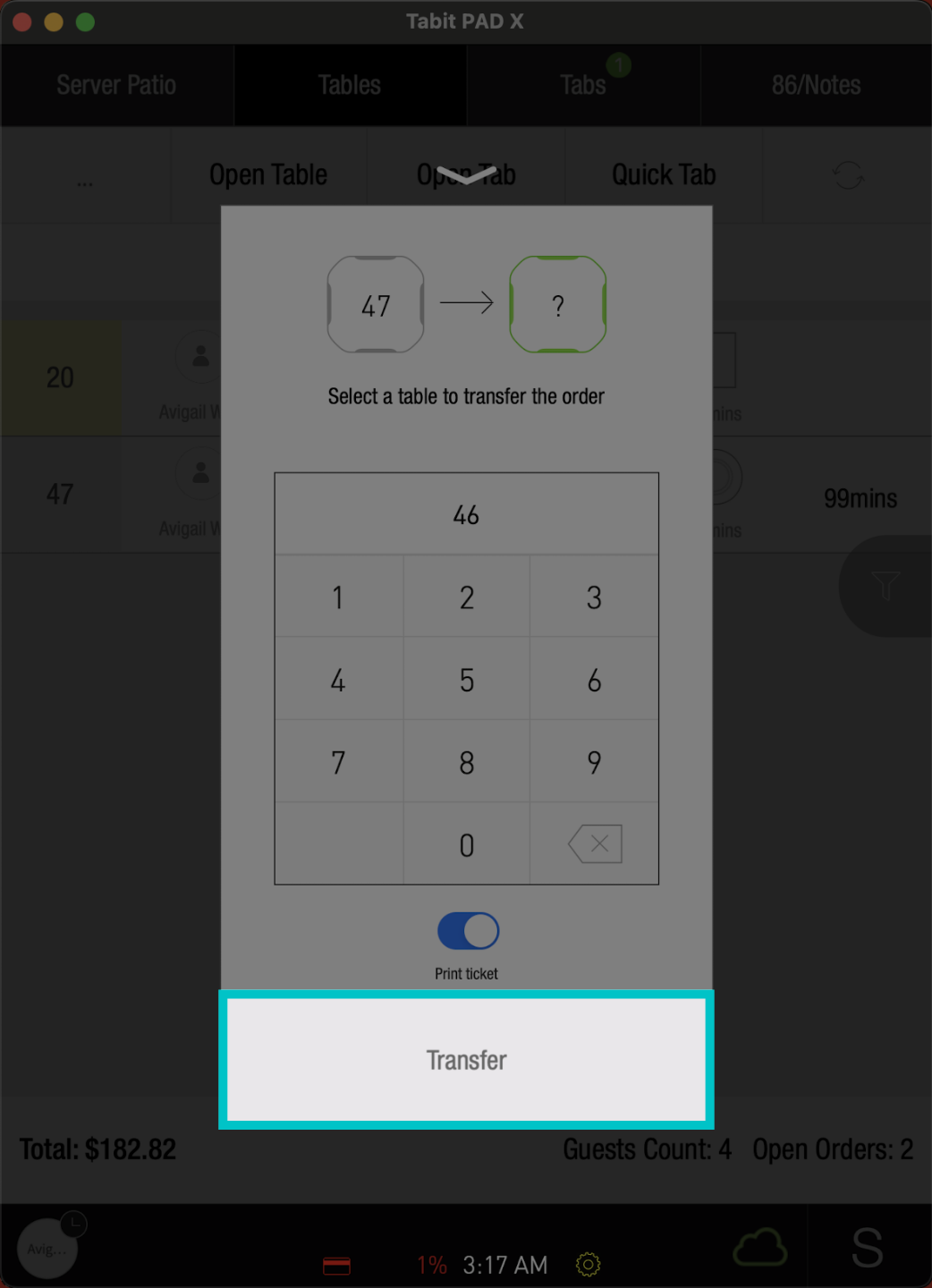
Type in the table number you want to transfer the table to
-
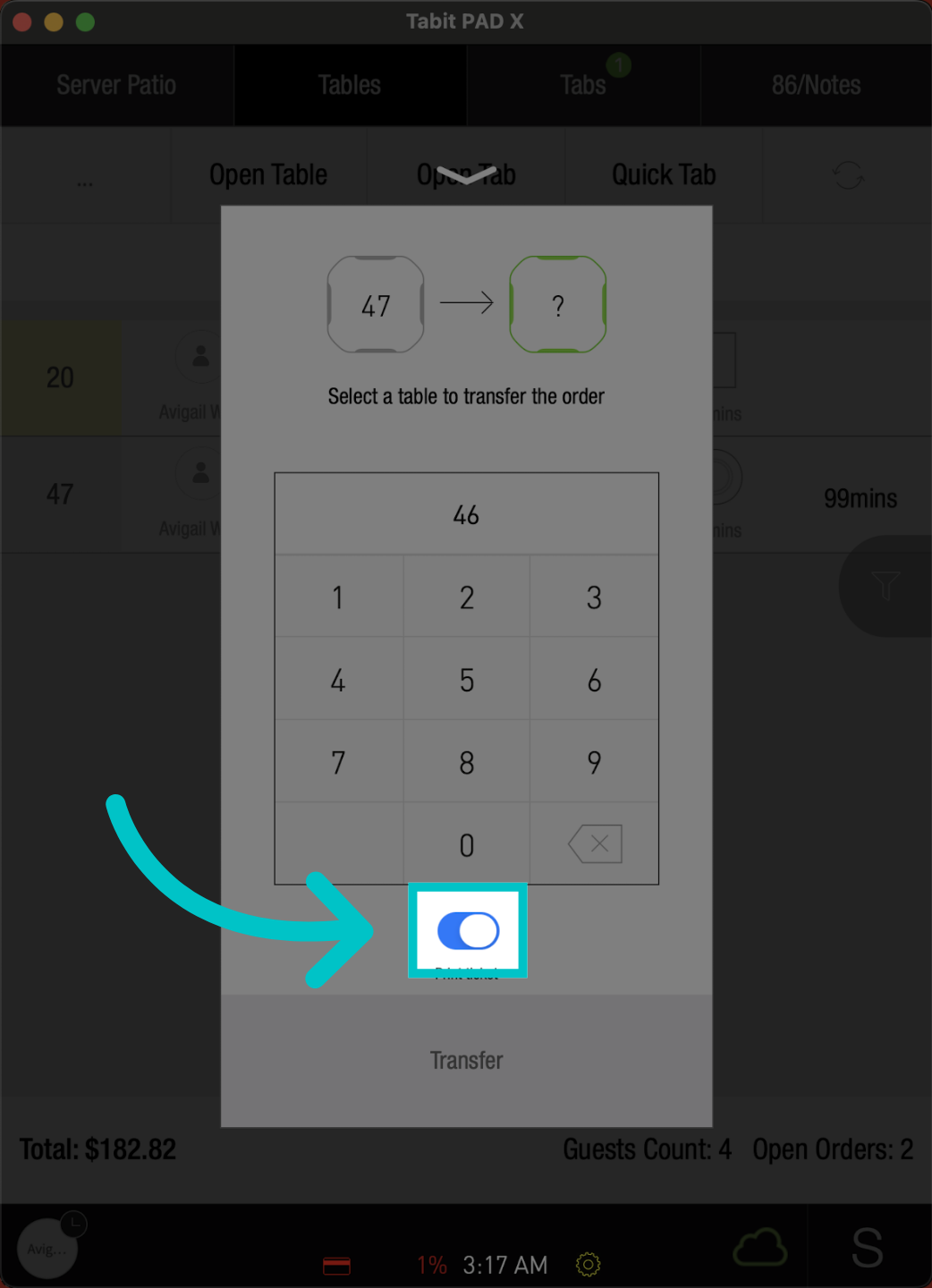
Notice a toggle is automatically set to print a notification to the kitchen. Turn it off to disable printing
-
Tap Transfer to complete the transfer
-
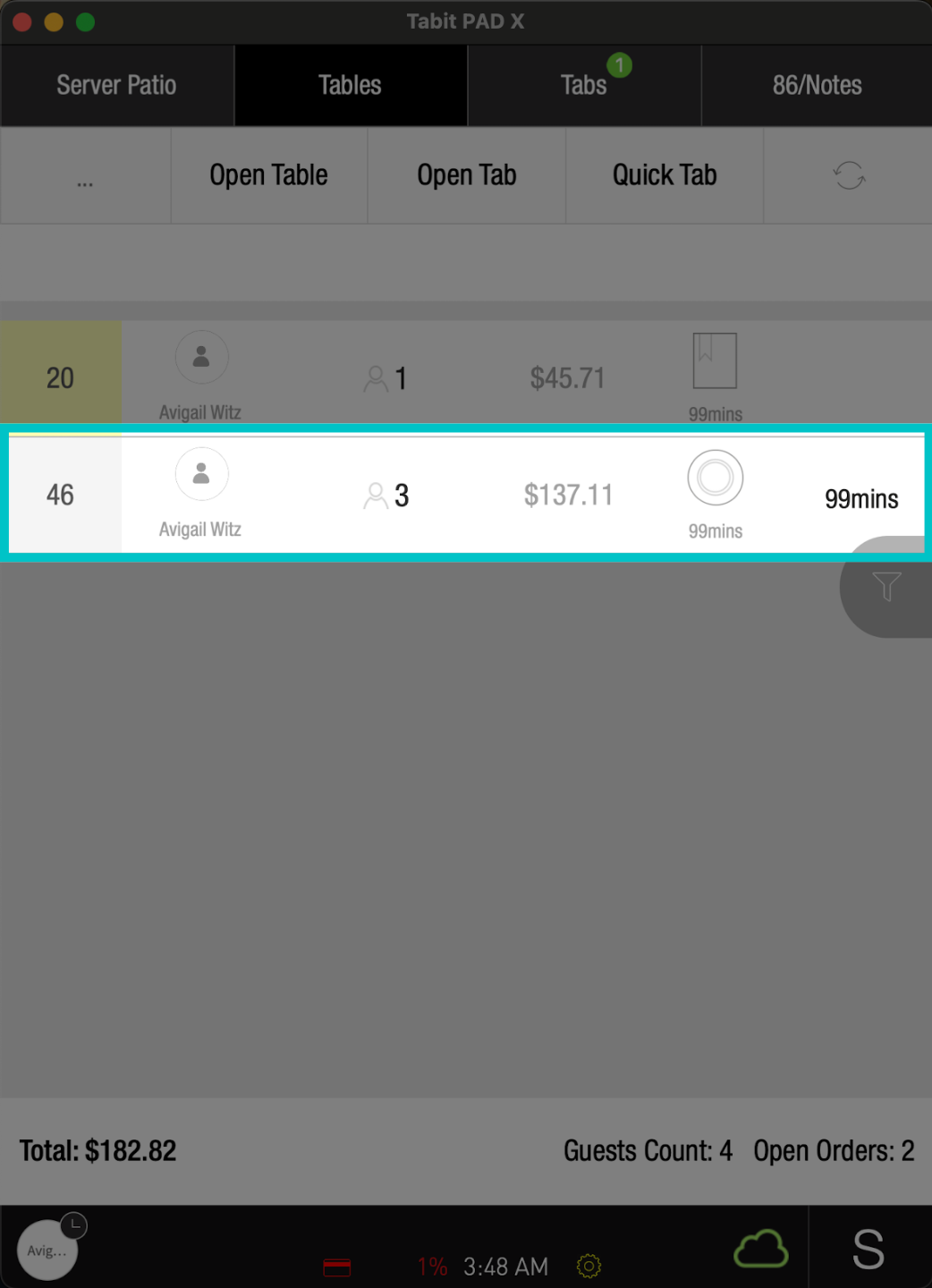
The transfer is now completed, and the order has moved to the desired table
Learn here how to transfer an item to another table, tab, or guest
Order screen
-
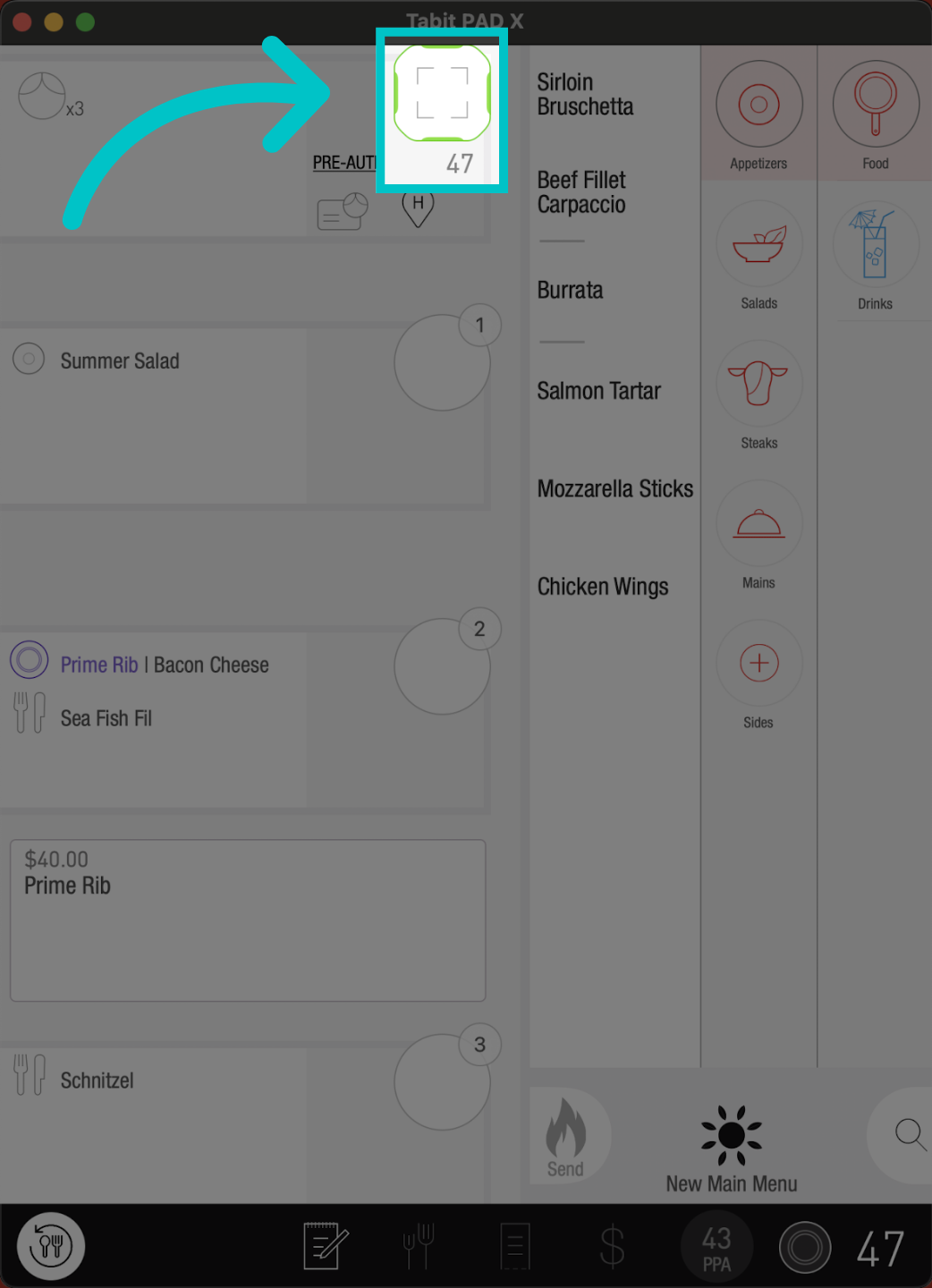
In the order screen, access the Table icon at the top
-
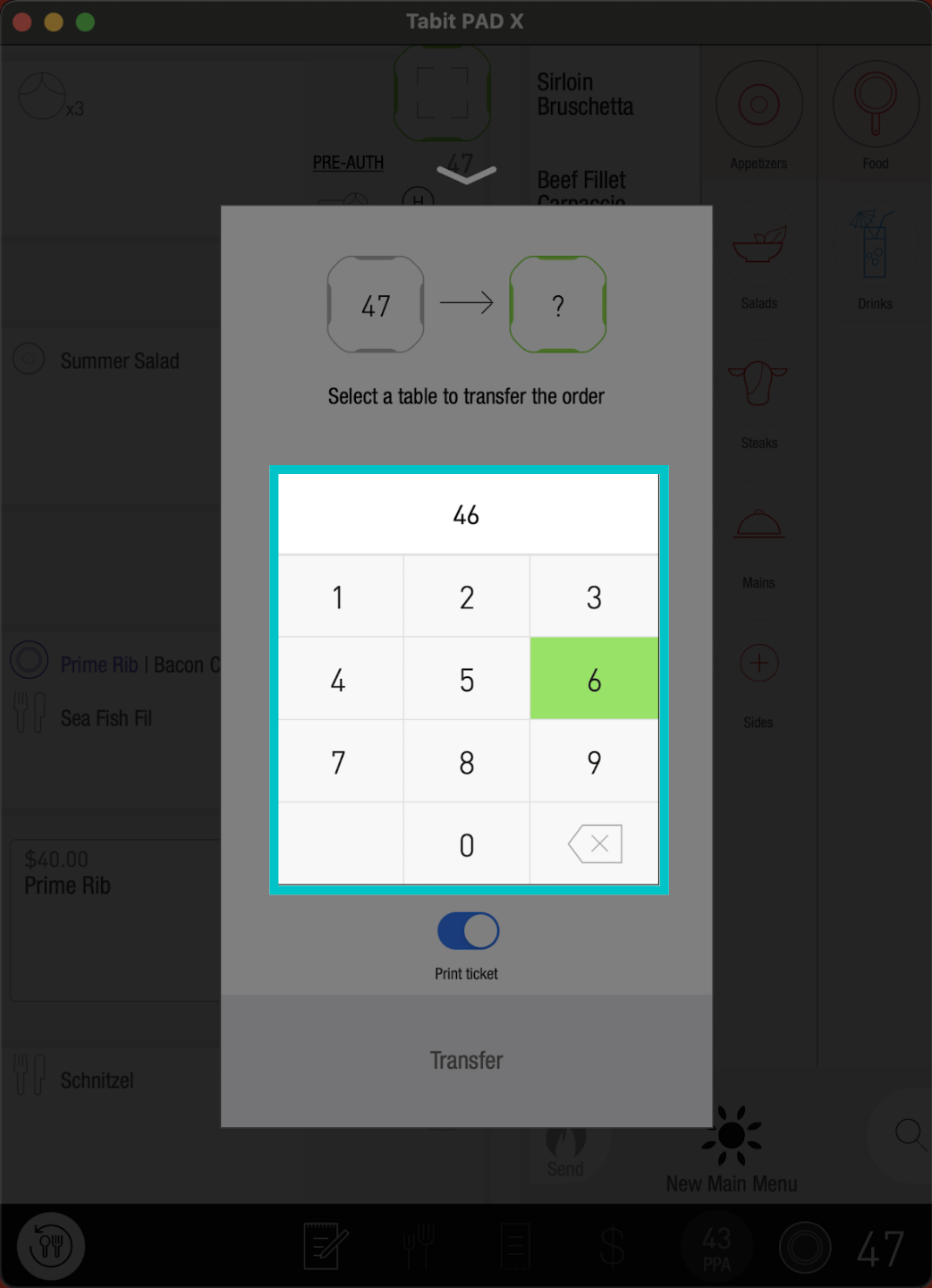
Then, type in the table number you want to transfer the table to
-
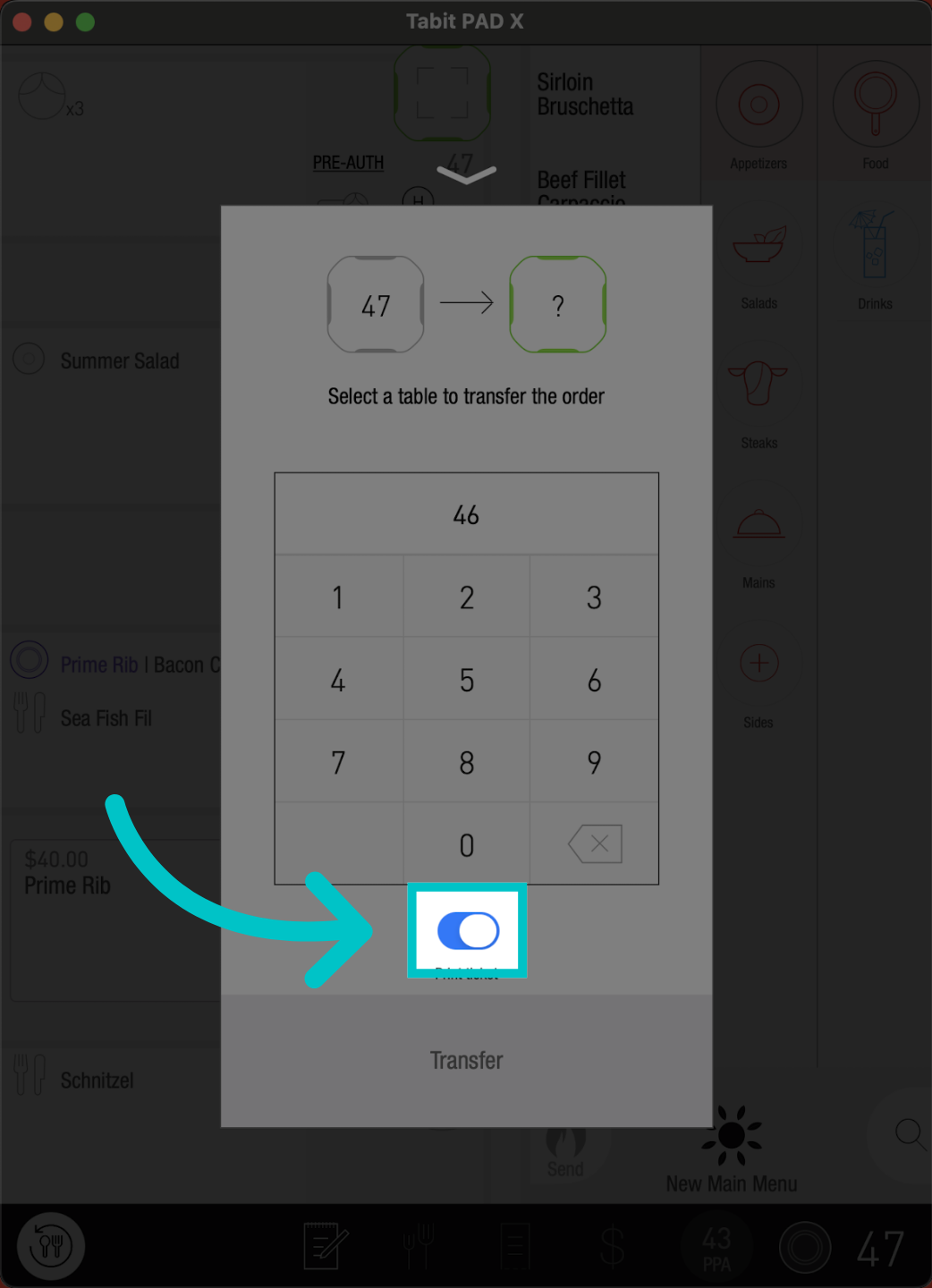
Notice a toggle is automatically set to print a notification to the kitchen. Turn it off to disable printing
-
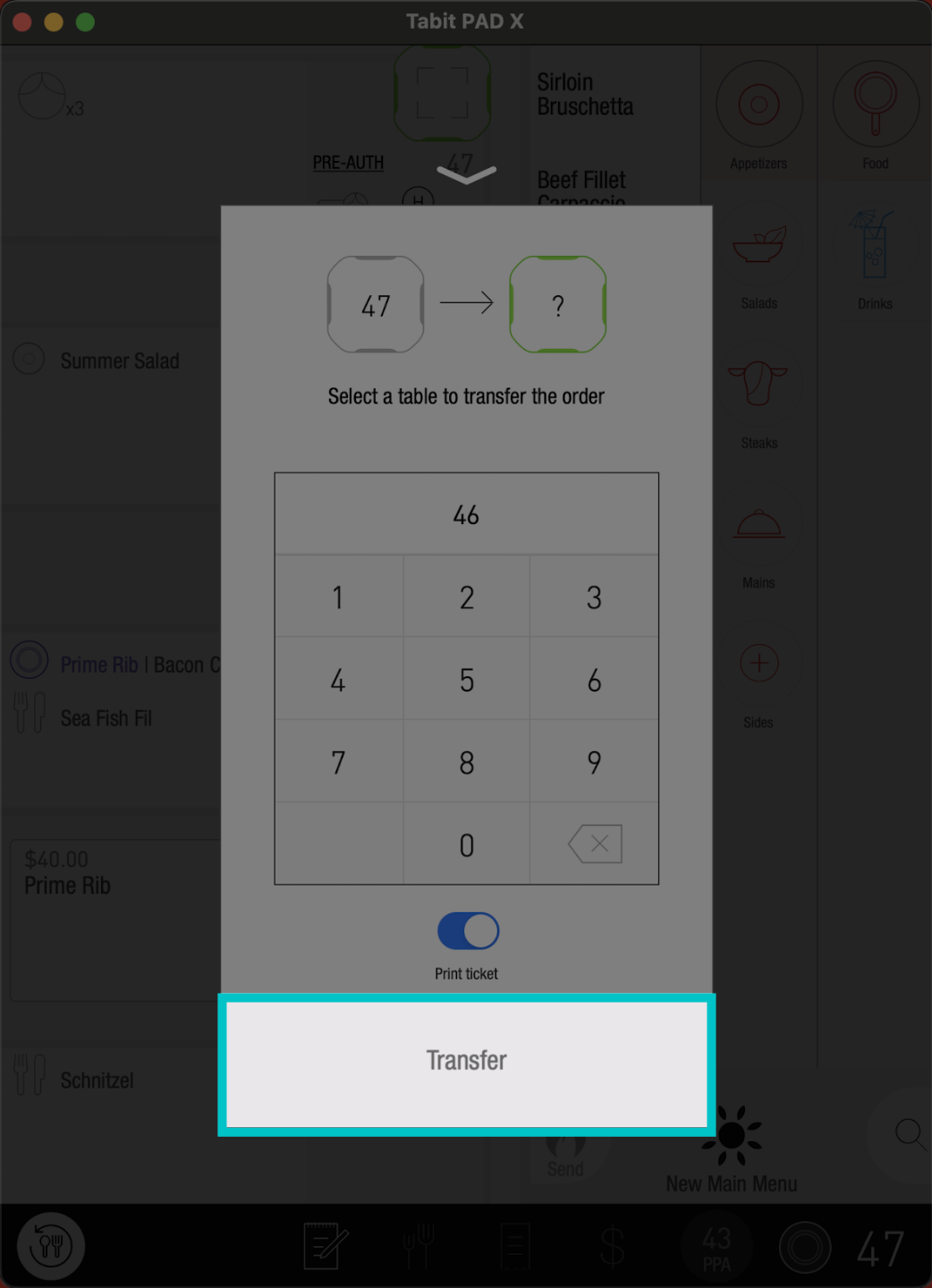
Tap Transfer to confirm
-
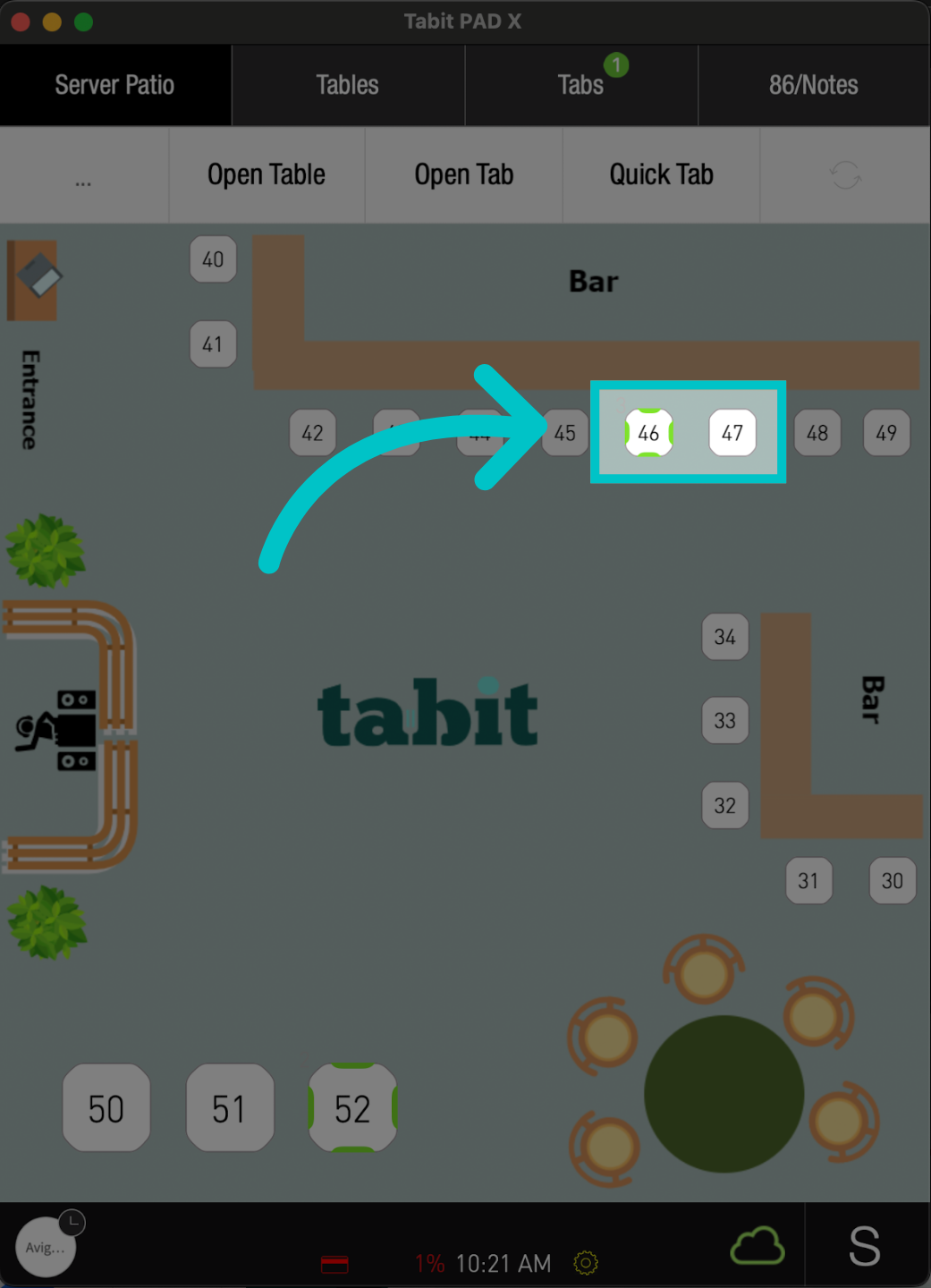
The transfer is now completed, and the order has moved to the desired table
Learn here how to transfer an item to another table, tab, or guest