Sometimes ordering mistakes occur, or customers request to move to a different table or join other guests. In these situations, items may need to be transferred to another table, tab, or guest to ensure the bill remains accurate and properly organized.
Item transfers can be restricted to managers only or set to require manager approval. To enable this feature, please reach out to your Tabit Representative
Follow the steps below to transfer an item:
-
From the Check Screen, tap the icon on the top left and select Move to
-
Now, mark the relevant items. Tap Select All to transfer all items, or manually select specific items and select Done
-
From here, you have three options: transfer the item(s) to another table, tab, or guest
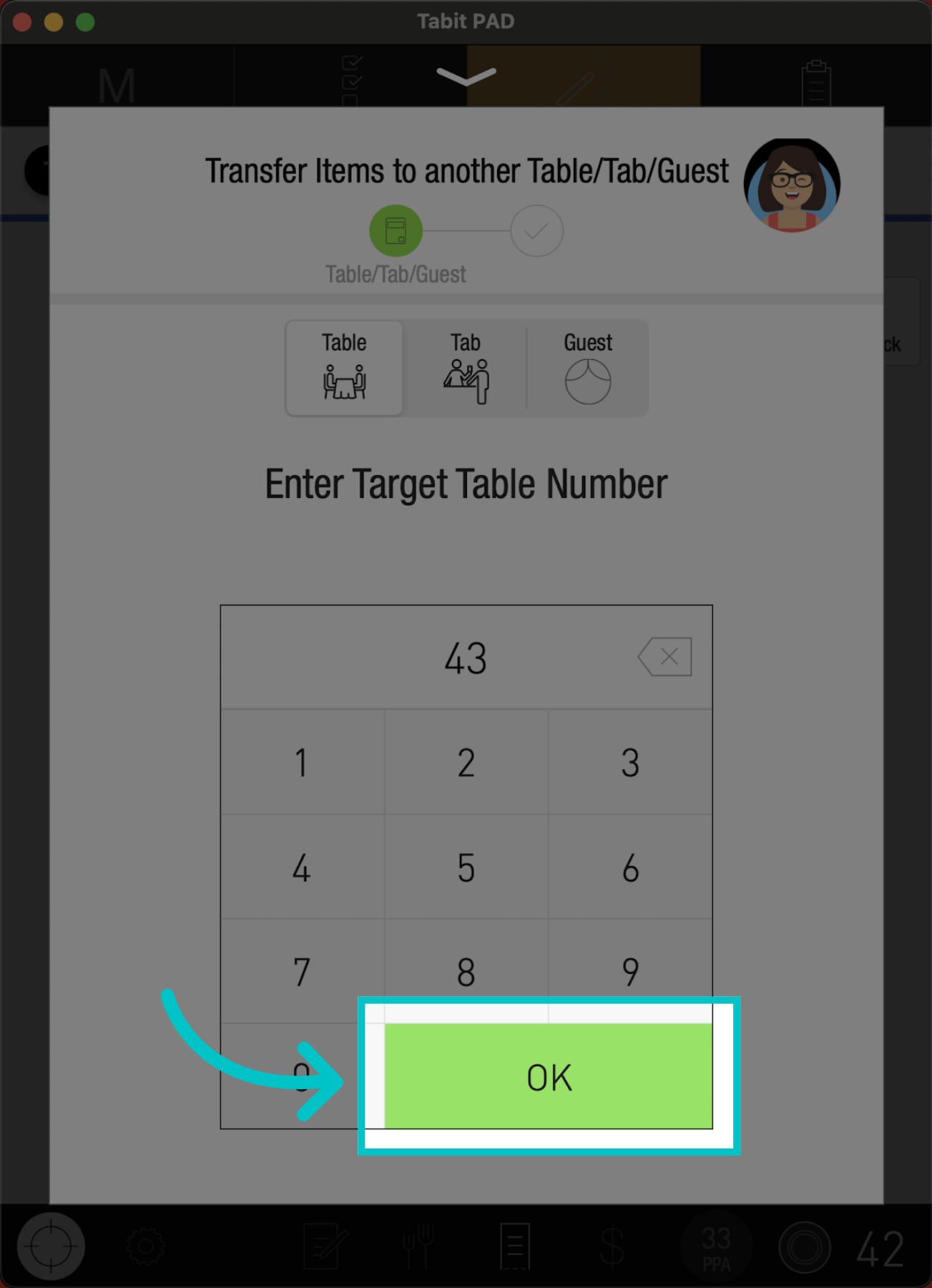
Transfer to tableTo transfer the item to another table, tap Table, and enter the table number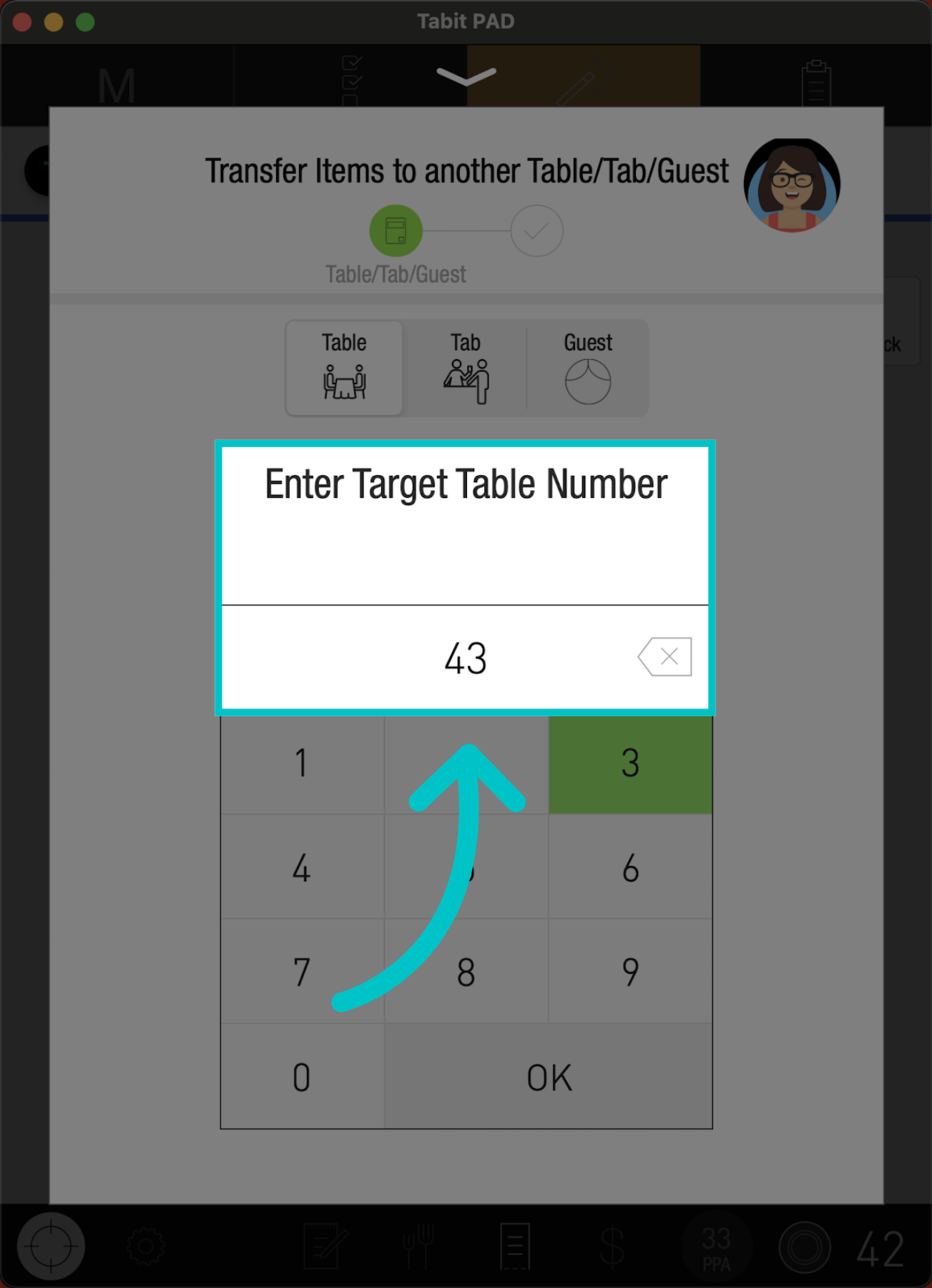 And tap OK
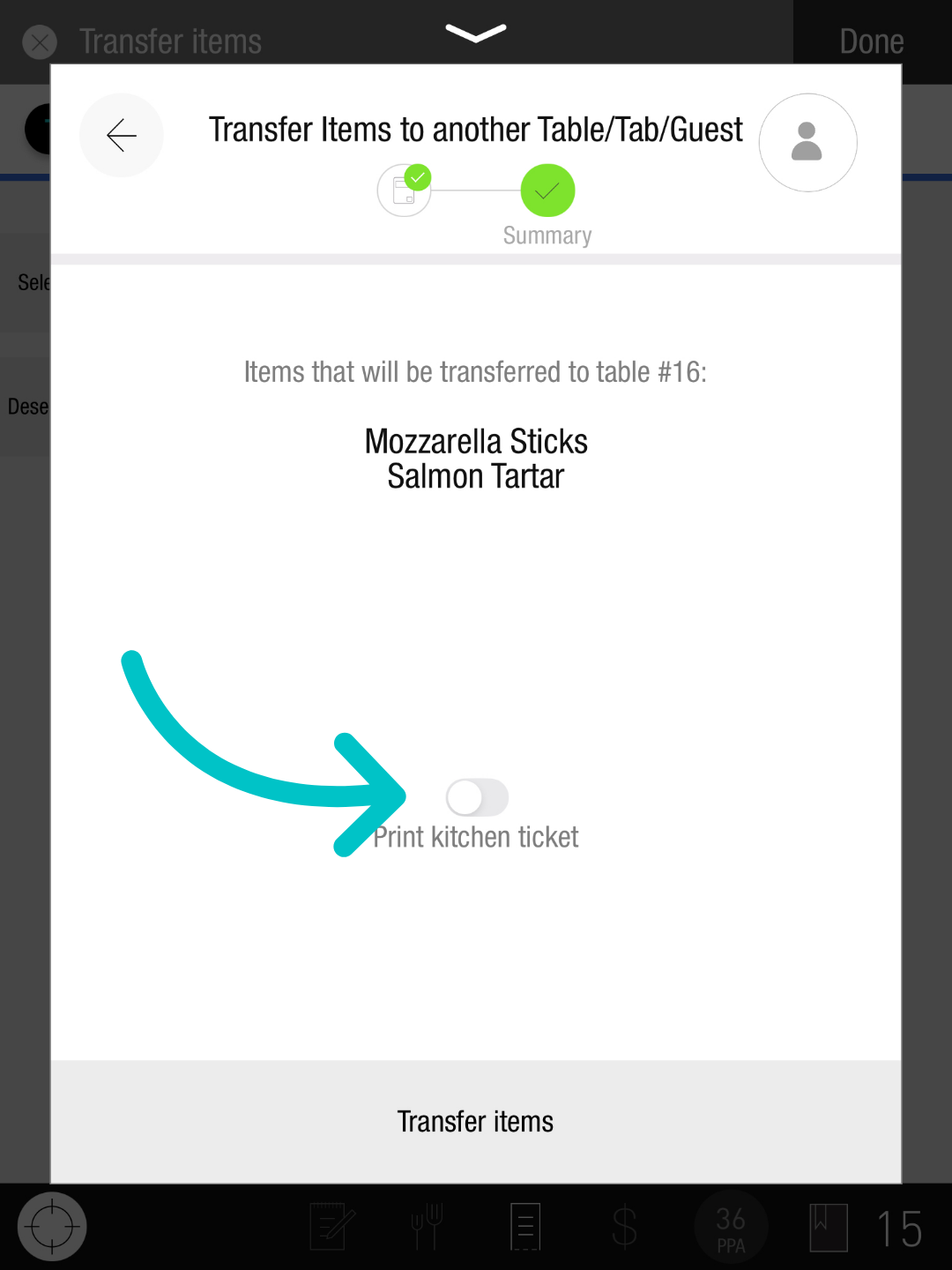
 Now, you can toggle Print kitchen ticket to notify the kitchen of the transfer
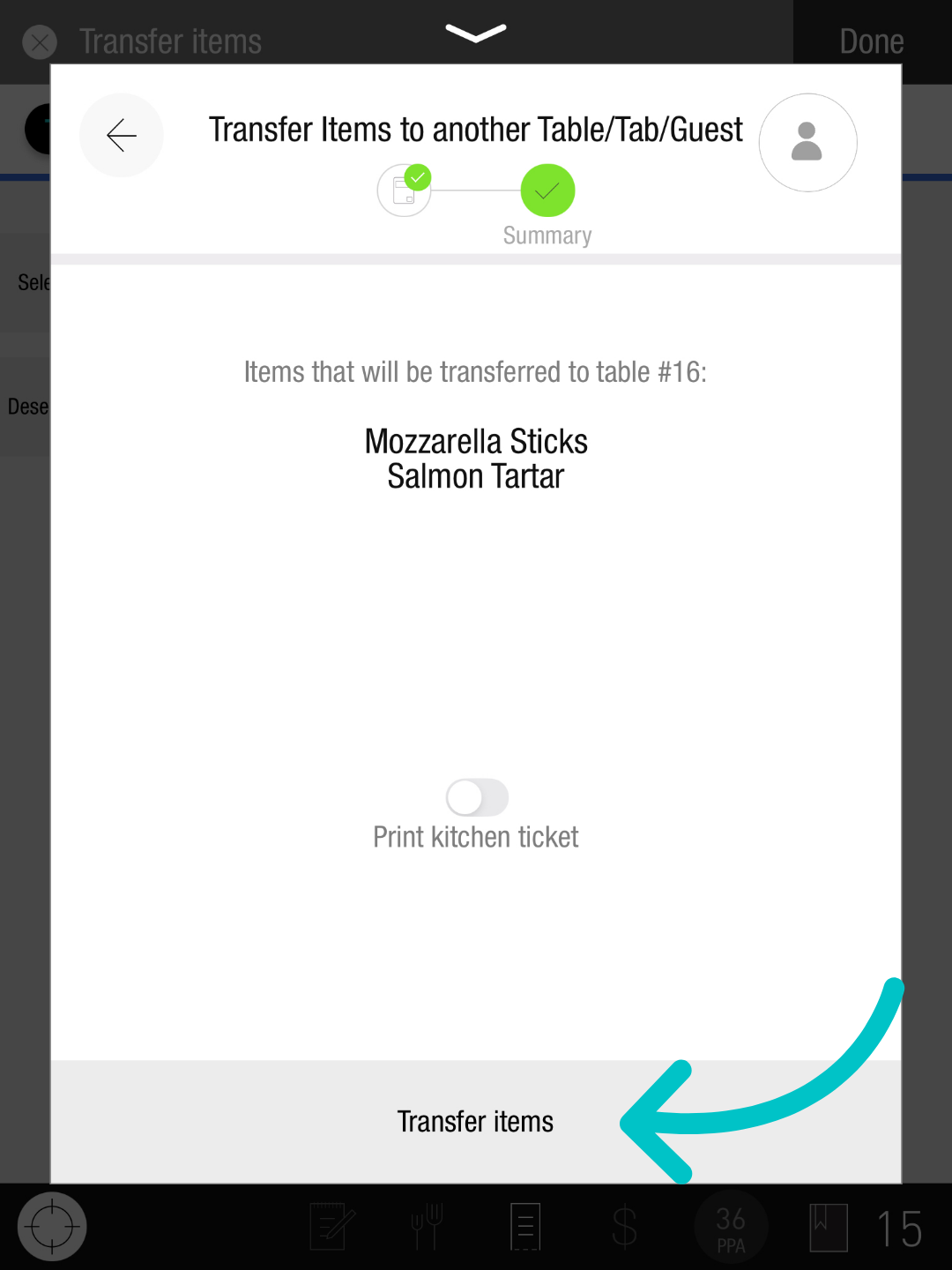
 To complete the transfer, select Transfer items
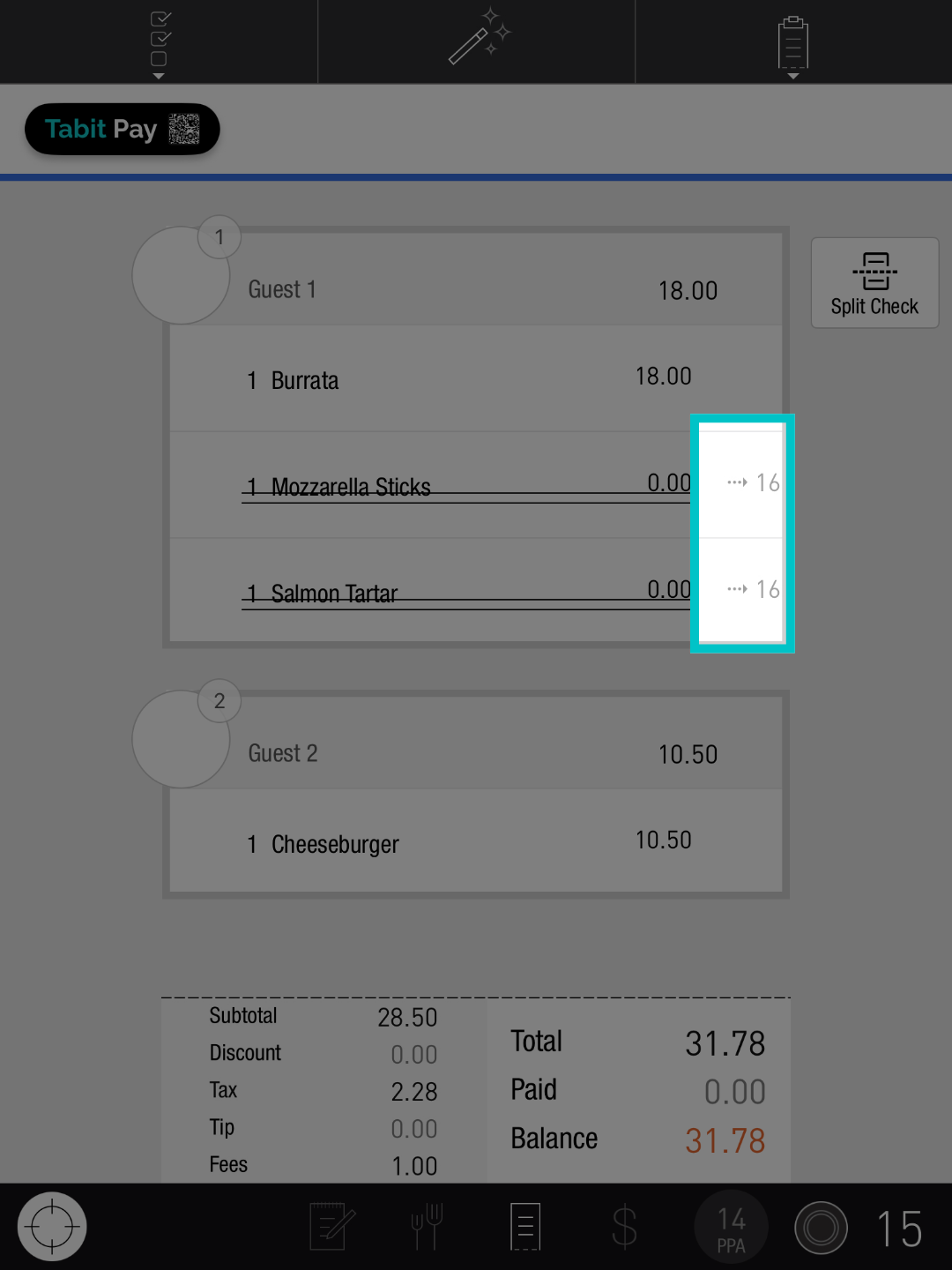
 An icon will now appear next to the item(s) to indicating they have been successfully transferred
 Transfer to a tab
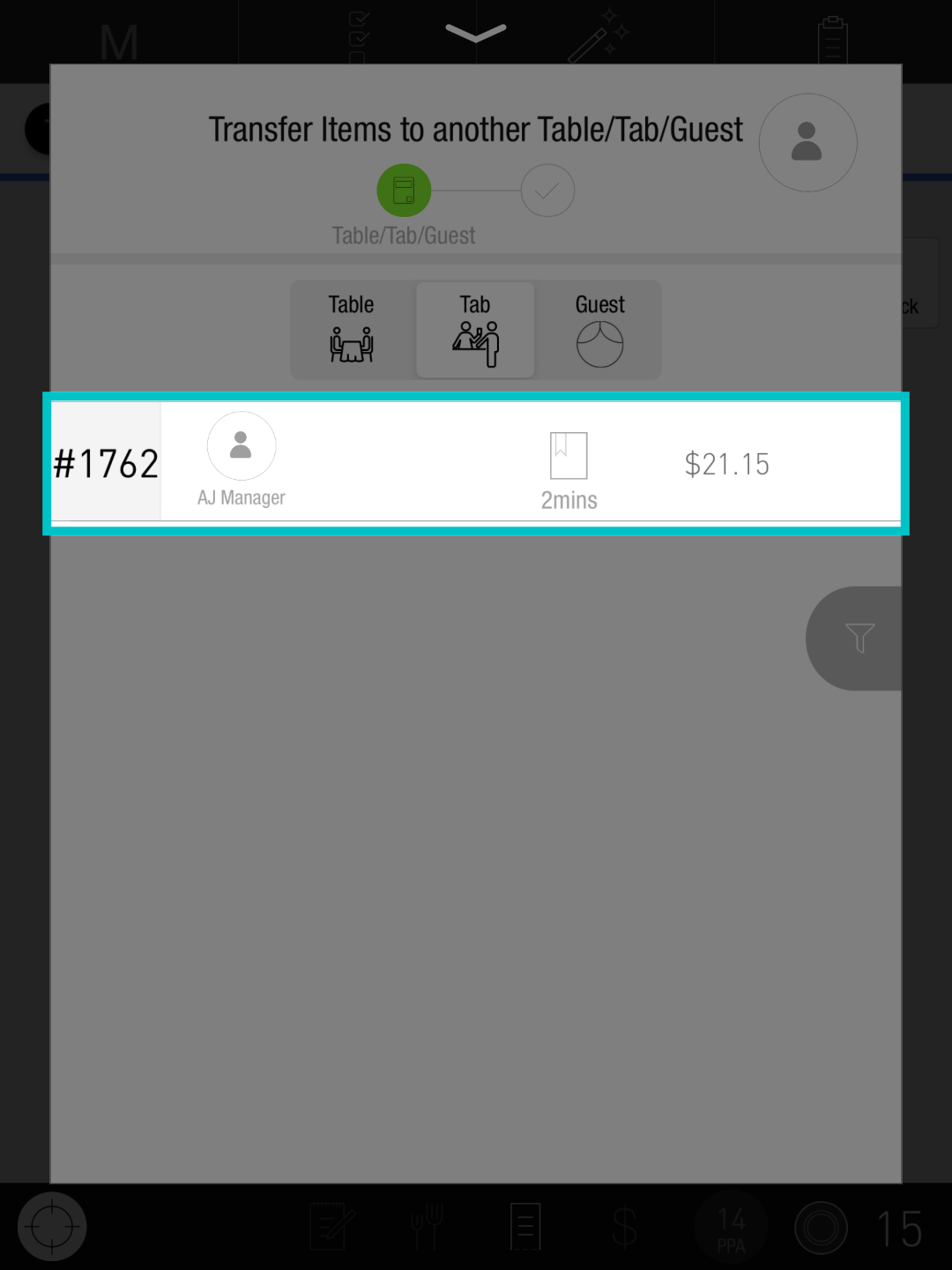
To transfer the item(s) to a tab, tap Tab and select the relevant tab to transfer it to
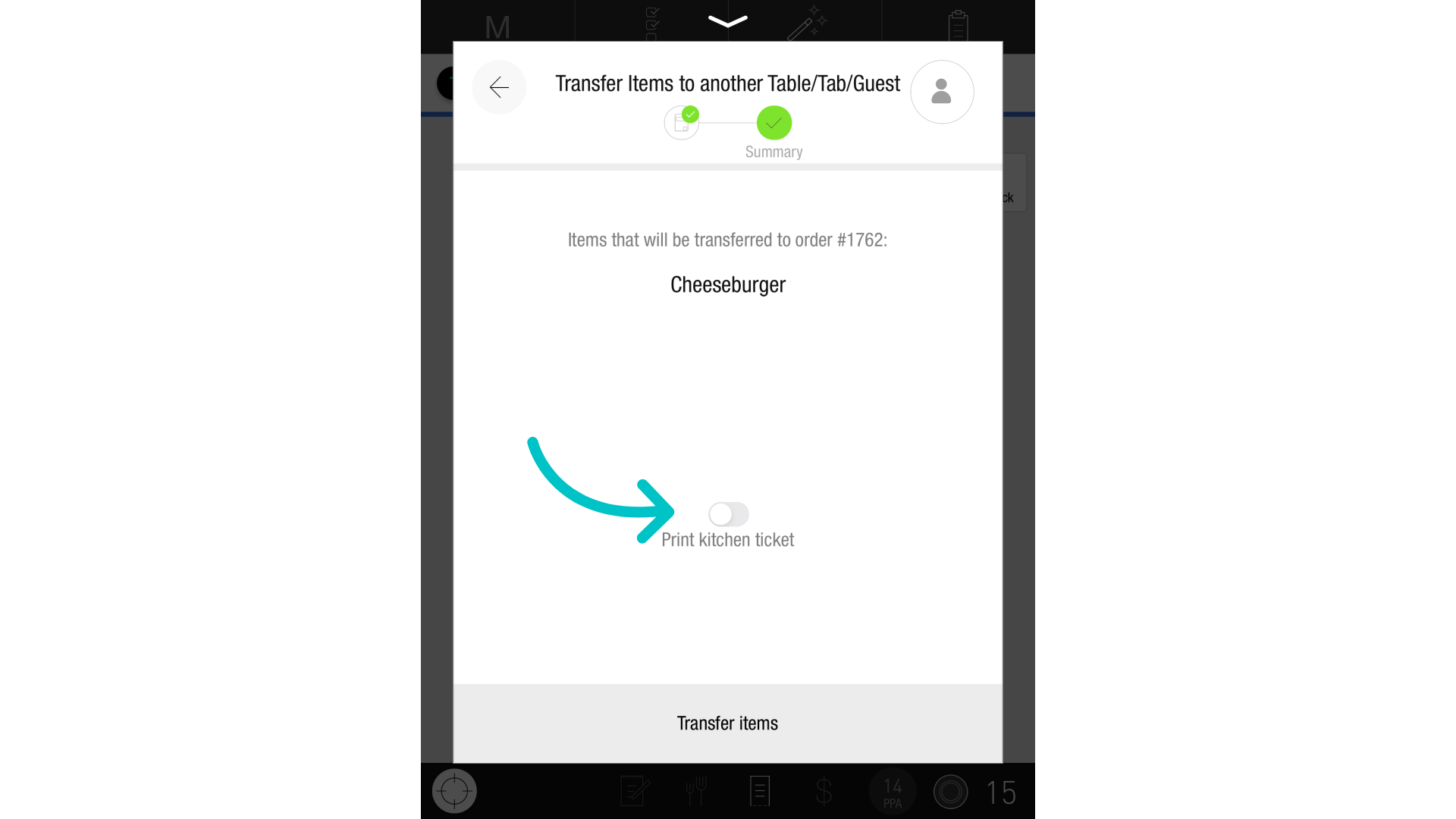
Now, you can toggle Print kitchen ticket to notify the kitchen of the transfer
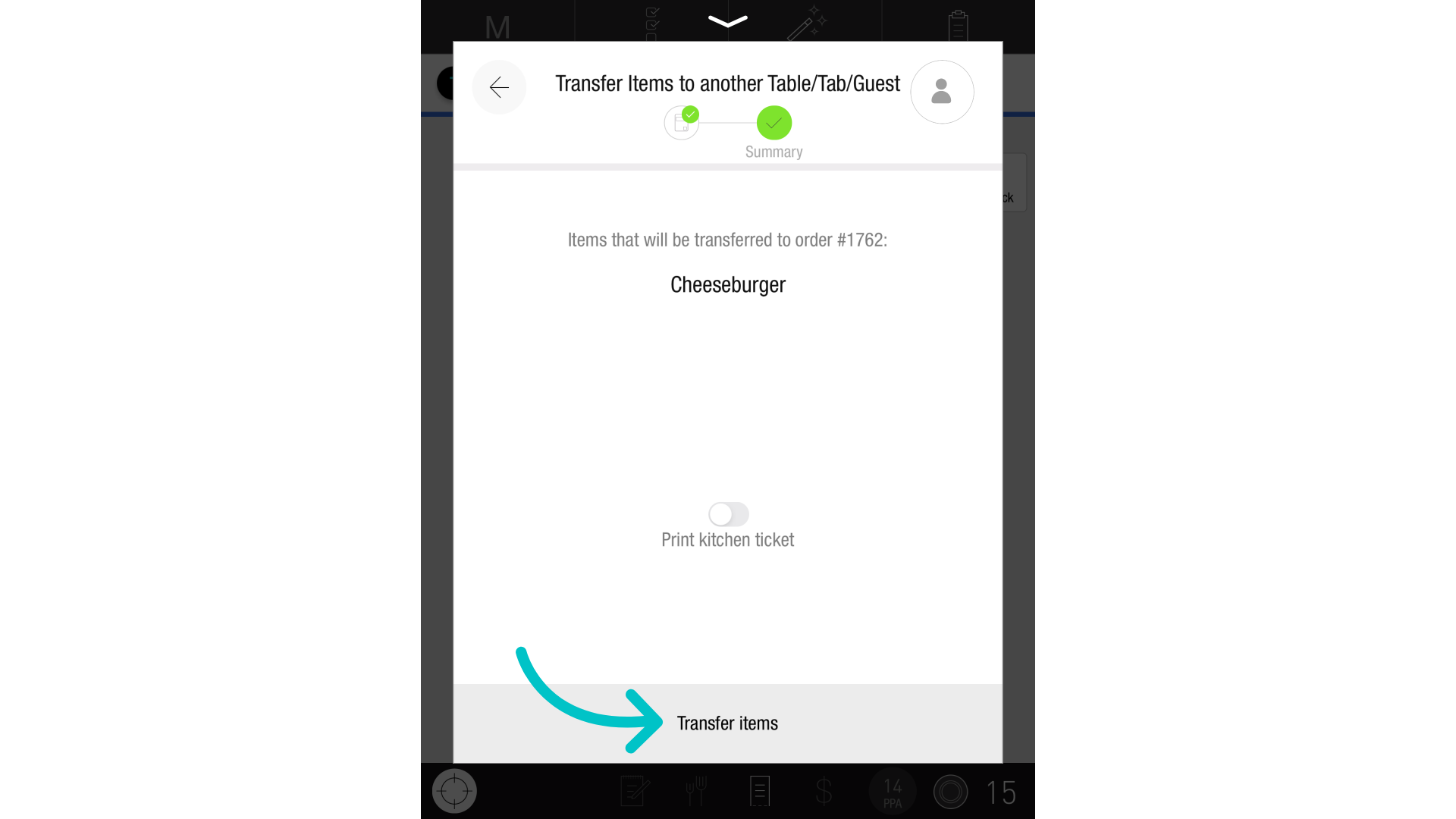
To complete the transfer, select Transfer items
An icon will now appear next to the item(s) to indicating they have been successfully transferred
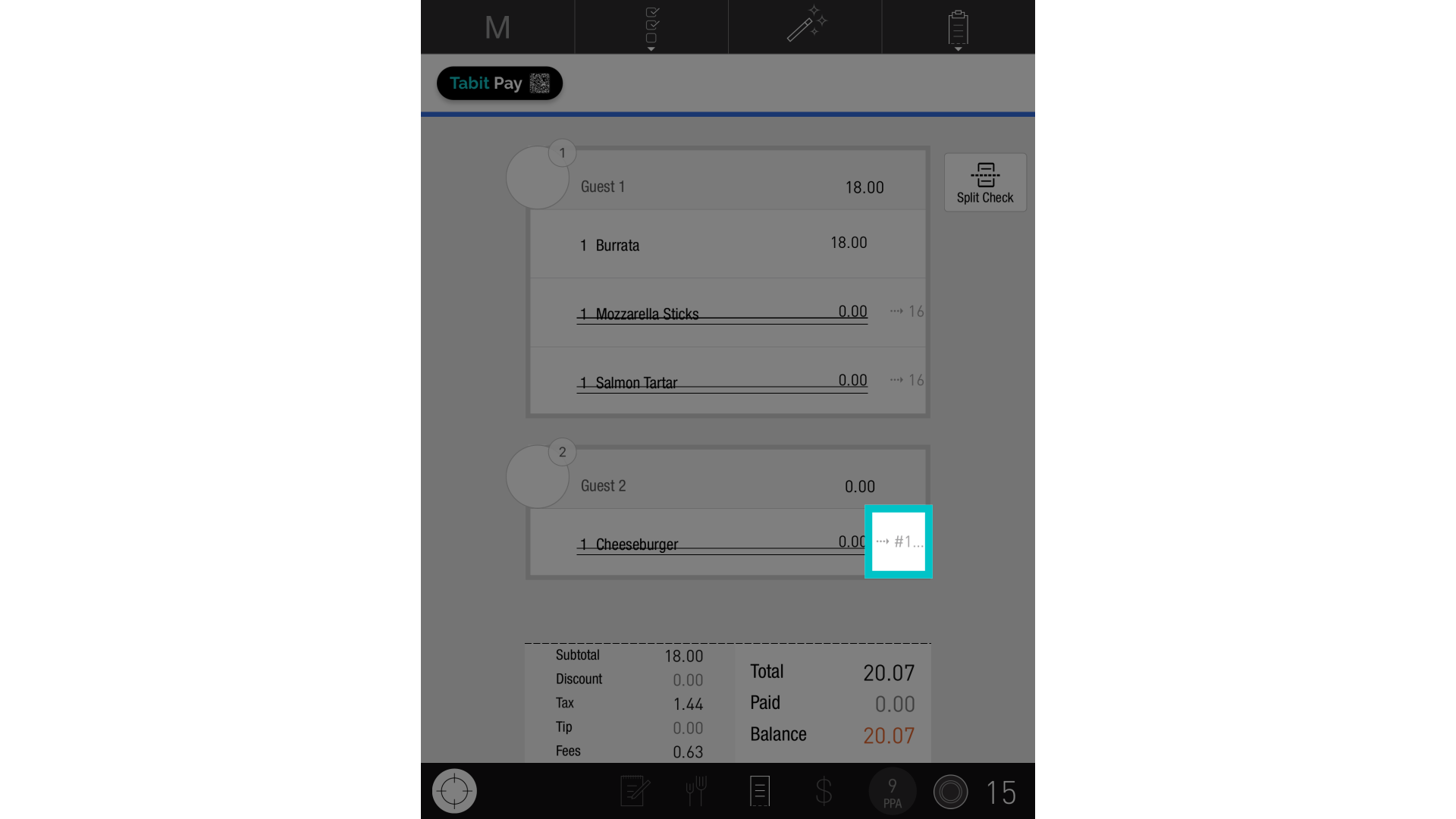 Transfer to a guestTo transfer the item to another guest, tap Guest
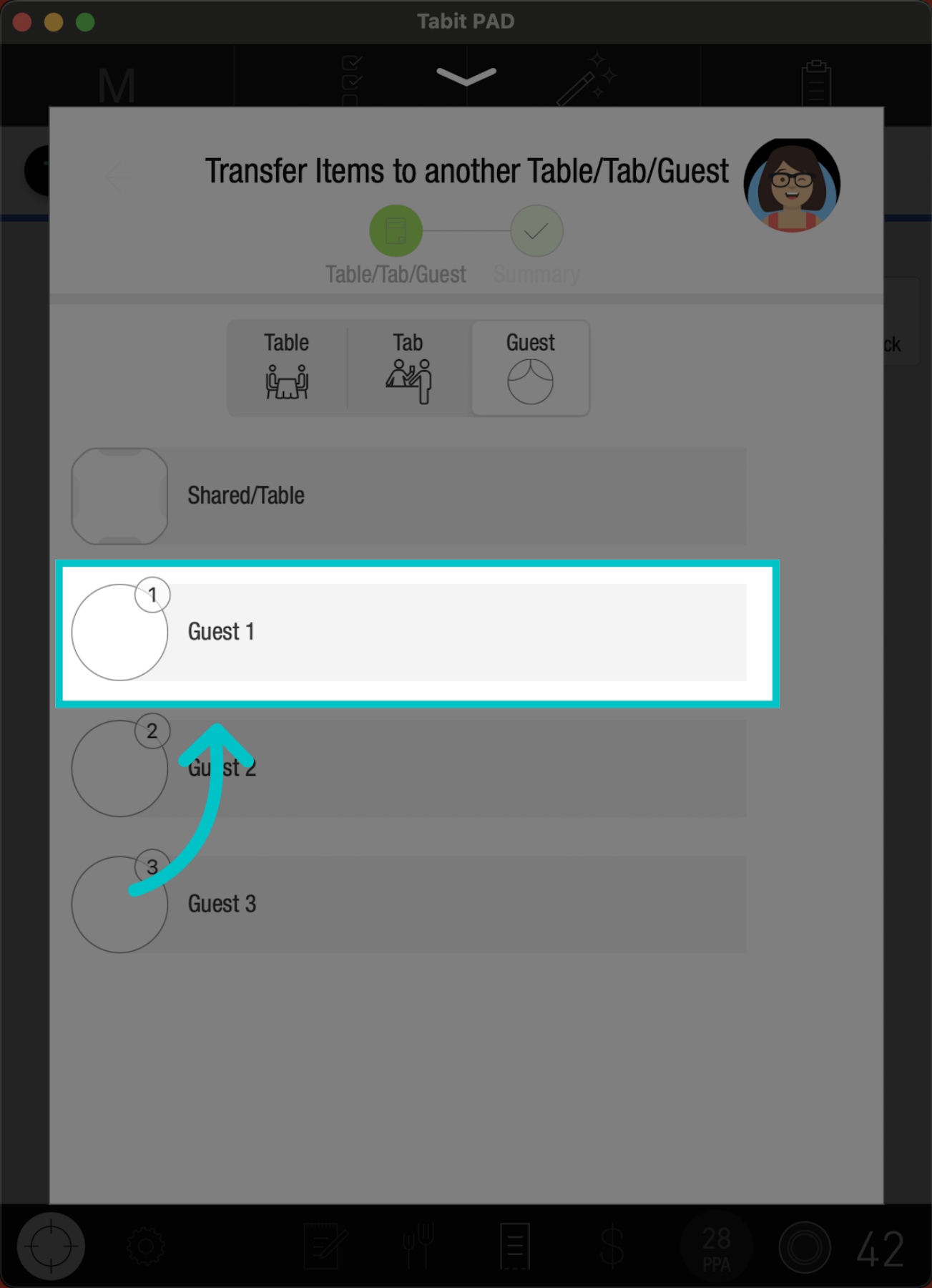
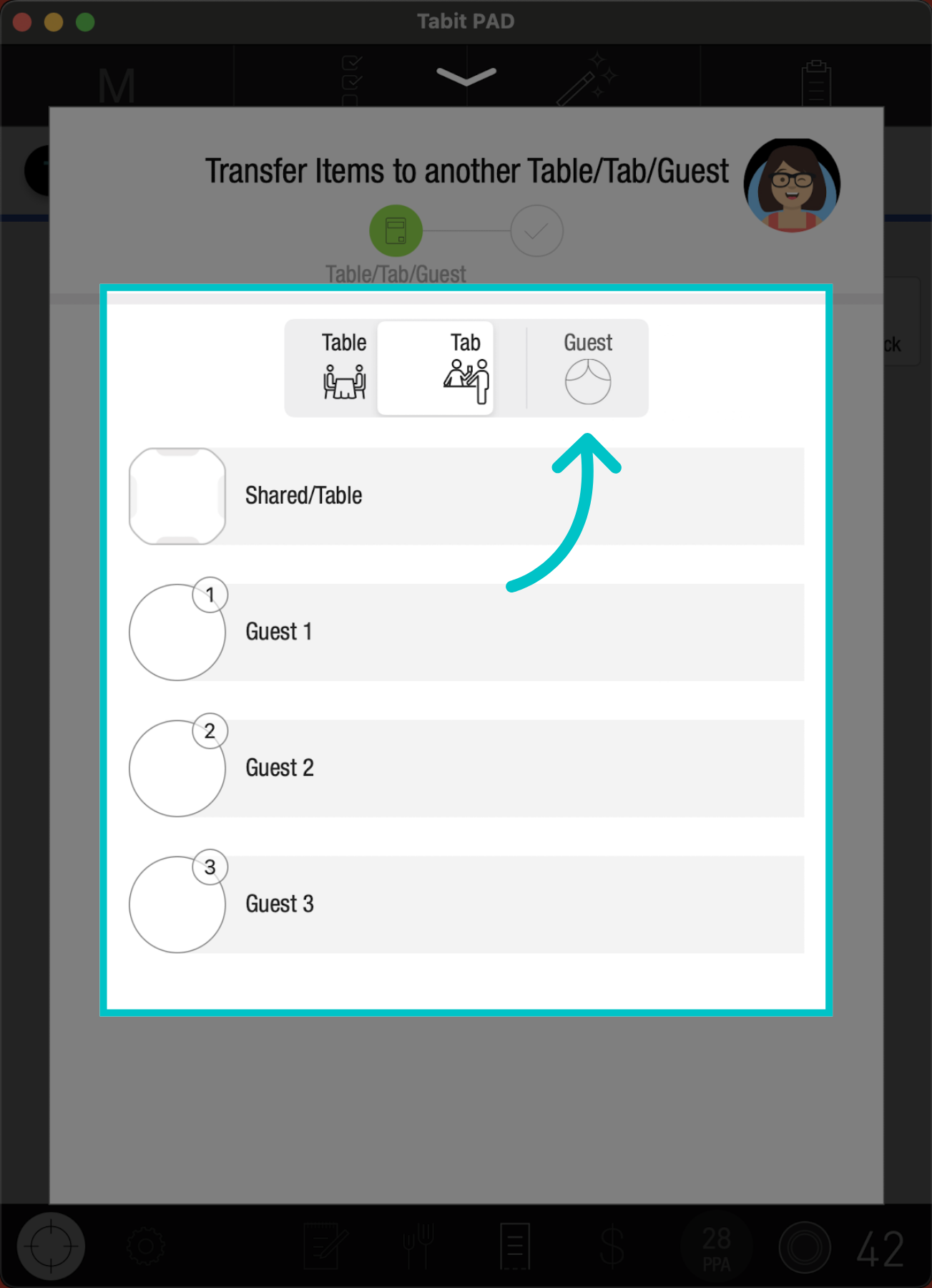 Select the relevant guest to transfer it to
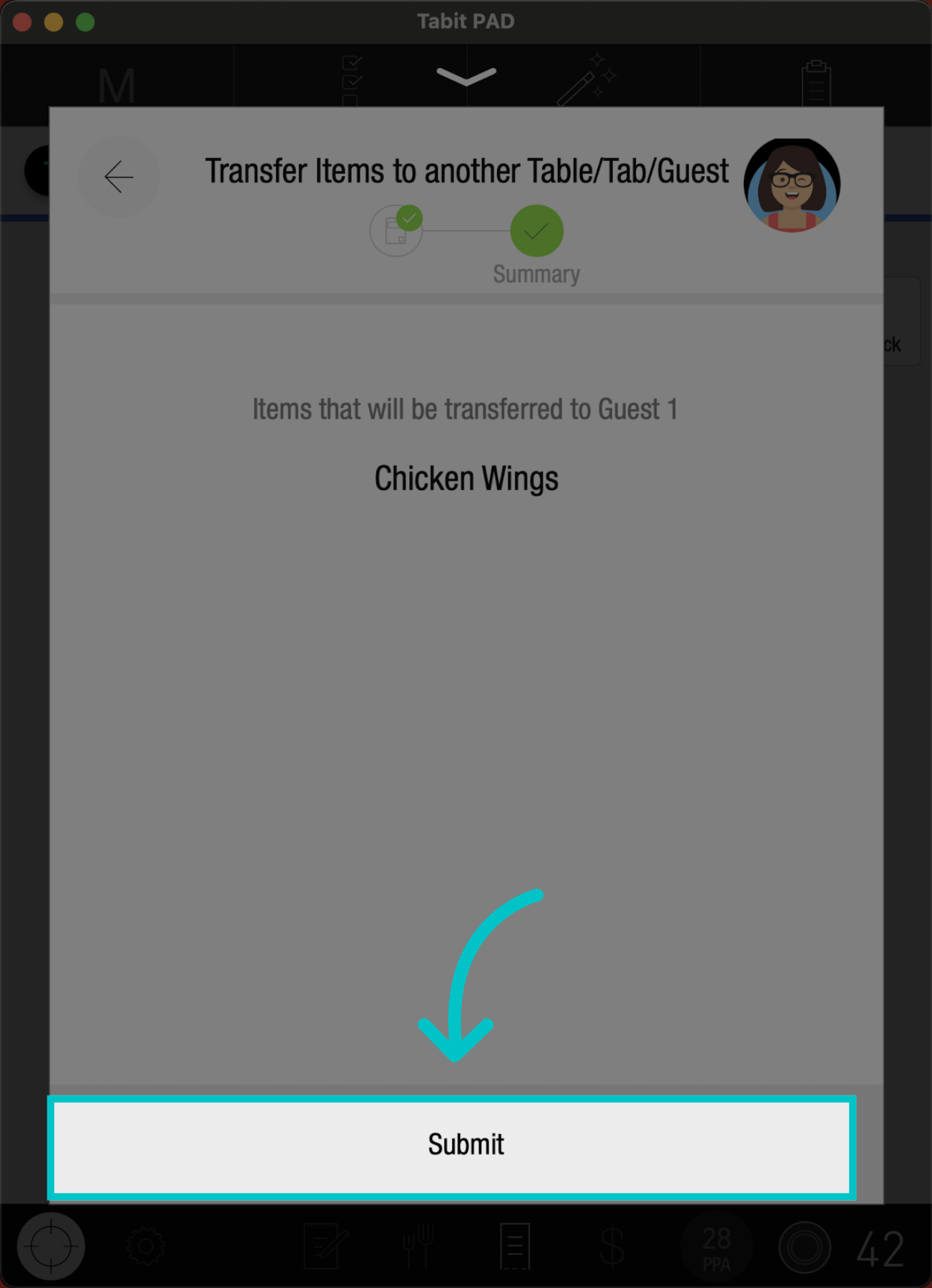
 Tap Submit
 The item has now been moved from guest 3 to guest 1
Control guest assignment during transfers
If your site uses Guest Management, you have control over how items are reassigned when transferring them between tables. This helps maintain accurate tip tracking, reporting, and improves workflow for large or complex guest arrangements.
This feature applies only to Sites using Guest Management. To enable this feature, please reach out to your Tabit Representative
When transferring items to another table, you can choose one of the following options:
- Keep original guest assignments – The items remain assigned to the same guests at the destination table
-
Transfer to new guests – The items are reassigned to new guests at the destination table
If you choose to transfer to new guests, the system assigns items to multiple new guests based on their original source. For example, if you move three items that originally belonged to two different guests, those items will be assigned to two separate new guests at the new table.
This guest-based logic helps maintain reporting accuracy and reduces the need for manual reassignment when managing guest-specific orders.