Delivery regions can be edited in Tabit Office to keep your delivery coverage accurate and up to date, including updating region settings, deleting regions, and hiding regions you don’t currently use
Follow the steps below to edit a delivery region:
-
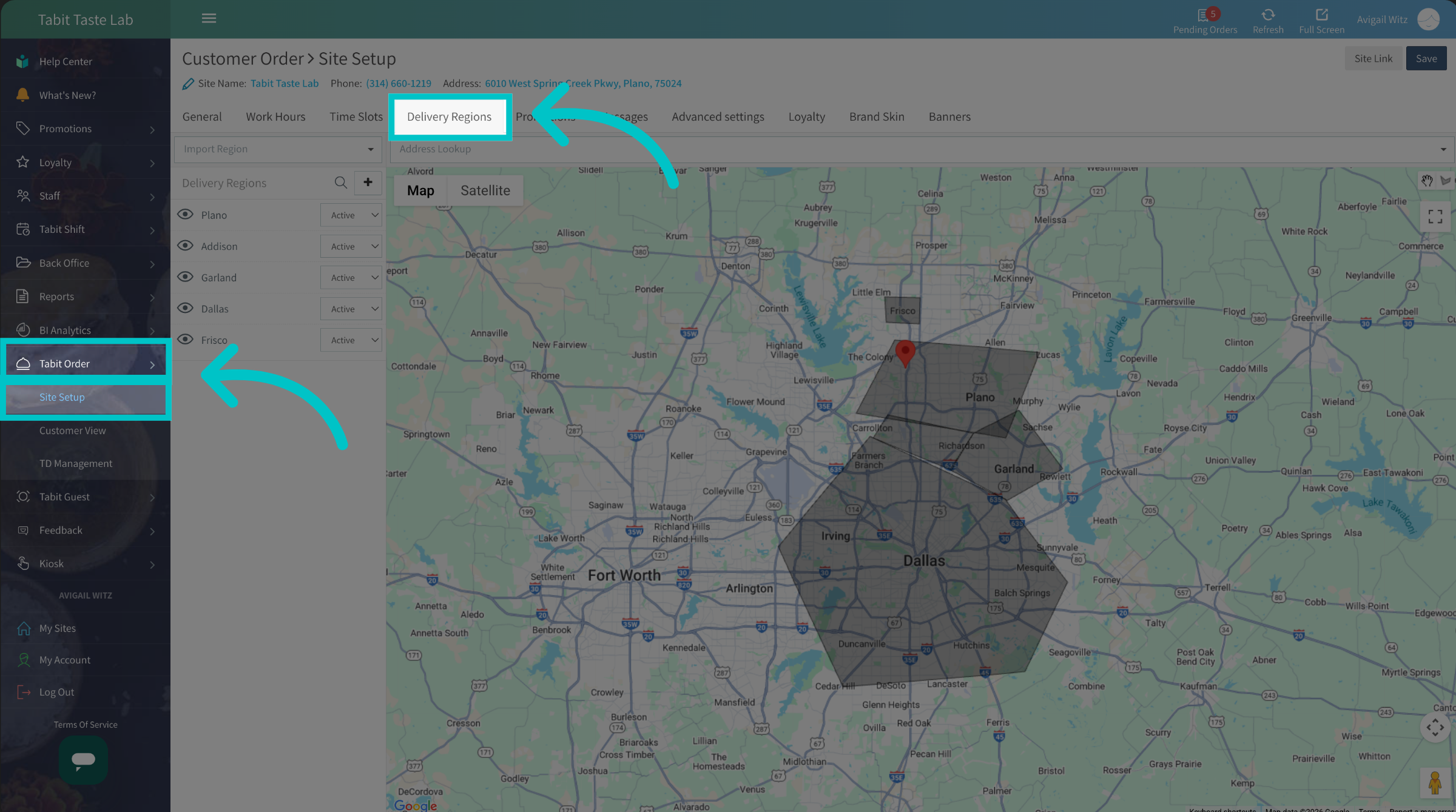
In Tabit Office, go to Tabit Order > Site Setup > Delivery Regions
-
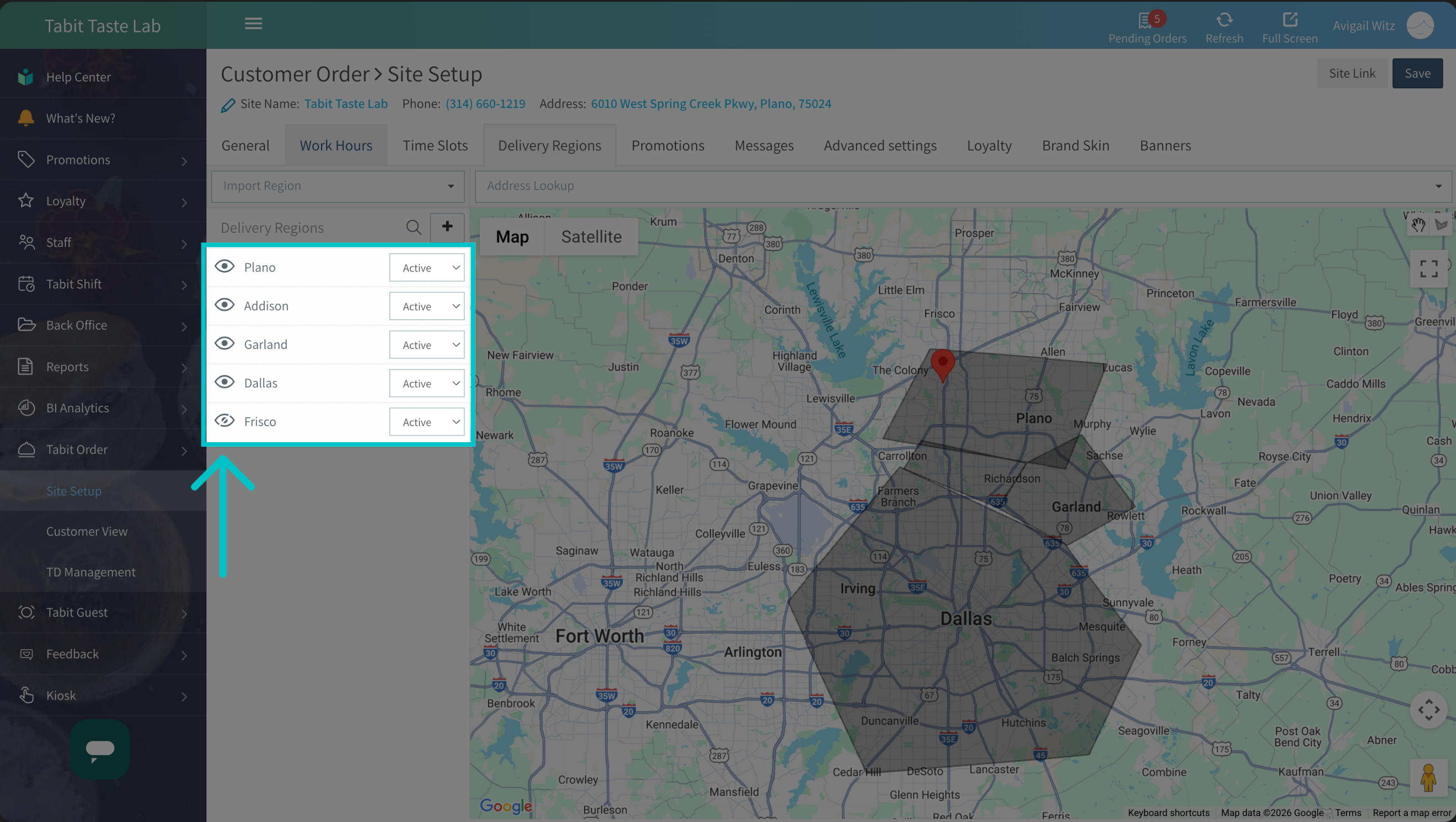
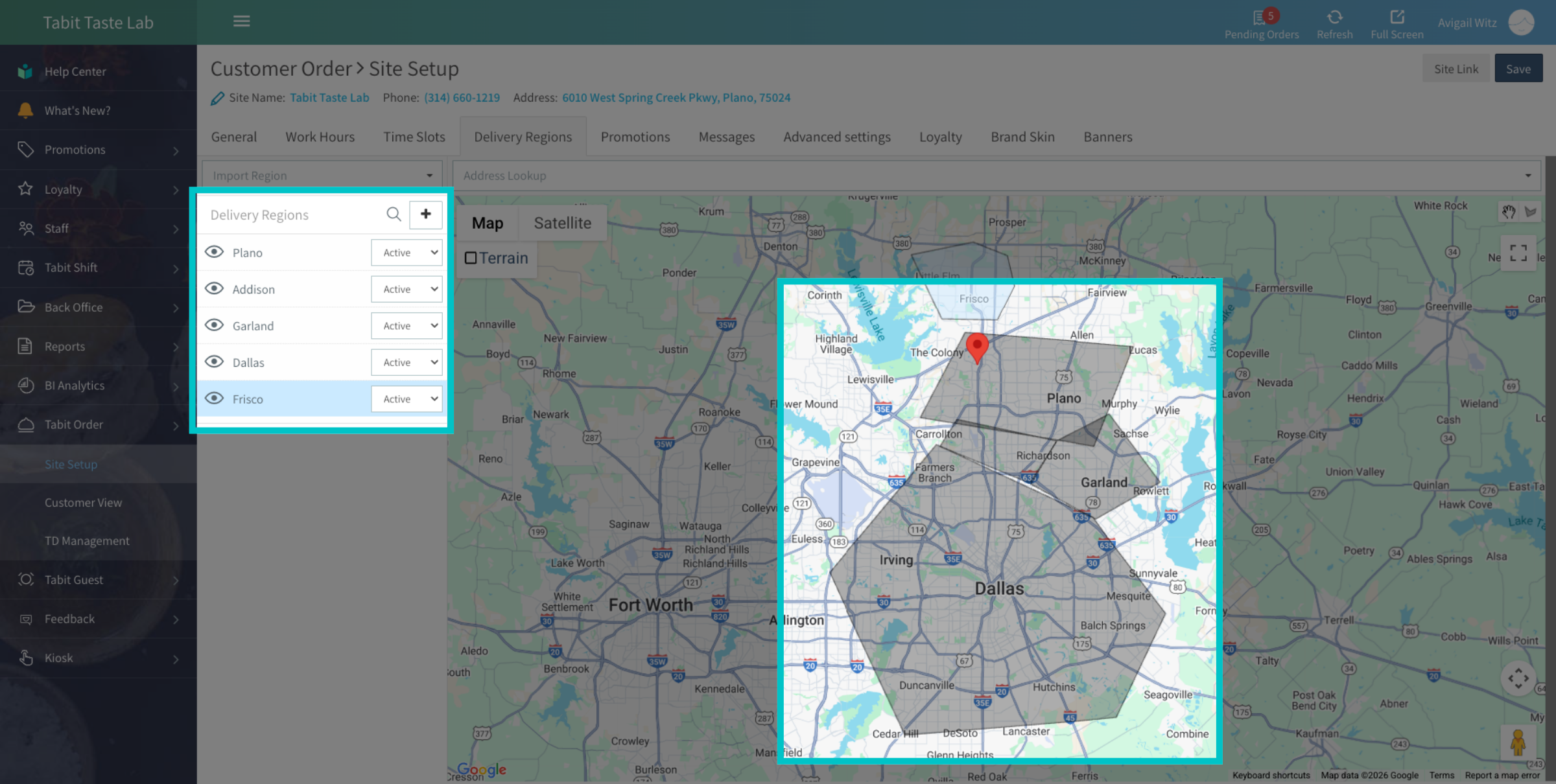
To hide a region from the map, select the Eye icon next to the region. This can be done from the PAD or from TD Management in Tabit Office. For more information, follow the link
-
For further editing options, select the region you want to edit from the list or from the map
-
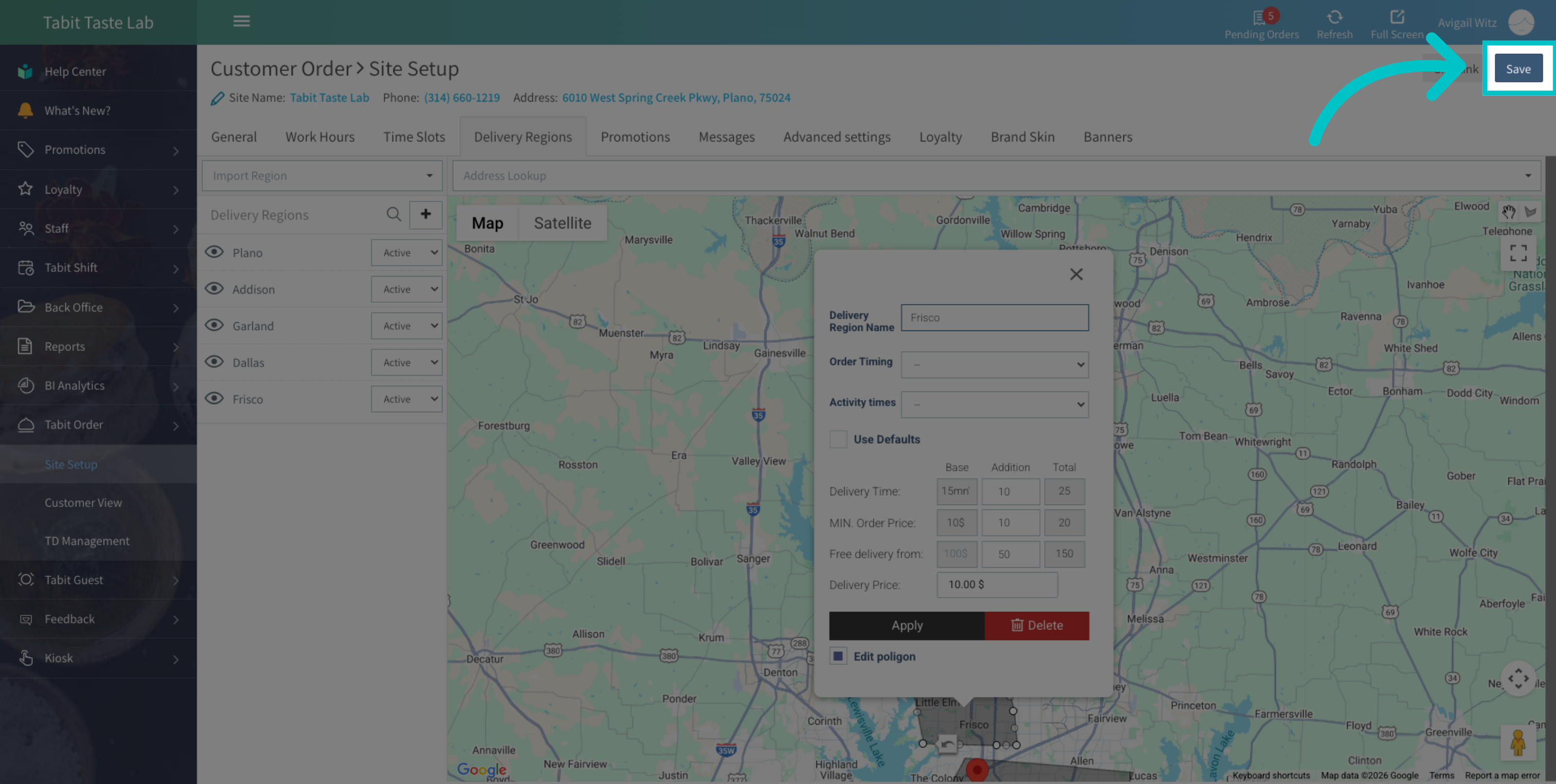
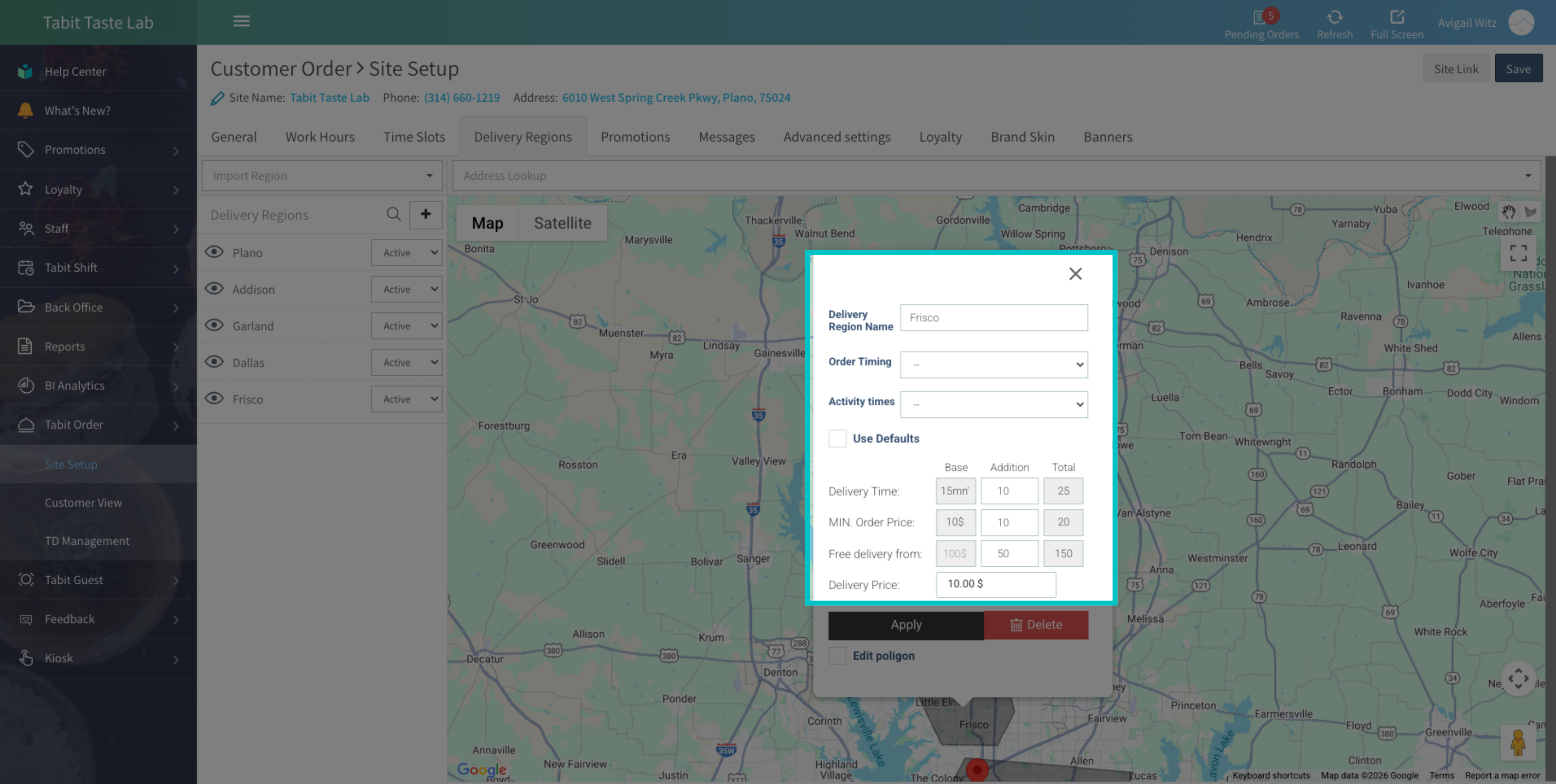
Update the region setting as needed, then select Apply. Learn more about these settings here
-
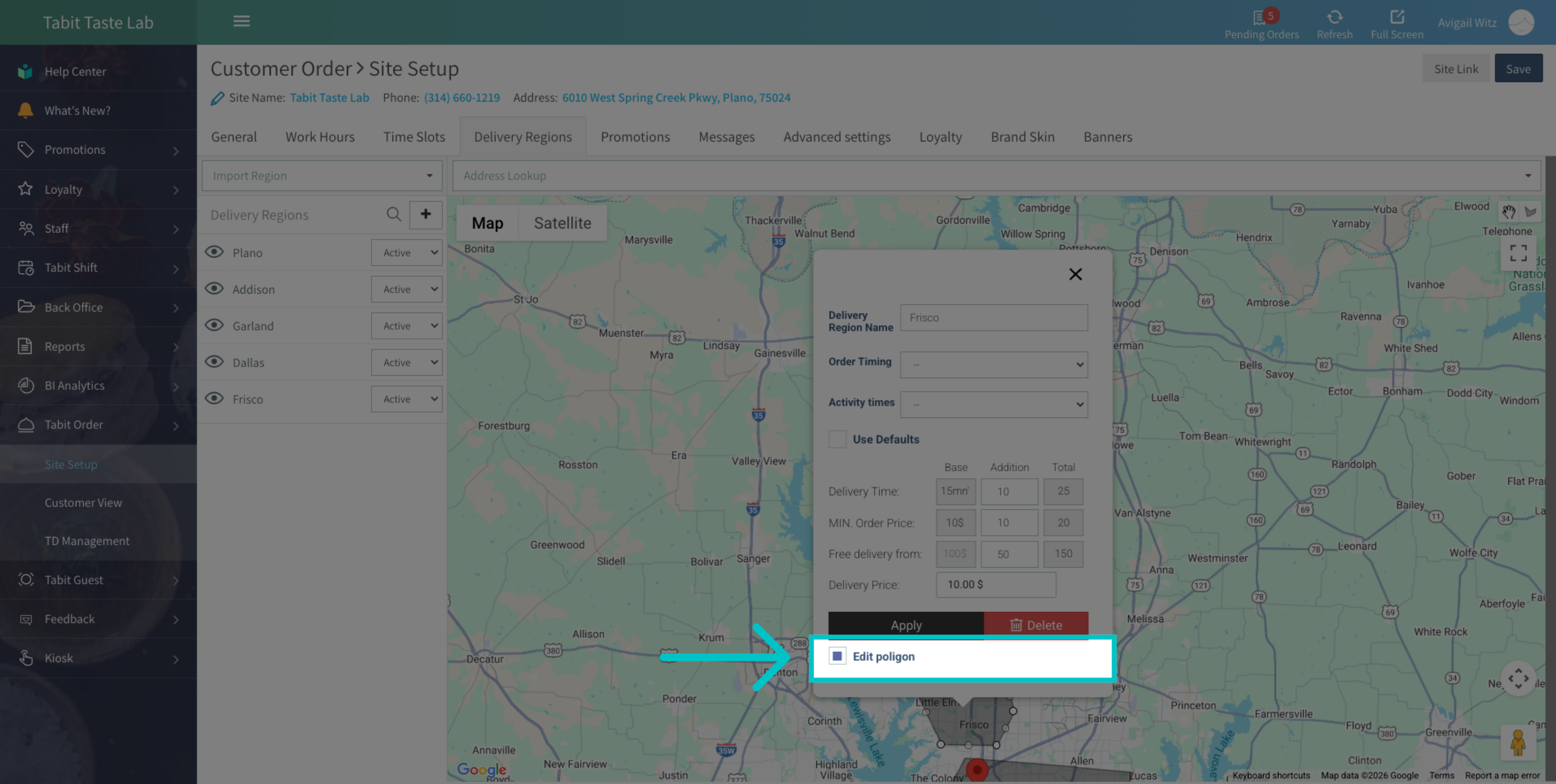
To update the delivery region outline, check Edit polygon
-
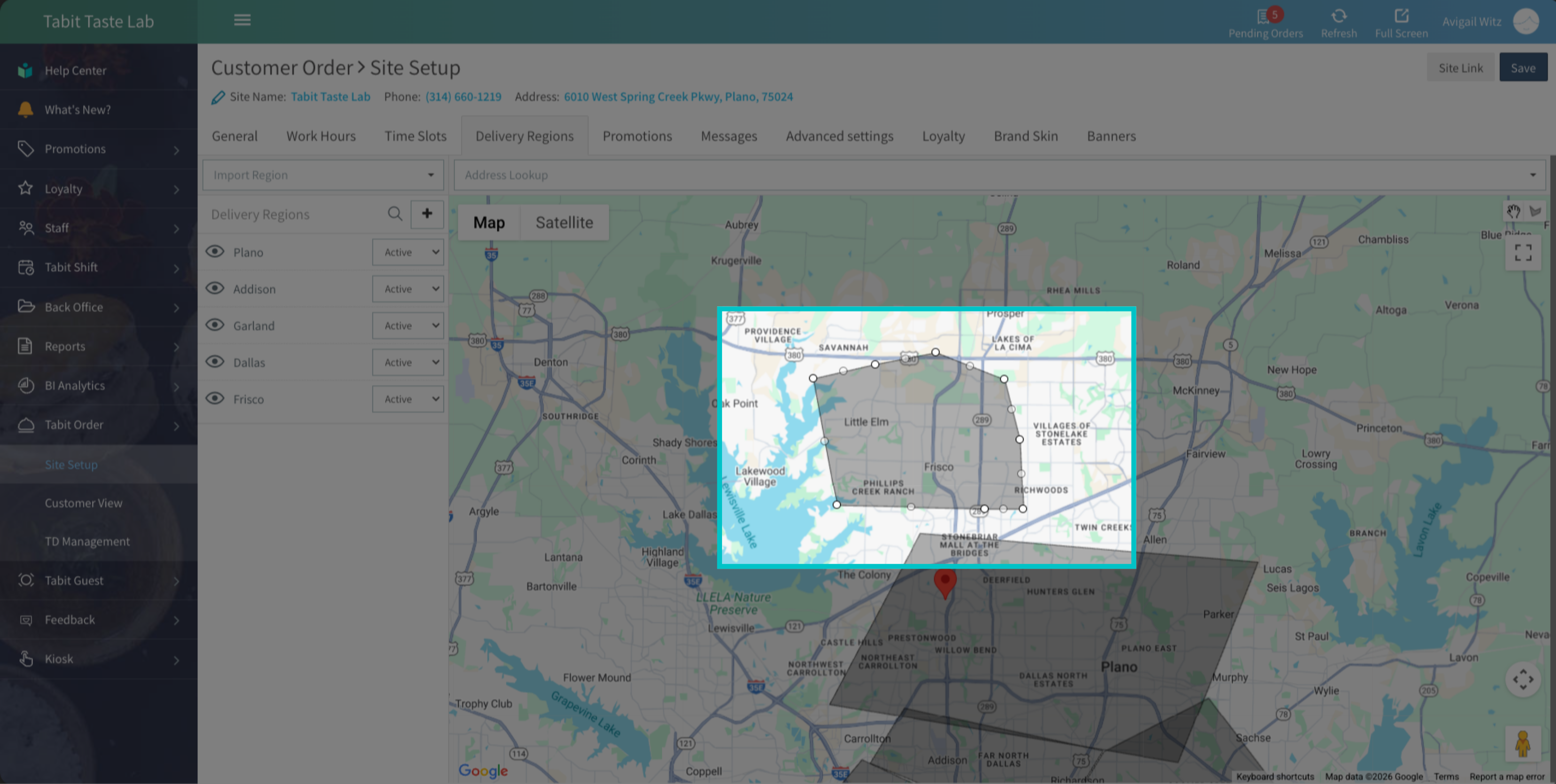
Then, adjust the polygon outline on the map to match the new boundaries
-
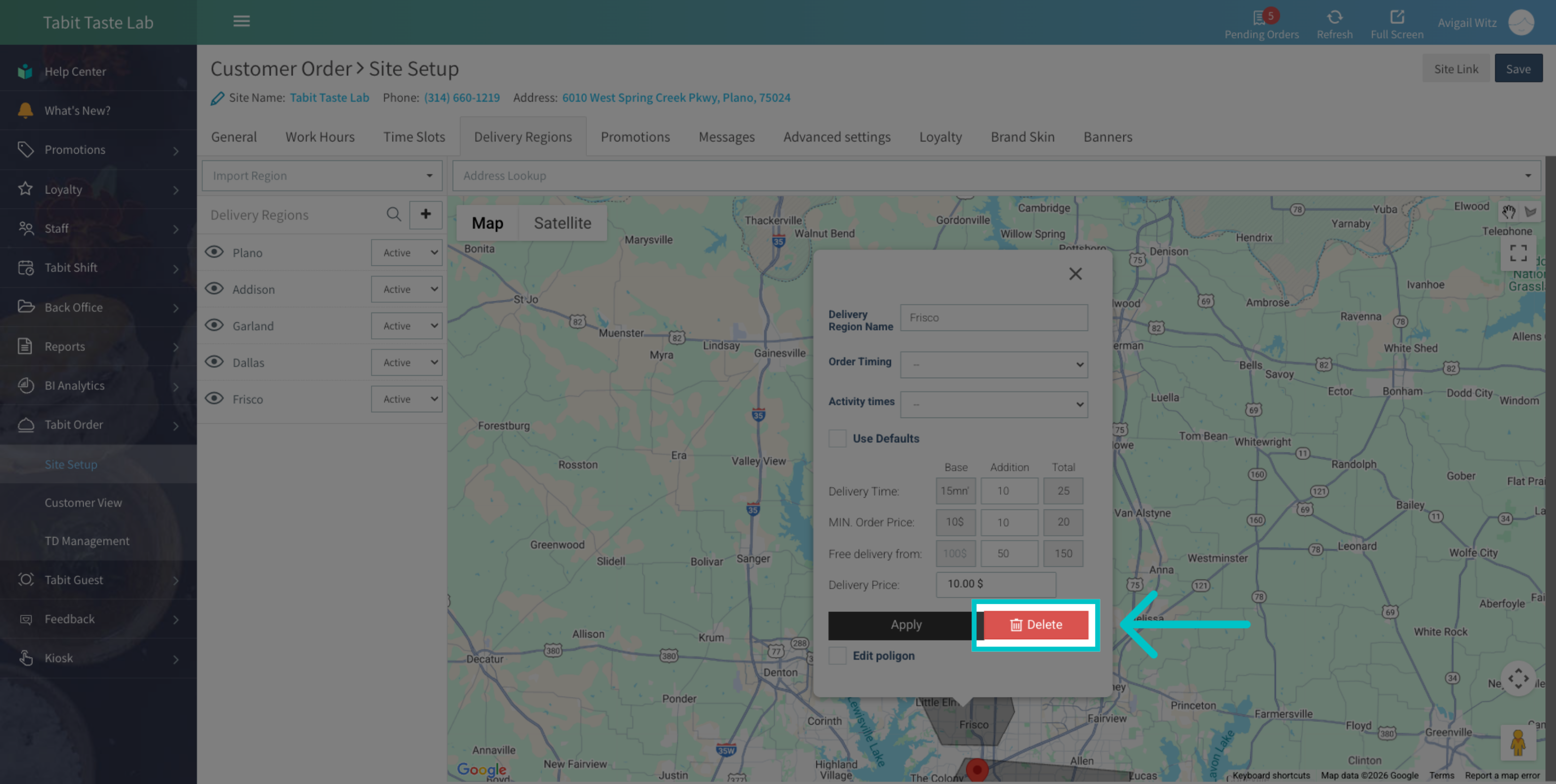
To delete the region, select Delete
-
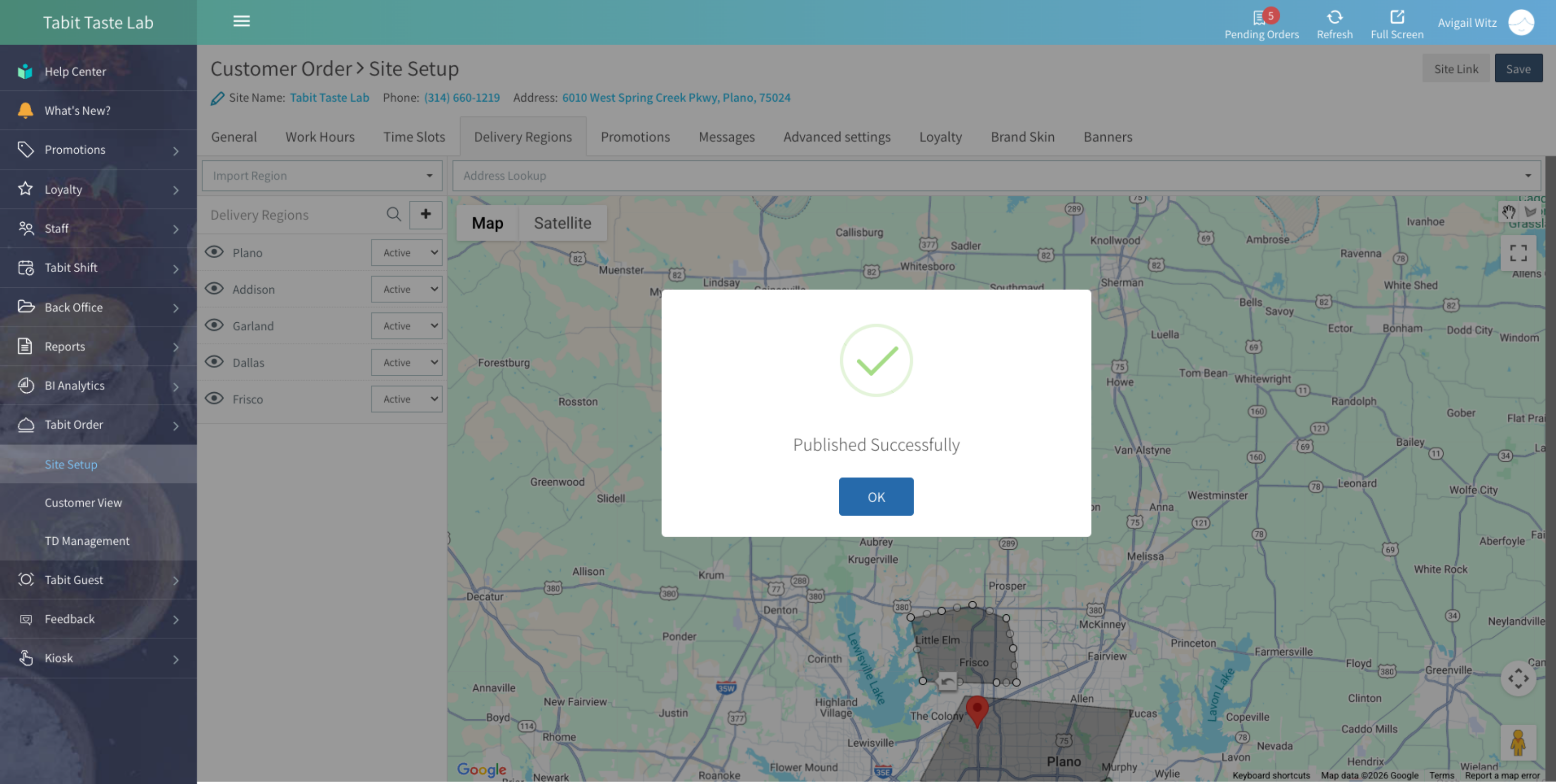
Once all edits are made, select Save to update the changes