Upsells help you increase order value by suggesting a relevant add-on at the perfect moment, either while the customer is building their cart on desktop, or right before they pay on mobile.
In this guide, you’ll create an upsell group in Tabit Office, set when it should appear, and publish it to Tabit Order.
-
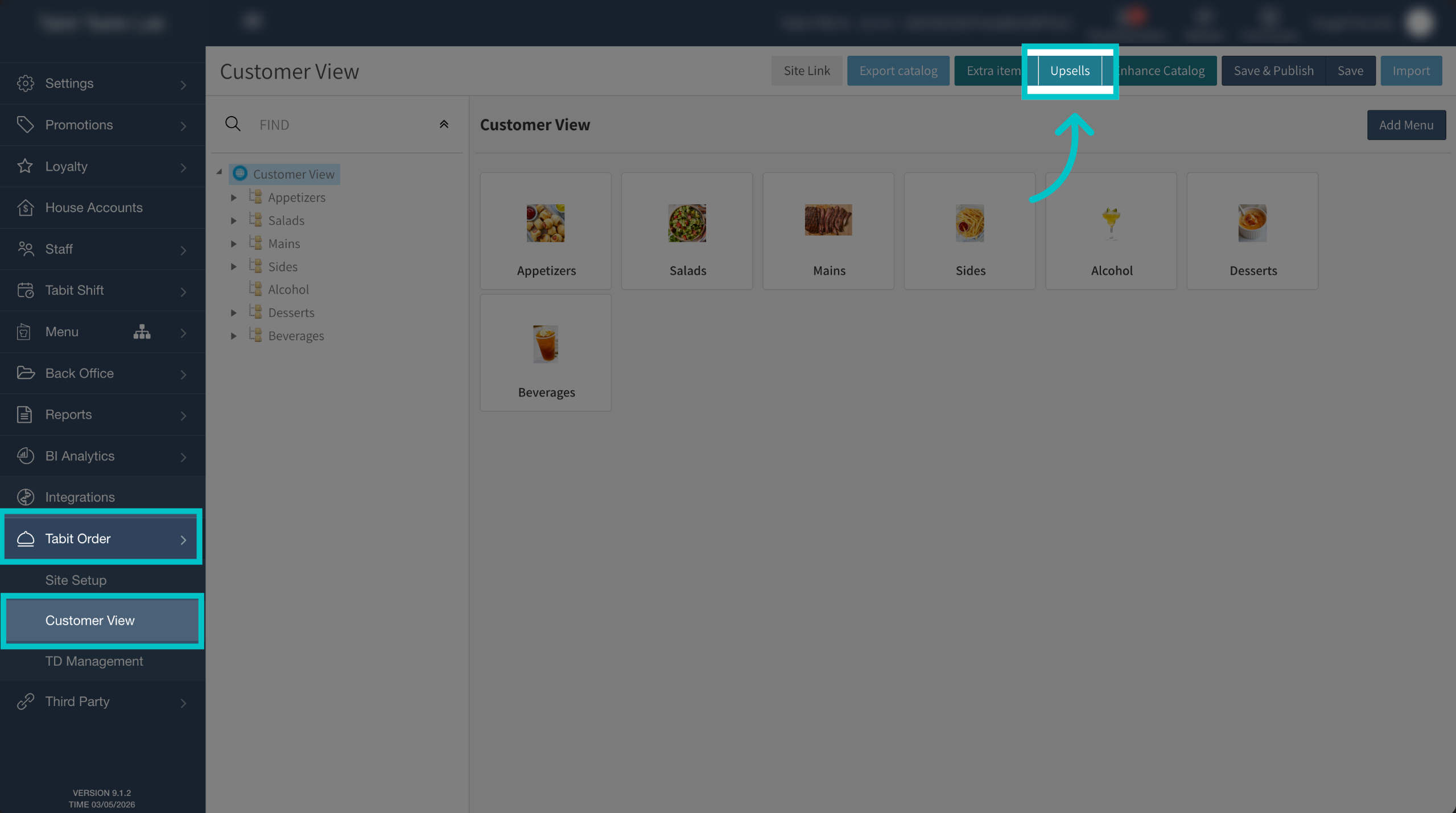
In Tabit Office, go to Tabit Order > Customer View, and select Upsells
-
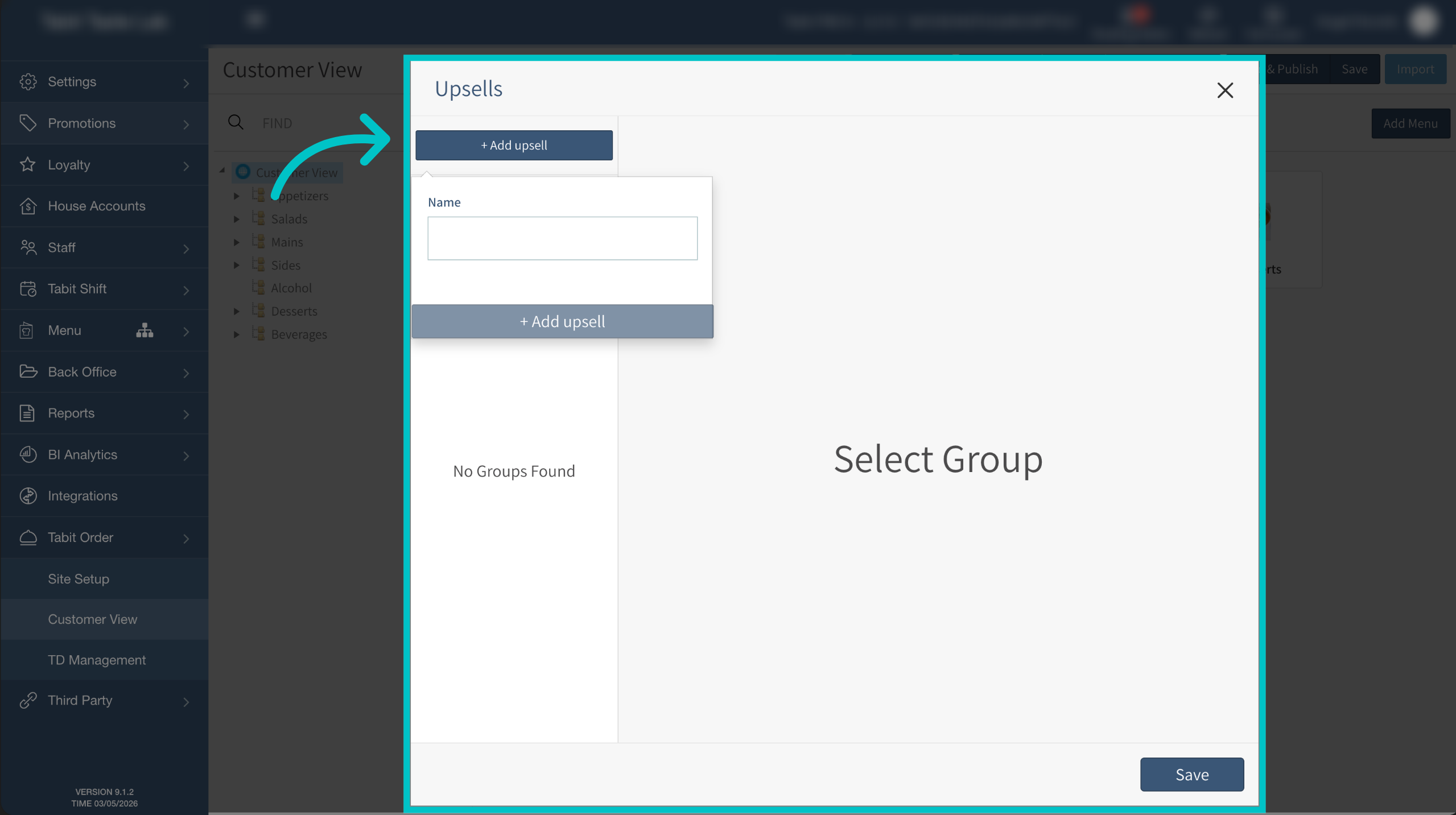
Select + add group and give the group a name. Then select + add group again
-
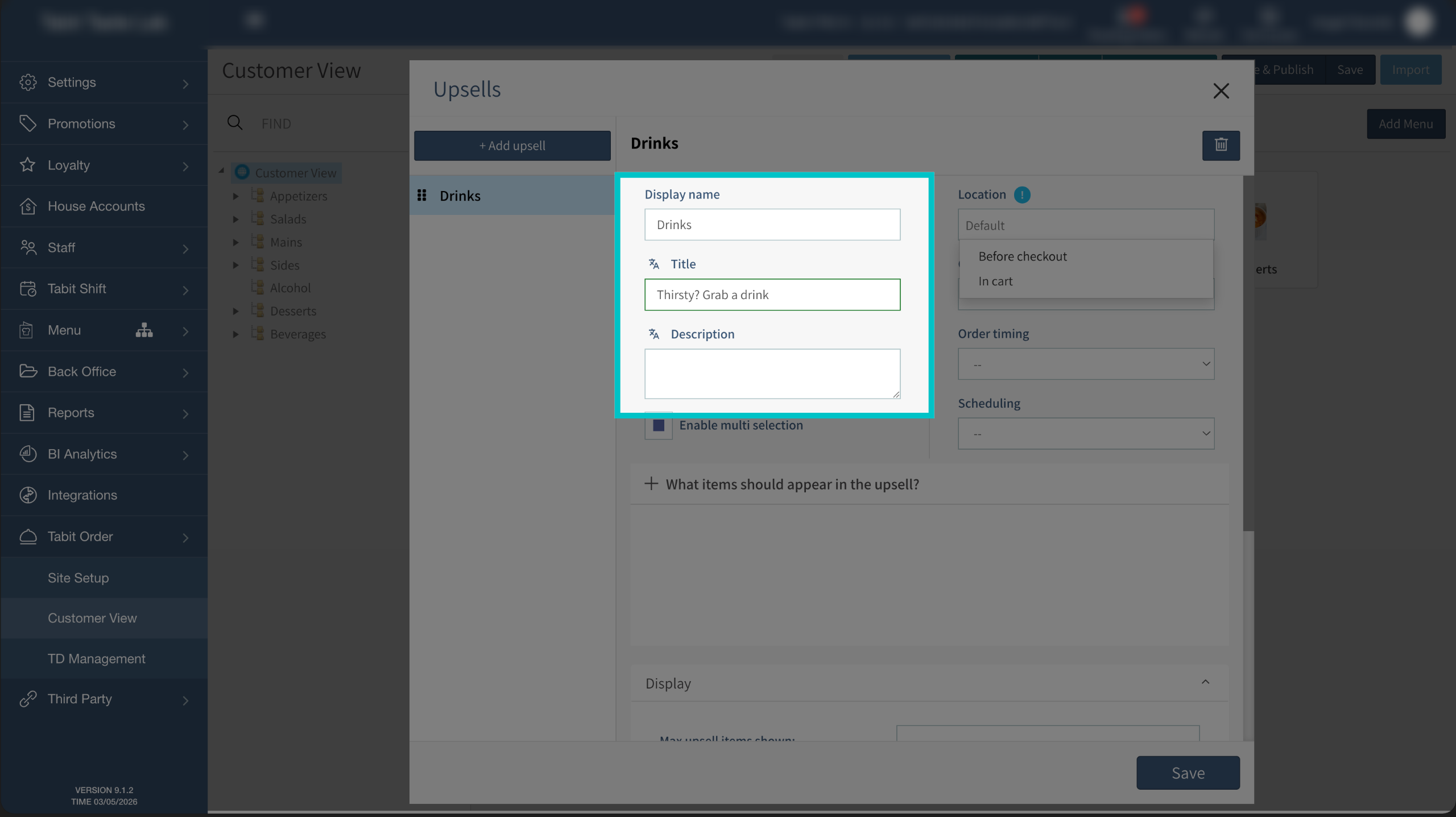
Now we can build the upsell. The display name is internal only, but the title is customer facing. A description can also be added if desired
-
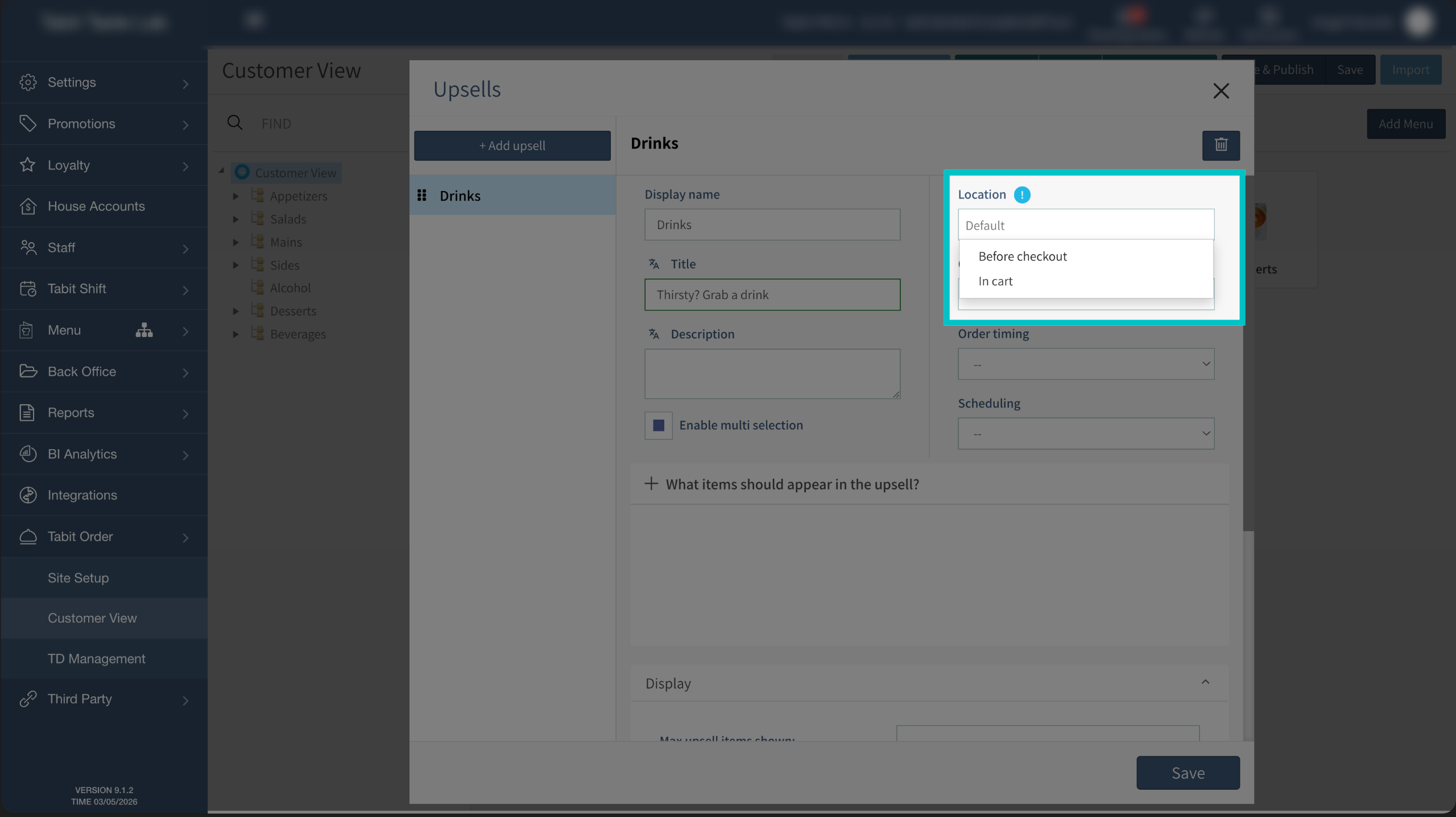
Select where in the order process the customer will meet the upsell: Before checkout or Inside the cart
-
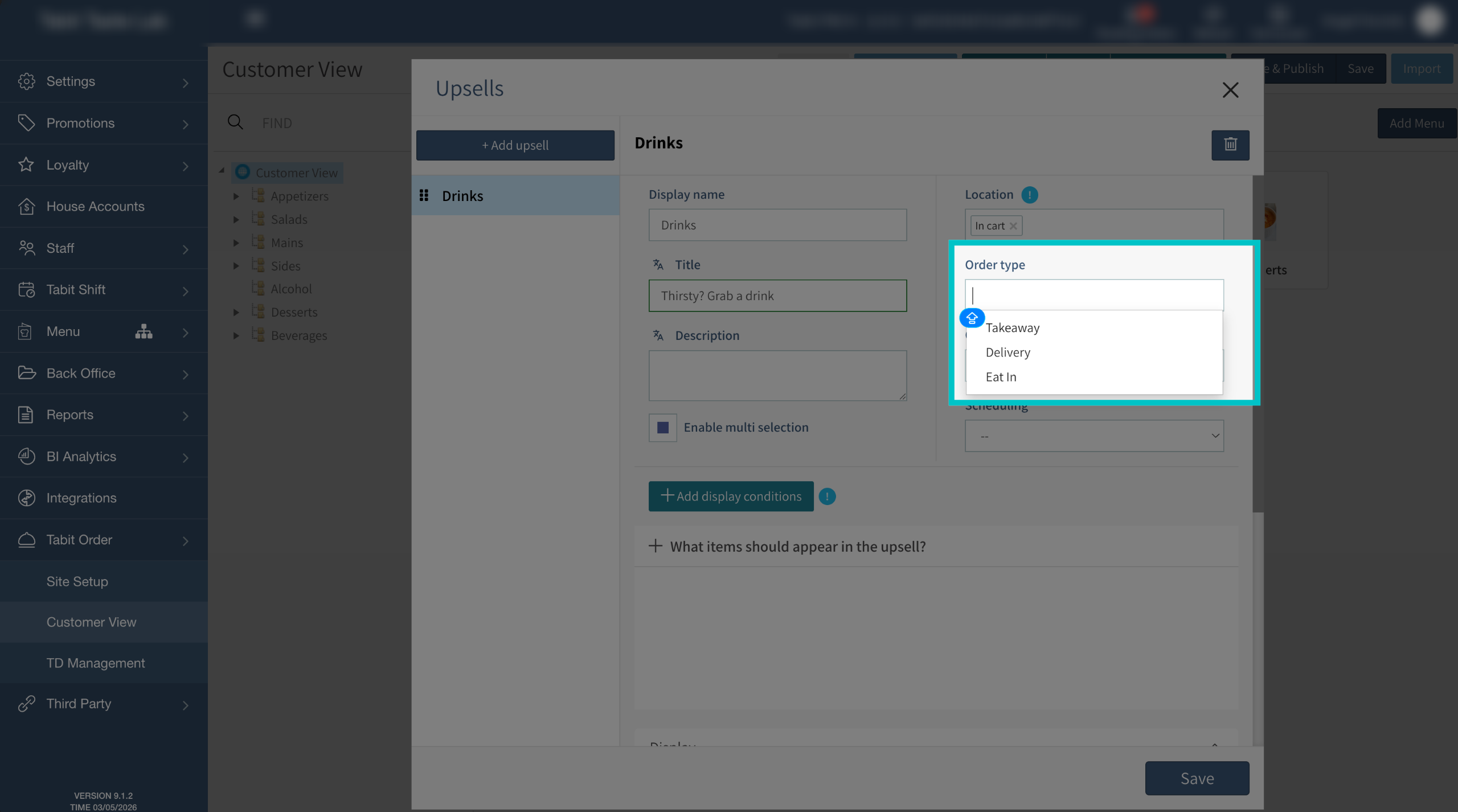
Choose which order methods should show this upsell: Takeaway, Delivery, or Eat In. If no method is selected, it will be applied to all available order methods
-
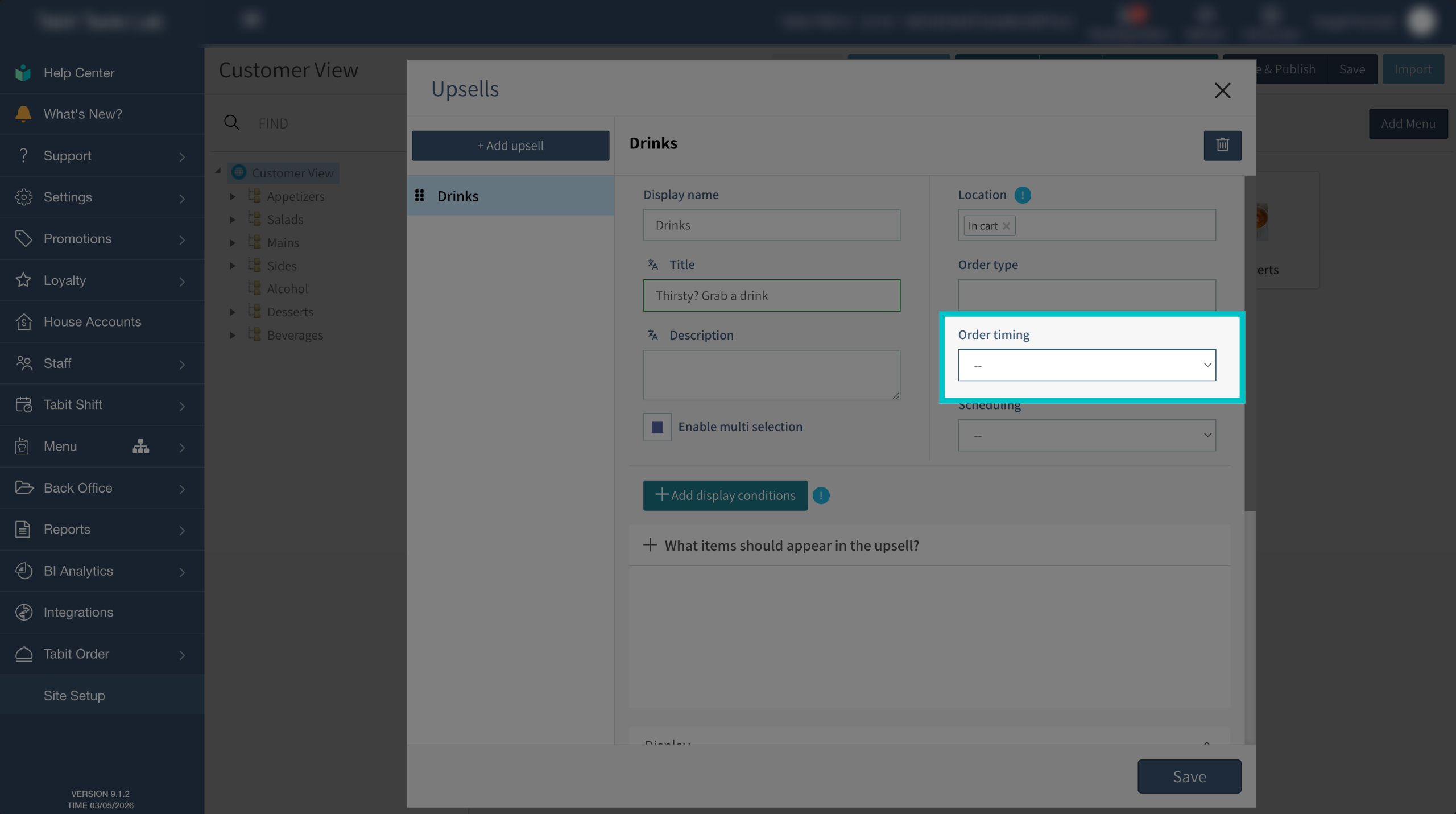
Choose when the upsell should appear: regular orders, future orders, or both
-
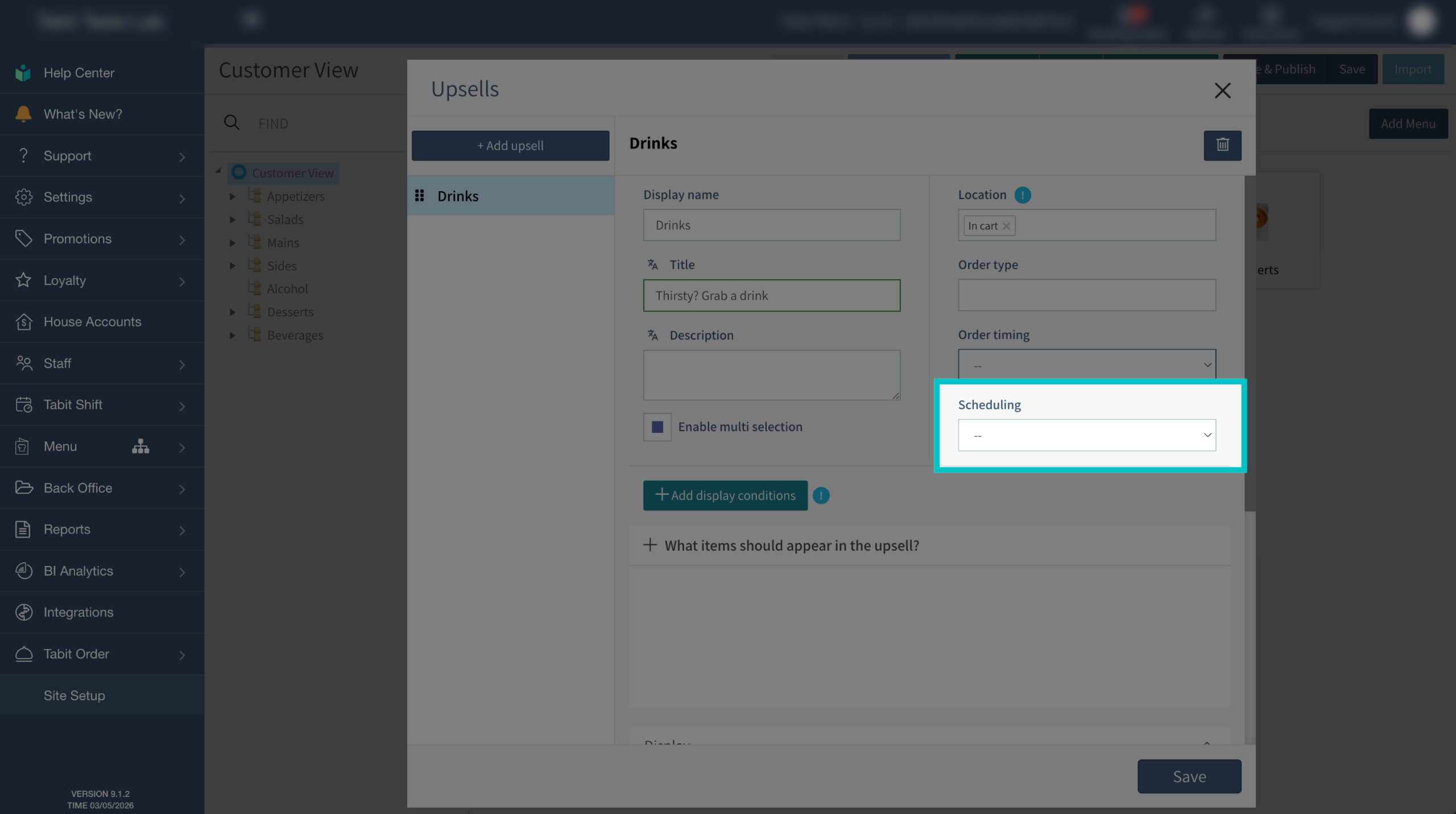
Scheduling determines when the upsell will appear by limiting it to a specific time slot. Follow the link in the article to create one.
-
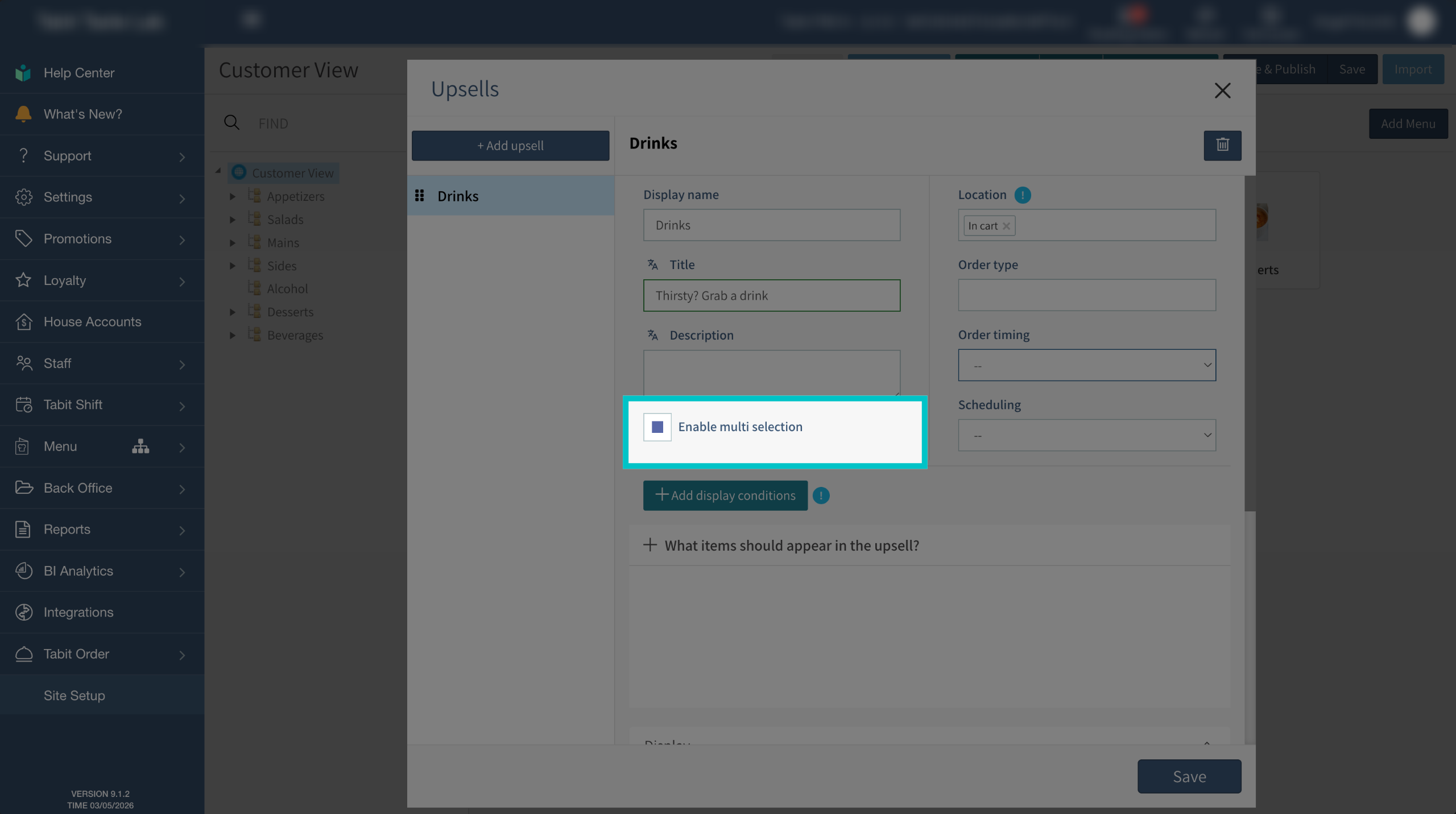
Enable multi-selection if you want customers to add multiples of the same upsell item to their cart
-
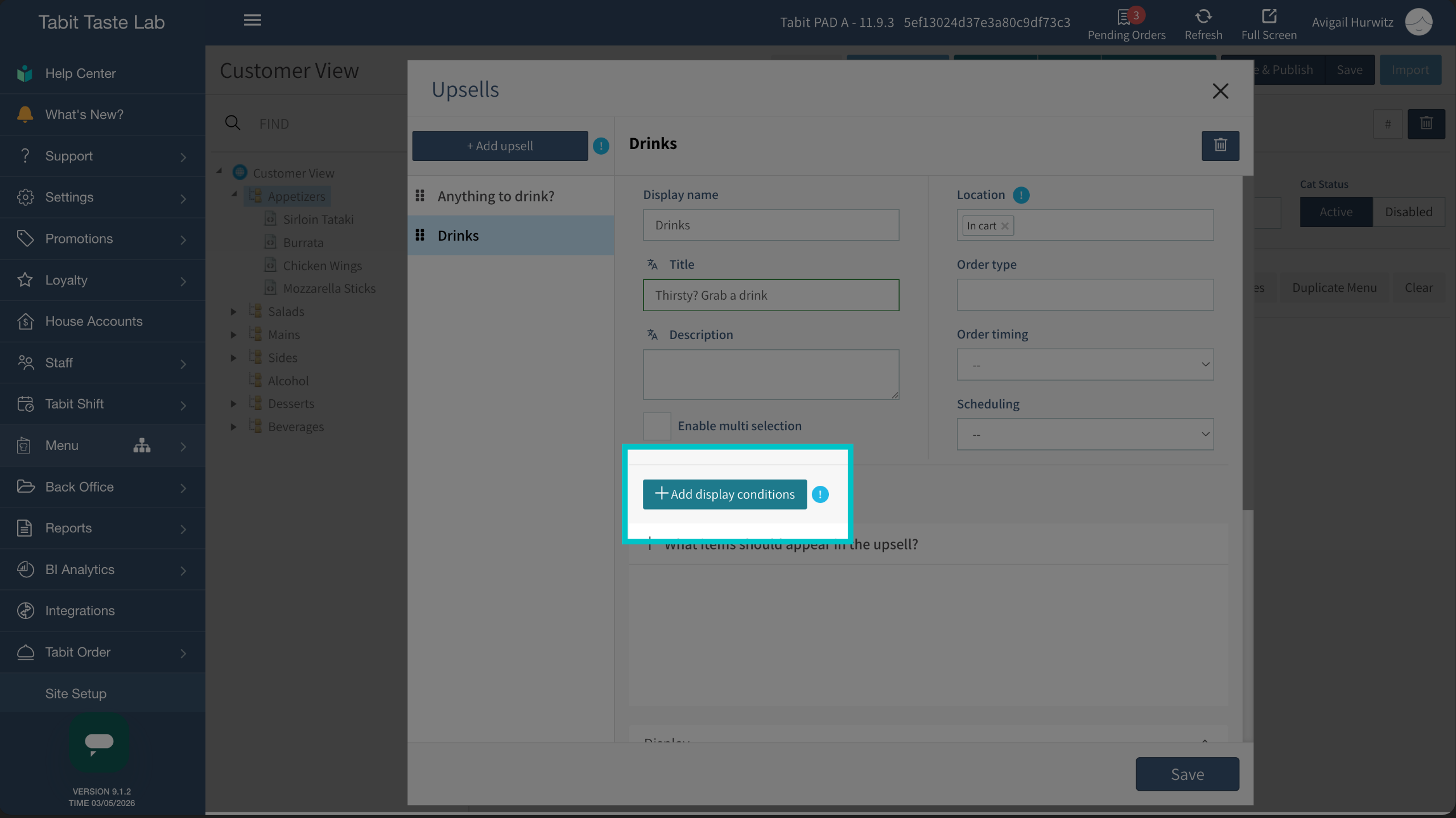
Add display conditions if desired. The customer will only see the upsell if they meet the conditions set here. If no conditions are set they will always see it
Conditions work as a hierarchy: if there are multiple conditions with multiple upsells, the first one the order fulfills will be shown
-
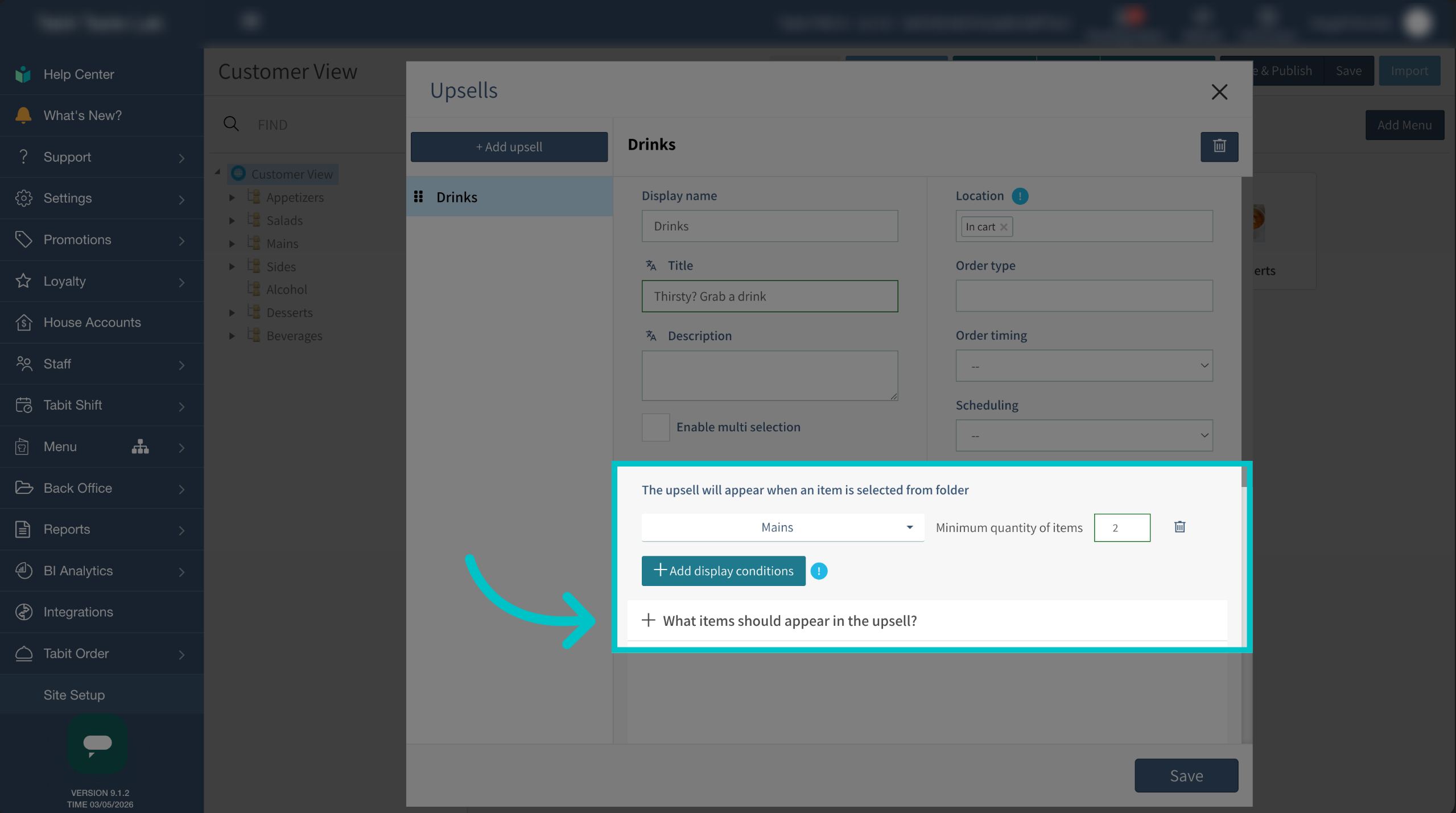
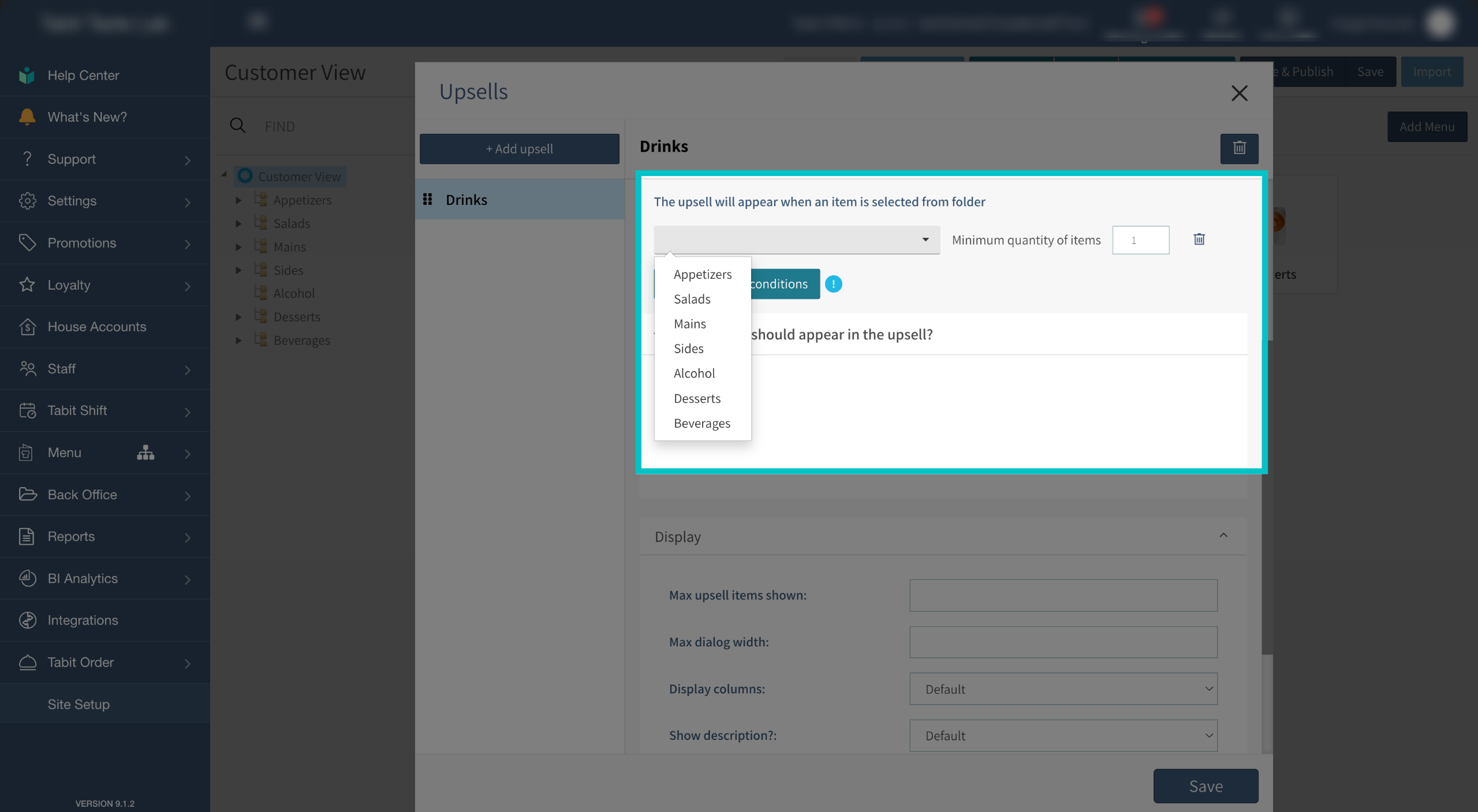
Set the trigger folder. Select the folder the customer needs to order an item from for the upsell to appear
-
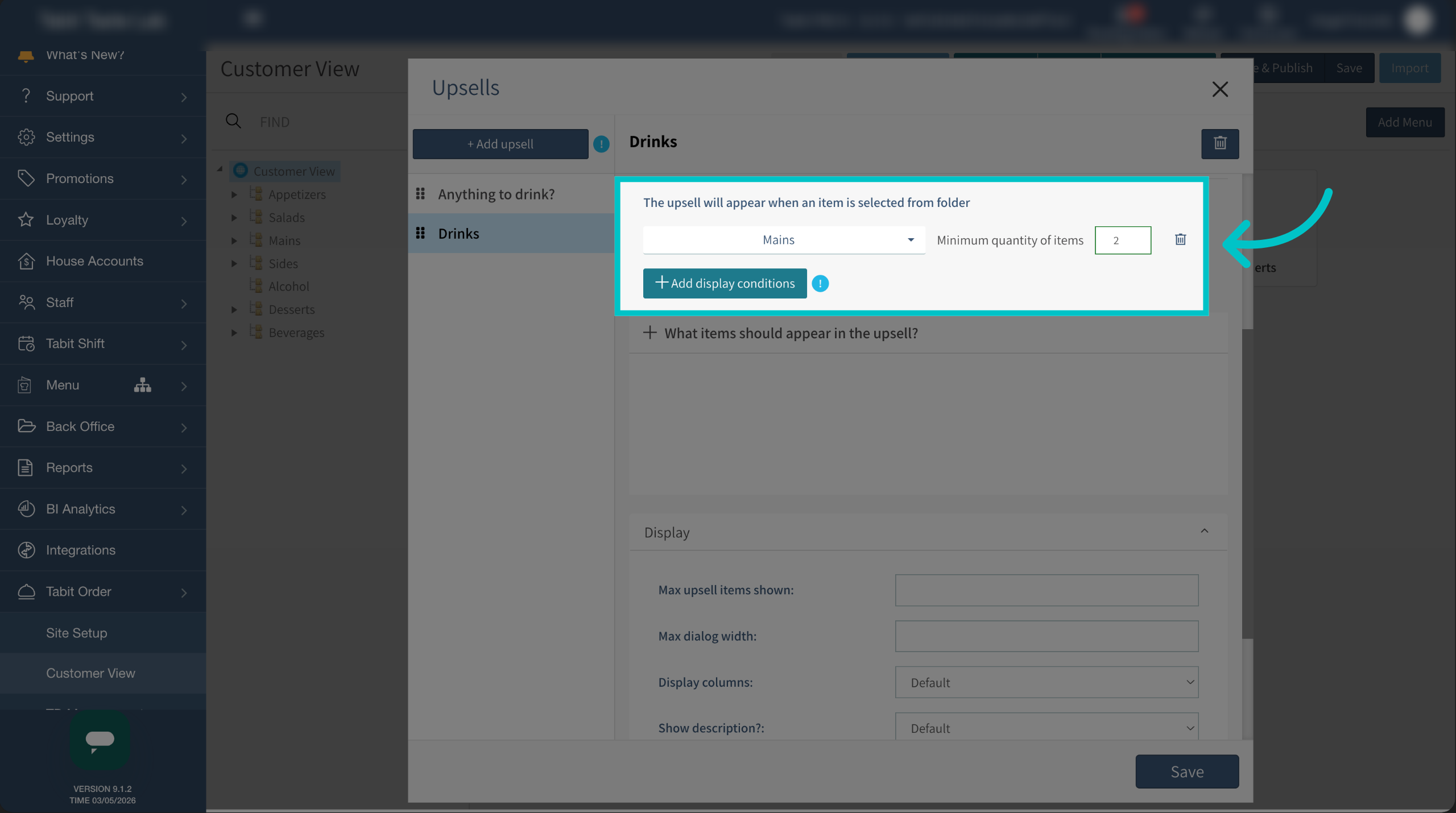
If desired, require the customer to add a set number of items from the selected folder for the upsell to appear
-
Select + What items should appear in the upsell?
-
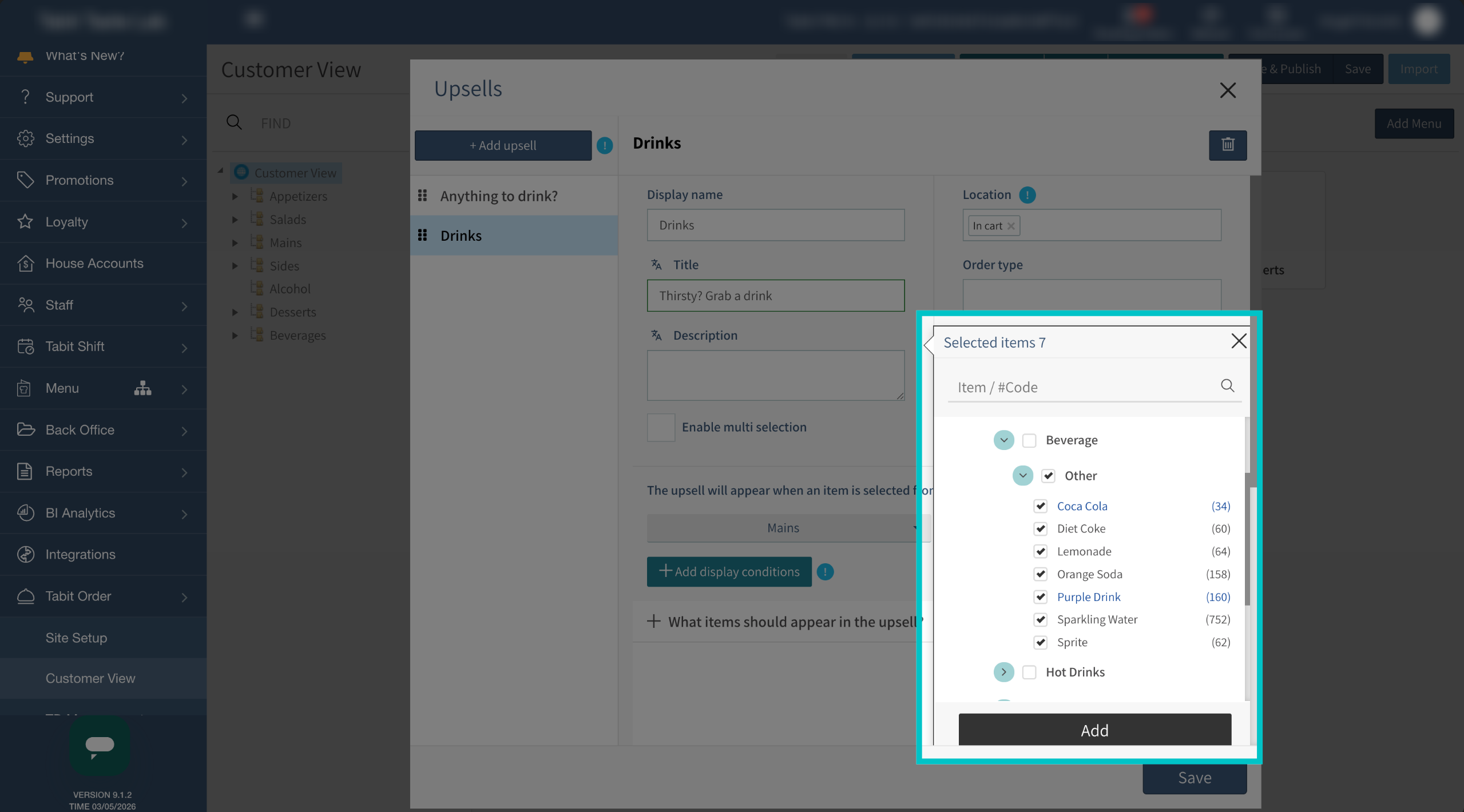
Browse through the catalog or enter the item names or codes, and then select Add
-
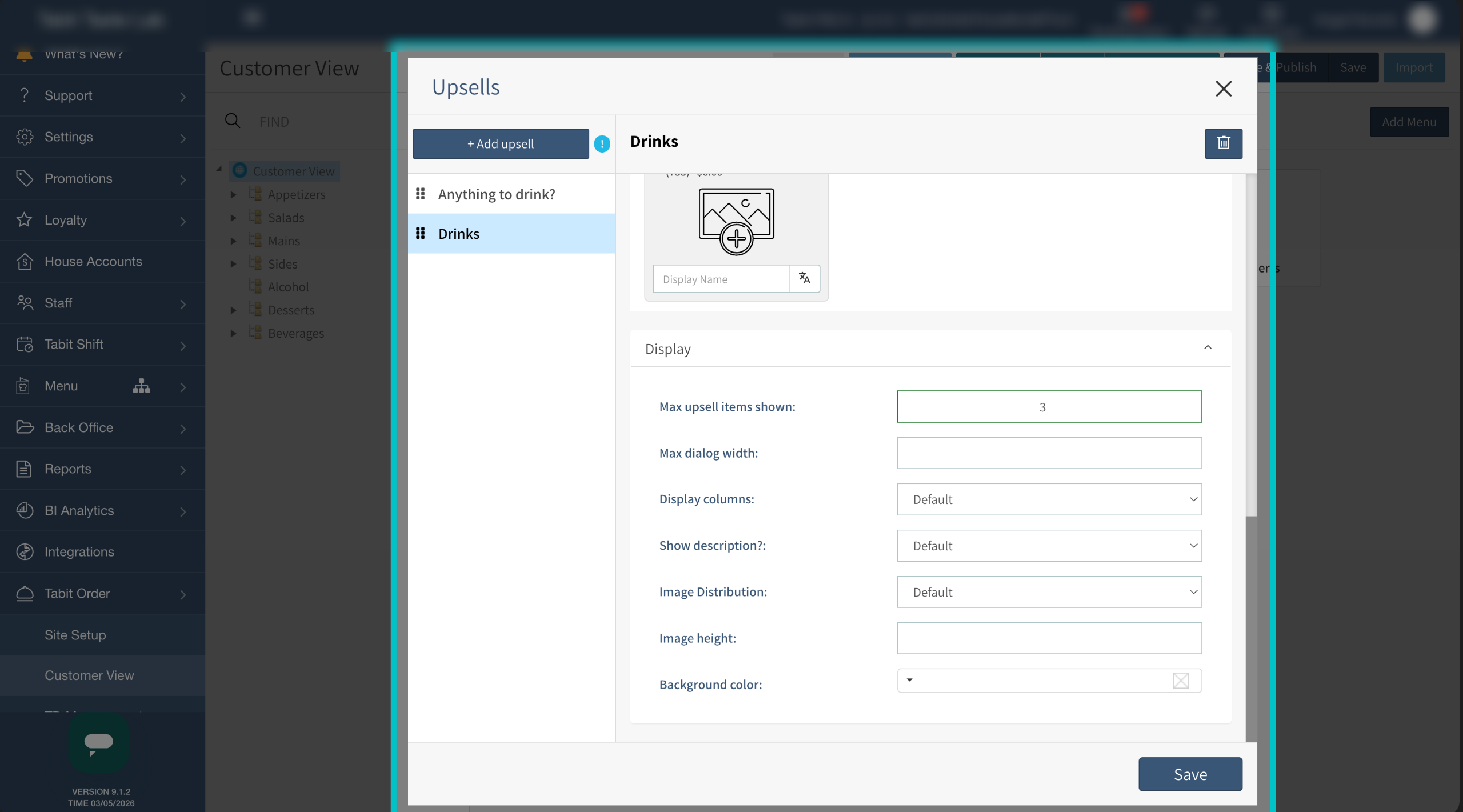
Scrolling down, you can change the display conditions by editing the following:
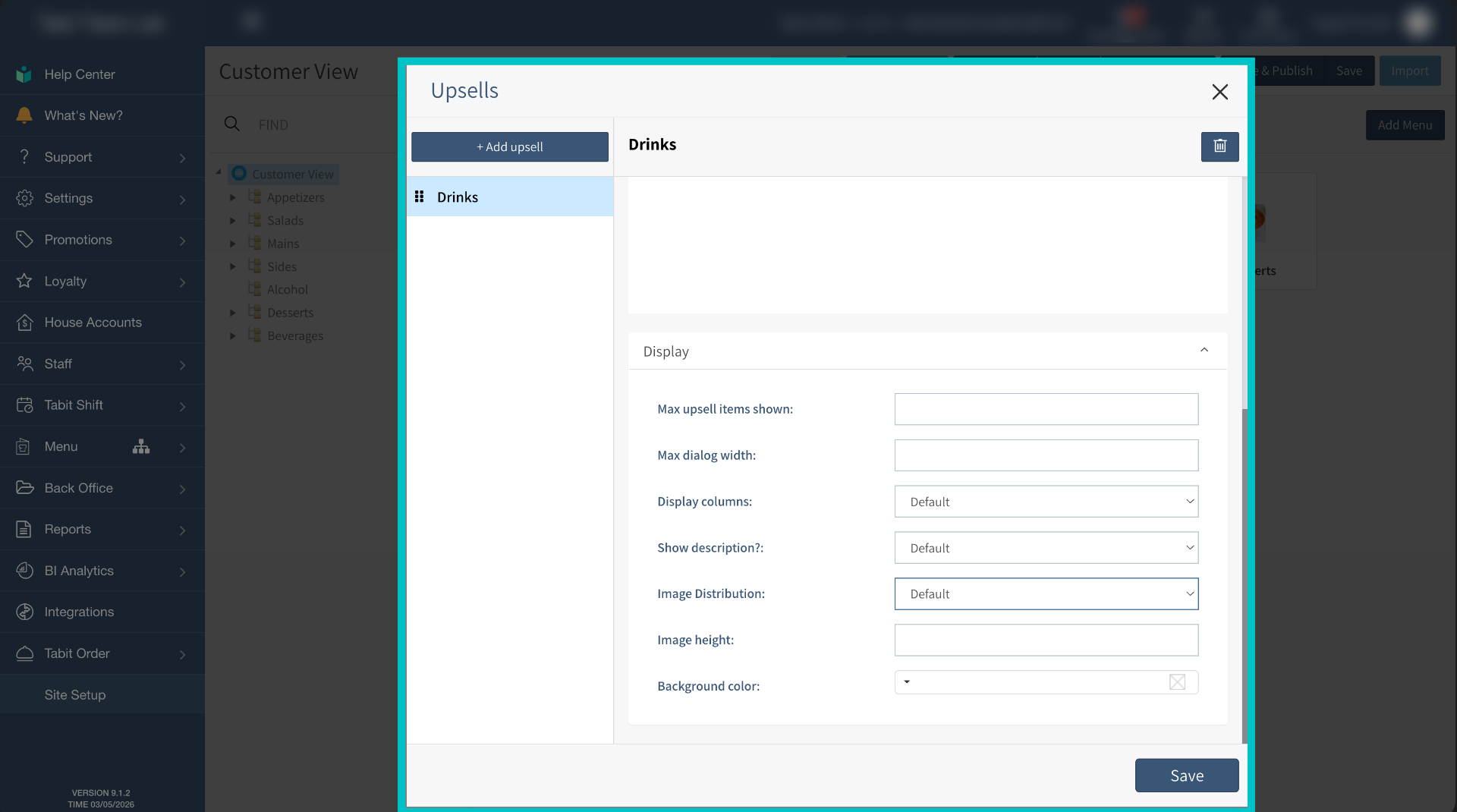
- Max upsell items shown: Not supported
- Max dialog width: Not supported
- Display columns: Not supported
- Show description? Show (default) or hide the item's description
- Image distribution: Adjust the image layout
- Image height: Adjust the height of the image view
- Background color: Not supported
-
Review the upsell group details and select Save
-
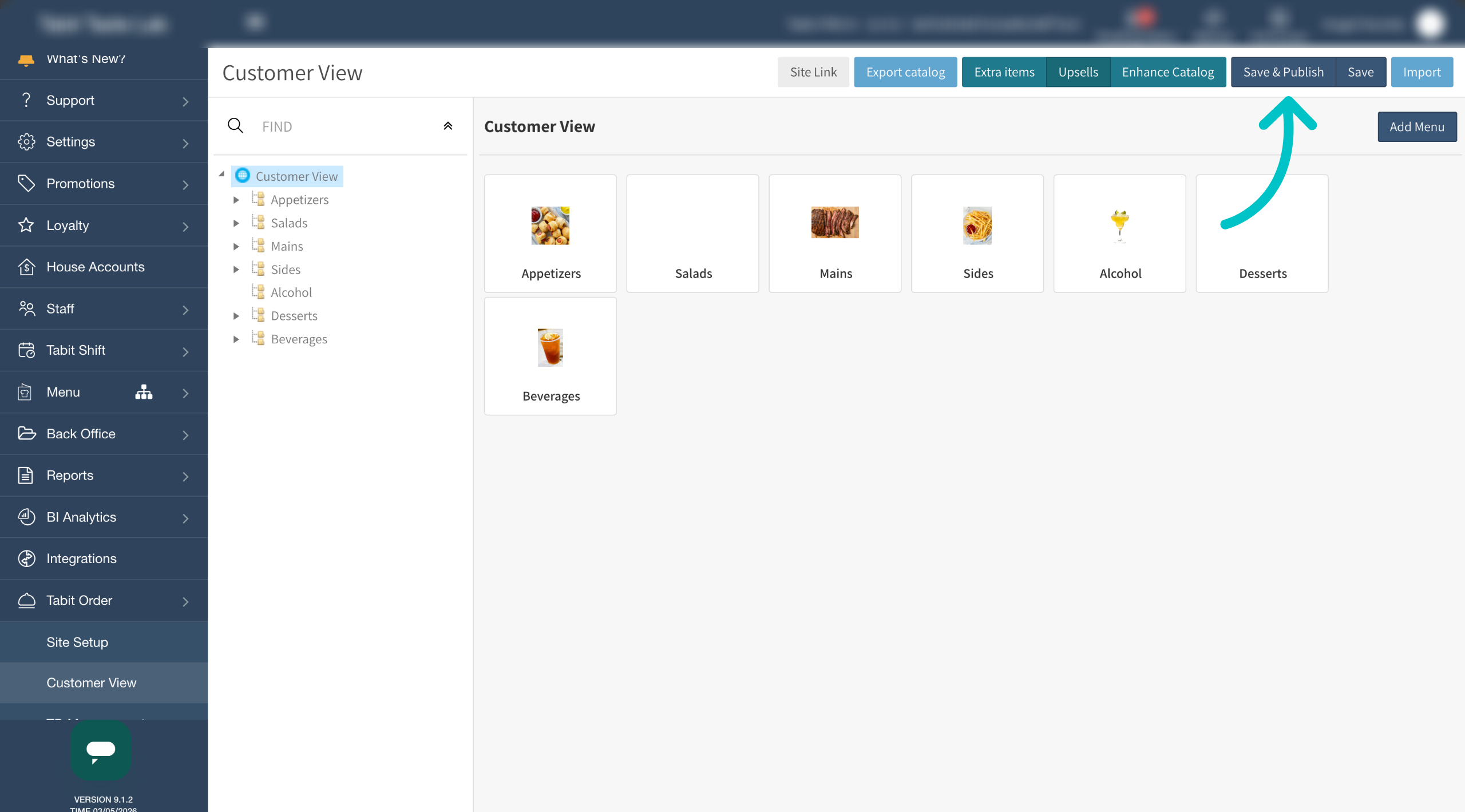
Select Save and Publish to push these changes to Tabit Order
-
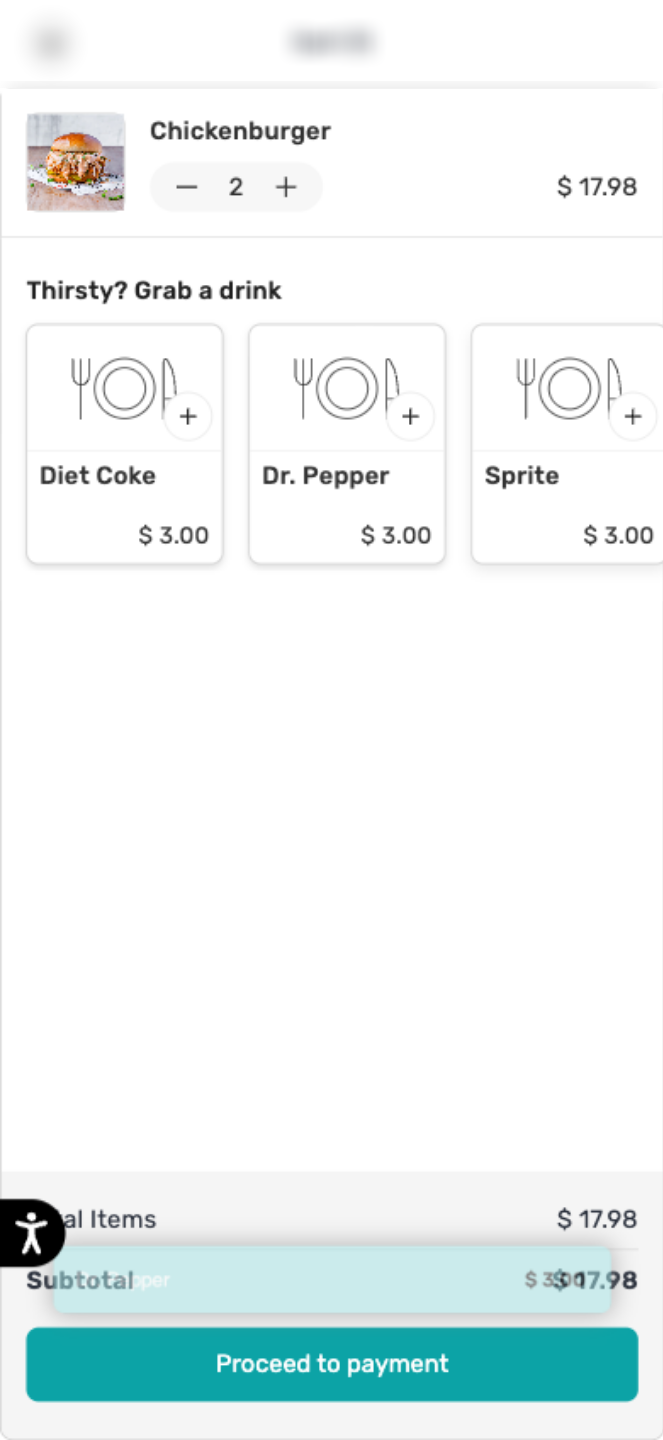
Confirm the upsell appears as expected on mobile when the customer meets the display conditions
-
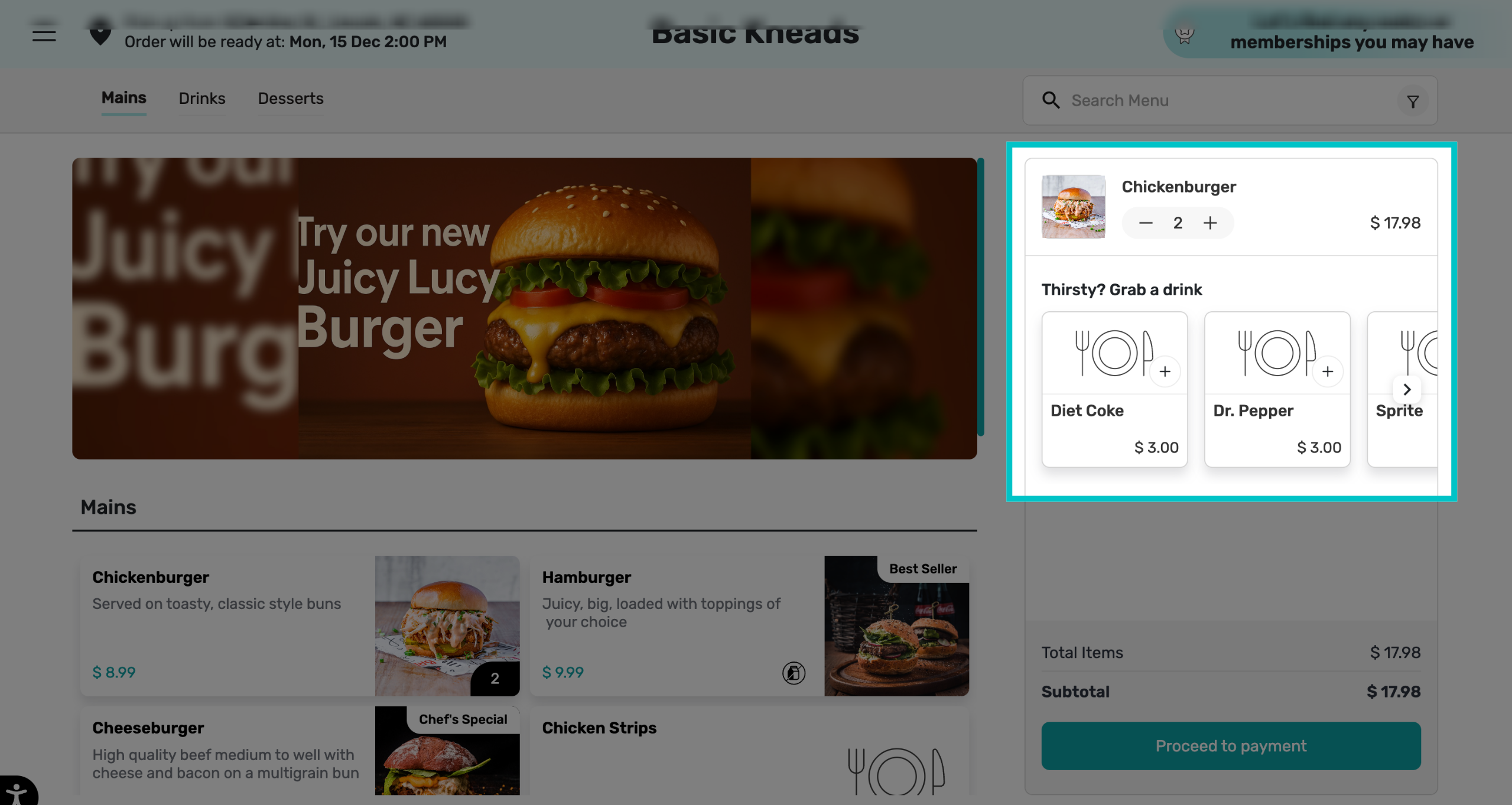
And here, on desktop
Learn more about different upsells, pre-sells, and cross-sells