In some cases, managers may want to make special adjustments to a bill before it’s closed — for example, applying a VIP discount or comp. The payment lock feature allows managers to temporarily prevent servers from printing the bill or processing payment until those adjustments are completed. Once the manager finishes, payments can be unlocked for normal processing.
Follow the steps below to lock or unlock payments on an order:
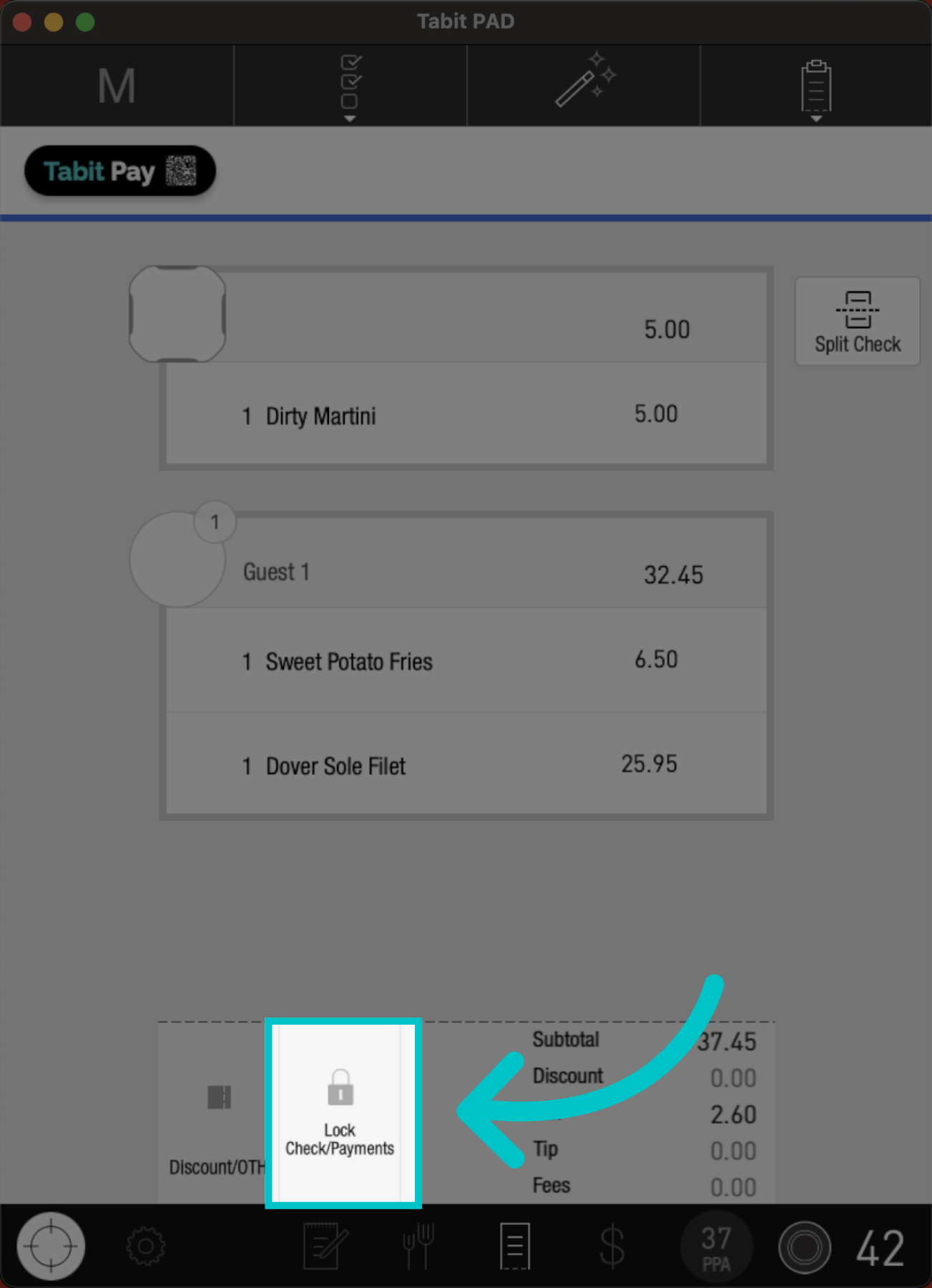
- Swipe the order total to the right to reveal additional options
-
Select Lock Check/Payments
-
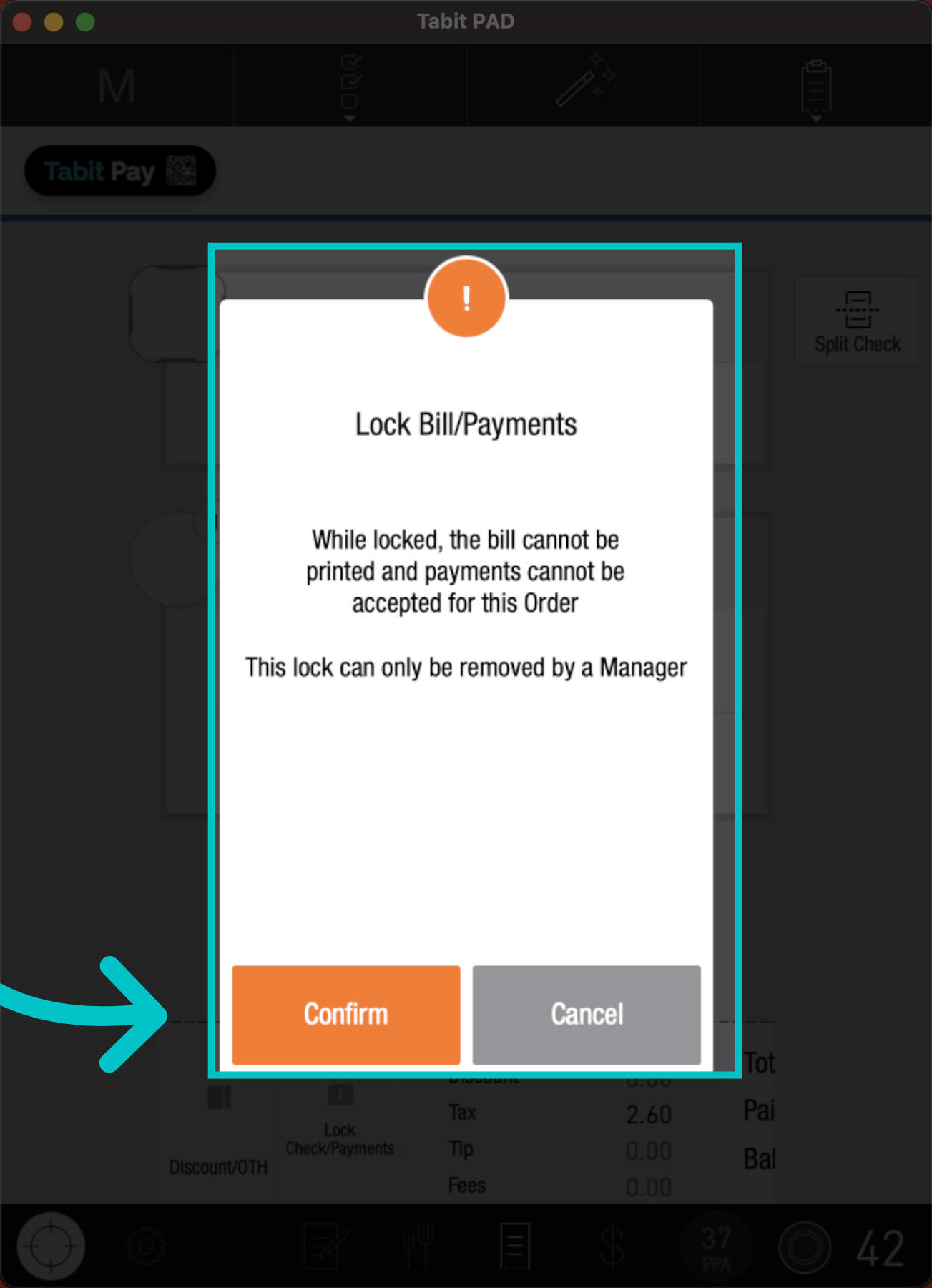
Tap Confirm to apply the payment lock to the order
-
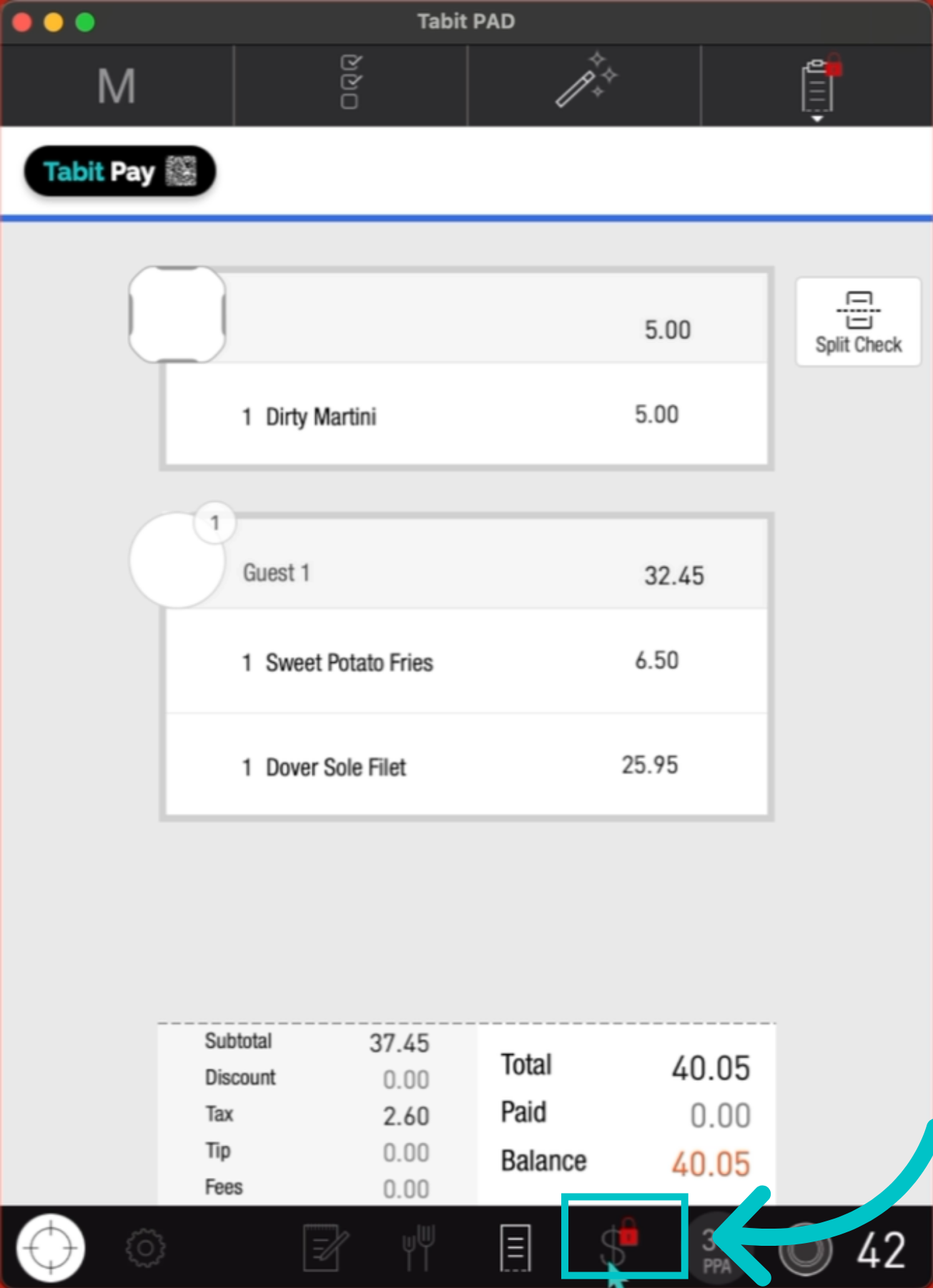
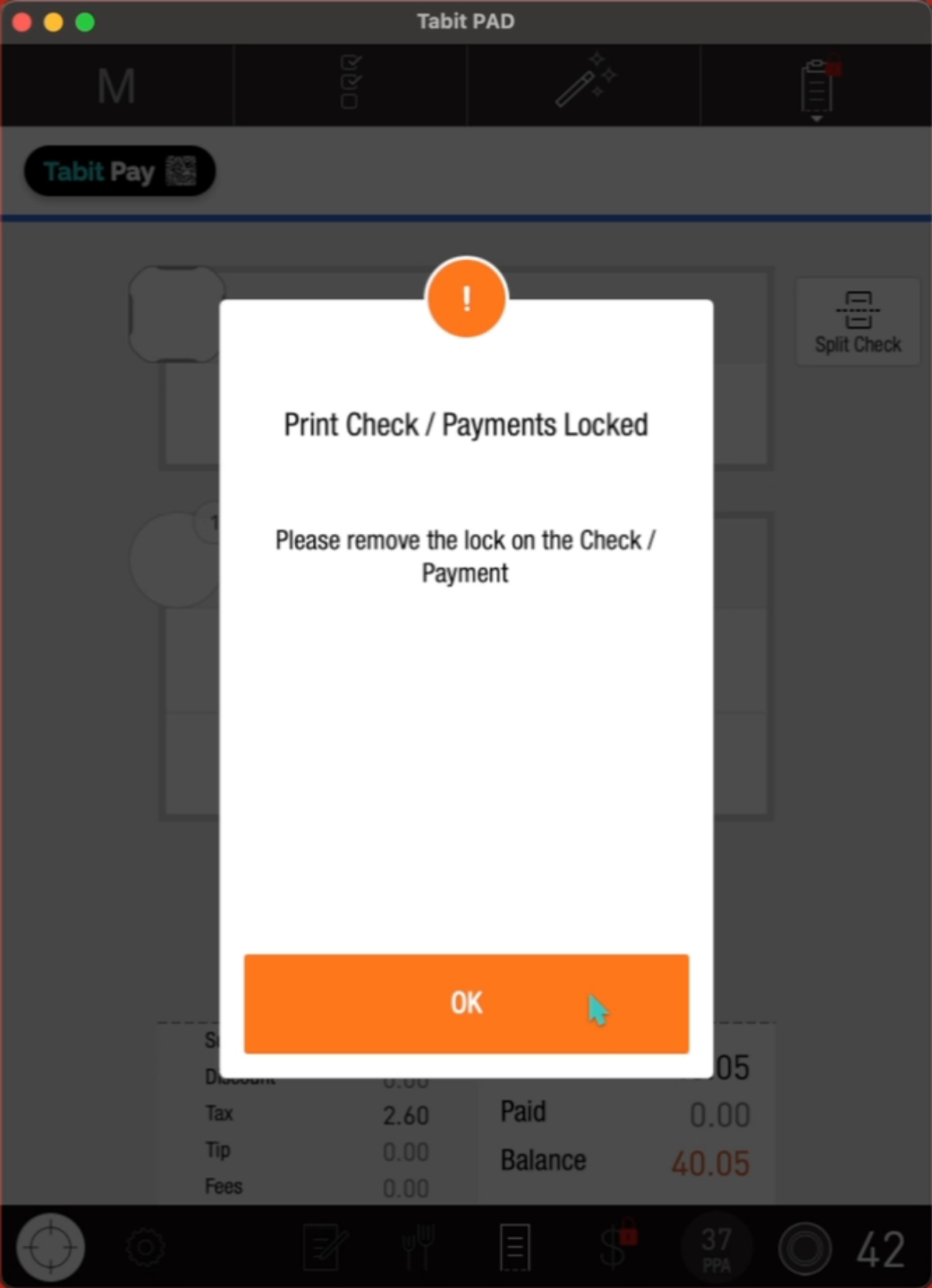
A red lock will now appear next to the payment icon. Tapping it will prompt an error message
-
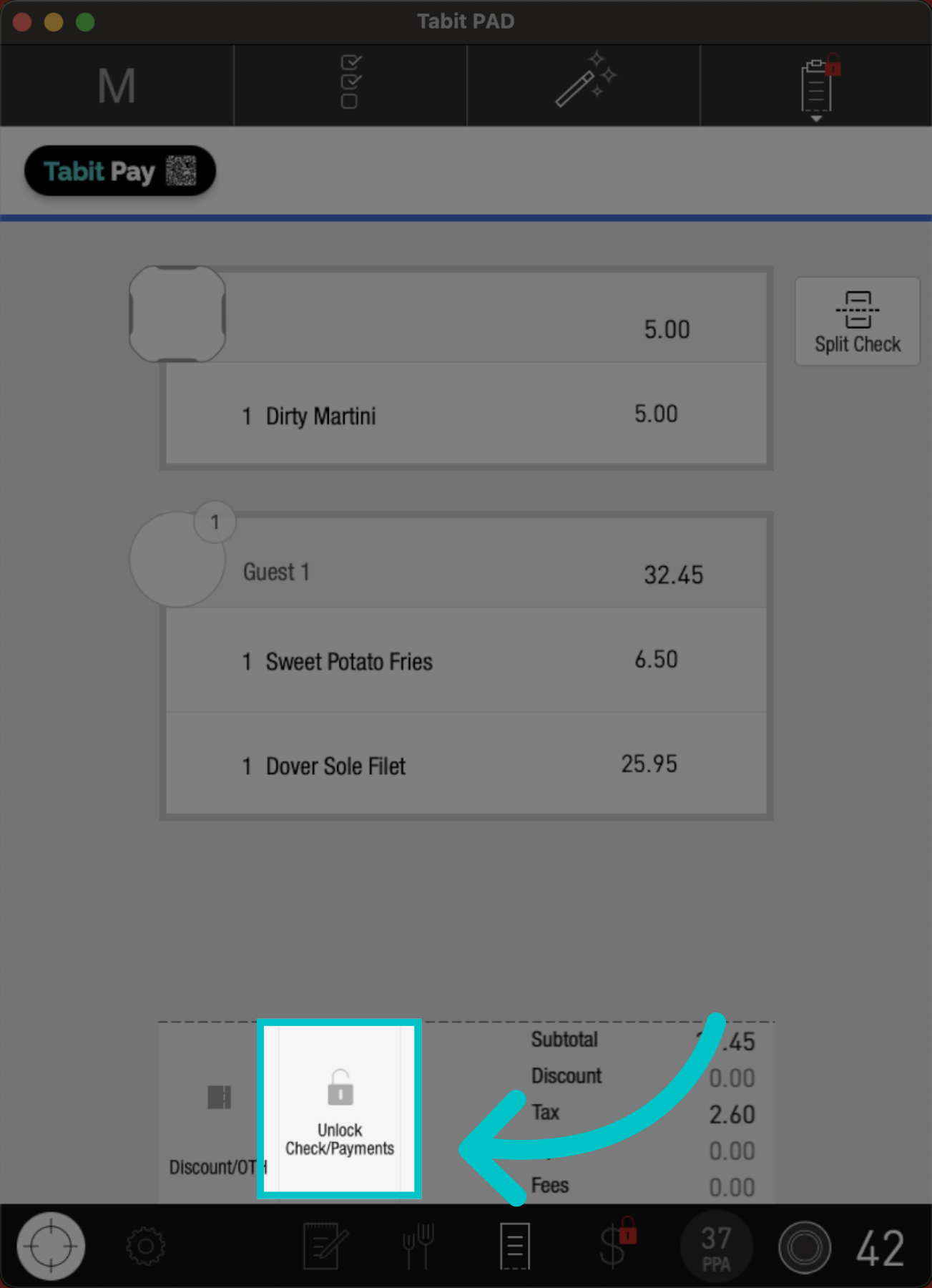
To unlock the payment, swipe the check total to the right again and select Unlock
Payment locks can be applied by servers; however, unlocking a check requires manager authorization.