Printing a check from the PAD can be done in three ways. Whether you're viewing an individual order or managing a table, you can print from the check screen, the tables screen, or the Map.
Learn here how to reprint closed checks
Follow the steps below to print a check:
From the check screen
-
Select the relevant order and go to the Check screen
-
Tap the Check icon on the top right
-
Now, select the desired printer for printing
- The check will now print
From the tables screen
This option will not offer a printer selection and will print the check using the default printer set for the table. To print to a different printer, refer to the other printing options in this article
-
From the main screen, go to the Tables tab
-
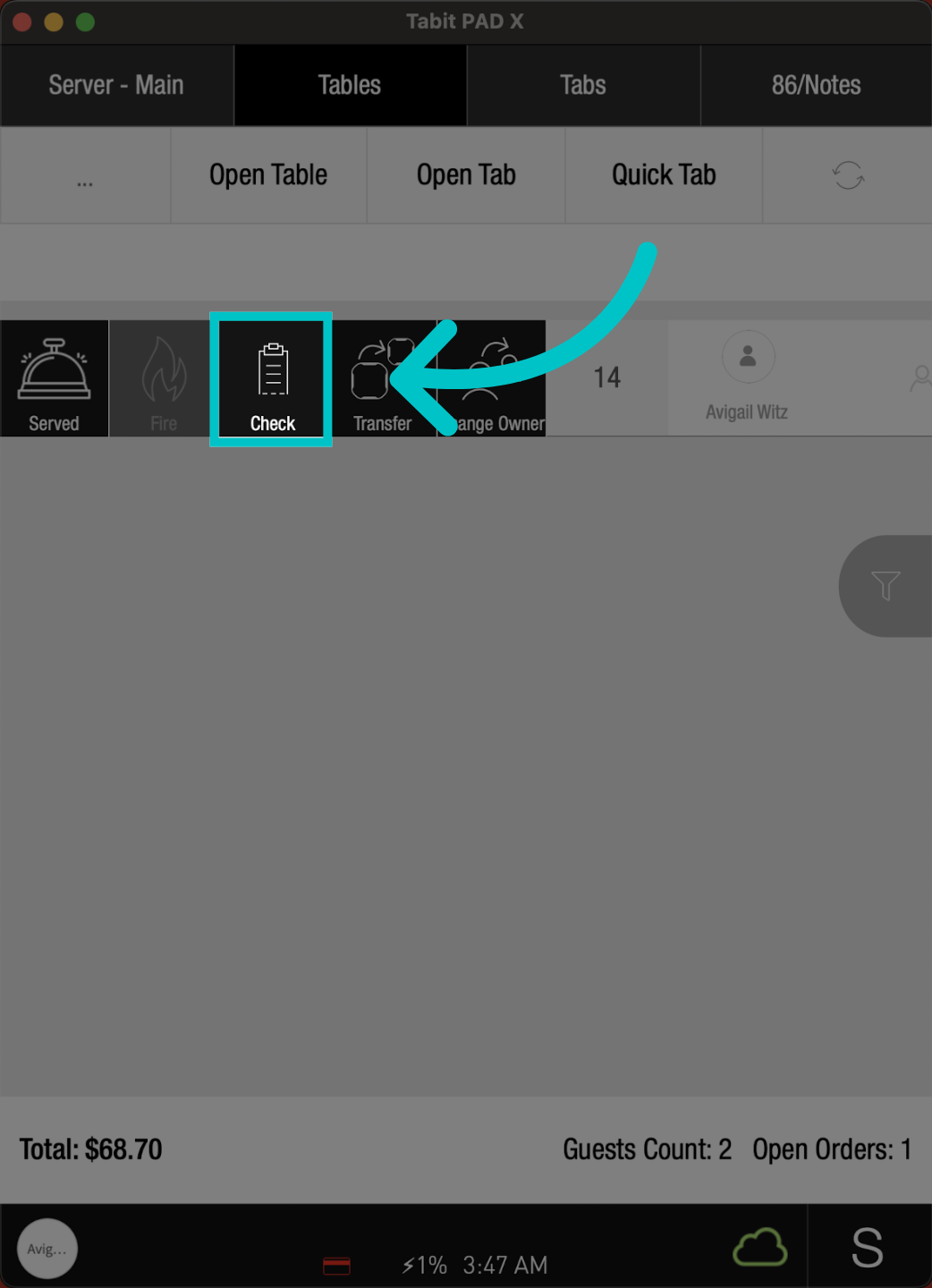
Locate the relevant order, swipe it to the right, and select Check
- The check will now print
From the map
Long-press the relevant table, select Check, and tap the desired printer