Pricing Management in Tabit Office helps staff who manage menu prices for a single site update offers, modifier groups, and item groups individually or in bulk.
To learn how to use Pricing Management for HQ sites, see Using Pricing Management for HQ Sites
To learn how to update prices for a single site, follow the steps below:
-
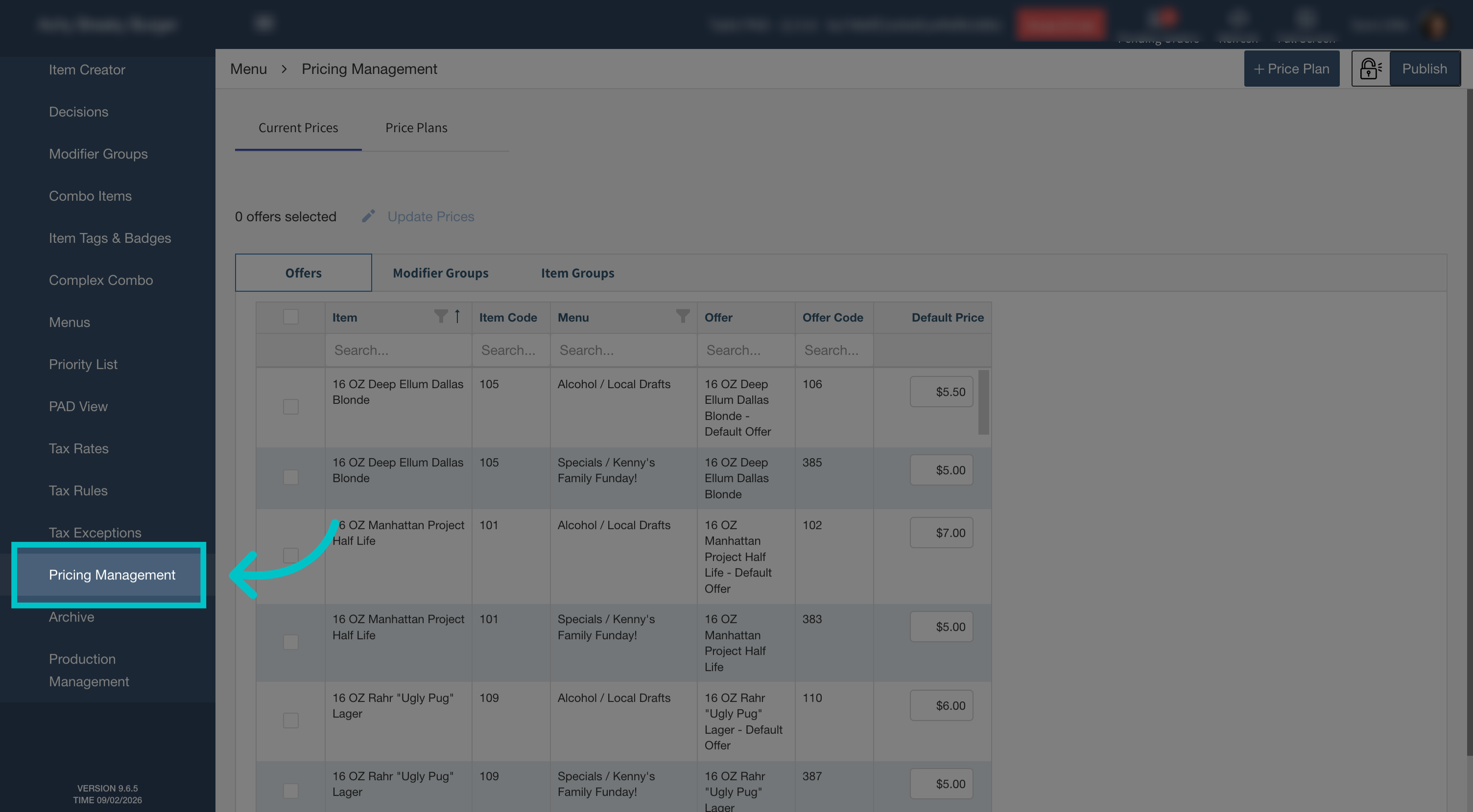
In Tabit Office, go to Menu > Pricing Management
-
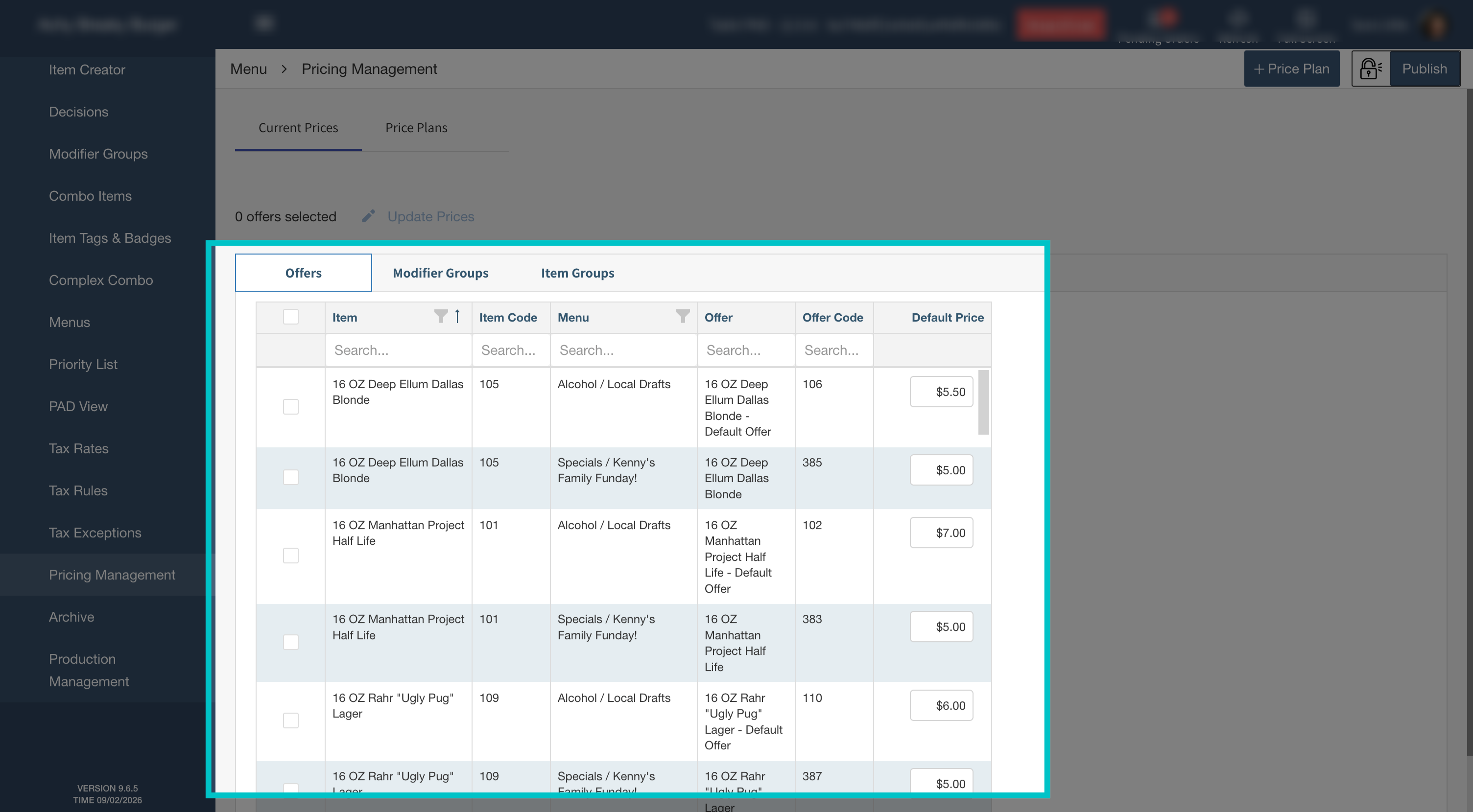
Review the offers, modifier groups, and item groups and their current prices
-
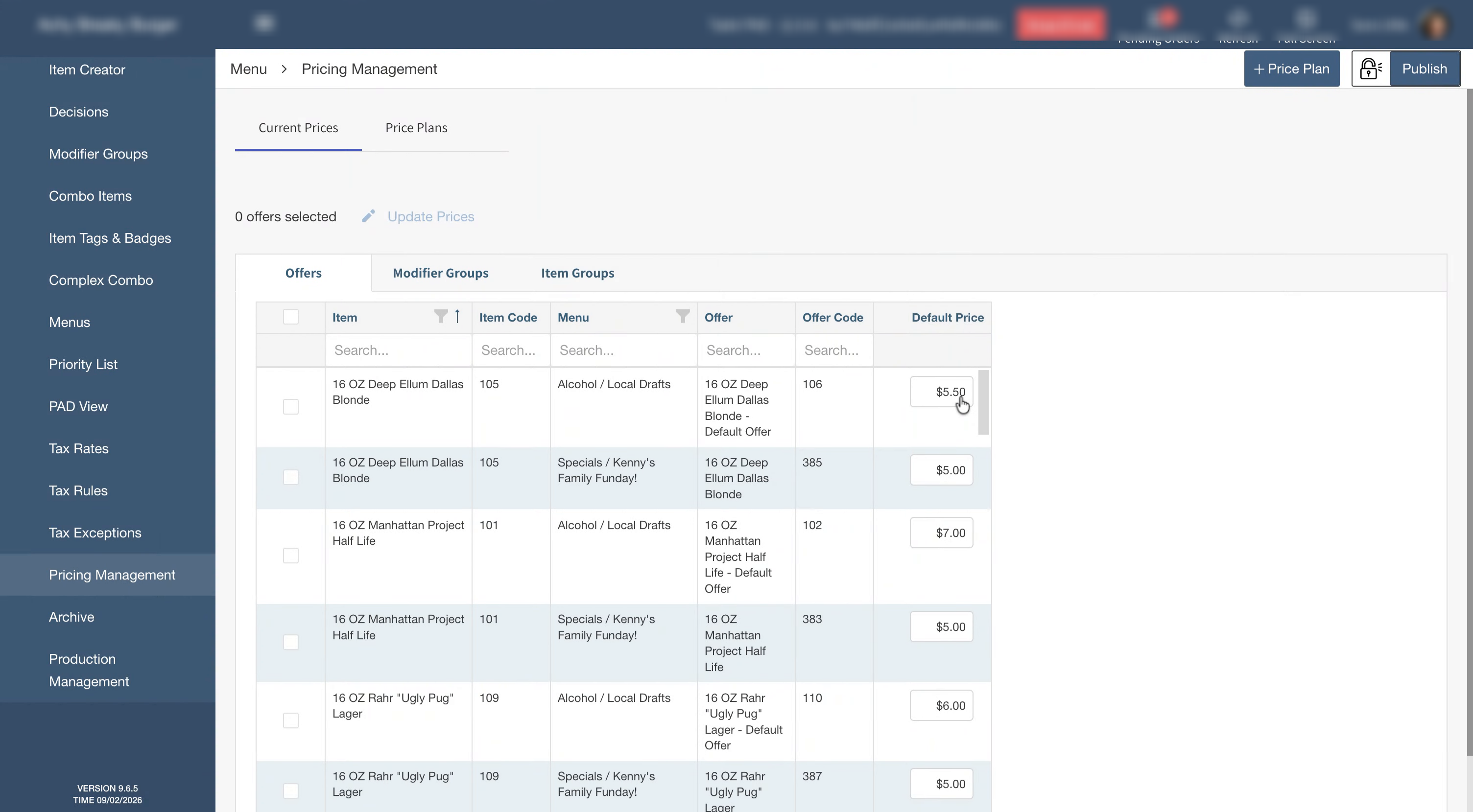
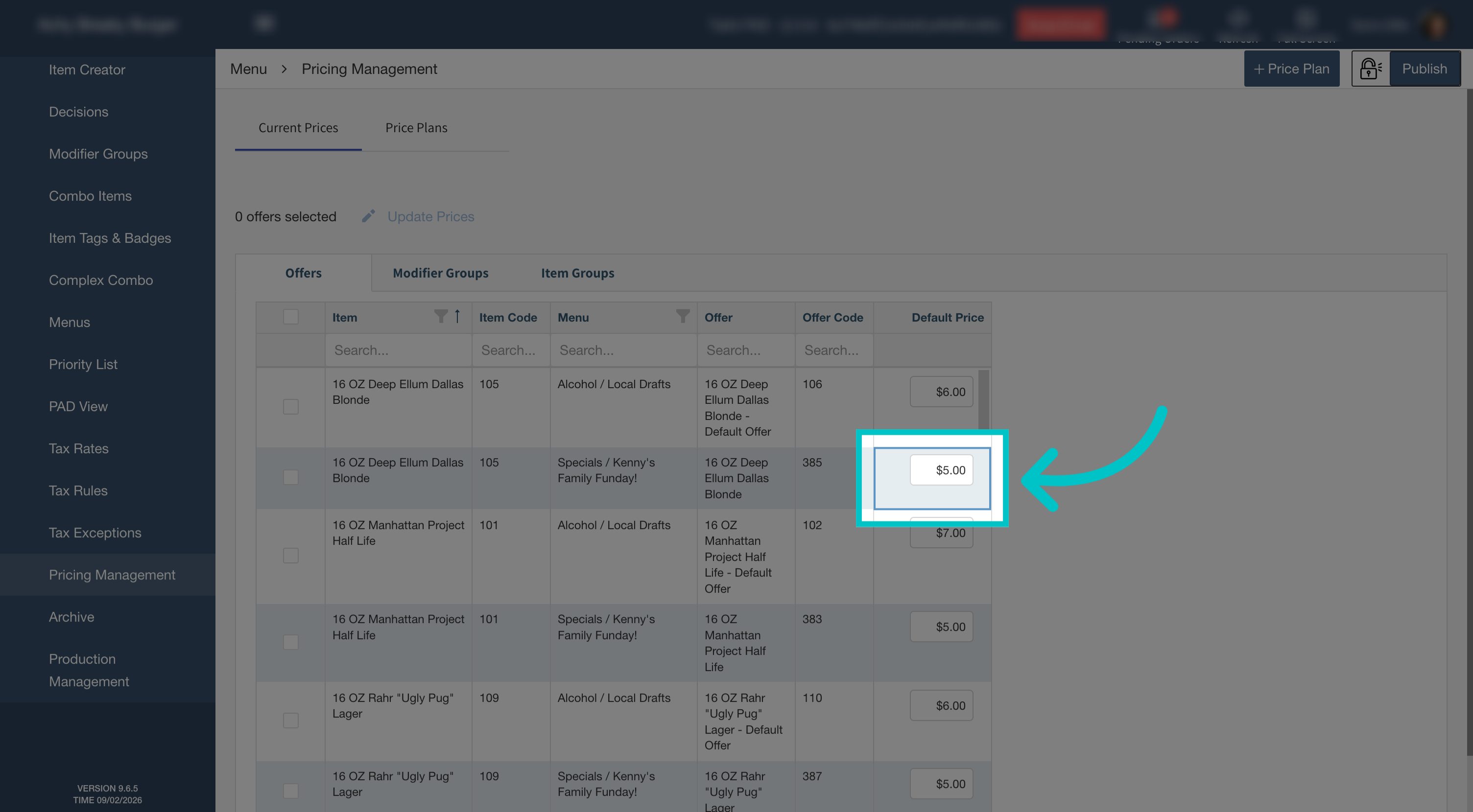
Search for the item you want to update and enter its new price
-
Continue updating prices for any other offers, modifier groups, and item groups as needed
-
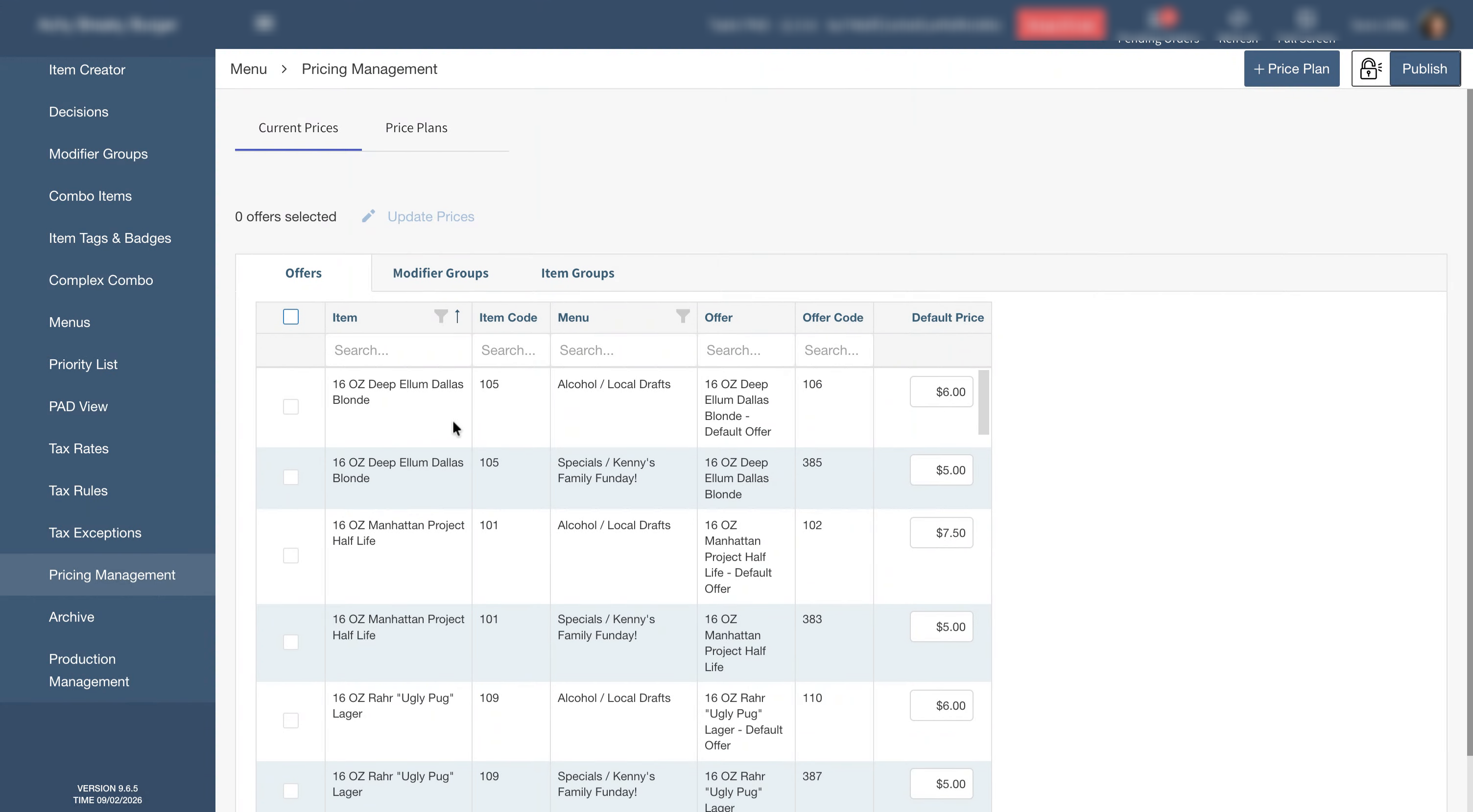
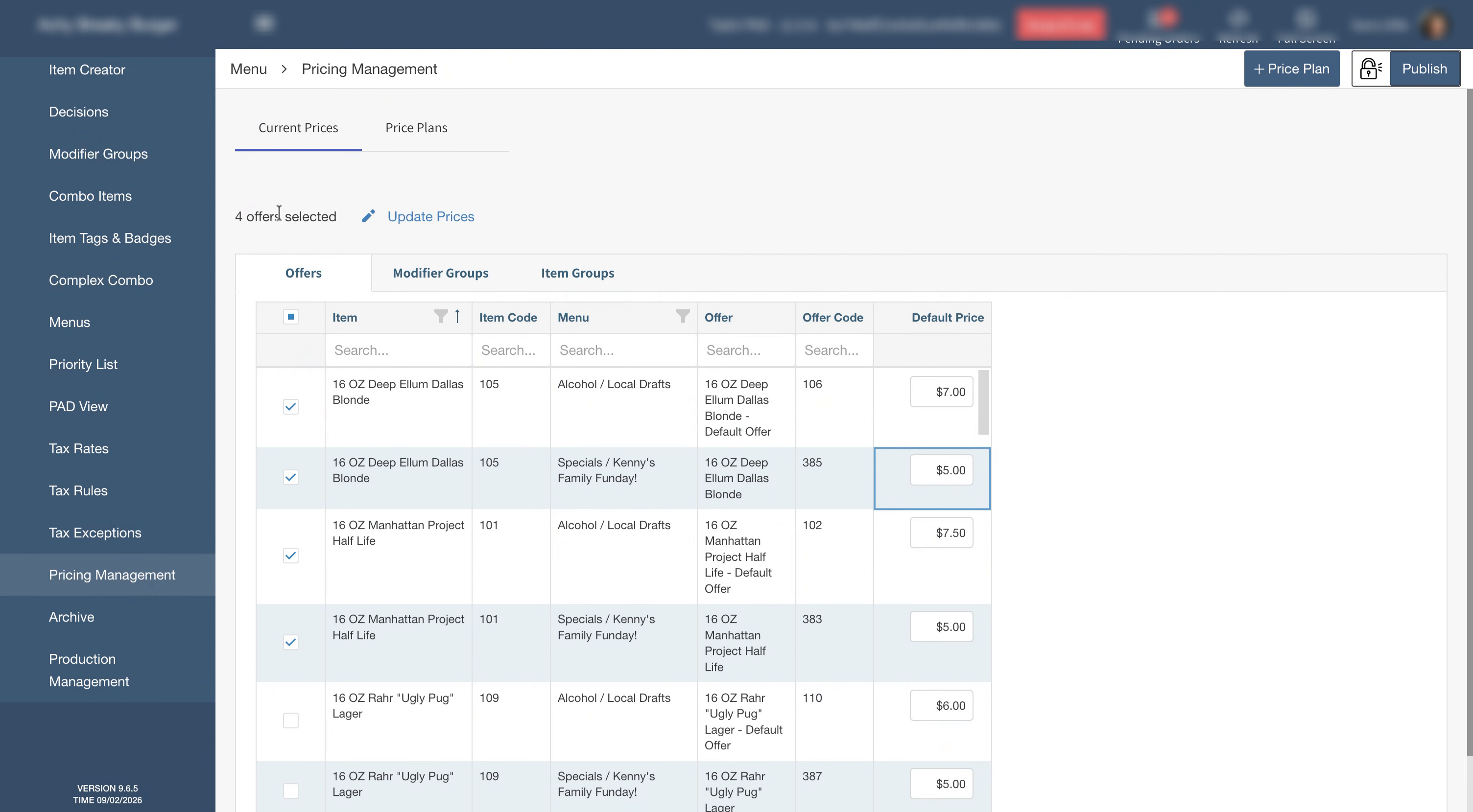
To apply the same price to multiple items, select the checkbox next to each item, then select Update Prices
-
Enter the new price and select Confirm Update to apply it to the selected items
-
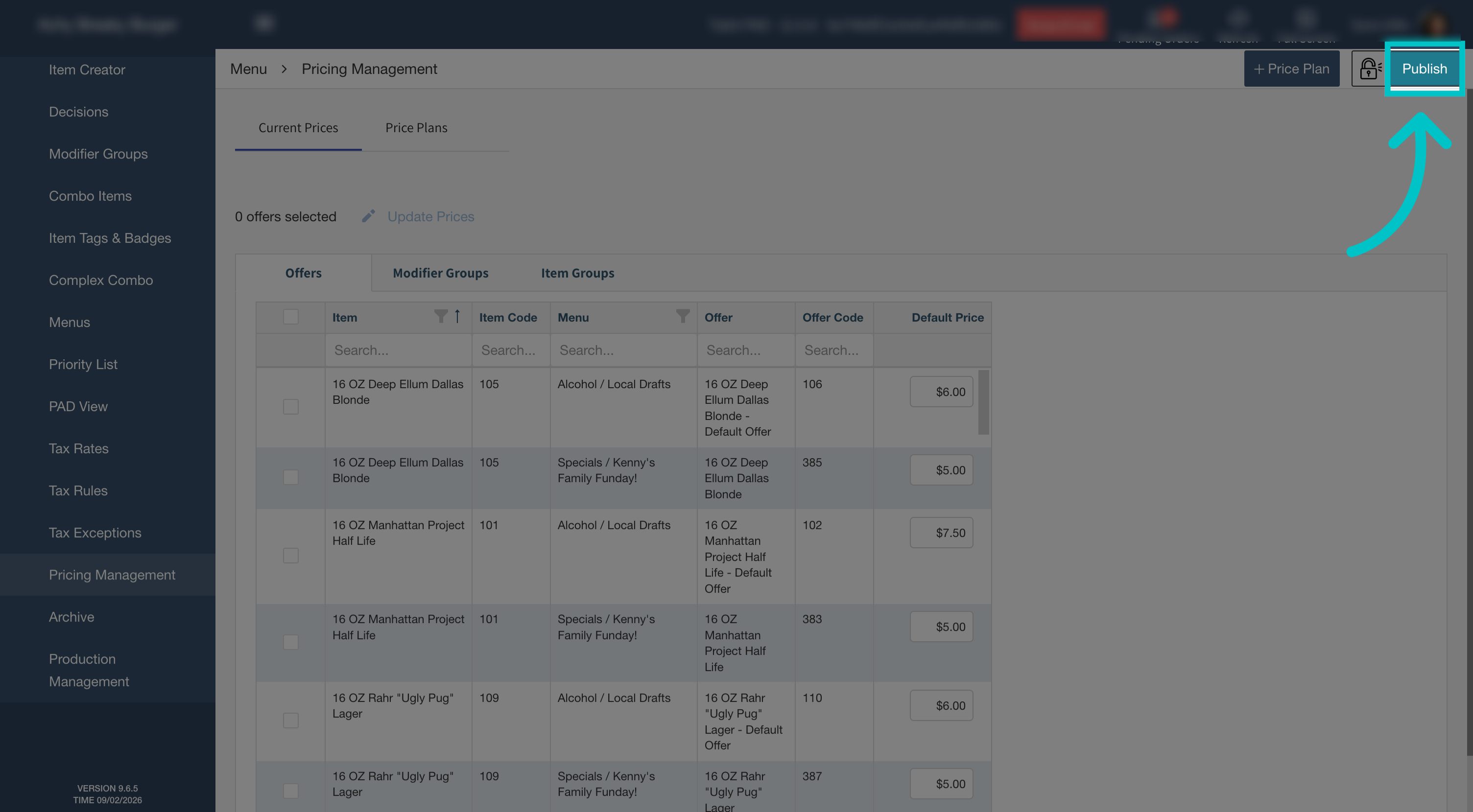
Once all prices are updated, select Publish in the top-right corner to save the changes and push them to the cloud