The Discounts & Comp (OTH) Report provides details about discounts and OTH actions applied to orders. The report allows you to track the value of discounts, understand why they were applied, see which employees applied and approved them, and drill down to the individual order level.
Learn how to access the report and understand the data it displays:
- In Tabit Office, go to Reports > Discounts & OTH
- At the top of the report, adjust the filters according to the data you want to view:
- Date Range: Select the desired date or date range
- Item/Order: Select whether to display discounts applied to items or orders
- Reasons: Filter by the reason selected when the discount or OTH action was applied
- Server: Filter by the server associated with the order
- Manager: Filter by the manager associated with the action
- Type: Filter by the type of discount or OTH action
-
Select Apply to display the data
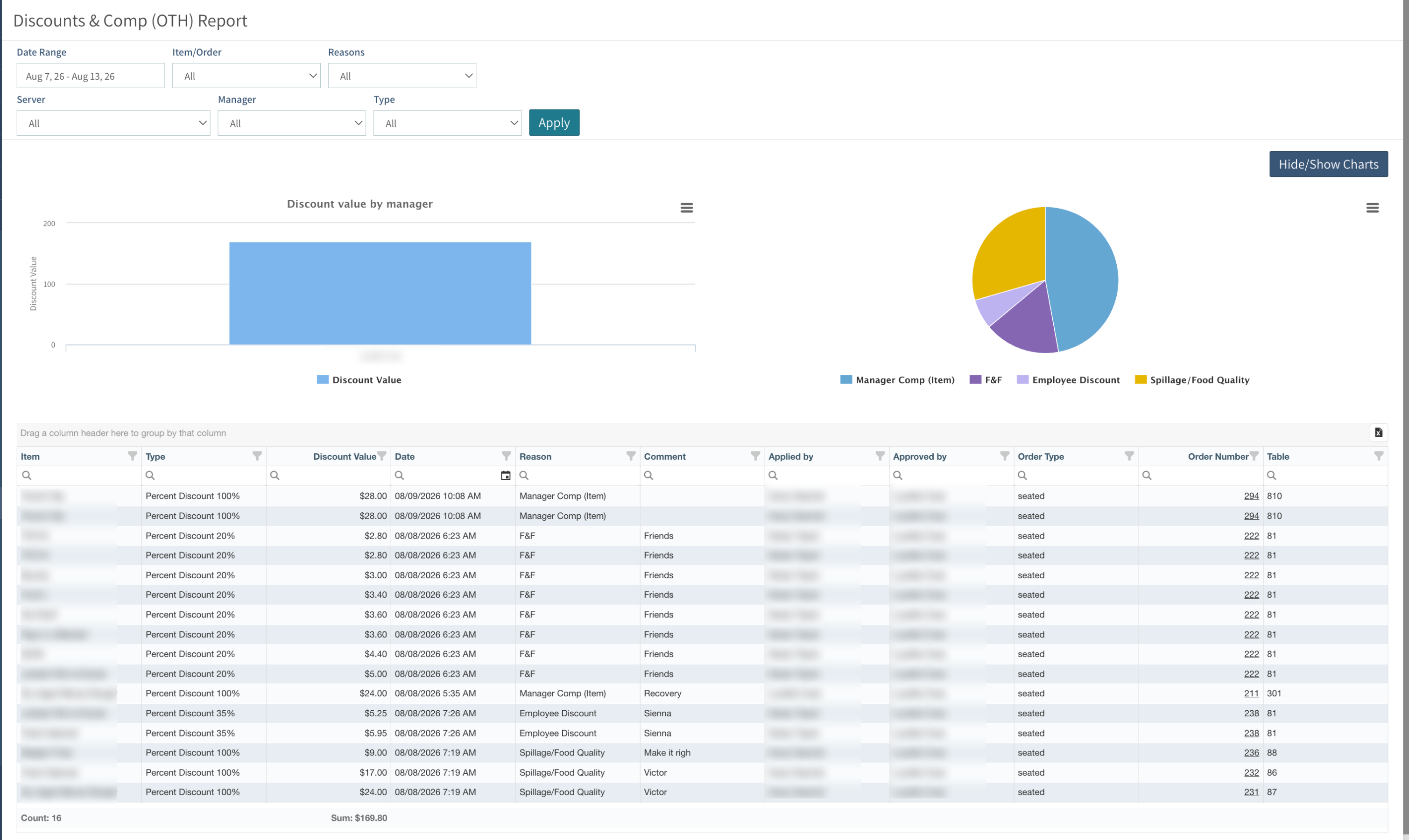
- To display or hide the report charts, select Hide/Show Charts. Two charts are displayed at the top of the report:
- Discount value by manager: Displays the total monetary value of discounts associated with each manager
- Reasons chart: A pie chart showing the distribution of discounts and OTH actions according to the selected reason
- To print or download a chart, select the three-stripe icon in the top-right corner of the chart and choose one of the following options:
- Print chart: Print the selected chart
- Download PNG image: Download the chart as a PNG file
- Download JPEG image: Download the chart as a JPEG file
- Download PDF document: Download the chart as a PDF file
- Download SVG vector image: Download the chart as an SVG file
-
The table below the charts displays the details of each discount or OTH action:
At any point, you can filter each column by selecting the funnel icon next to the column heading
- Item: The item on which the discount or OTH action was applied
- Type: The type of discount or OTH action
- Discount Value: The monetary value of the discount
- Date: The date and time the action was performed
- Reason: The reason selected for applying the discount or OTH
- Comment: A free-text comment entered when the action was performed, if applicable
- Applied by: The name of the employee who requested the discount or OTH
- Approved by: The name of the manager who approved the request
- Order Type: The type of order
- Order Number: The order number. Select the order number to open and view the full order details
- Table: The table number for seated orders
- At the bottom of the table, you can see the total number of requests under Count and the total value of the discounts under Sum, based on the selected filters
- To export the report data to an Excel file, select the Excel icon above the table