🇦🇺This article applies to the Australia region only
🇦🇺This article applies to the Australia region only
Surcharges give restaurants a flexible way to add extra fees to a check for specific occasions or ongoing business needs, such as weekend pricing, holiday events, delivery charges, or credit card processing fees. Each surcharge can be configured to apply automatically under set conditions, or left for staff to add manually when needed. Surcharges can also be scheduled to run only on certain days, dates, or order sources, giving you full control over when and how each one is used.
The processing surcharge will be automatically created when Adyen is set up for your restaurant
Follow the steps below to learn how to create, apply, and activate surcharges:
-
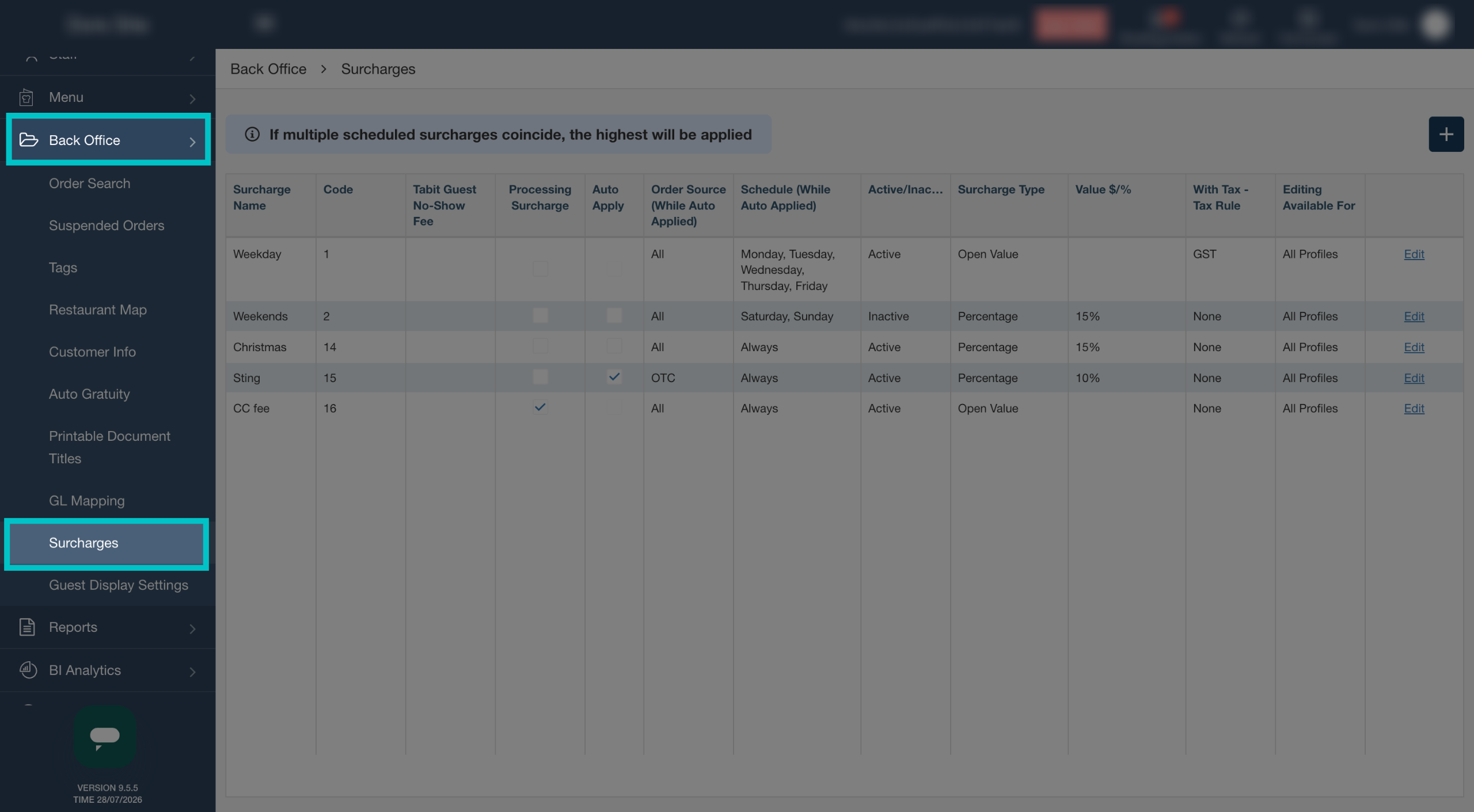
Go to Back Office and select the Surcharges tab
-
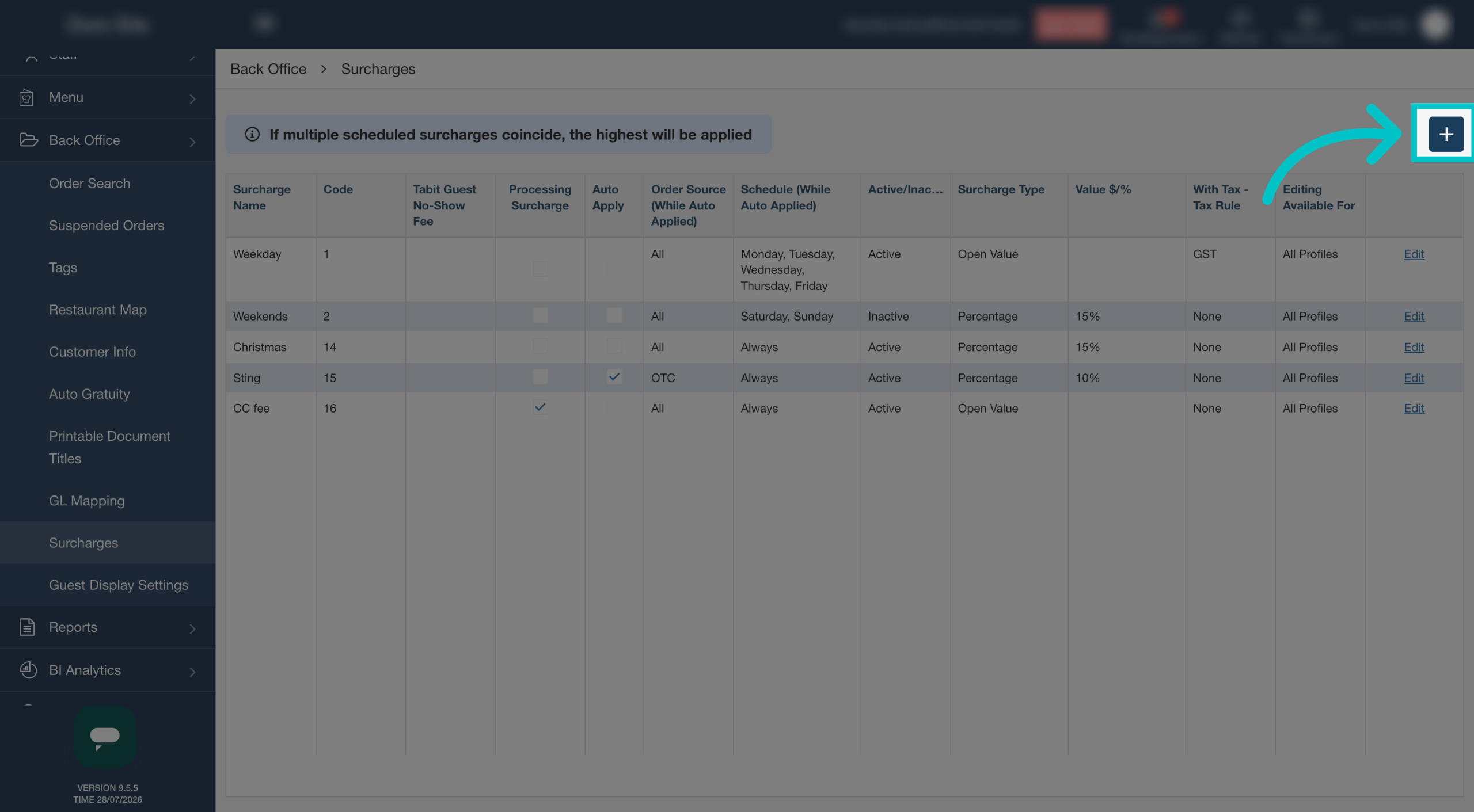
Select the plus icon in the top right of the screen to add a new surcharge
-
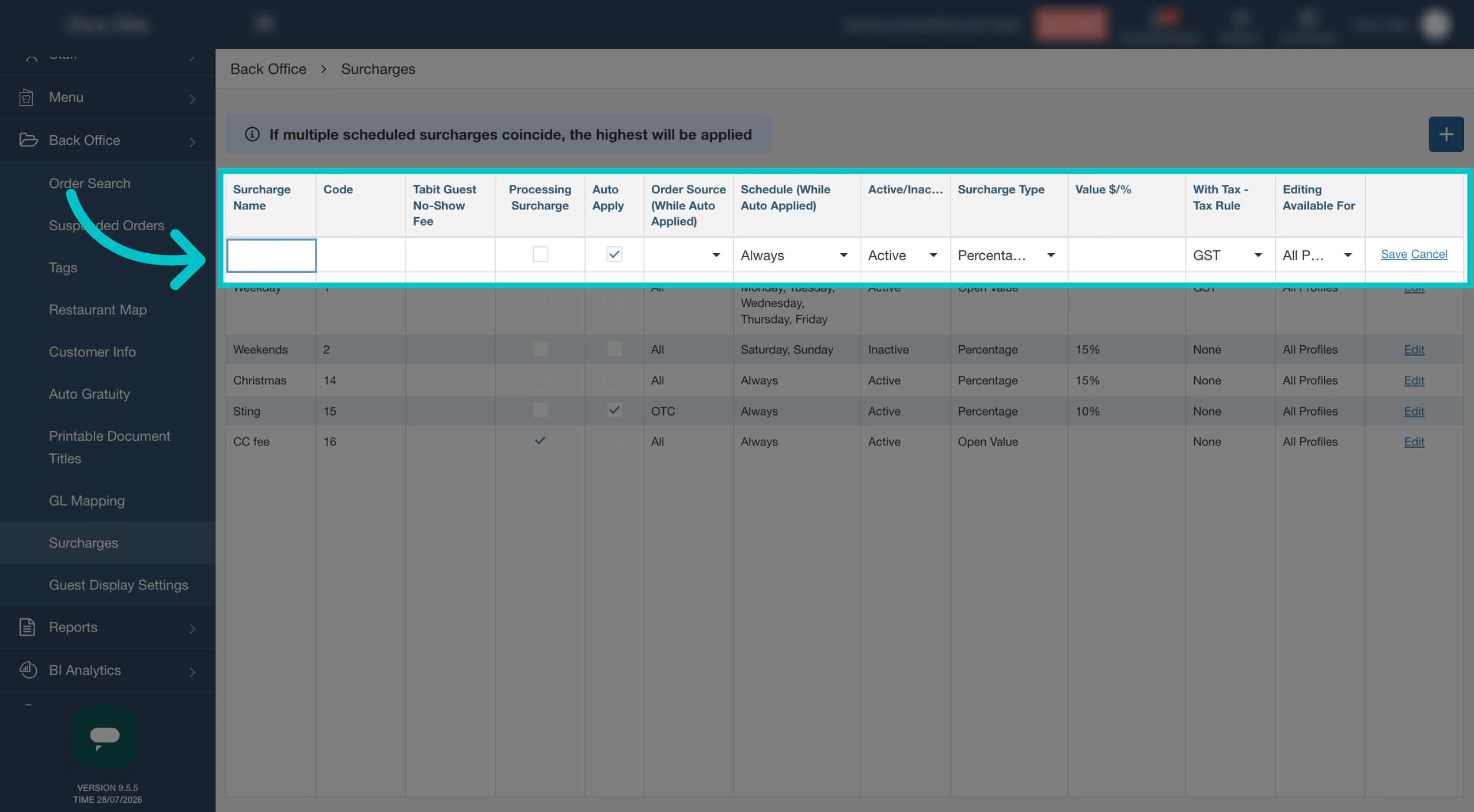
Enter a name for the surcharge. This is used for reporting purposes and visible on the customer's check
-
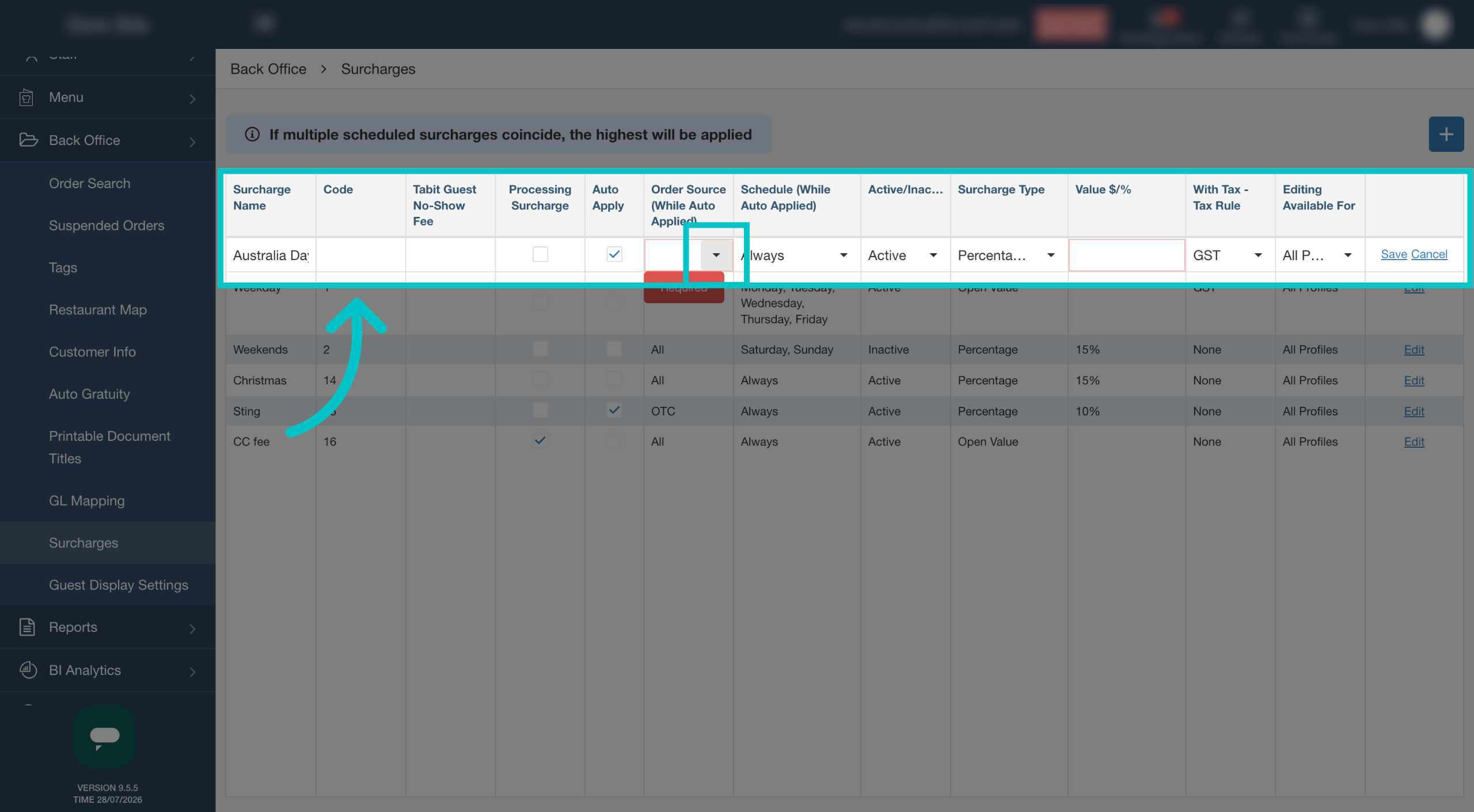
The code will be generated automatically
-
If your site has a no-show fee for Tabit Guest, it will appear here as well. This is view only
-
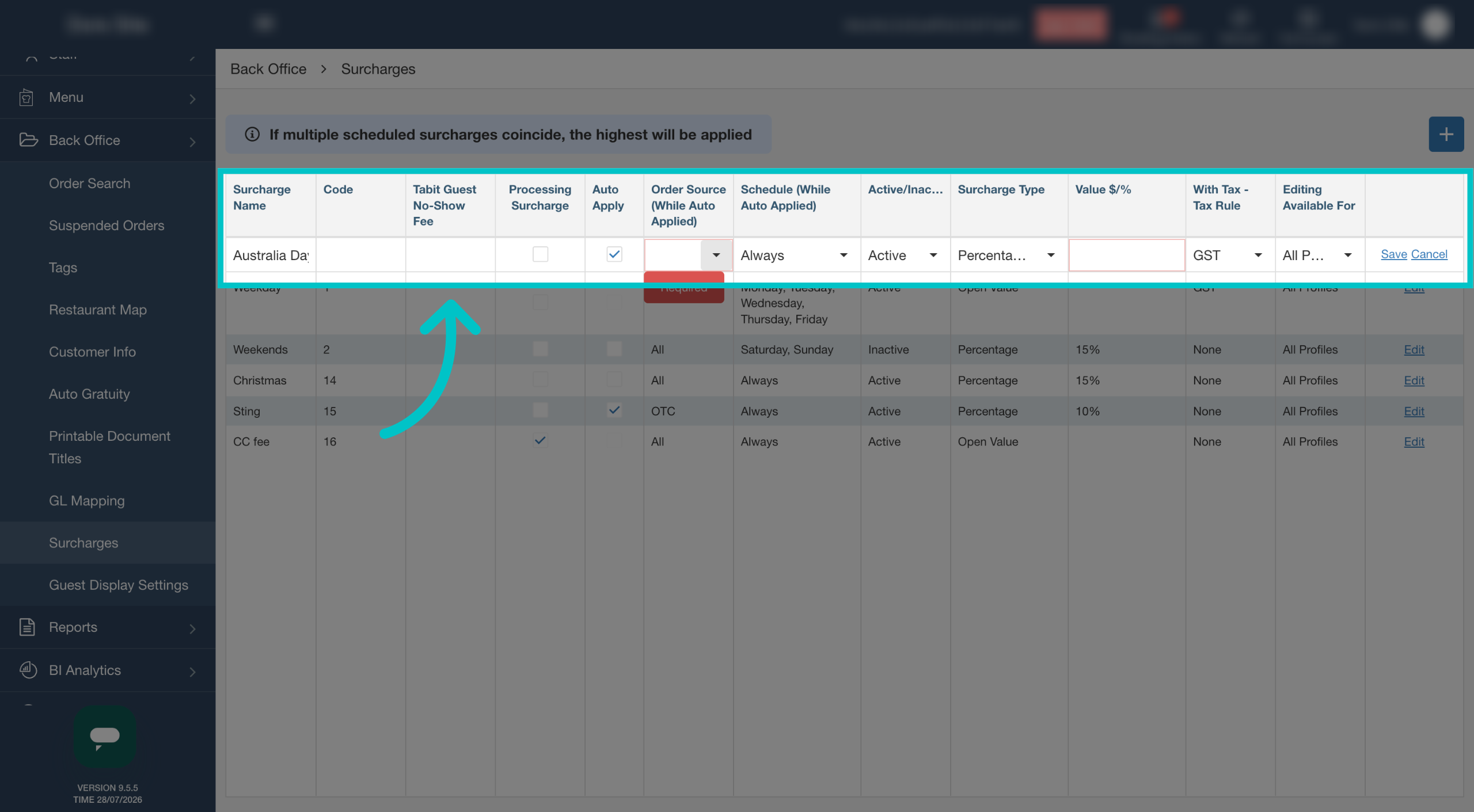
Only one surcharge can be set up as the processing surcharge. This is generally applied to the credit card fee and cannot be edited once created
-
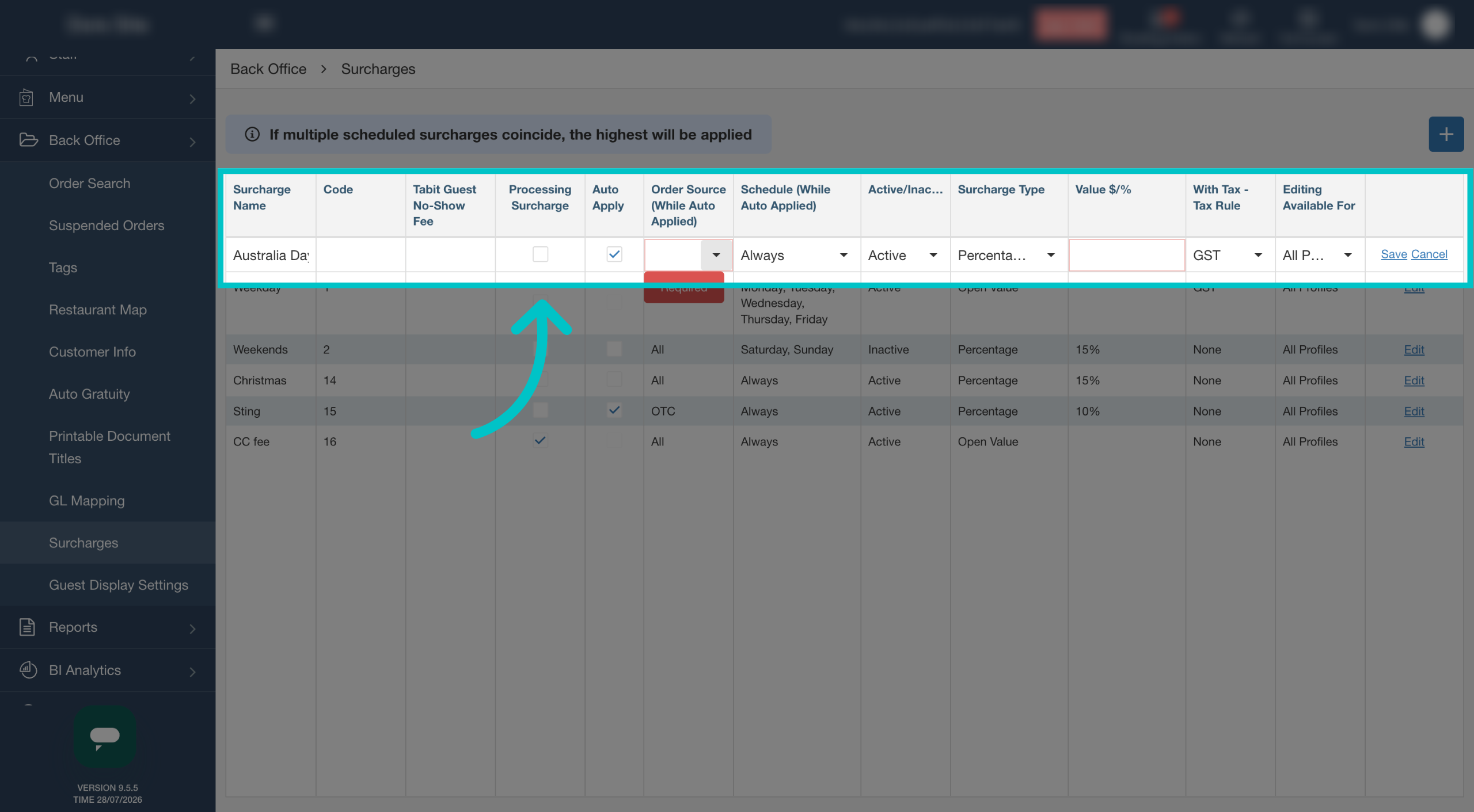
Auto Apply will automatically apply the surcharge to the check. If this is not checked, the surcharge must be applied manually
-
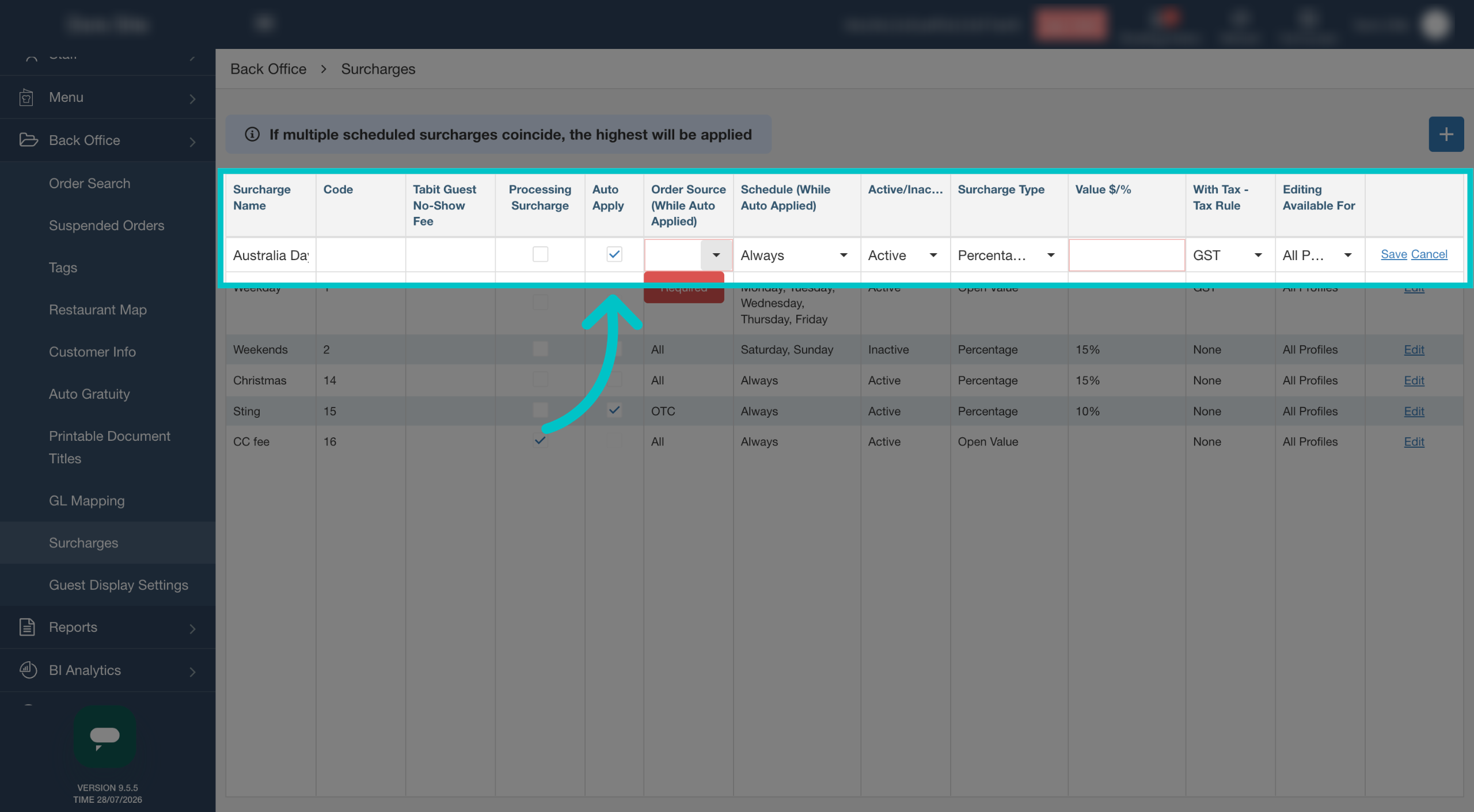
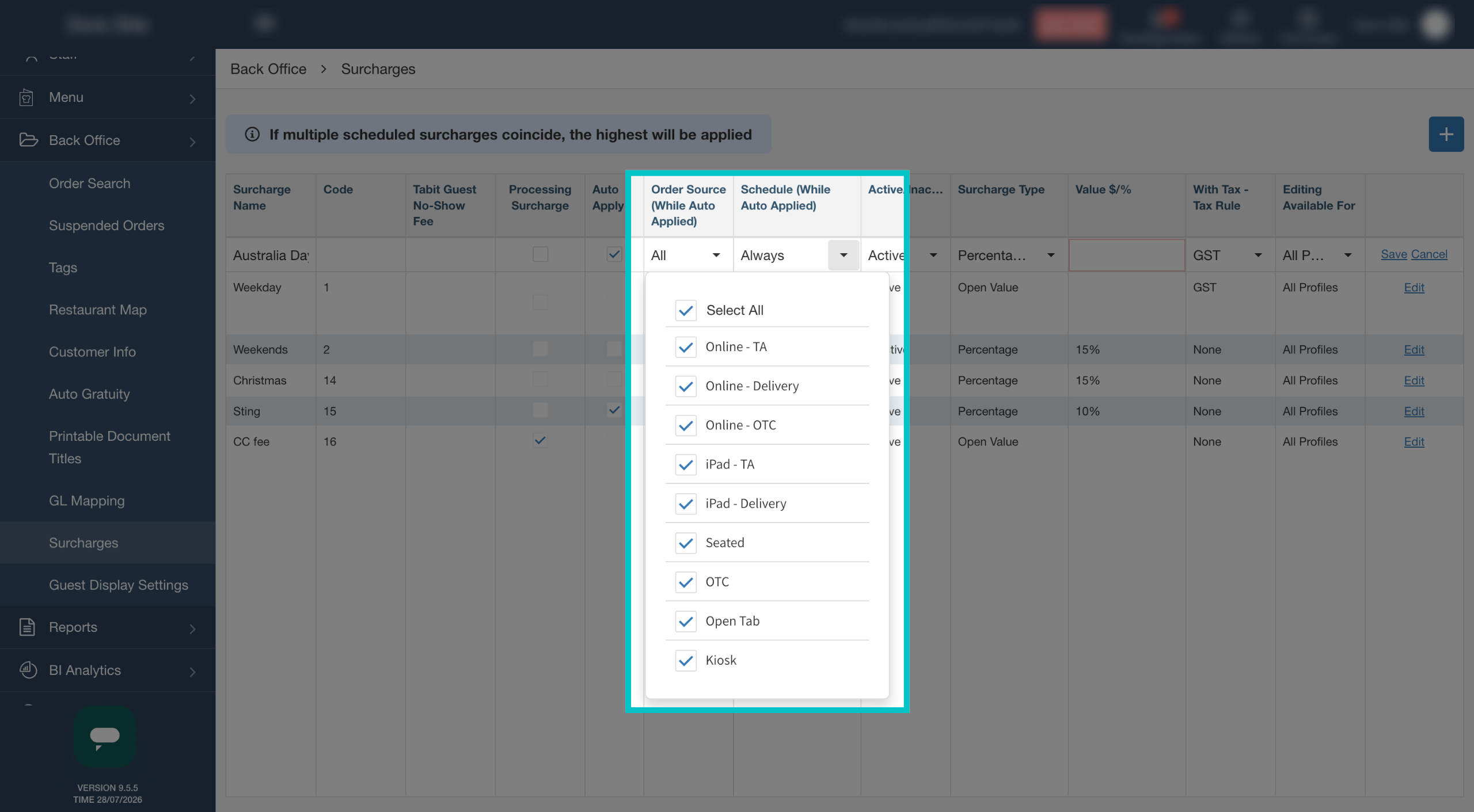
If Auto Apply is selected, set the order sources that the surcharge should be automatically applied to
-
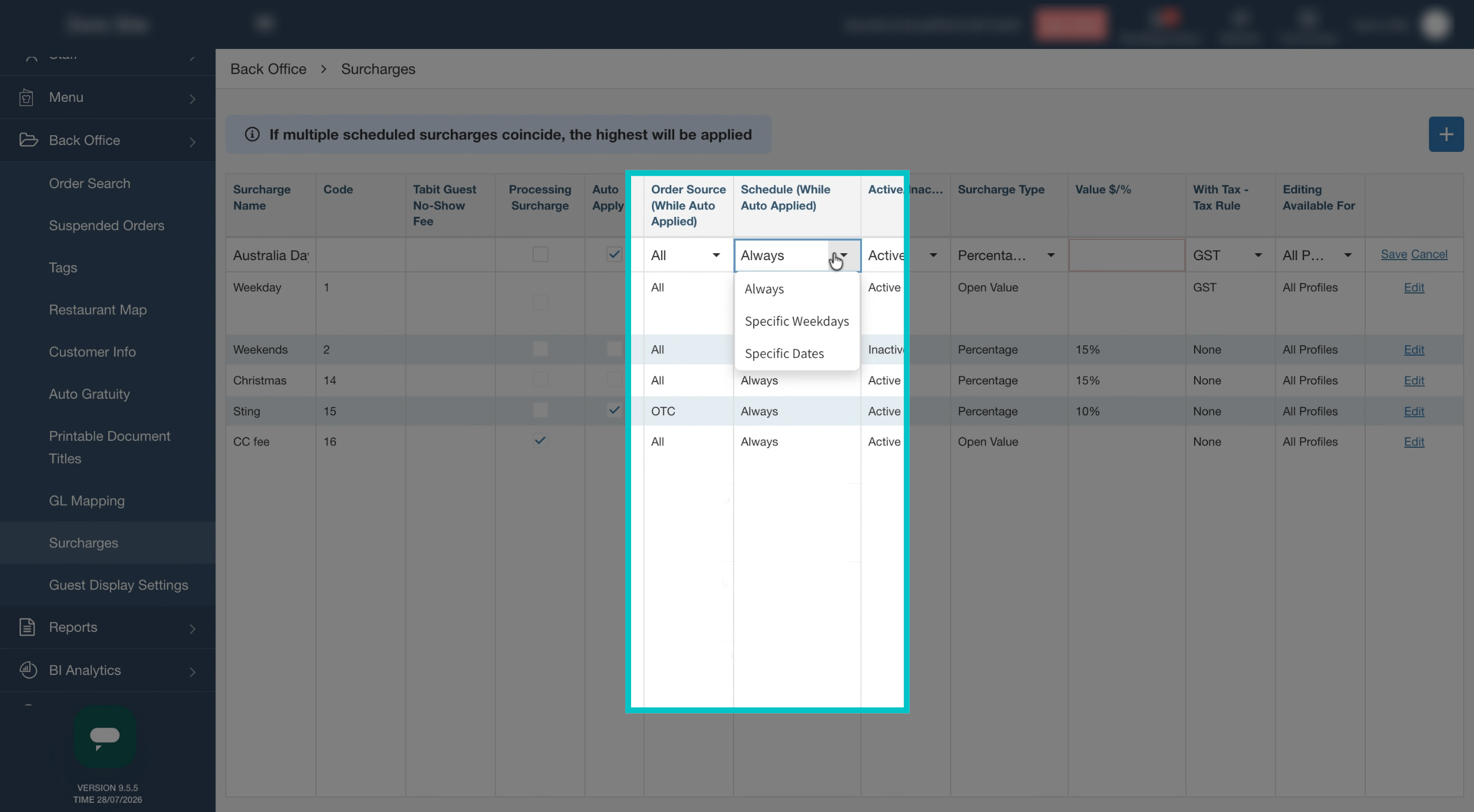
You can also set specific days of the week or dates when it should be auto-applied, or leave it set to always
If more than one surcharge applies to the same day, only the highest surcharge is applied
-
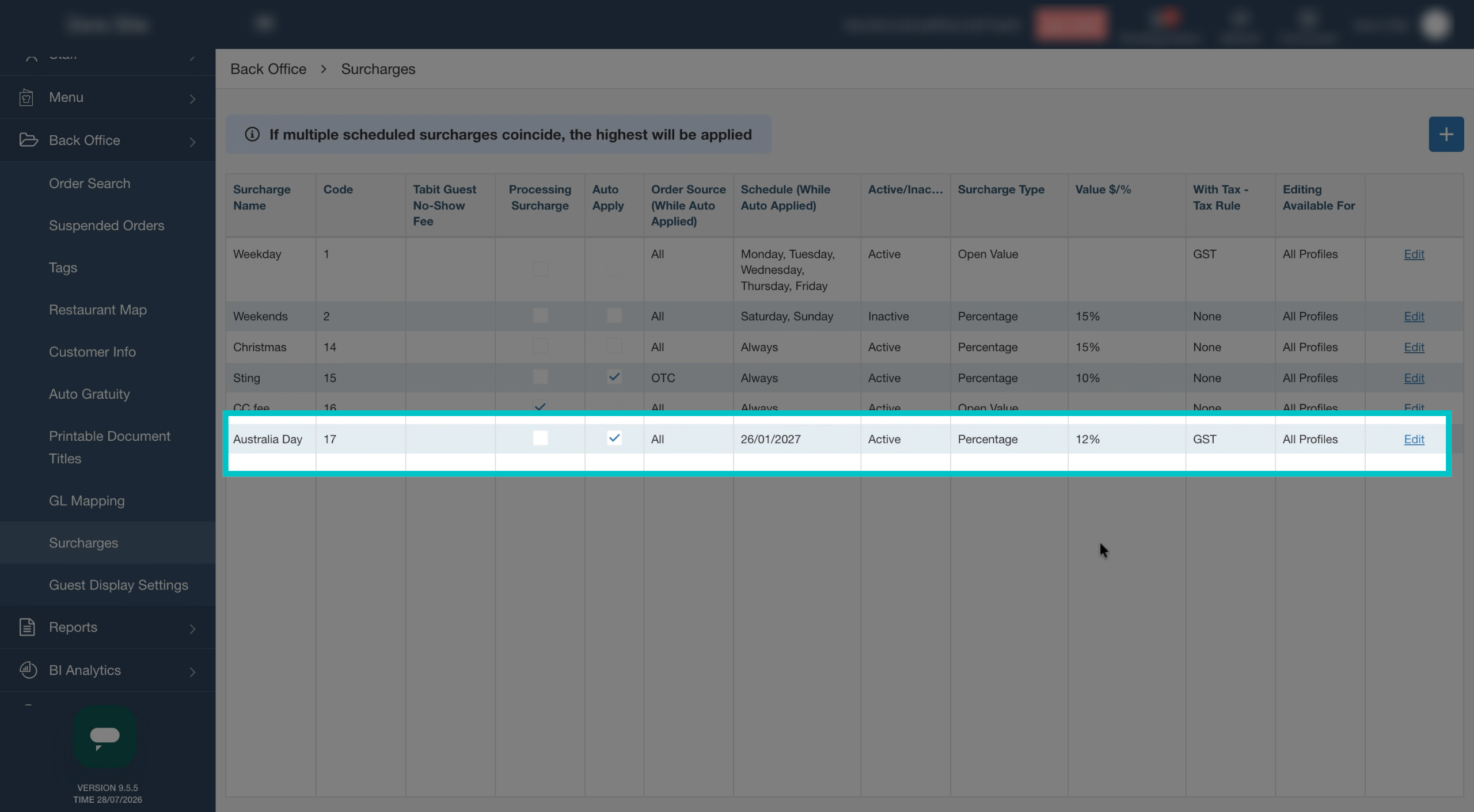
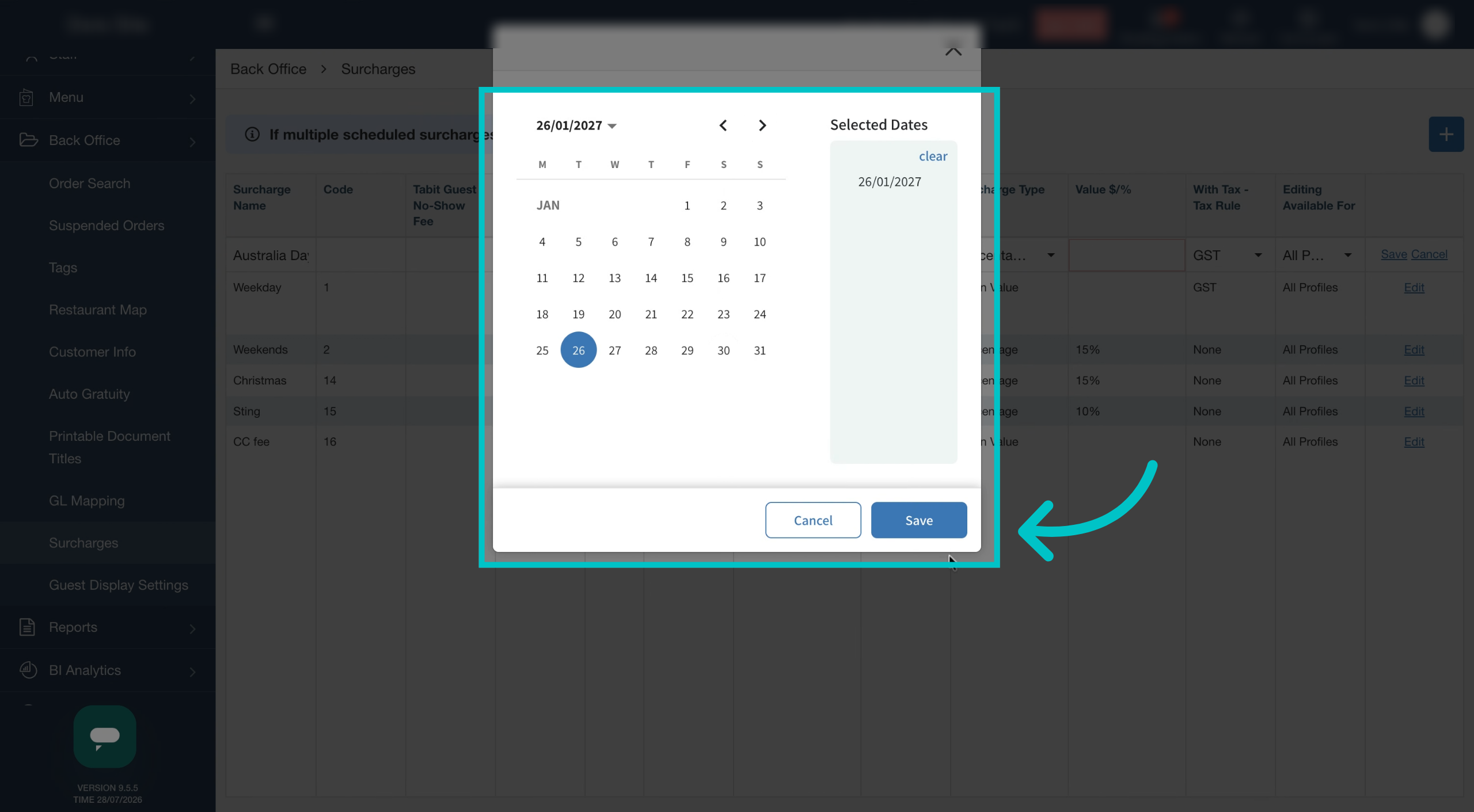
If this surcharge is only relevant for a specific date or dates, select the relevant dates. To create a surcharge to use on holidays, select all the relevant holidays using the date picker. Then select Save
-
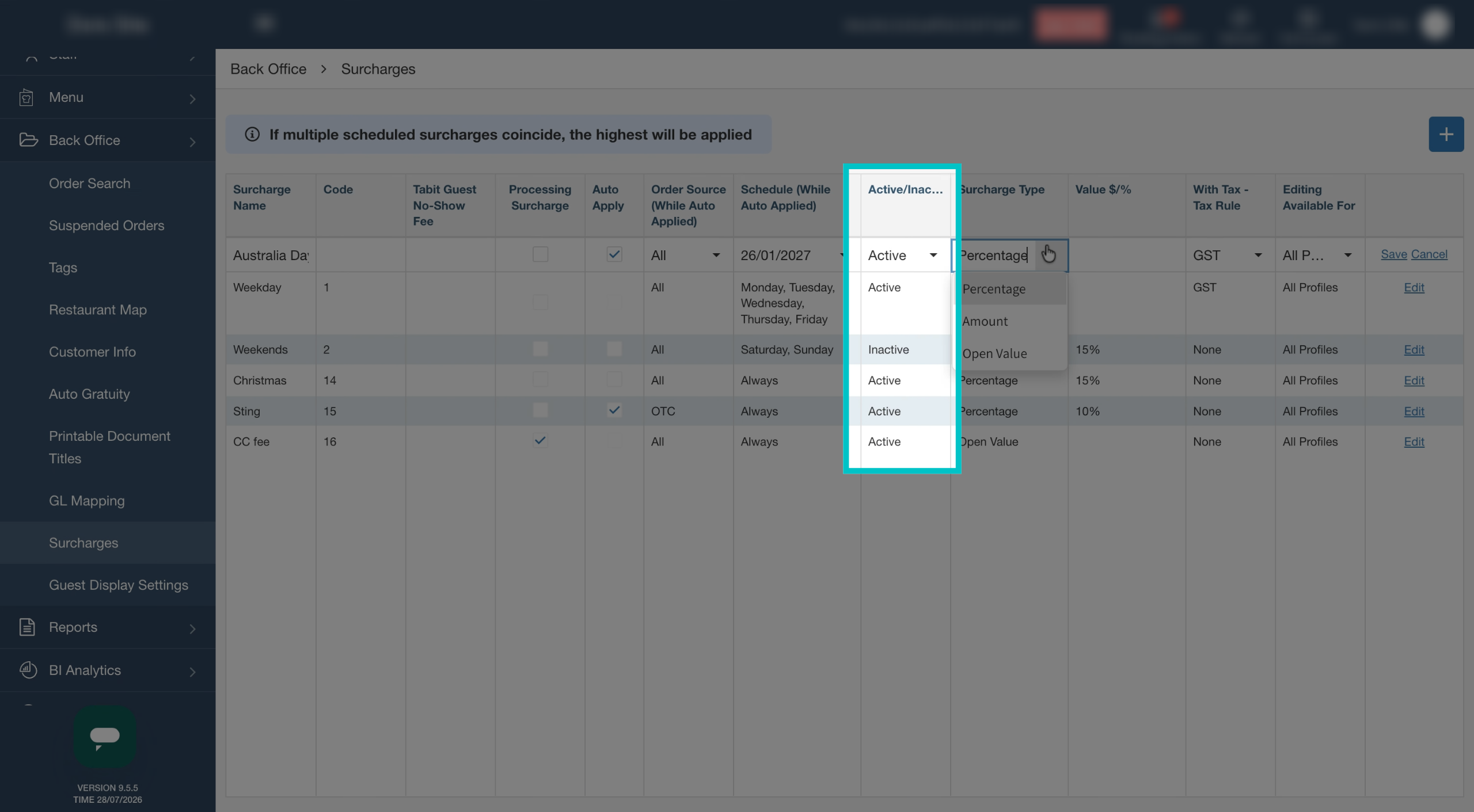
Set the surcharge to Active to activate it. For surcharges that only apply on certain days or dates, they will still only be active and in use on those days
-
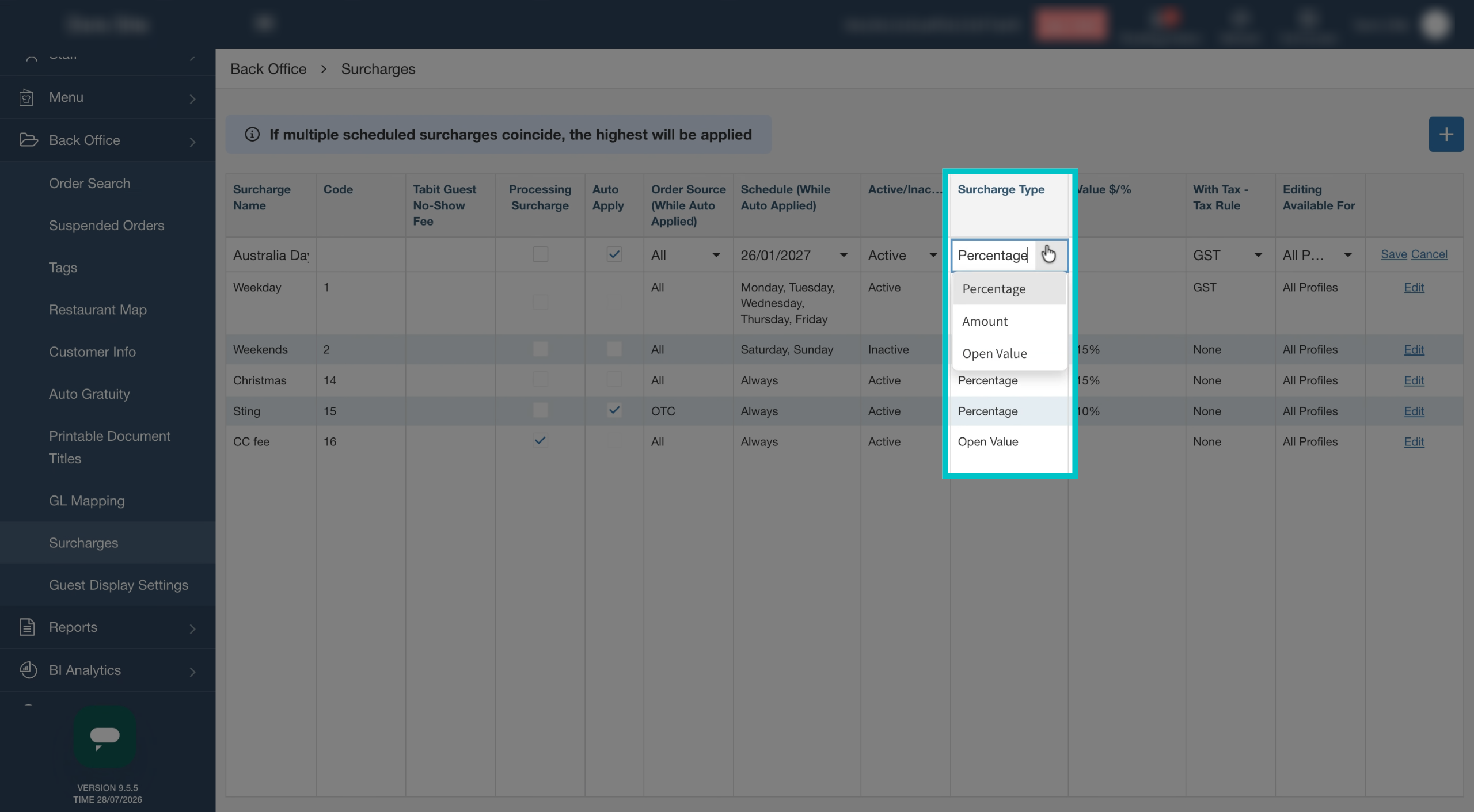
Determine whether the surcharge should be a percentage of the check, a set amount, or an open value that the waiter enters
-
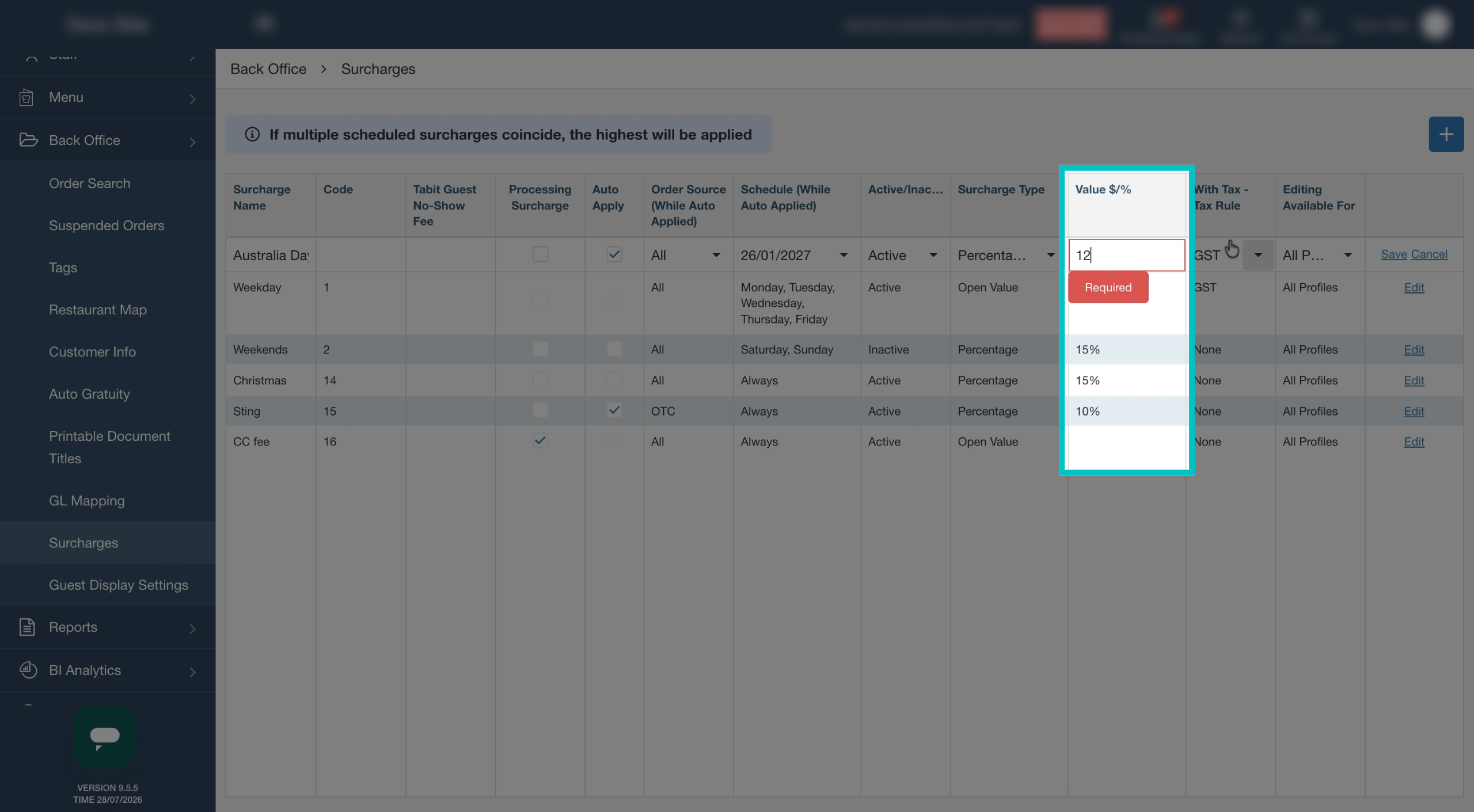
Enter the percentage or amount
-
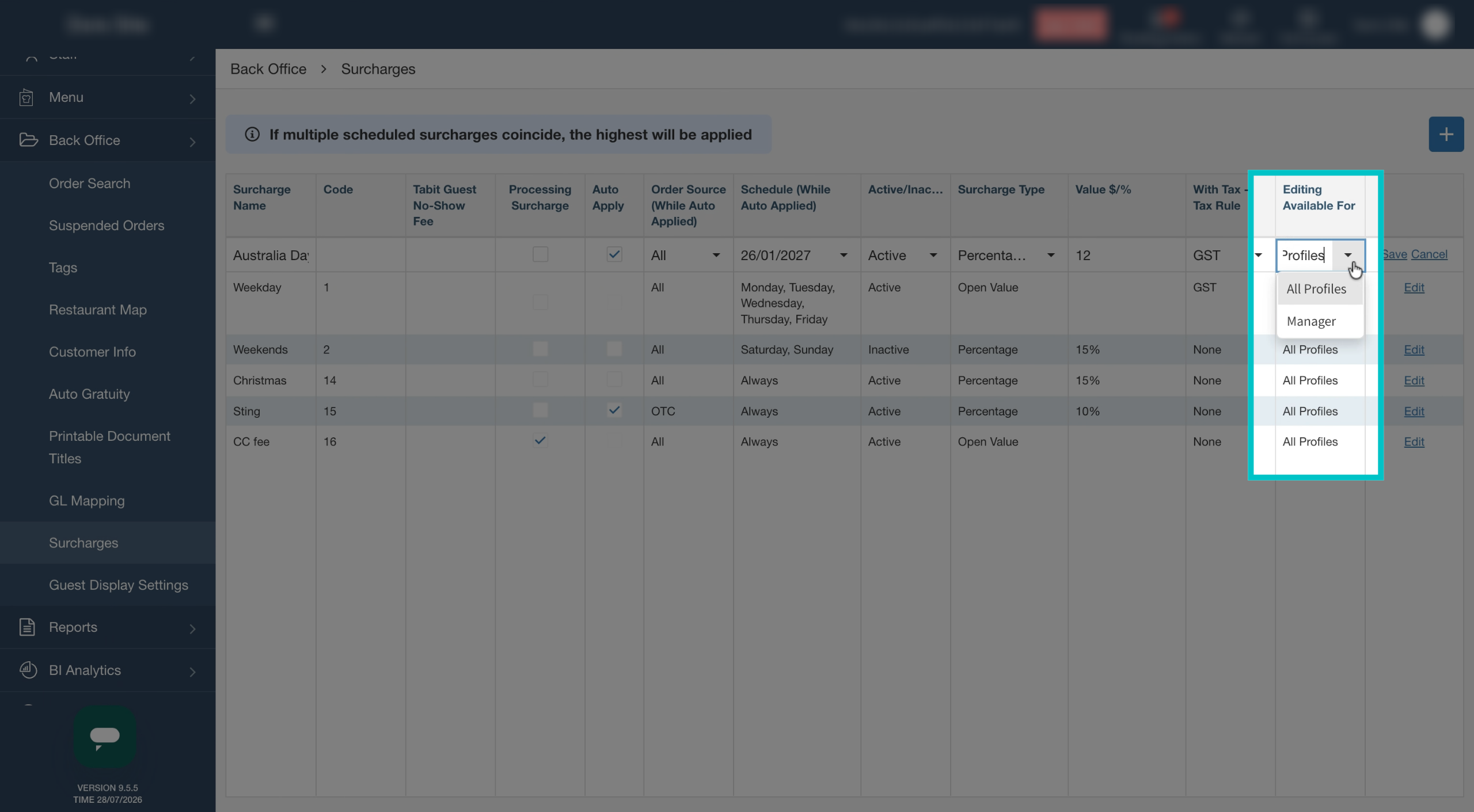
Determine whether all profiles on the PAD can edit the surcharge, or if edits are limited to Managers only
-
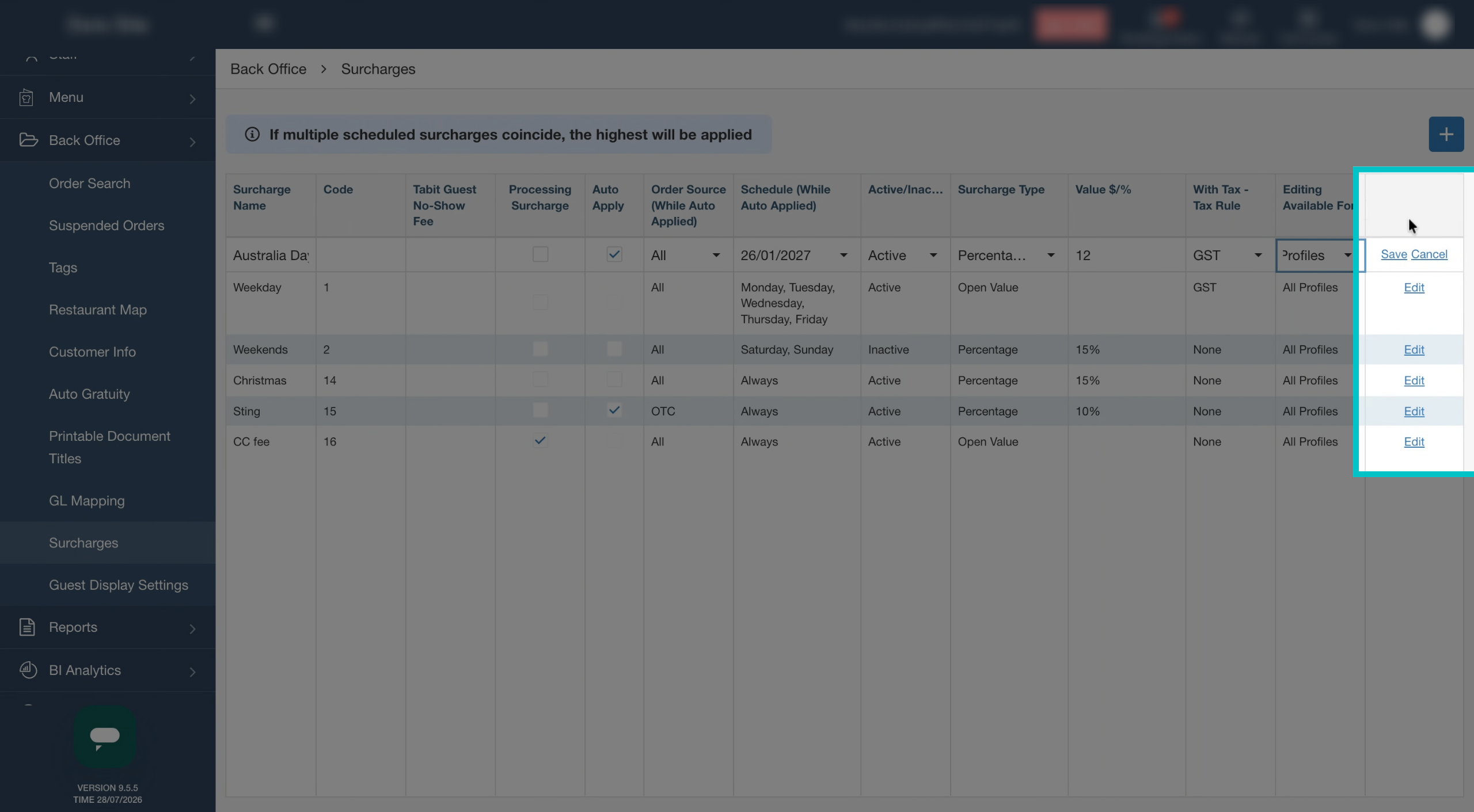
Select Save
-
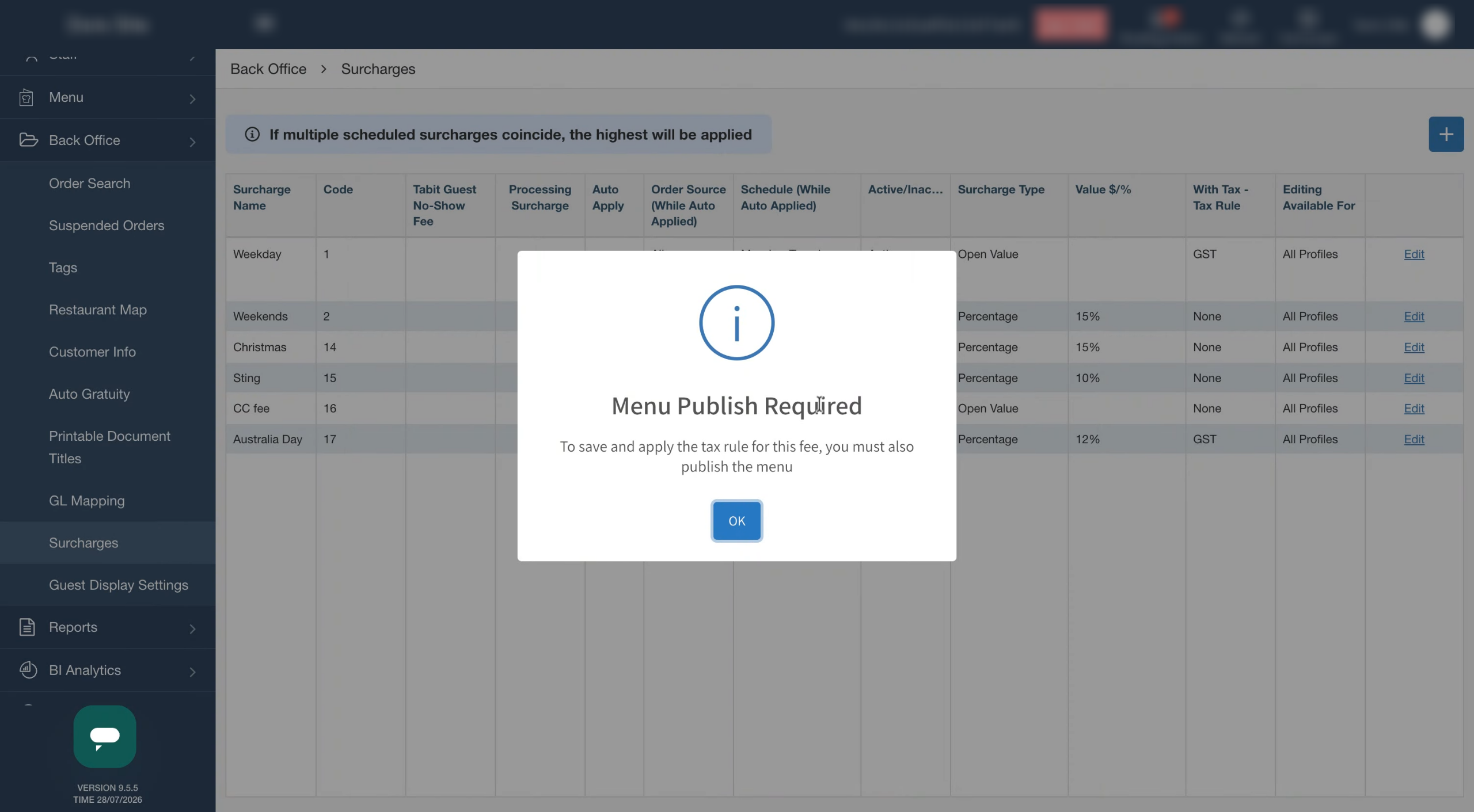
Whenever creating or editing surcharges, menu publish is required to complete the process
-
The new Australia Day surcharge has been created and is ready to be applied