The Tabit Media Gallery and Tabit AI Image Editor make it easy to create and edit images anywhere in Tabit Office where you upload an image or logo, whether it's a dish photo, an icon, a banner, a background, or a logo.
Images uploaded to Tabit Loyalty do not appear in the Tabit Media Gallery, and the Tabit Media Gallery is not available in Tabit Loyalty
The Tabit AI Image Editor includes AI image generation from a text prompt, along with editing features like background removal, compression, cropping, and adjustments.
To learn how to use the Tabit Media Gallery and the Tabit AI Image Editor, follow the steps below. As an example, we'll open the tool from within an item.
Tabit Media Gallery
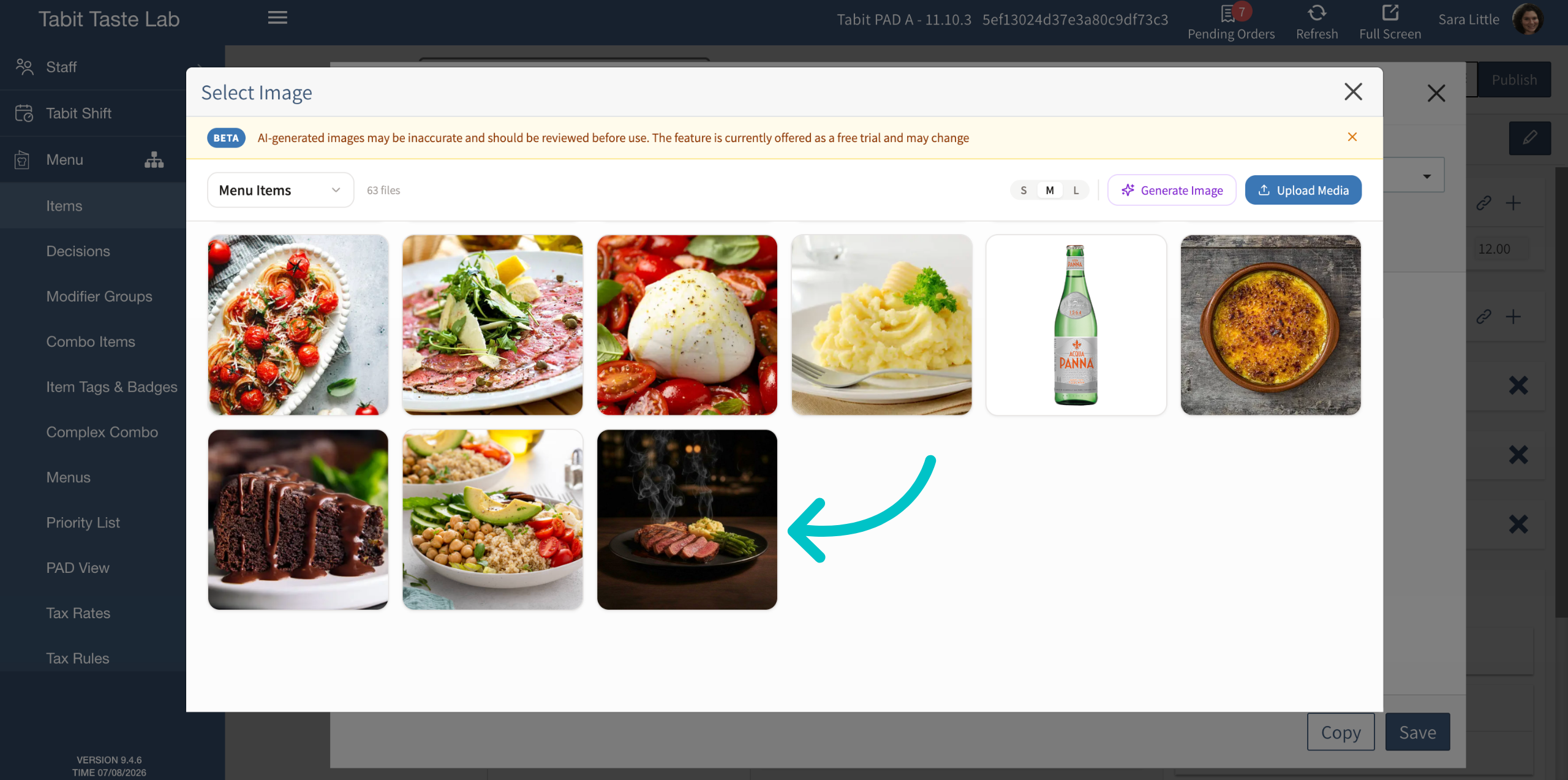
The Tabit Media Gallery stores every image uploaded across Tabit Office, including images from Tabit Order and Kiosk, so you can reuse existing images instead of uploading duplicates. You can search the gallery by item name to quickly find an image you've already uploaded.
-
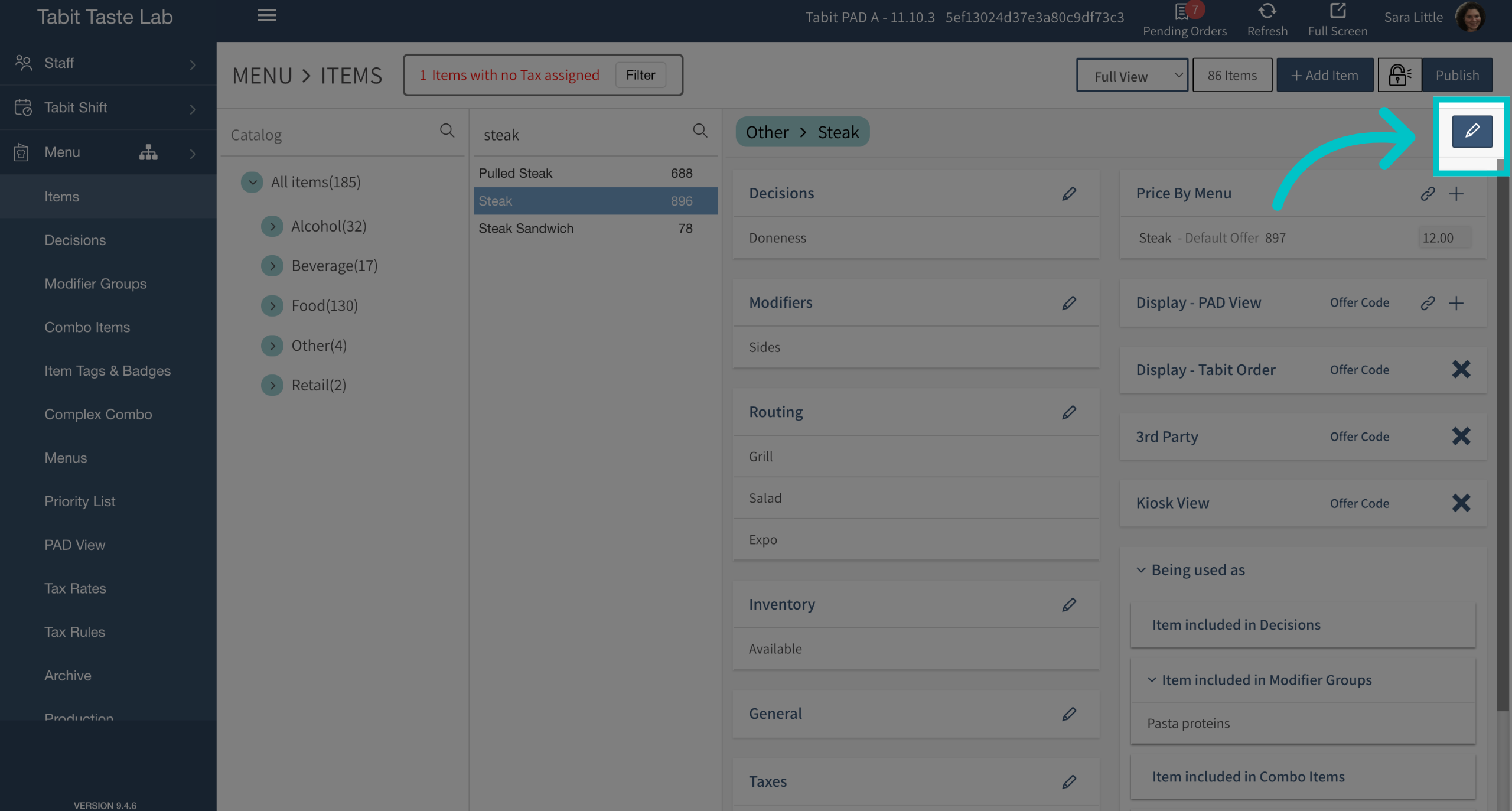
Go to an existing item and select the pencil at the top right of the screen to edit it, or create a new item
-
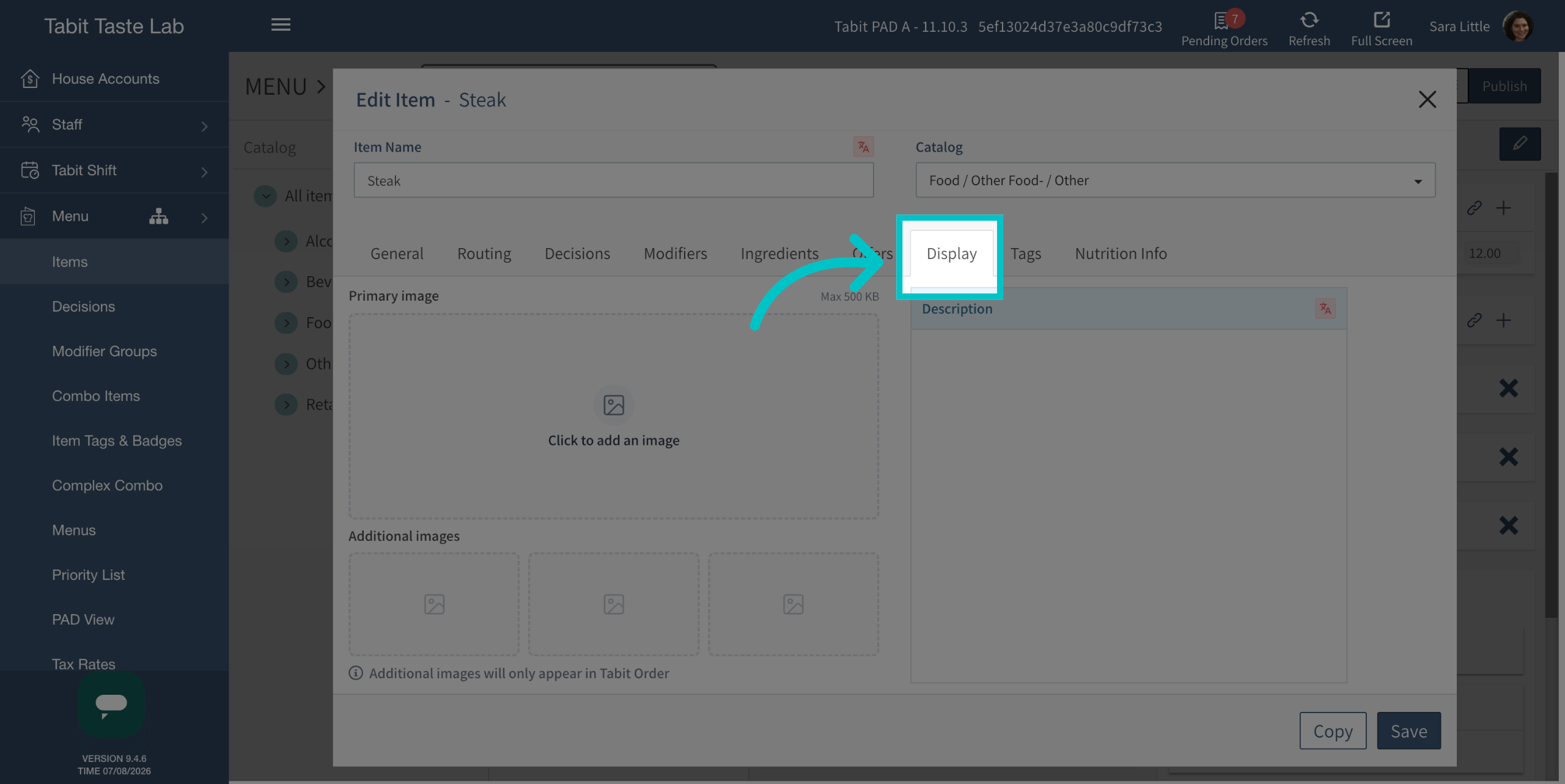
Select the Display tab
-
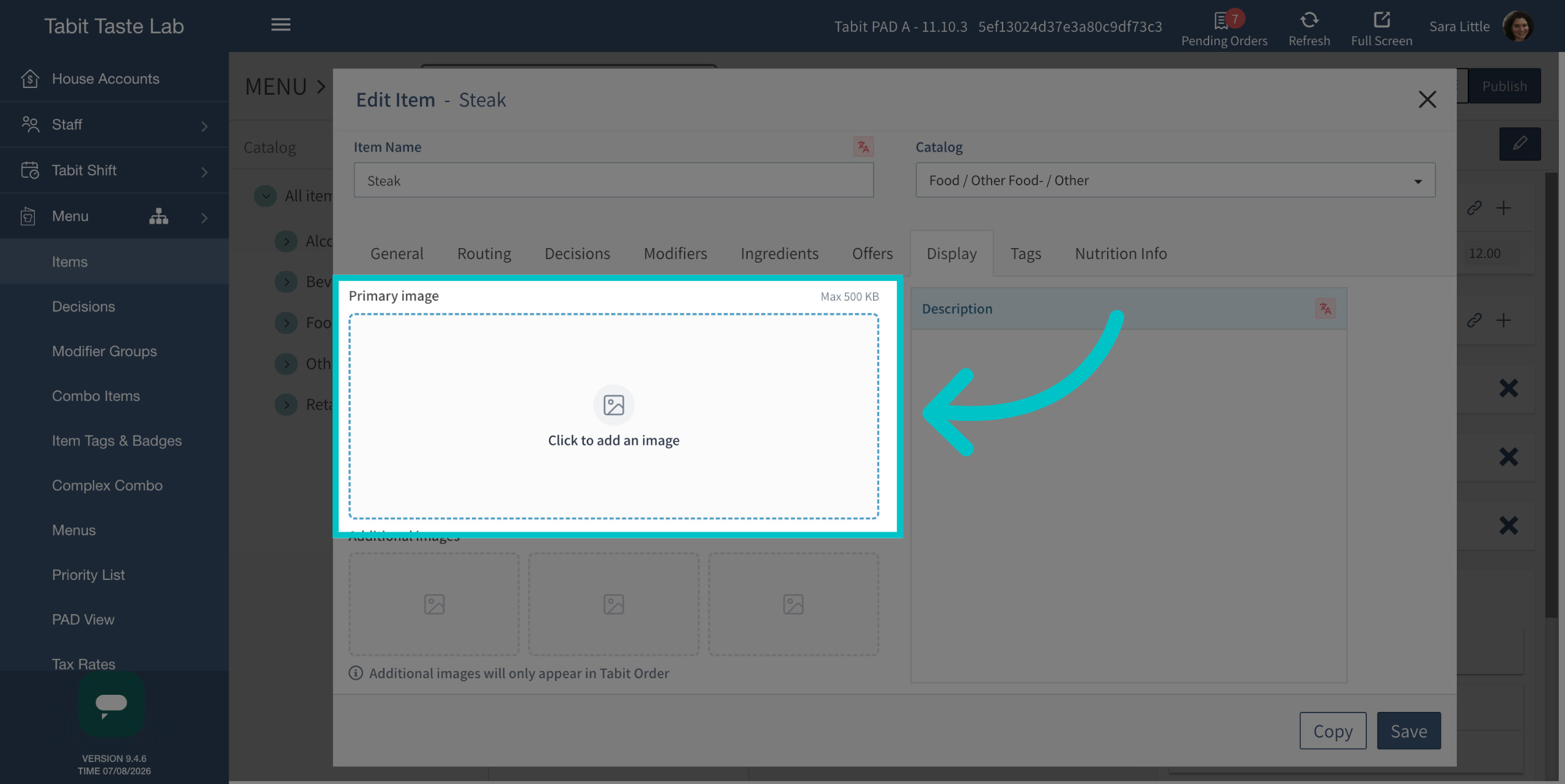
Select to add an image
-
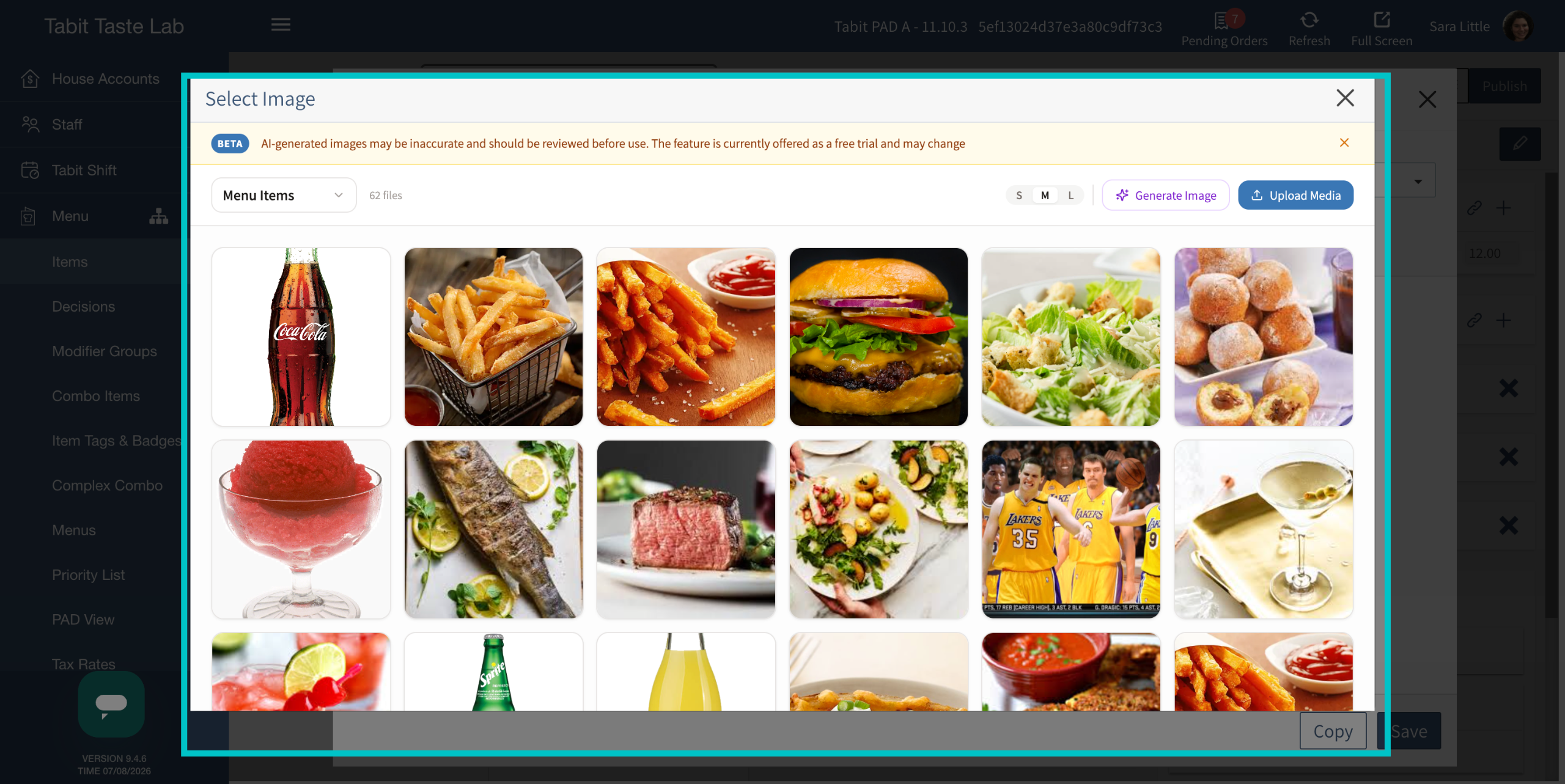
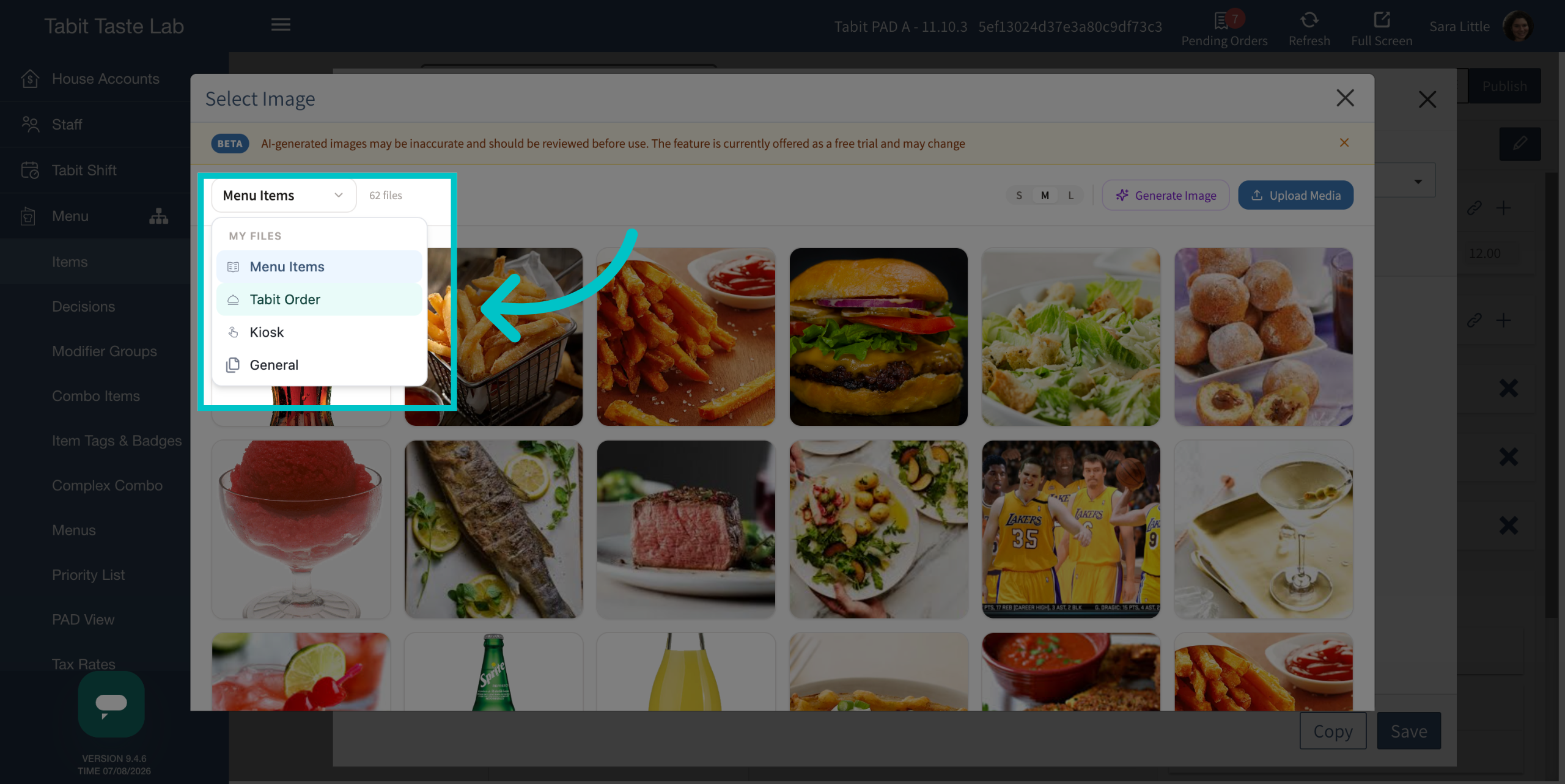
You are taken to the Tabit Media Gallery, which includes all images across Tabit Office, including Tabit Order and Kiosk
-
Use the search bar to search for an image you've already uploaded by item name
-
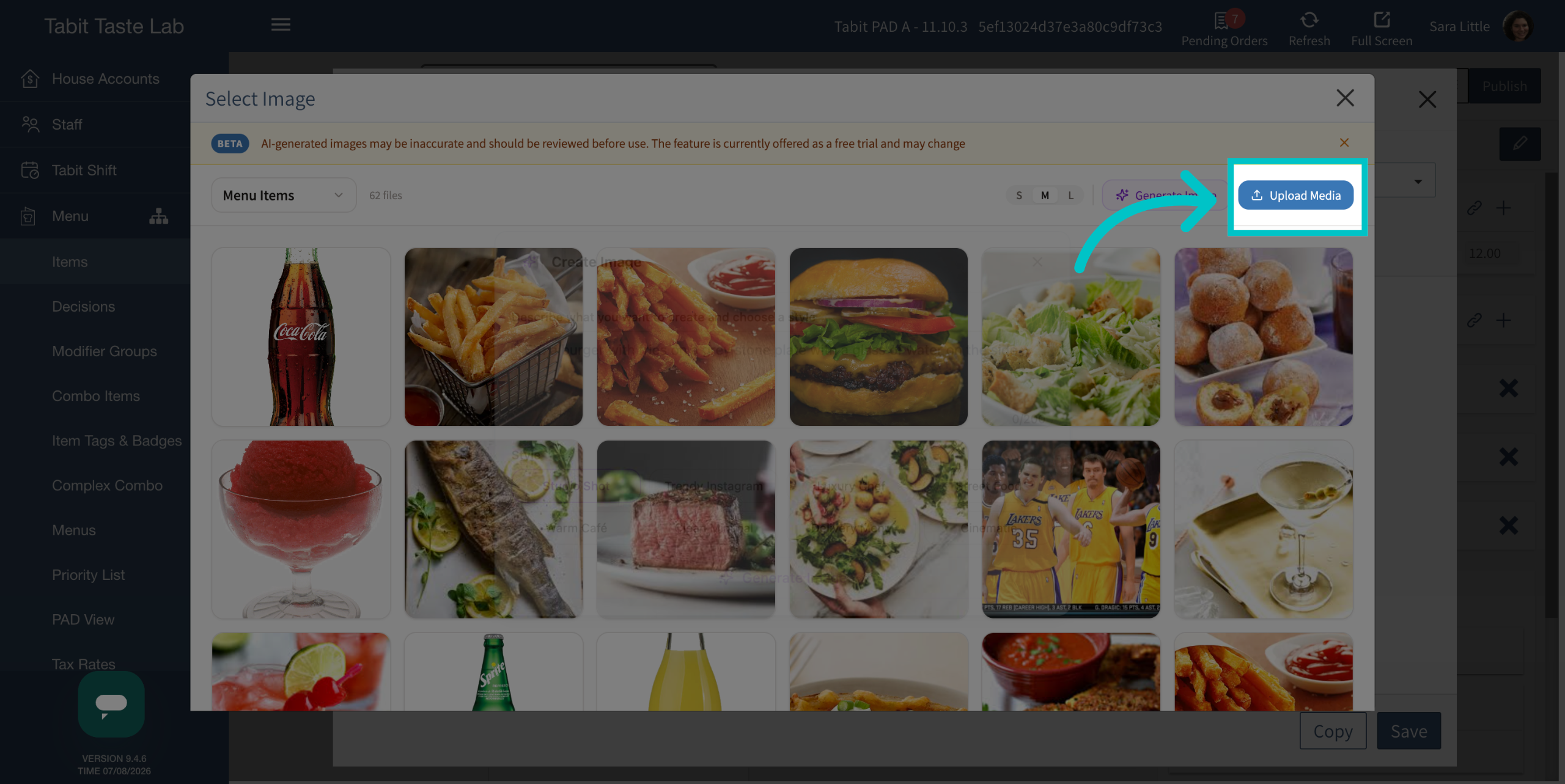
If the image doesn't already exist in the Tabit Media Gallery, select Upload Media to upload a new image
Generating an Image with AI
Instead of uploading your own photo, you can use the Tabit AI Image Editor to generate a new image from a text prompt.
-
Select Generate Image to create a new image using the Tabit AI Image Editor
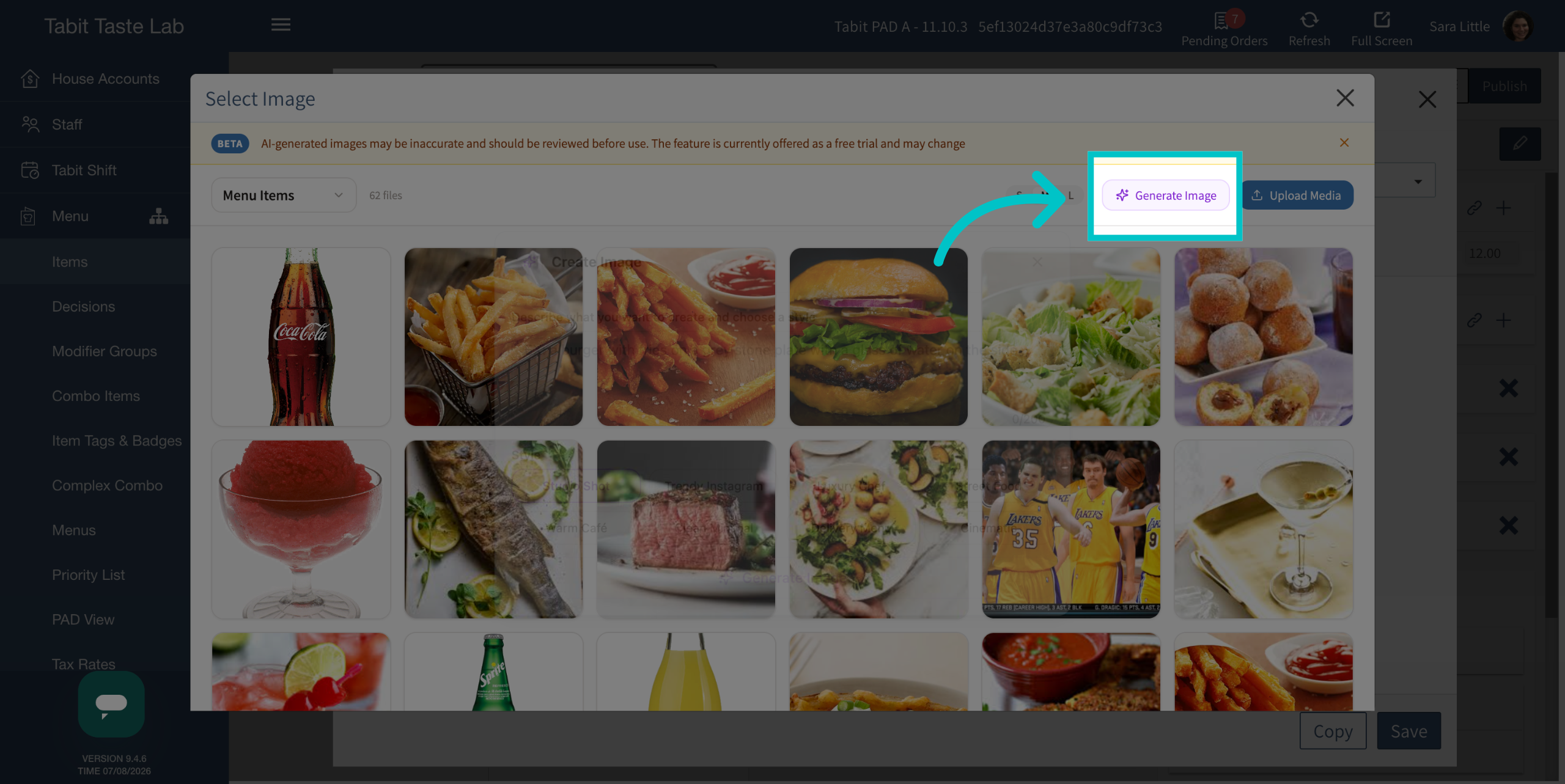
-
Describe the image you would like to create and select a style. For example: "a rustic wood-fired margherita pizza on a slate board, fresh basil, natural daylight"
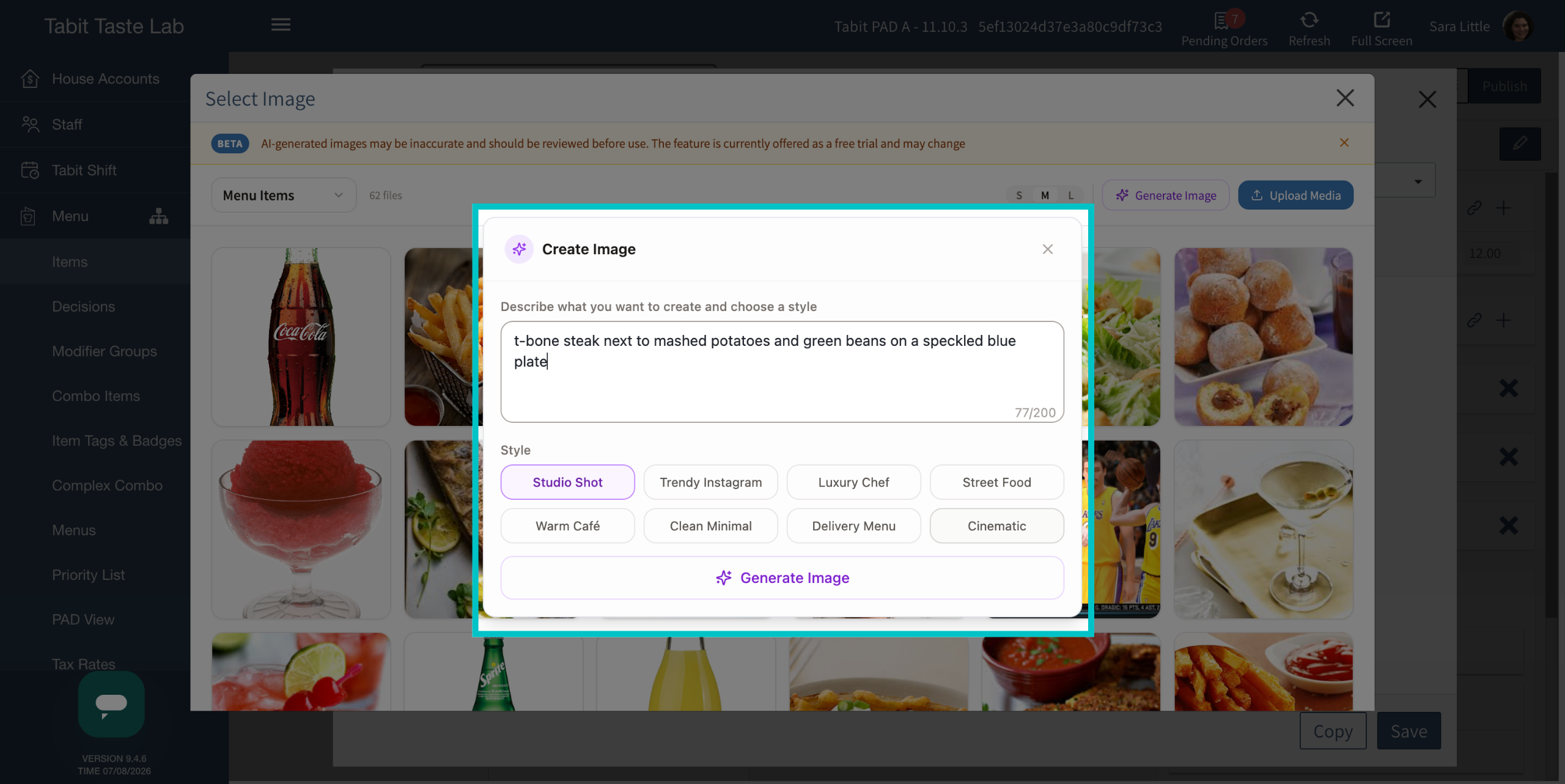
-
Select Generate Image
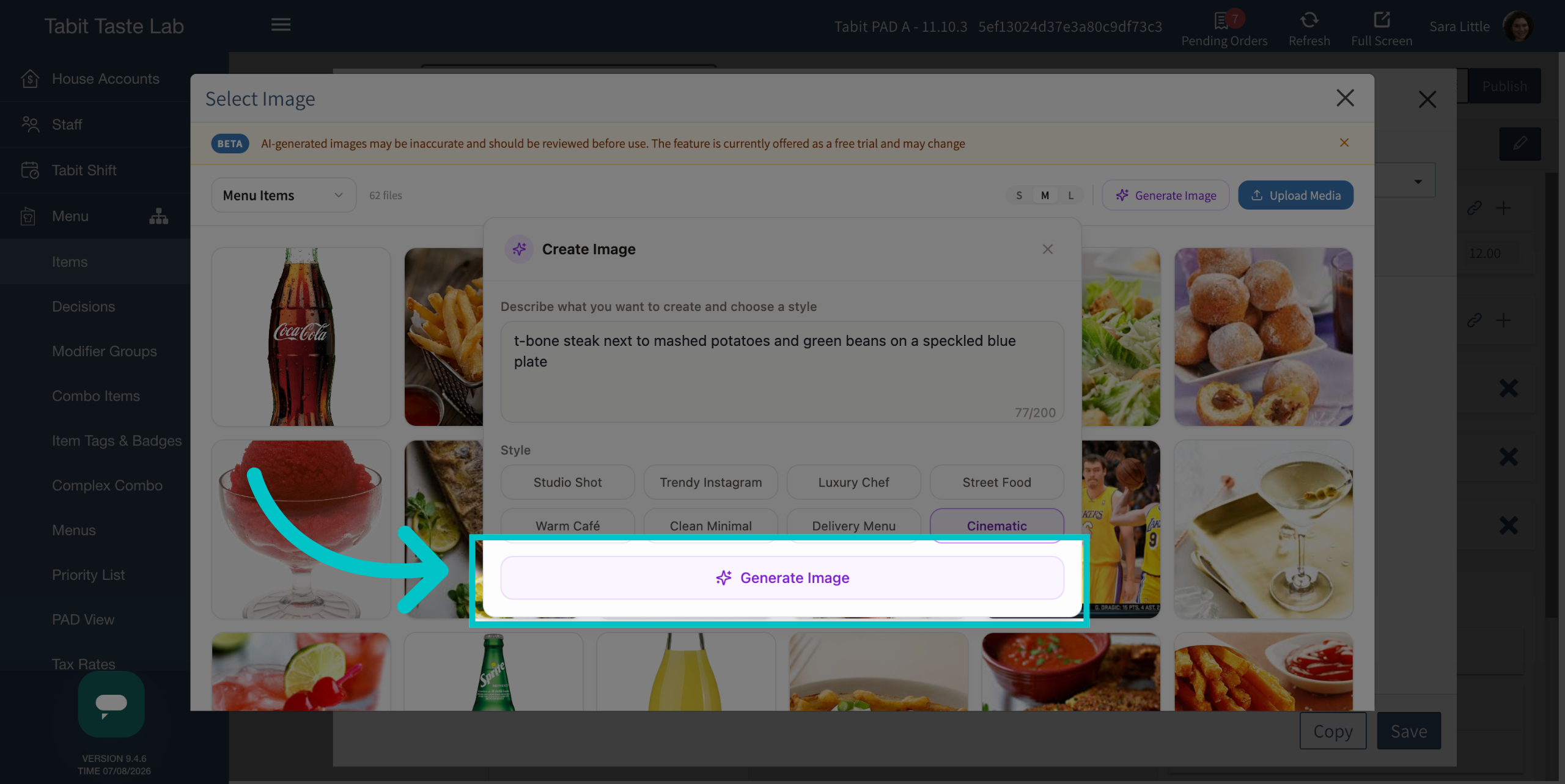
-
Select Use Image to continue, or select Edit Image to make adjustments
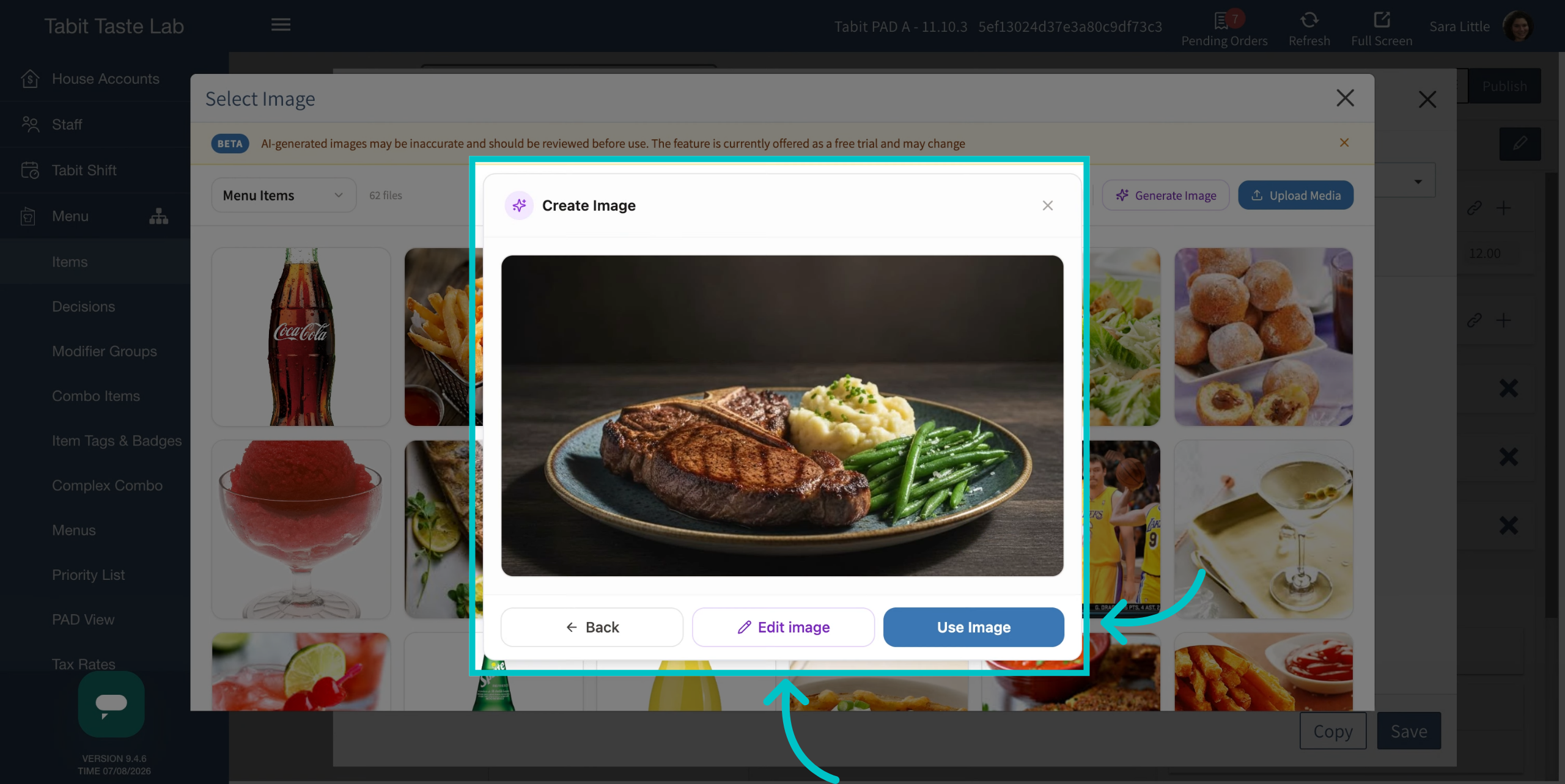
-
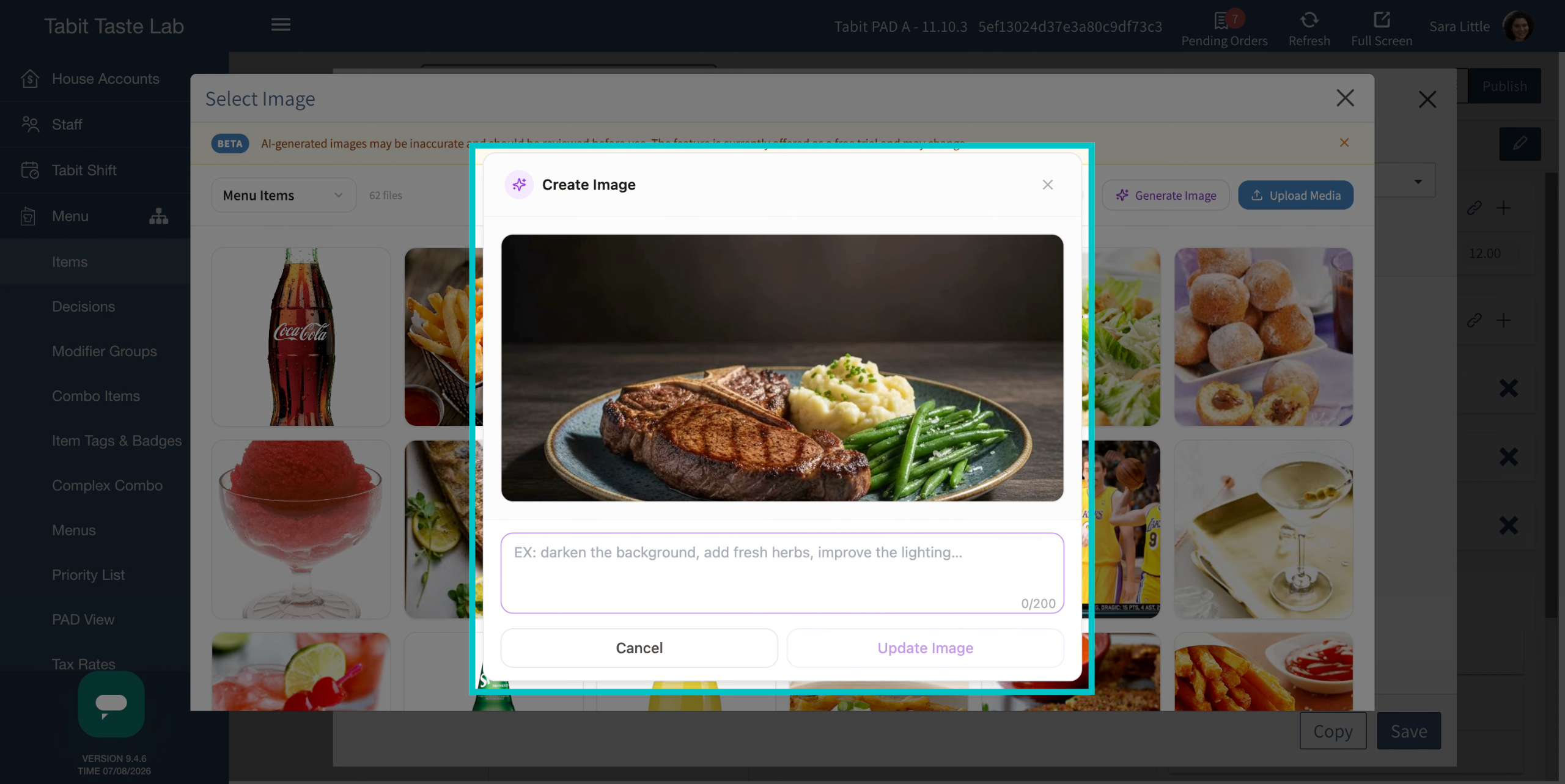
Add additional information to the prompt to edit the image, then select Update Image
-
Once you're happy with the image, select Use Image. You can also make additional edits later in the Tabit AI Image Editor
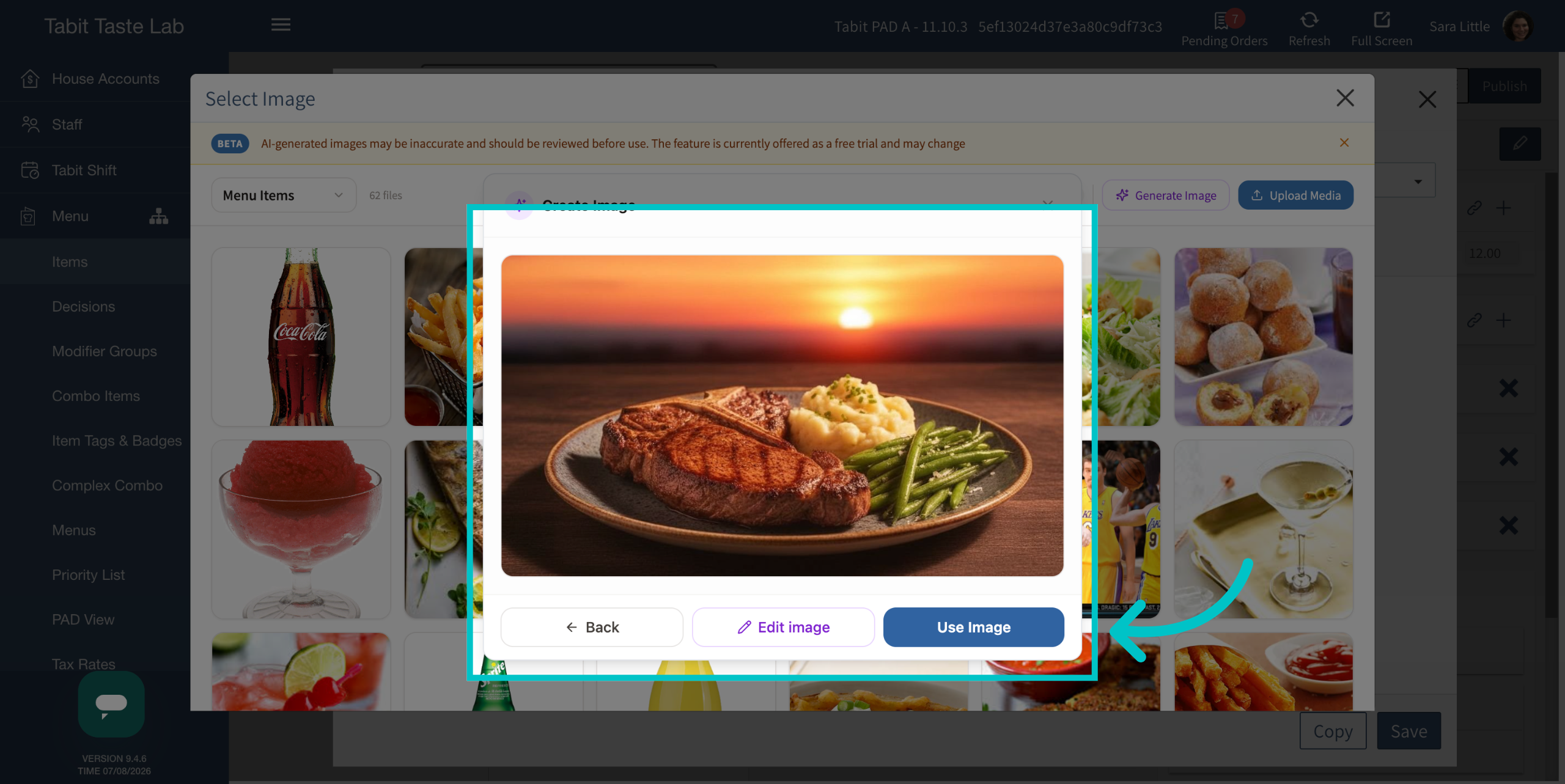
Image Editing
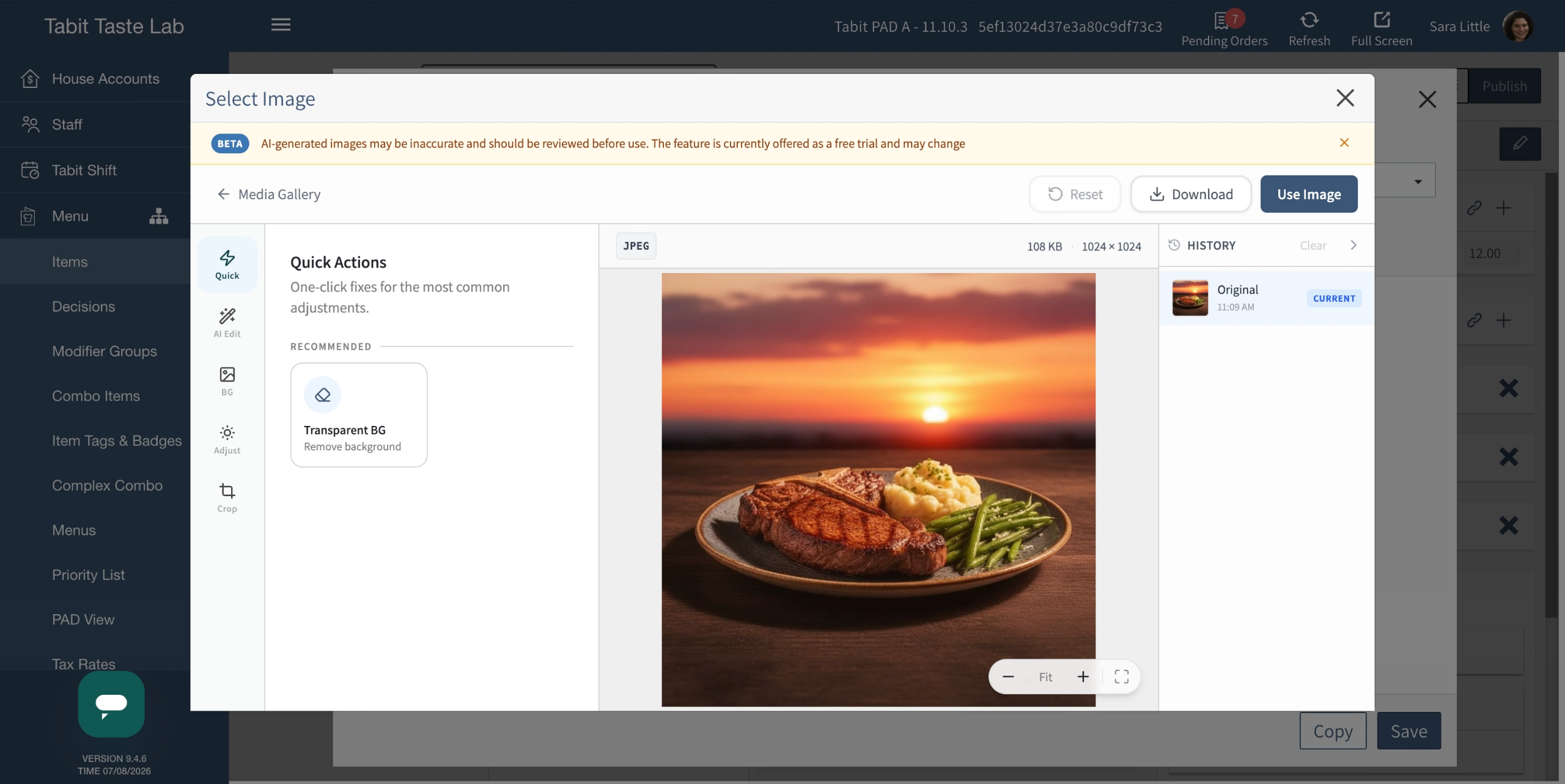
The Tabit AI Image Editor includes a set of editing tools so you can refine any image, whether it was generated by AI or uploaded from the Tabit Media Gallery.
Quick Actions
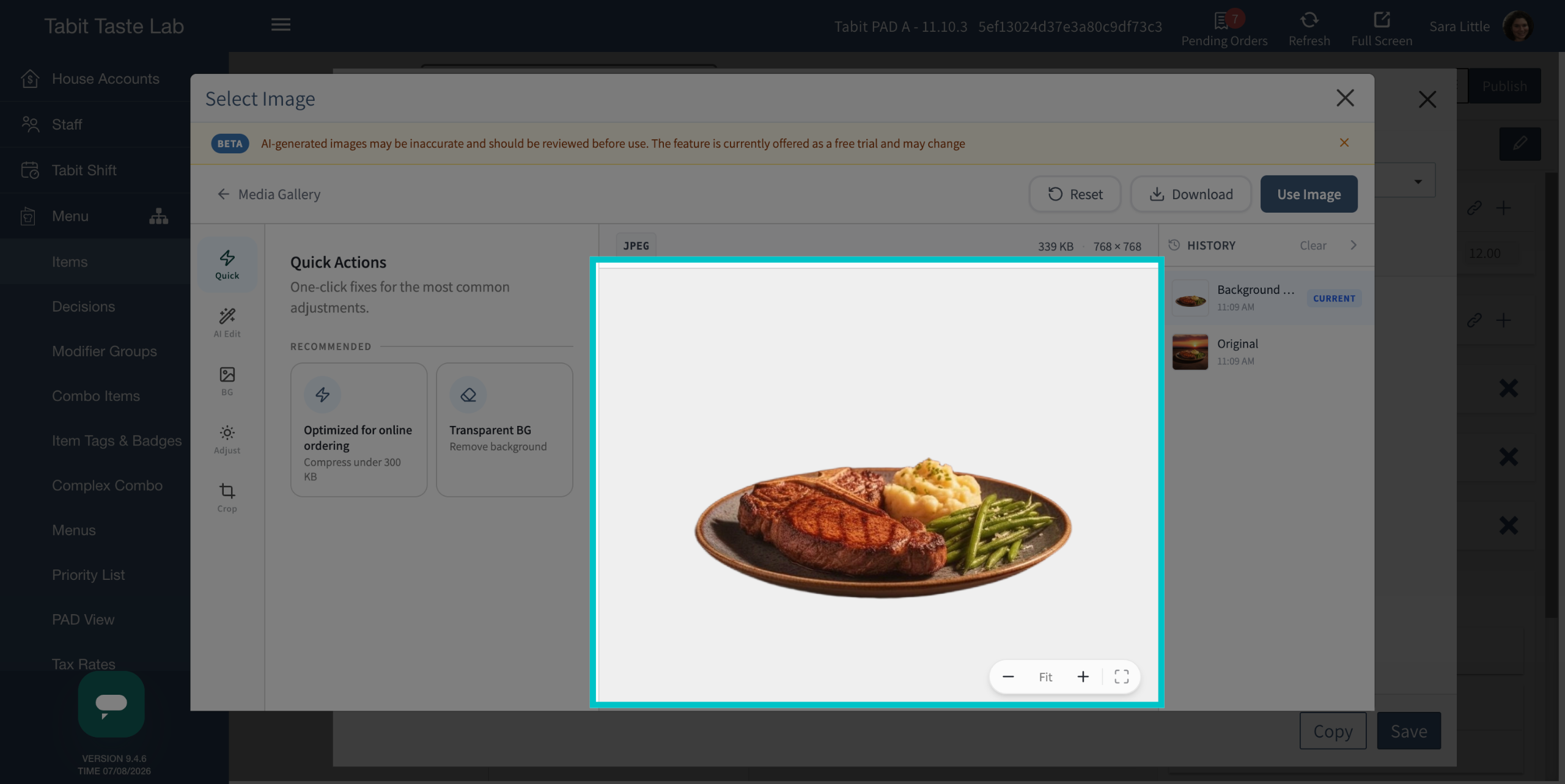
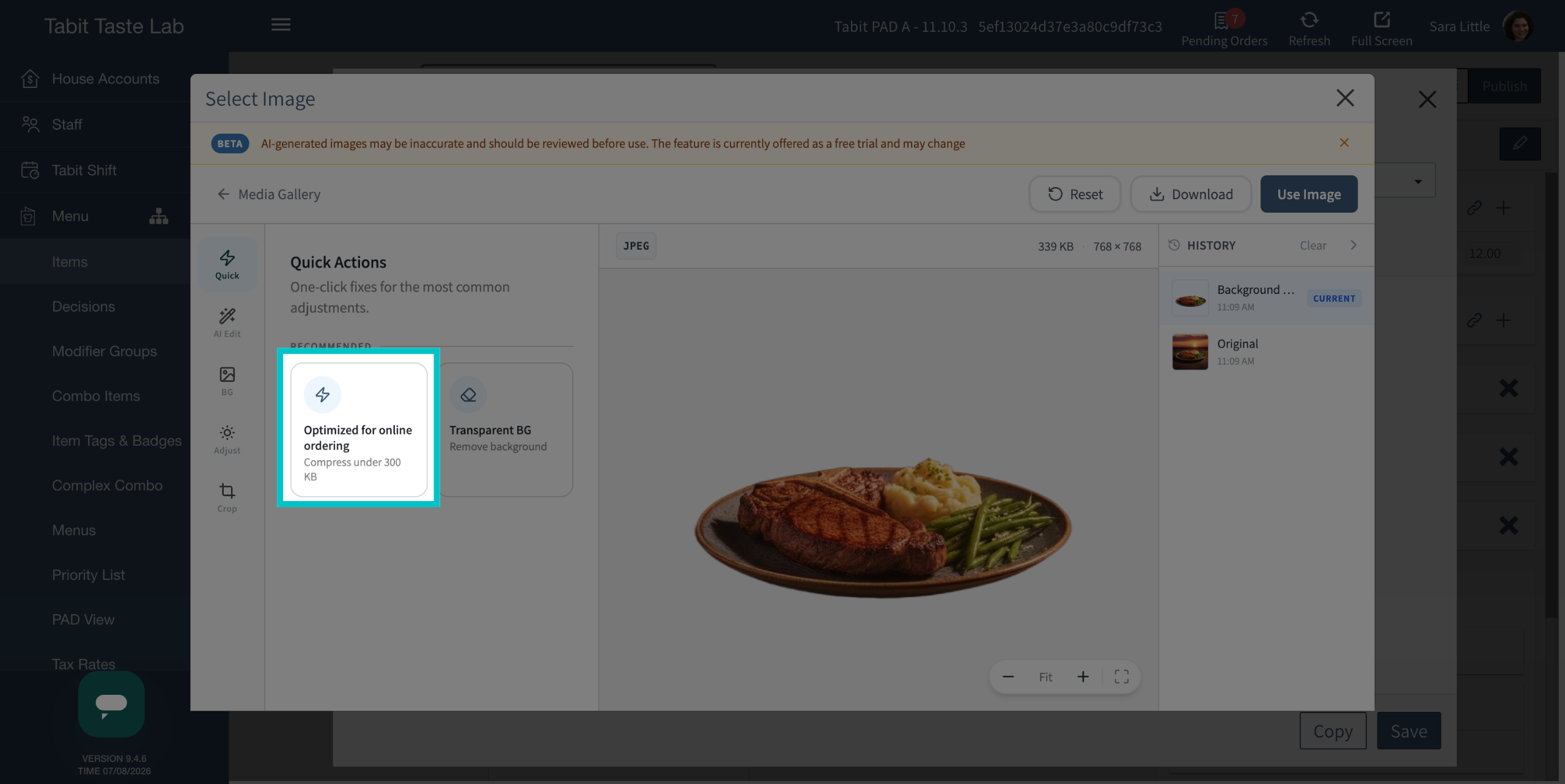
Quick Actions apply common edits to the image in a single select.
-
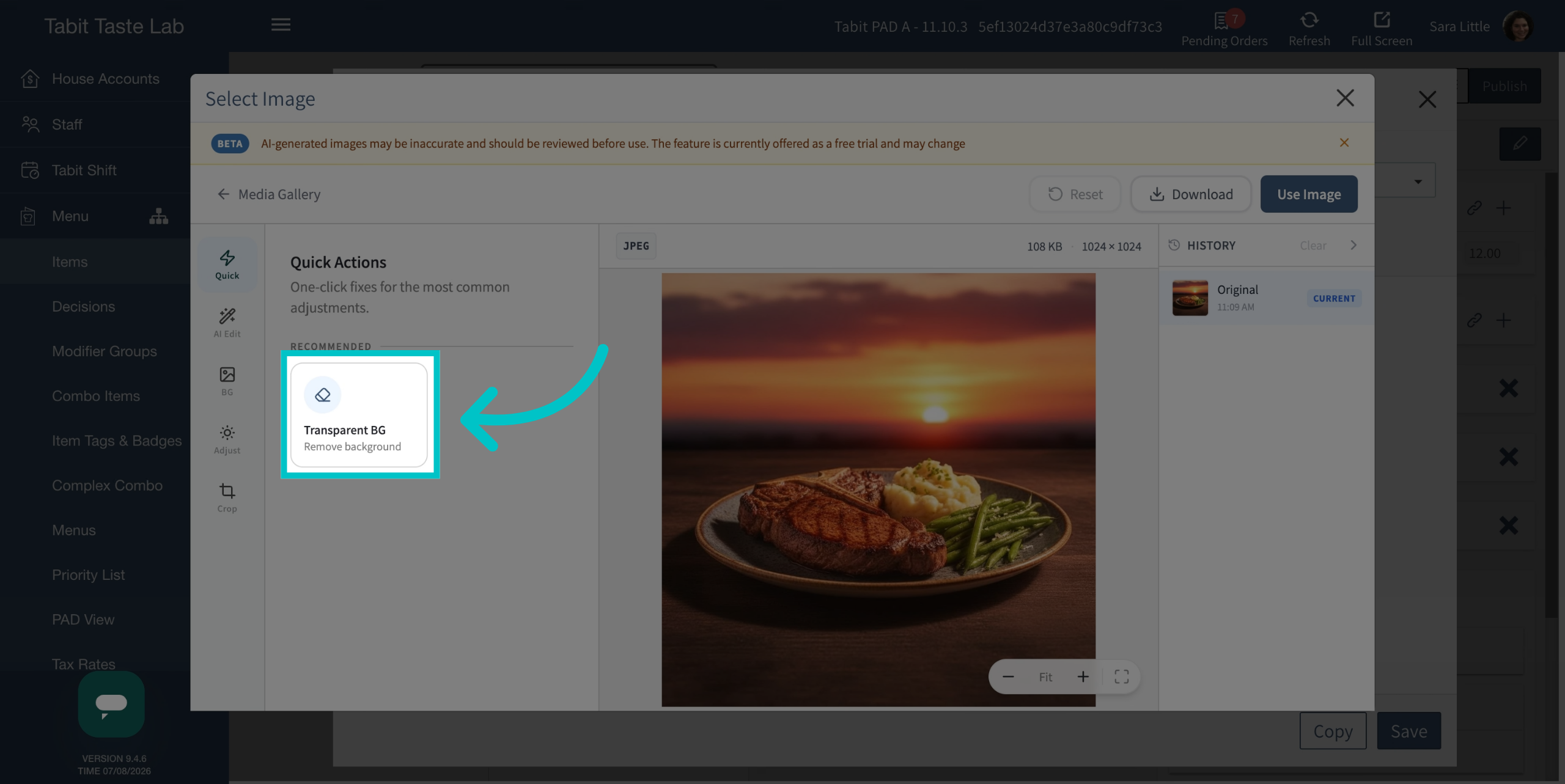
Select Transparent BG to remove the background
-
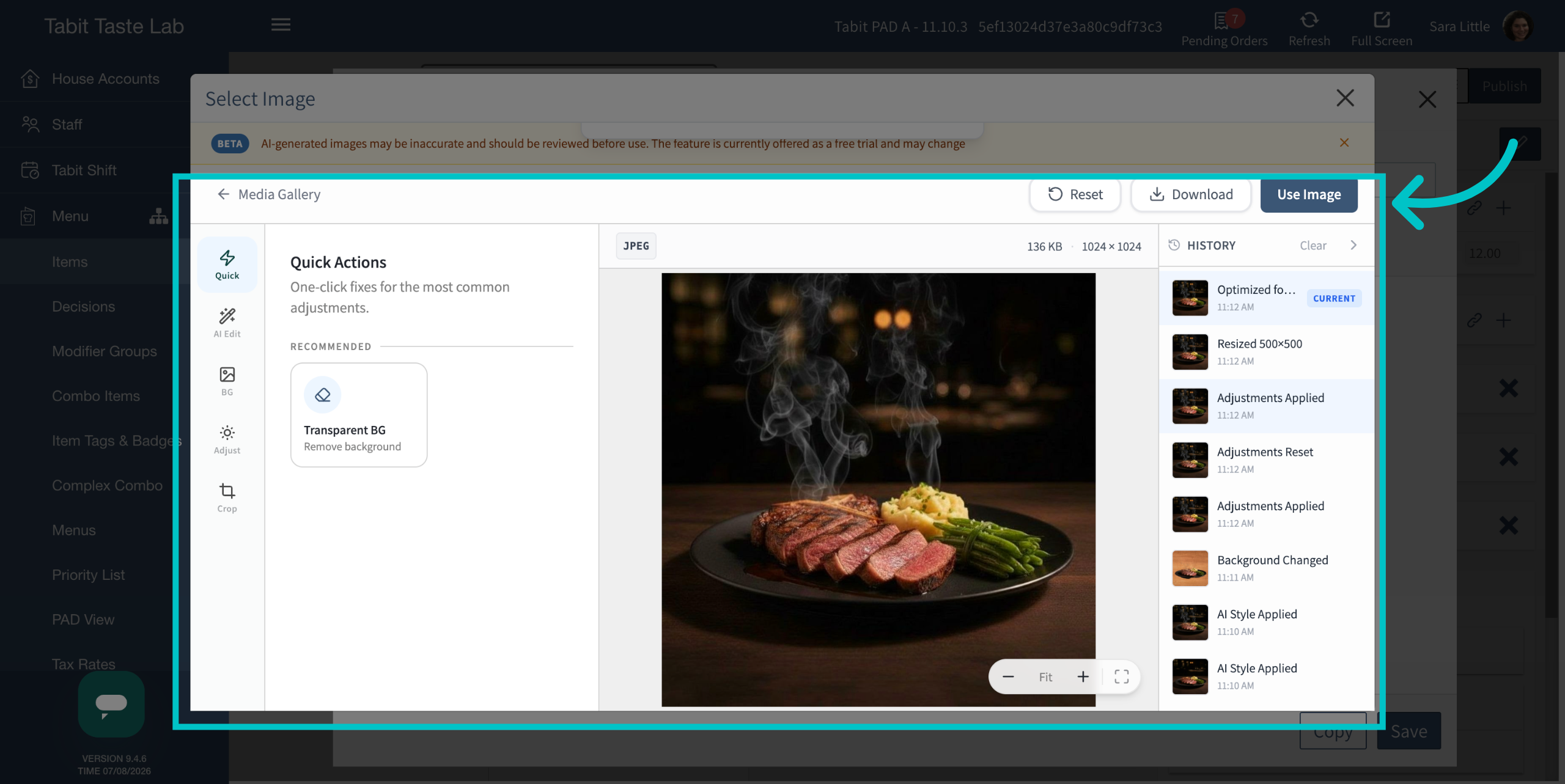
Compress the image to optimize it for online ordering
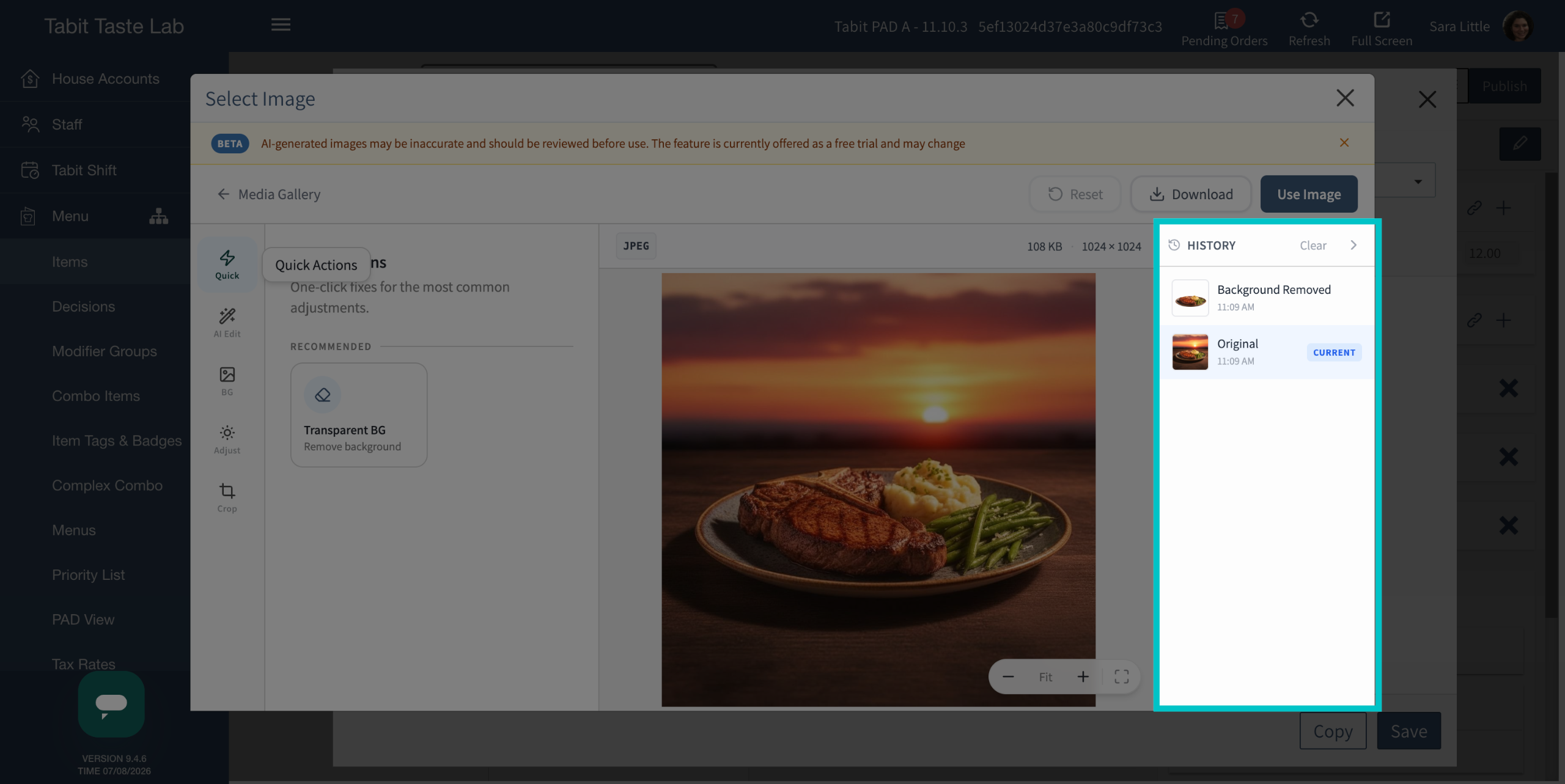
The image history on the right side of the Tabit AI Image Editor lets you revert to an older version of the image at any point
AI Edit
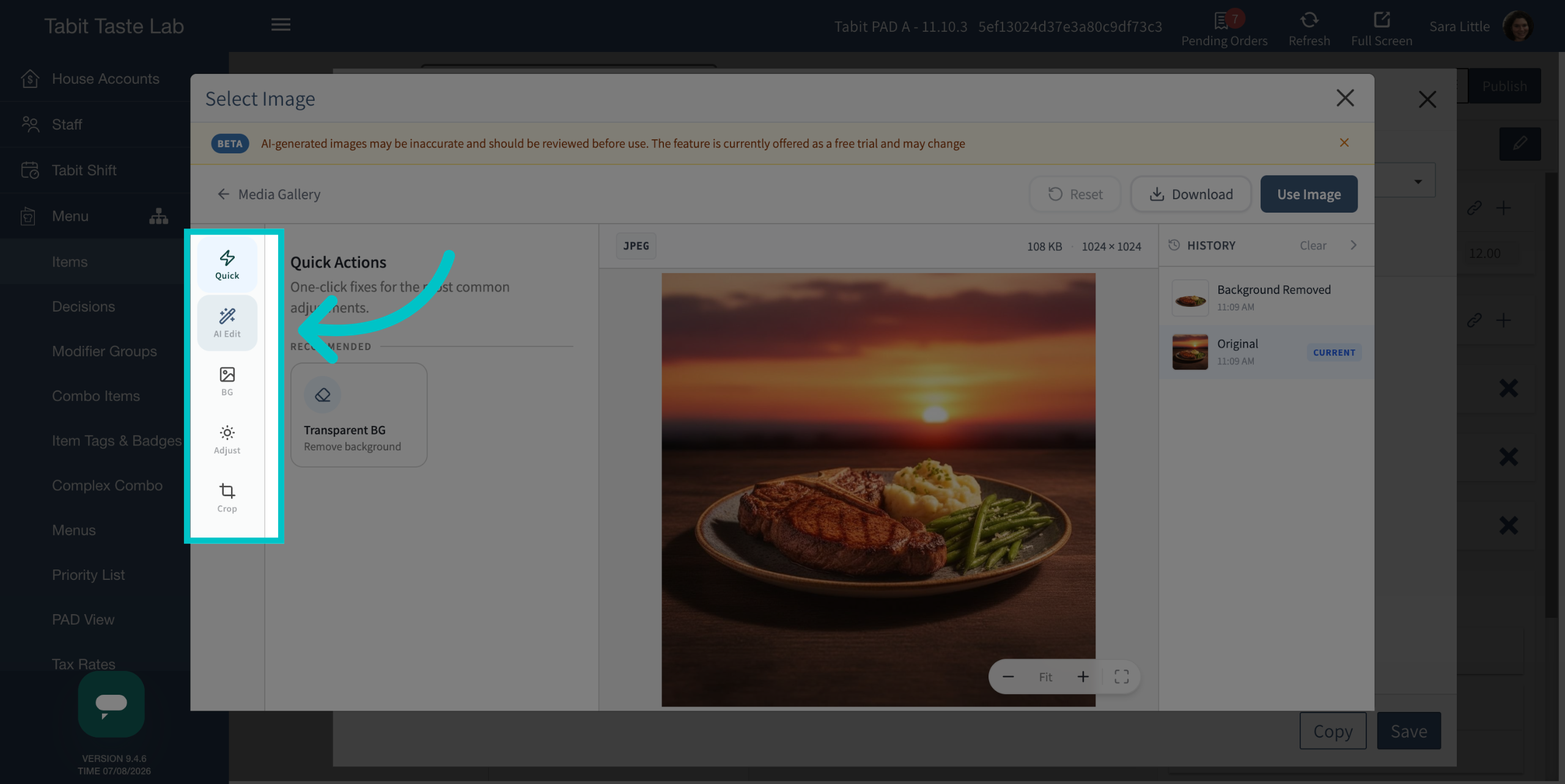
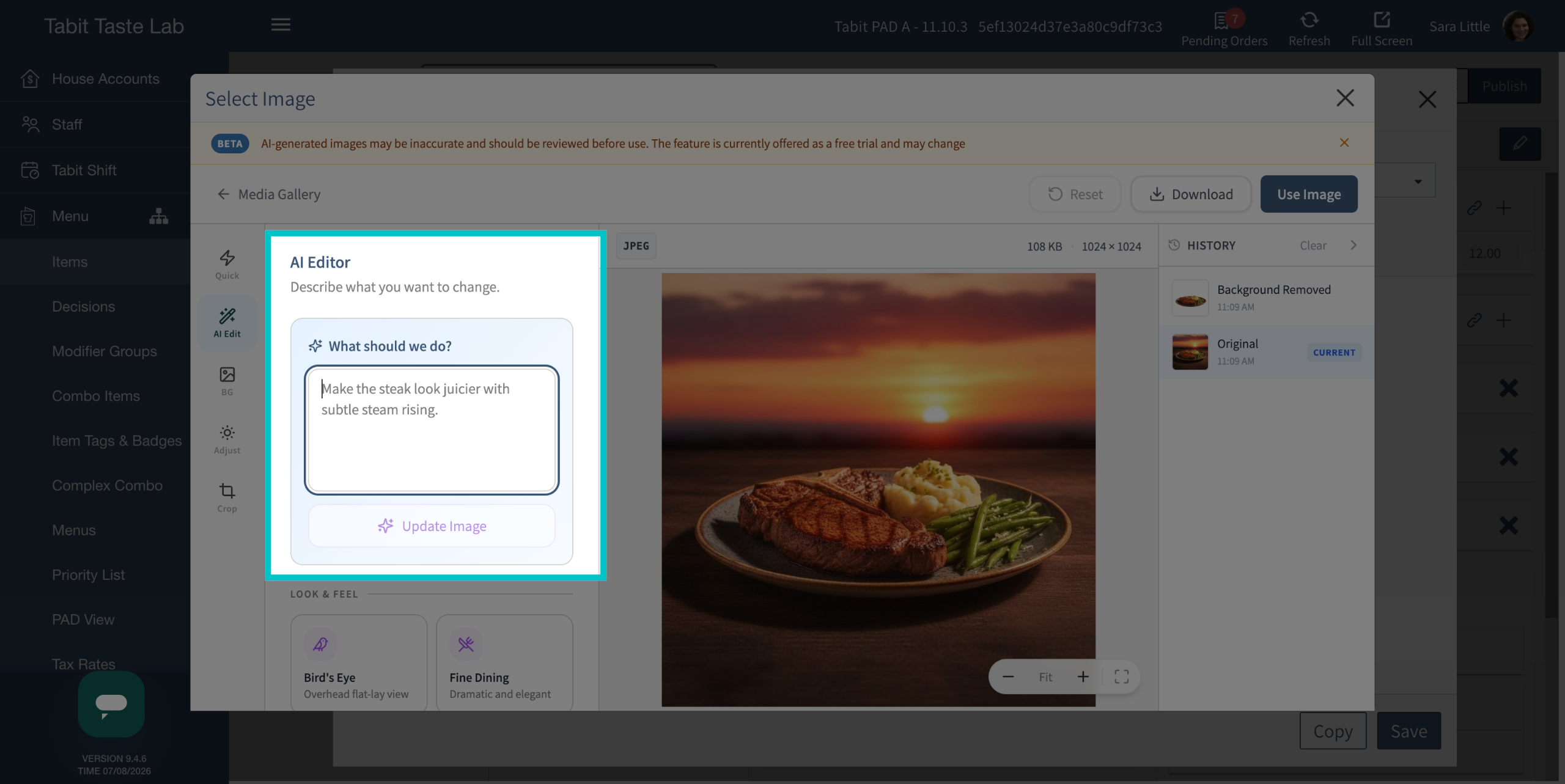
AI Edit lets you enhance an existing photo by describing the changes you want in a prompt.
-
Select AI Edit on the left side of the screen
-
Add more information to the prompt to update the image
-
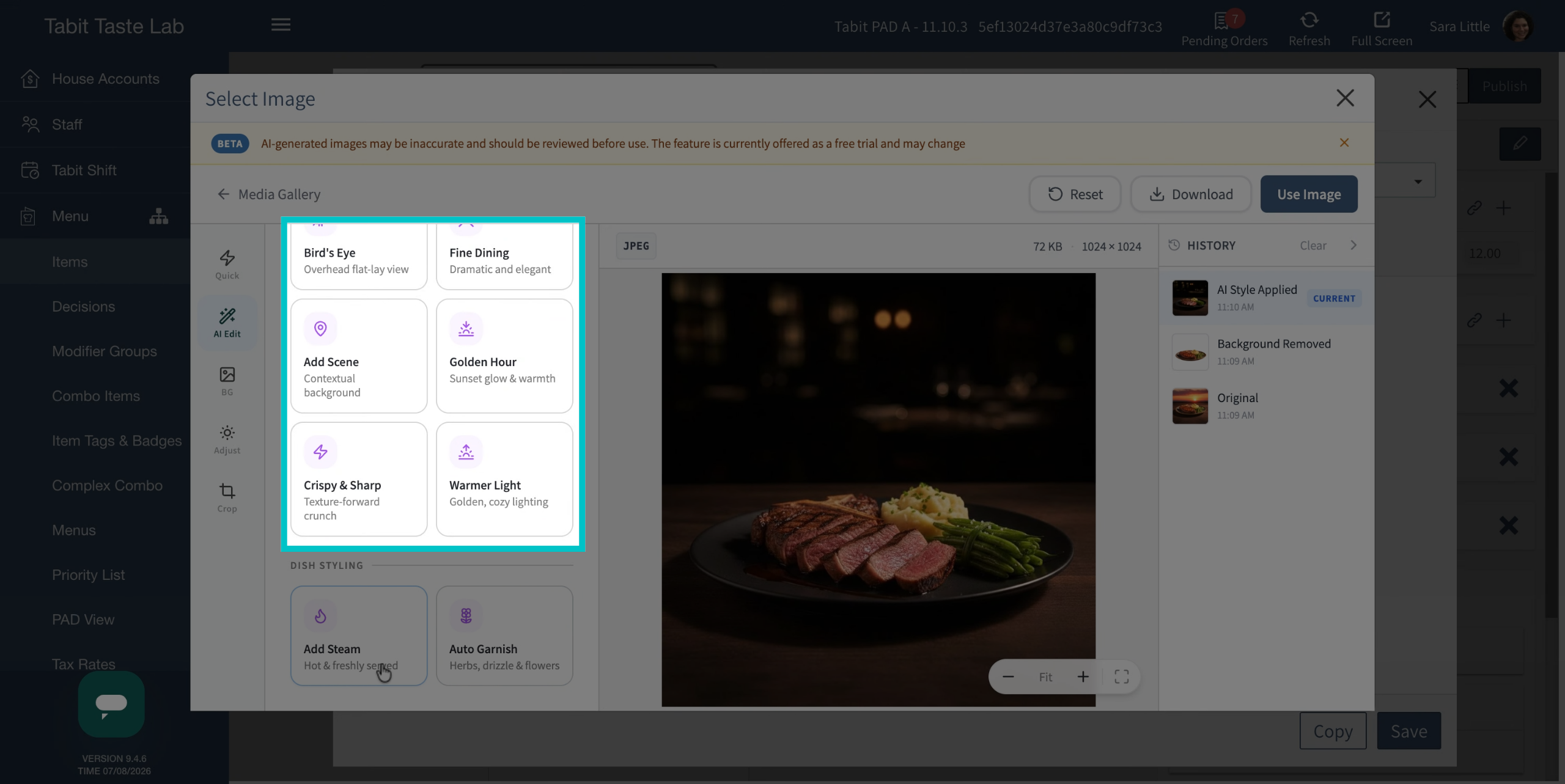
Change the look and feel of the image, such as the angle and lighting
-
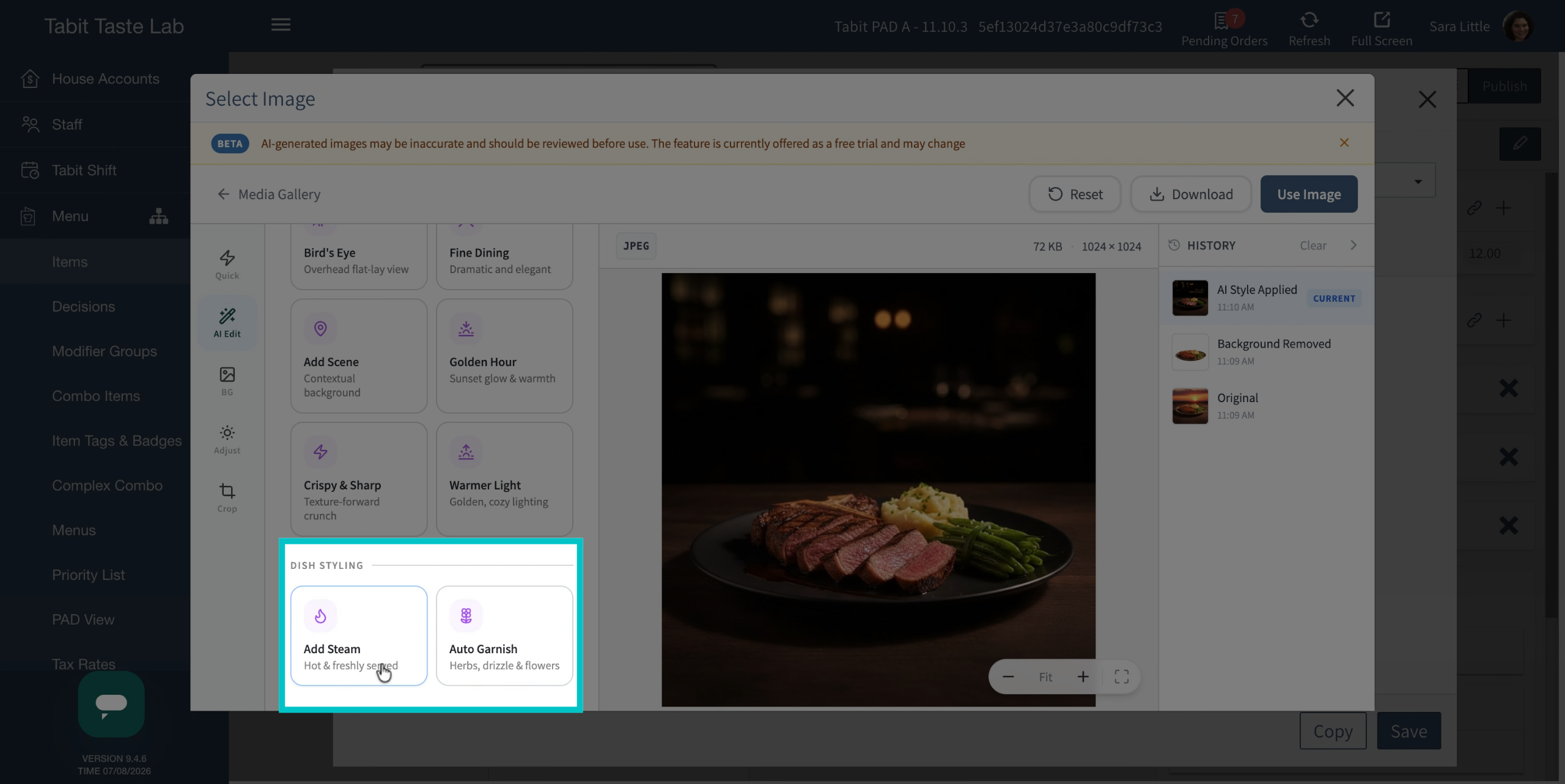
Add elements like steam or a garnish
Background
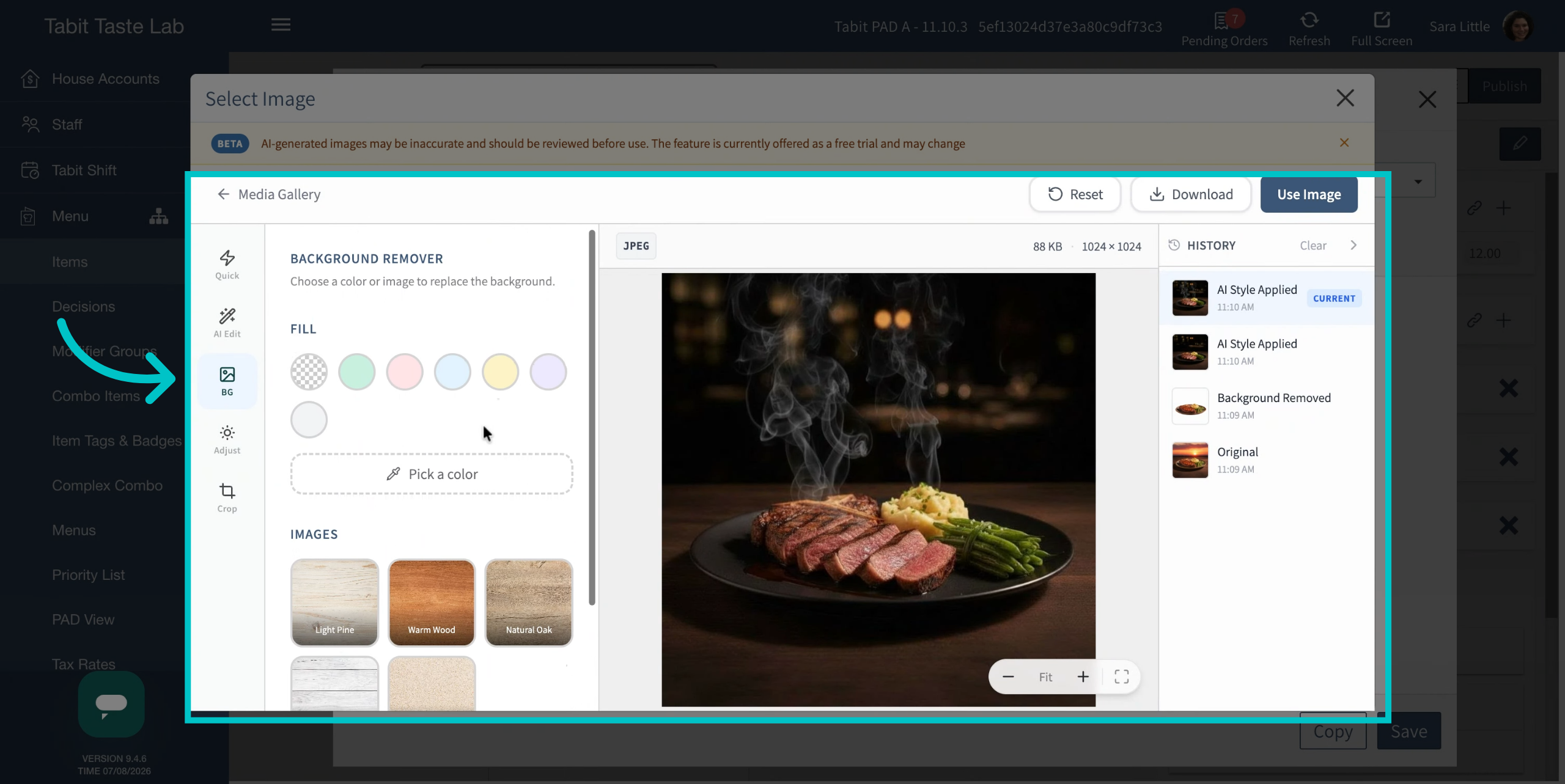
The BG tab lets you replace the background with a color or any other background you would like.
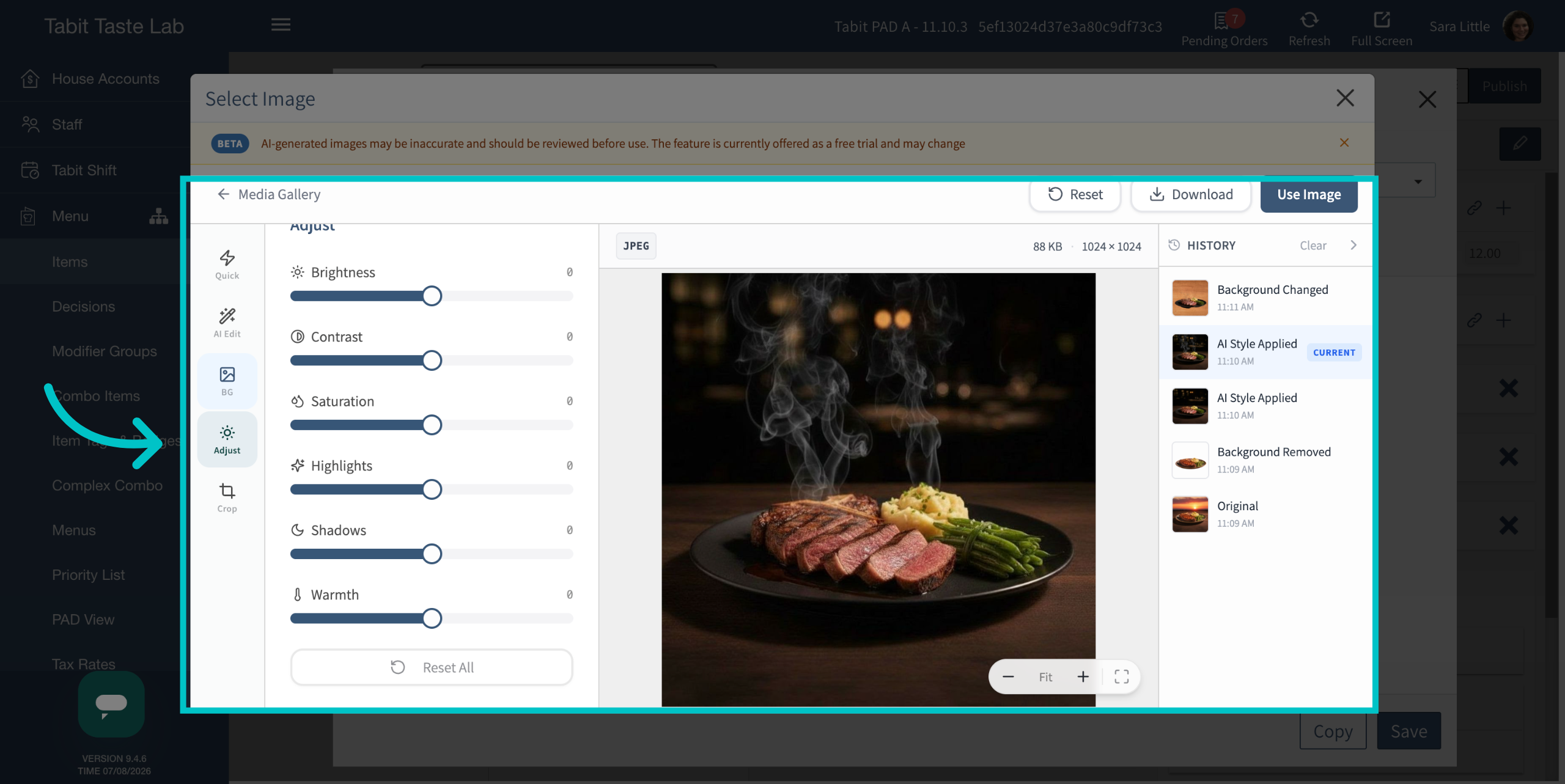
Adjust
The Adjust tab lets you change the image's brightness, contrast, saturation, highlights, shadows, and warmth. As always, you can revert to previous versions of the image using the history on the right side of the screen.
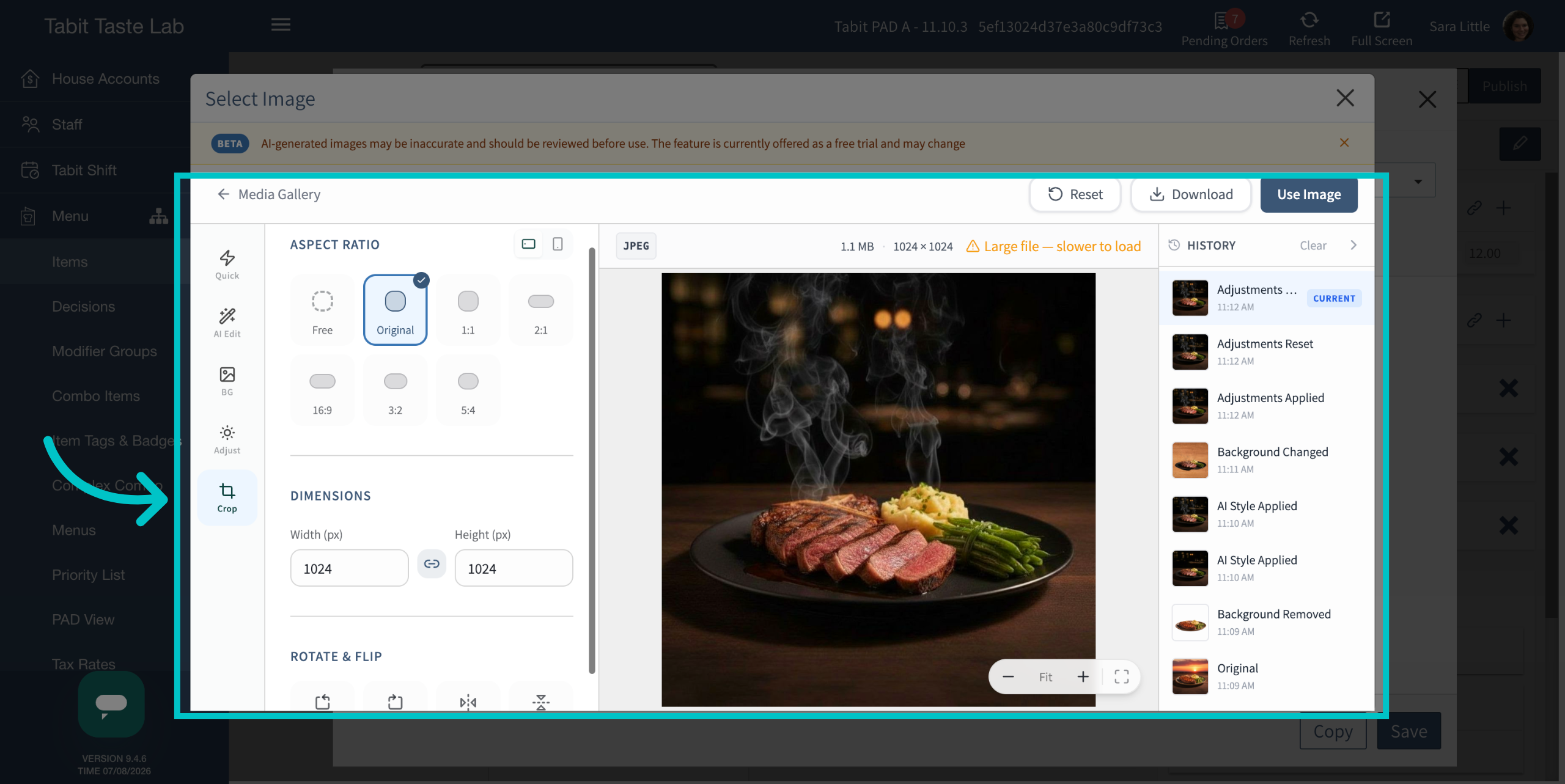
Crop
The Crop tab lets you change the aspect ratio and dimensions, which is helpful anywhere the image must be a certain size. You can also rotate or flip the image.
Finishing Up
-
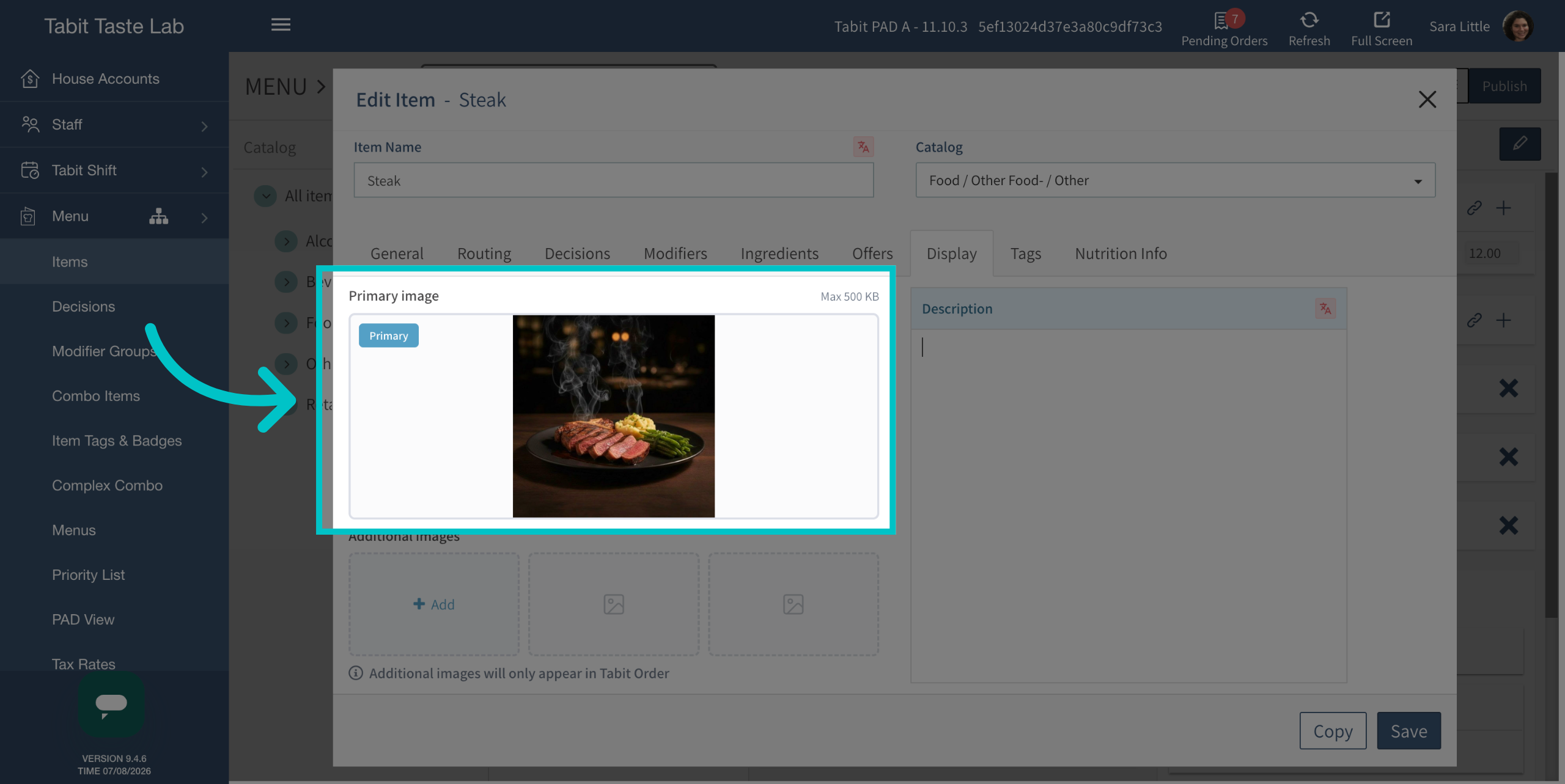
When you're done editing the image, select Use Image in the top right of the screen to complete the process and use it as the image for the item
-
You can now see the image on the item, and it is also available in the Tabit Media Gallery for use elsewhere