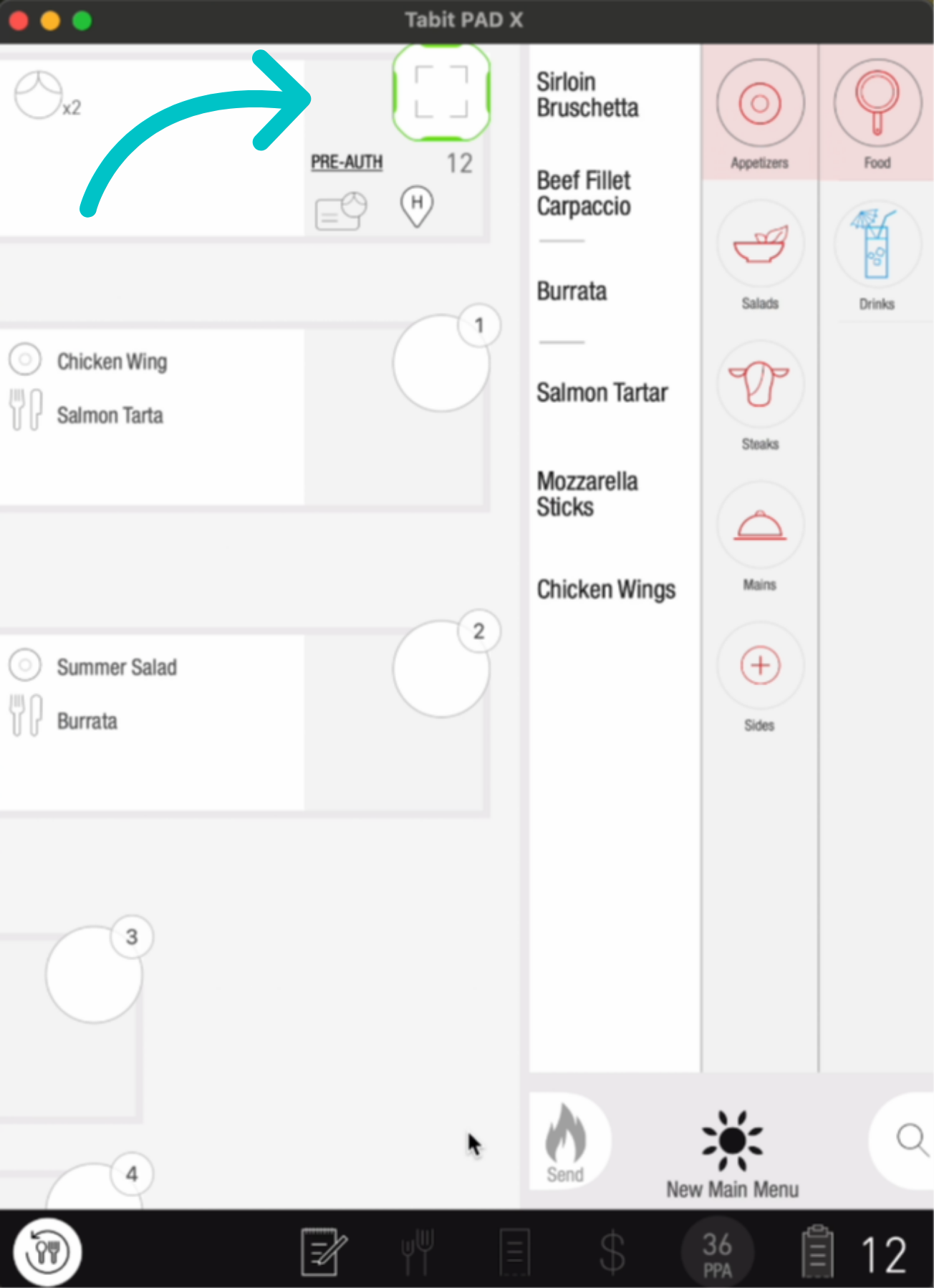
Adding or removing a Promo Tag allows employees to apply promotions manually.
Any staff member can add Promo Tags to orders, but may be restricted for manager approval before payment or check printing
Tags only apply to qualifying items. If an item is not included in the promotion, the discount will not be applied
Follow the steps below to add or remove a Promo Tag:
Adding a Promo Tag
-
On the PAD, select the relevant table
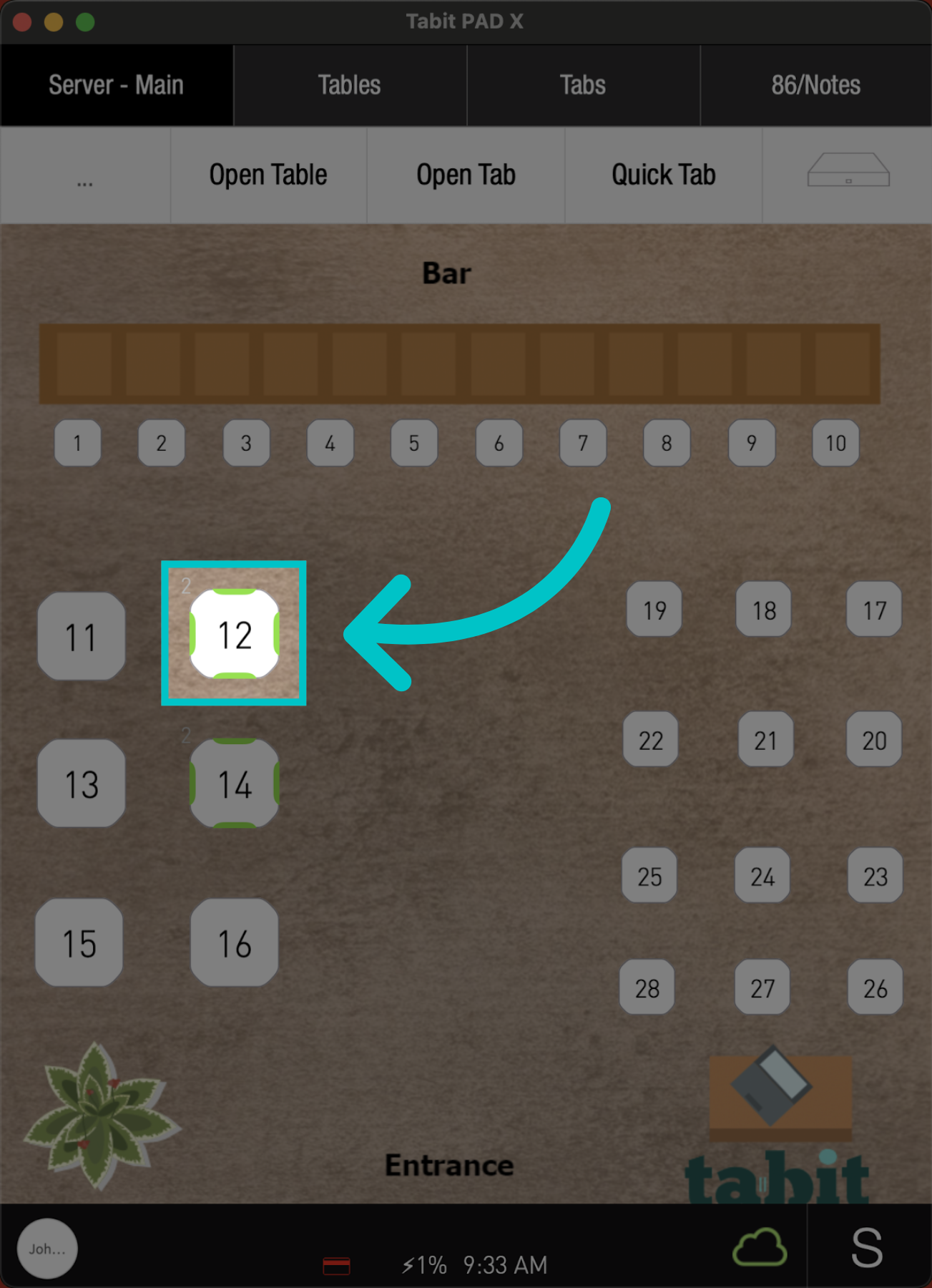
-
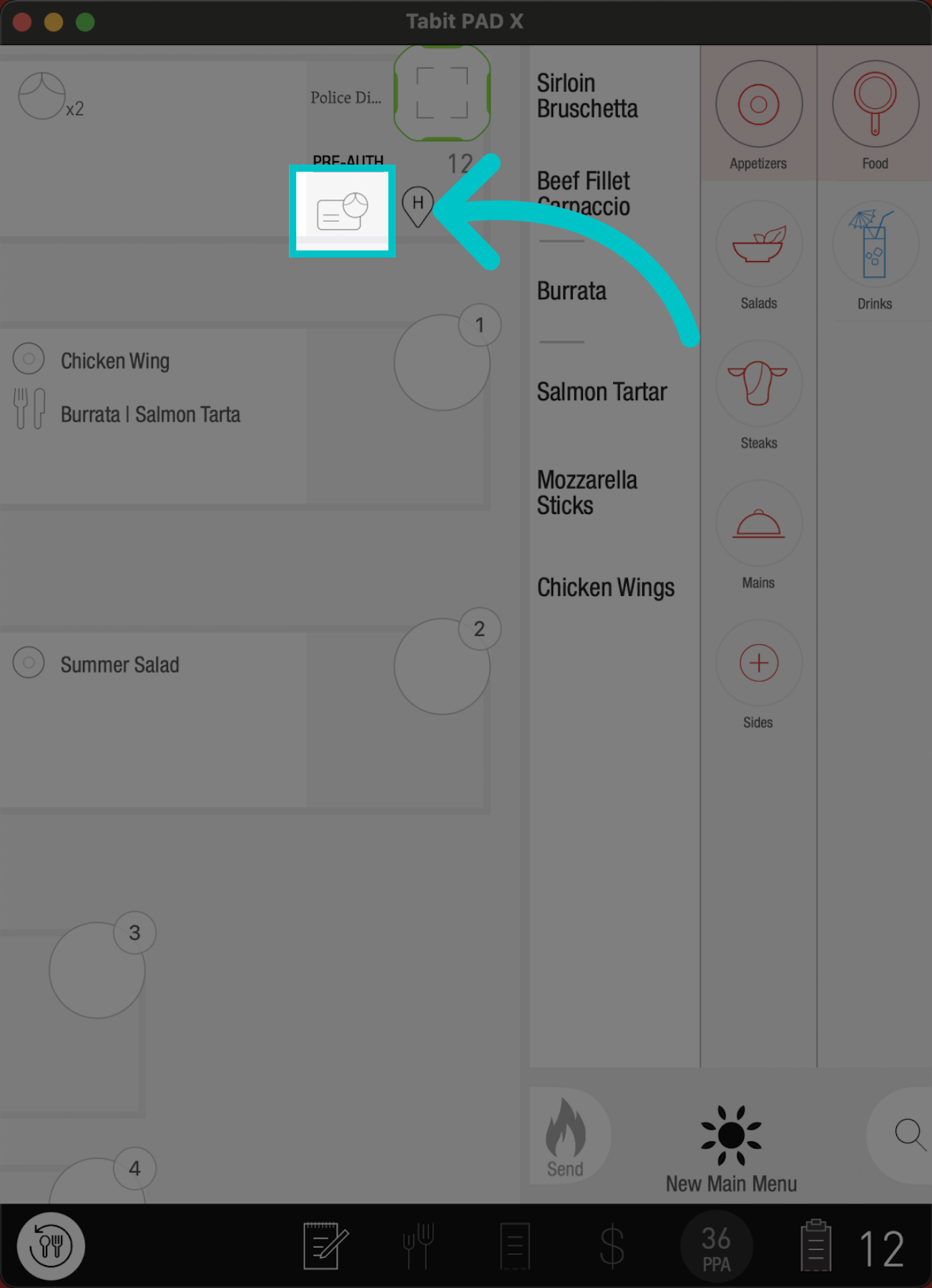
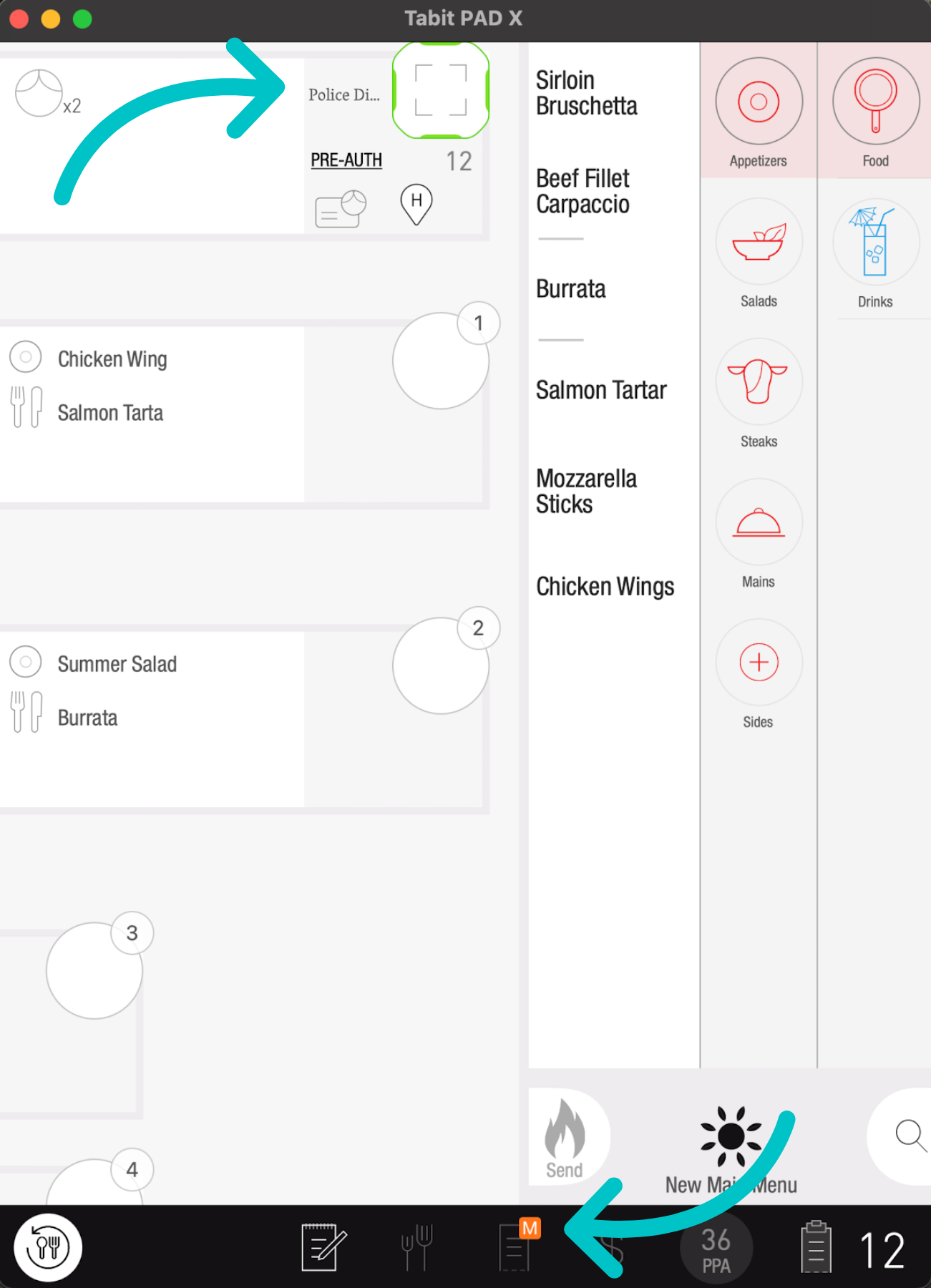
Now, tap the Card icon
-
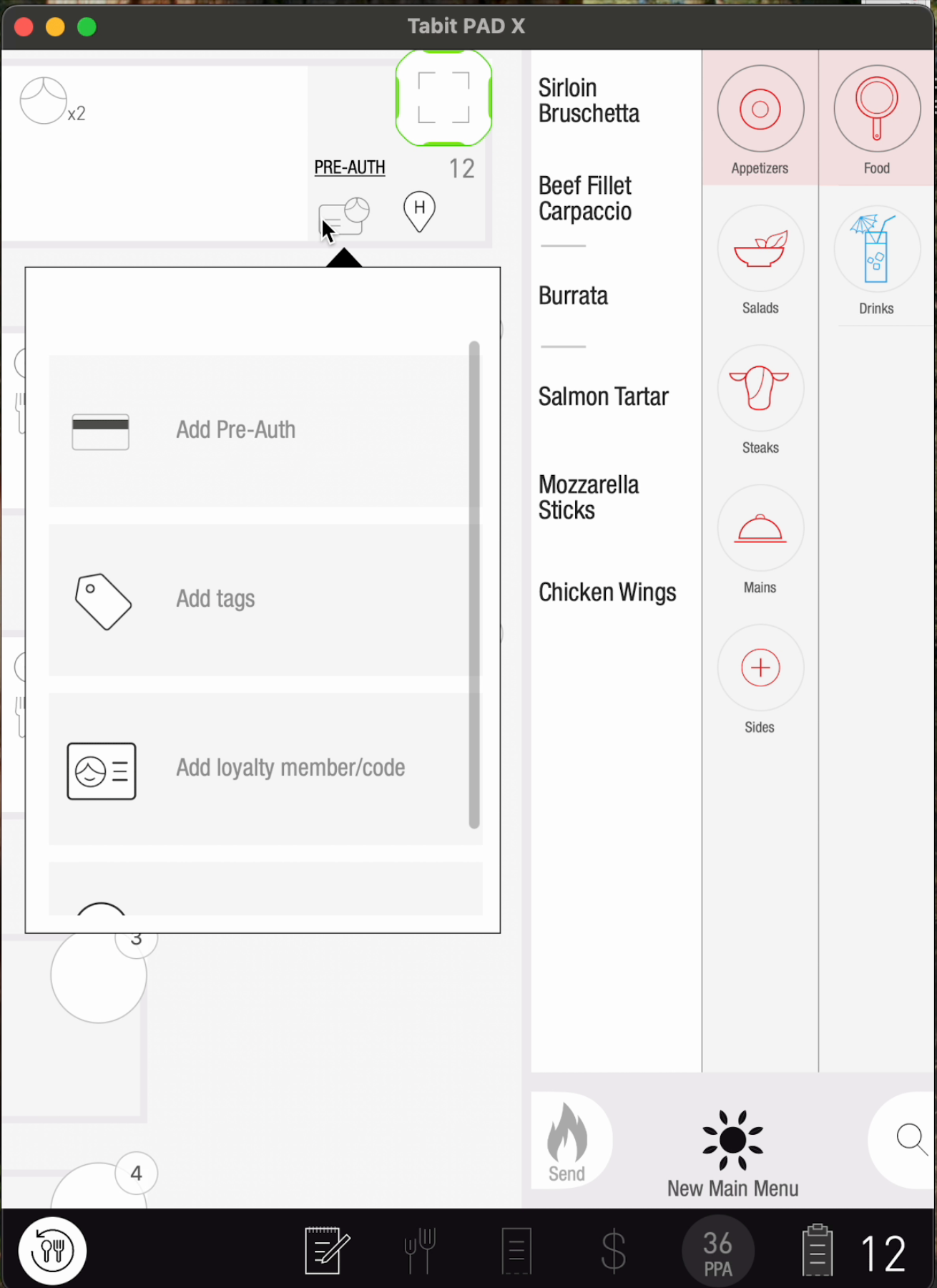
And go to Add tags. Then select the tag you want to add and approve your selection
-
Once the Promo Tag is added, the name of the promo will appear at the top in the shared seat, and a pending manager approval request will be triggered
Removing a Promo Tag
-
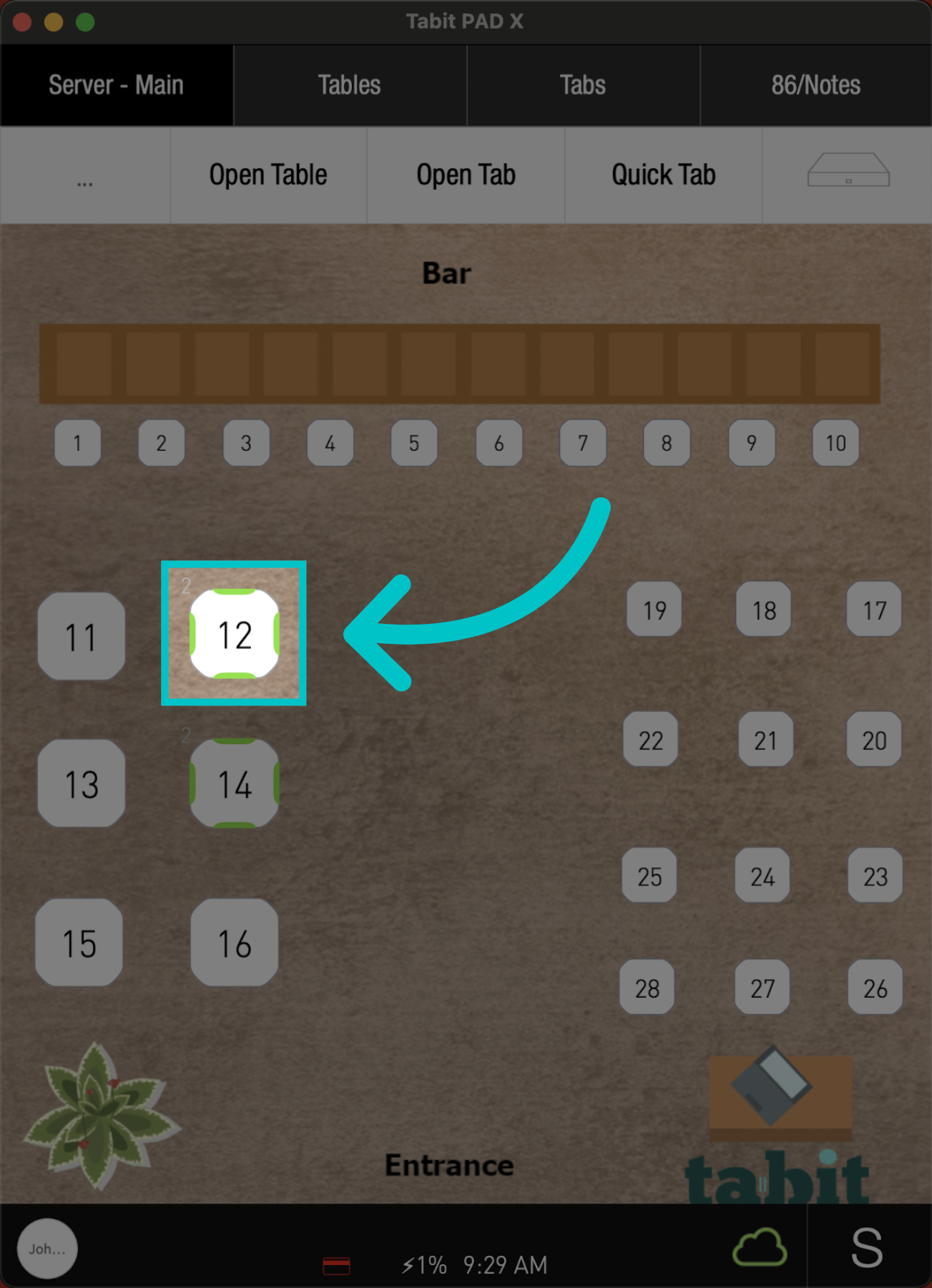
On the PAD, select the relevant table
-
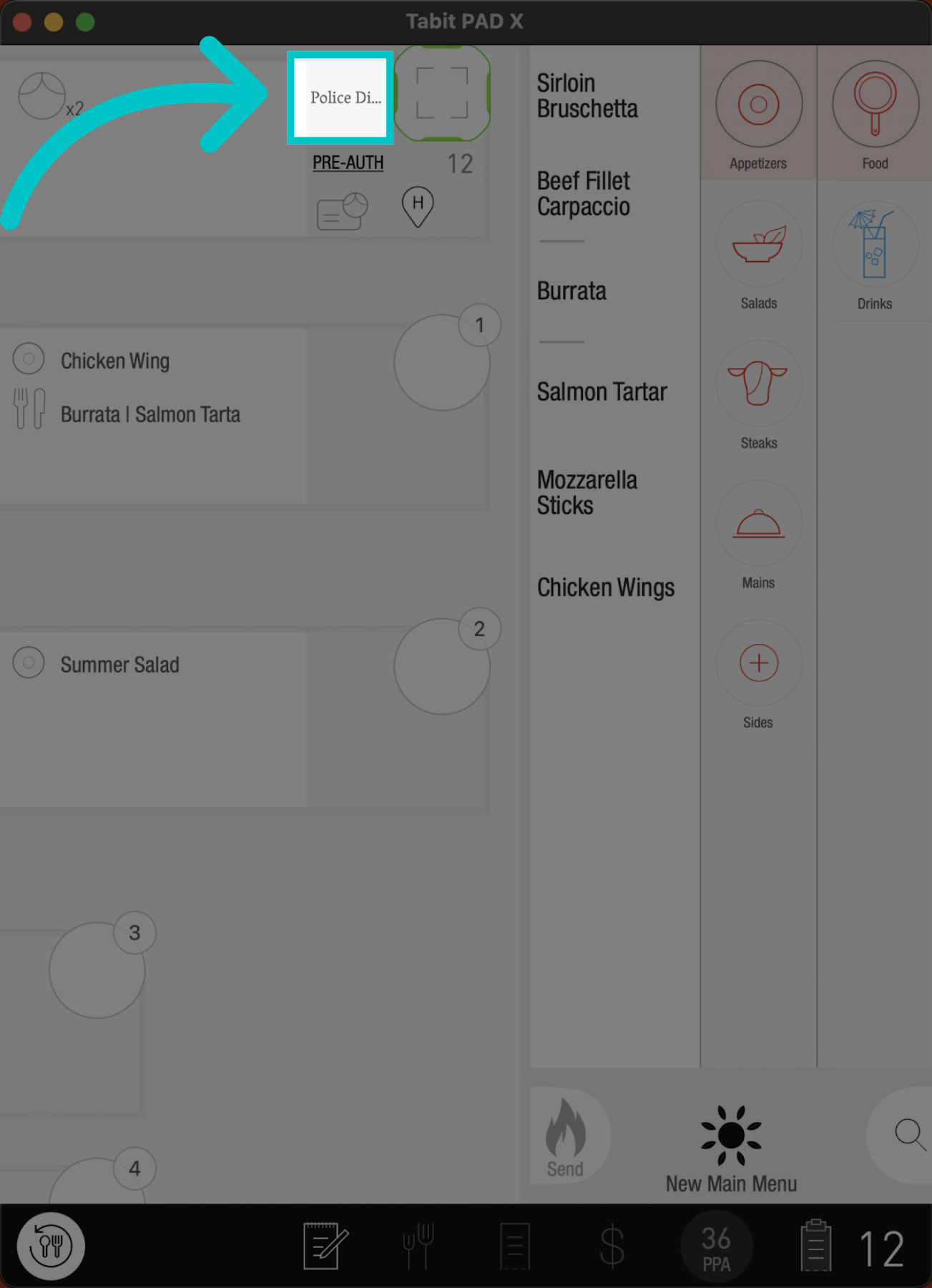
Notice the indication of the tag added to the shared seat
-
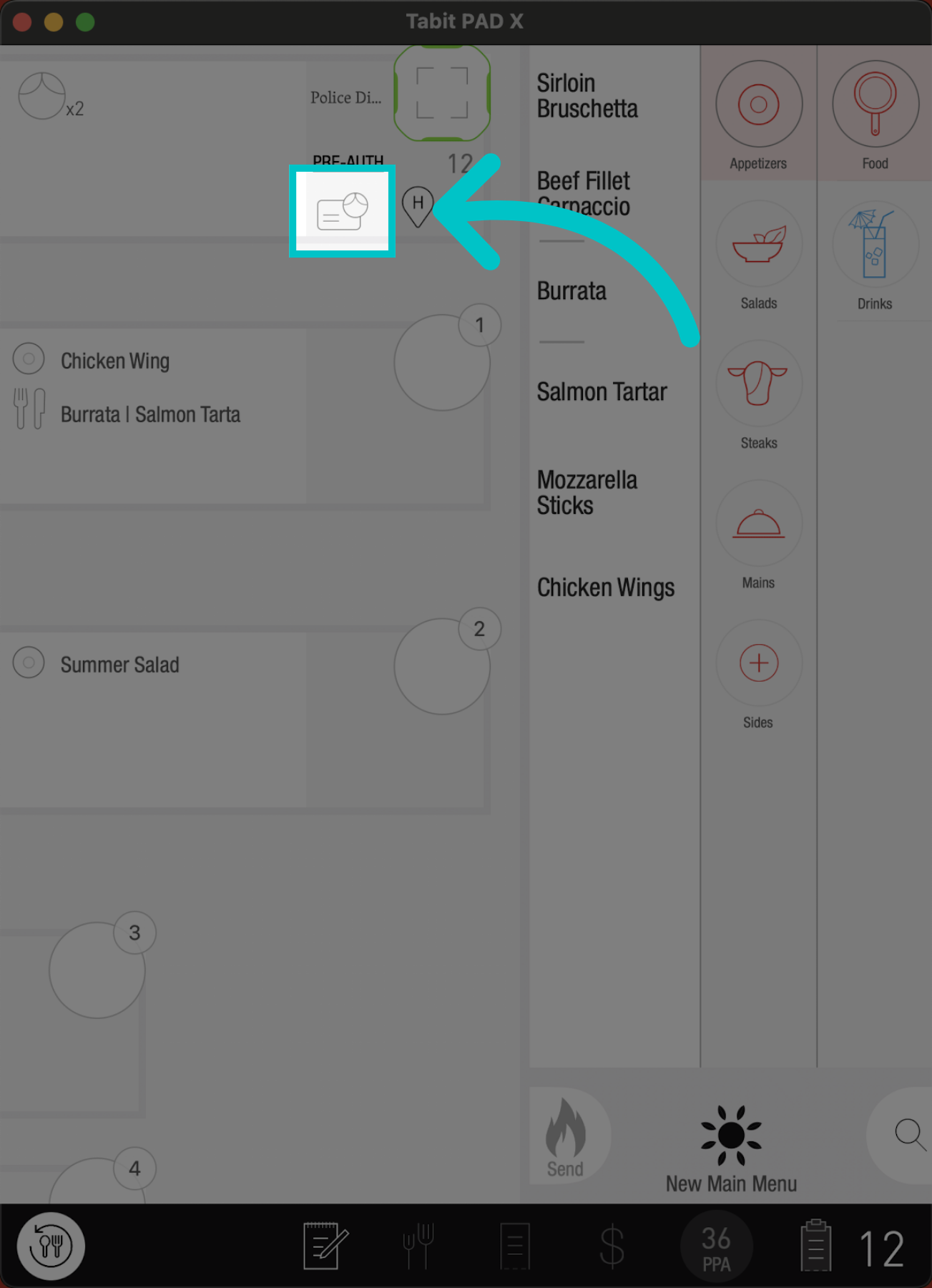
Now, to remove the Promo Tag tap the Card icon
-
From here, go to the tags section
- Select the promo tag you want to remove, and approve your selection
-
Now the Promo Tag is removed from the table