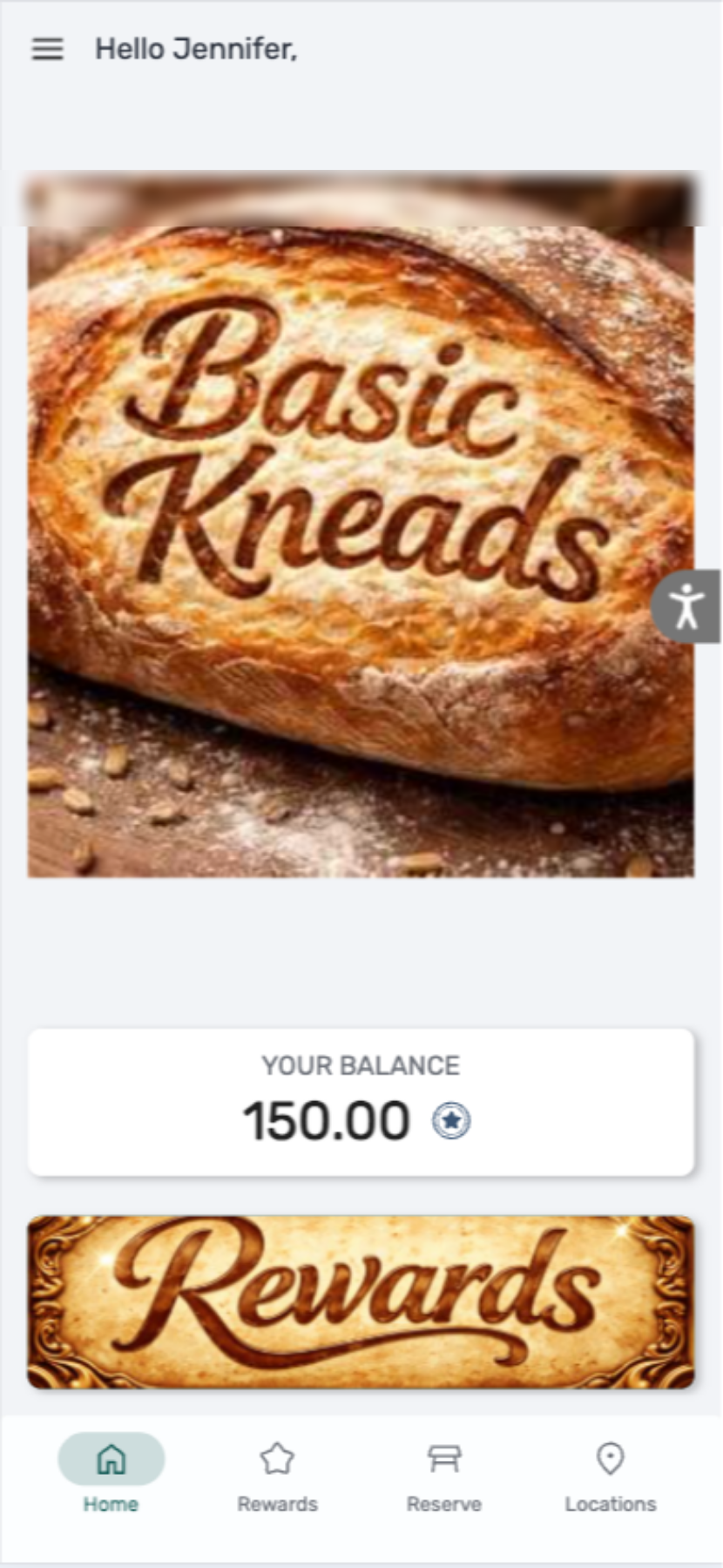
Follow the steps below to learn how to replace buttons with images in the Customer Profile:
-
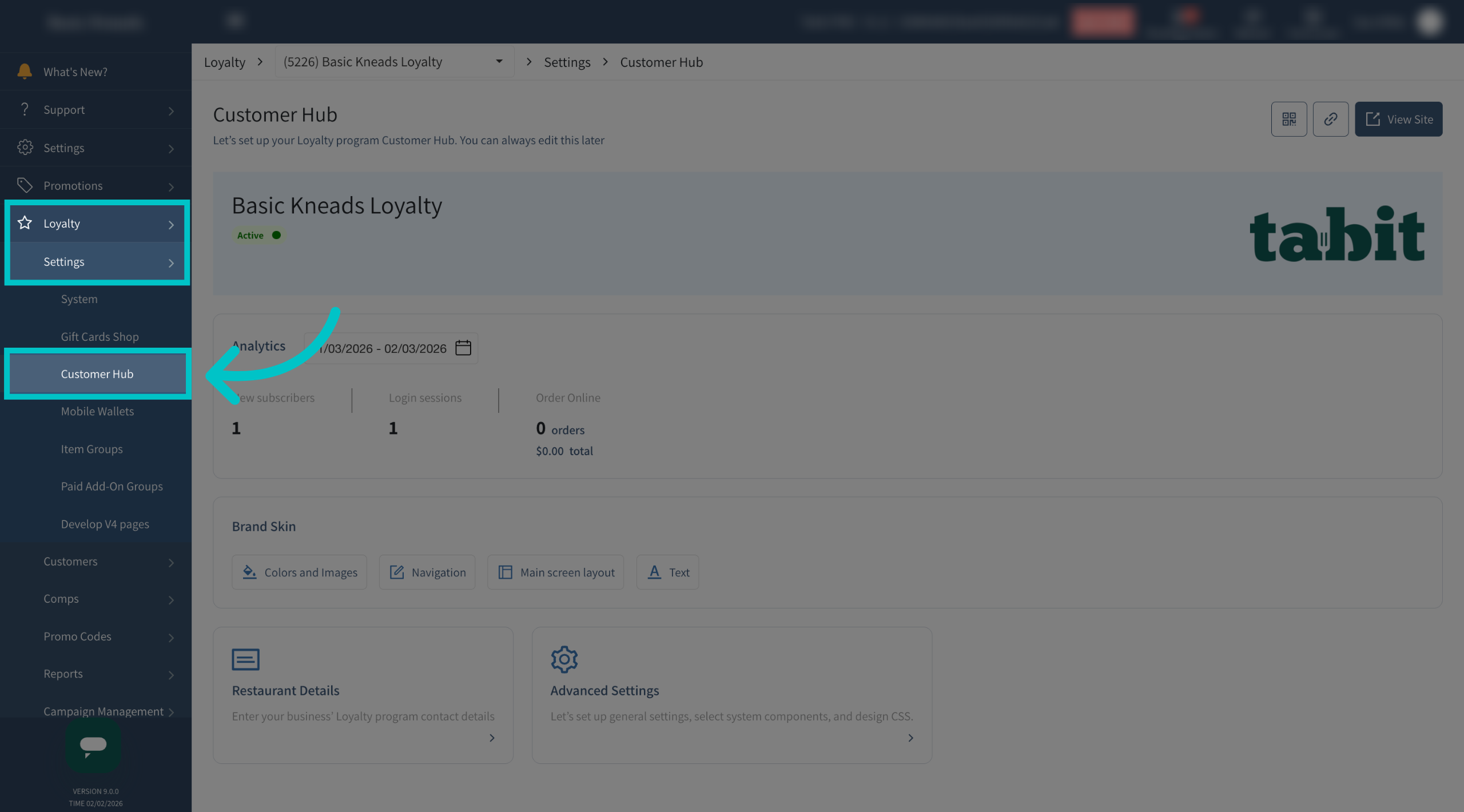
In Tabit Office, go to Loyalty > Settings > Customer Profile
-
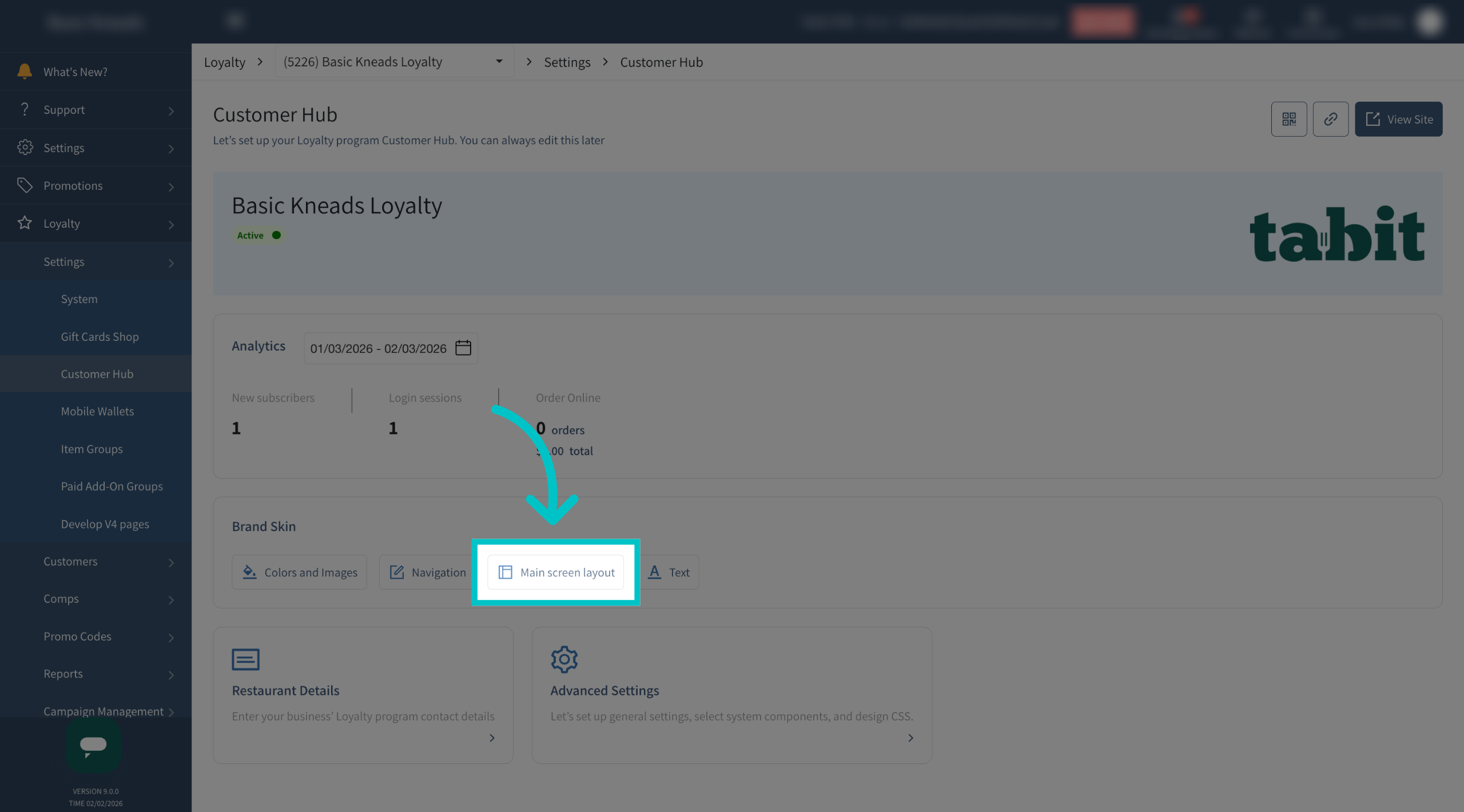
Select Main screen layout
-
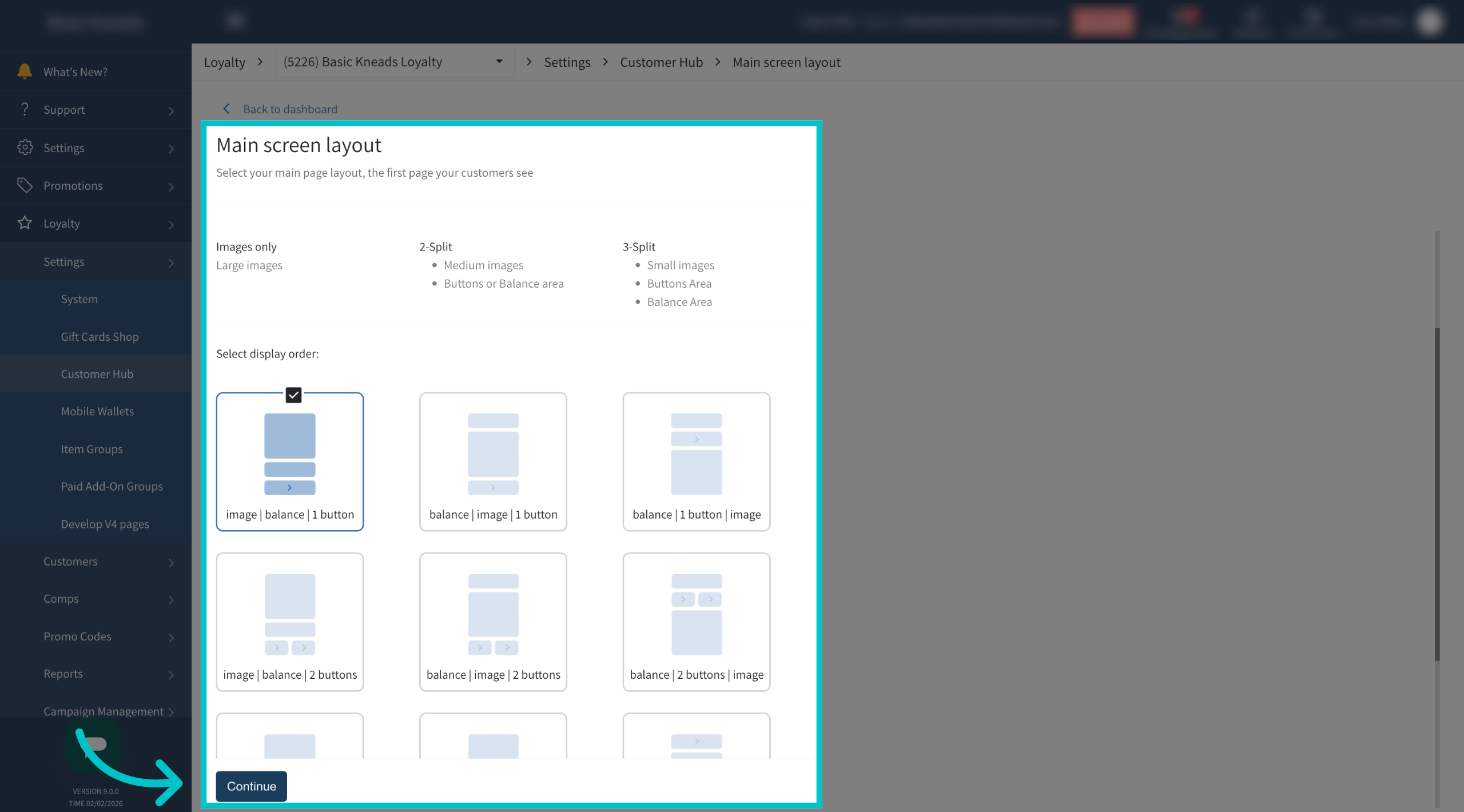
Determine how you would like the main screen to appear, how many buttons, and in what order, and then select Continue
-
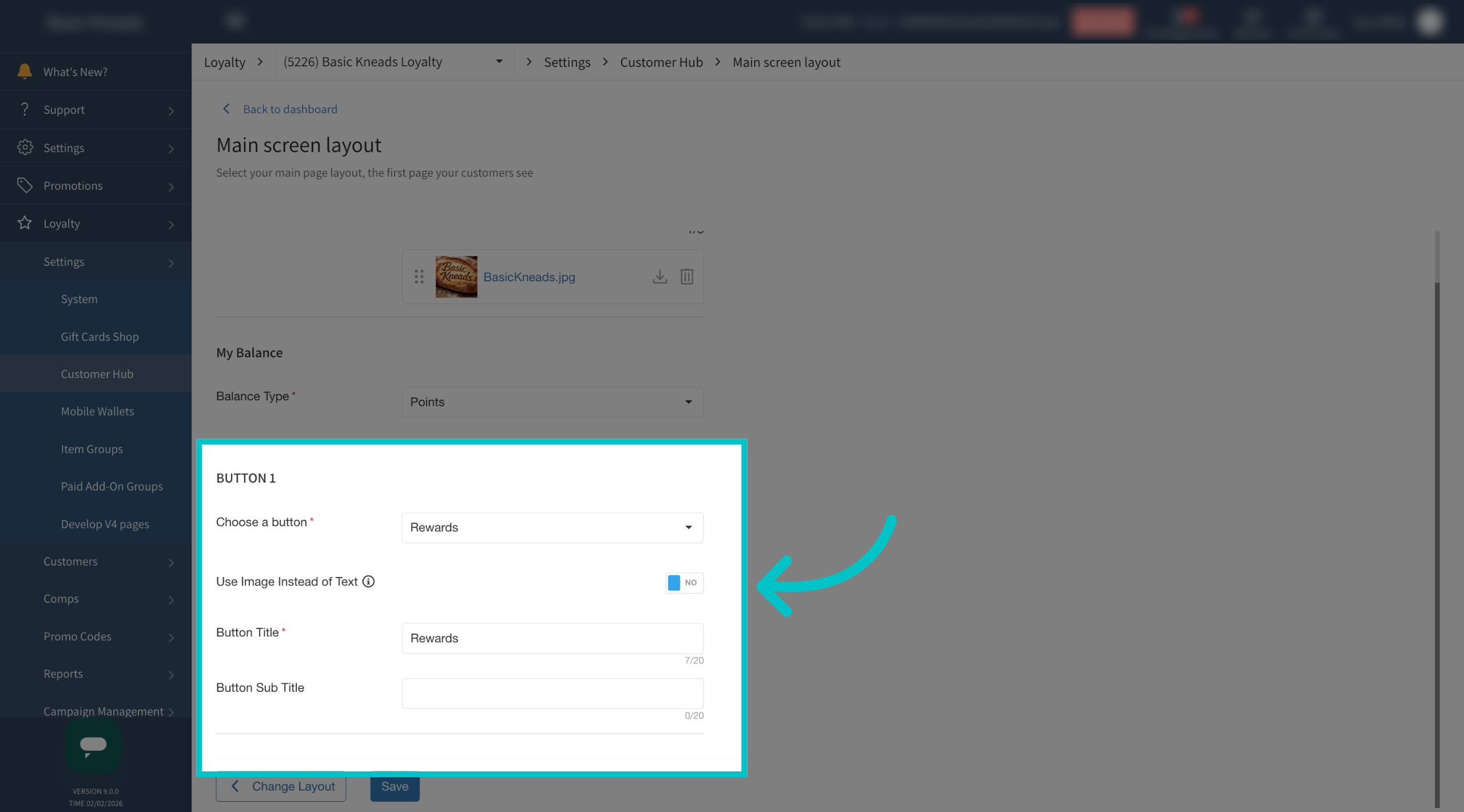
Any buttons you have in your layout will have the option to use an image instead of text. Toggle the flag to YES
-
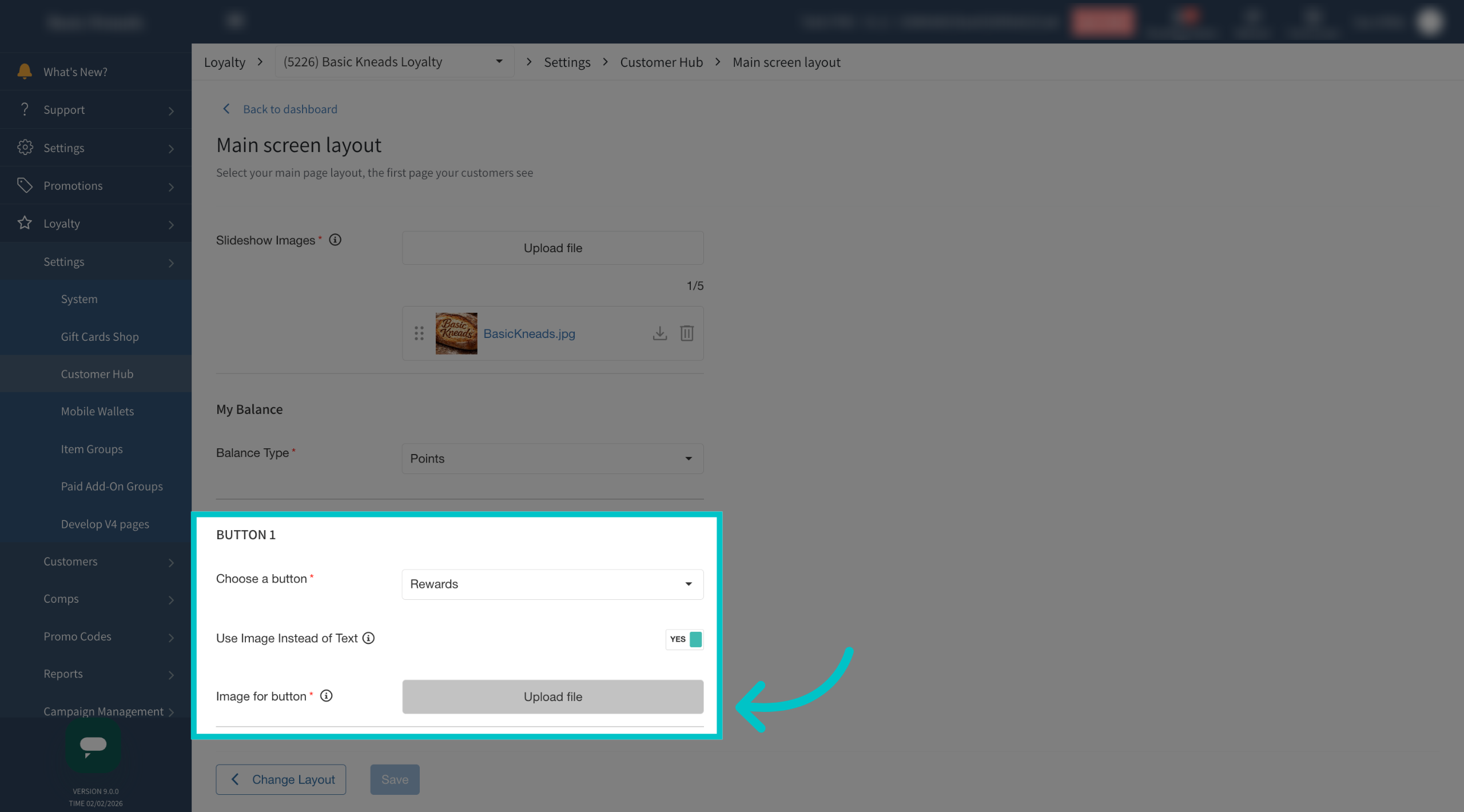
Upload an image file for the button. Hover over the tooltip to see what is required for the specific buttons, different buttons have different size limits
-
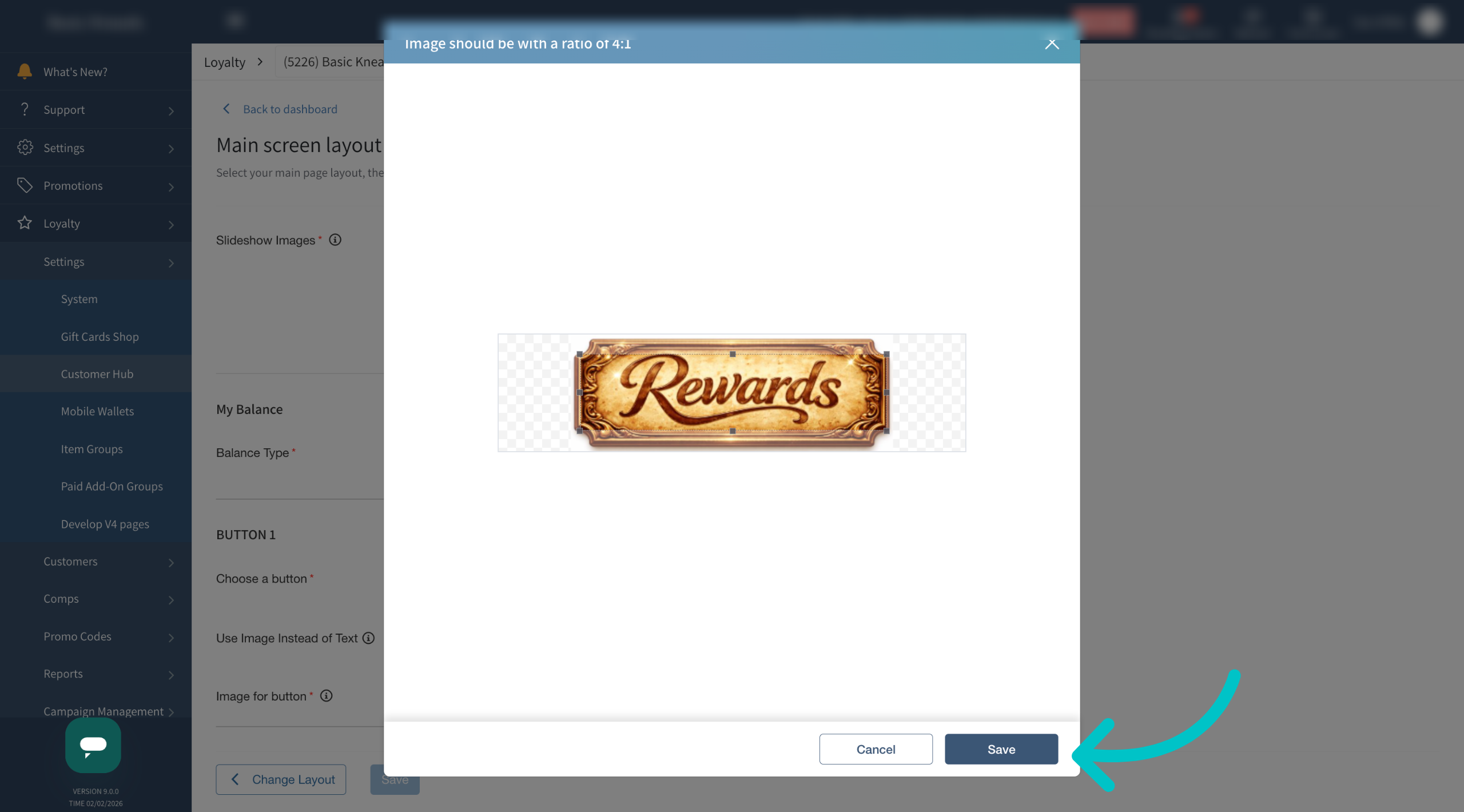
Use the outline to crop your image as needed and then select Save
-
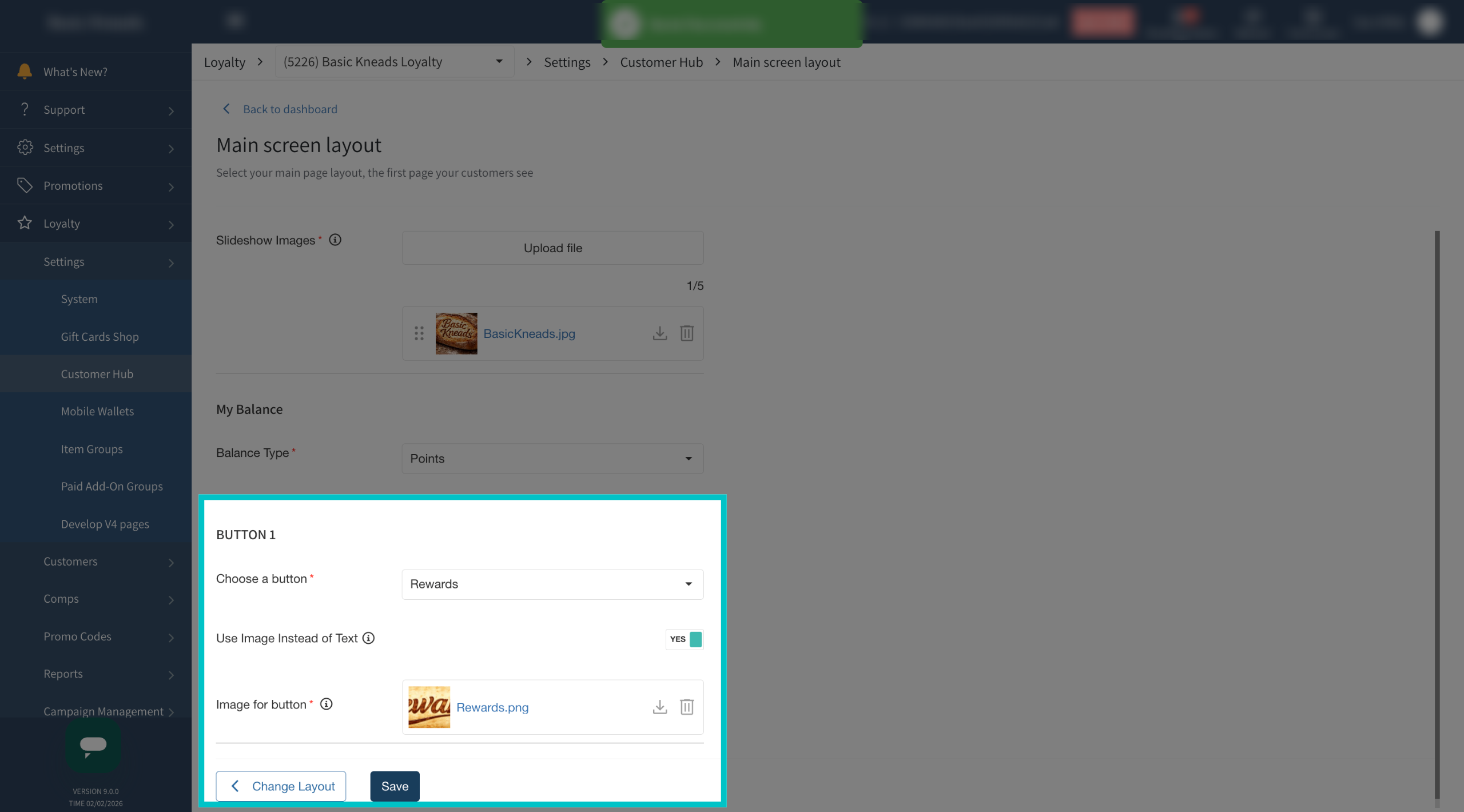
Select Save again to finalize and confirm all layout updates
-
Now the text button in the Customer Profile has been replaced with the uploaded image