-
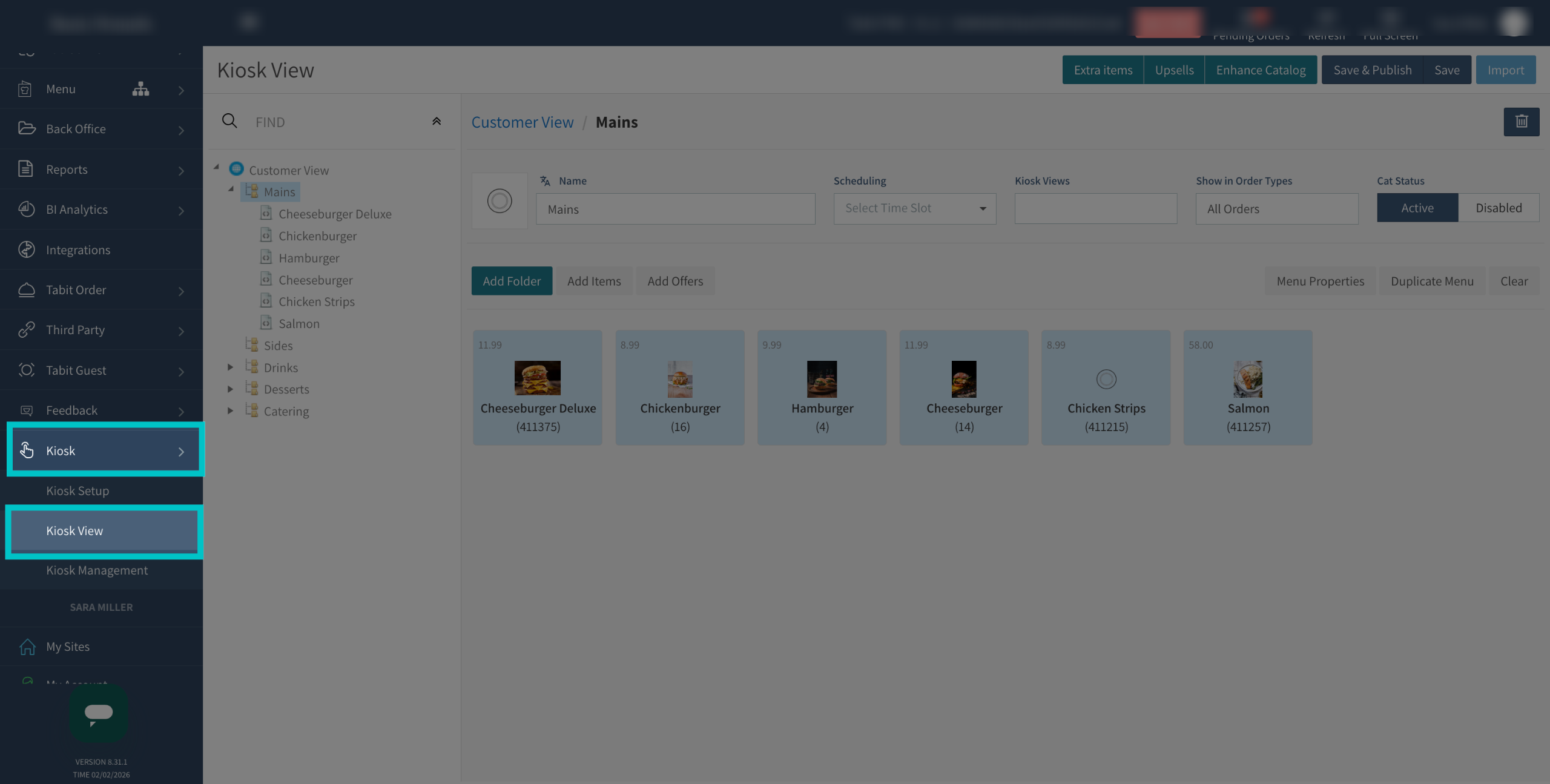
In Tabit Office, go to Kiosk > Kiosk View
-
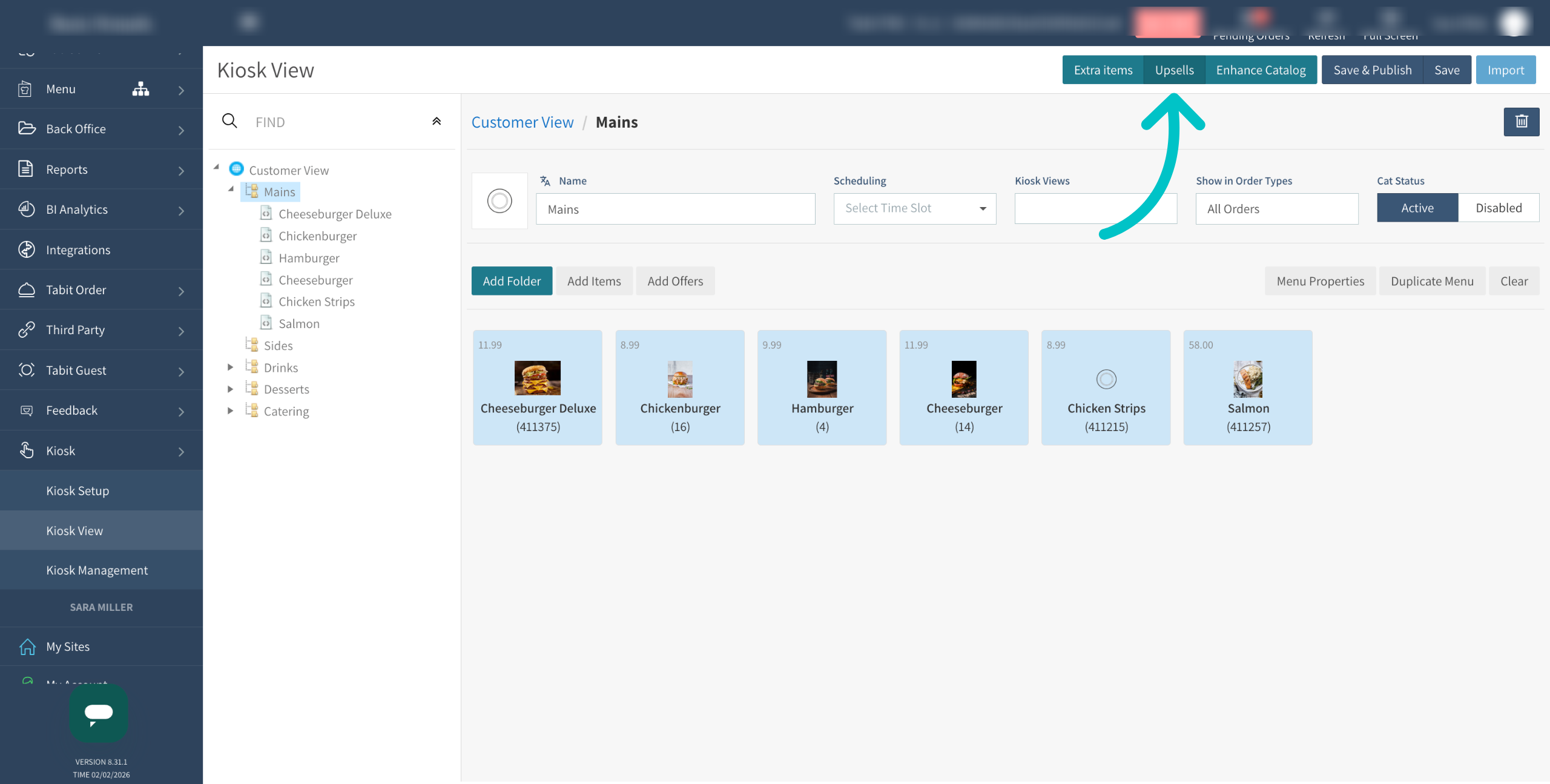
Select Upsells to add an upsell
-
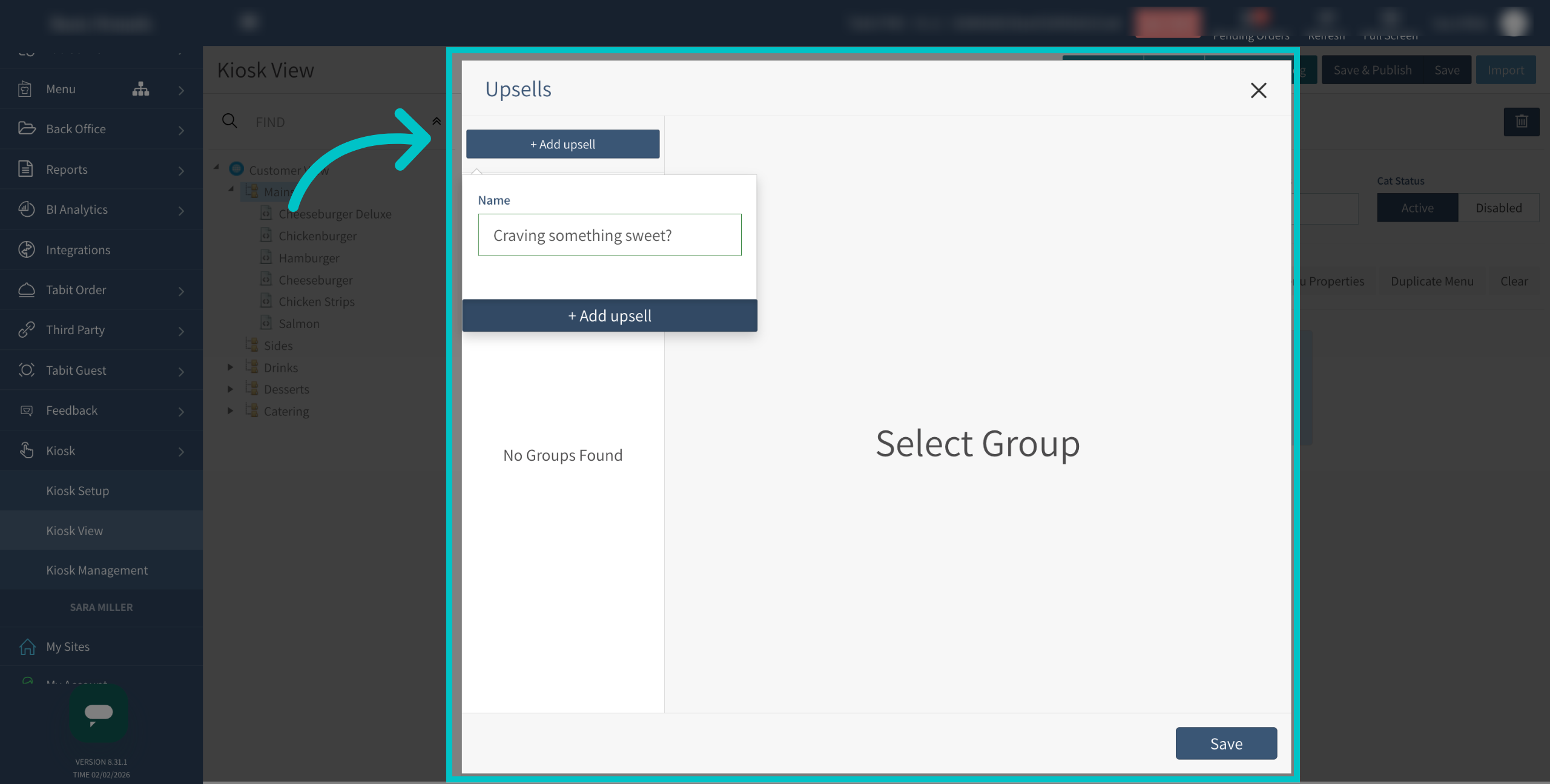
Select Add upsell and give the upsell a name. This is the internal name. A different name can be added for the customer to see if desired
-
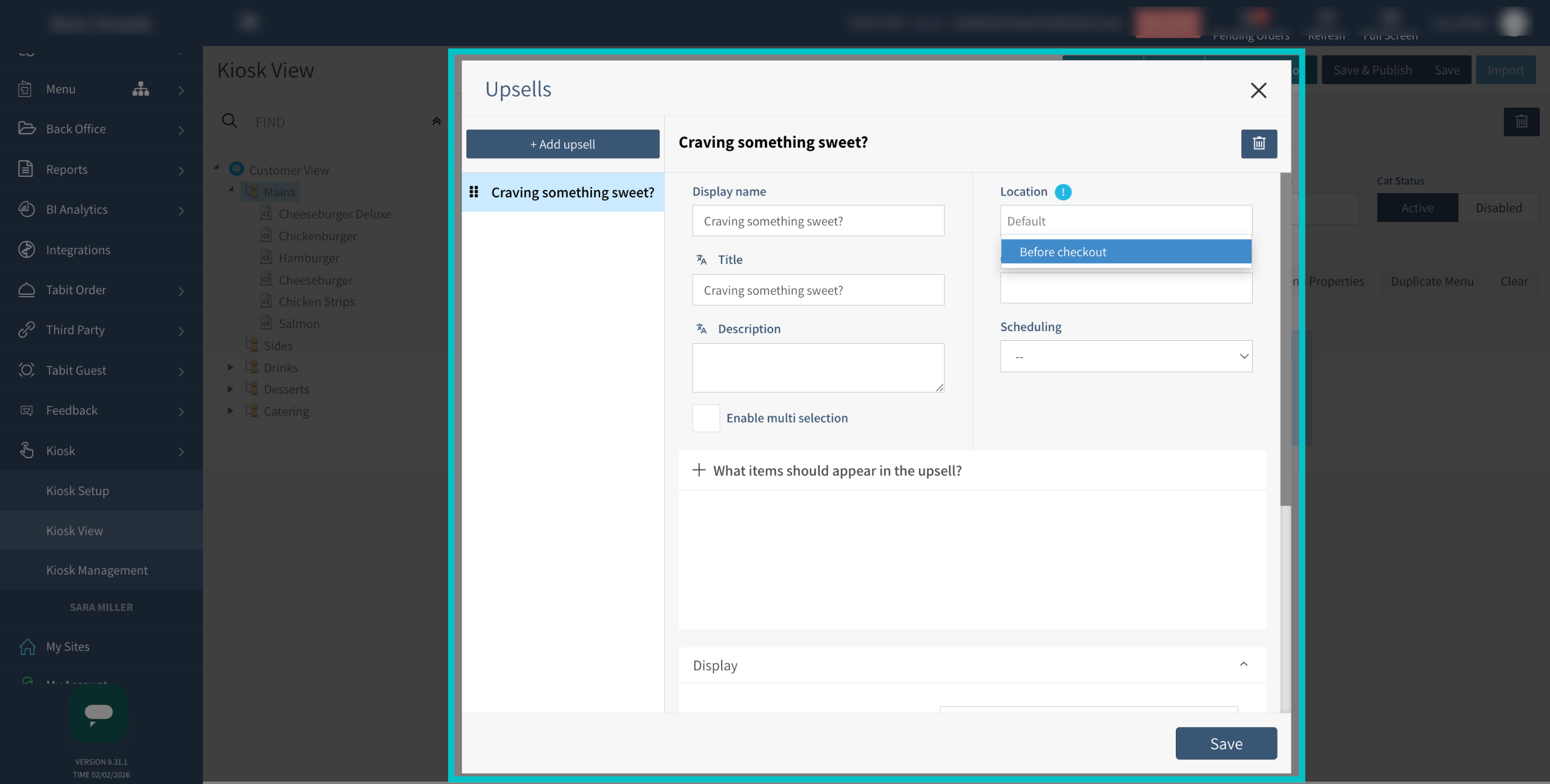
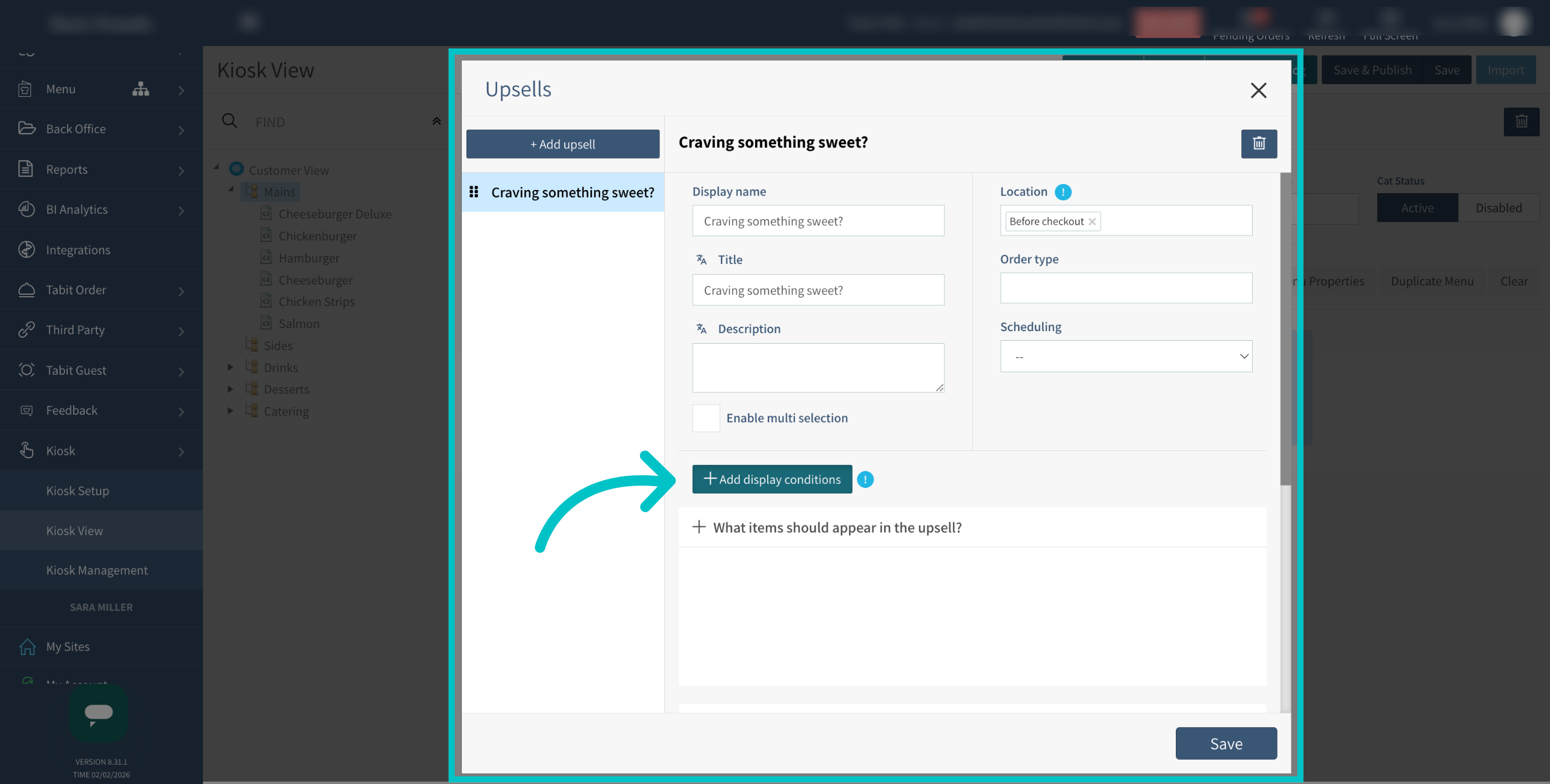
Set the upsell location to Before checkout. This allows you to add display conditions
-
Now the option to add display conditions will appear. Select it
-
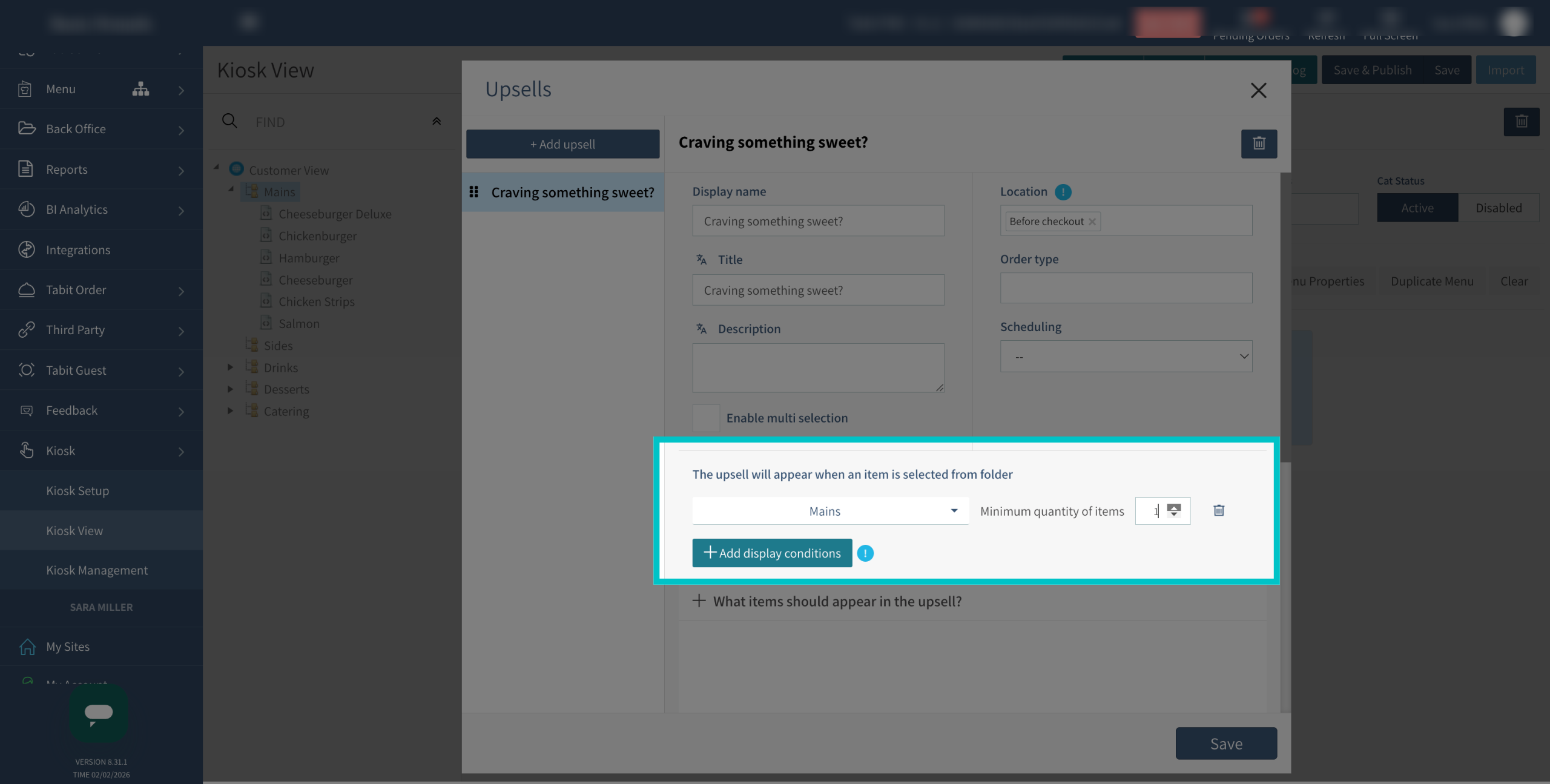
Set the display conditions. We'll add the condition that a customer must add at least two items from the mains group to view this upsell
-
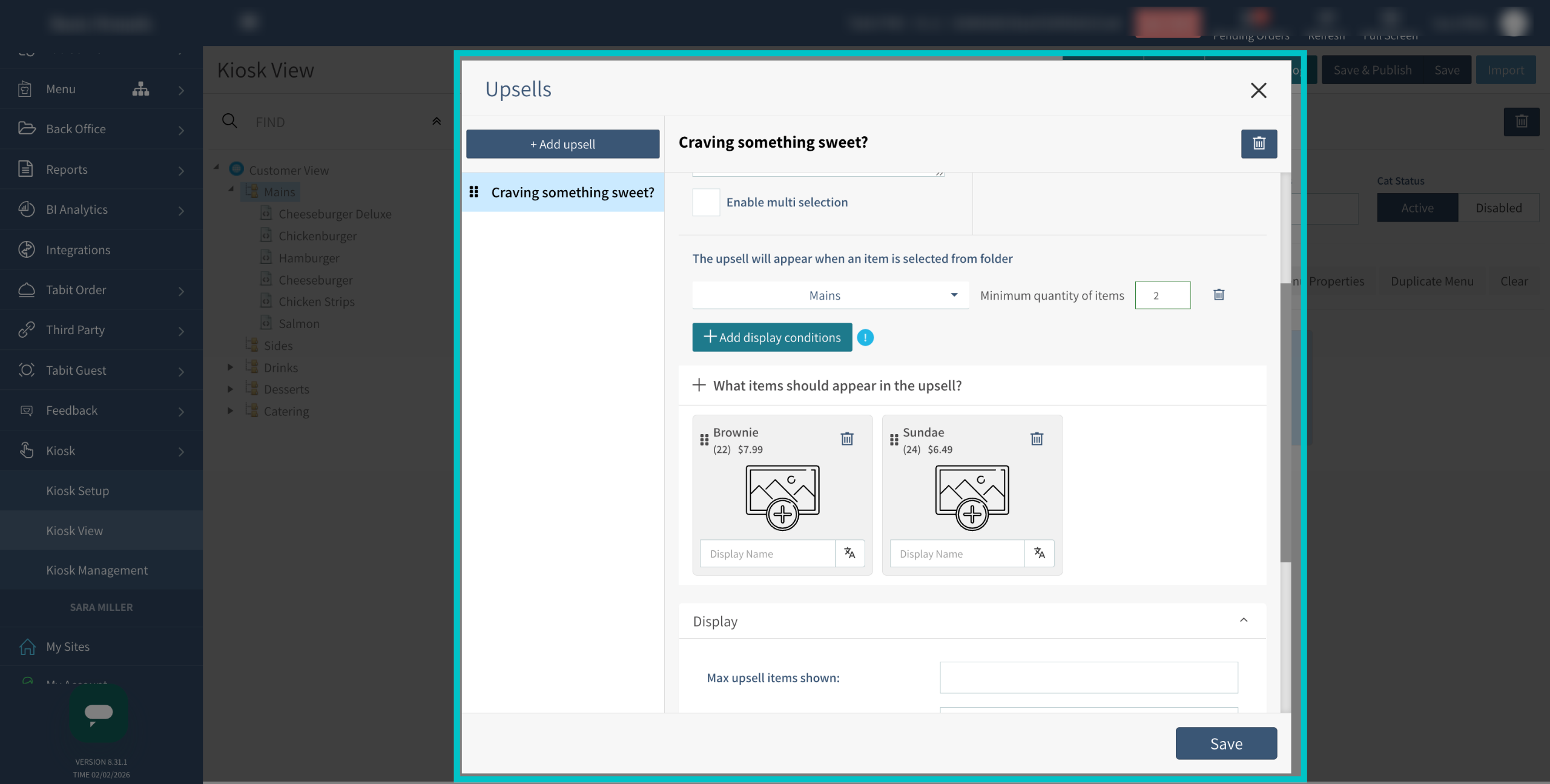
Finally, add the items that should appear in the upsell group and then select Save
-
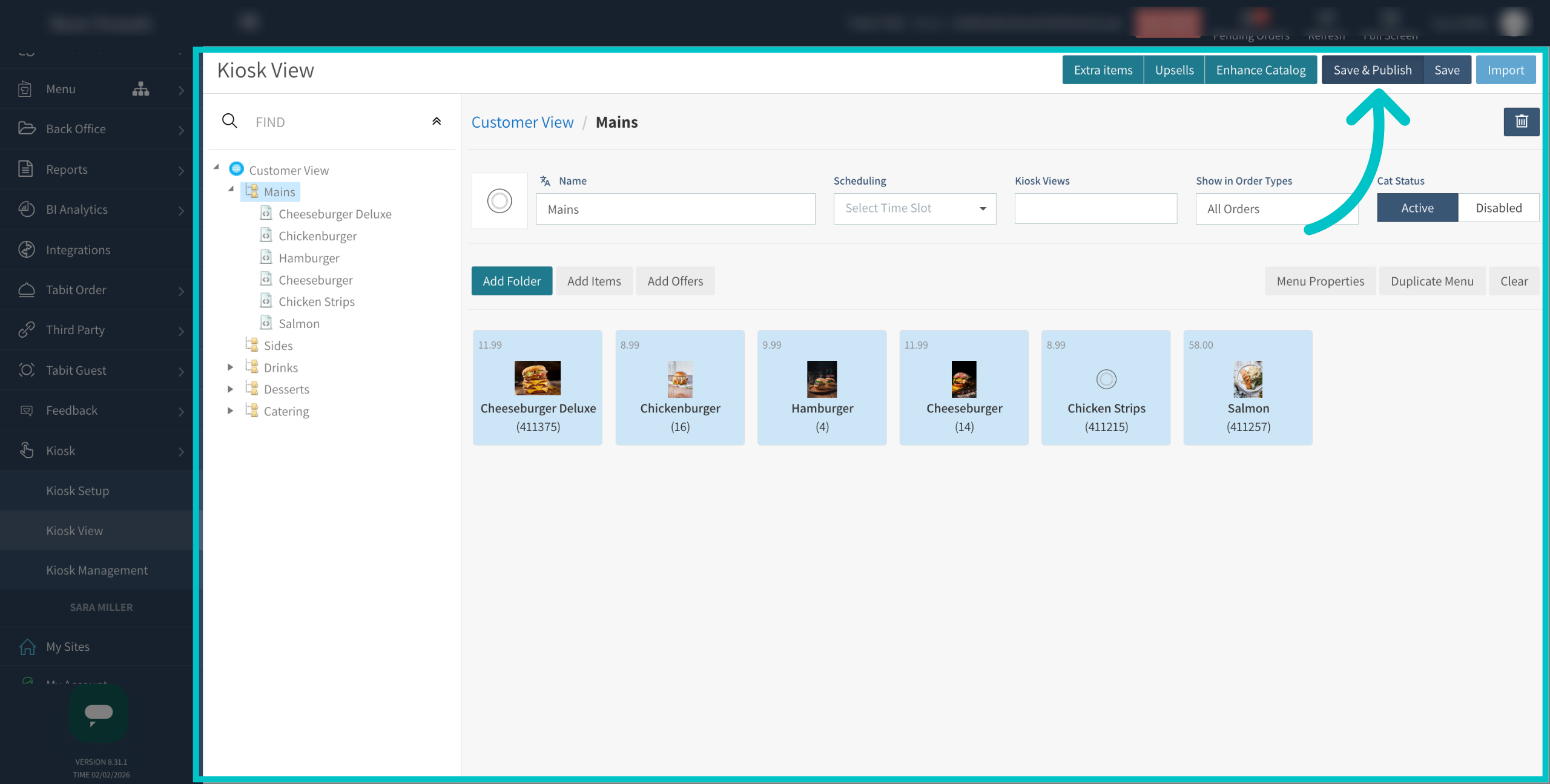
Select Save & Publish to make the upsell active and visible on the kiosk.
 On the kiosk

Now, if a customer meets the display conditions of adding at least 2 main items and then goes to check out the upsell will appear, as seen below:
However, when they don't meet the conditions, in this case only adding one main item, when they go to checkout the upsell will not appear, as seen below: