Future Production Management helps you control how many units of an item can be ordered for specific future dates, so you can protect stock for walk-ins and plan ahead for busy days and special events.
For example, if you can only prepare 10 portions of Paella on Sundays, you can limit future orders to 7 units for Sundays. This helps prevent the item from selling out in advance, while keeping inventory available for in-house guests.
A new inventory day starts only after running end-of-day (EOD)
How It Works
- Weekly stock planning: Set how many units are available for future orders on each weekday
- Validity period: Set a start date (required) and an optional end date for the rules
- Carryover rules: Decide how end-of-day leftovers affect the next day's inventory availability for future orders
- Special dates: Override the weekly plan for specific dates, such as holidays and events
Carryover Rules
Carryover rules determine how leftover stock at the end of the day impacts the next day's inventory availability for future orders.
- Rollover (rolling stock): Leftover units carry over to the next day
- Reset Daily: Stock resets each day; leftovers do not carry over
- Increase Only: Leftovers can increase the next day's stock, but never reduce it
- Future Only (no impact): Future orders do not reduce today's current stock for limited items
Setting Up Production Management Rules
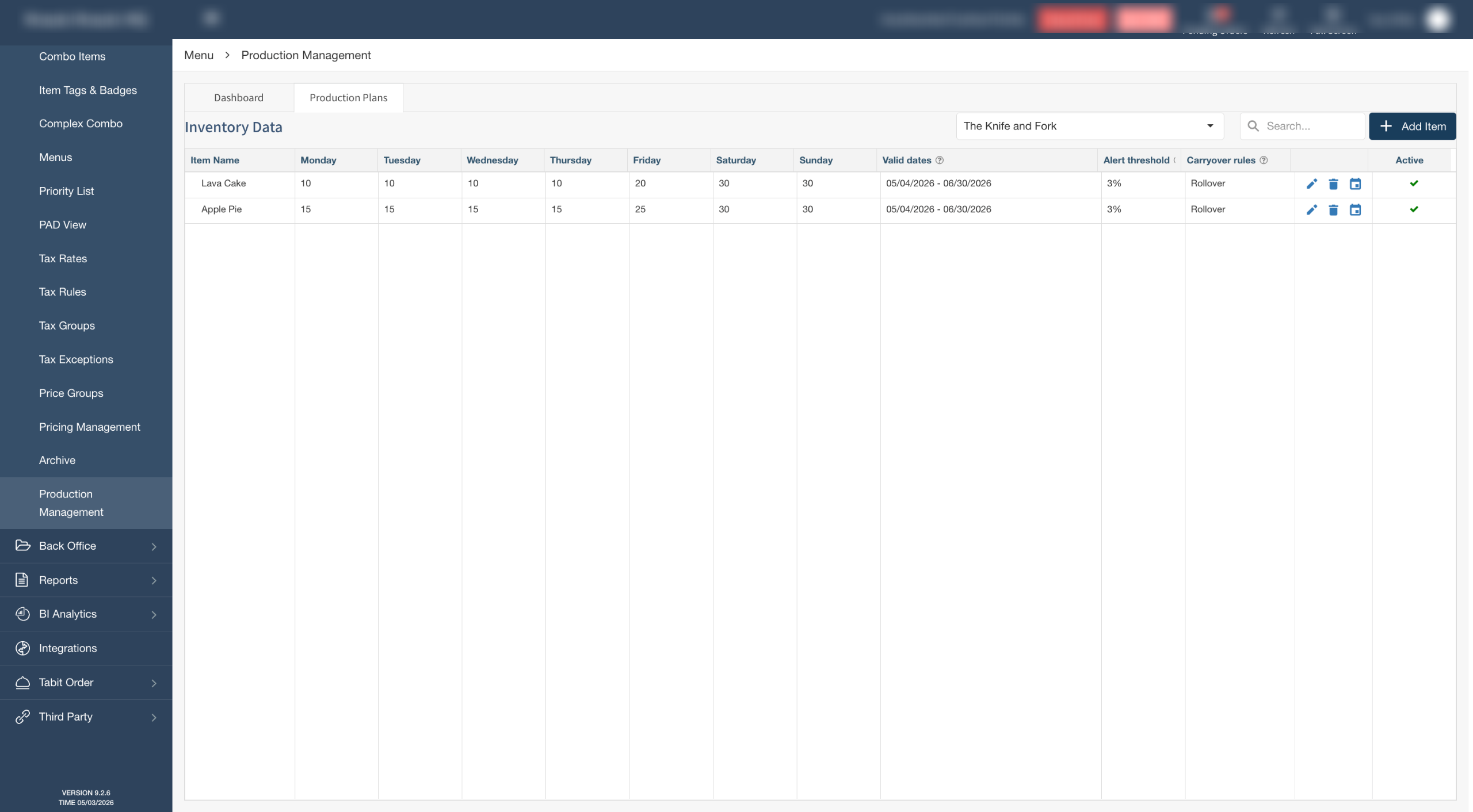
Use Future Production Management to cap how many units of an item can be reserved for future orders on any given day. To create a future inventory set for an item, follow the steps below:
-
In Tabit Office, go to Menu > Future Inventory Management
-
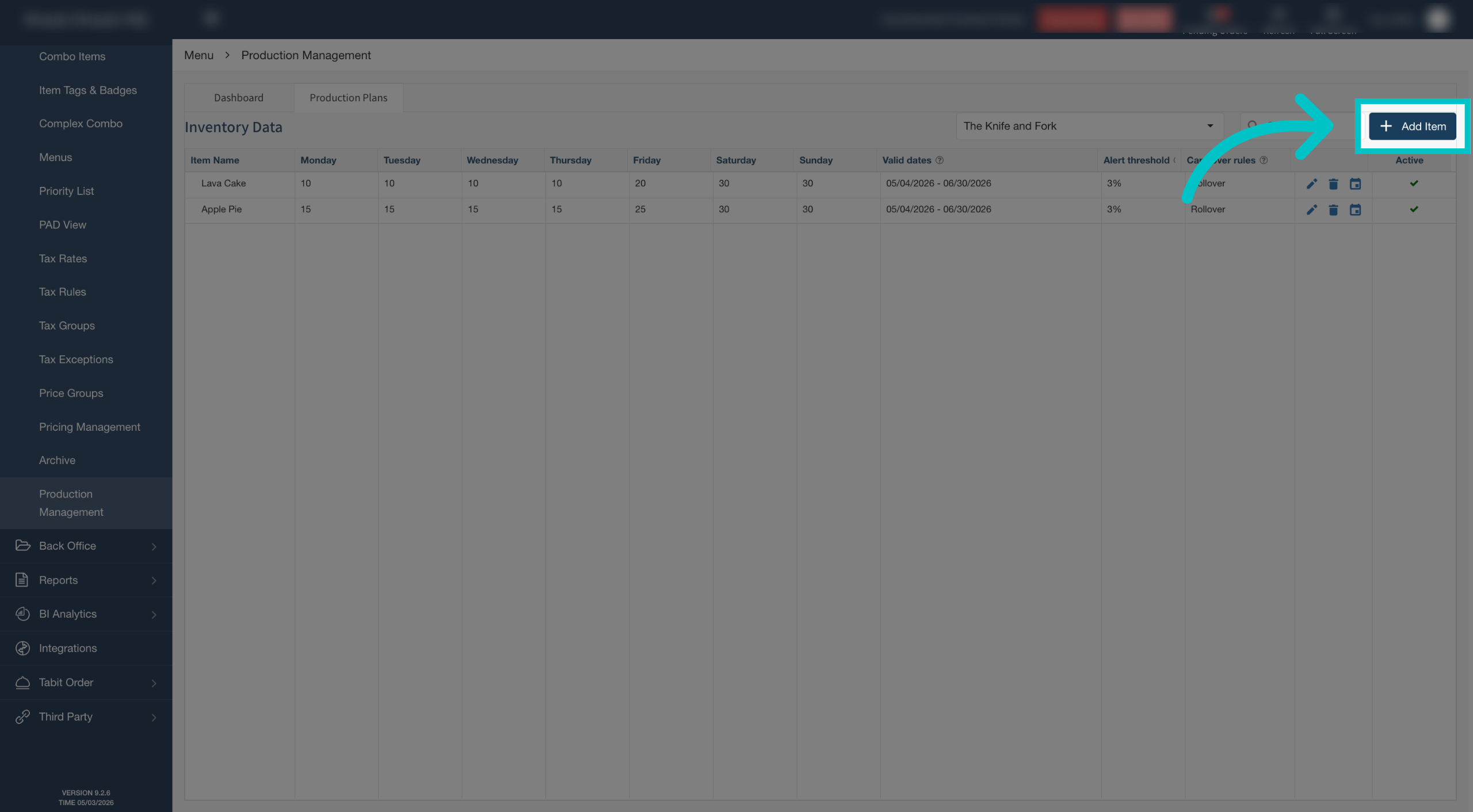
Select Add Item to begin adding items to your future inventory list
-
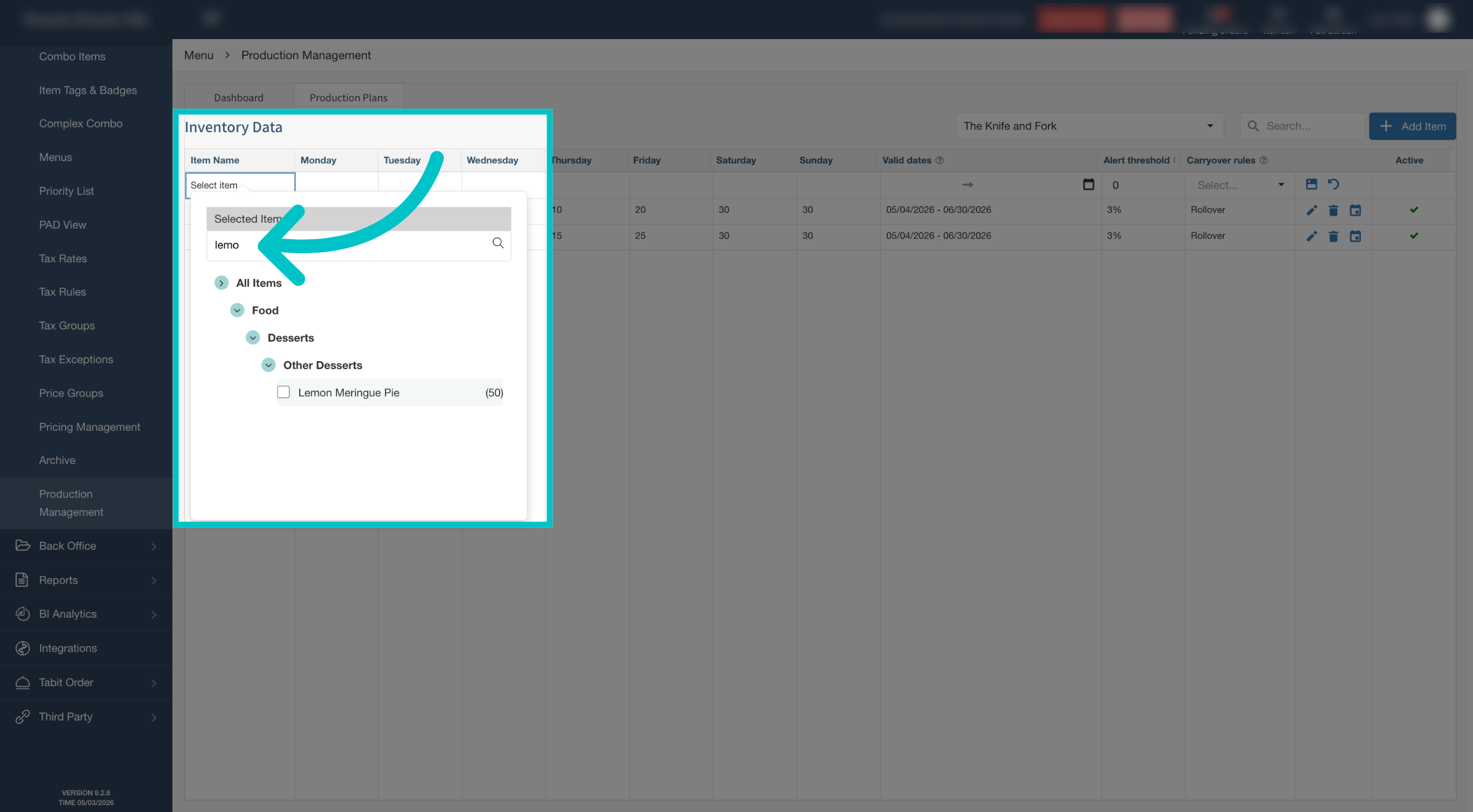
Select an item from the item tree or search for it directly
-
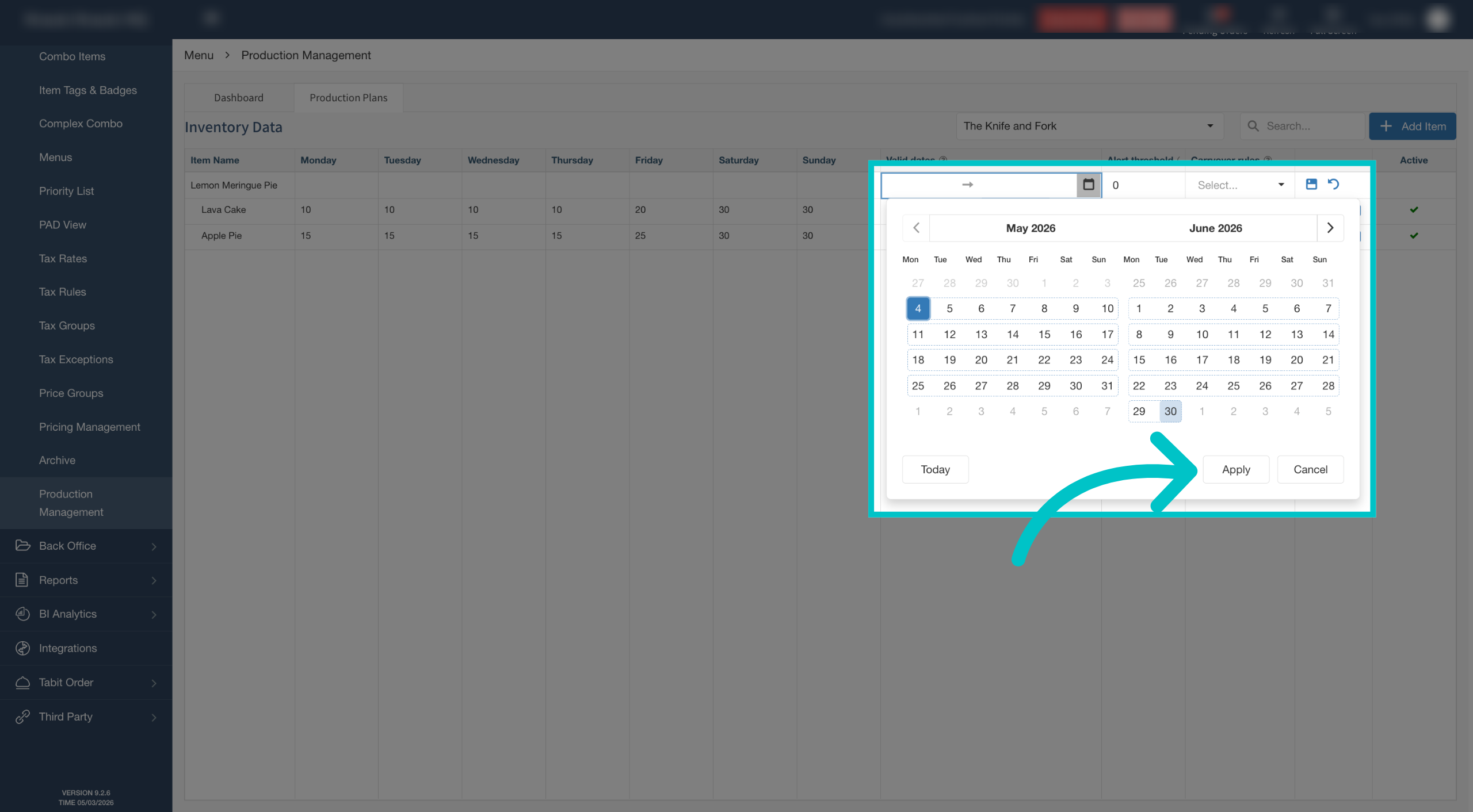
Set the start and end dates for the future inventory rules, then select Apply
-
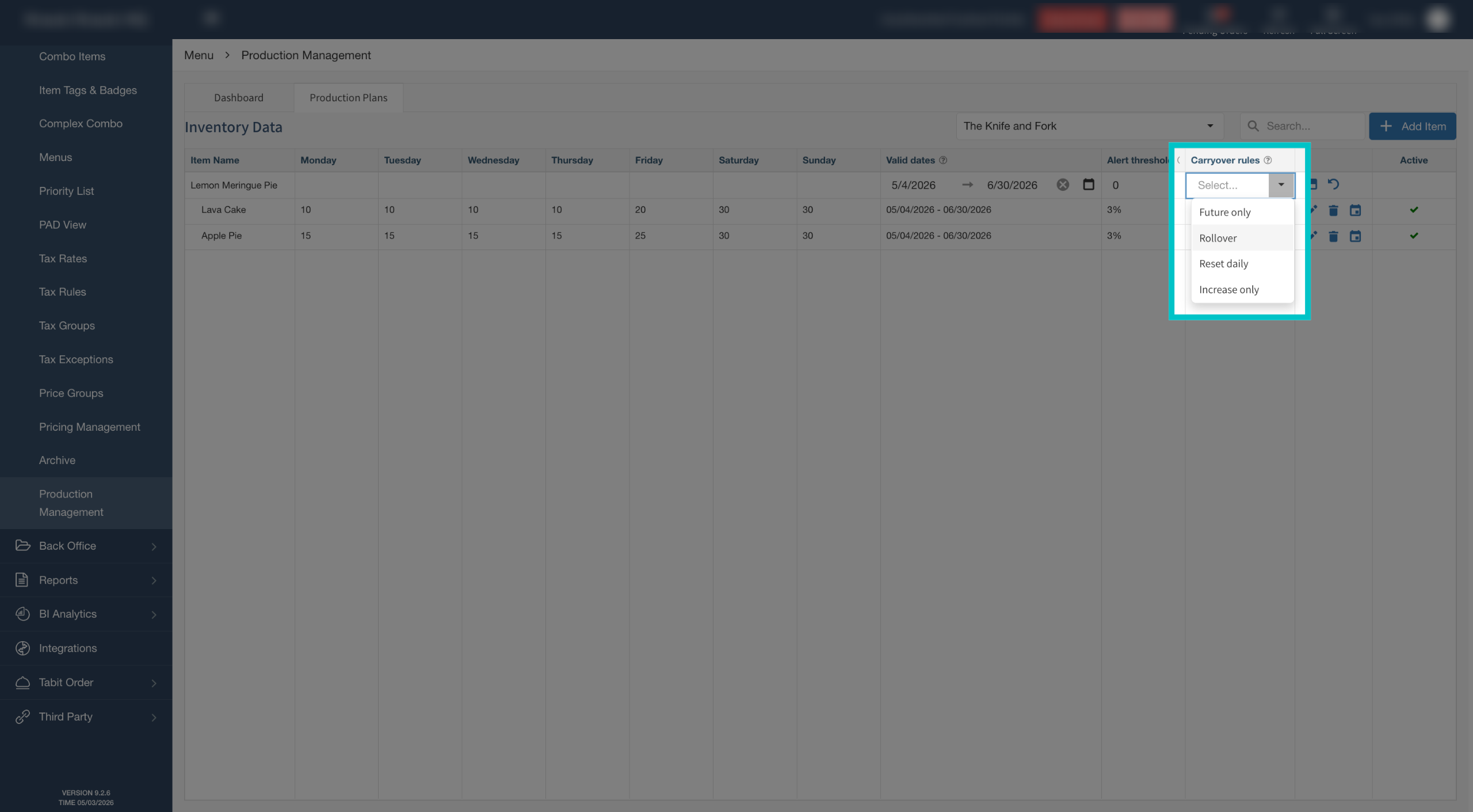
Select the carryover rule you want to apply
- Future Only means future orders do not reduce today's current stock for limited items
- Rollover carries leftovers to the next day
- Reset Daily starts fresh each day
- Increase Only lets leftovers increase the next day's stock, but never reduce it
-
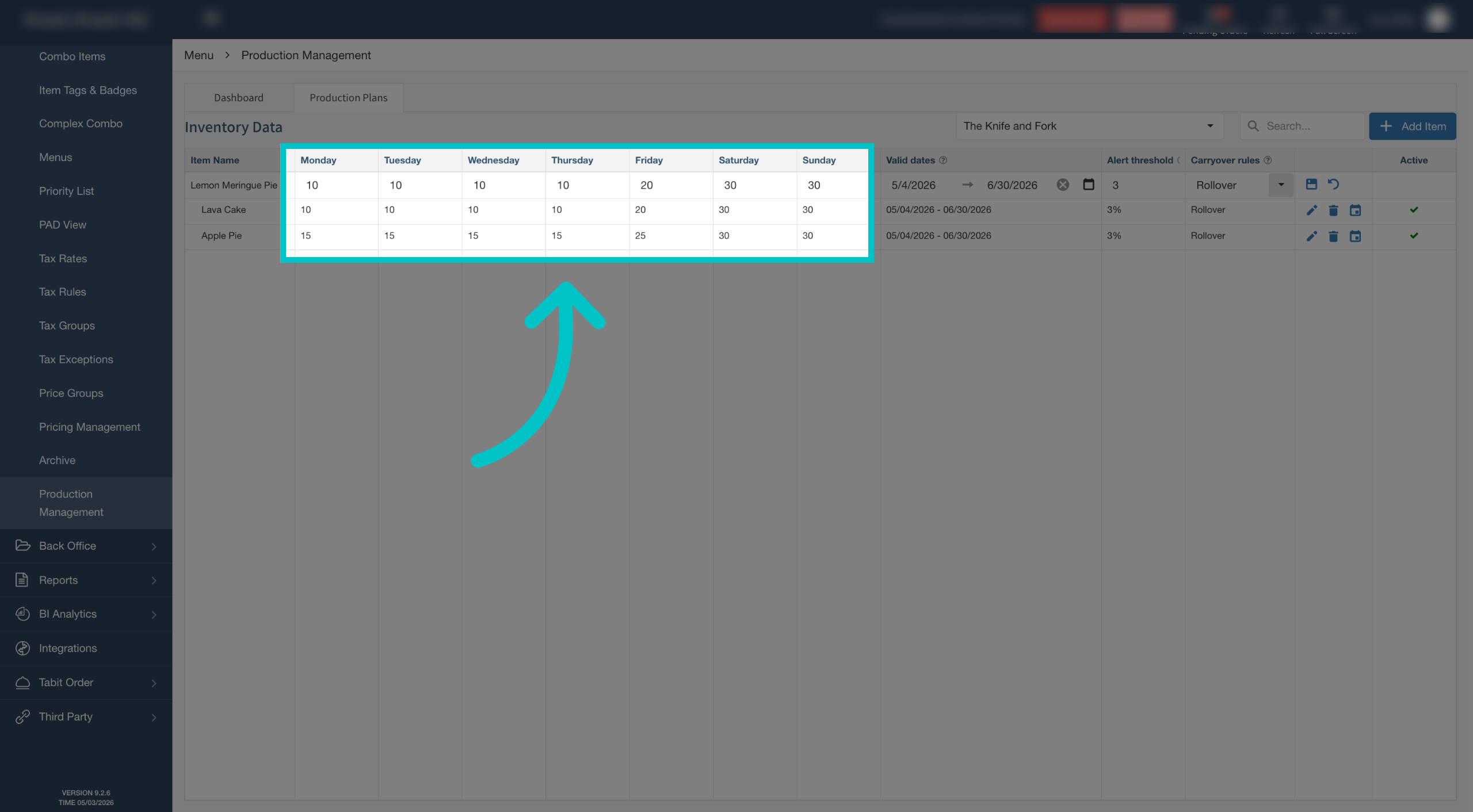
Set the number of units available for future orders on each day
Important reminders
- When selecting days, you must fill out all days. If you don't want to include a specific day, enter 0 or 999
- The start date is required. The end date is optional
-
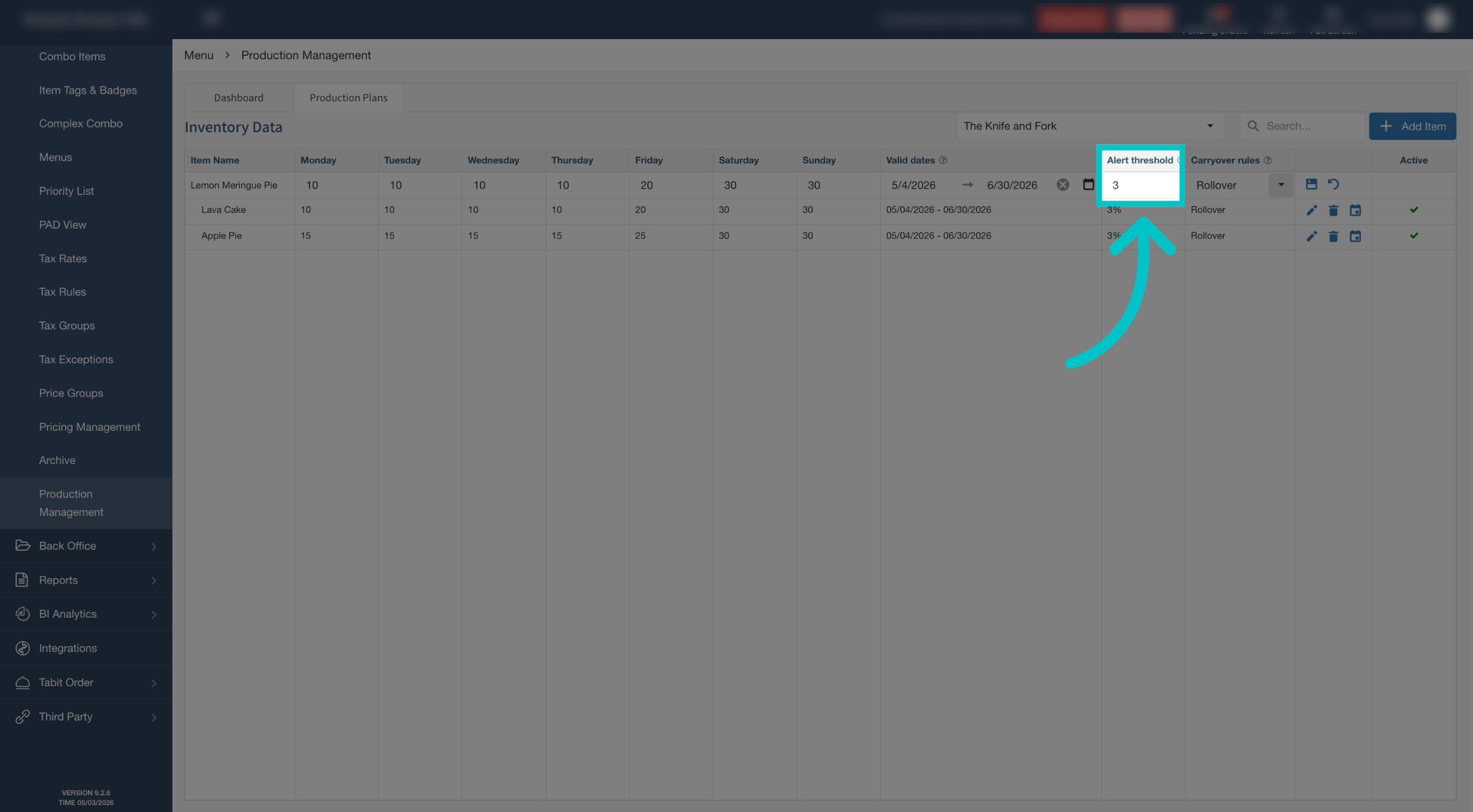
Set the alert threshold if desired. This is the percentage at which remaining stock triggers a low stock alert on the dashboard
-
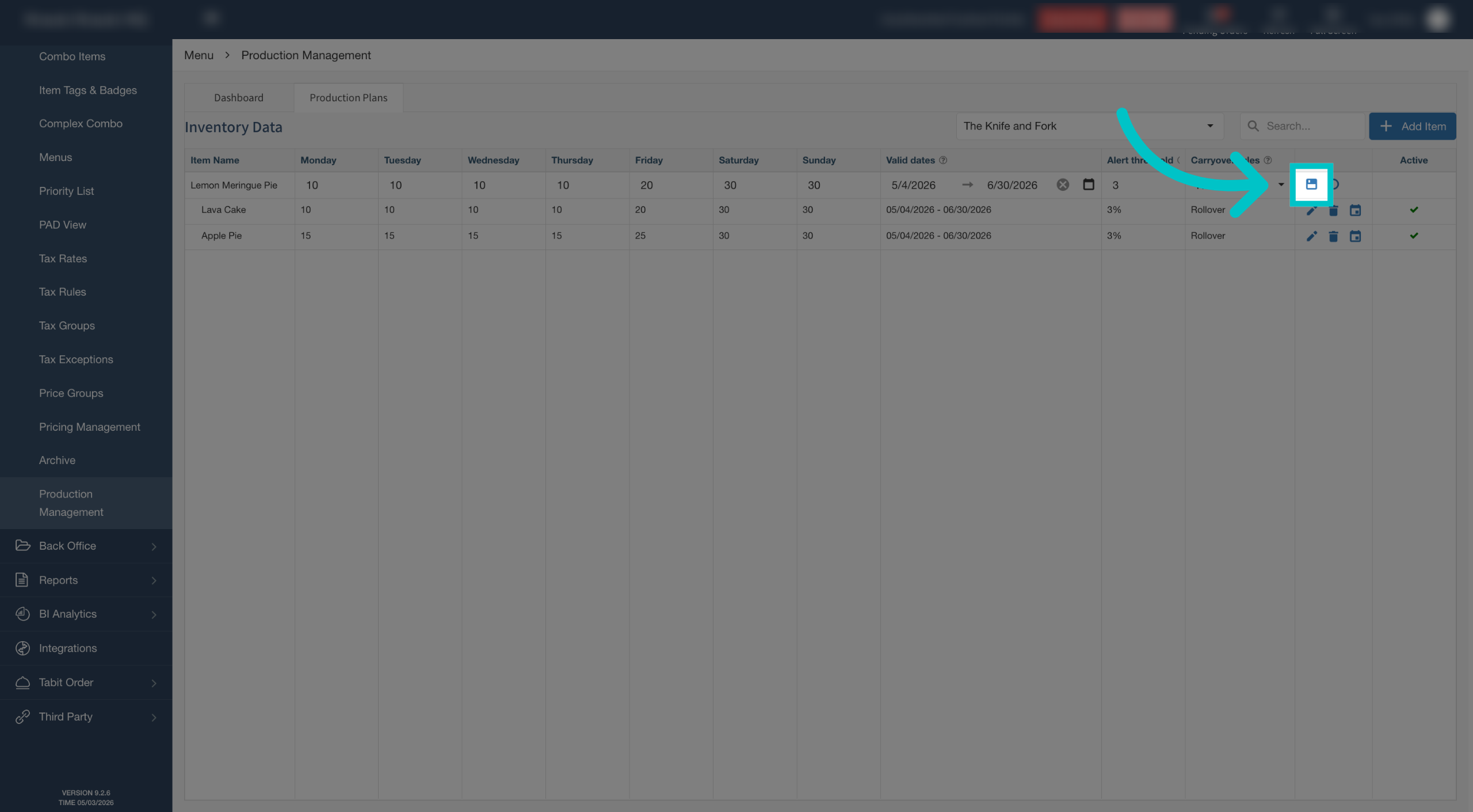
Save your changes
Adding Special Dates
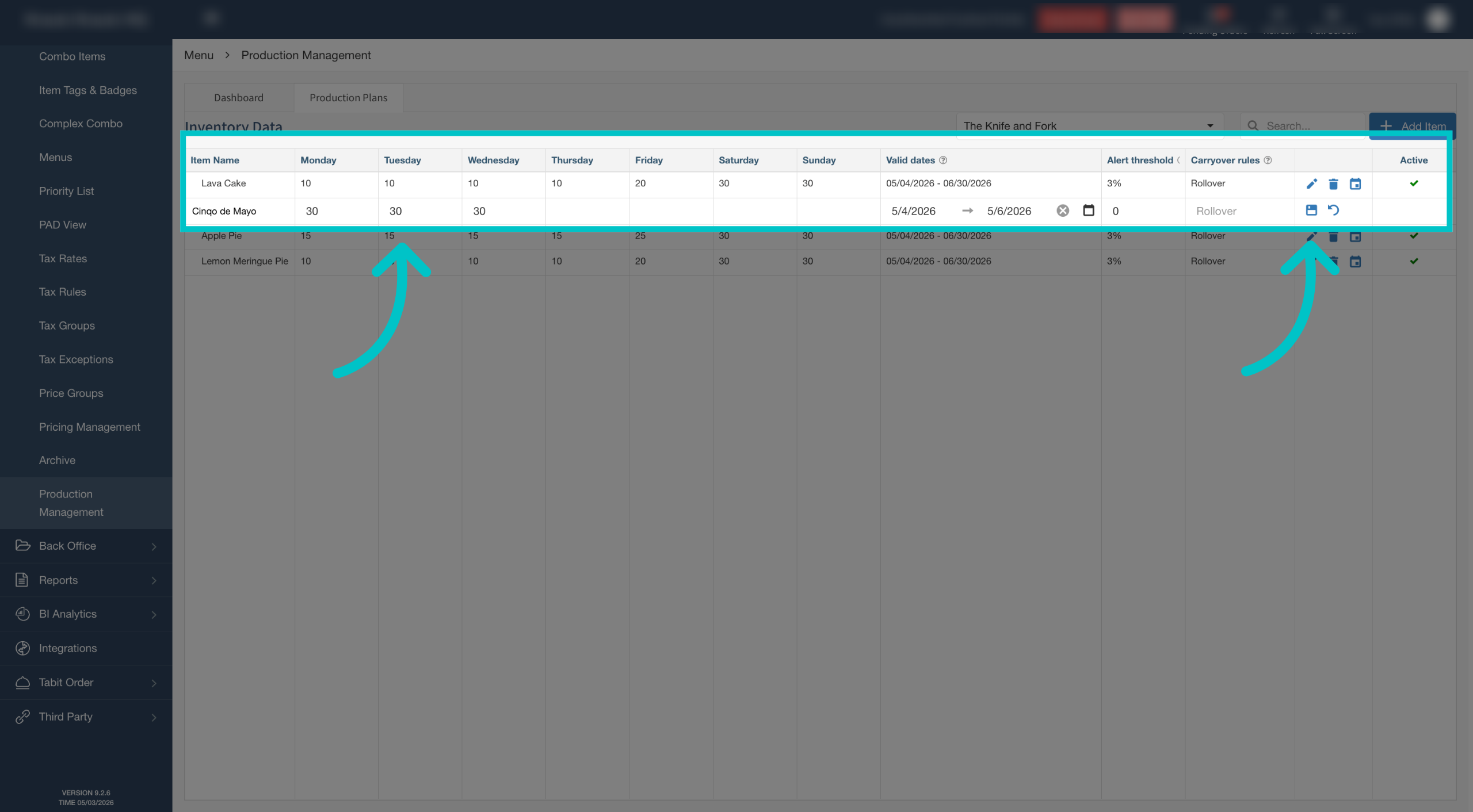
Special dates let you override your weekly quantities for specific occasions, such as increasing wings inventory for a big game day. To add a special date override for an item, follow the steps below:
-
Select the calendar icon next to the item to add a special date
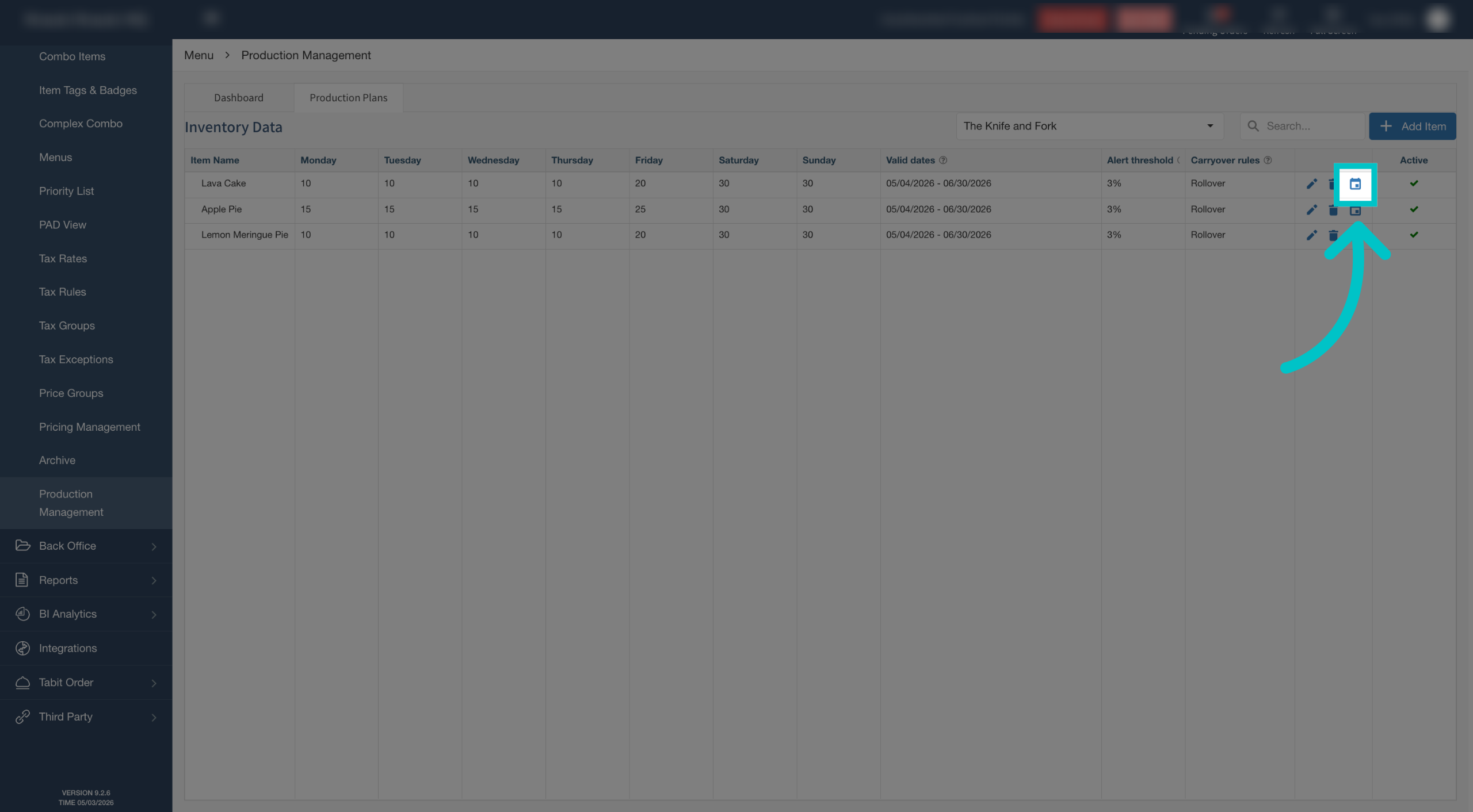
-
Enter the name of the event or promotion in the new sub-row that appears under the item
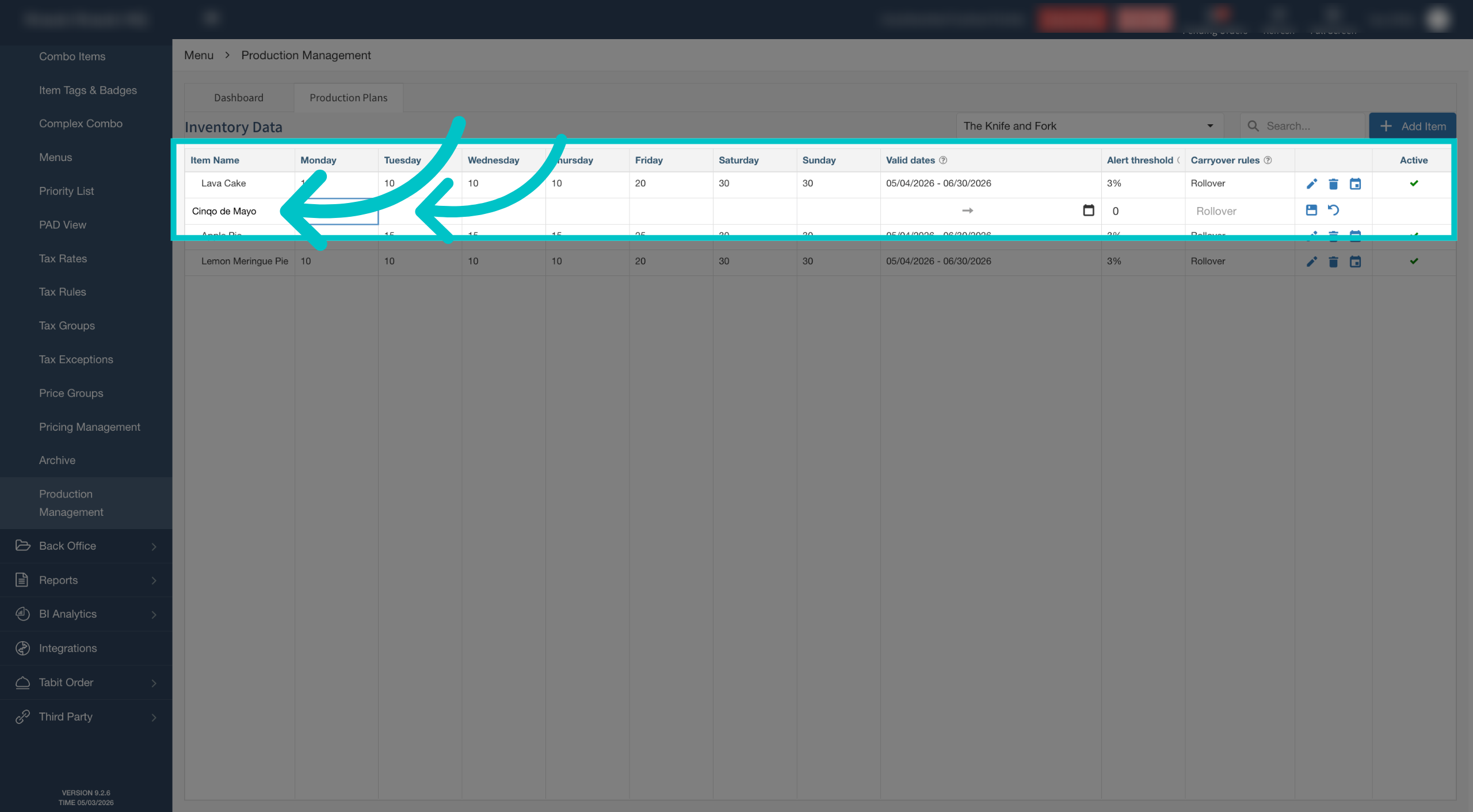
-
Set the quantity planned for the event day
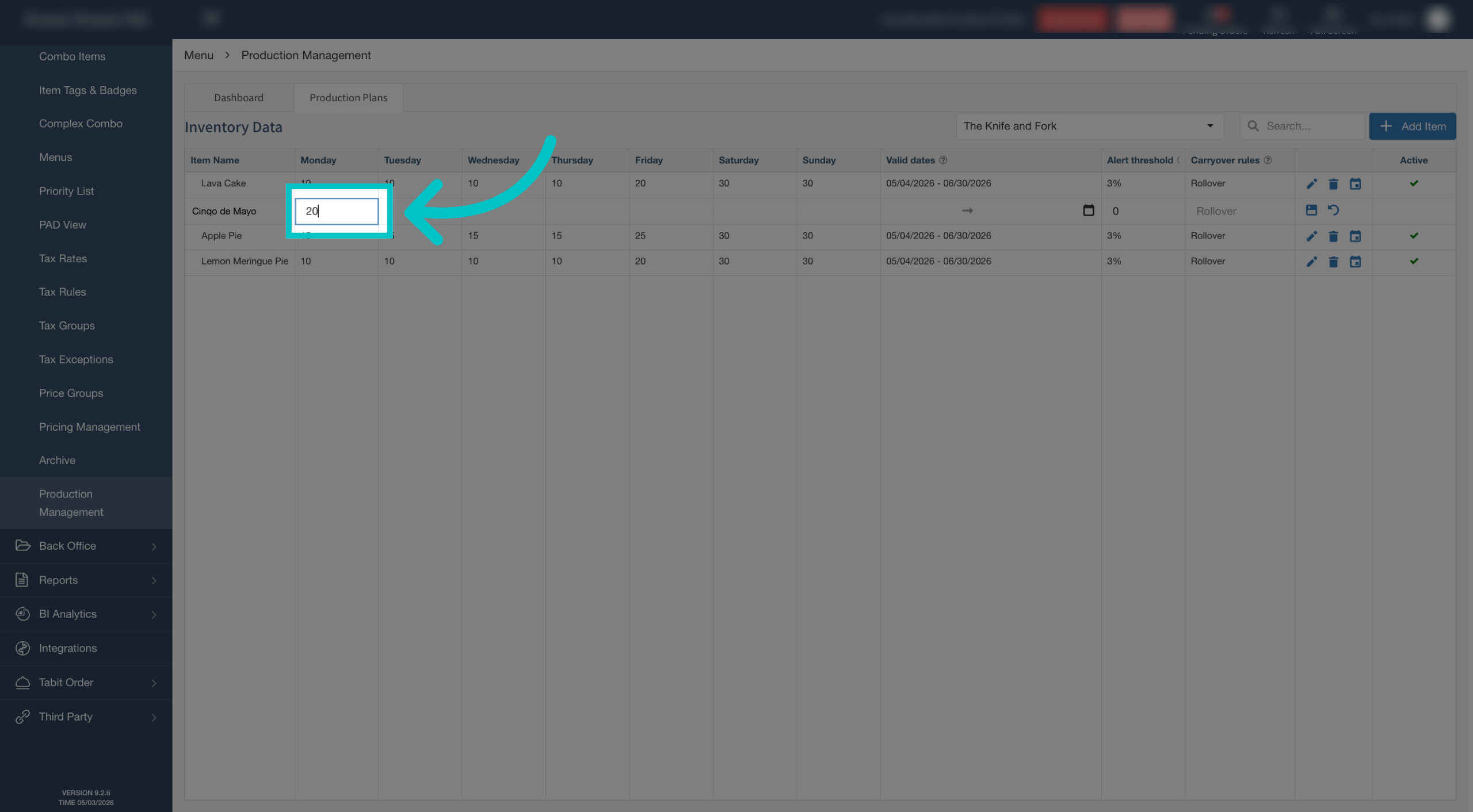
-
Choose the date or date range. Note that it must fall within your validity period
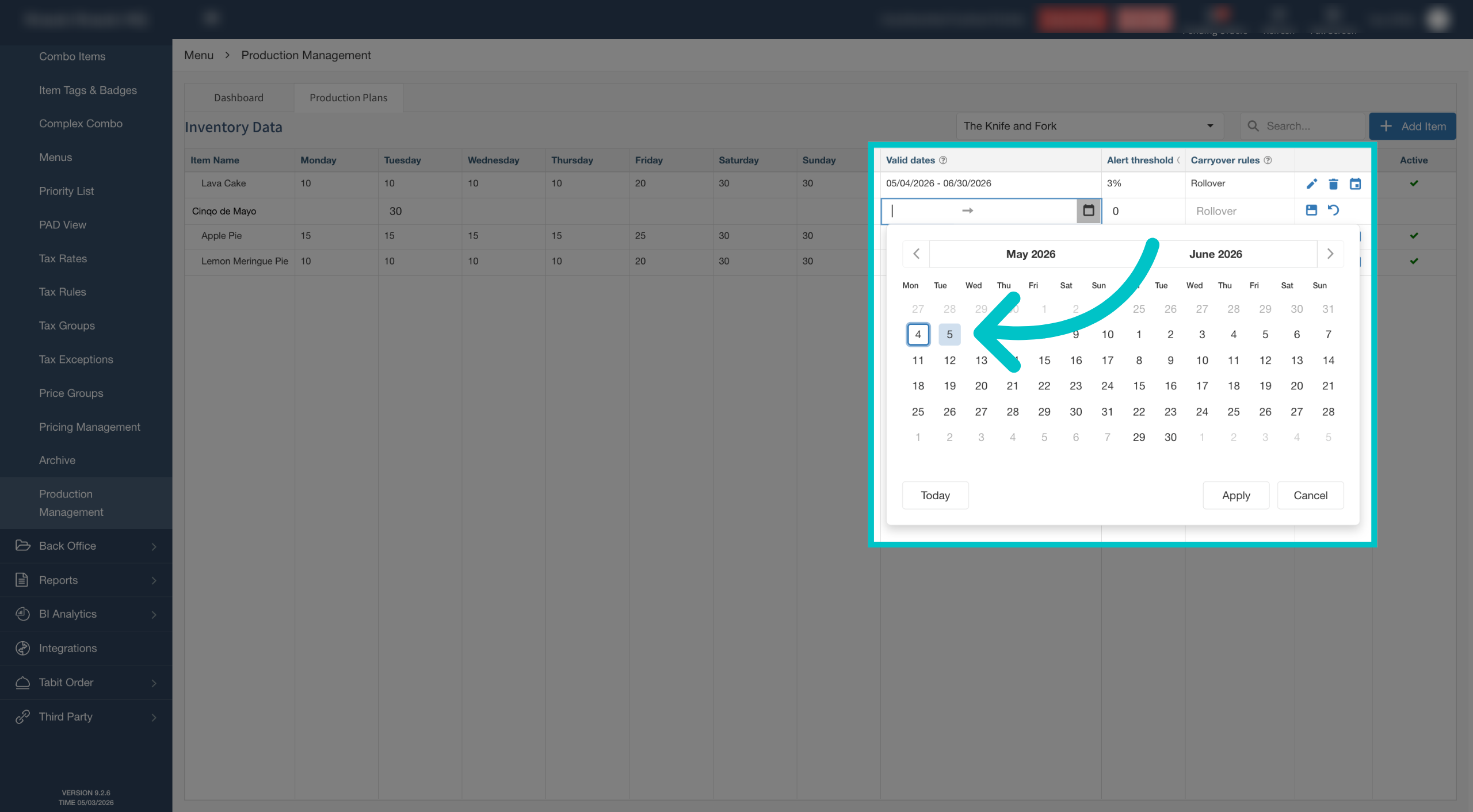
-
Select Save to complete the process
Please note:
- Special dates must be within the item's future inventory validity period
- Carryover rules cannot be changed in special date rows
Monitor Future Stock Thresholds
After production rules have been configured, use the Production Management Dashboard to monitor projected stock for the upcoming week. The dashboard makes it easy to spot items that are approaching their alert threshold or expected to sell out, so you can adjust production before service is affected.
- In Tabit Office, go to Menu > Production Management.
- Select the Dashboard tab.
- Review the projected stock status for each item.
Each day is color-coded according to the item's projected availability:
- Green, Available: Projected stock is above the configured alert threshold.
- Yellow, Below threshold: Projected stock has reached or fallen below the configured alert threshold.
- Red, Out of stock: The item is projected to have no remaining stock.
If an item has different statuses across multiple locations, the dashboard displays the most urgent status. Hover over a day to see the affected sites, listed from the lowest remaining stock to the highest.
For HQ users
Users with the HQ Future Production Planning permission can filter the dashboard by location and review production plans across sites.
- Special-date production rules are marked with an indicator on the dashboard.
- If no plan exists for the selected week, the dashboard displays No production plan set for this week.
- Past and current dates are greyed out and are not included in future stock calculations.
Permissions
Access to the dashboard requires the appropriate Future Production Planning permission.
Where Future Inventory Limits Are Enforced
Future inventory limits are enforced when customers place future orders through:
- Tabit Order
- PAD takeaway and delivery orders (supported from PAD 12.0)
Third-party orders do not support future orders