-
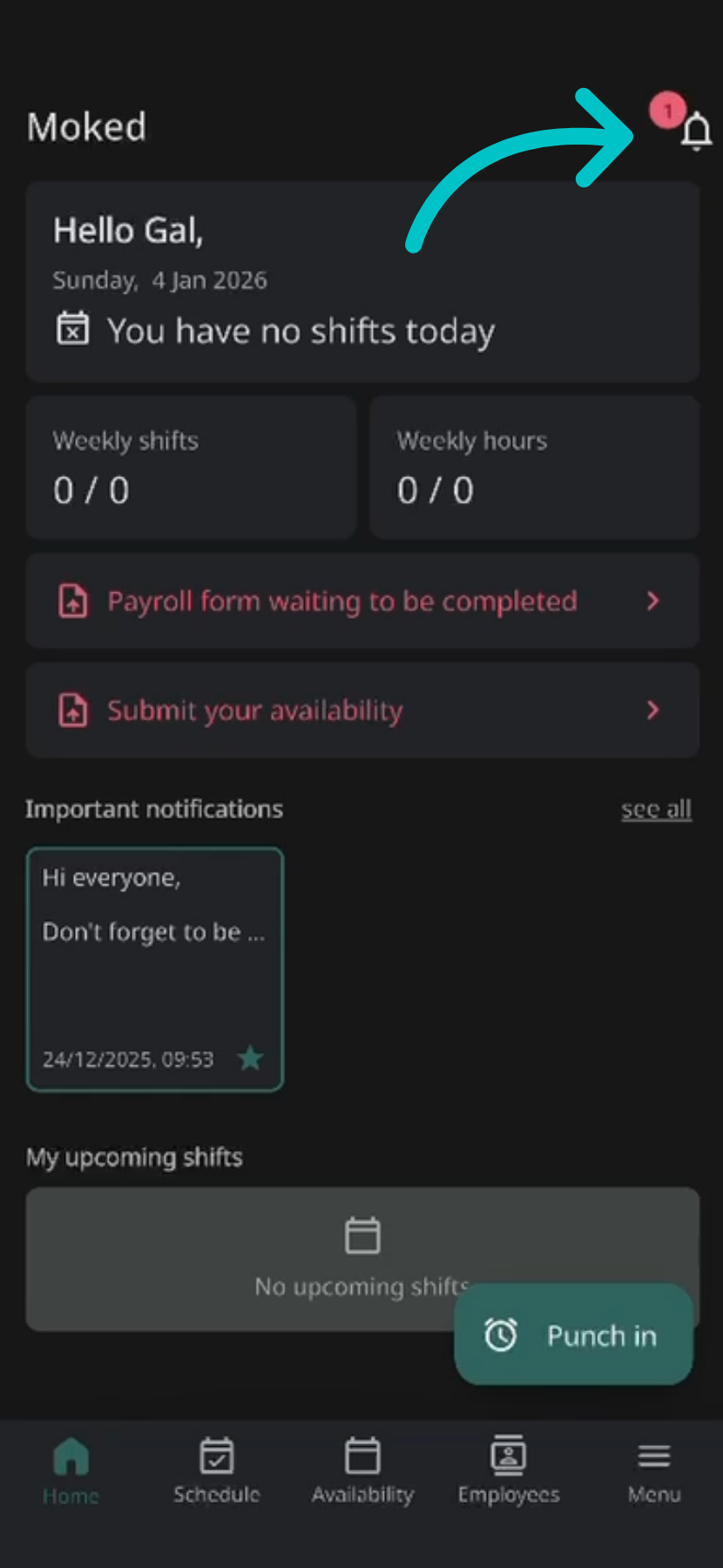
In the Tabit Shift app, the bell in the top right shows if there are messages waiting to be read. Tap it to view them
-
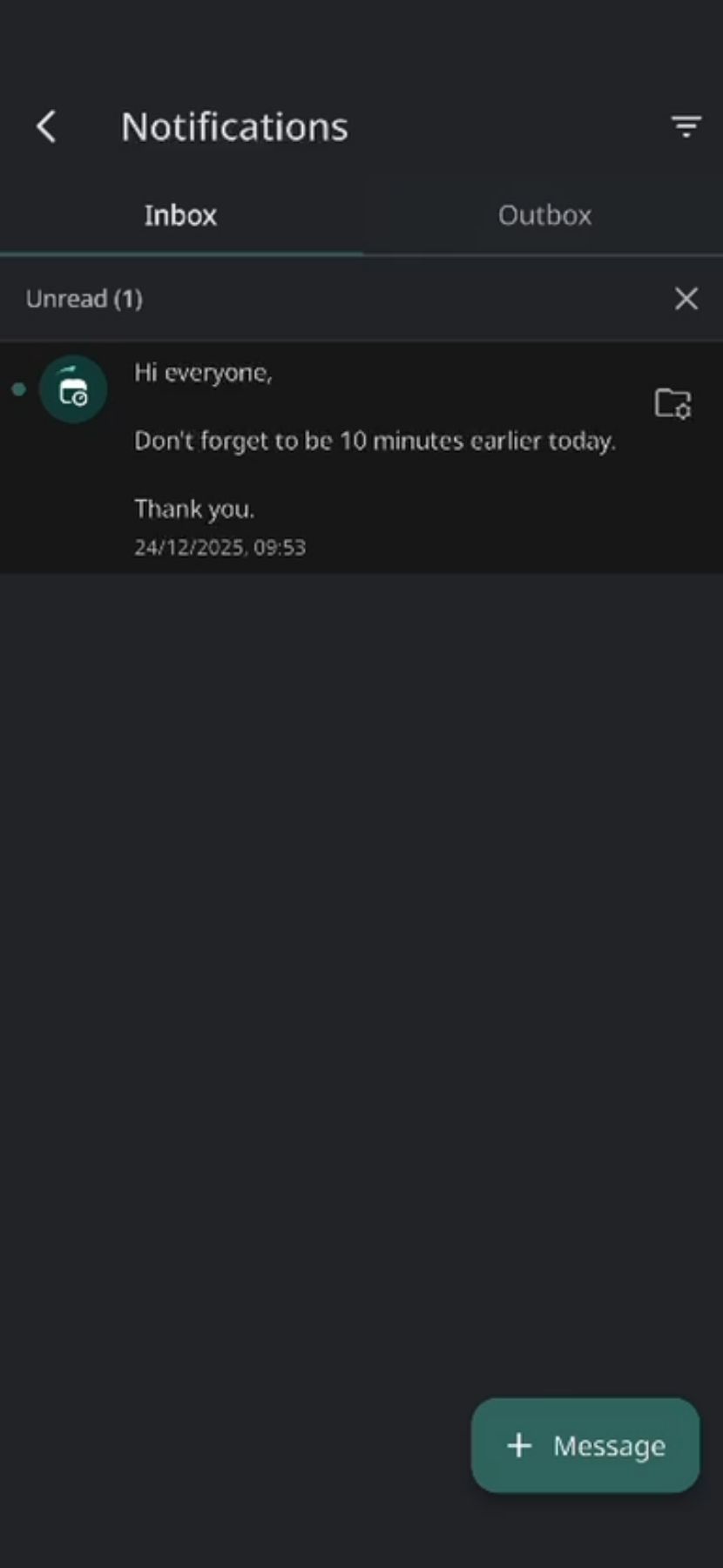
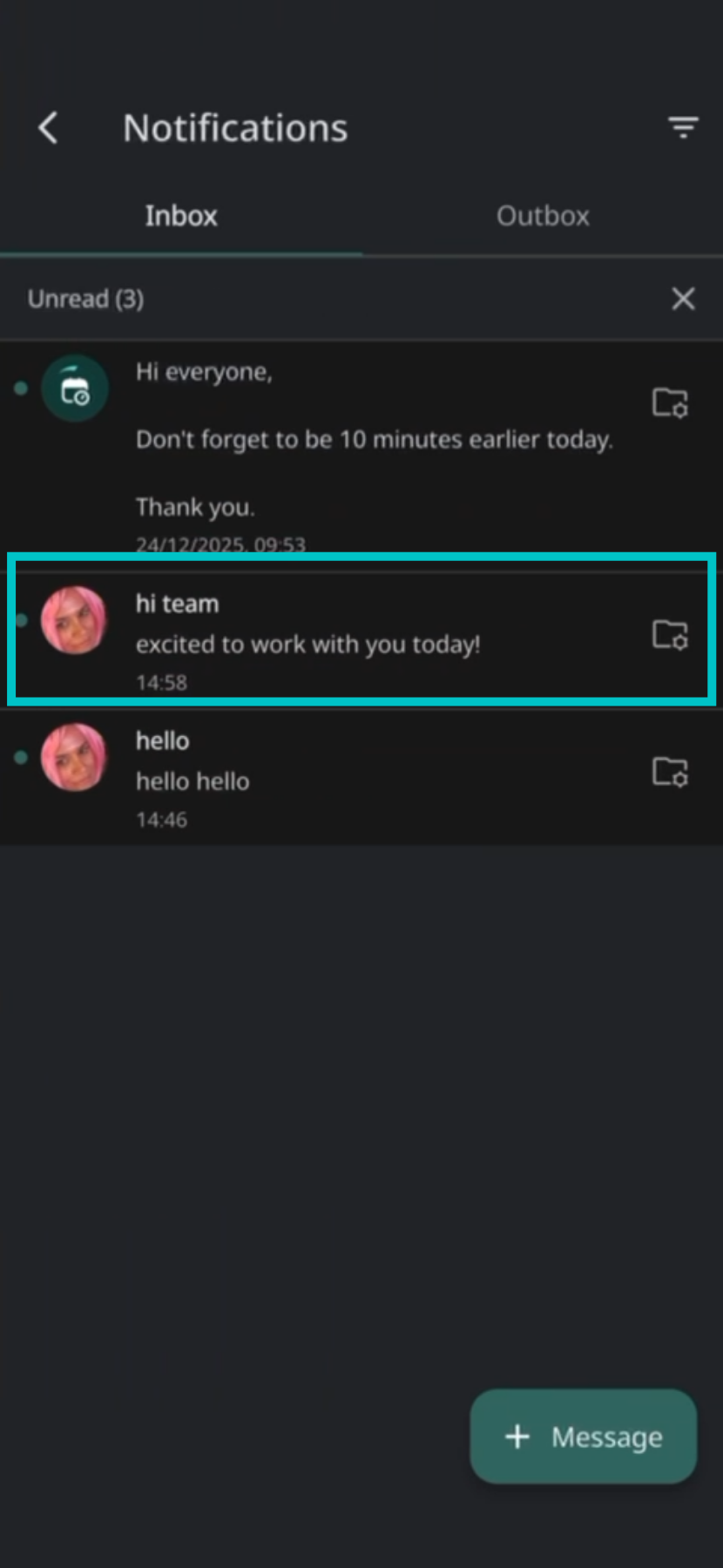
Here you can read any messages currently in your inbox
-
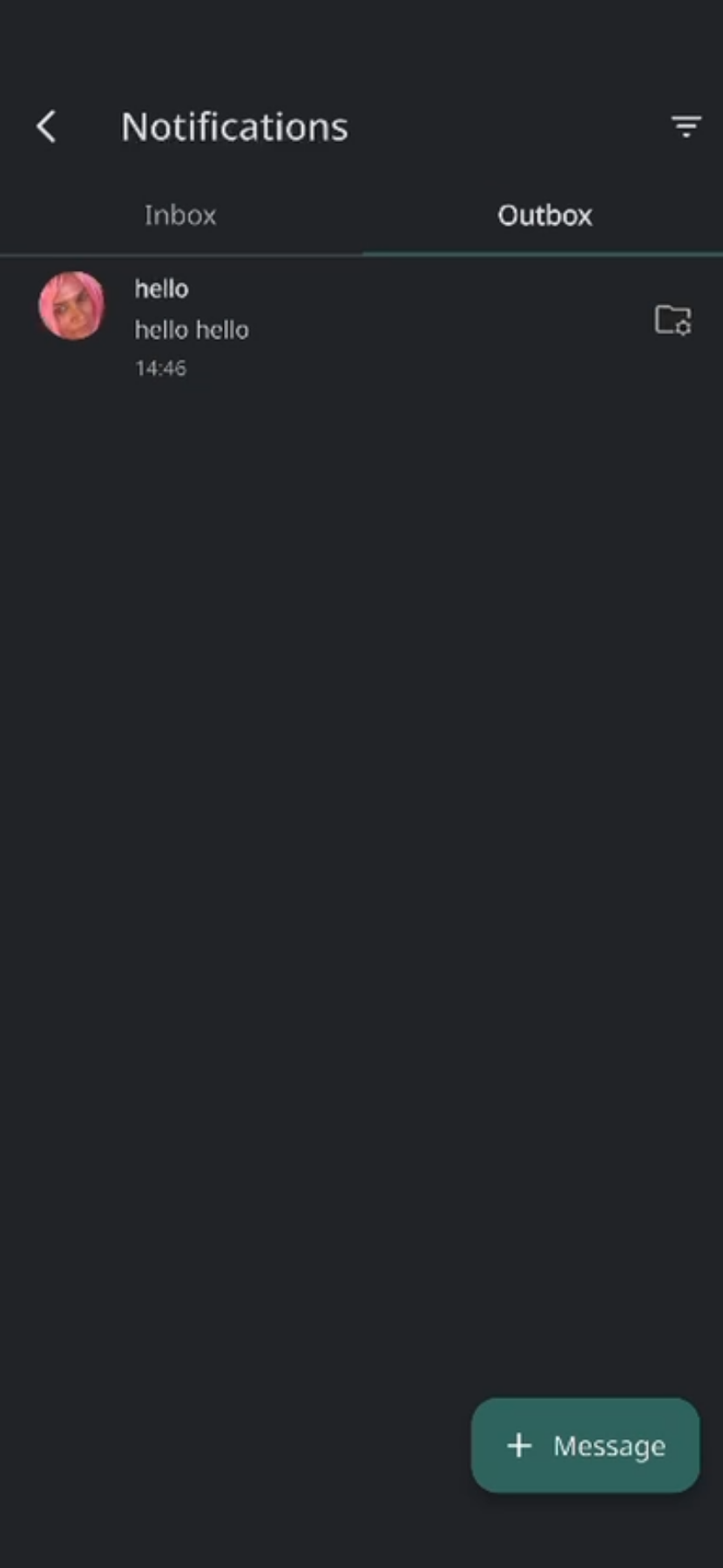
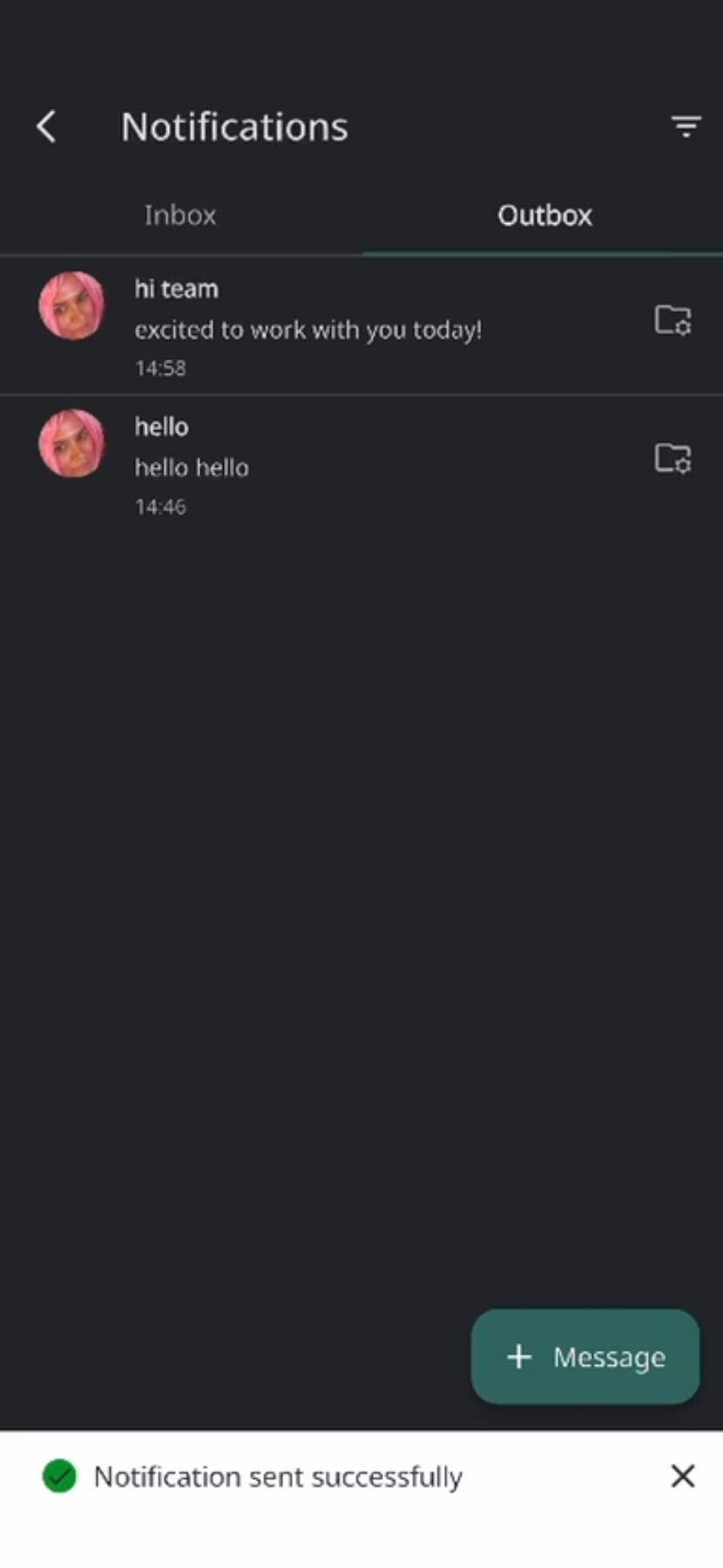
In your outbox you can see any messages you have sent
-
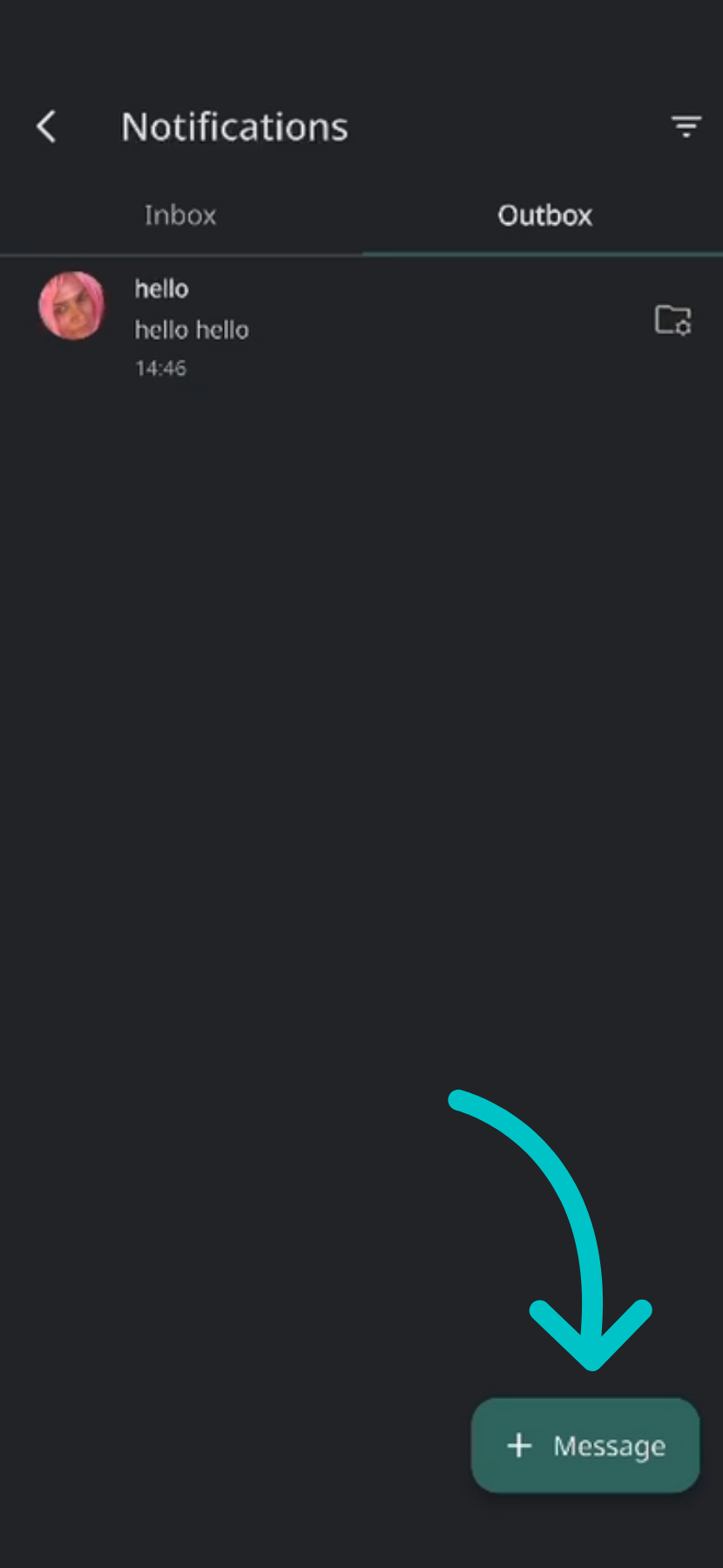
To send a new message, tap the + Message button
-
Tap Send to to select who should receive the message
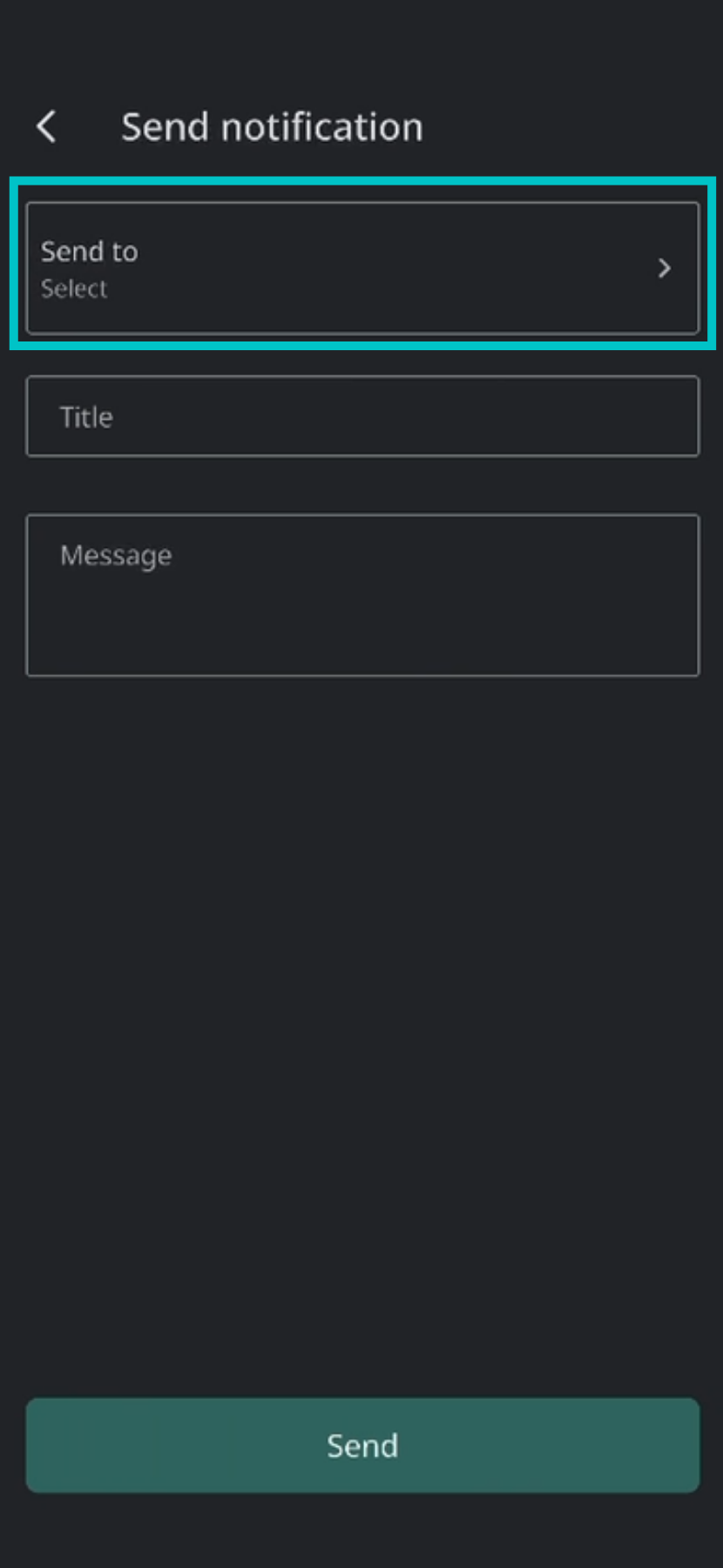
-
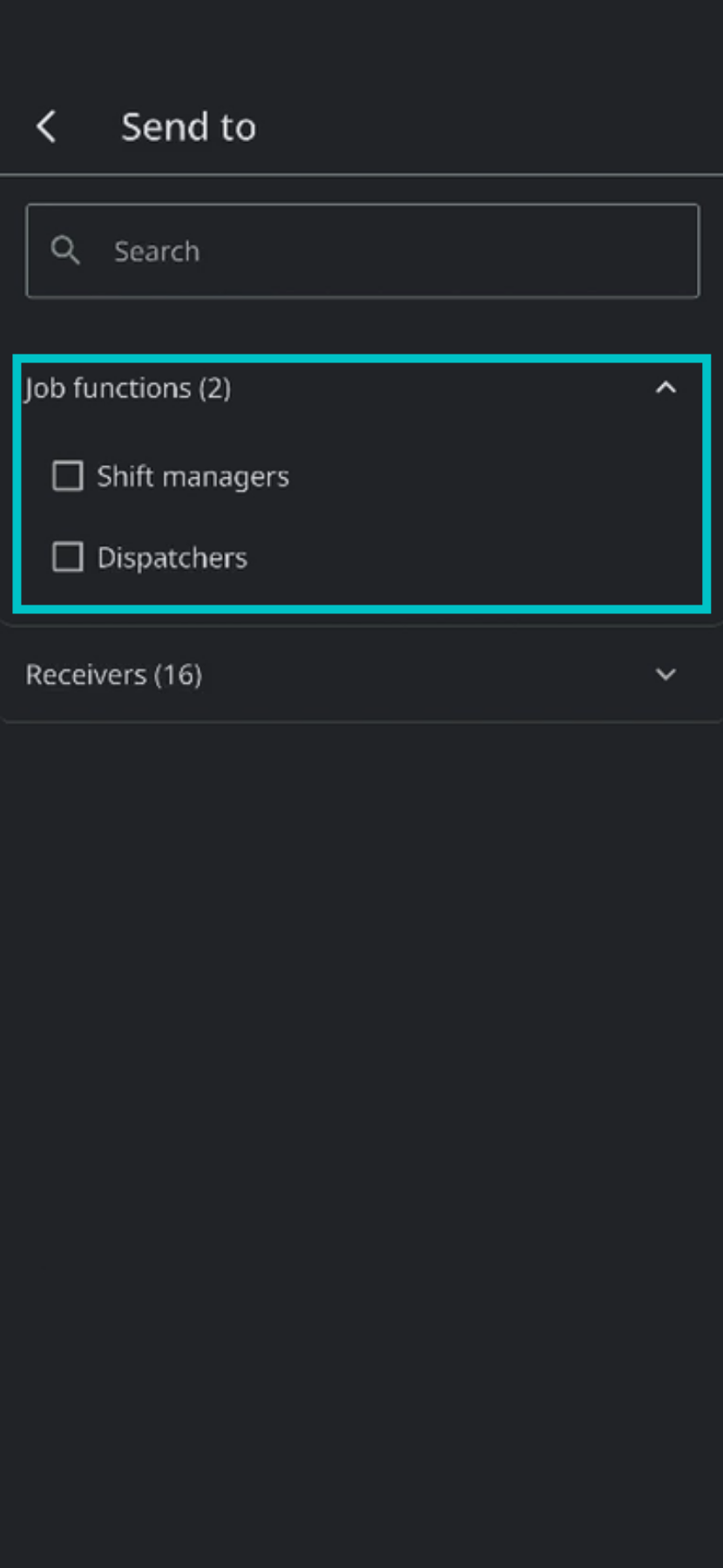
You can either send to all employees with the same job functions as you. Only job function(s) that you have will appear here, unless you're a manager
-
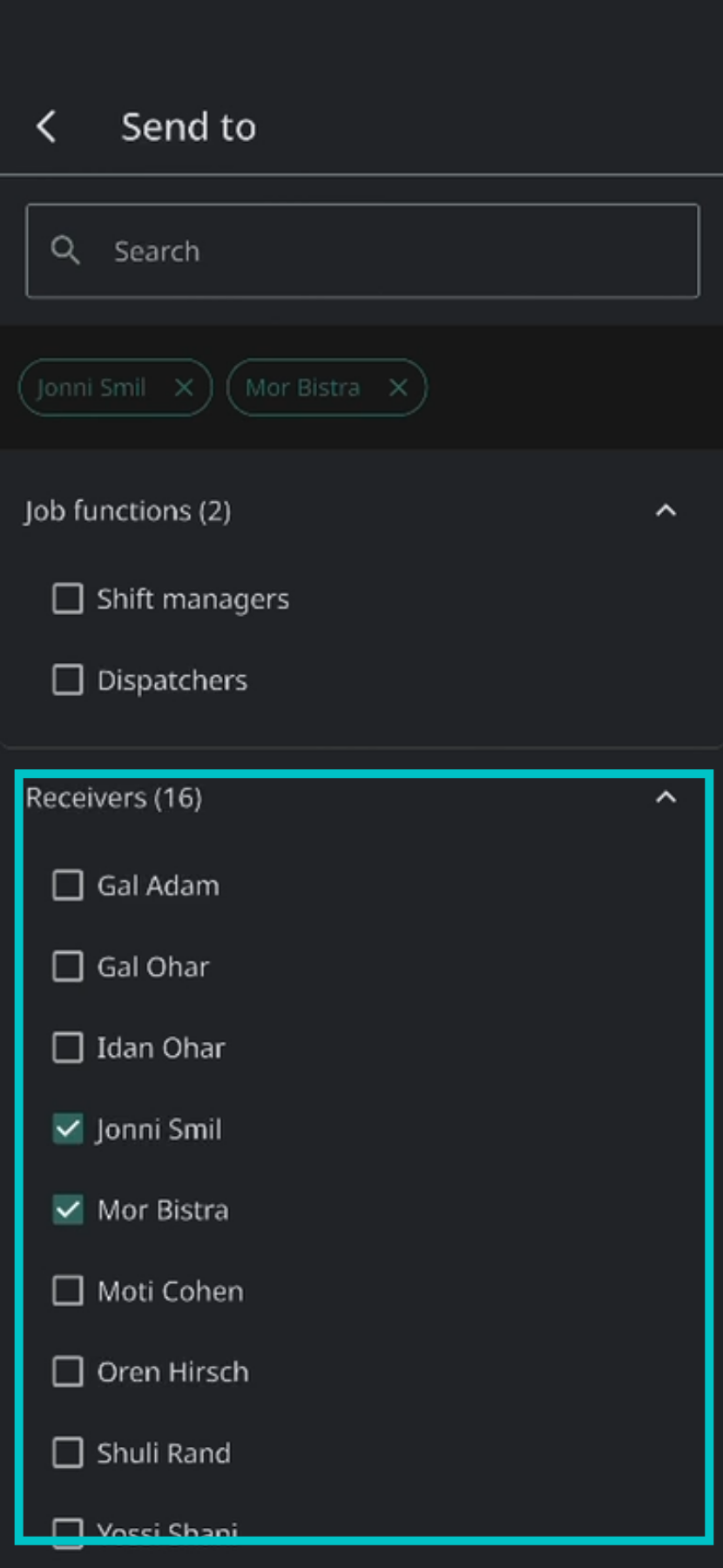
Or you can select specific staff members to receive your message. Again, only employees with the same job function(s) as you will appear here
-
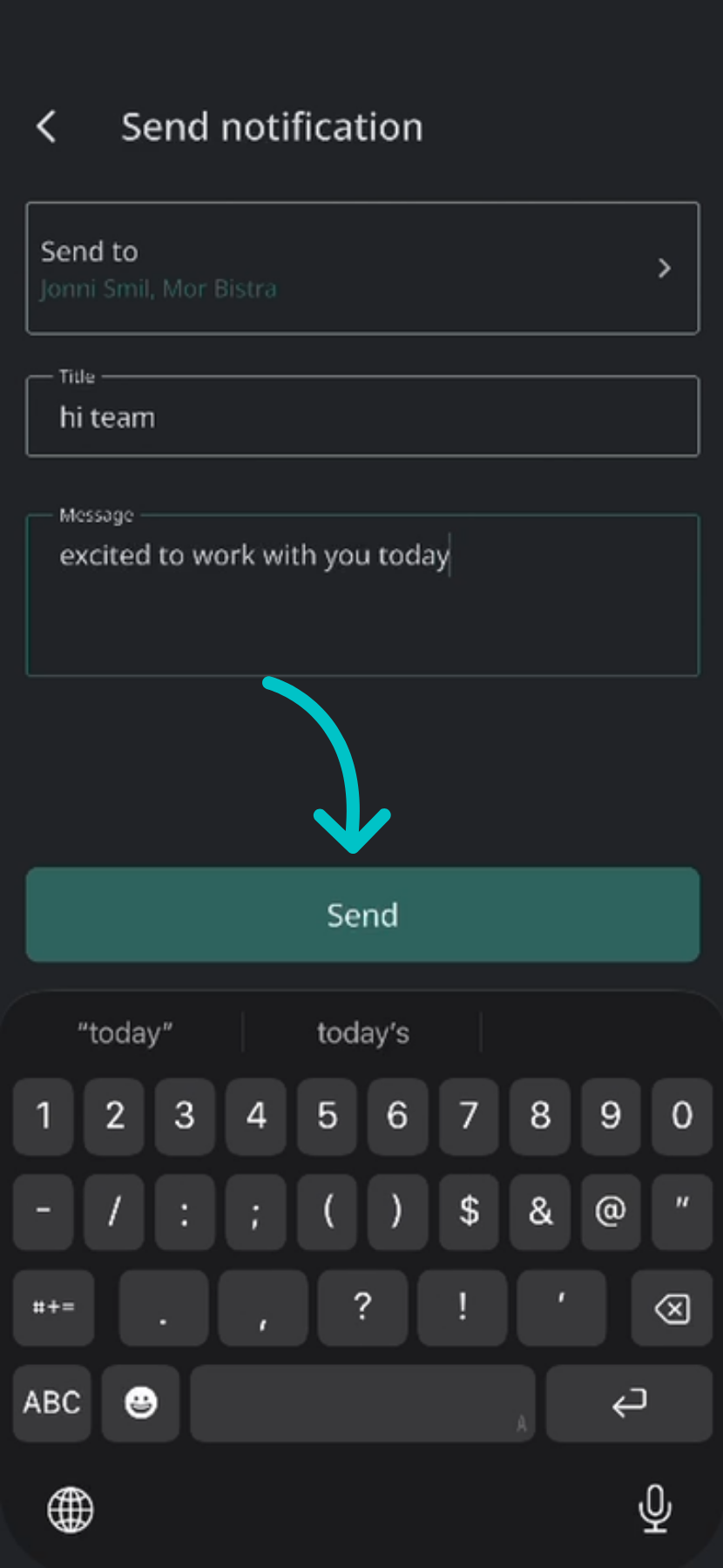
Add a title and message and then tap Send
-
Now the message will appear in your outbox
-
The recipient will now see the message in their inbox and be able to respond to you
Using employee messaging in Tabit Shift
Messages in Tabit Shift make it easy to communicate without leaving the app. You can chat one-to-one with teammates or start a conversation with your manager, so updates don’t get lost between shifts. In this guide, you’ll learn where to find your Inbox and Outbox, how to start a new message, and how to choose who receives it.
Follow the steps below to learn how to use messaging in the Tabit Shift app: