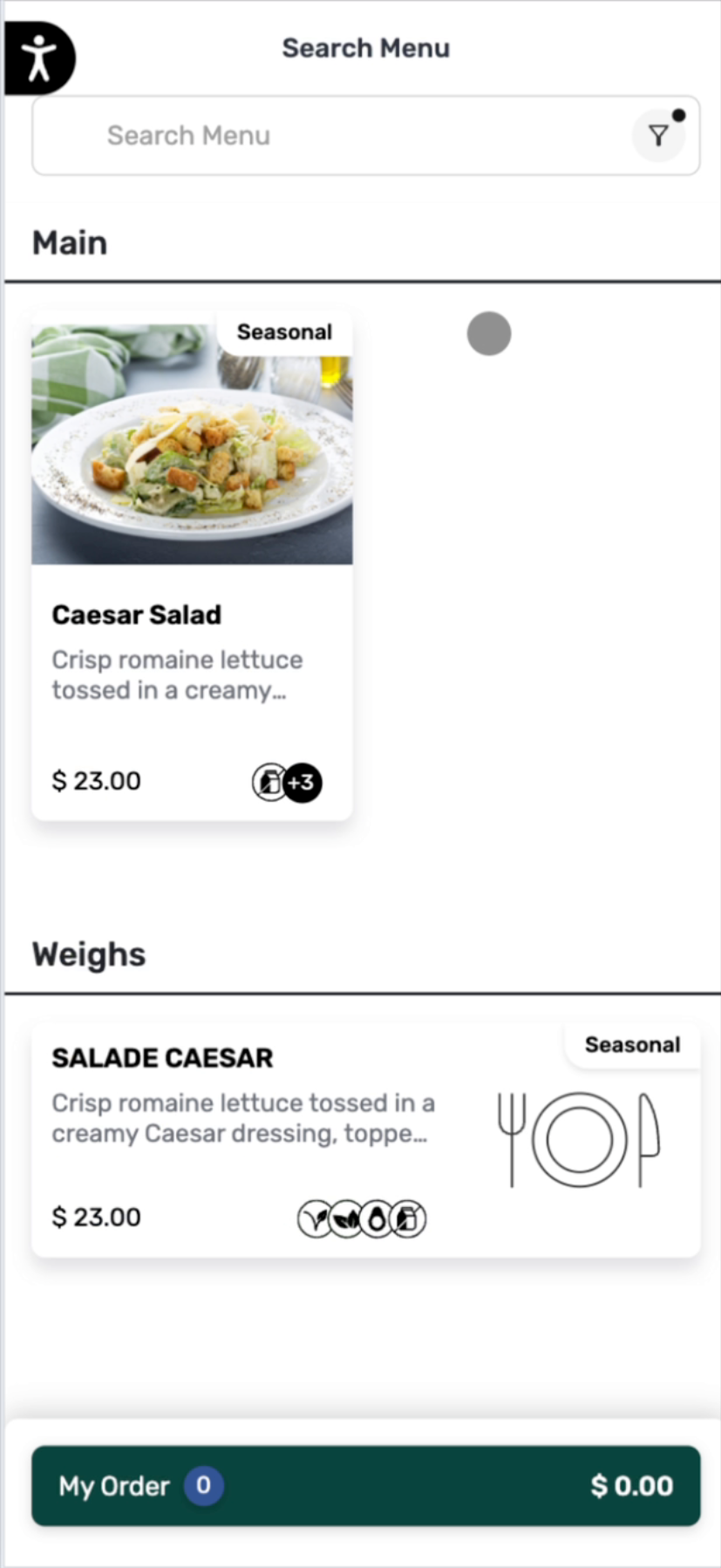
The menu can be filtered by Item Tags in Tabit Order on both desktop and mobile, making it easier to find items that match specific dietary needs or preferences.
Items can only be filtered by Item Tags, not by Badges
Follow the steps below to learn how to filter by Item Tags in Tabit Order:
On desktop
-
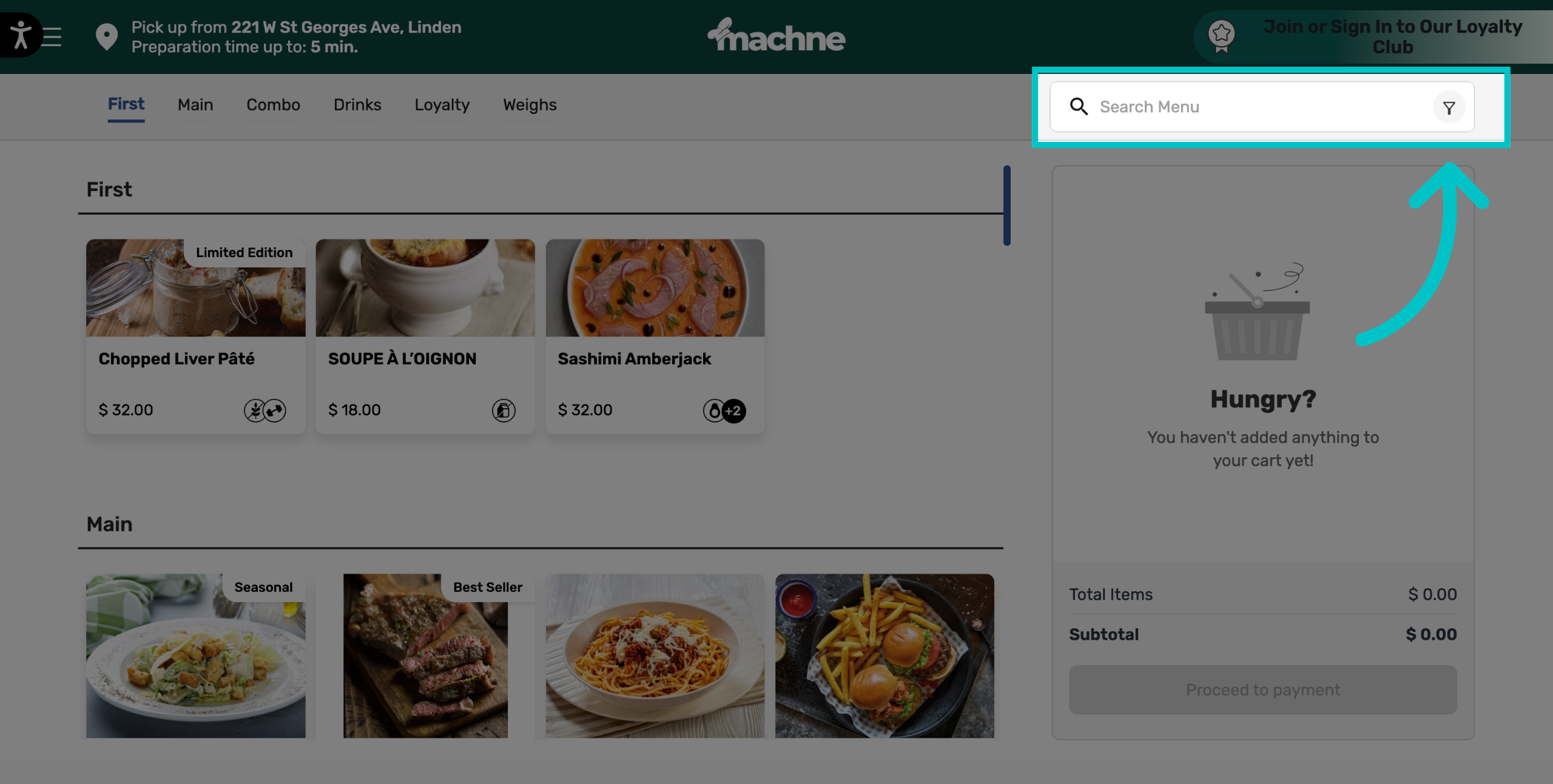
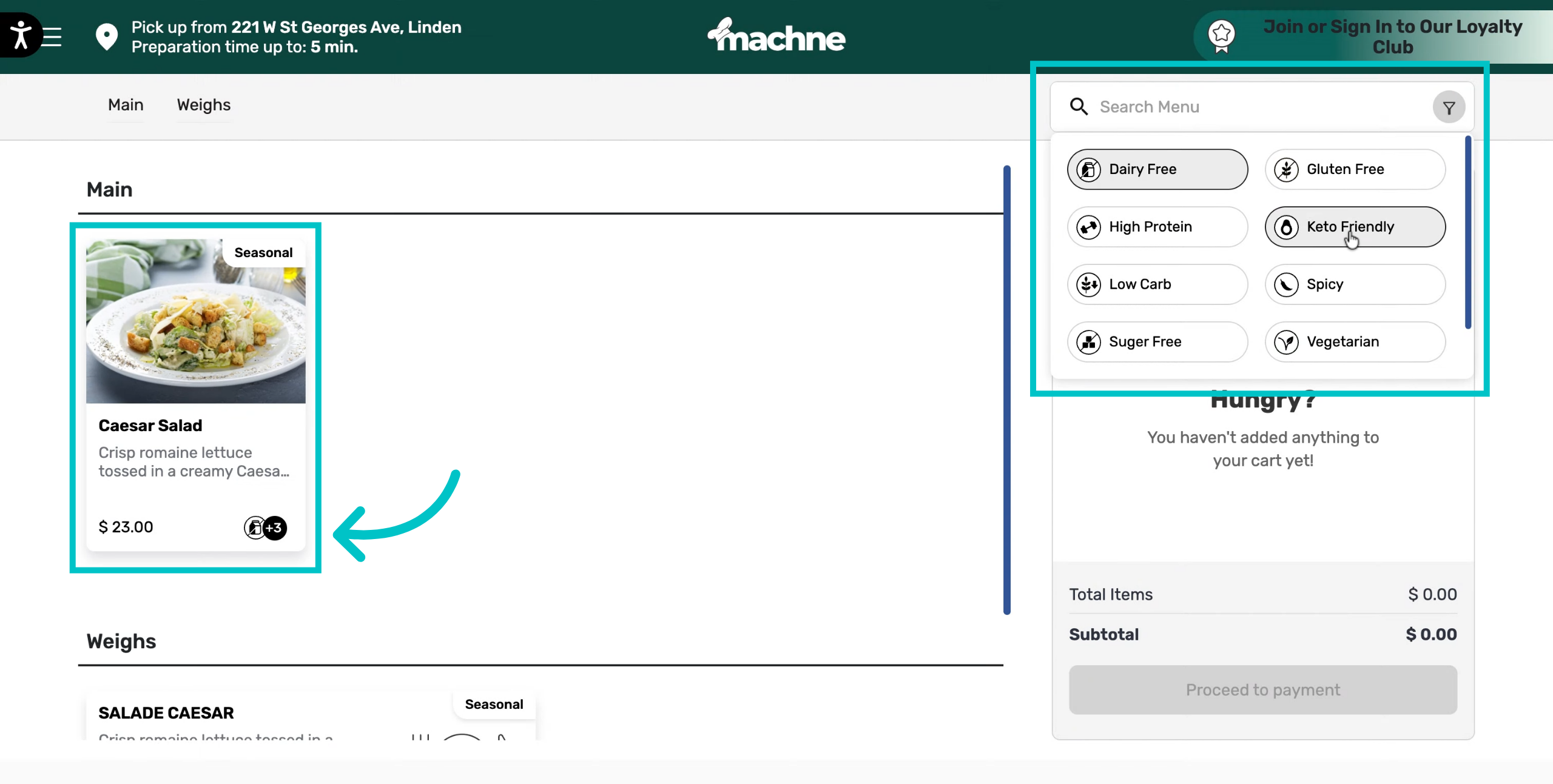
In Tabit Order on desktop, select the filter icon on the right side of the search bar
-
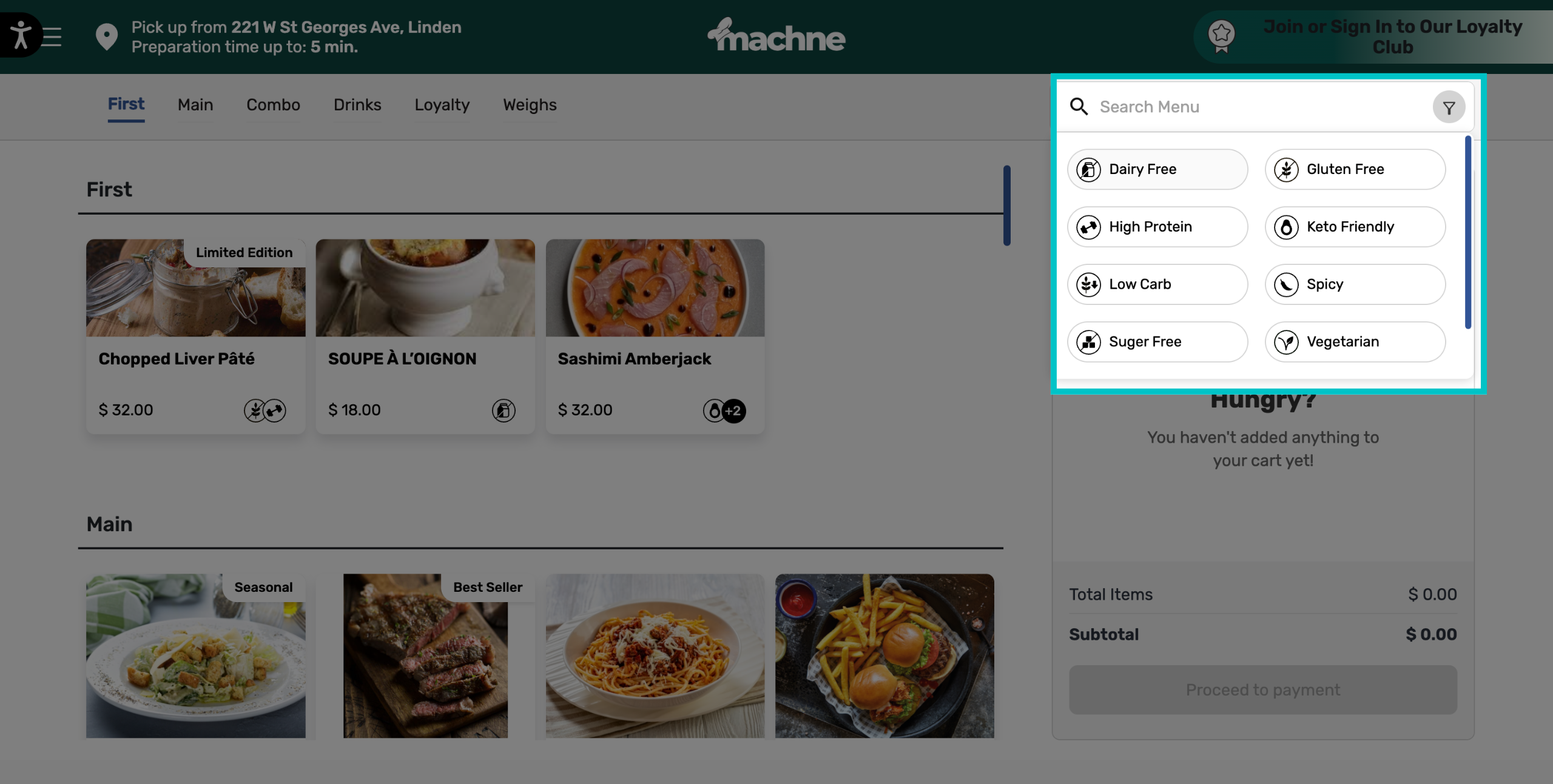
A list of item tags will appear
-
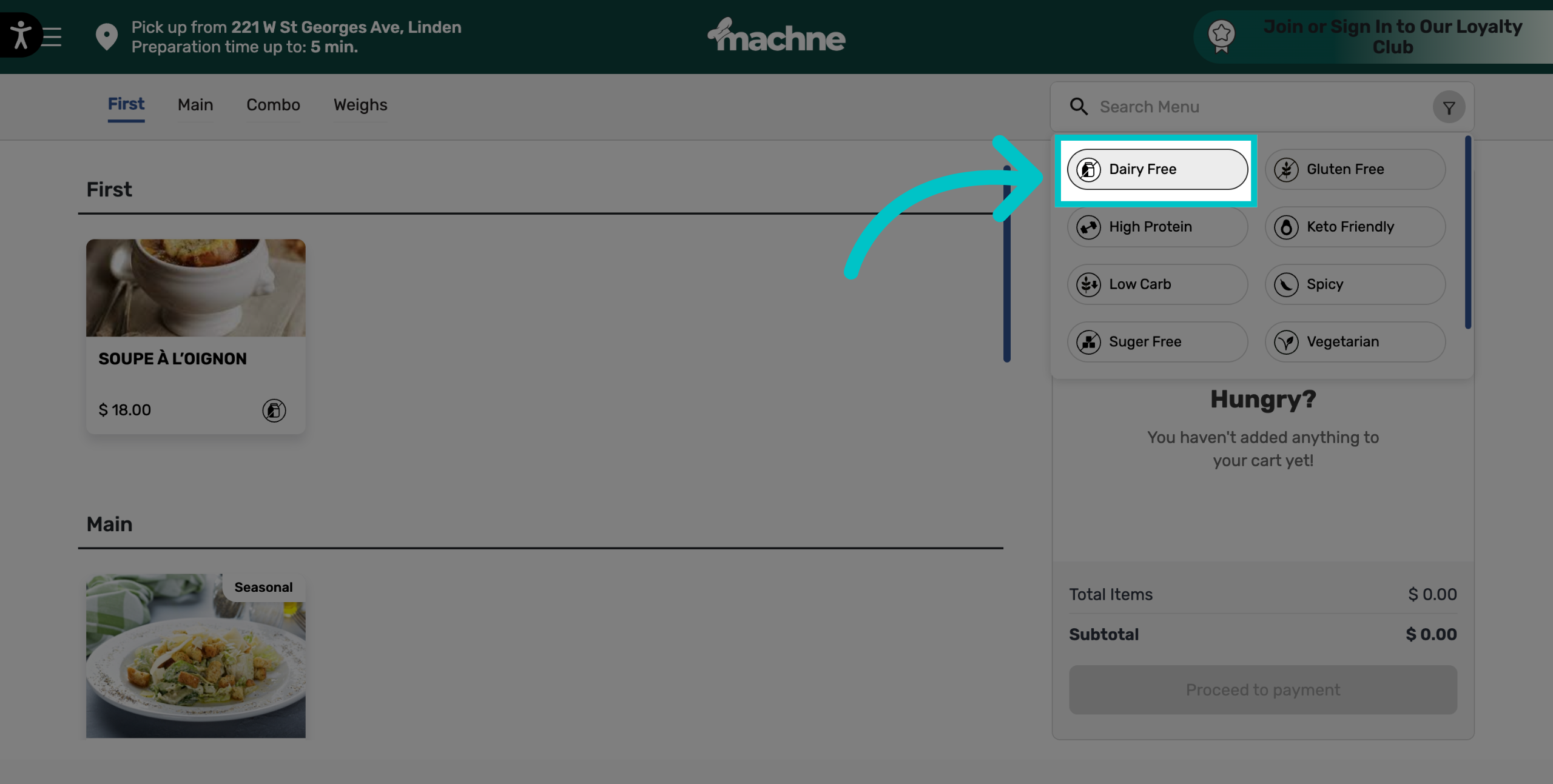
Select the relevant tag or tags
-
Now only the items that match the selected tag or tags will appear
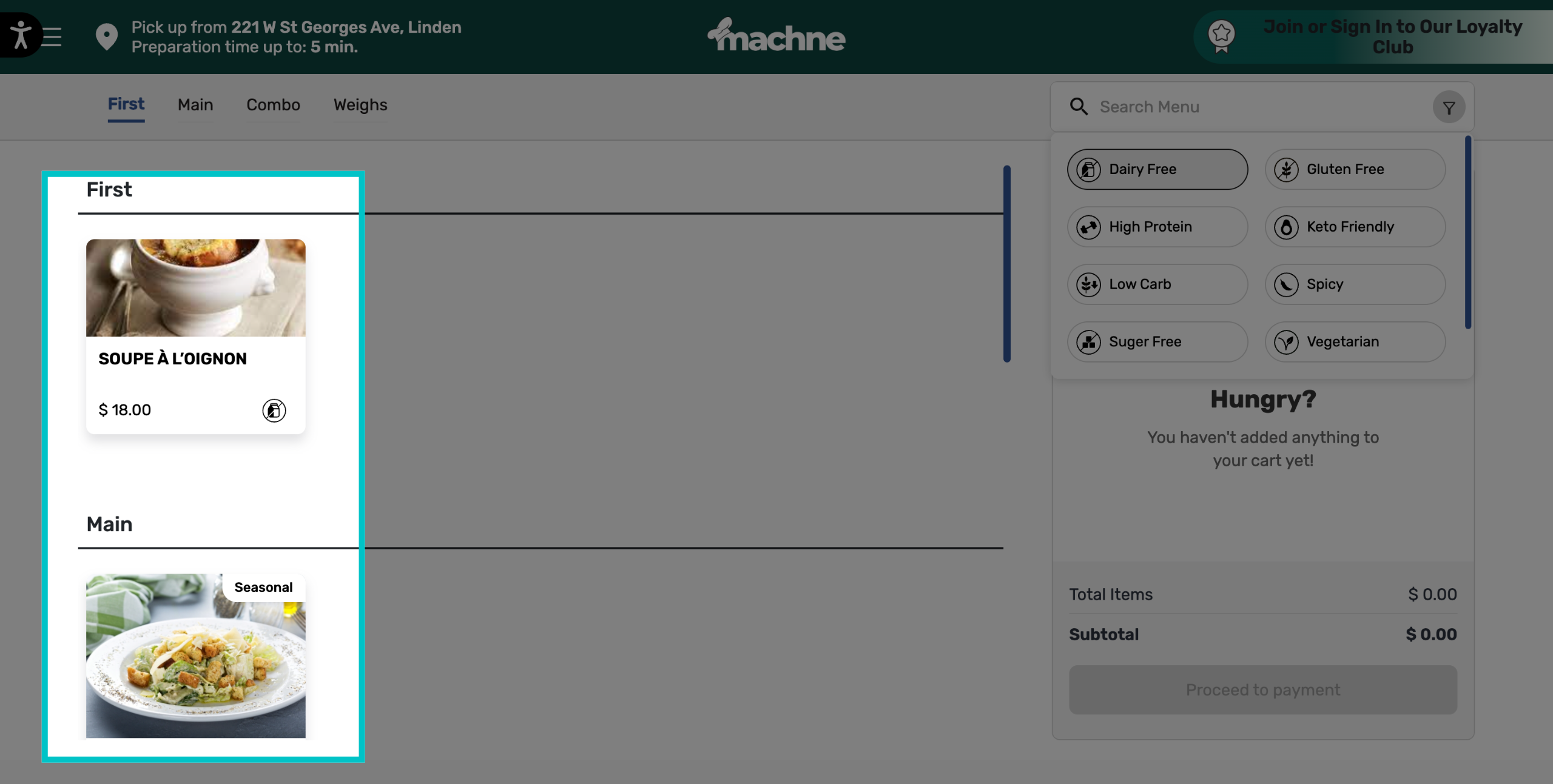
-
If multiple tags were selected, only items that include all of the tags will be shown
On mobile
-
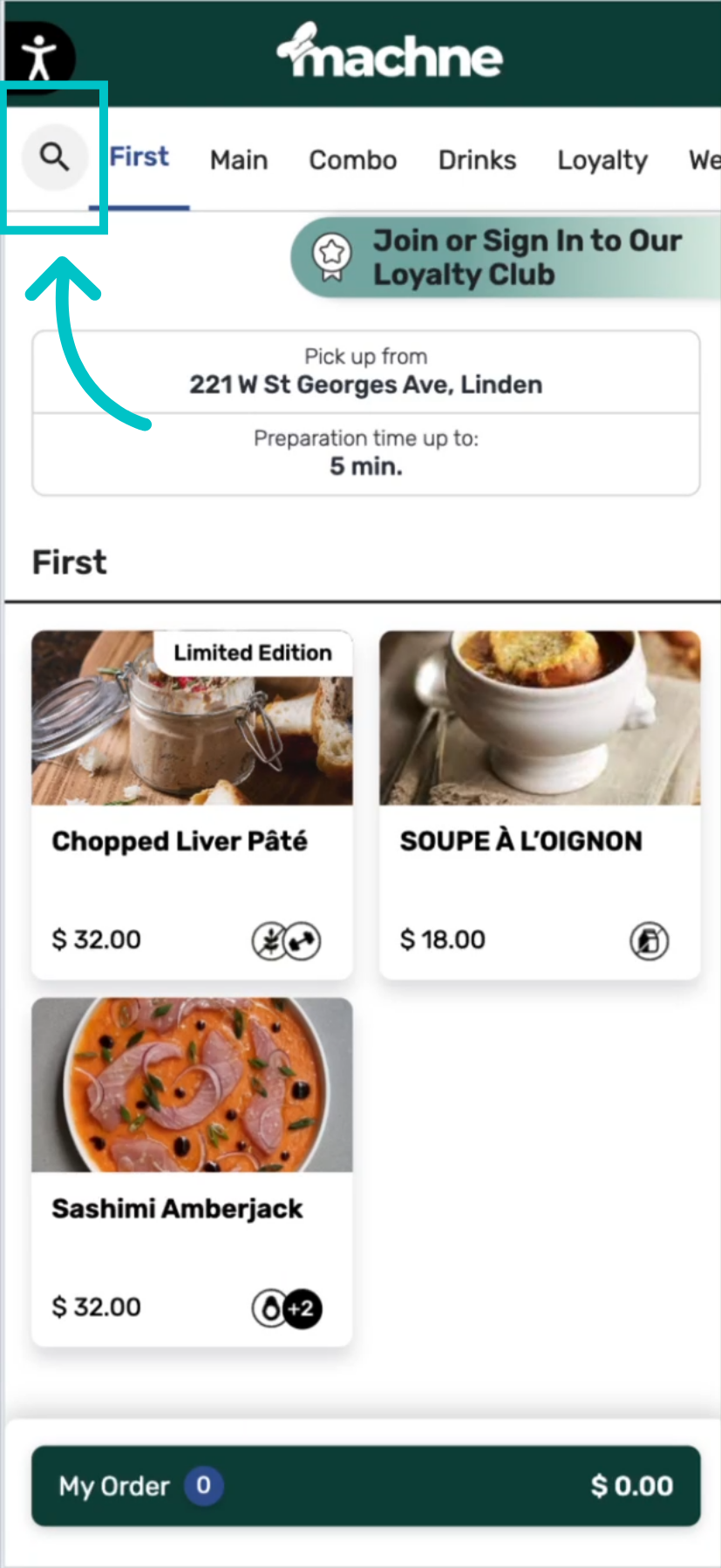
Select the search icon at the top left of the screen
-
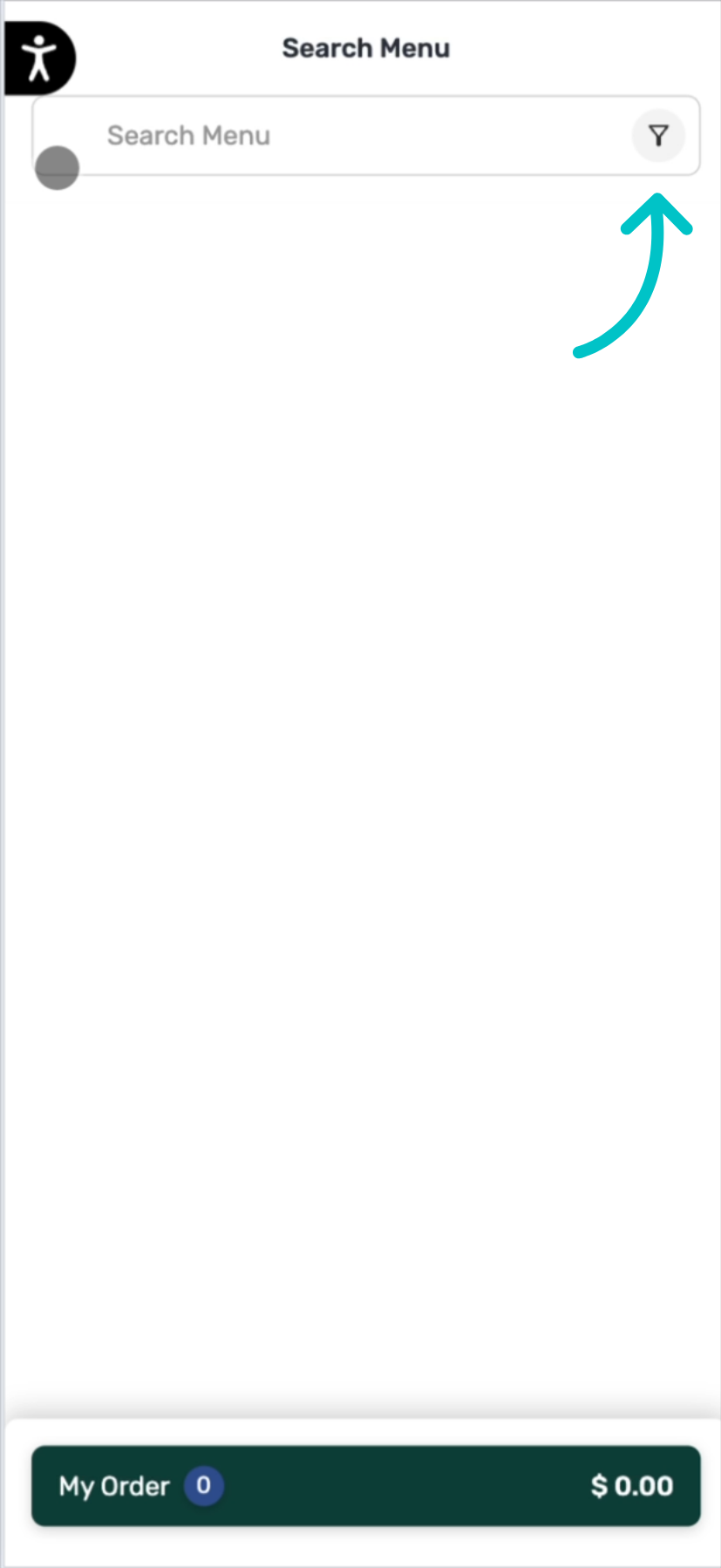
Select the filter icon on the right
-
Select the relevant filter
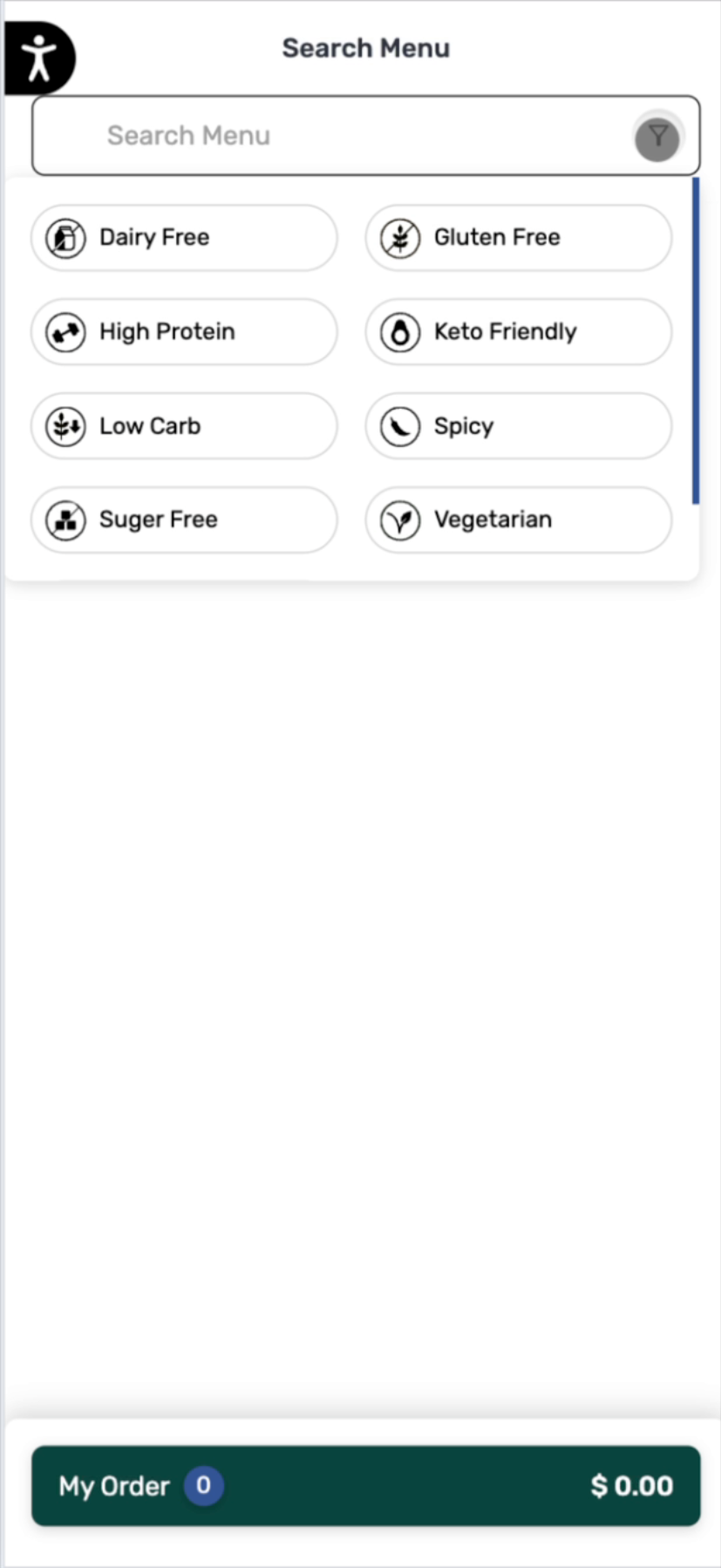
-
To filter by multiple tags, select the filter icon again and select another tag. Only items that include all of the tags will be shown
- To remove tags, select the filter icon and deselect the tags you would like to remove