In the Tabit Shift app
-
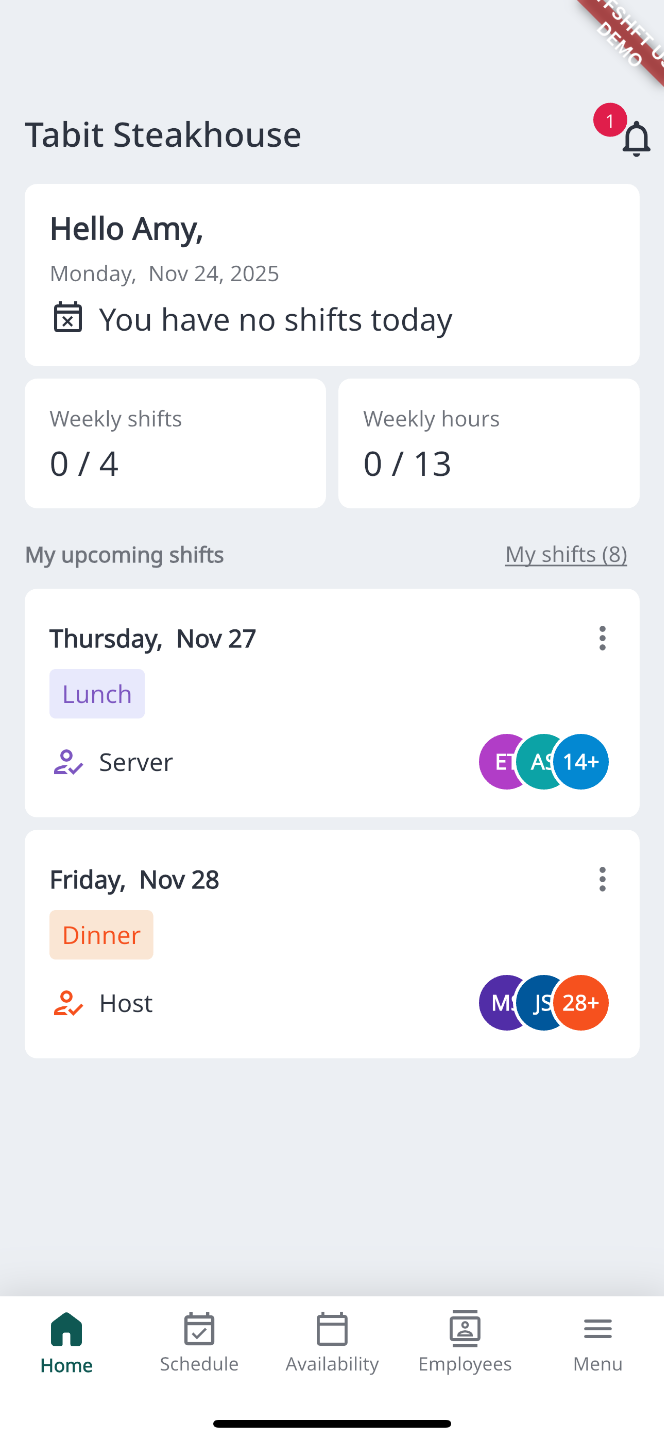
After logging in, you can see any upcoming shifts on the home screen, along with what your role is that day
-
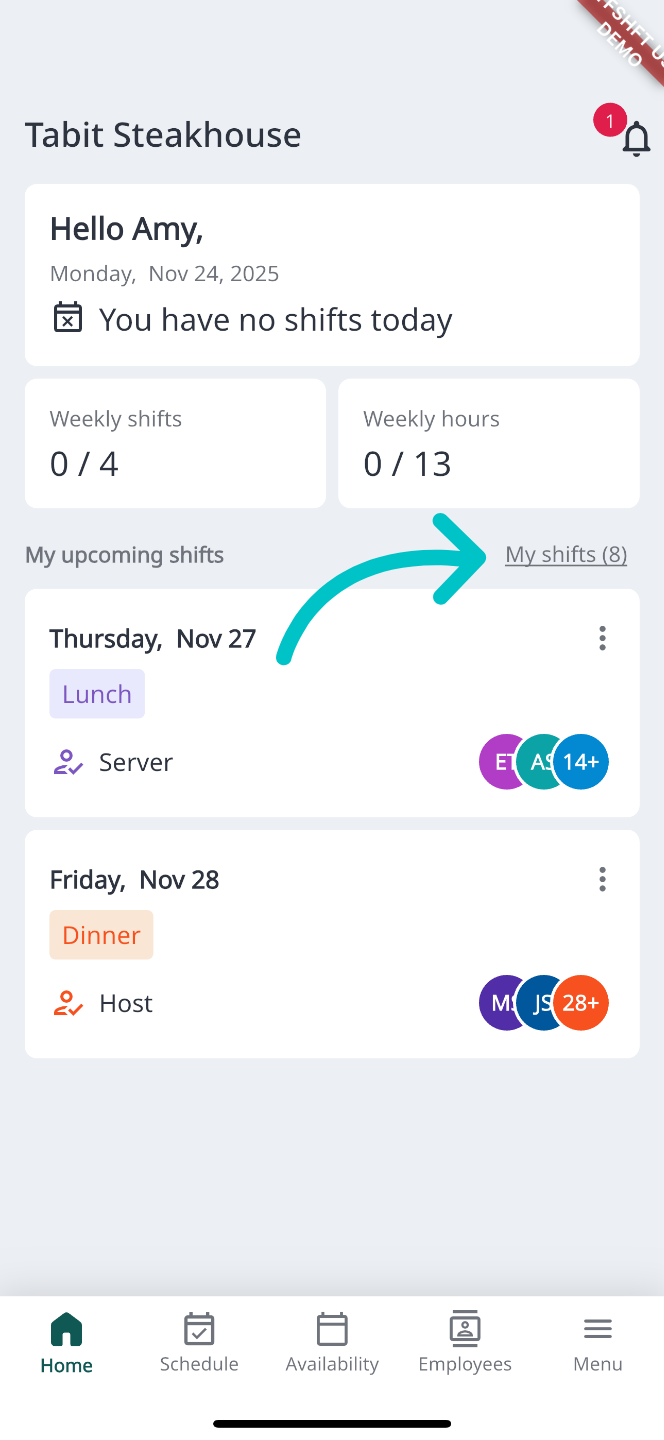
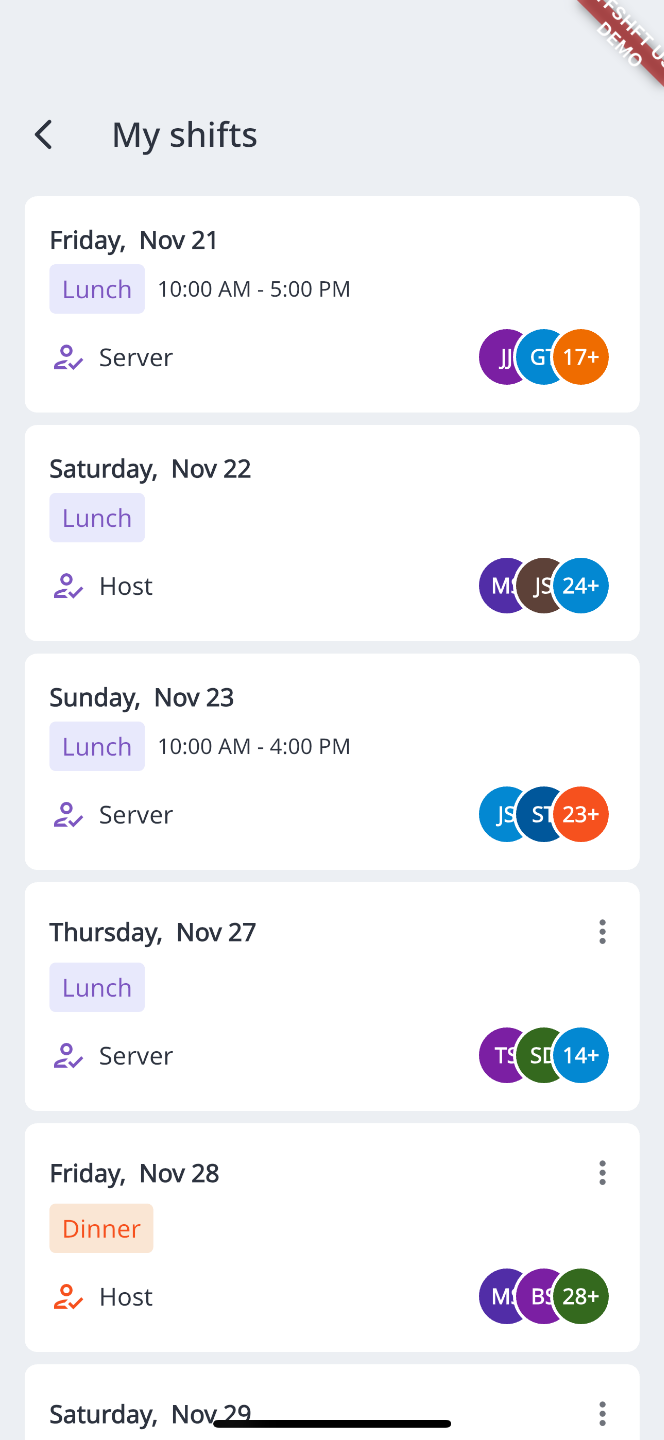
Tap My shifts to see all of your upcoming shifts
-
Here you can see any shifts you've been assigned, the hours assigned, your role, and others working with you during the same shift
-
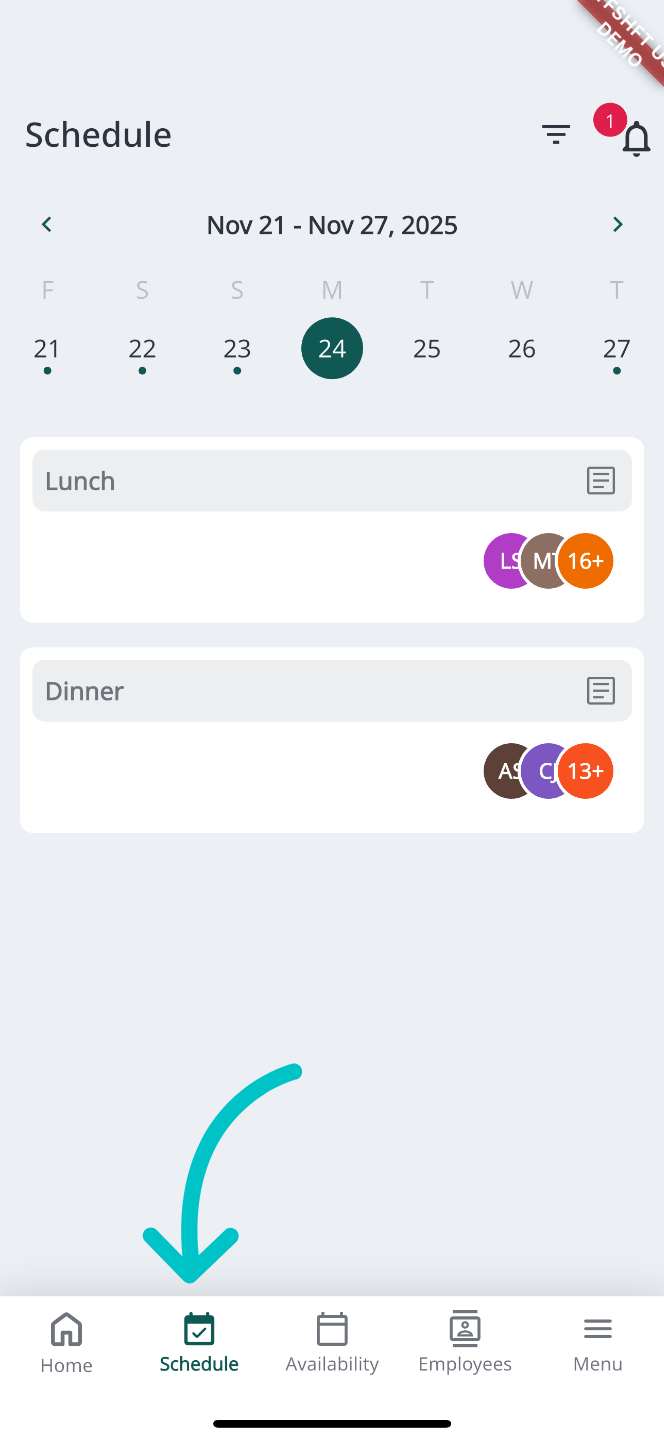
Select the Schedule tab at the bottom of the screen to view the full restaurant schedule
-
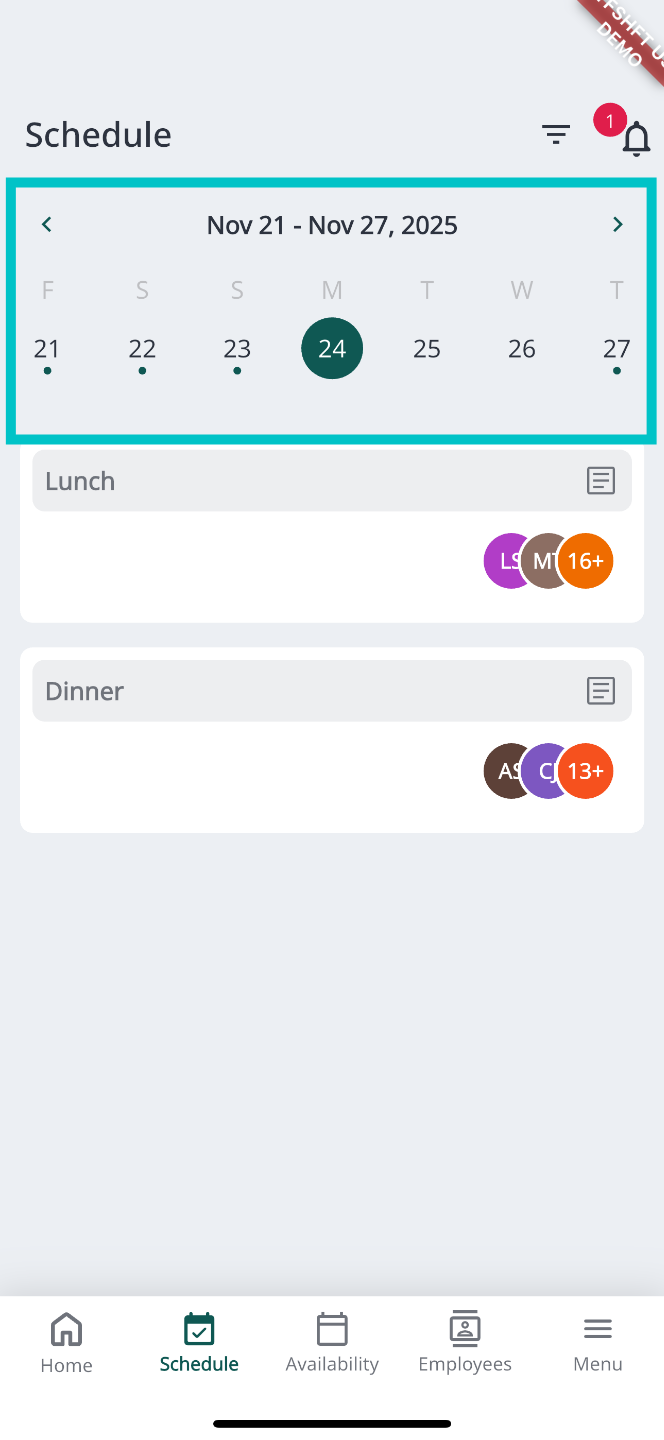
Swipe or tap on one of the days to view that day's schedule
-
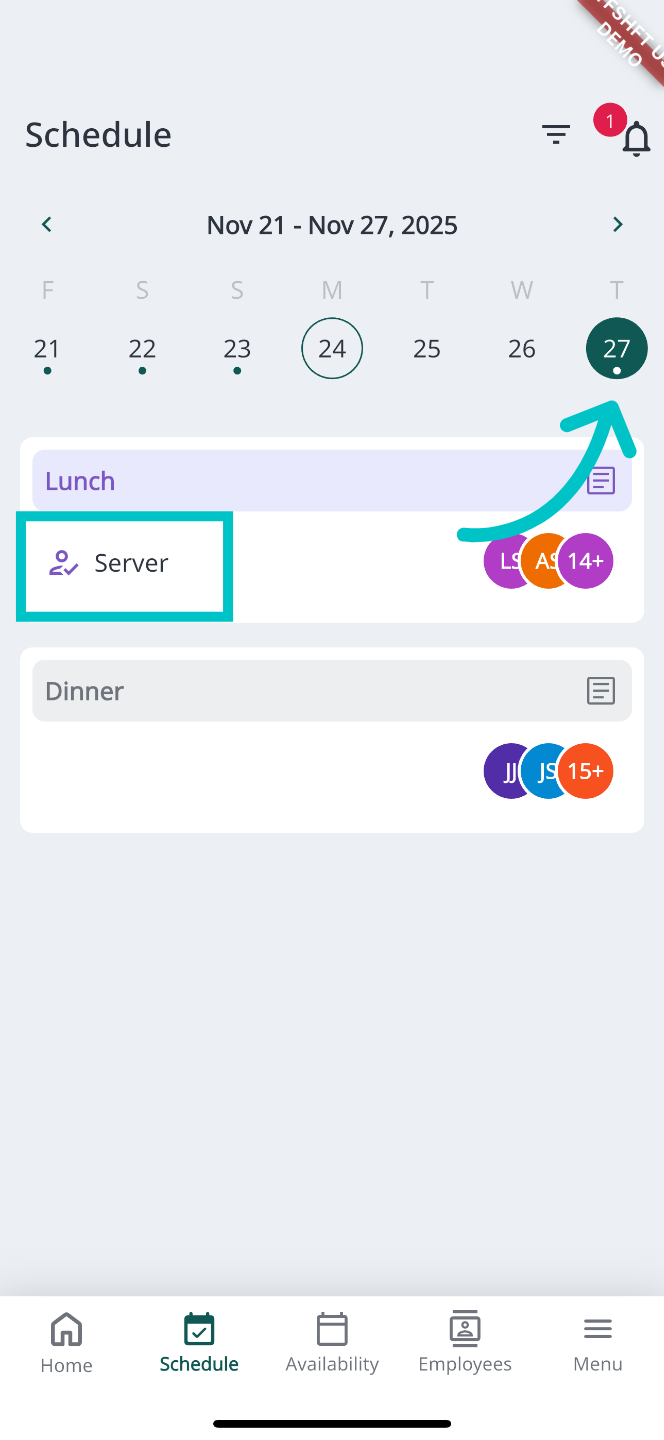
If you have a shift, there will be a dot under the date and your shift will be highlighted in another color along with your role
-
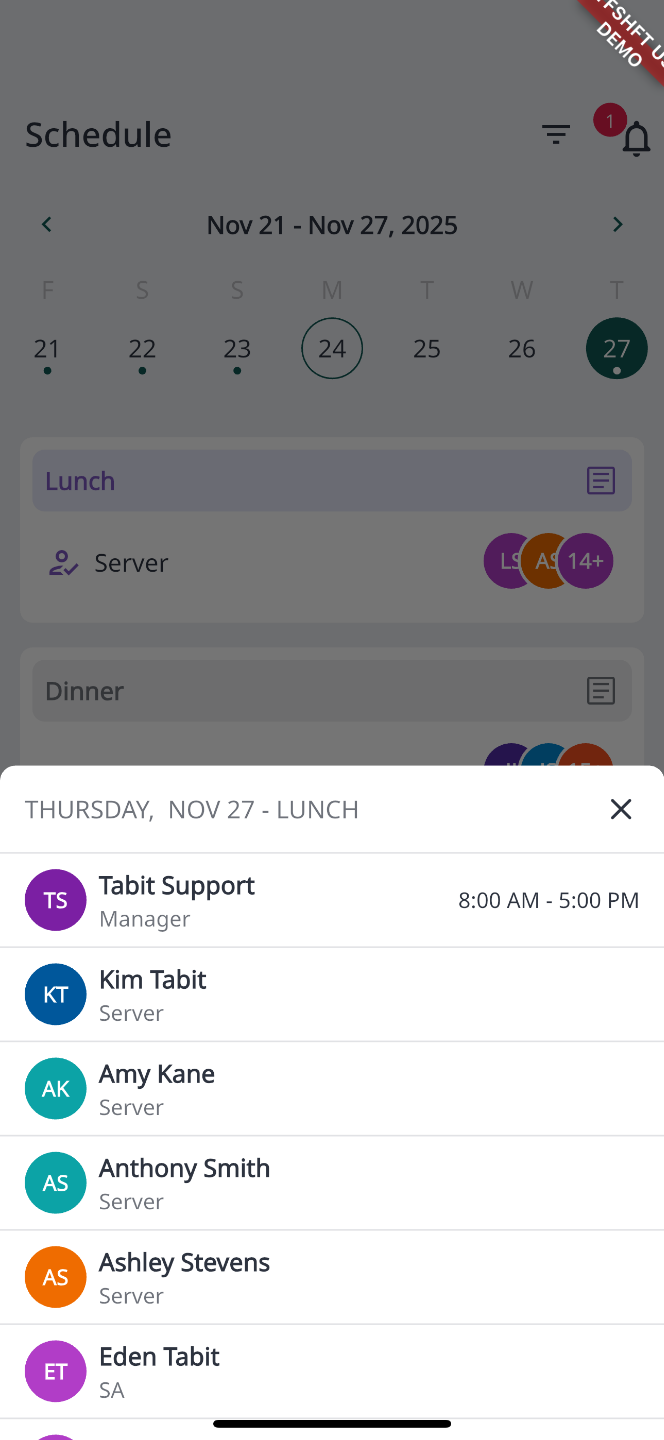
Tapping on the shift will pull up a list of all employees working that shift
On desktop
-
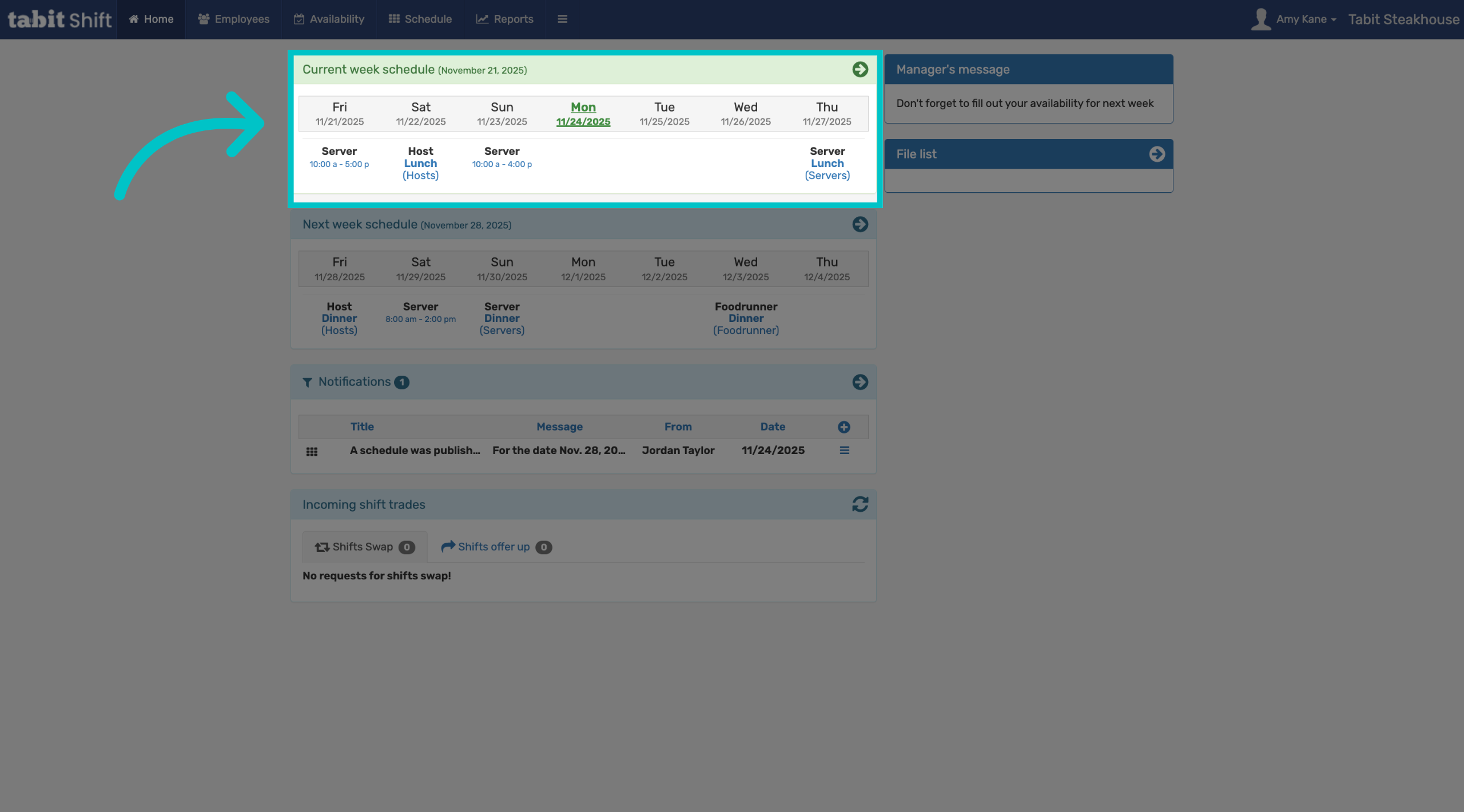
After signing into Tabit Shift, you’ll see your schedule for the current week
-
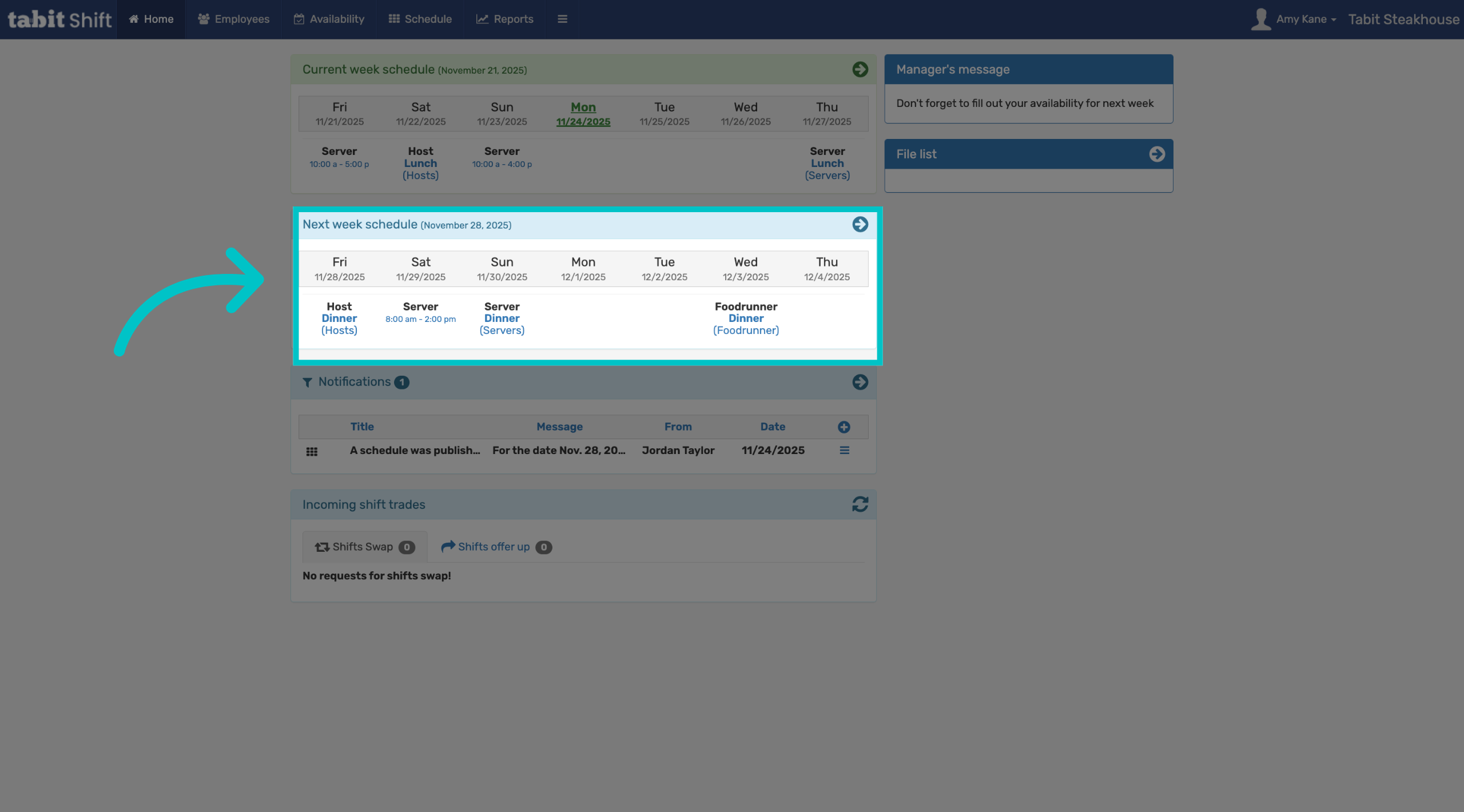
And below it, your schedule for next week
-
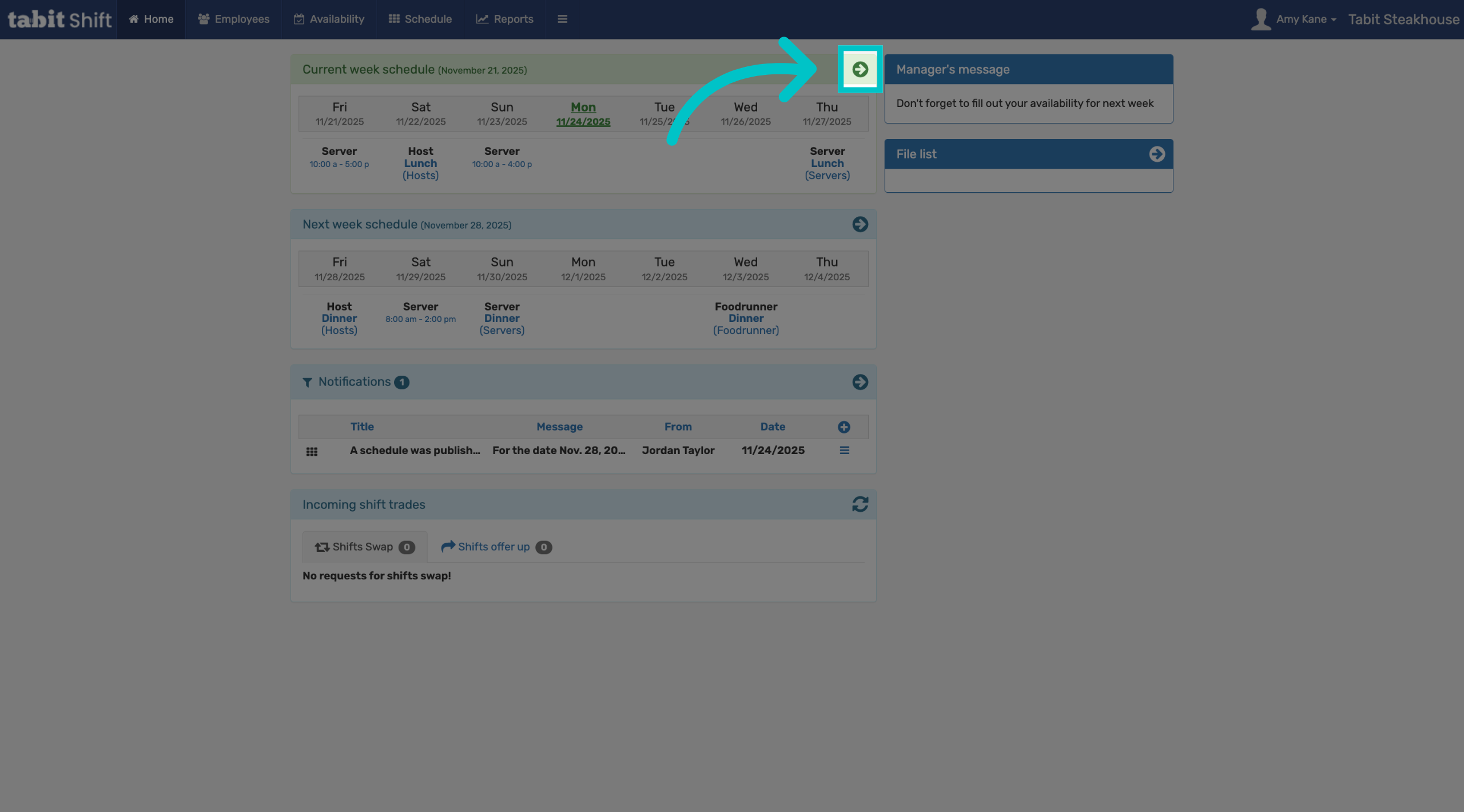
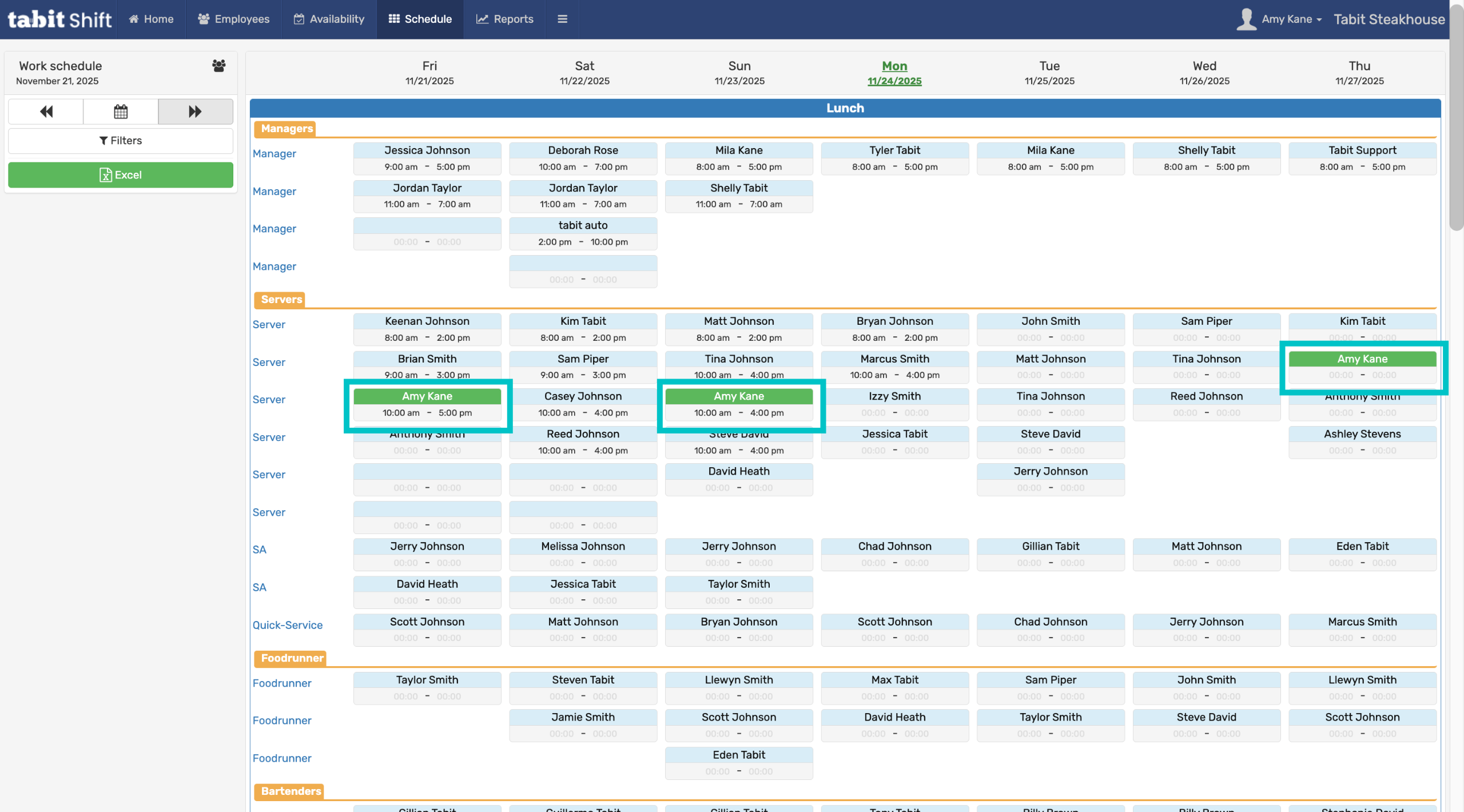
Select the arrow to the right of the current week’s schedule to view the full restaurant schedule
-
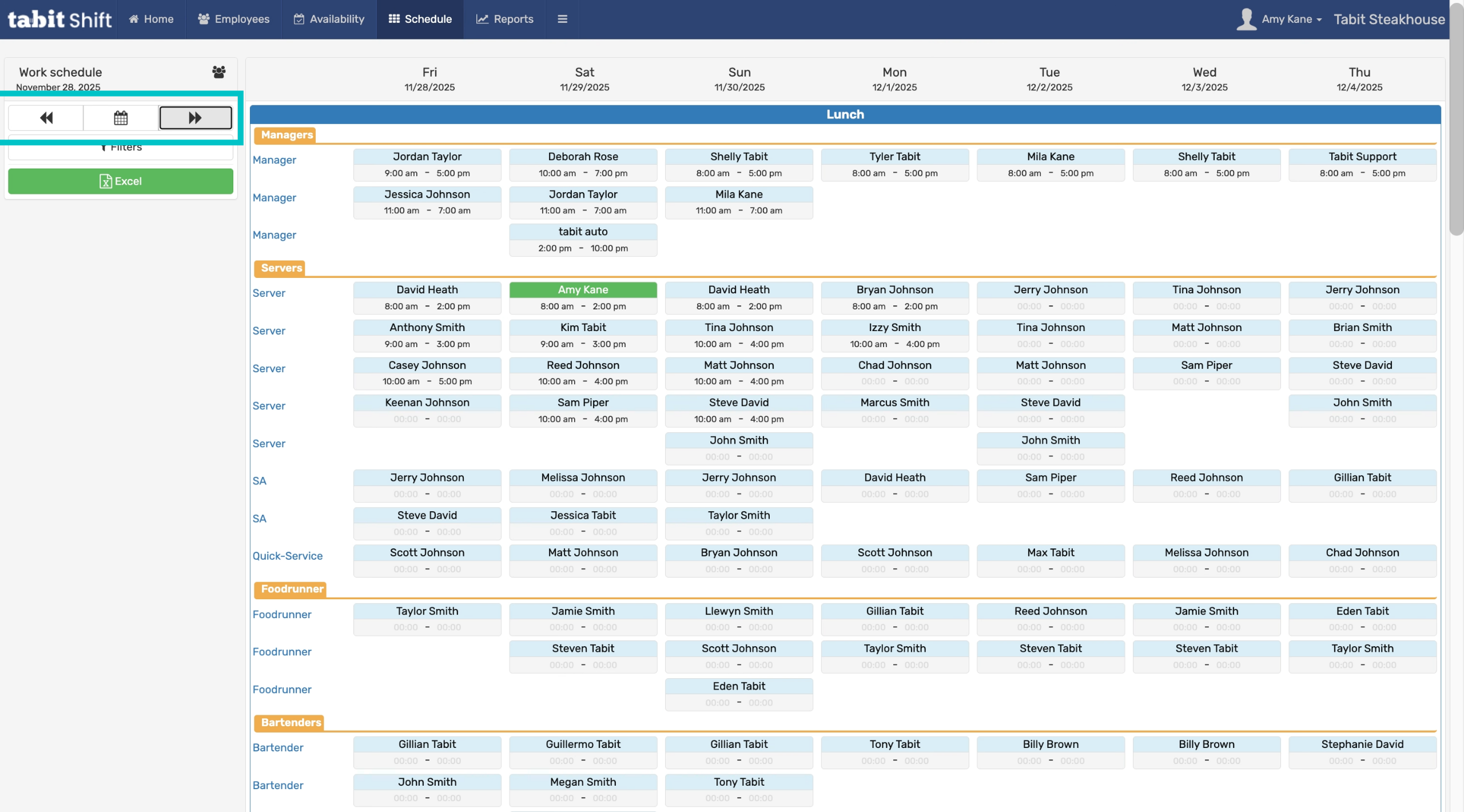
Here, any shifts you've been assigned will be highlighted in green, and you can see the full restaurant schedule for the week
-
Use the arrows at the top left of the screen to toggle to future or previous weeks