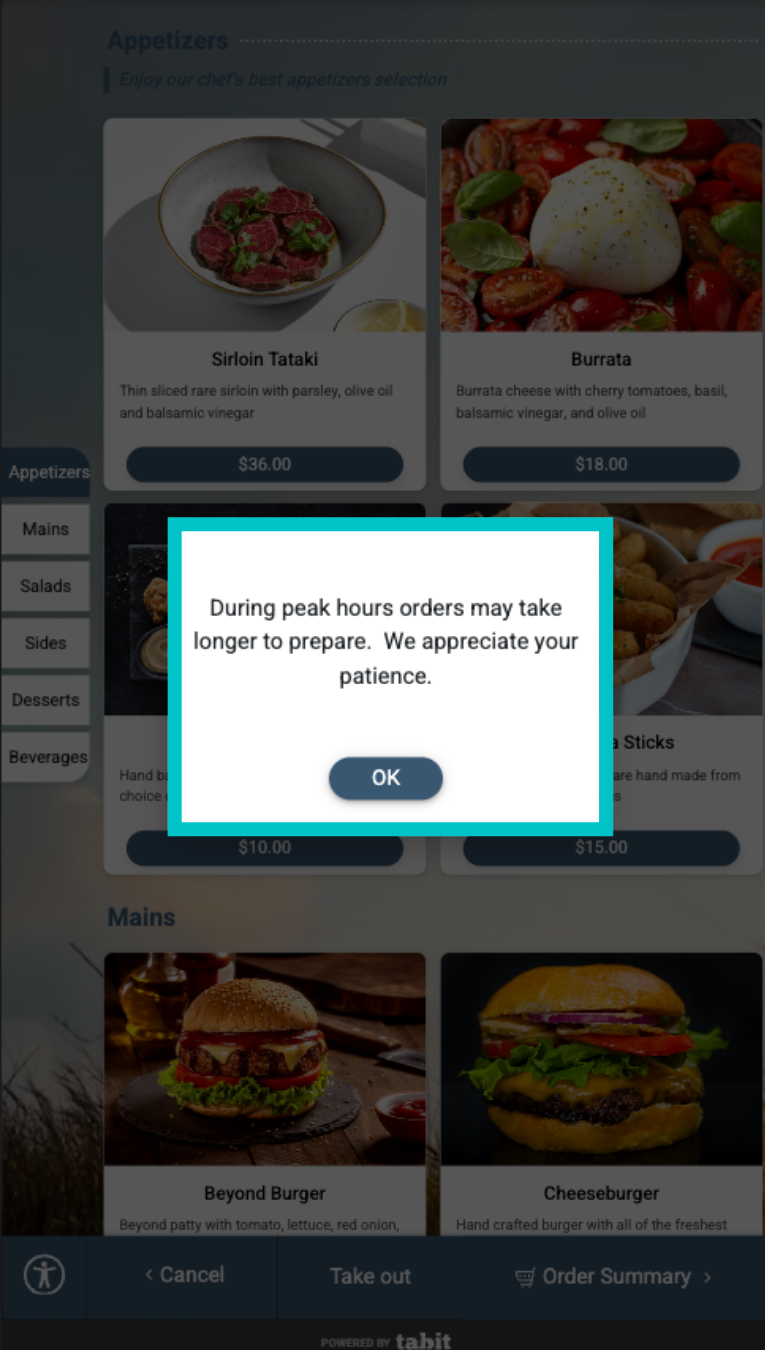
Adding customer-facing messages to Tabit Kiosk's order flow allows you to display important updates or helpful information directly on the kiosk screen. You can define when and where each message appears, ensuring customers get the right information at the right moment during their order.
Follow the steps below to add a message to Tabit Kiosk:
-
In Tabit Office, go to Kiosk > Kiosk Setup > Messages, and select Add Message
-
Now, enter the required information:
TimingDetermines when the message will be displayed in the order process
On menu enter: On the menu page, after selecting Takeaway or Eat In
-
On customer details: After selecting continue, on the order details screen
On payment method select: entering customer details, and before payment, entering customer details and before payment
StatusDetermines if the message is currently Active or Disabled
Message ScopeDetermines which type of order the message will appear in
- All types
- Takeaway
- Eat In
Message TypeAs opposed to Tabit Order, in Tabit Kiosk, all messages are formatted the same and appear in the middle of the screen
 Scheduling
Refers to a specific day and time, depending on time slot settings. For more information, visit our Tabit Kiosk time slot article
Delivery regionsUnavailable
Display TypeDisplay Type:
-
Text: when selected, add the desired message
-
Image: when selected, add the desired image
-
Once you finish, select Save
-
Now, confirm the information, and select Save on the right to update the messages in Tabit Kiosk