Pulling a detailed tips report in Tabit Office is quick and flexible, giving you full visibility into staff tips and distribution. Whether you want to view the report directly in your browser or export it to Excel for deeper analysis, Tabit Shift makes it easy to customize how the data appears: by user, date range, or on a single sheet.
-
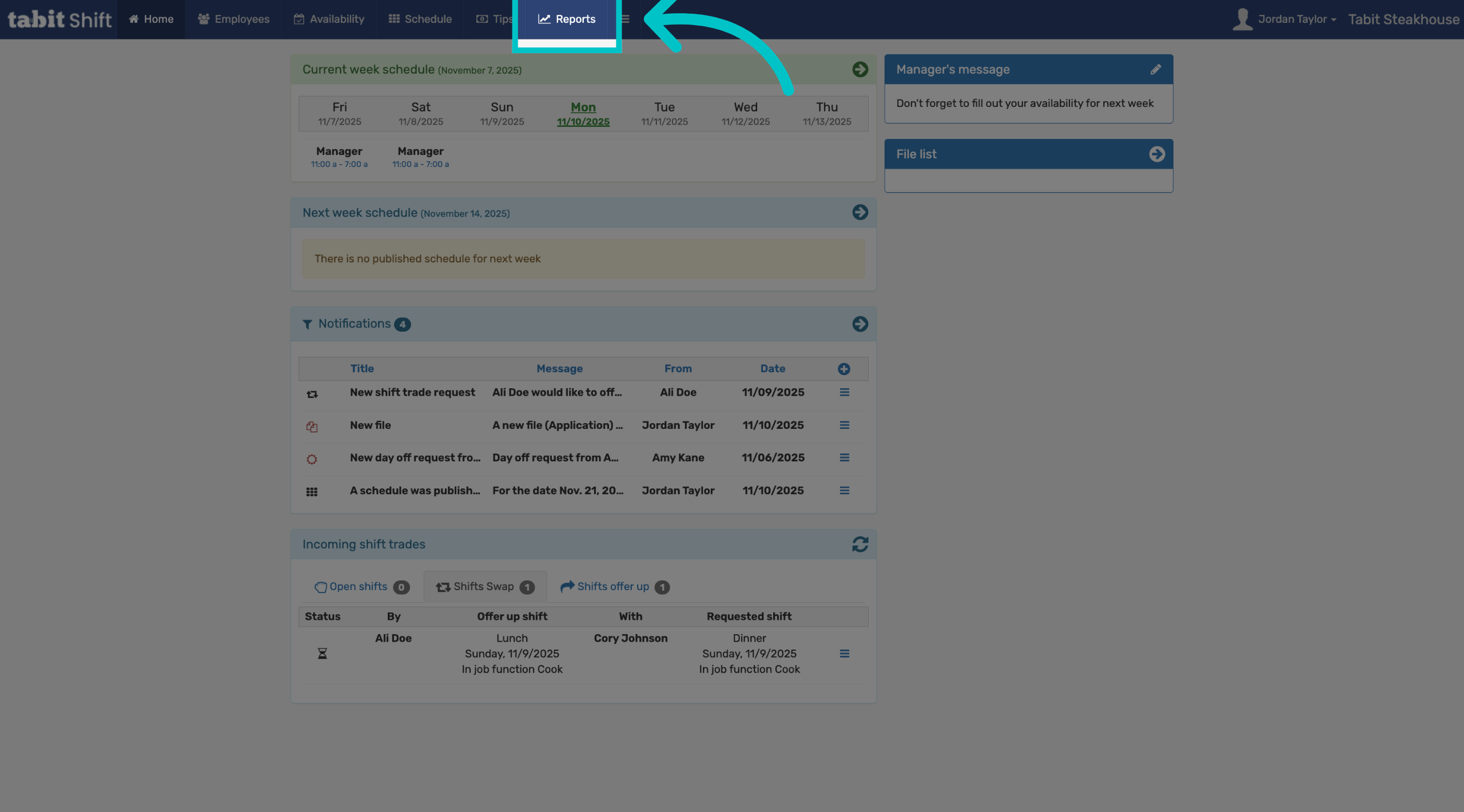
In Tabit Shift, go to Reports
-
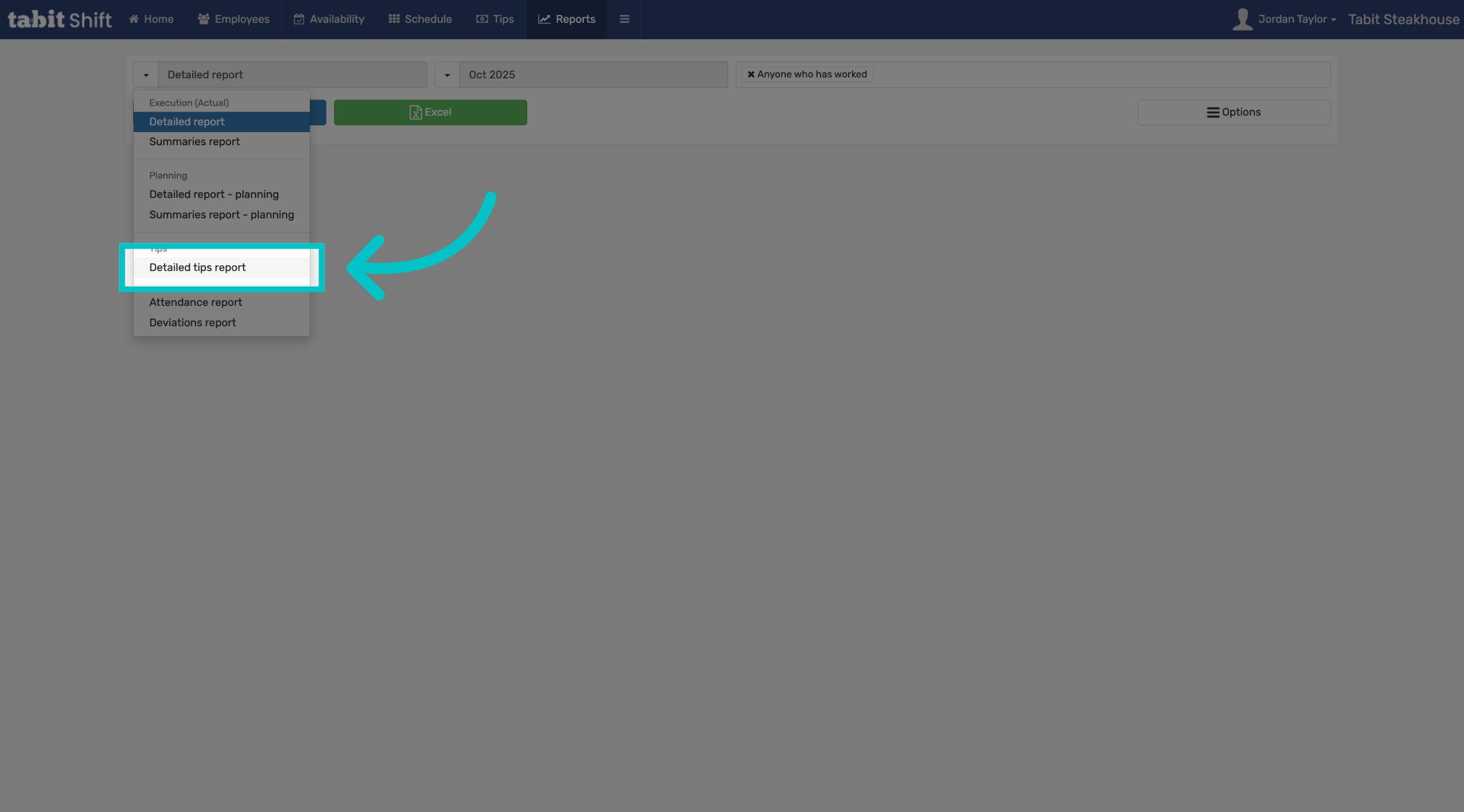
Select Detailed tips report from the dropdown menu
-
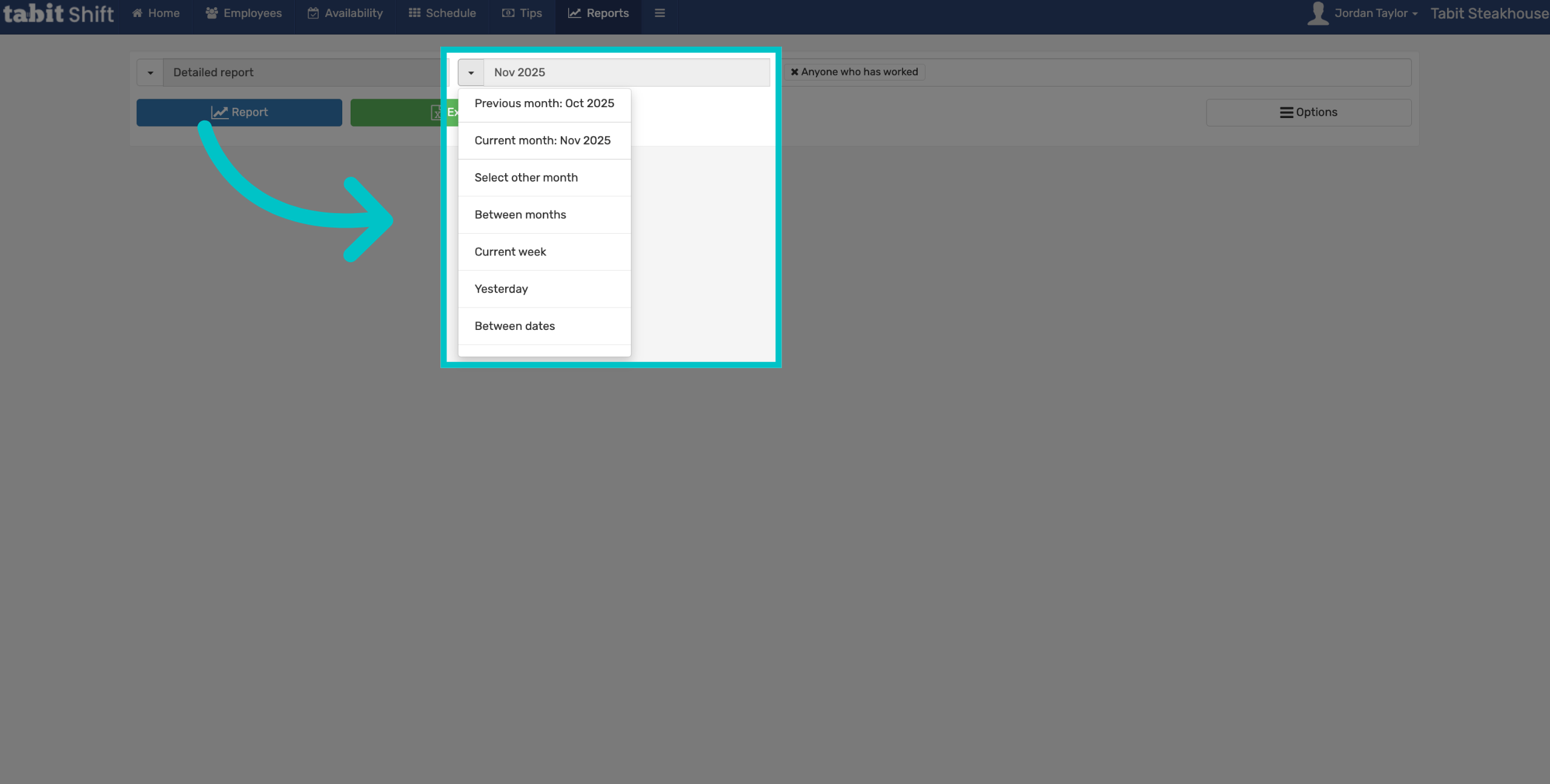
Select the desired date range
-
Then select who you would like to be included in the report. That can be done for all employees, by job function, or individually selected employees
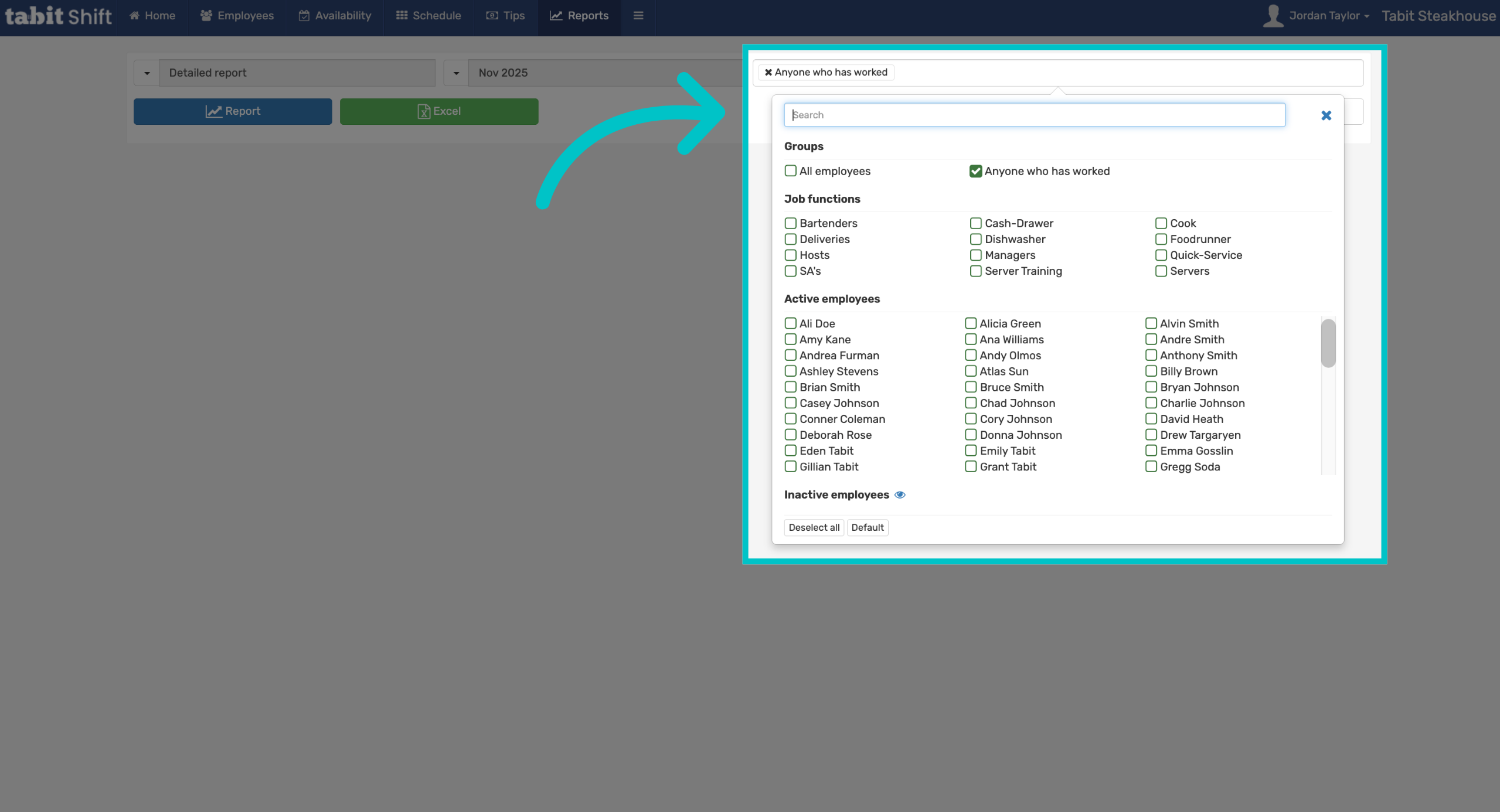
-
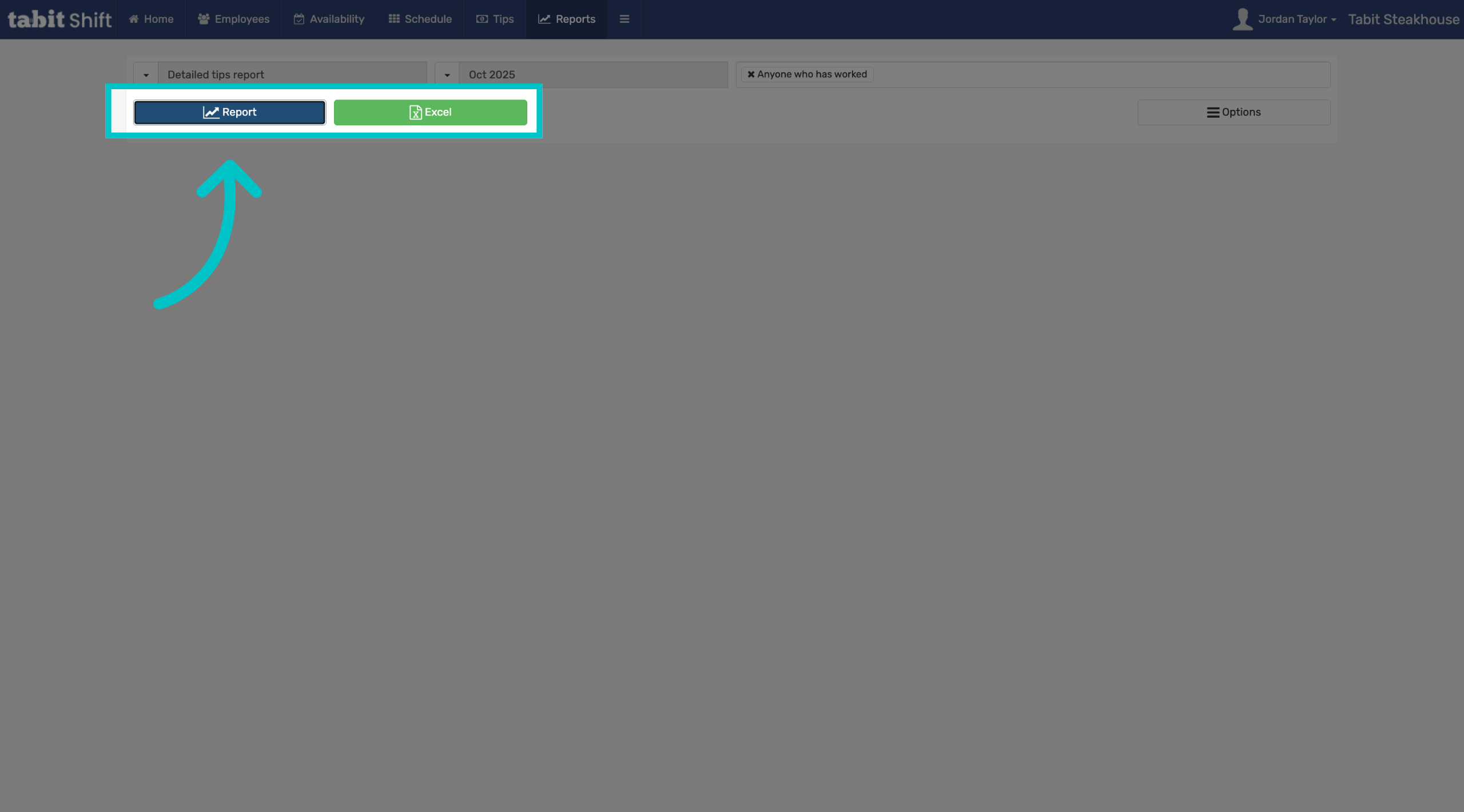
Select either Report to view in Tabit Shift, or Excel to export it
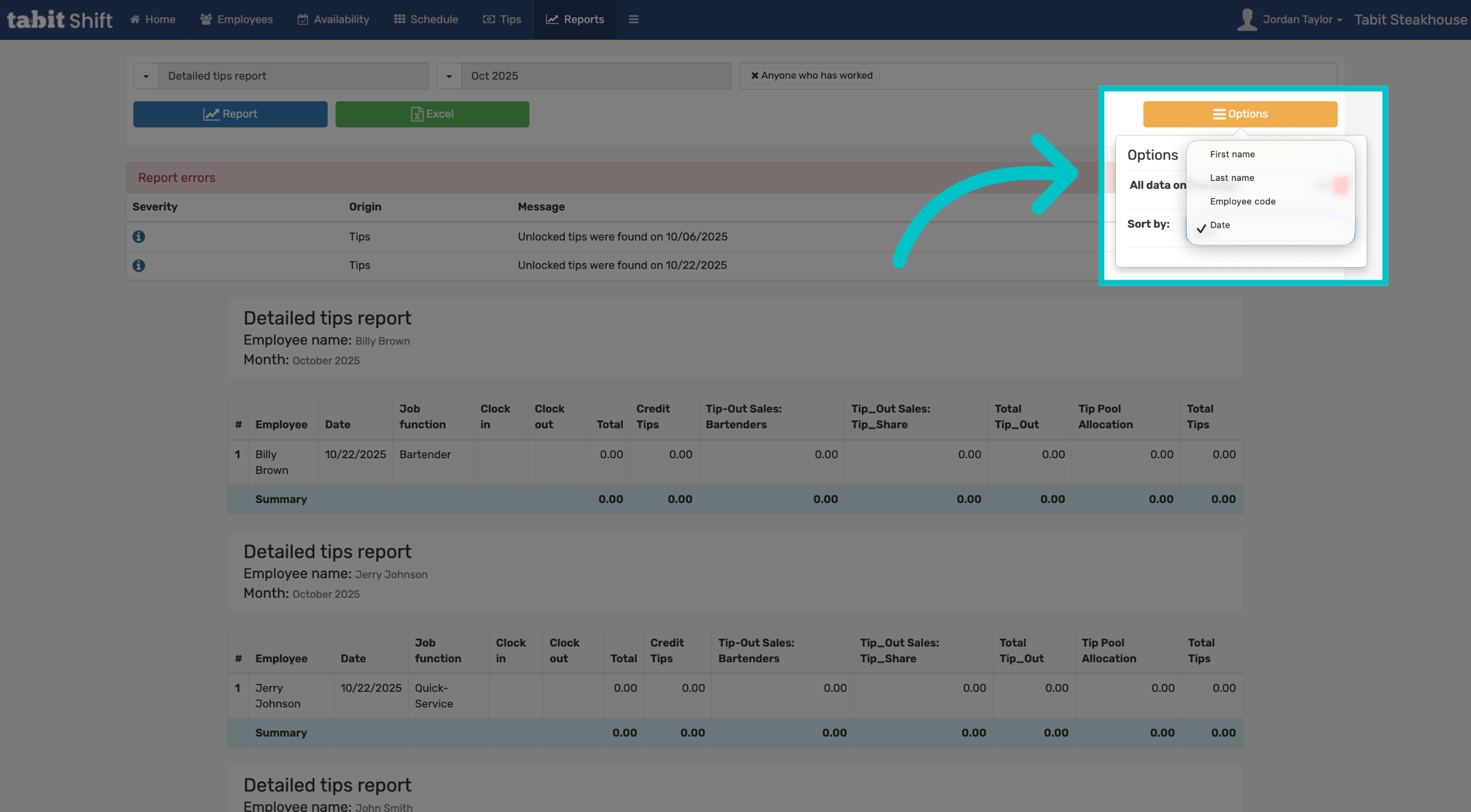
When exporting to an excel, each user will export as their own sheet within the document. If you would like everyone to be on one page, select Options on the righthand side and then select Yes to the right of All data on one page
-
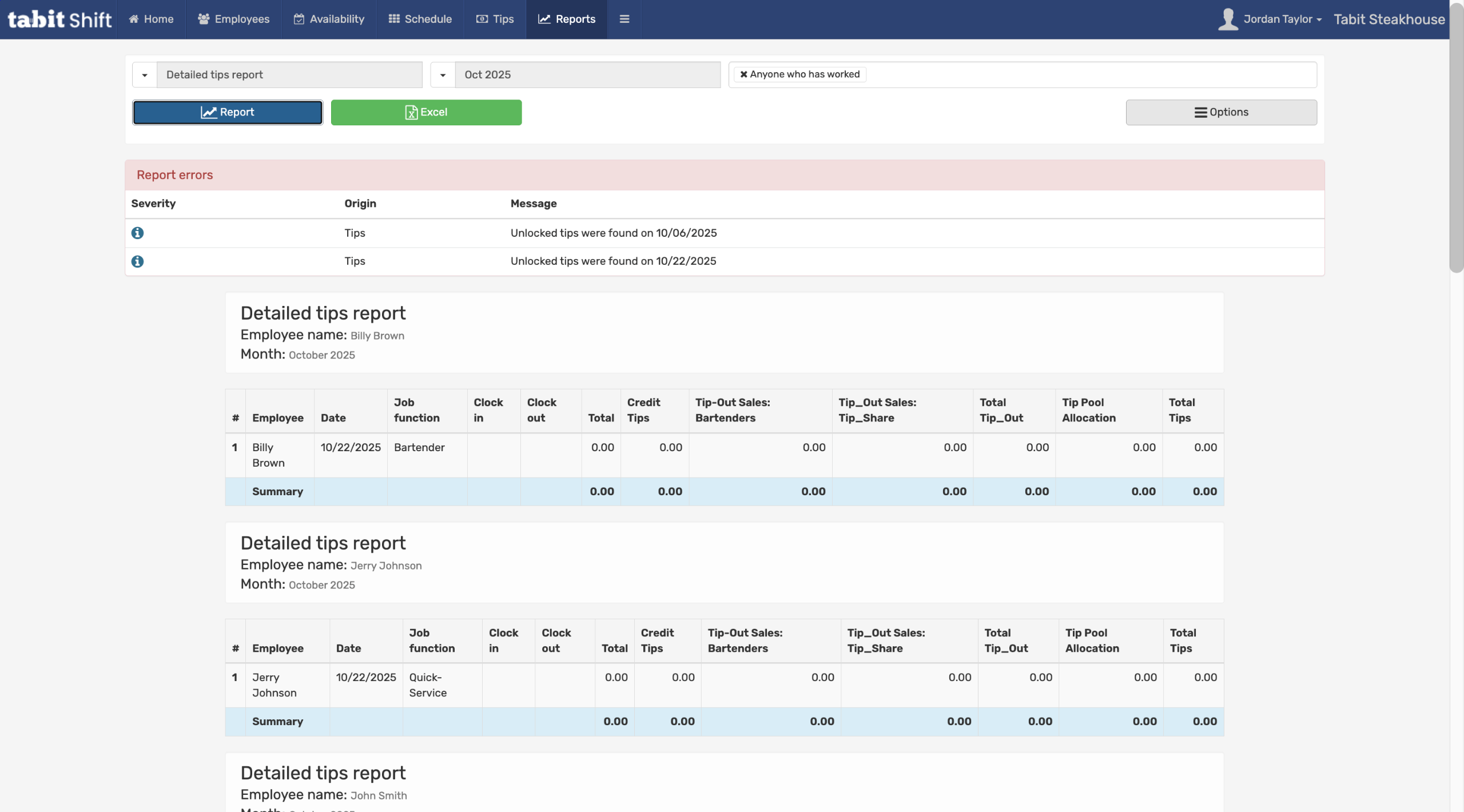
If multiple employees were selected, each will appear as their own table
If there are any issues with tips they will appear at the top of the report
-
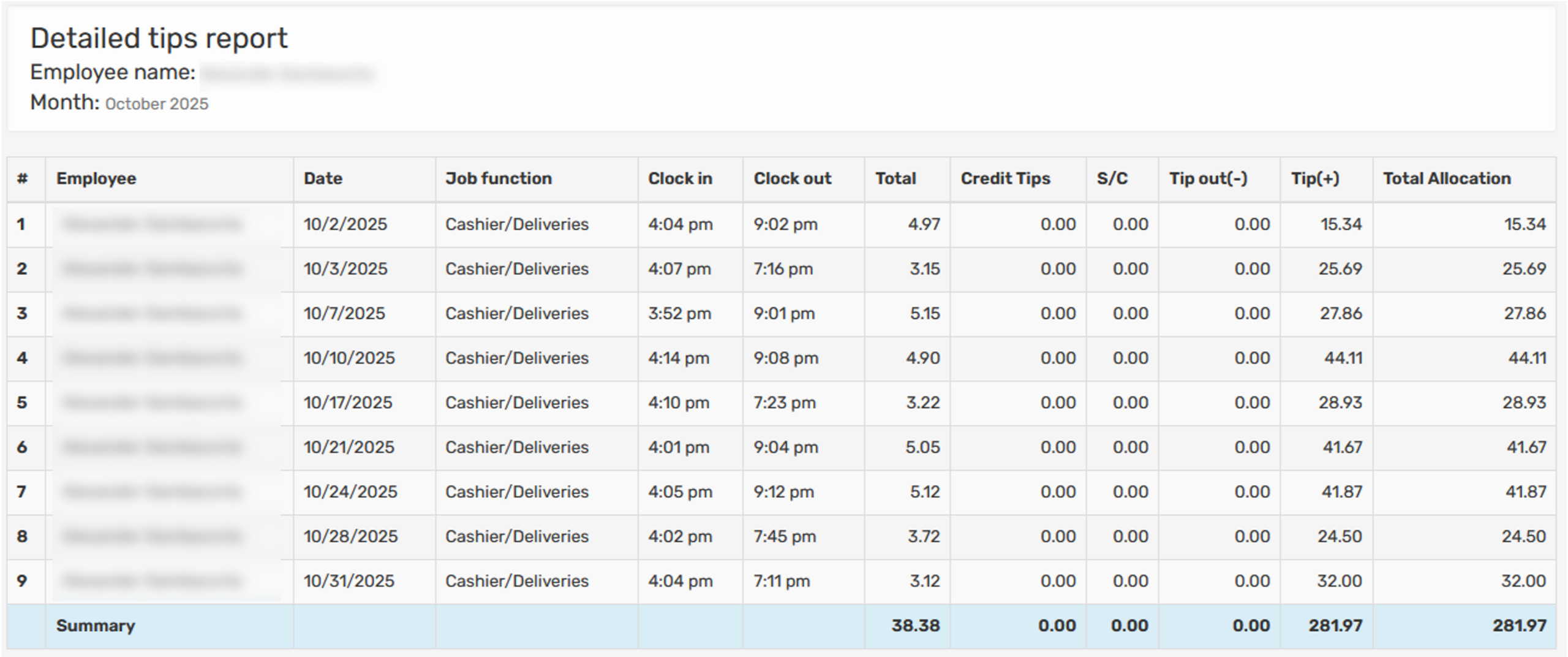
Here is another example of a detailed tips report for one employee
-
You can also change how the report is sorted by selecting Options in the top right and then selecting Sort By