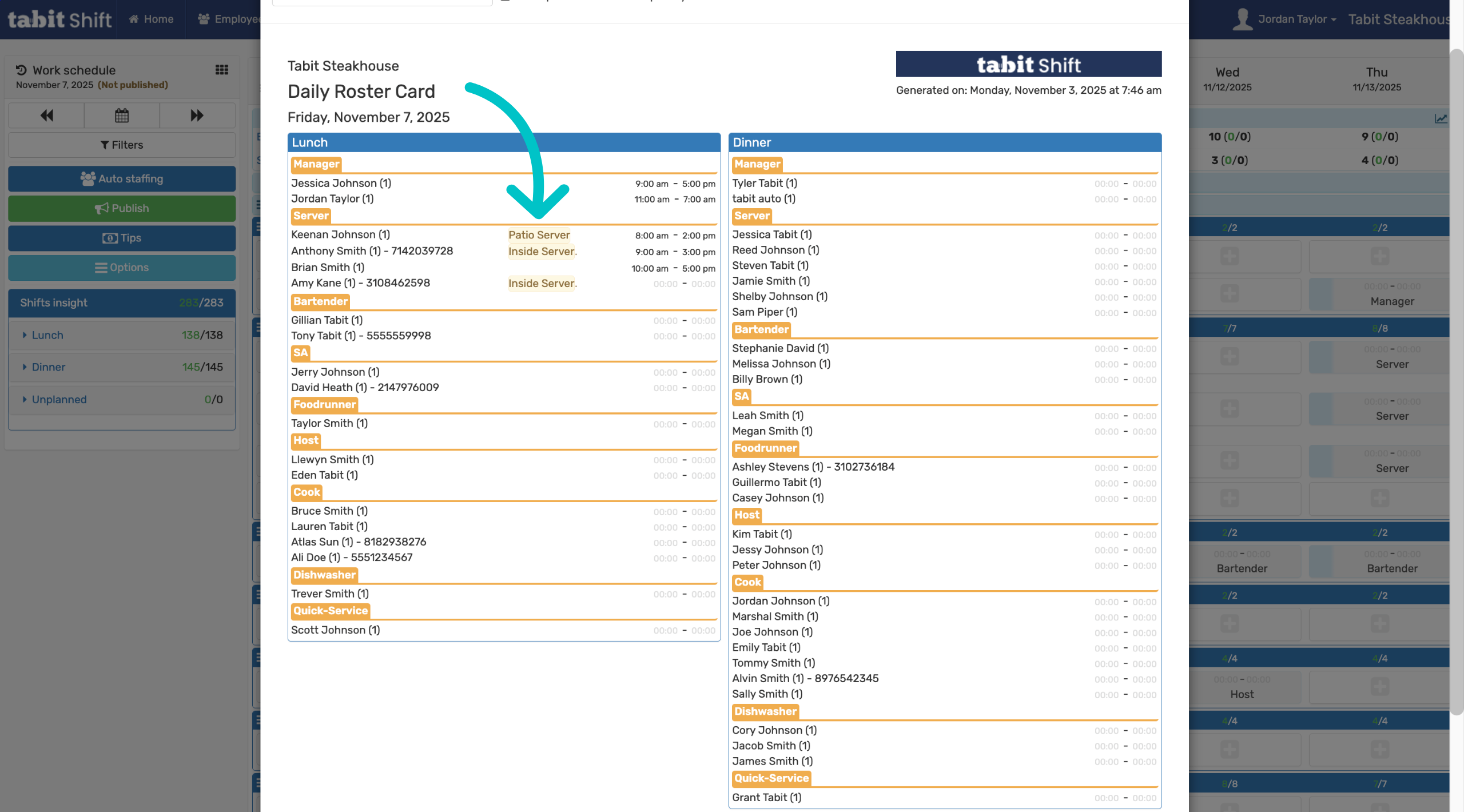
Areas can be used in Tabit Shift to add additional details to an employee's shift, such as what part of the restaurant they're working in, without making edits to job functions. They act as a form of notes and can be applied when scheduling by shift, by employee, and can be viewed on the daily roster card.
Learn how to use Areas below:
Assigning Areas in by shift view
-
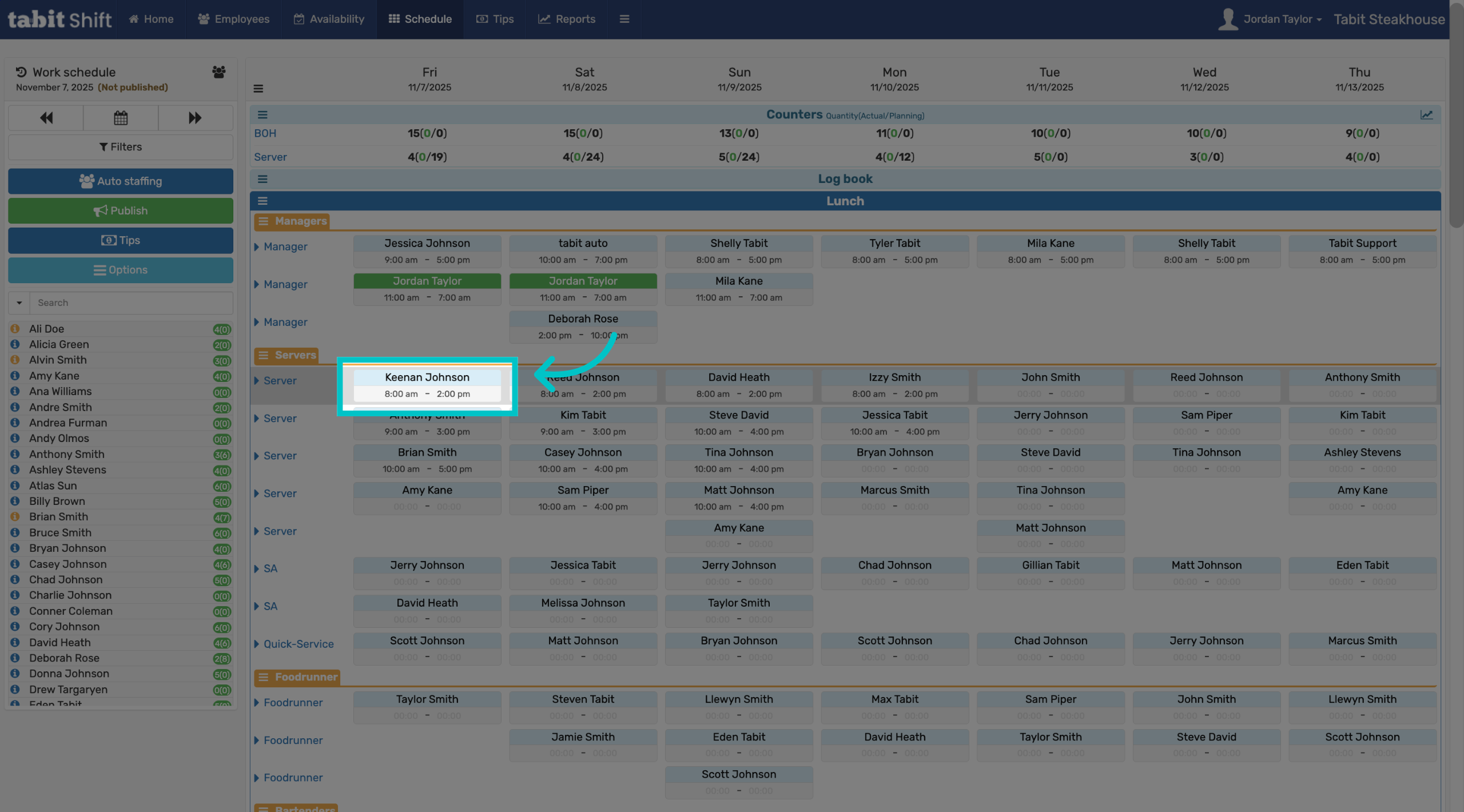
When scheduling the employee in Tabit Shift, select the employee’s name
-
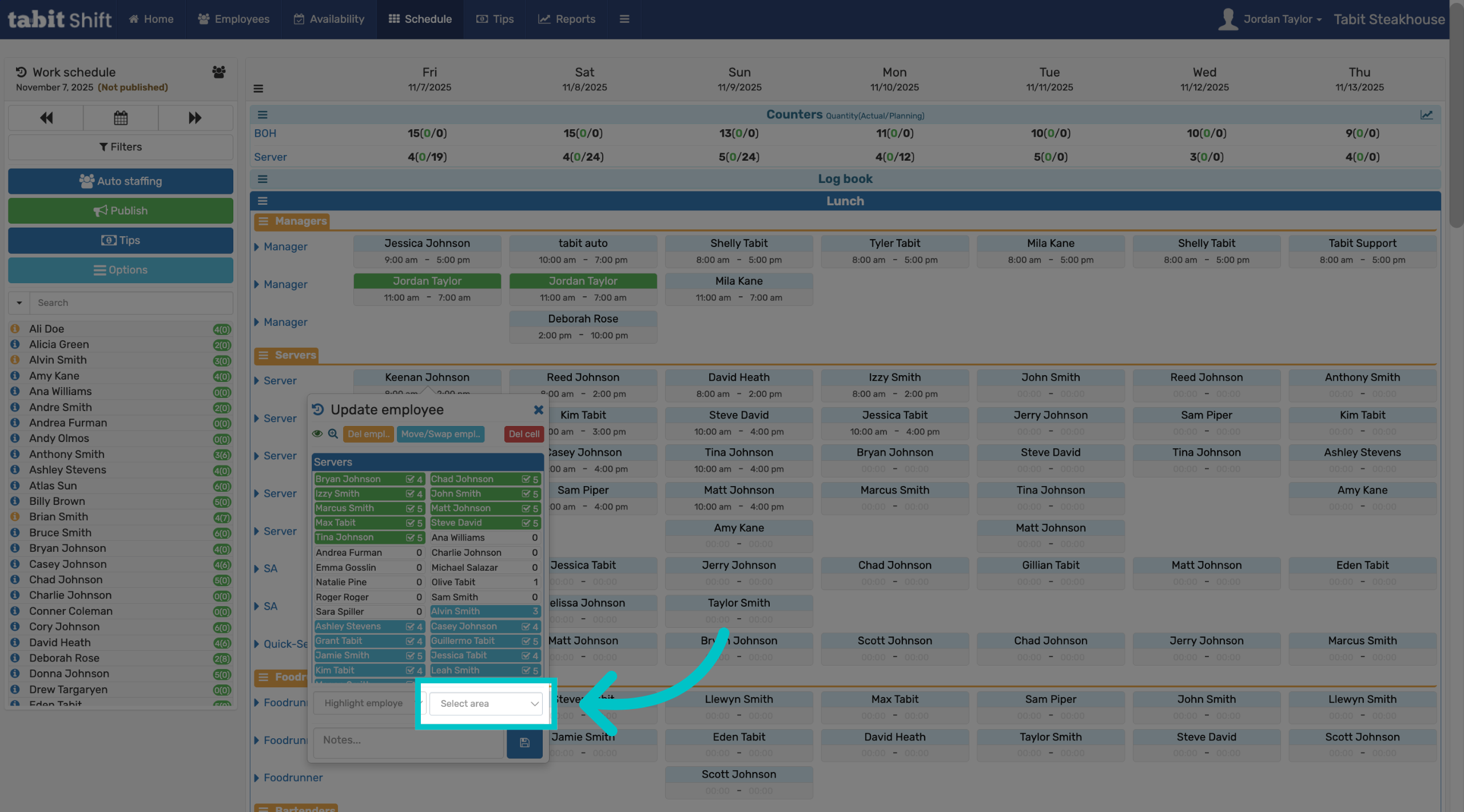
Select Select Area to view the areas set up in your restaurant
-
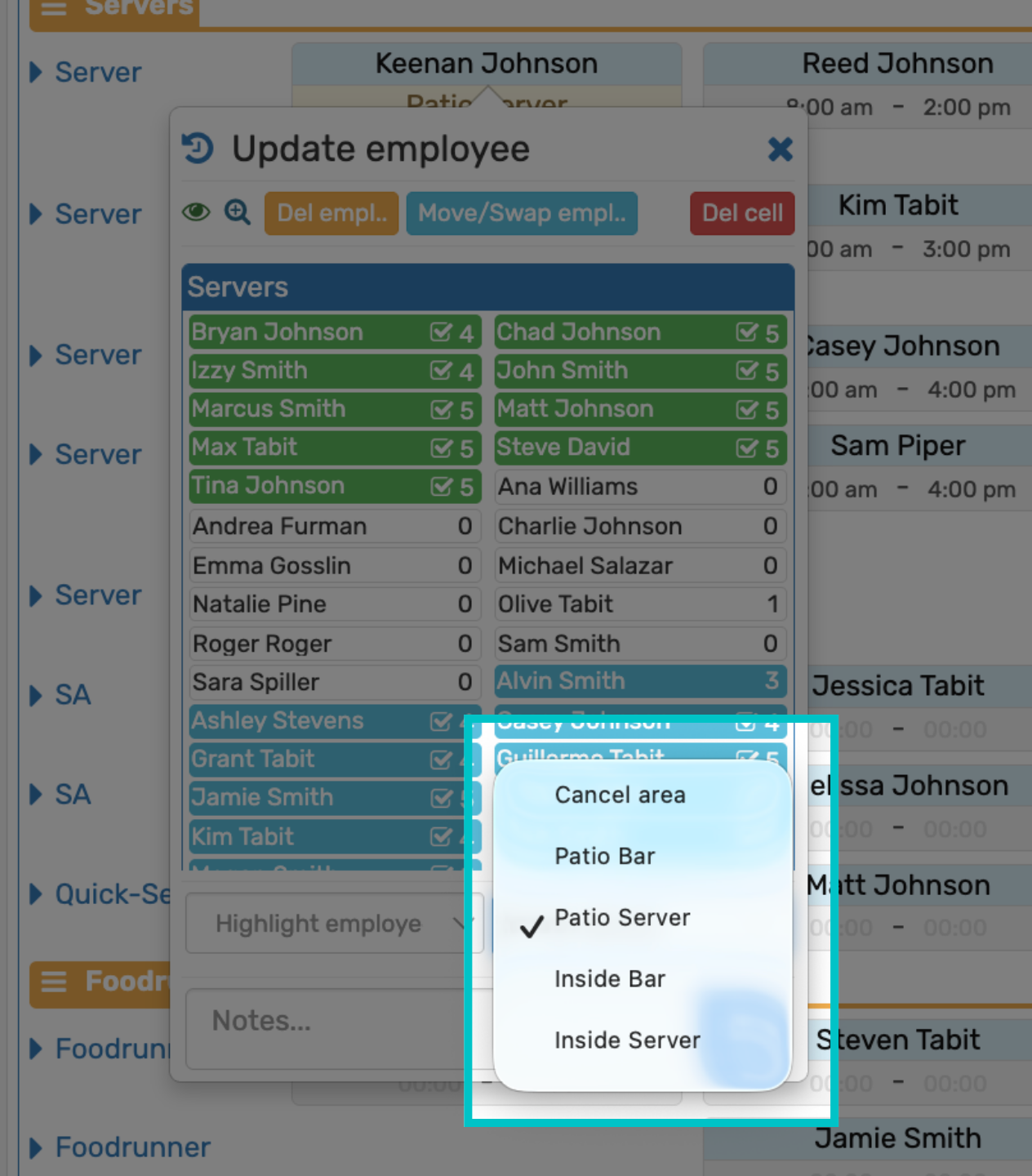
Select the area you would like to apply to the employee
-
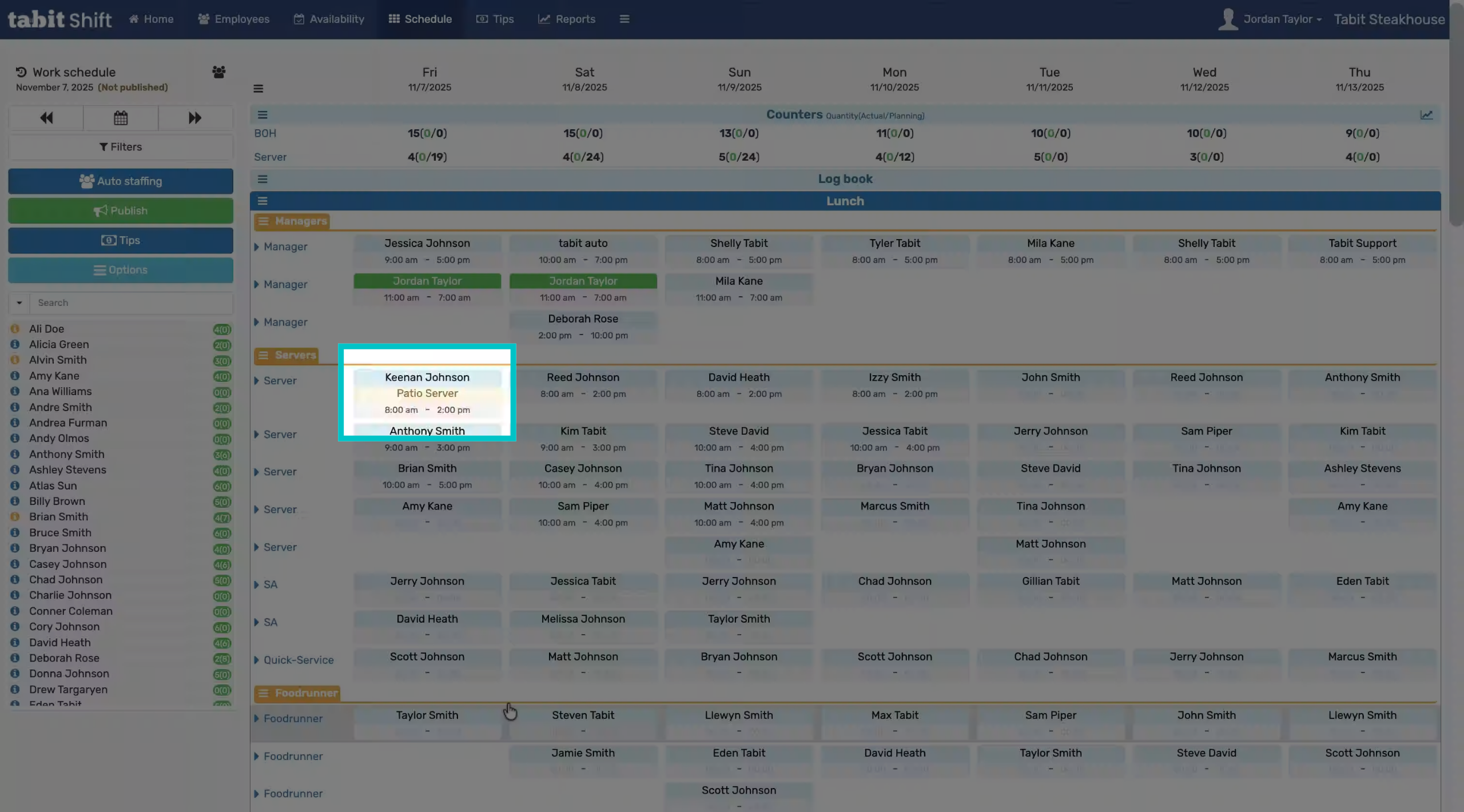
Now the area appears under the employee's name
Assigning Areas in by employee view
-
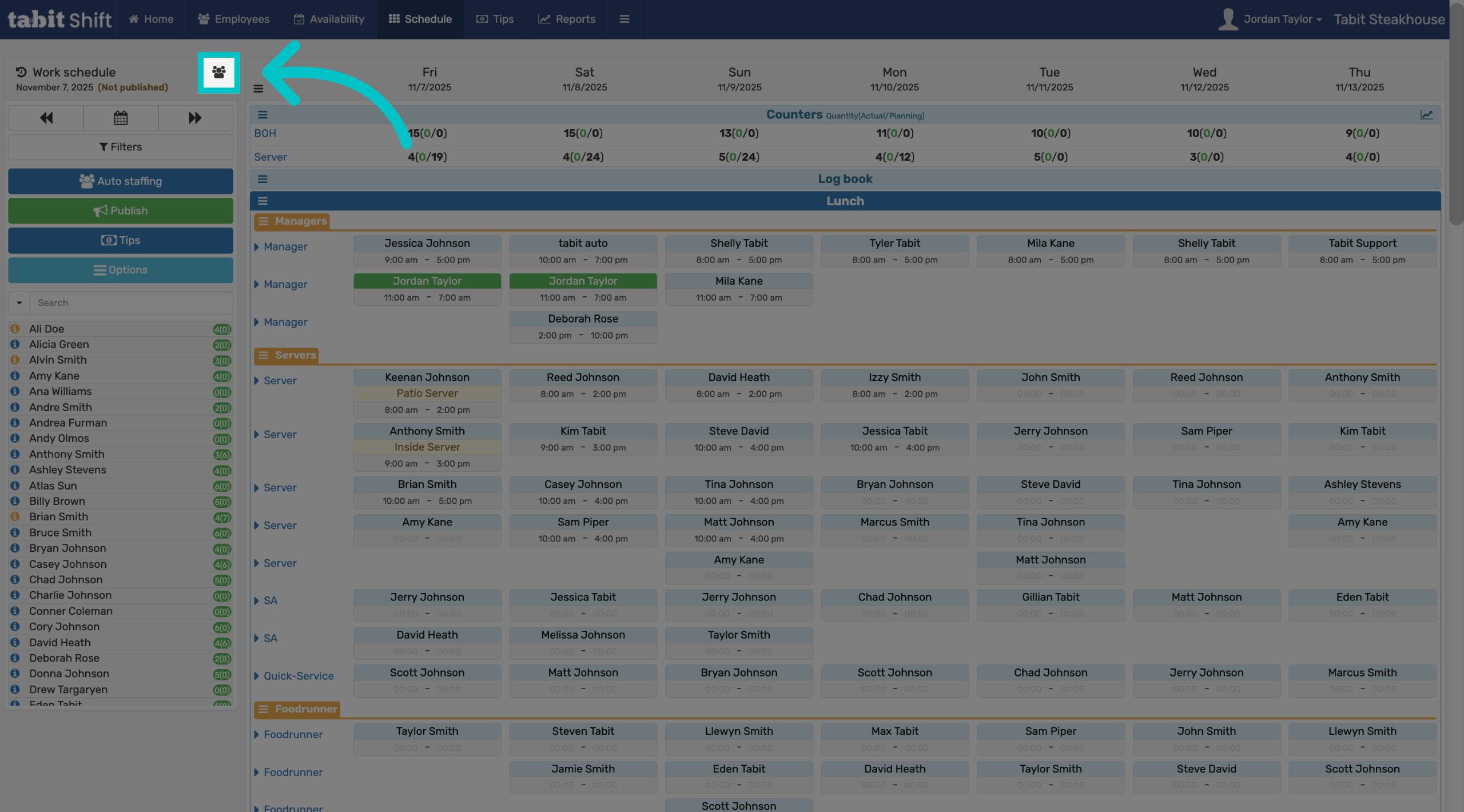
Toggle to By Employee view to assign areas in this mode
-
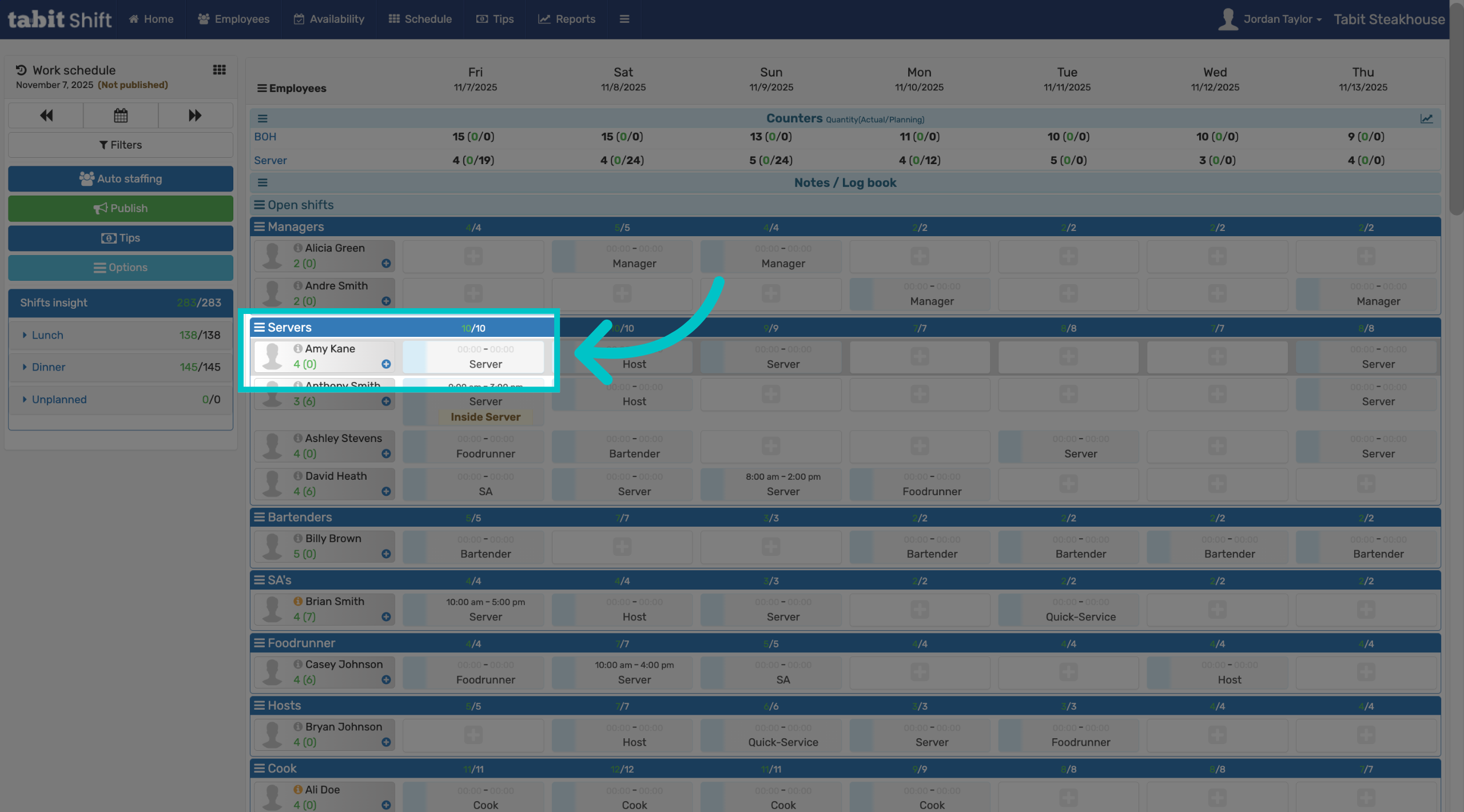
Select the relevant employee
-
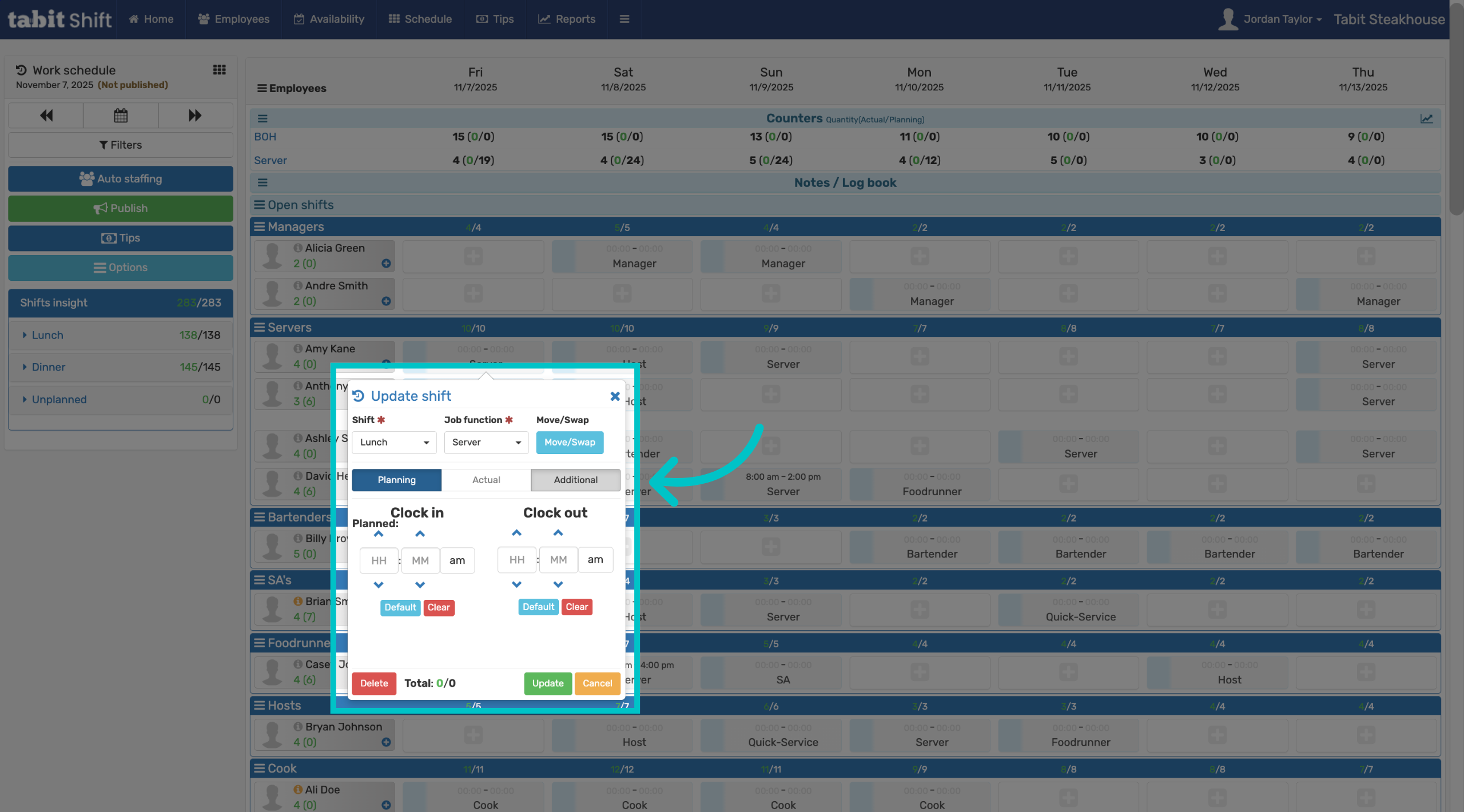
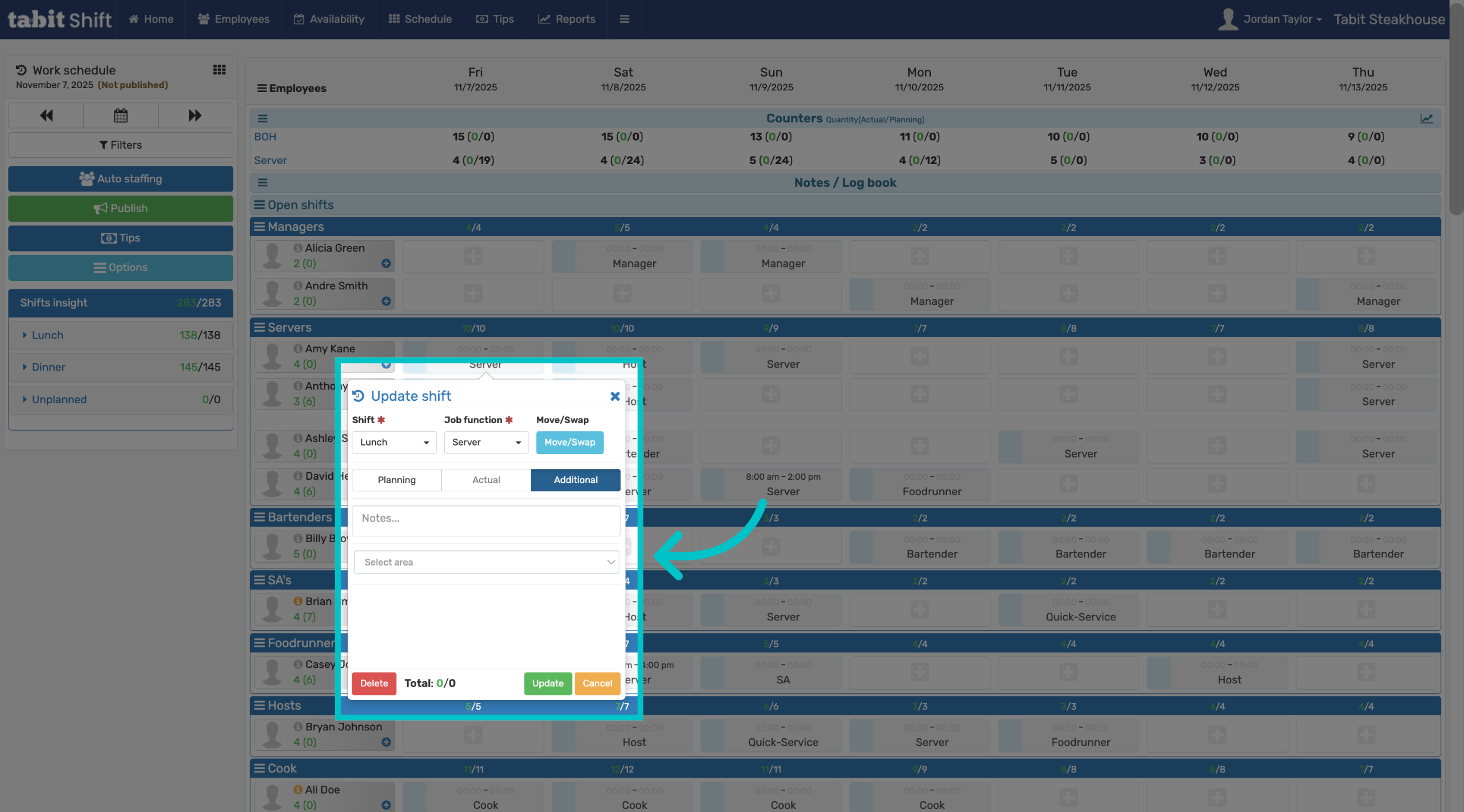
Select Additional to view more options
-
Select the relevant area and then select Update
-
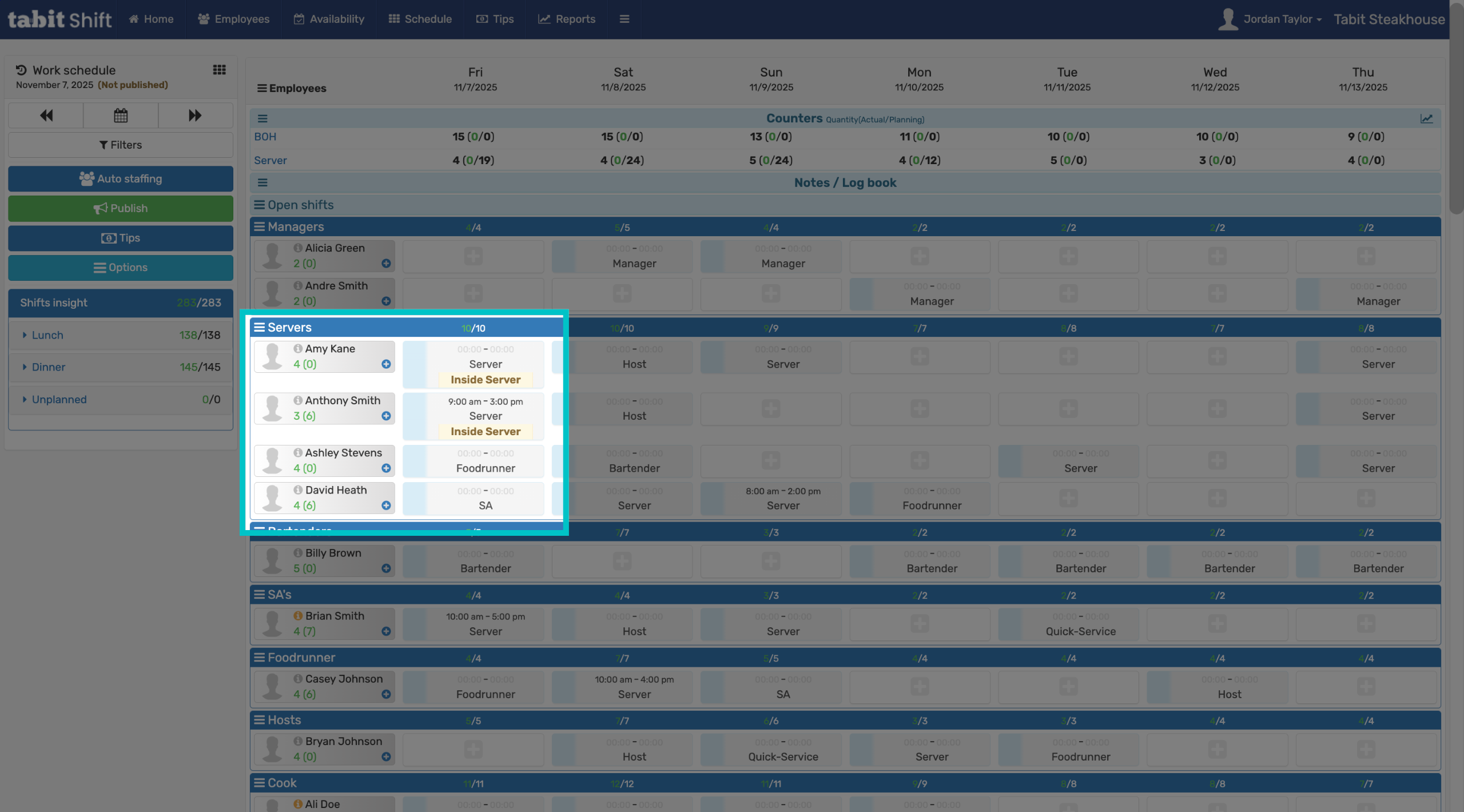
View the assigned area next to the employee for their shift
Areas on the Daily Roster Card
-
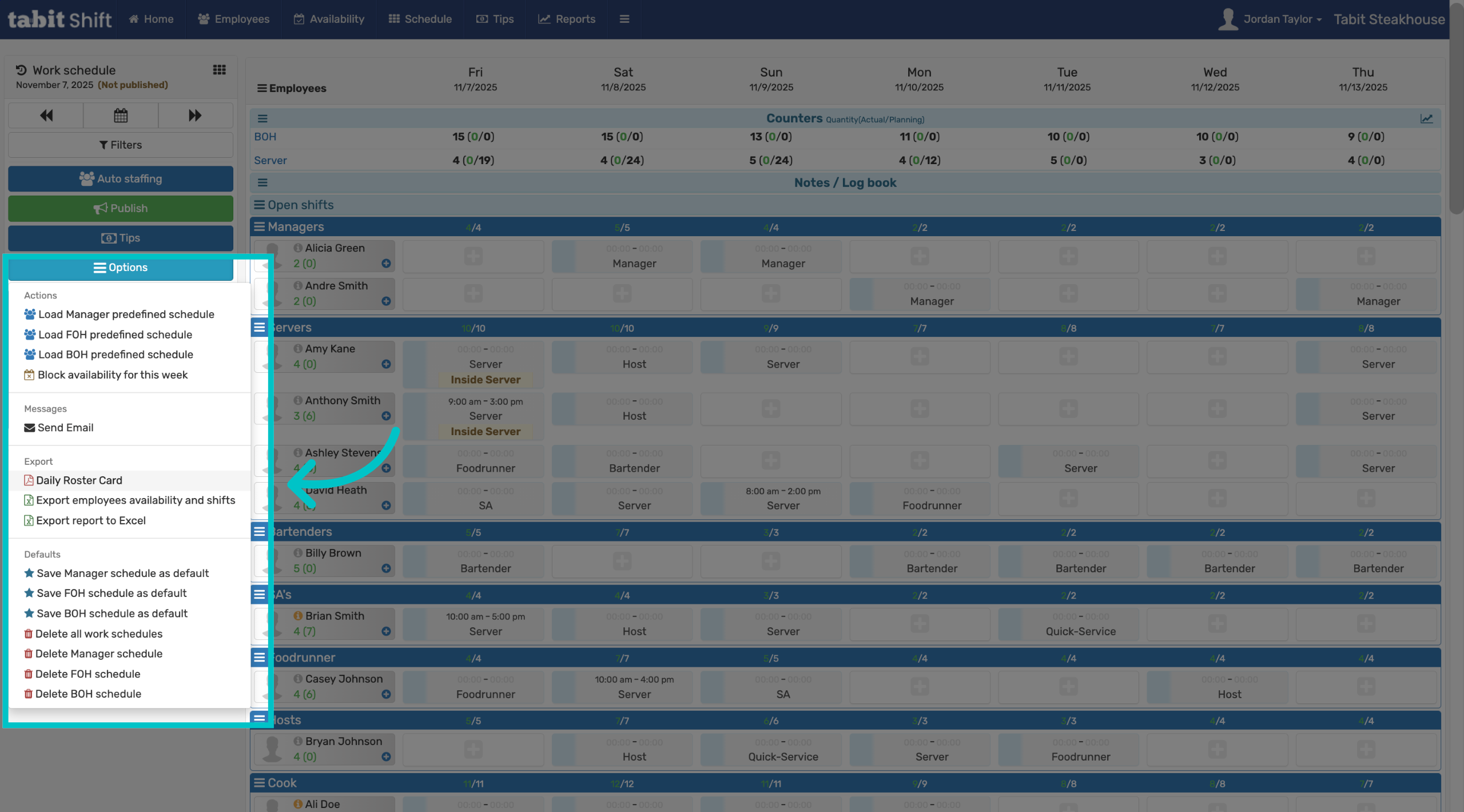
Select Options then Daily Roster Card to view assigned areas on the roster
-
Areas will be displayed next to each employee on the Daily Roster Card