Time slots offer a helpful way to customize your scheduling beyond the default options. They allow you to set different work hours for each service and define specific menu display times in Tabit Order.
Follow the steps below to create a time slot:
- In Tabit Office, go to Tabit Order > Site Setup > Time Slots
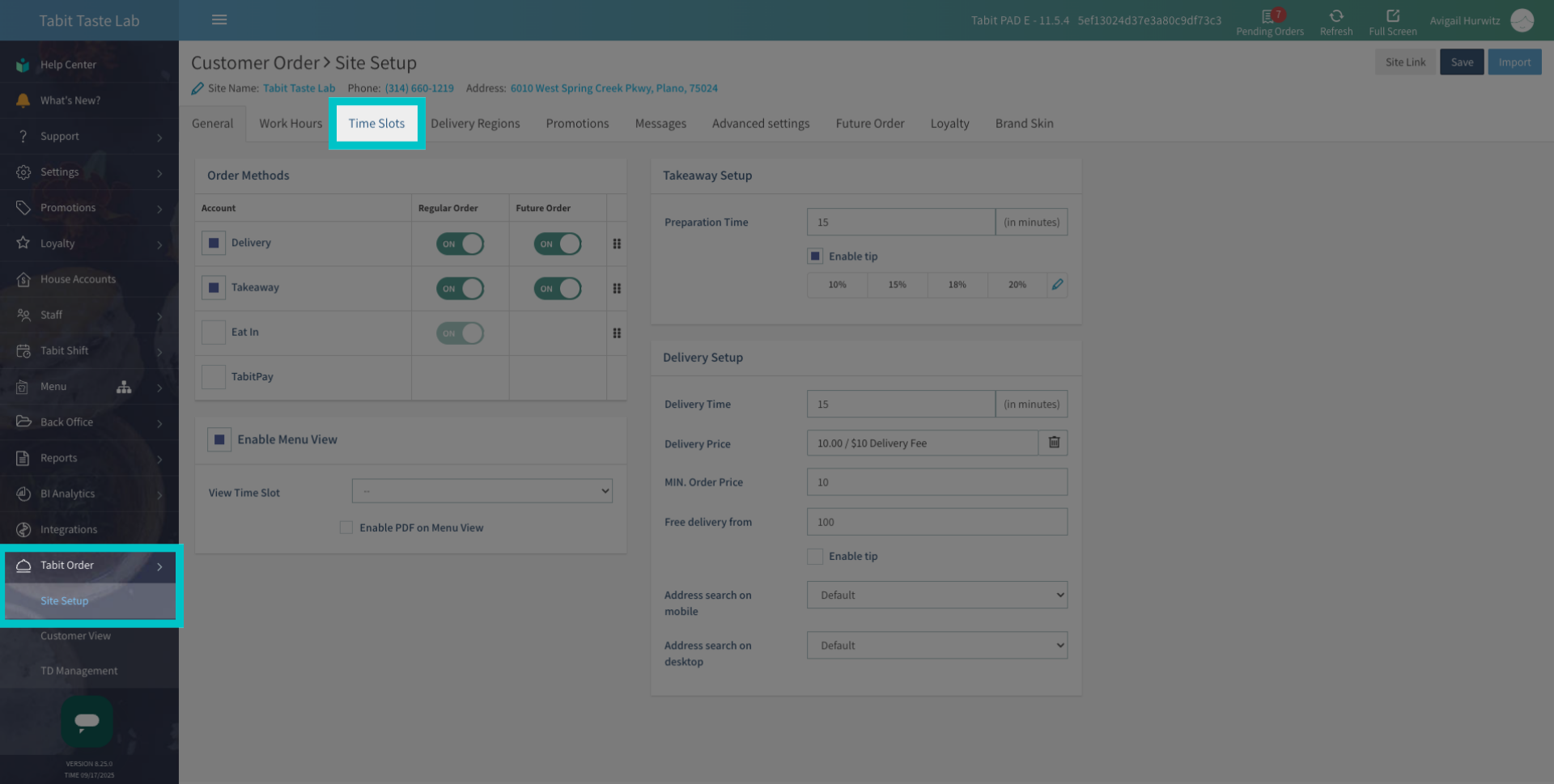
-
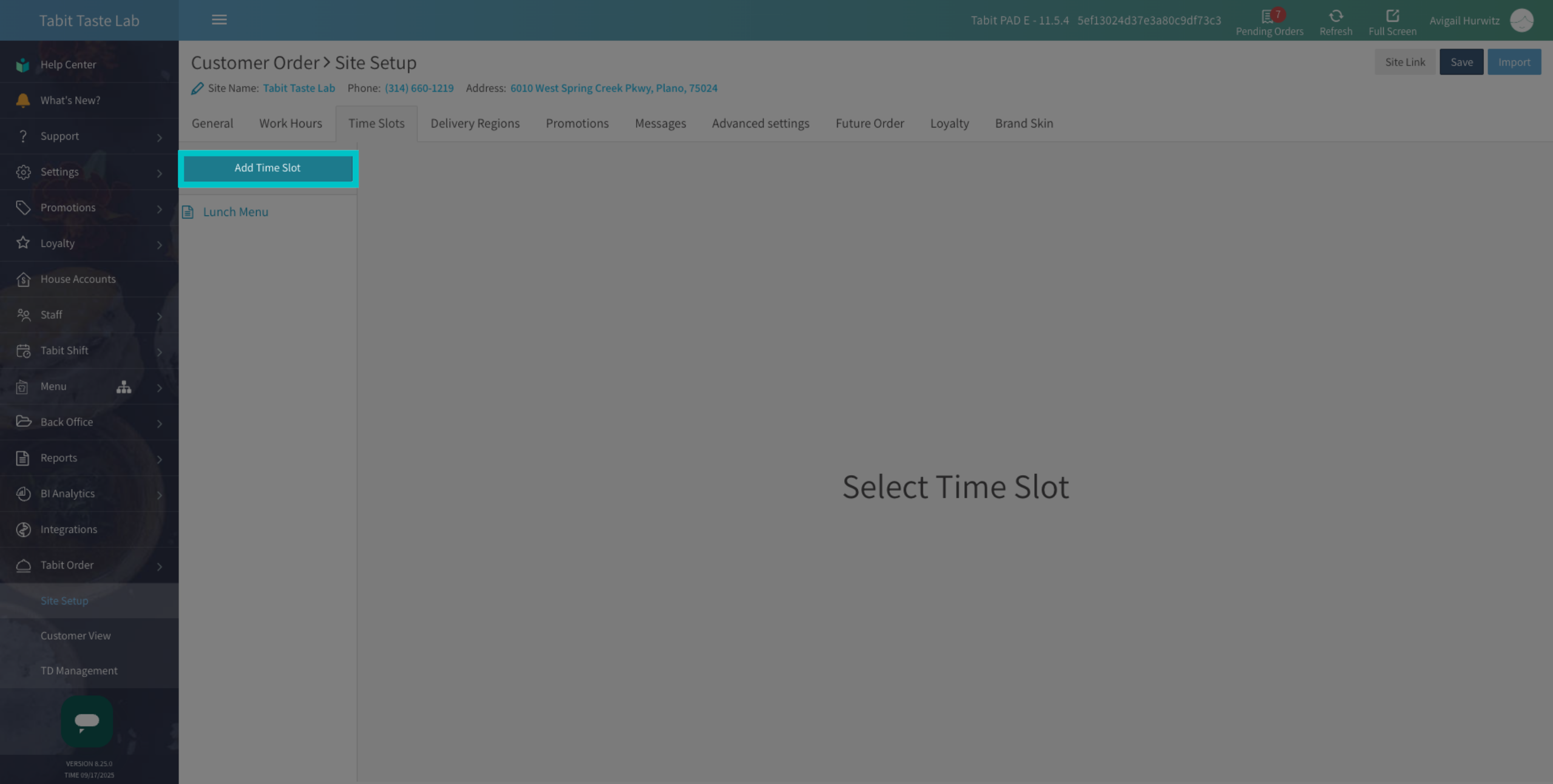
Select Add Time Slot
-
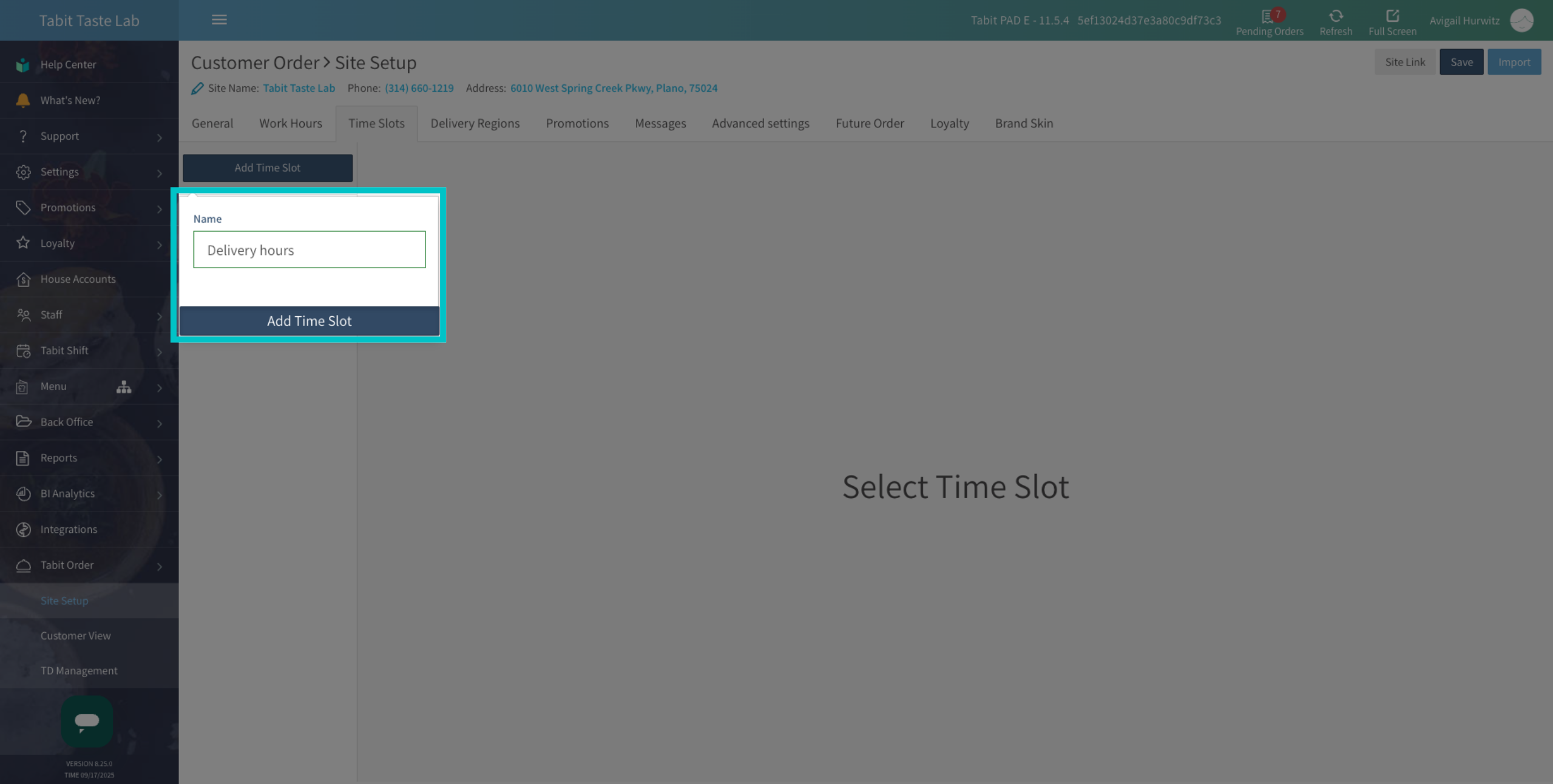
Type in the relevant Name and select Add Time Slot
-
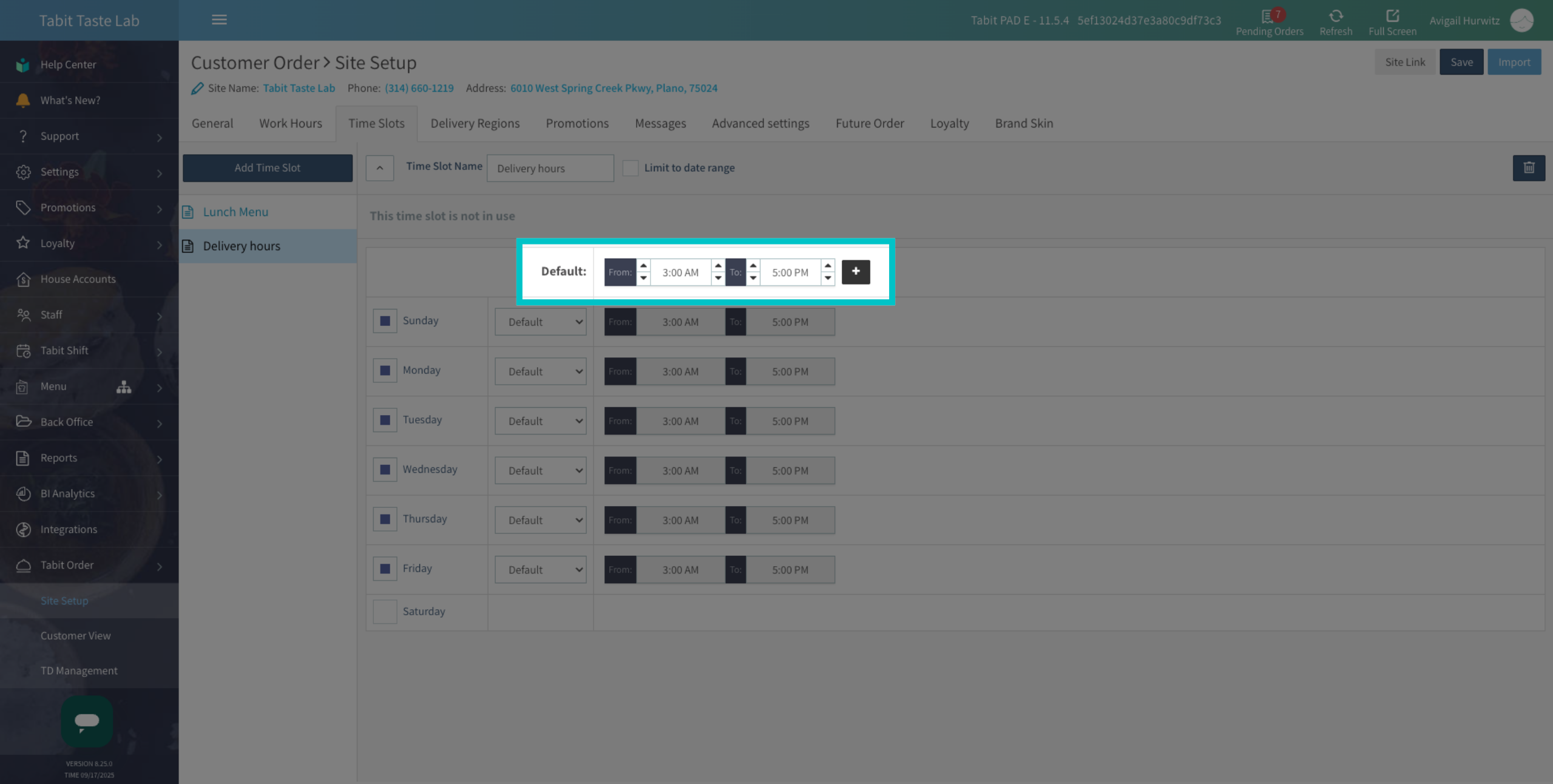
Now, set the default work hours by editing the From and To fields. Use the arrows to adjust the hours and minutes
The Plus (+) icon allows you to set multiple time sets, which is useful if Tabit Order is available only during specific hours or if the restaurant does not operate for a full day
-
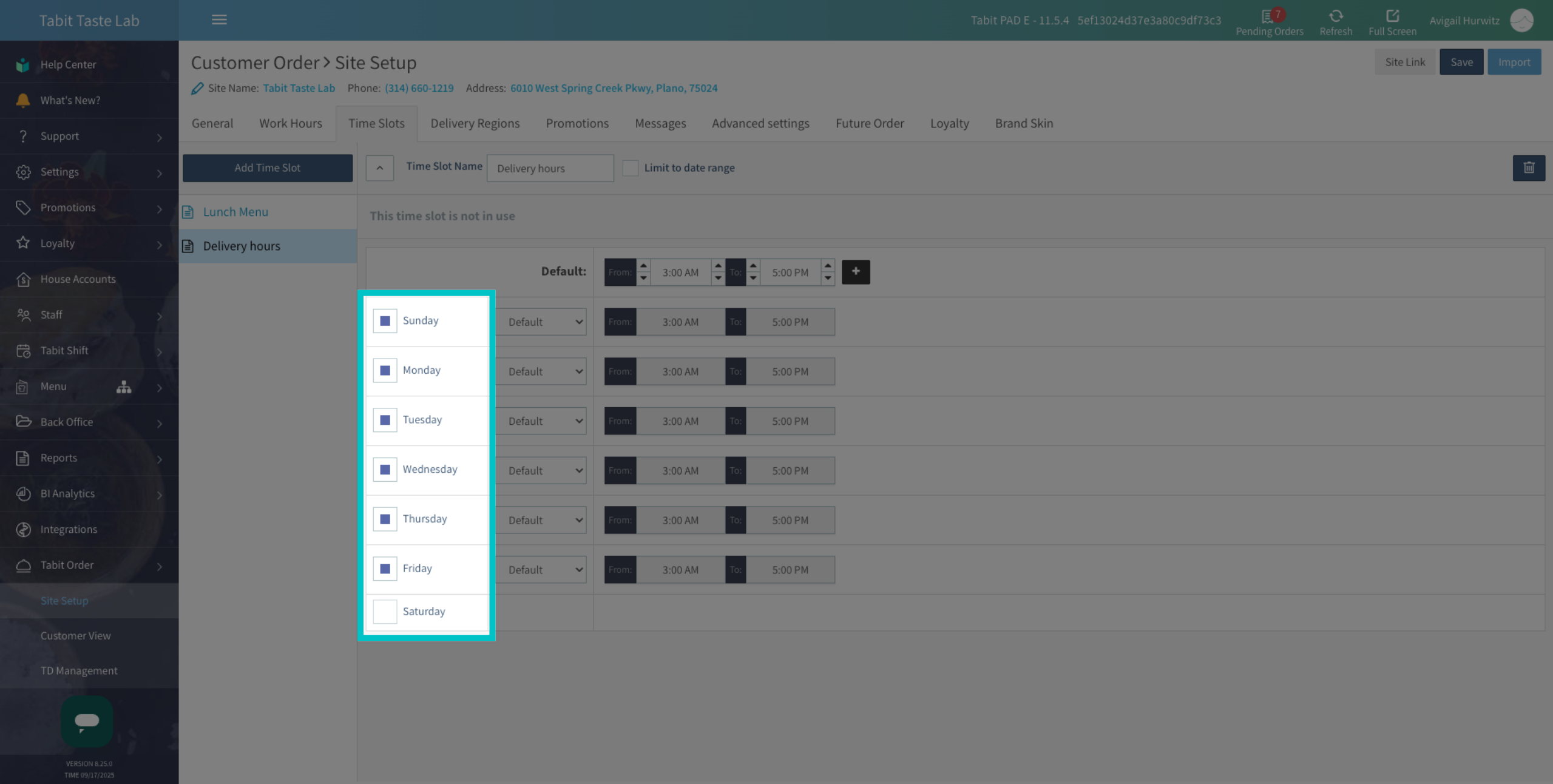
Check the boxes of the relevant Operating Days of the week
-
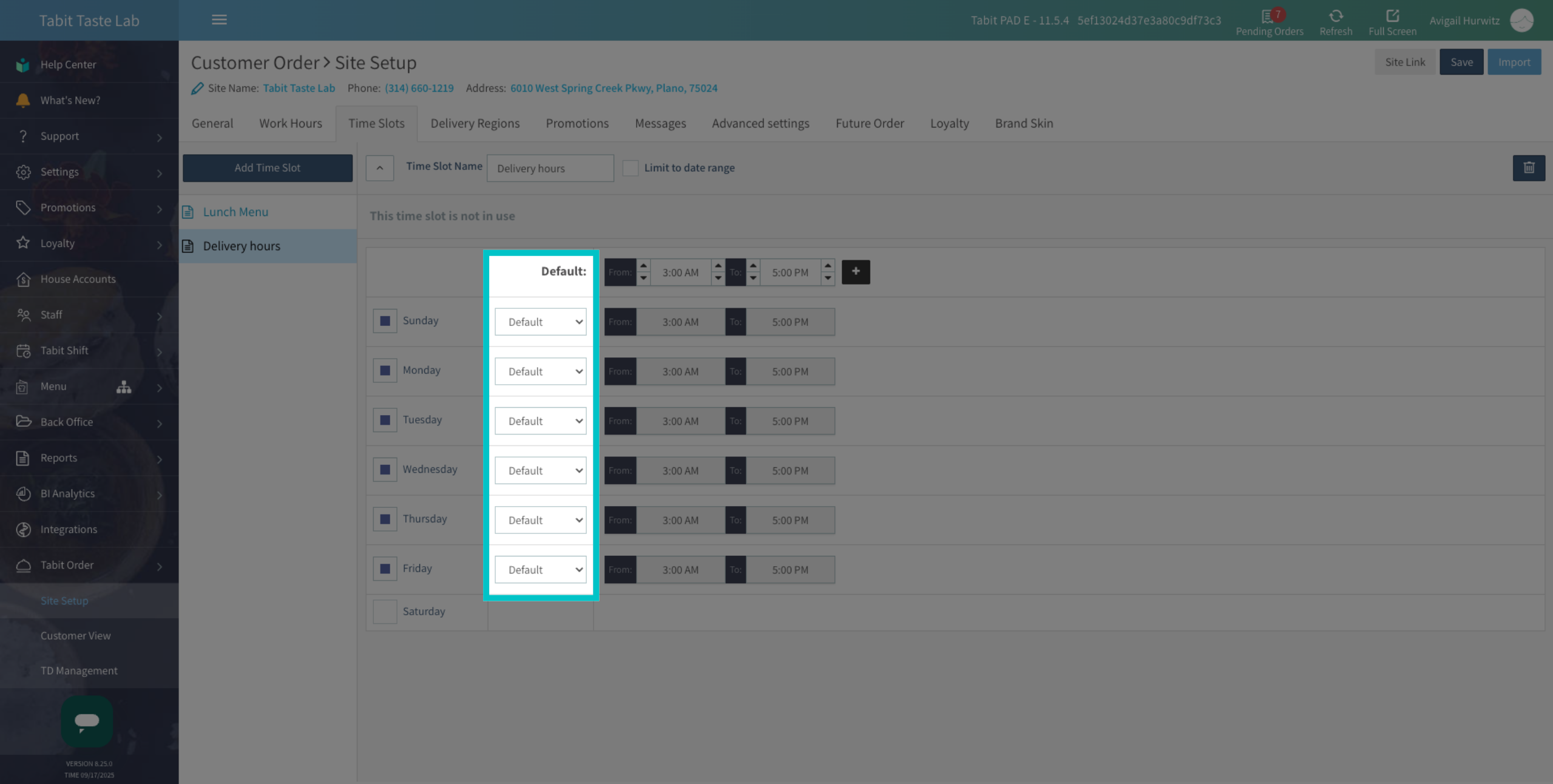
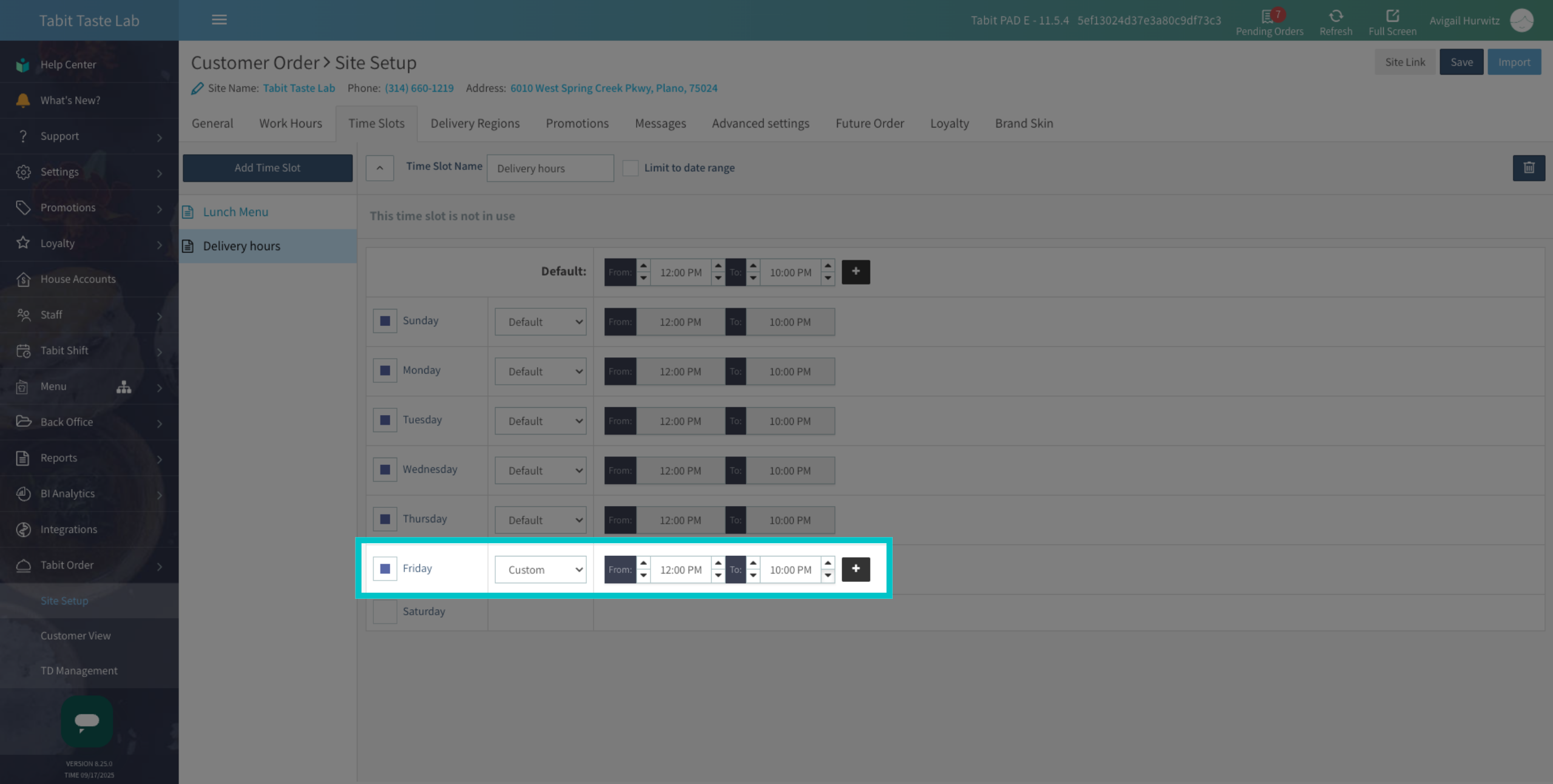
Under the Default column, select Default to apply the standard operating hours, or Custom, to set custom hours for that day
-
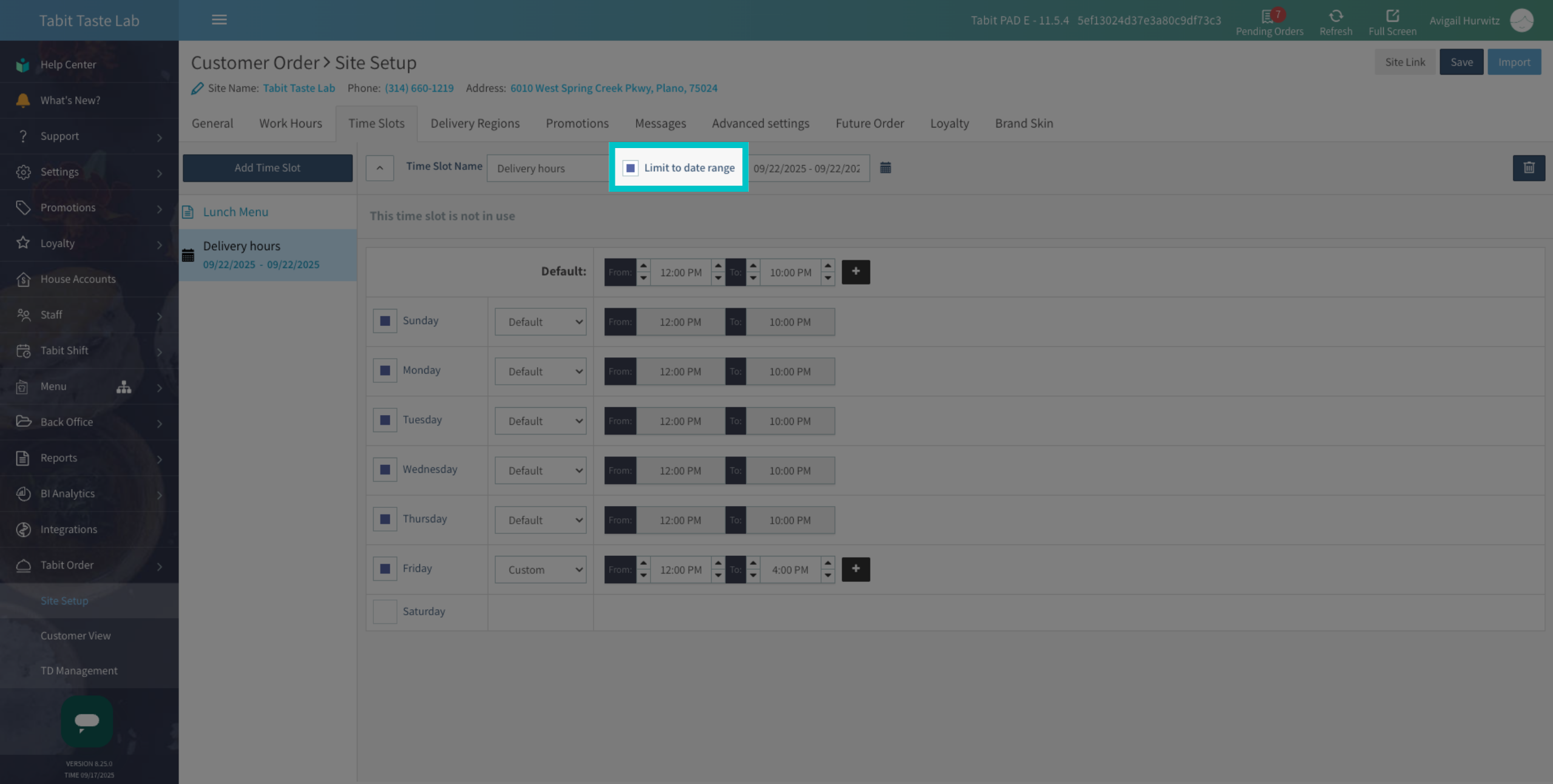
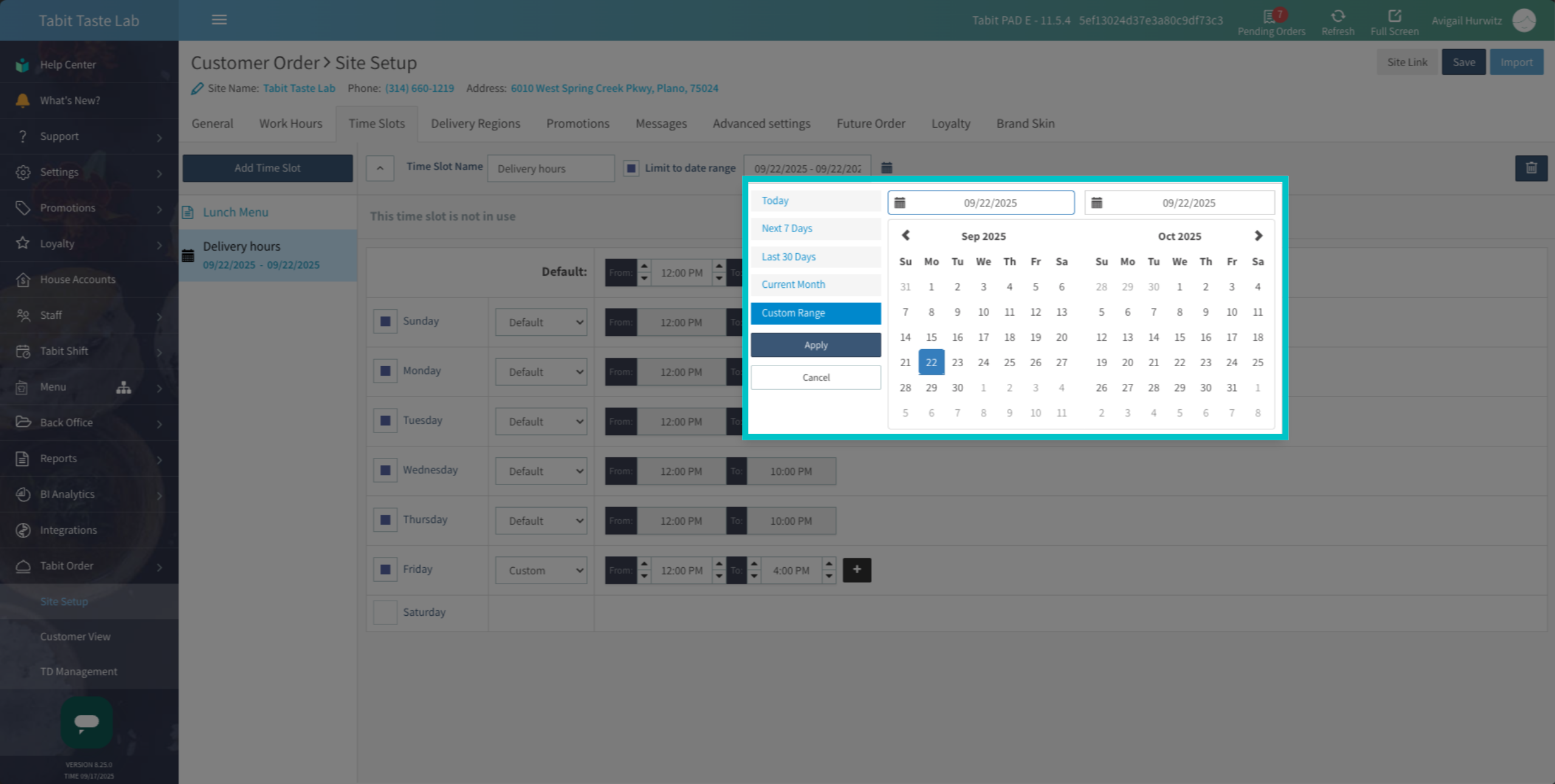
To limit a time slot by dates, check the Limit to date range box
-
Select the Date Range, and select Apply
-
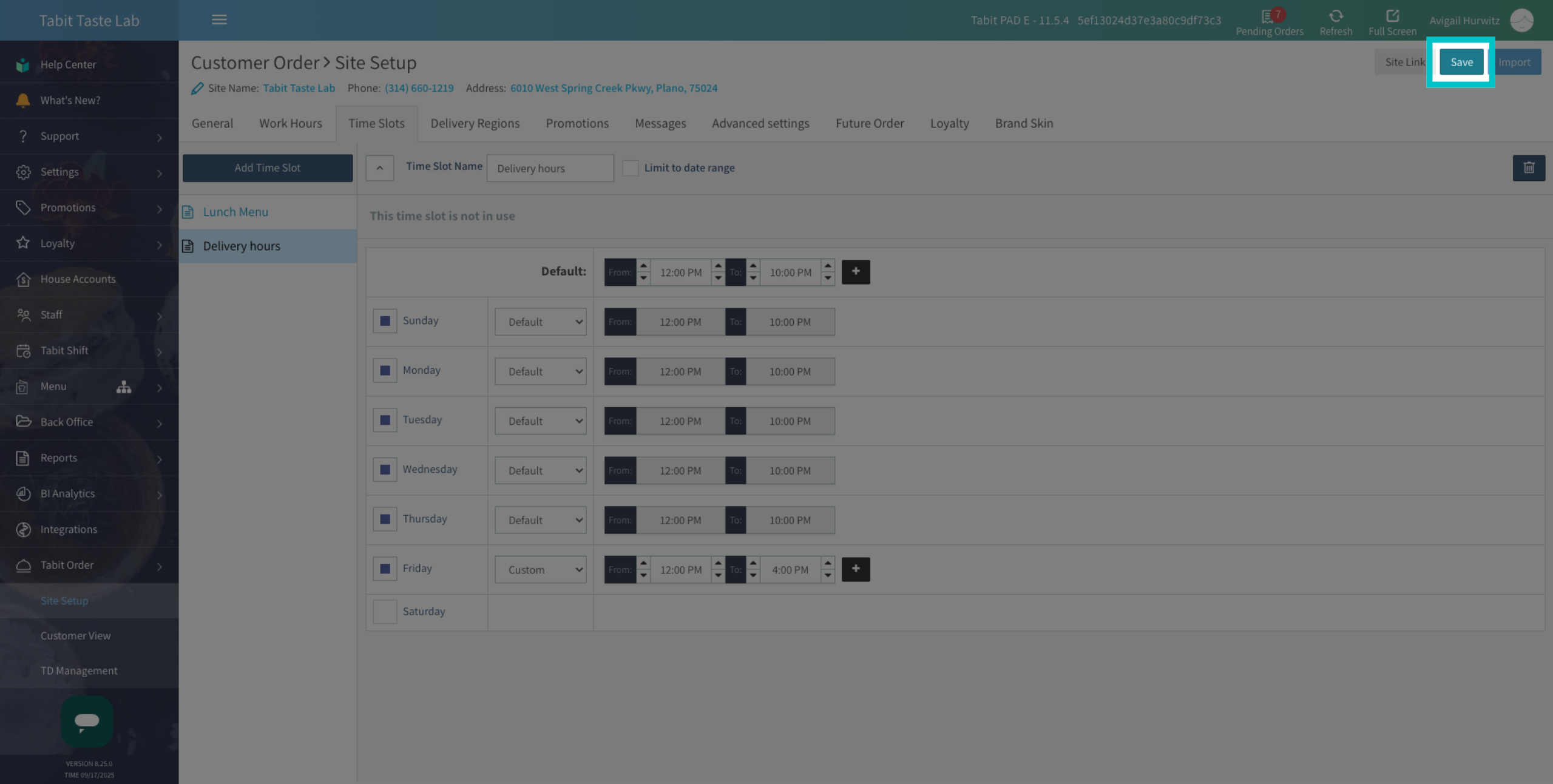
Once all settings are complete, don't forget to Save to apply the changes
- You can now apply this time slot for work hours or to restrict menu views