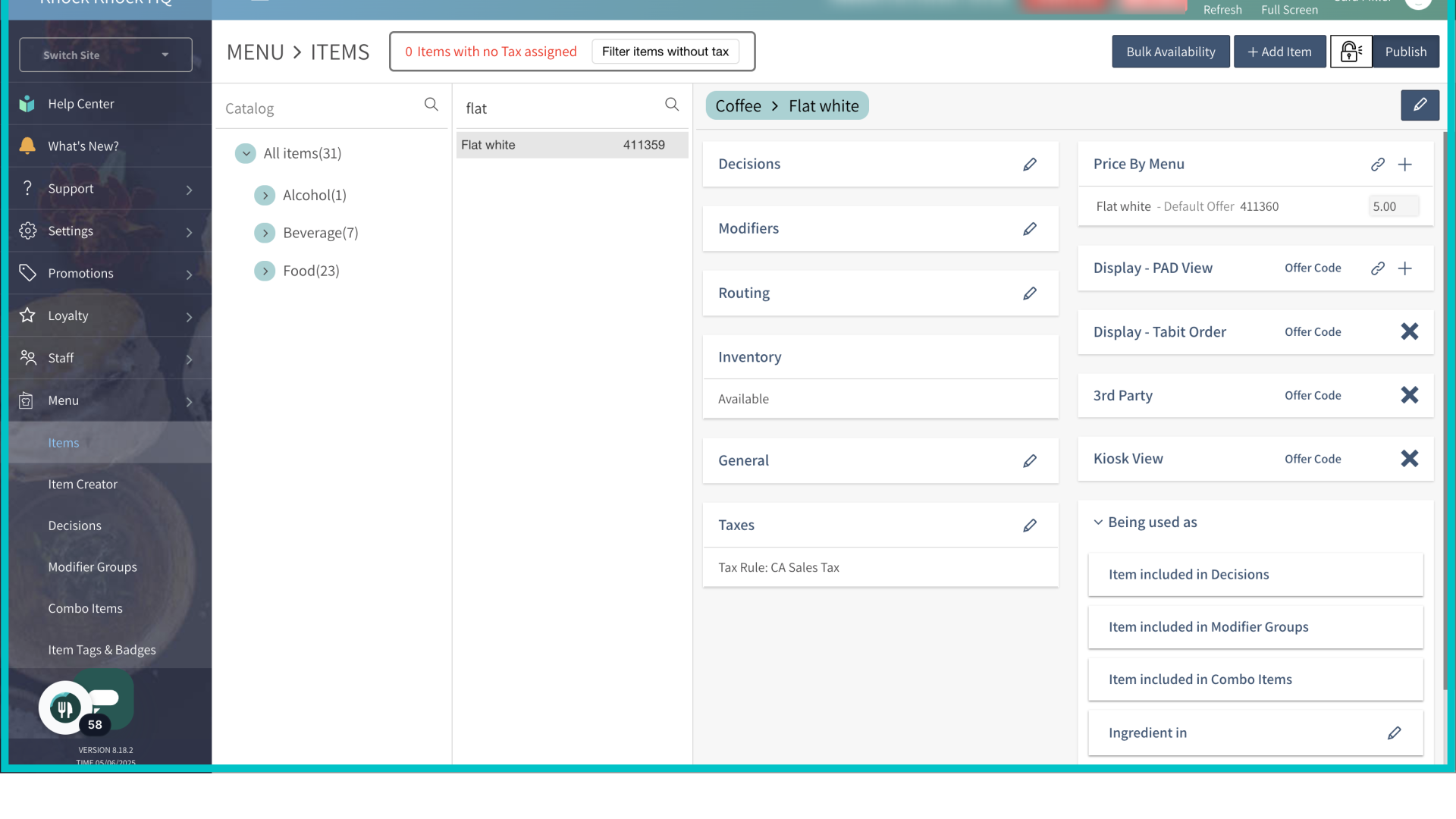
The item creator tab in Tabit Office provides a more streamlined way to create and edit items in bulk. This simplifies menu setup and management for users with menu permissions, and provides a more scalable solution to menu creation.
Follow the steps below to learn how to bulk import items using the Item Creator:
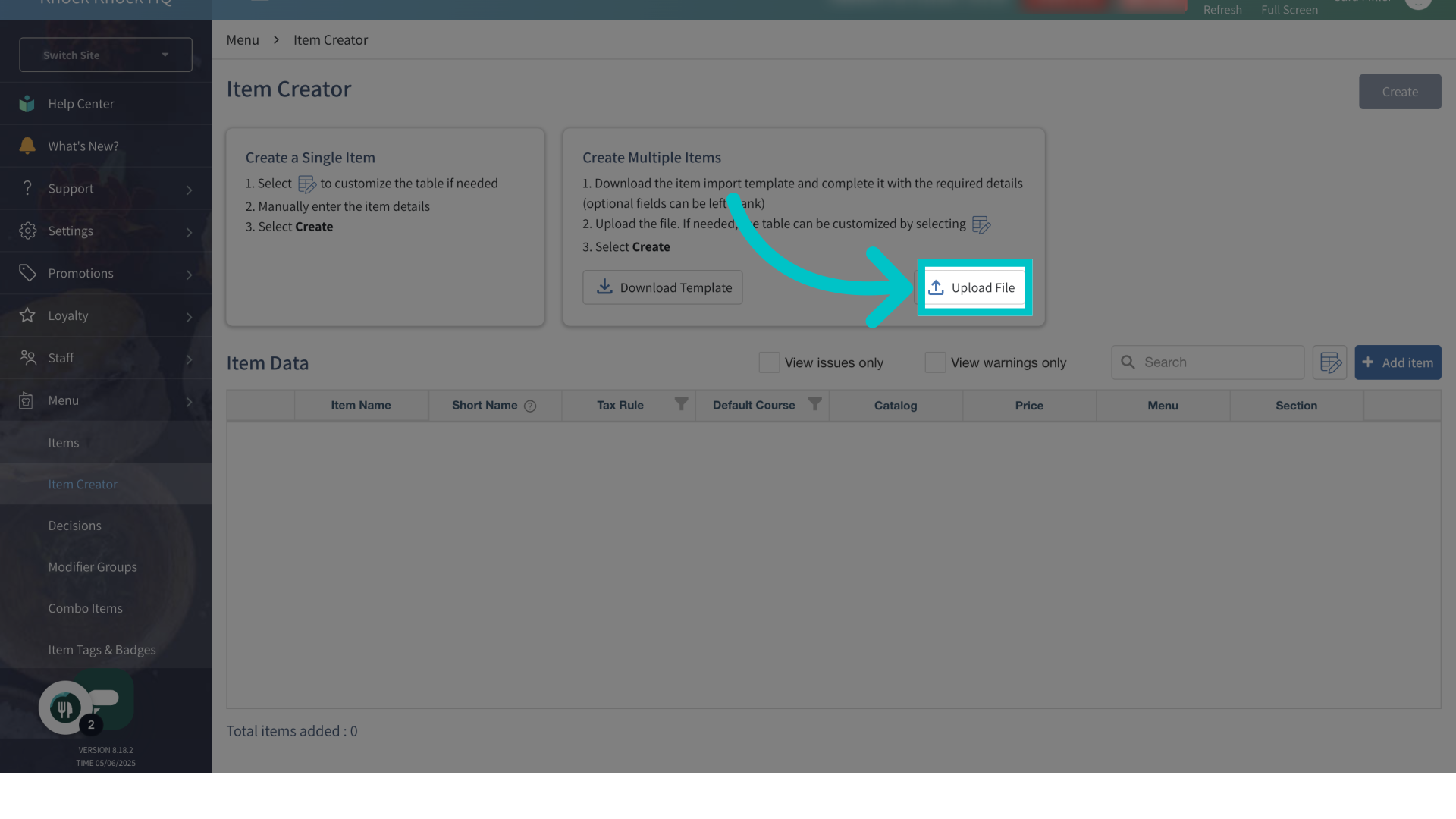
- In Tabit Office, go to Menu > Item Creator

- Download the available template, fill it out and save it. Then select Upload File to upload items in bulk. Select the relevant file
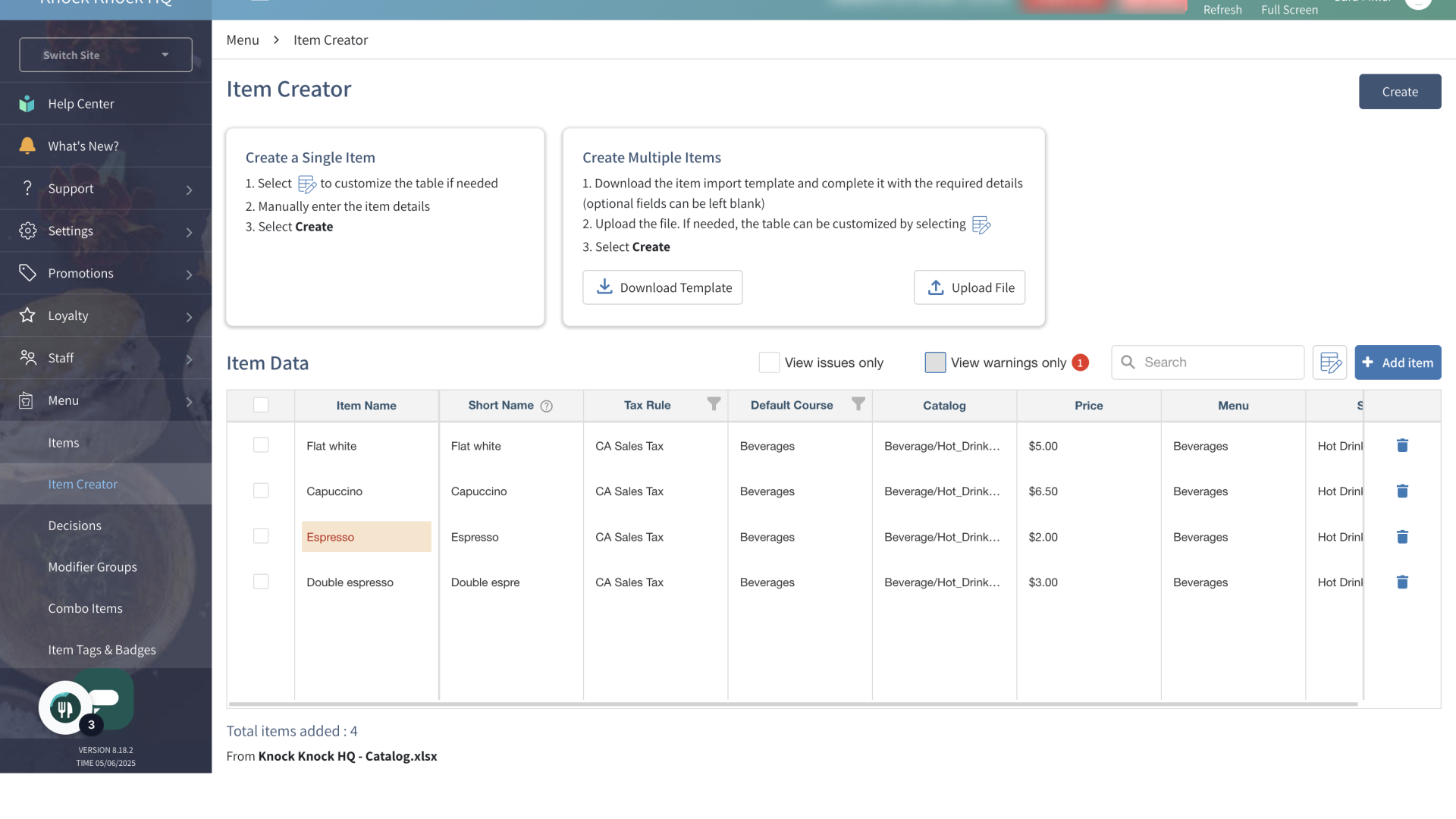
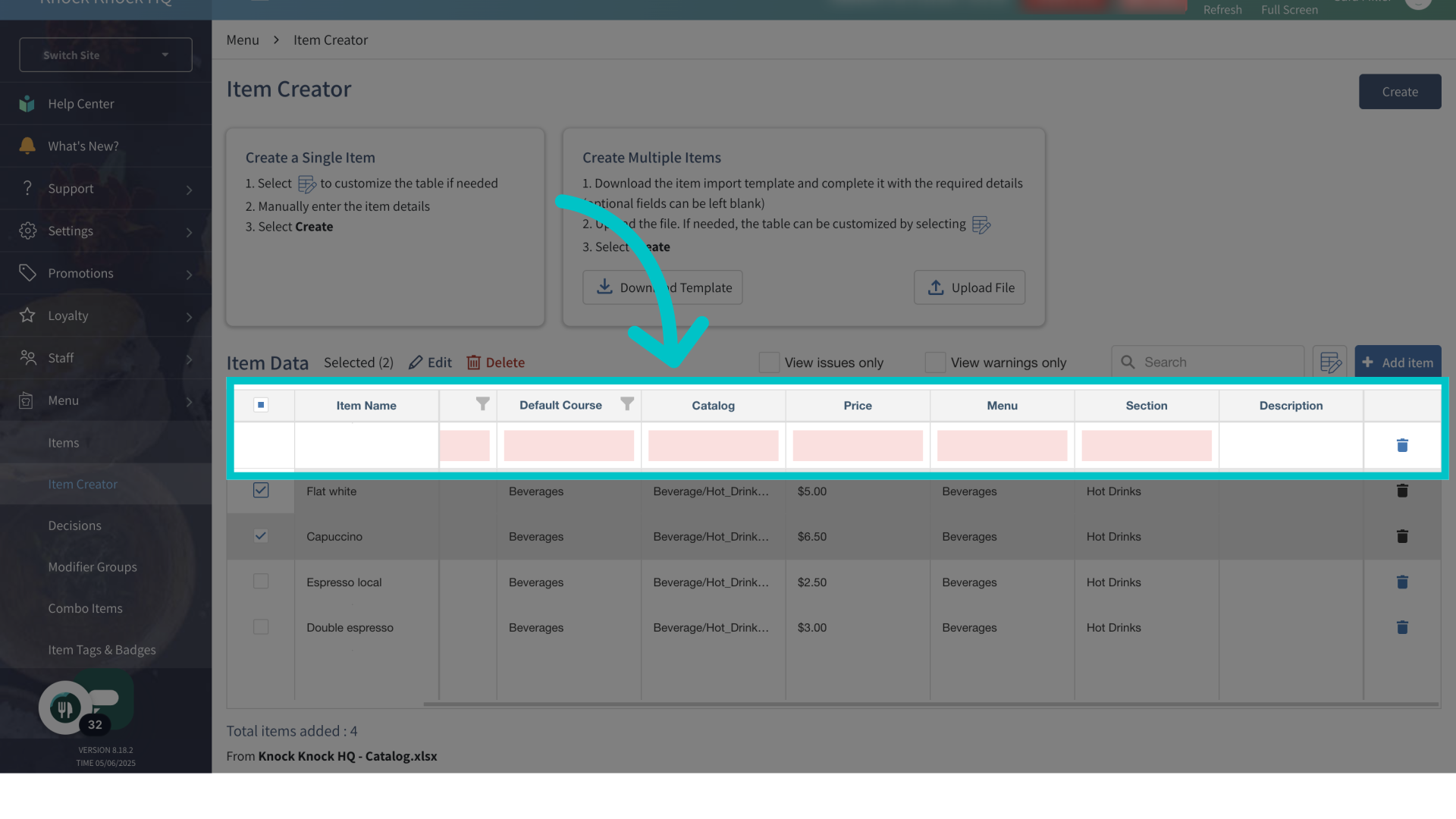
- The imported items will appear in the Item Data table below. Any items that have issues (duplicate names, missing required fields, and more) will be indicated in red
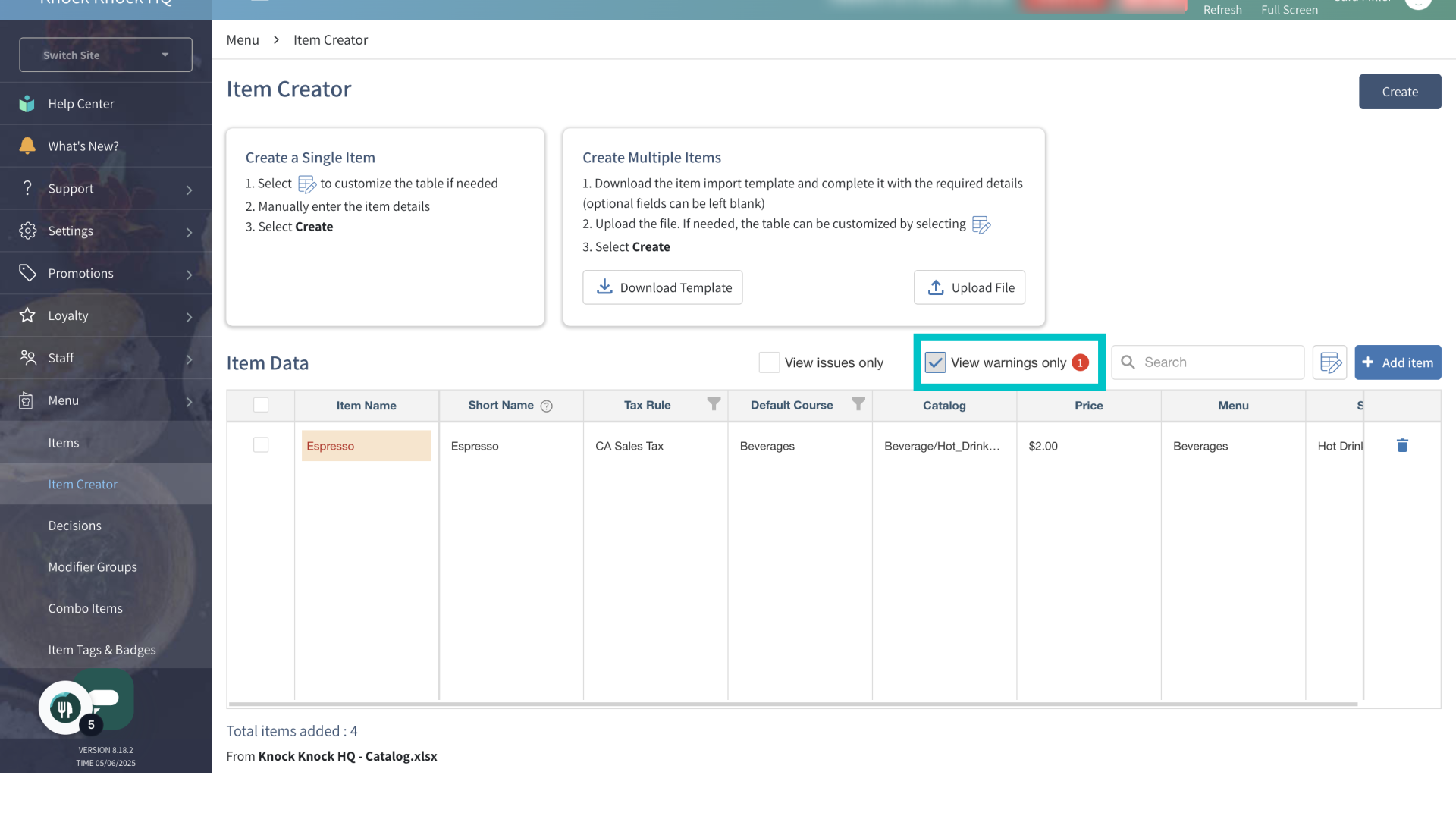
- Checking the box next to View warnings only, will filter the table, only showing items that require attention
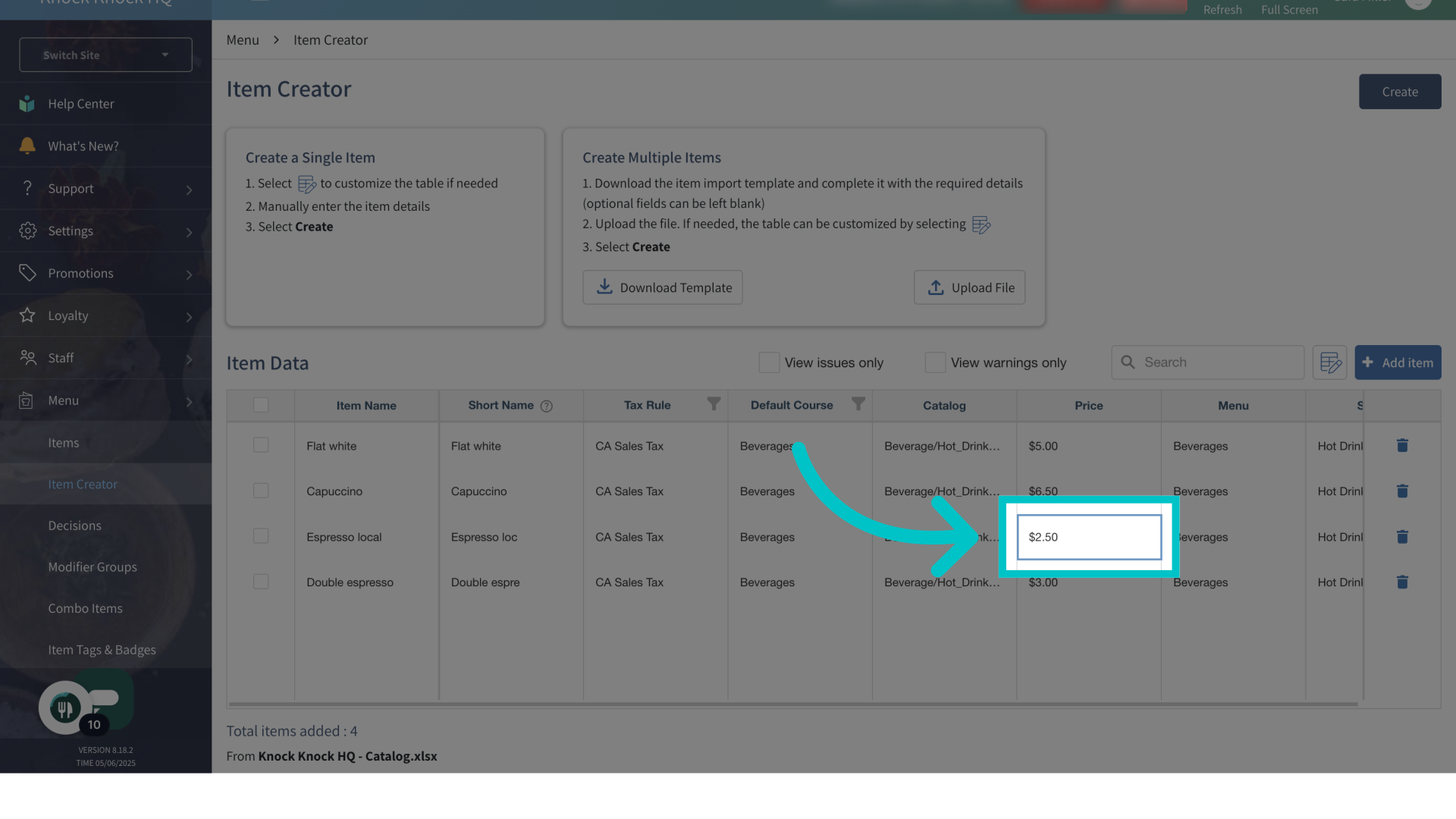
- Items can also be manually edited from here before creation is complete
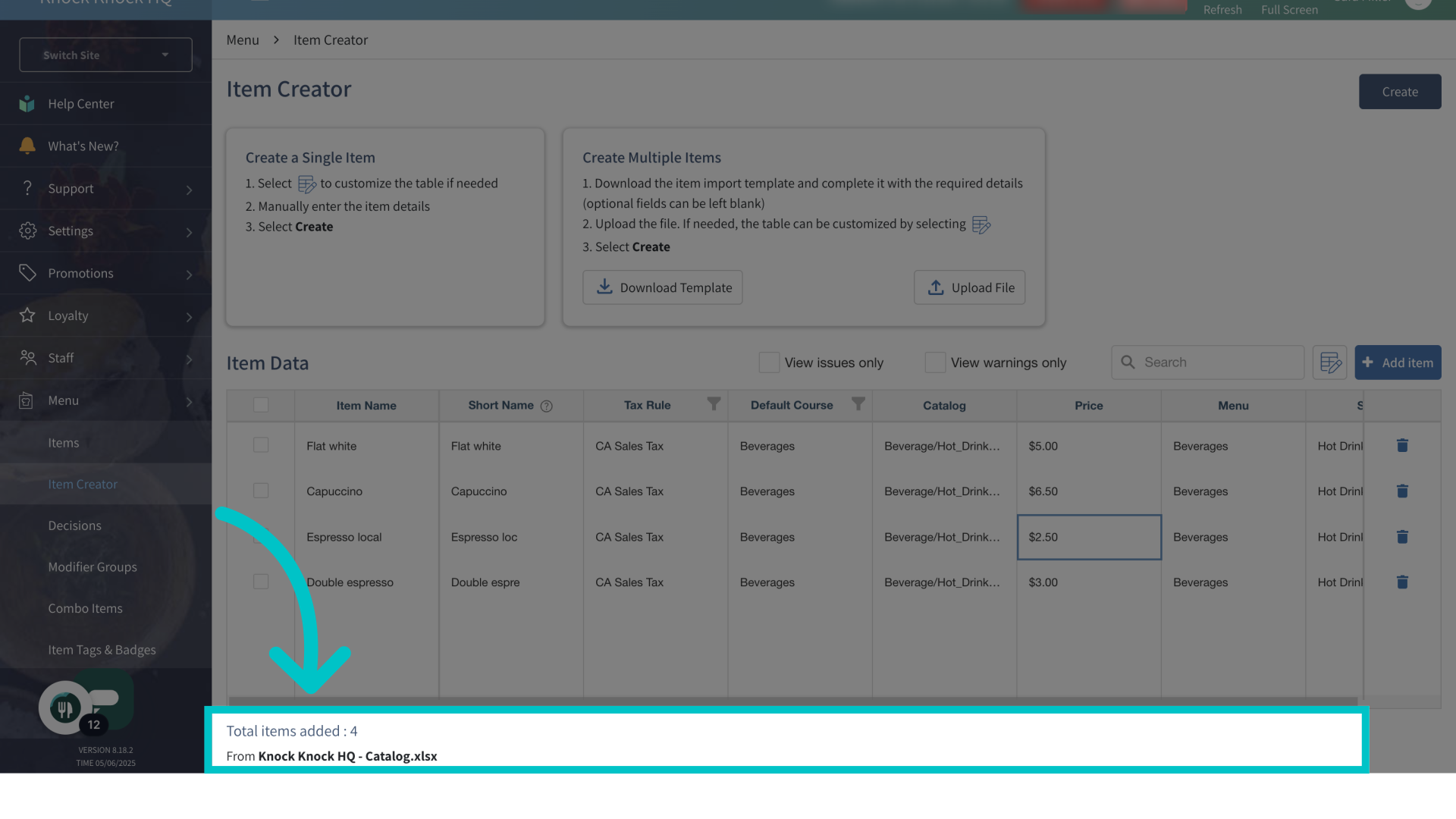
- A summary of the uploaded file and the number of items added will appear at the bottom of the screen. Multiple files can be uploaded if needed
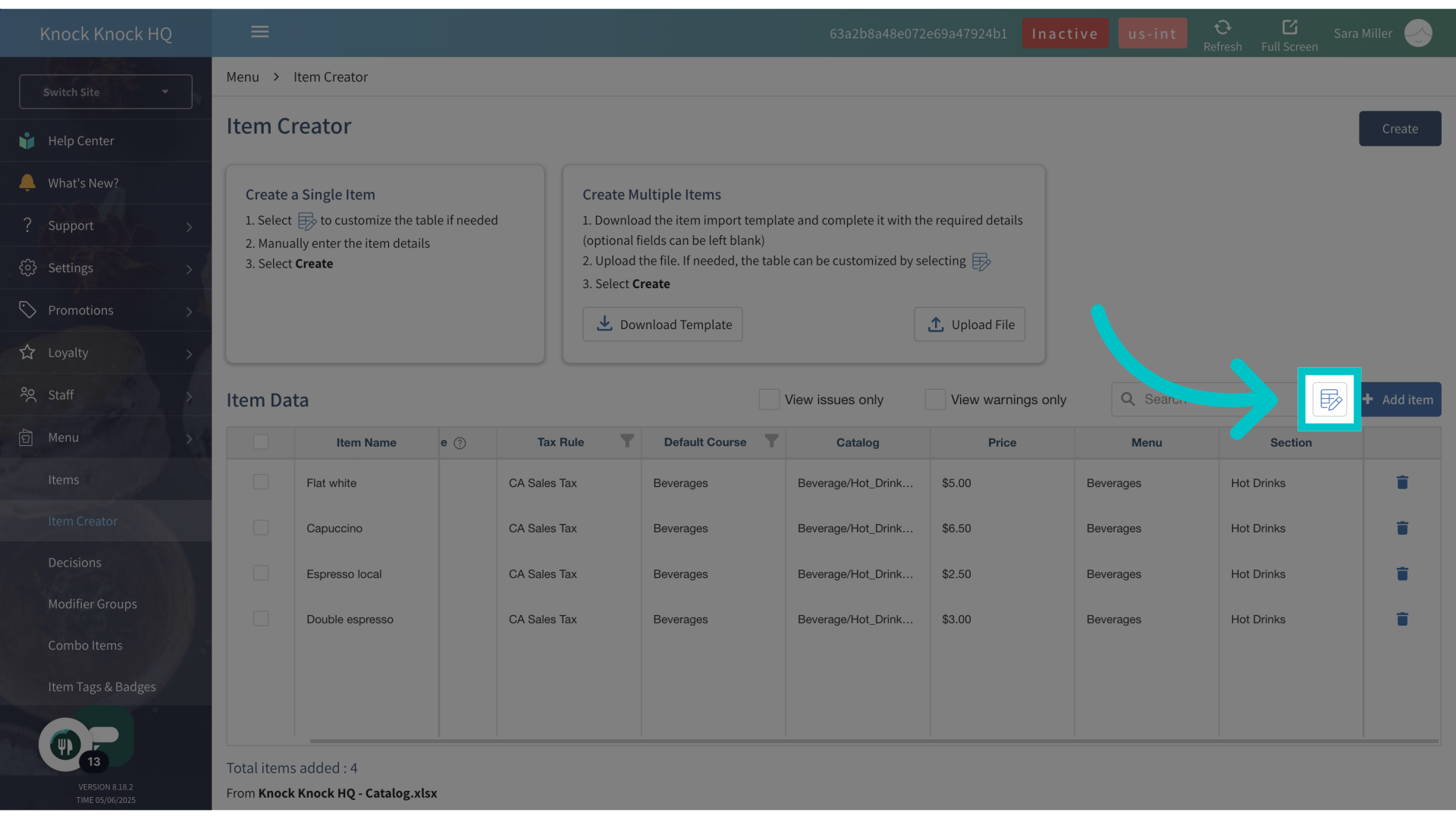
- Select the table icon to add additional columns
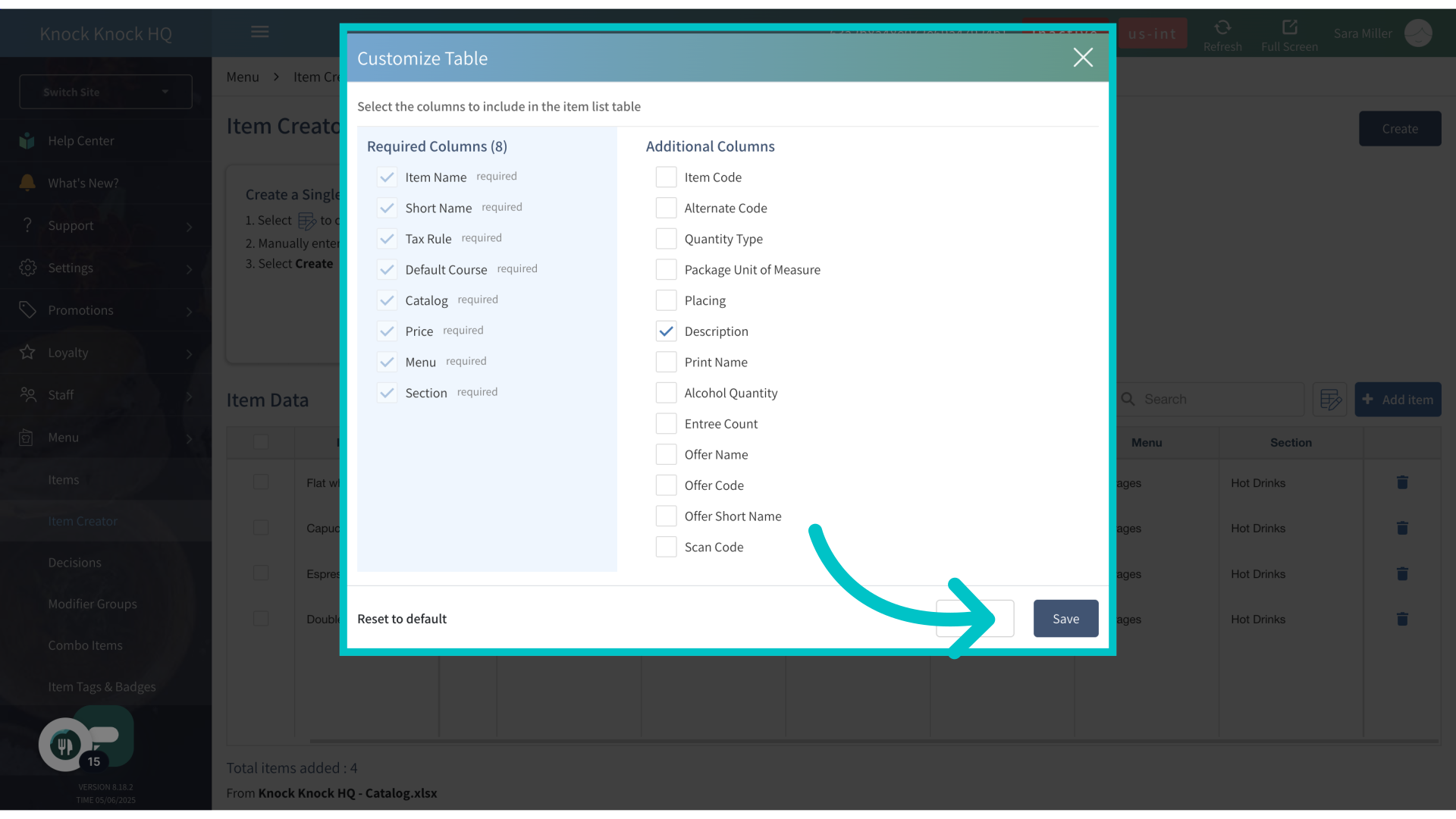
-
Here you can view the existing columns and select additional ones. Then select Save
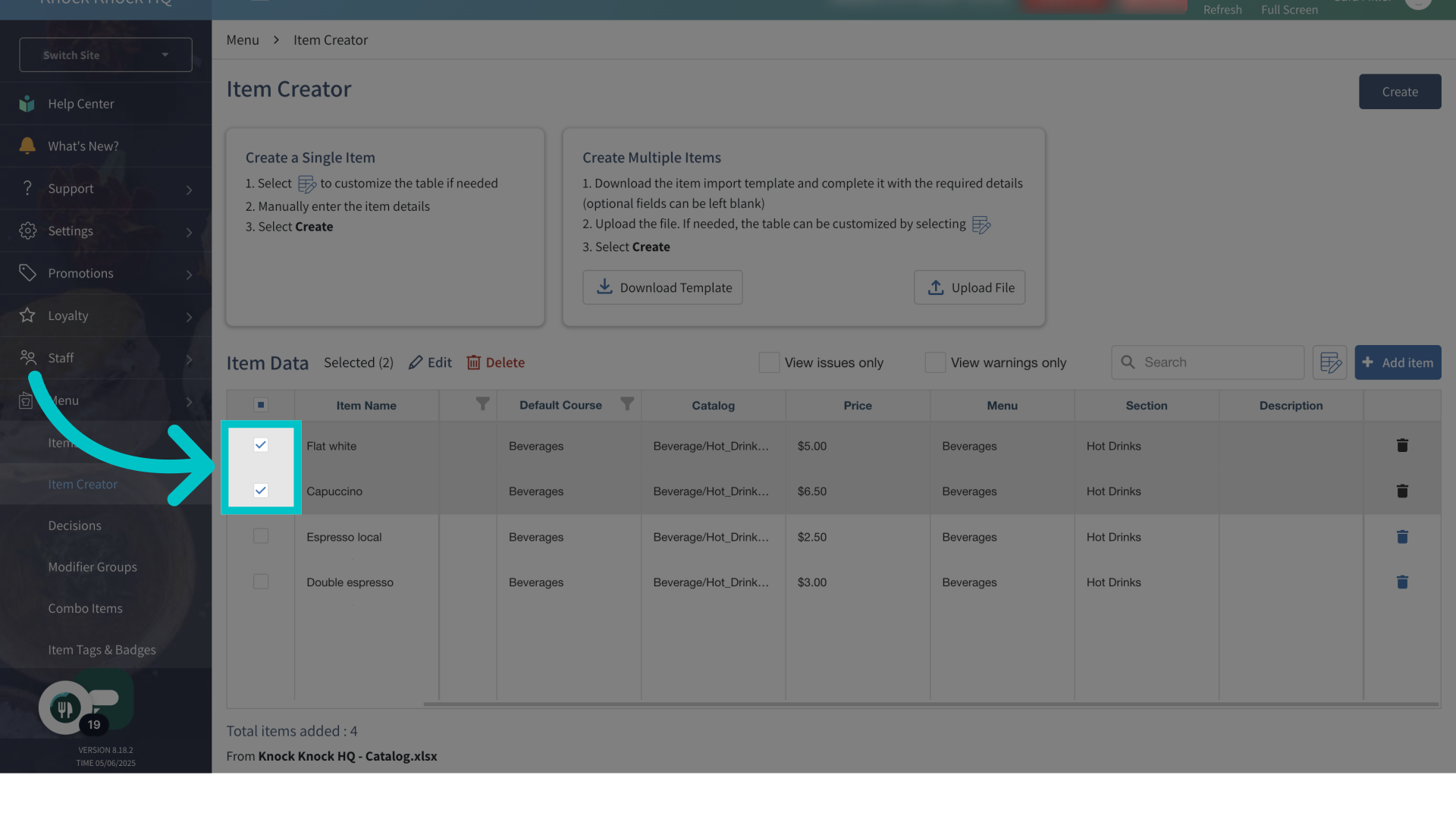
- Multiple items can be selected to perform bulk actions. Select the relevant items
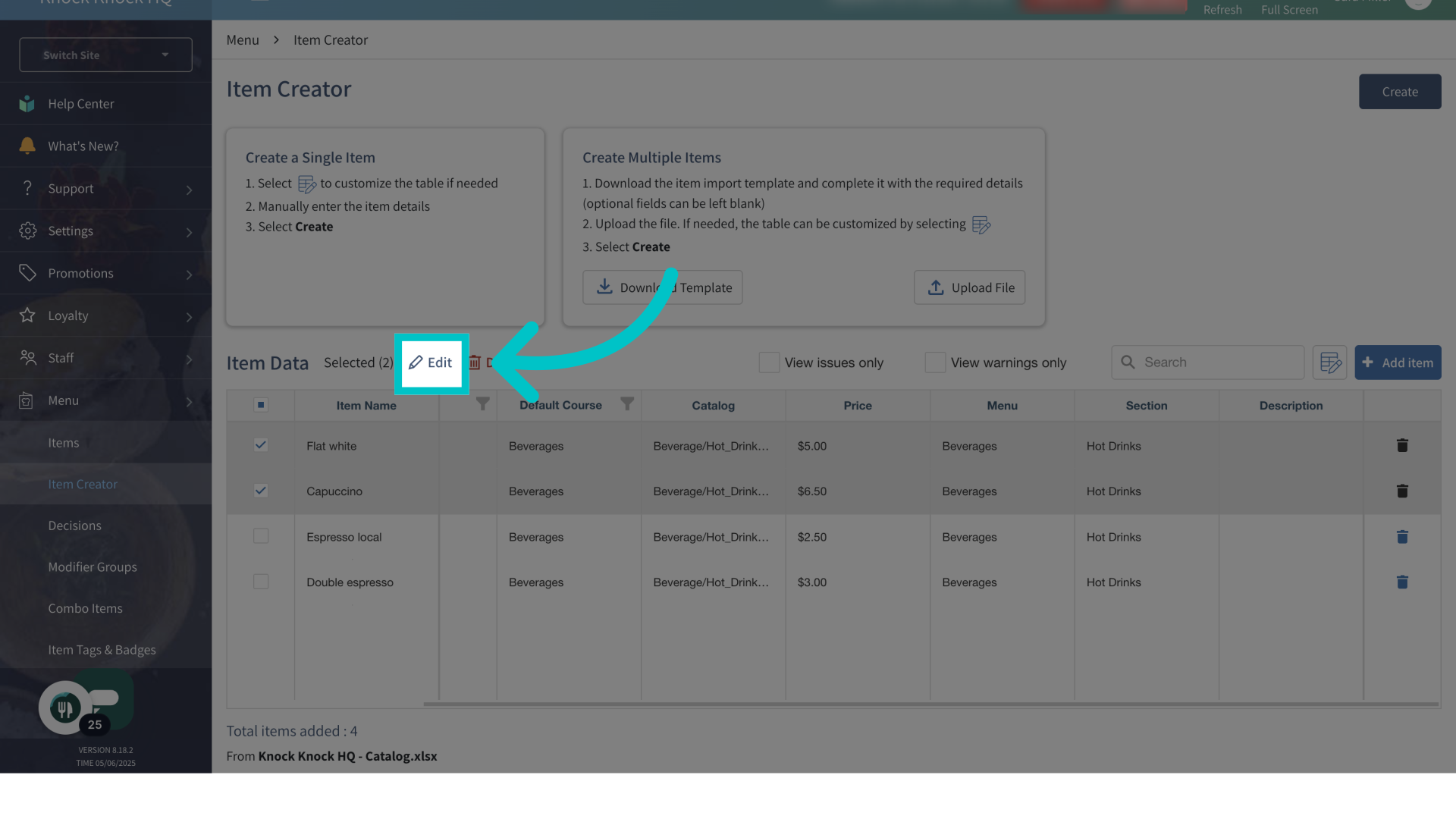
- Select Edit
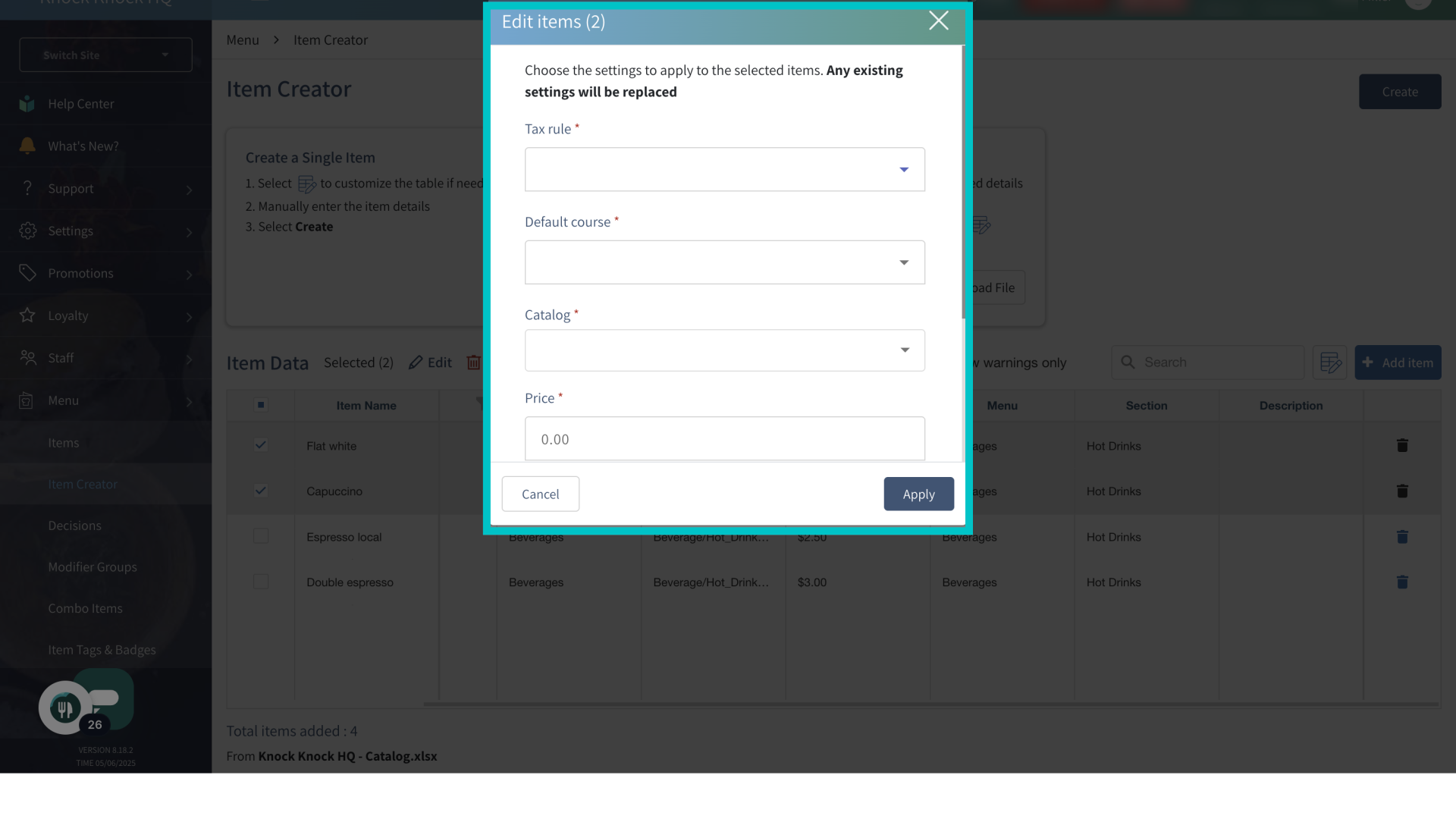
- Make your desired edits and then select Apply
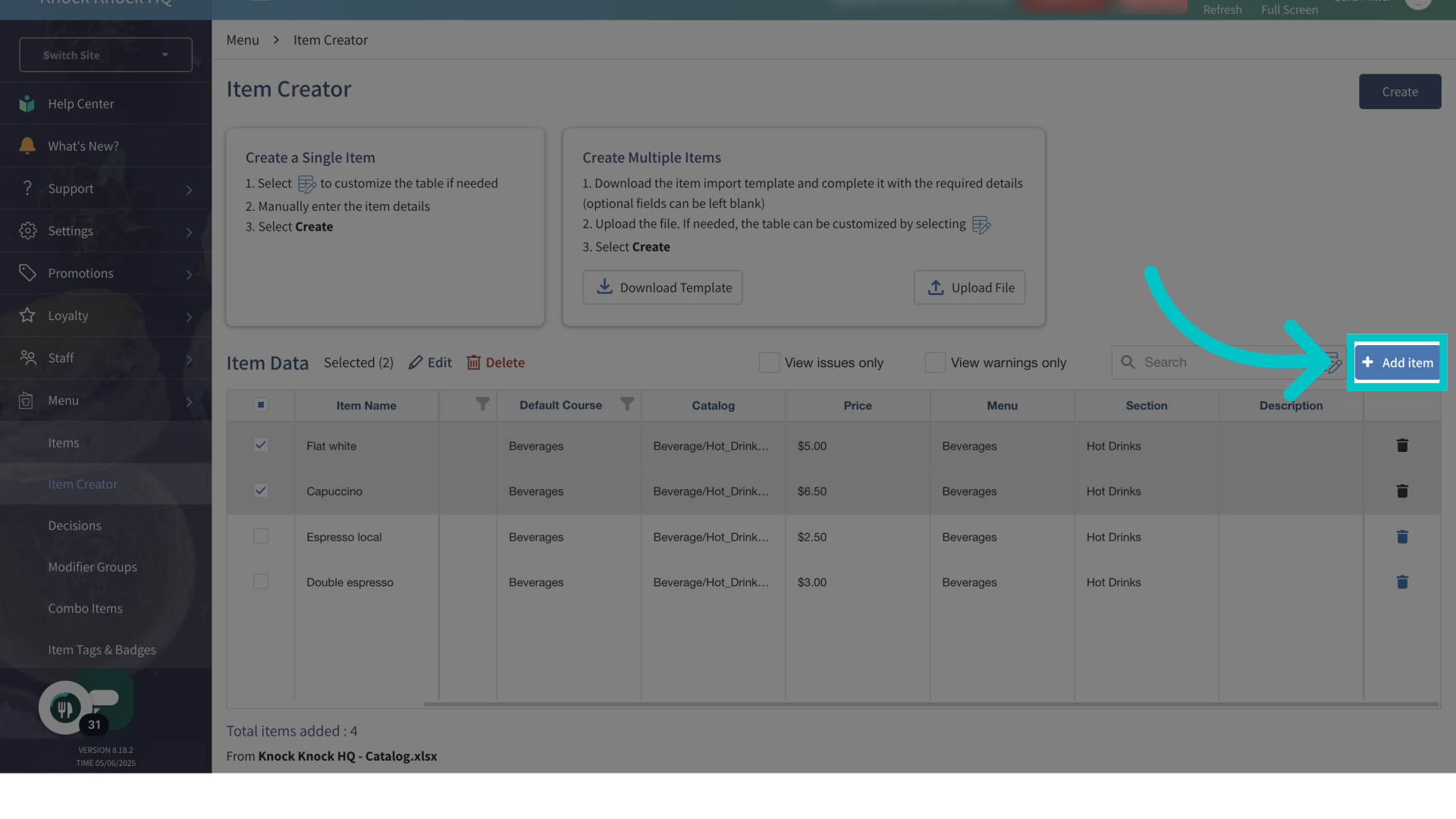
- Individual items can also be added manually. Select + Add Item
- Enter the item's details
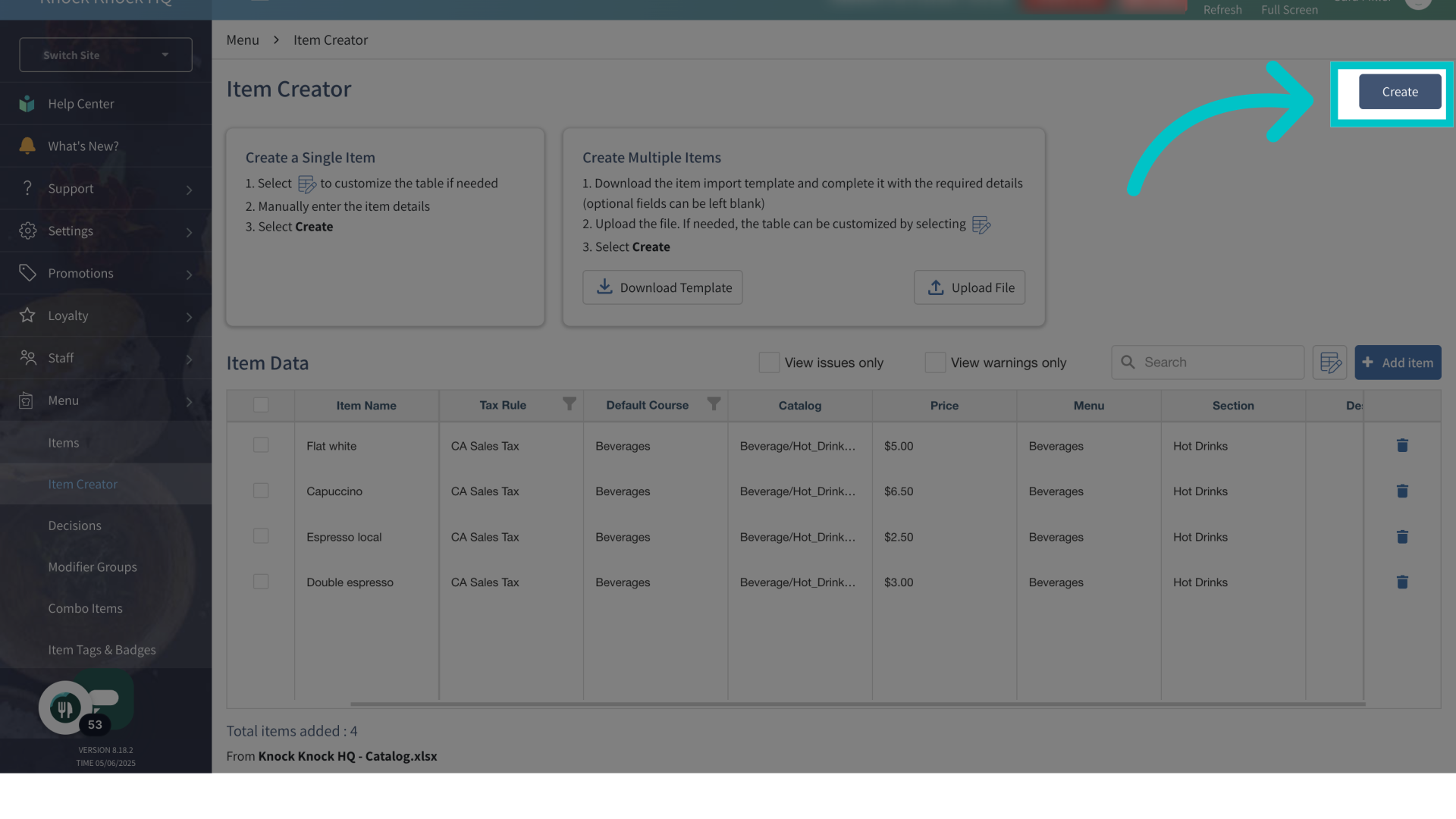
- Once all items have been added, select Create in the top right of the screen
- Now the new items will appear in the site's menu