Upsells prompt customers to add more items to their orders by appearing after an item is added to the cart, during checkout, or when selecting specific items in a menu section.
Learn here how to create an upsell
Follow the steps below to attach an Upsell to a menu item or a menu section in Tabit Order:
Menu item
-
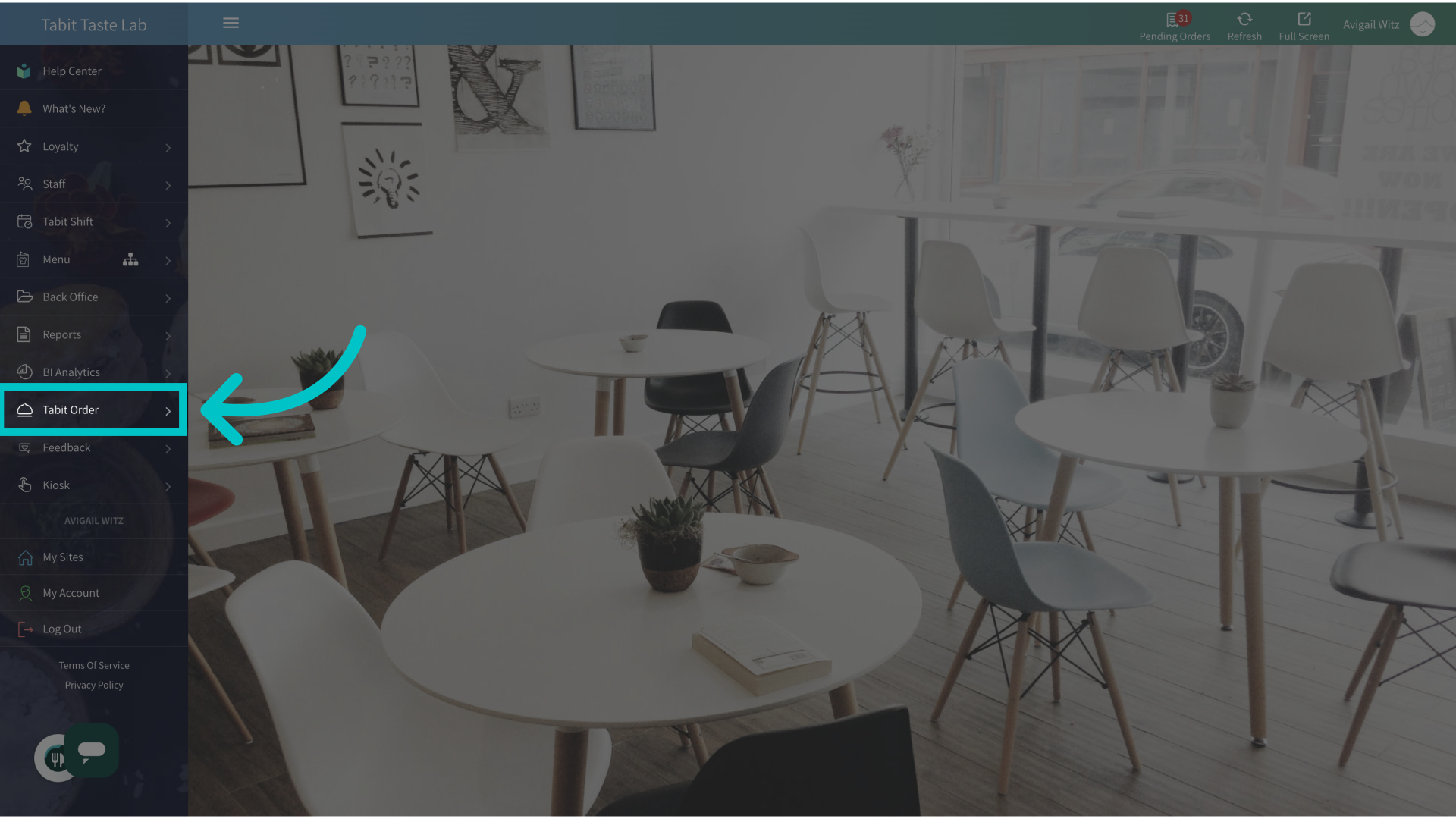
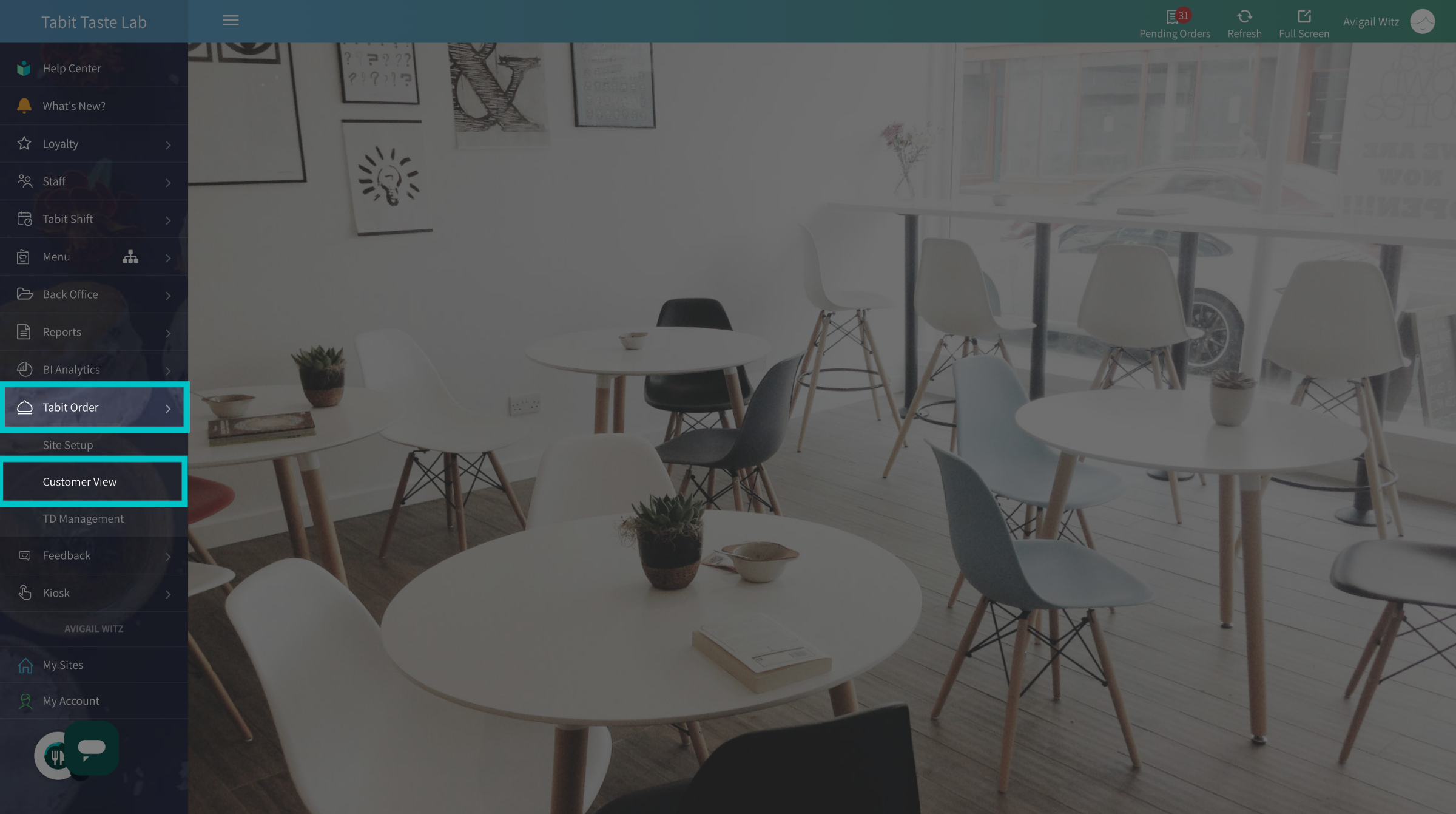
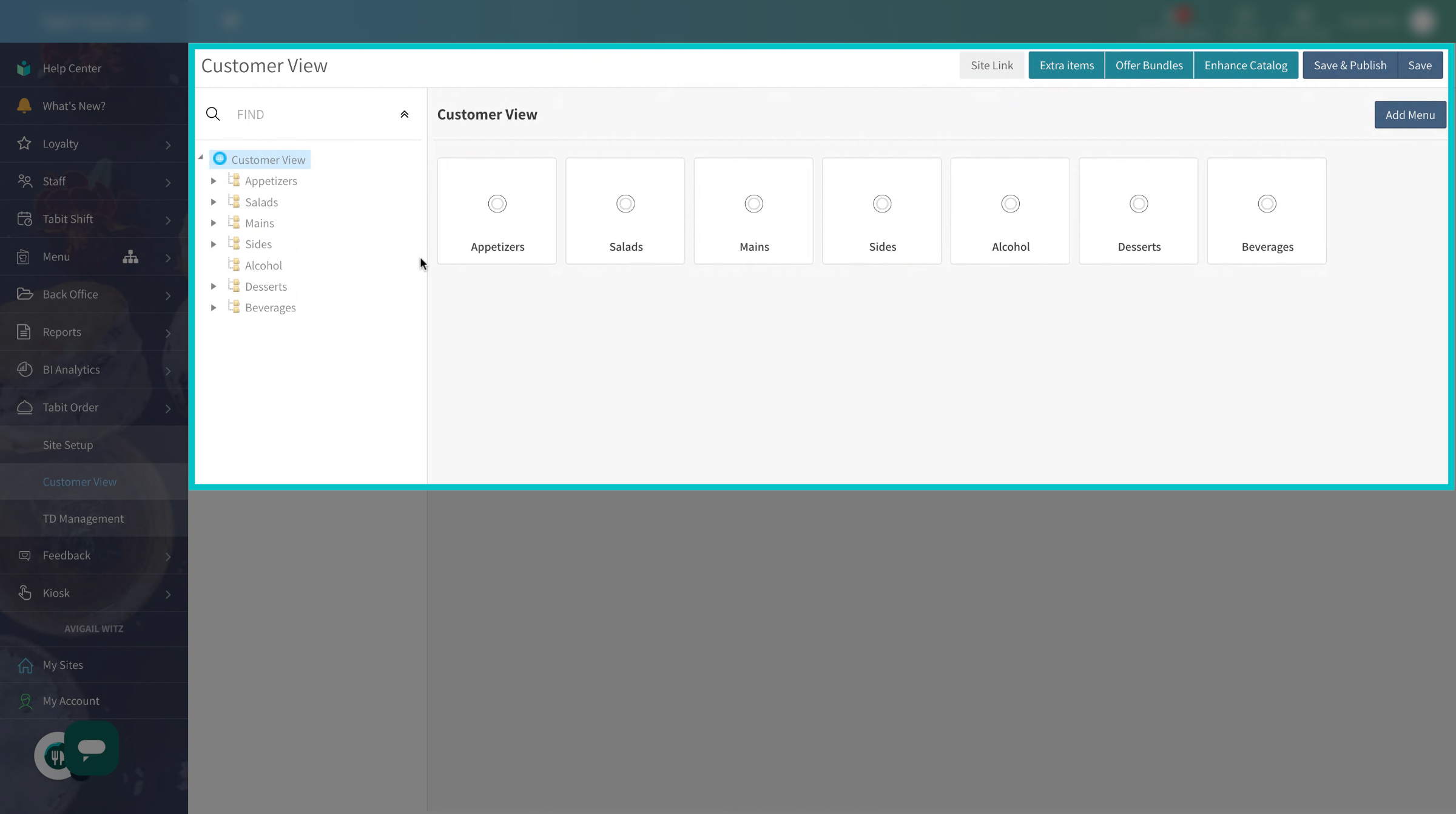
In Tabit Office, go to Tabit Order > Customer View

-
Search and select the relevant item
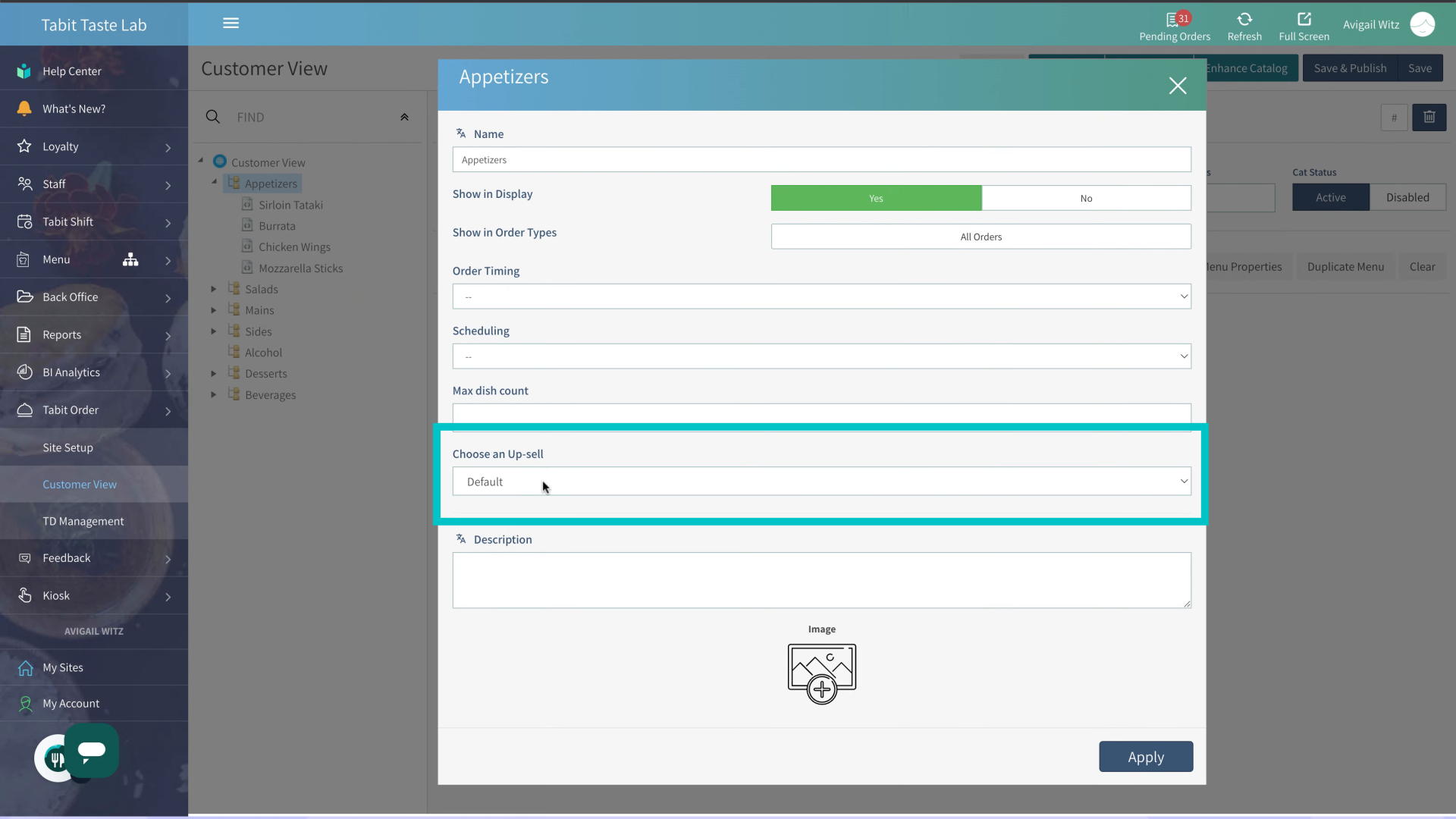
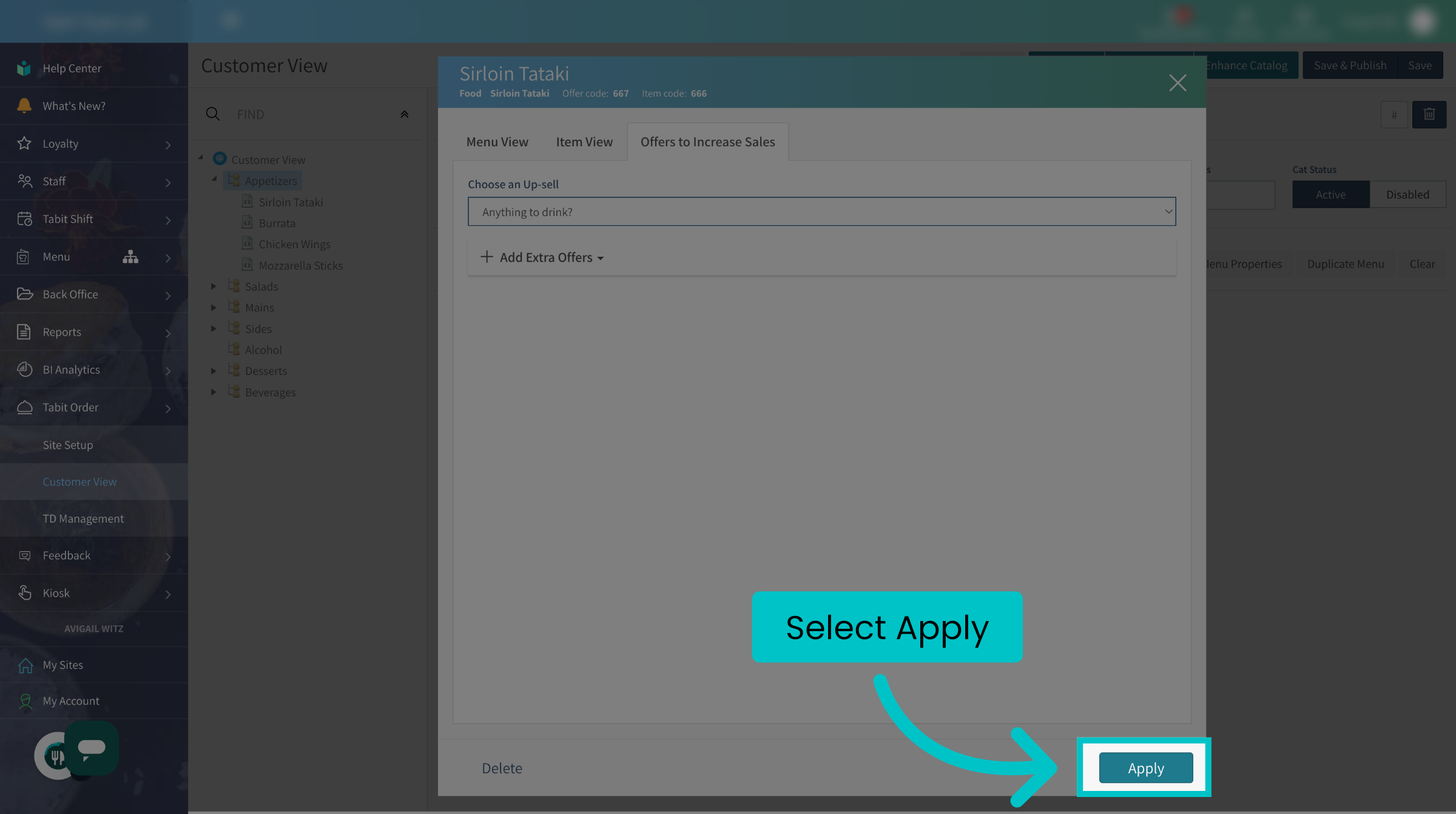
- Navigate to the Offers to Increase Sales tab. Under the Choose an Up-sell field, select the upsell
-
Then, select Apply
-
Save and Publish to update the changes in Tabit Order
-
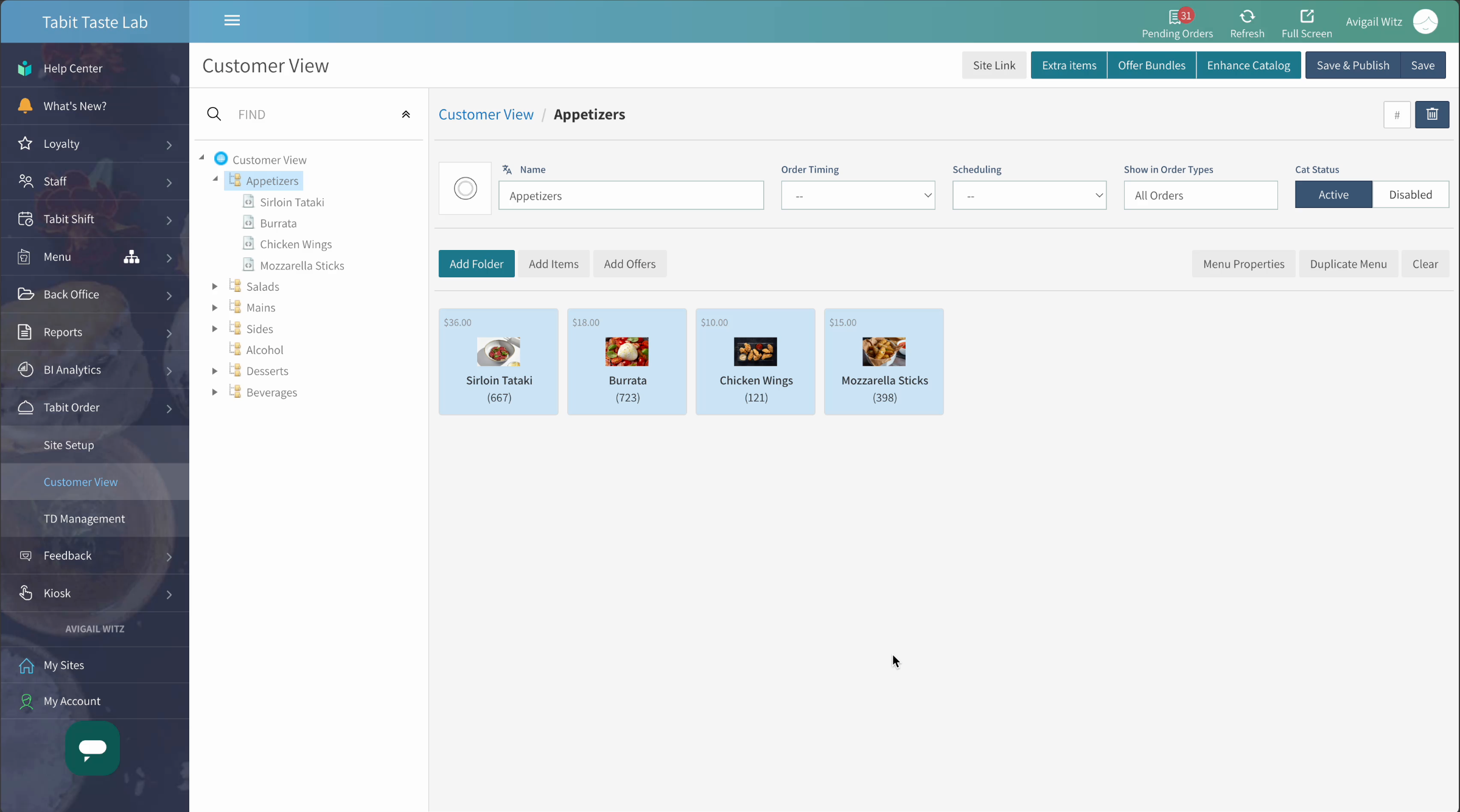
Now, the upsell will appear once the item is selected. Go to Site Link at the top right to view the results on your Tabit Order site
Menu Section
- In Tabit Office, go to Tabit Order > Customer View
-
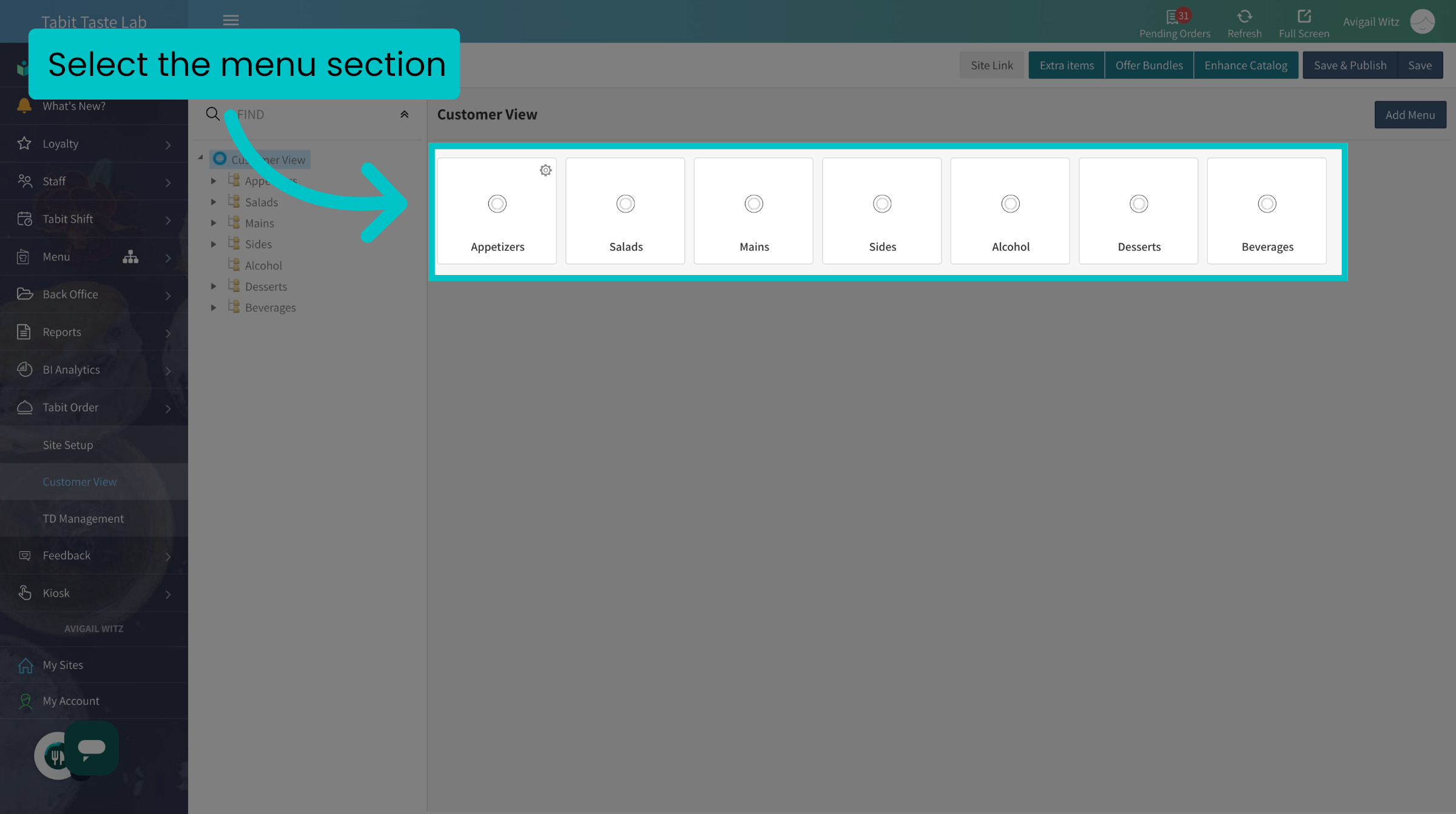
Locate the relevant menu section
- Access the Menu Properties settings
- Under the Choose an Up-sell field, select the Upsell
-
Then, select Apply
-
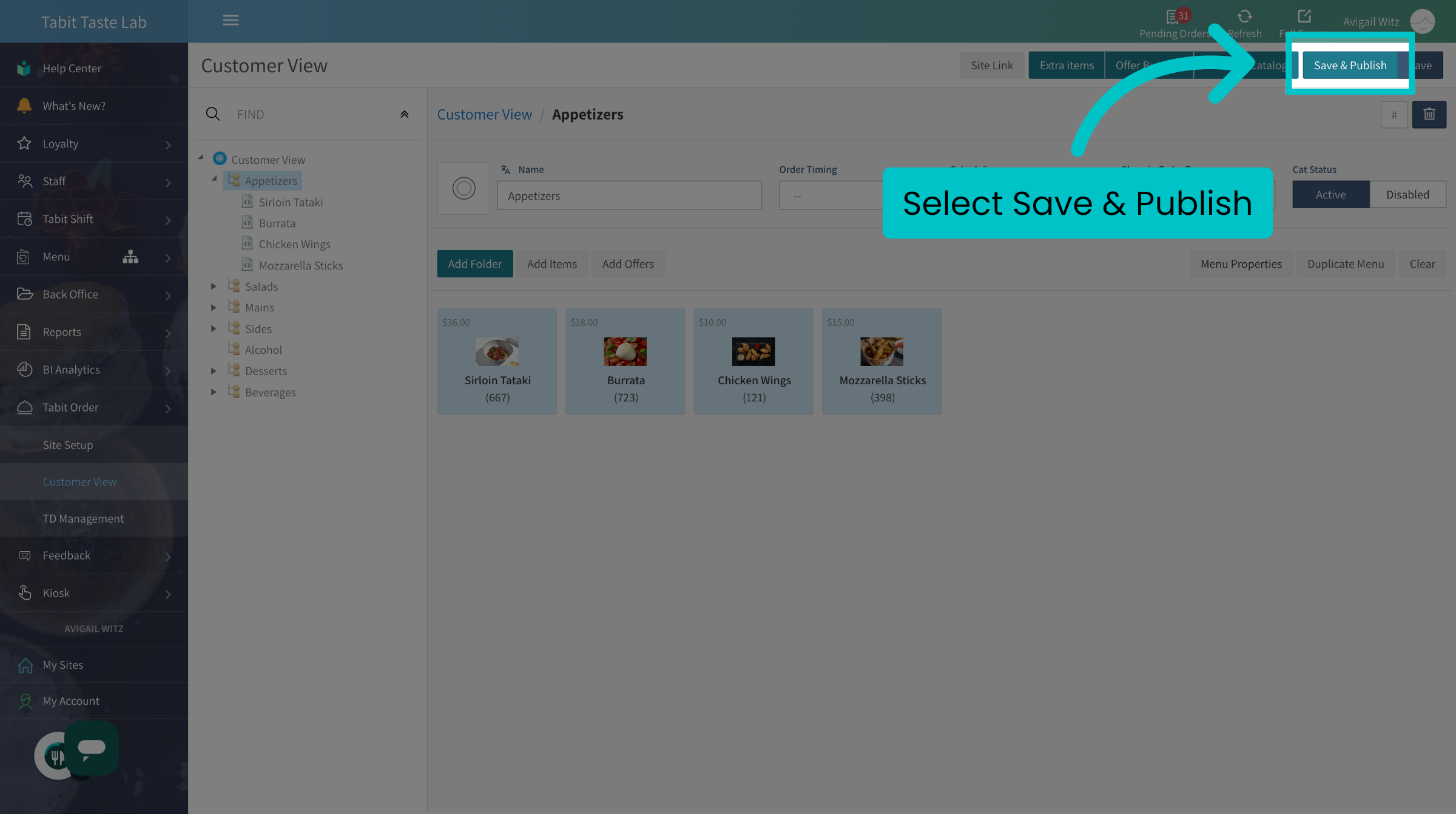
Save and Publish to update the changes in Tabit Order
-
Now, the upsell will appear once the item is selected from this section. Go to Site Link at the top right to view the results on your Tabit Order site