When a site loses internet connection, it can be moved to offline mode to enable servers to continue taking orders and sending them to the kitchen. Follow the steps below to learn how to work in Offline Mode with no LAN
-
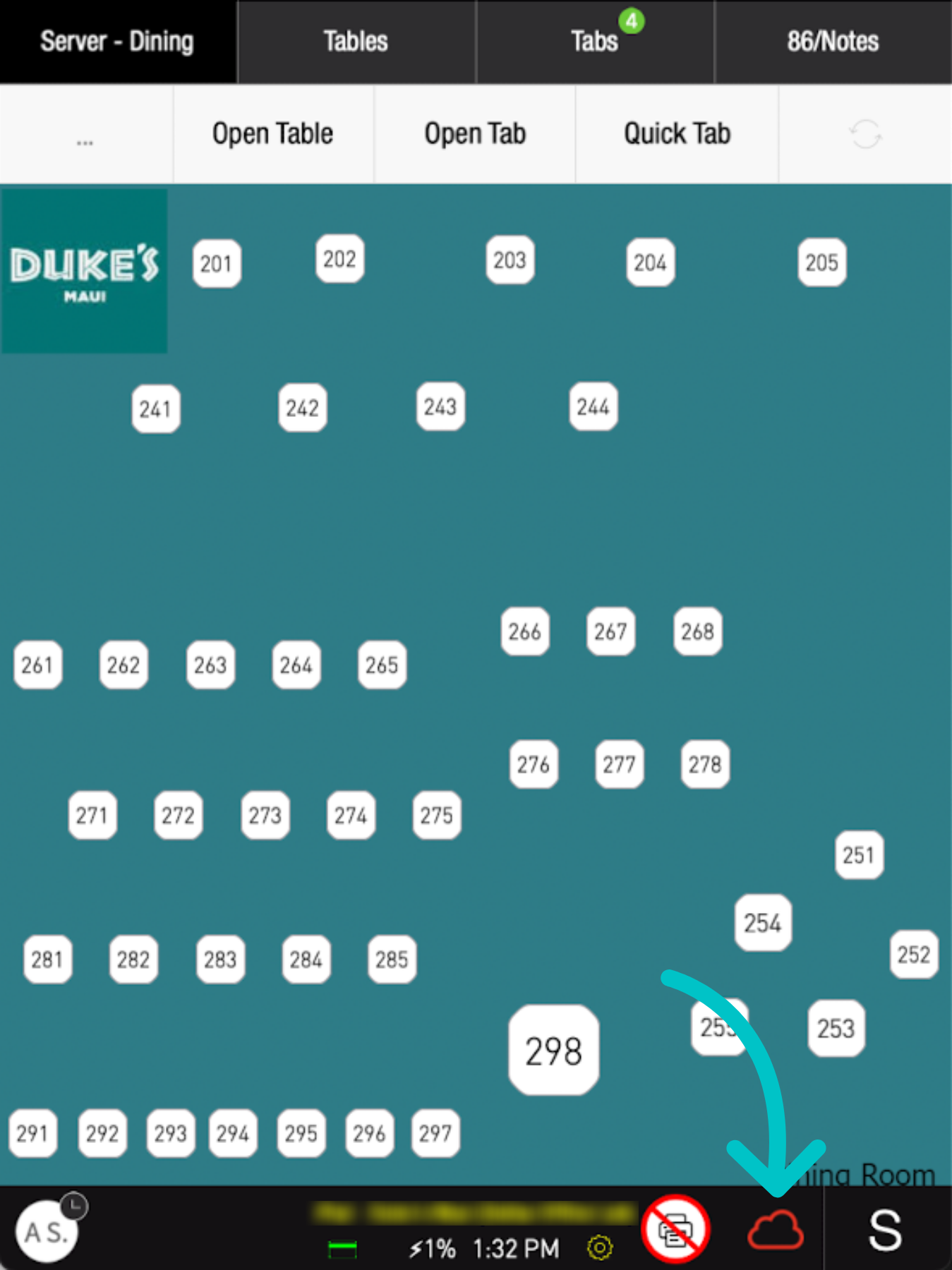
The red cloud at the bottom of the PAD indicates that internet connection has been lost
-
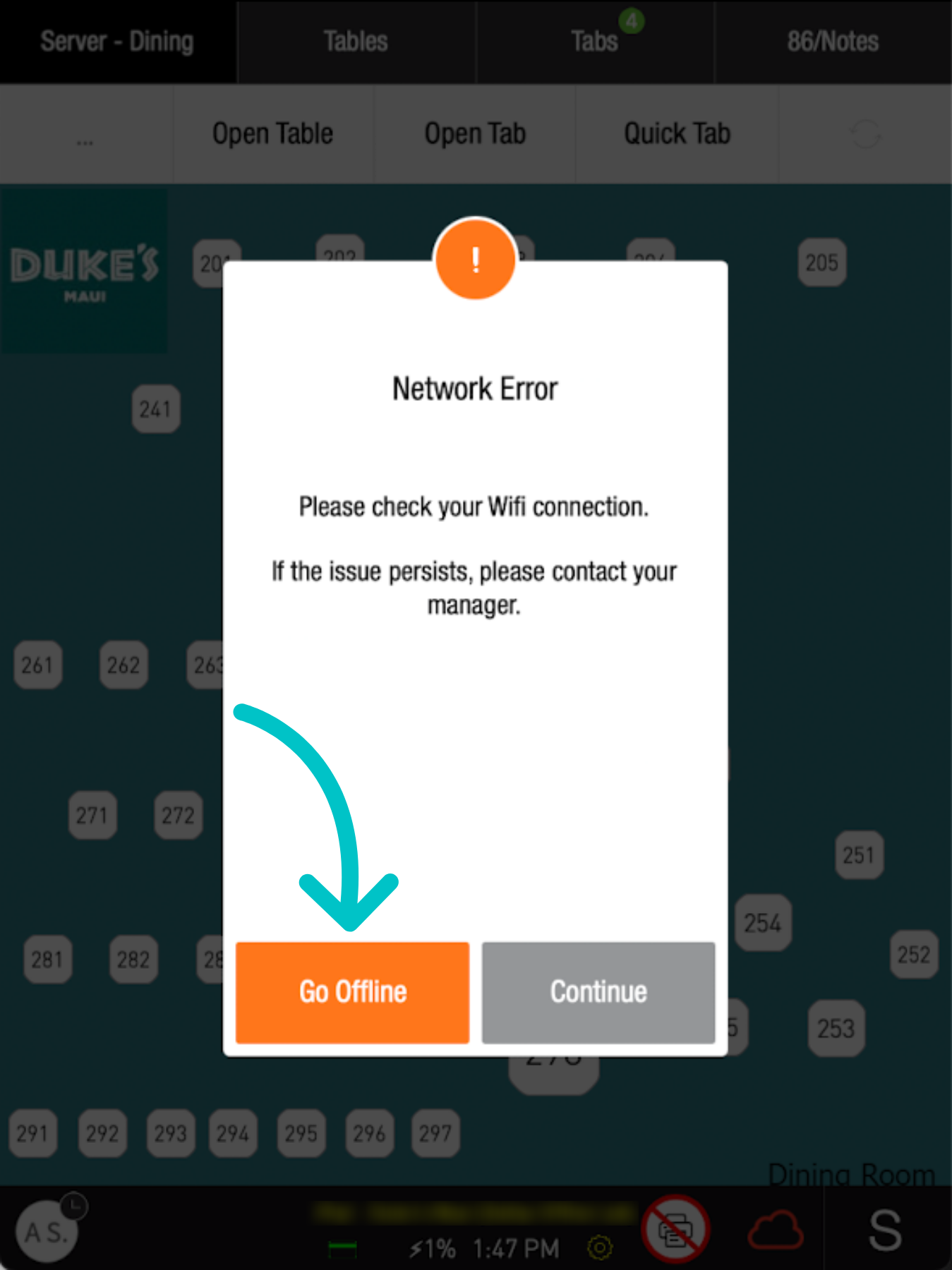
Your Manager will initiate moving the PAD to Offline mode from the Spooler PAD and you will receive a popup on your PAD letting you know. Tap OK to confirm
-
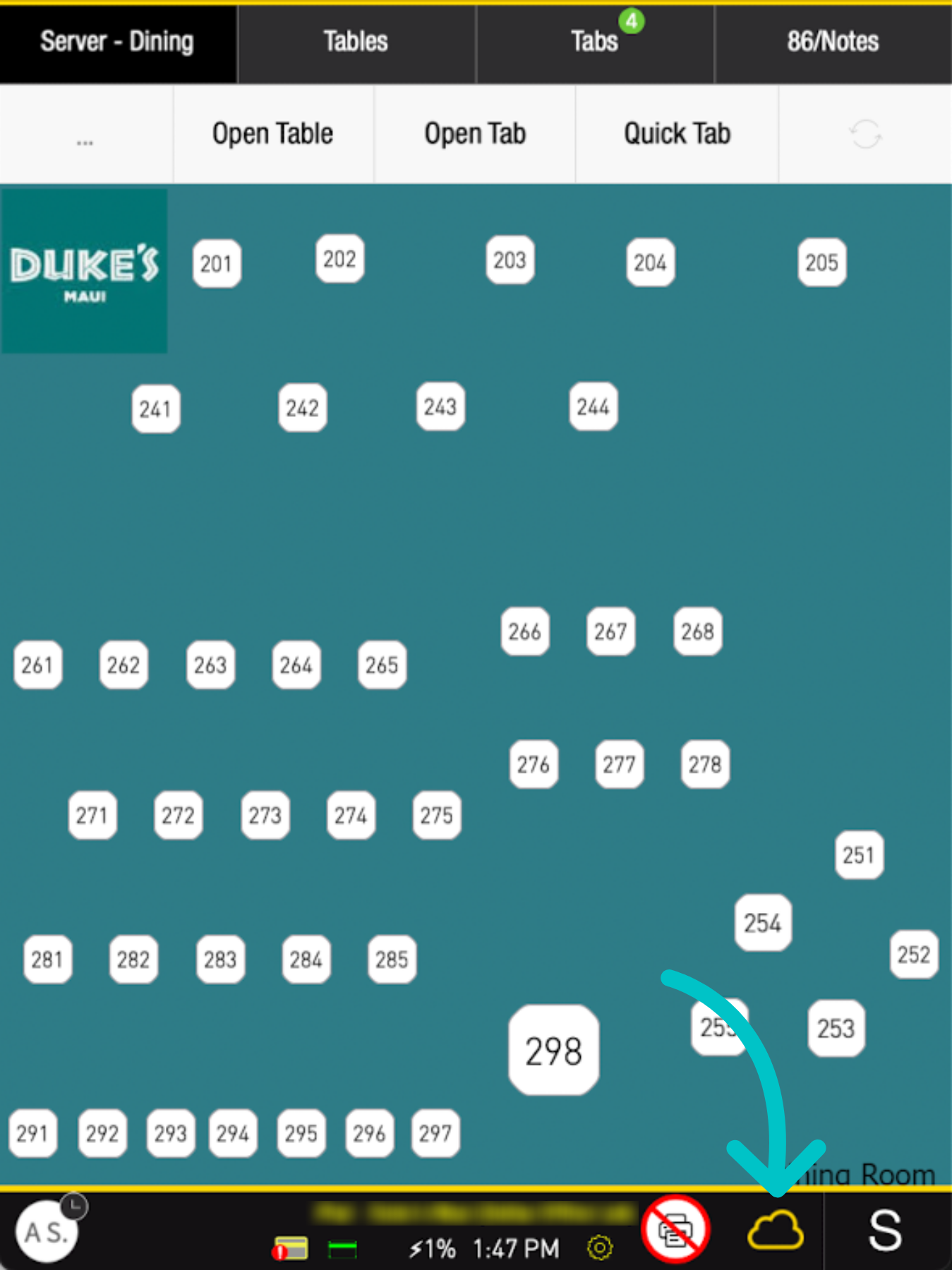
You will know your PAD is in offline mode when the cloud icon turns yellow
-
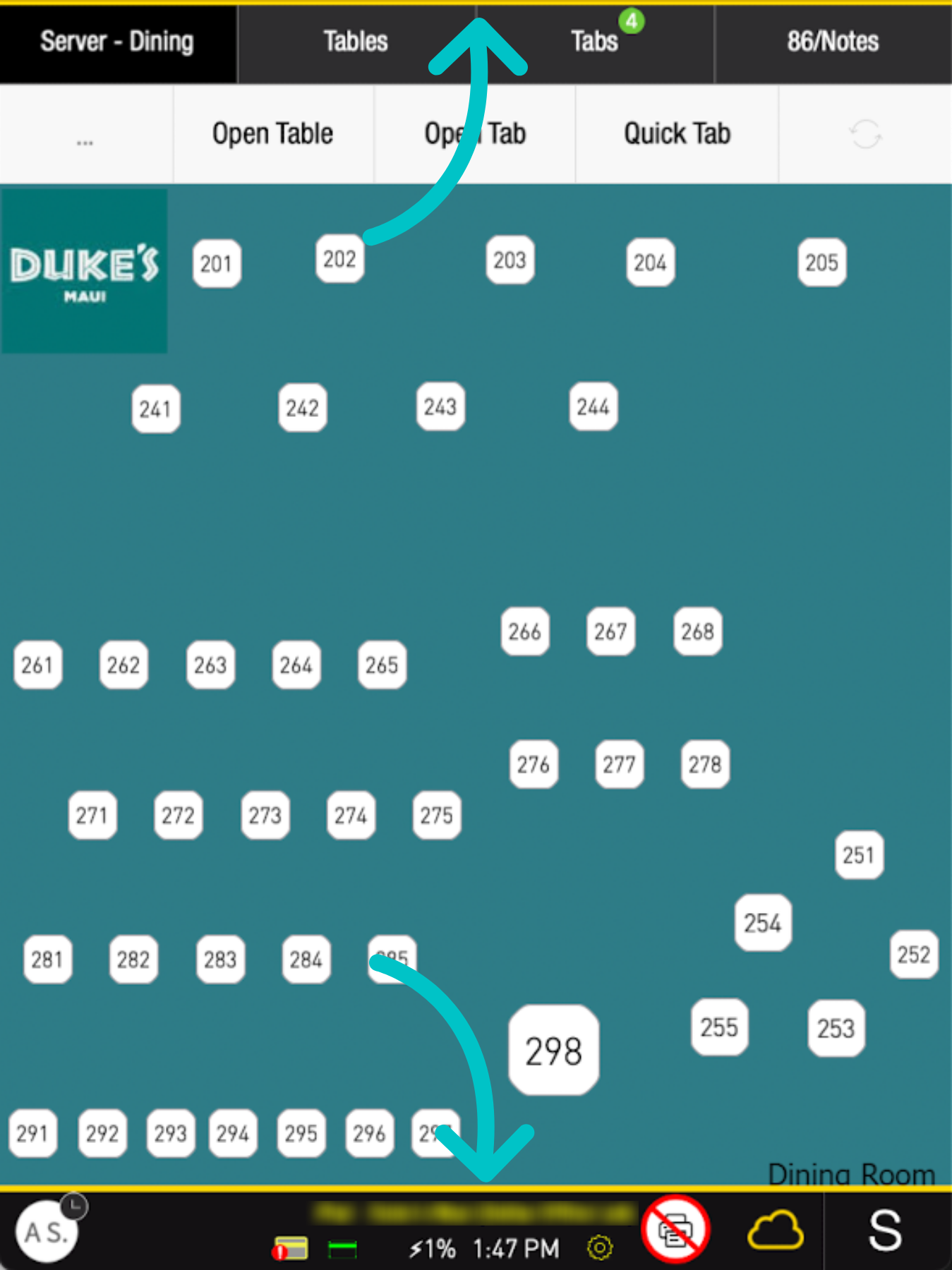
There will also be a yellow bar at the top and bottom of the screen
- Continue to work normally taking orders on the PAD. A few features will work differently in offline mode:
- 86/Notes: The 86/Notes feature will not update across the PADs and will only be stored locally
- Manager Actions: Comps, voids, and discounts must all be manually completed on the PAD that requested the action. This requires the Manager to log in on the PAD that requires the action
-
Table status updates: Tables will not update their status across PADs and Tabit Guest. Closed tables will still appear occupied even after they are closed. You can still enter a closed table, but you will receive a prompt asking if you want to continue opening the table
- Taking a cash payment works as normal without changes to the workflow
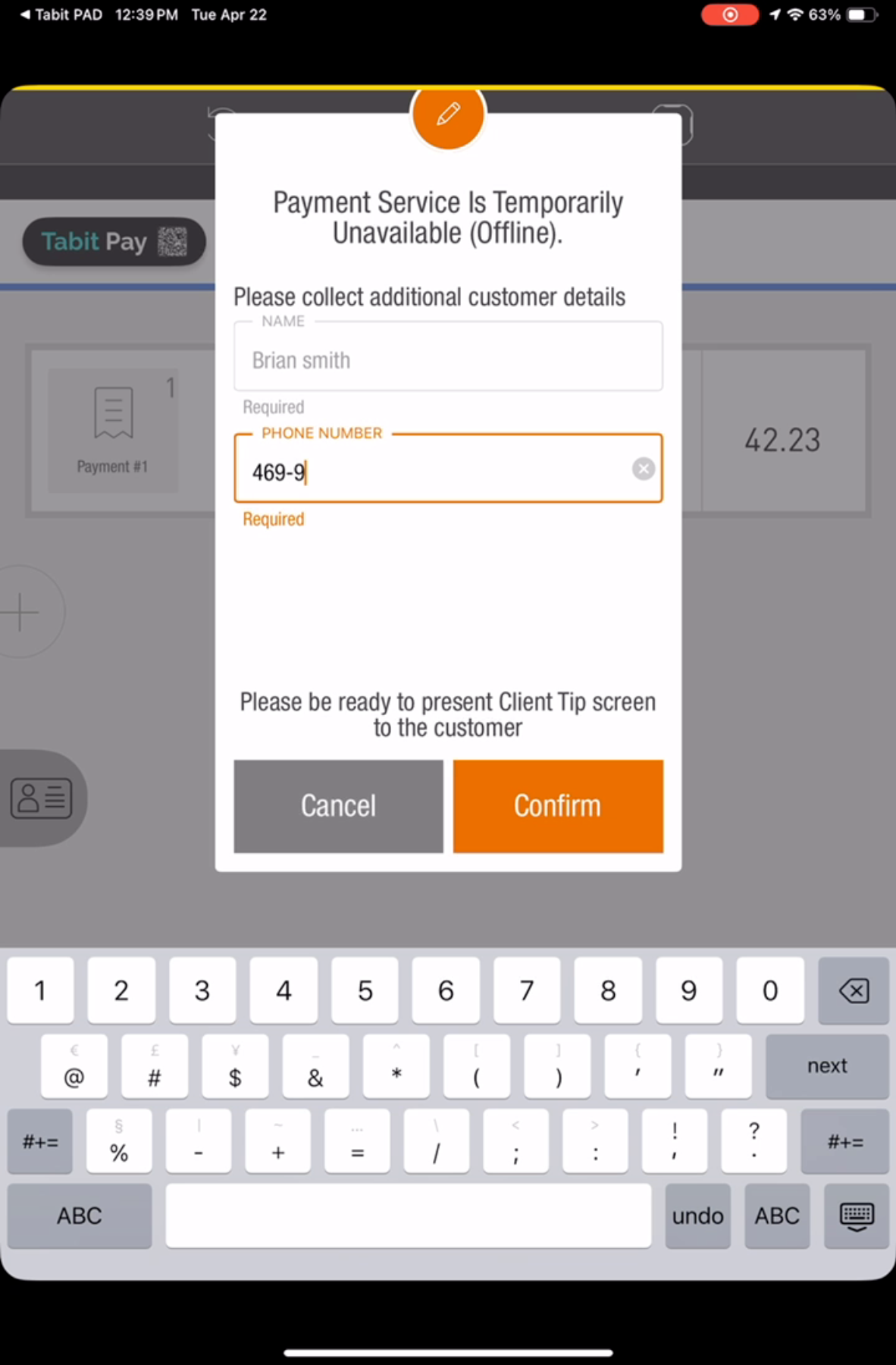
- Taking a credit card payment is slightly different in Offline Mode and you will be prompted to complete the following flow:
-
Enter the customer details and tap Confirm
-
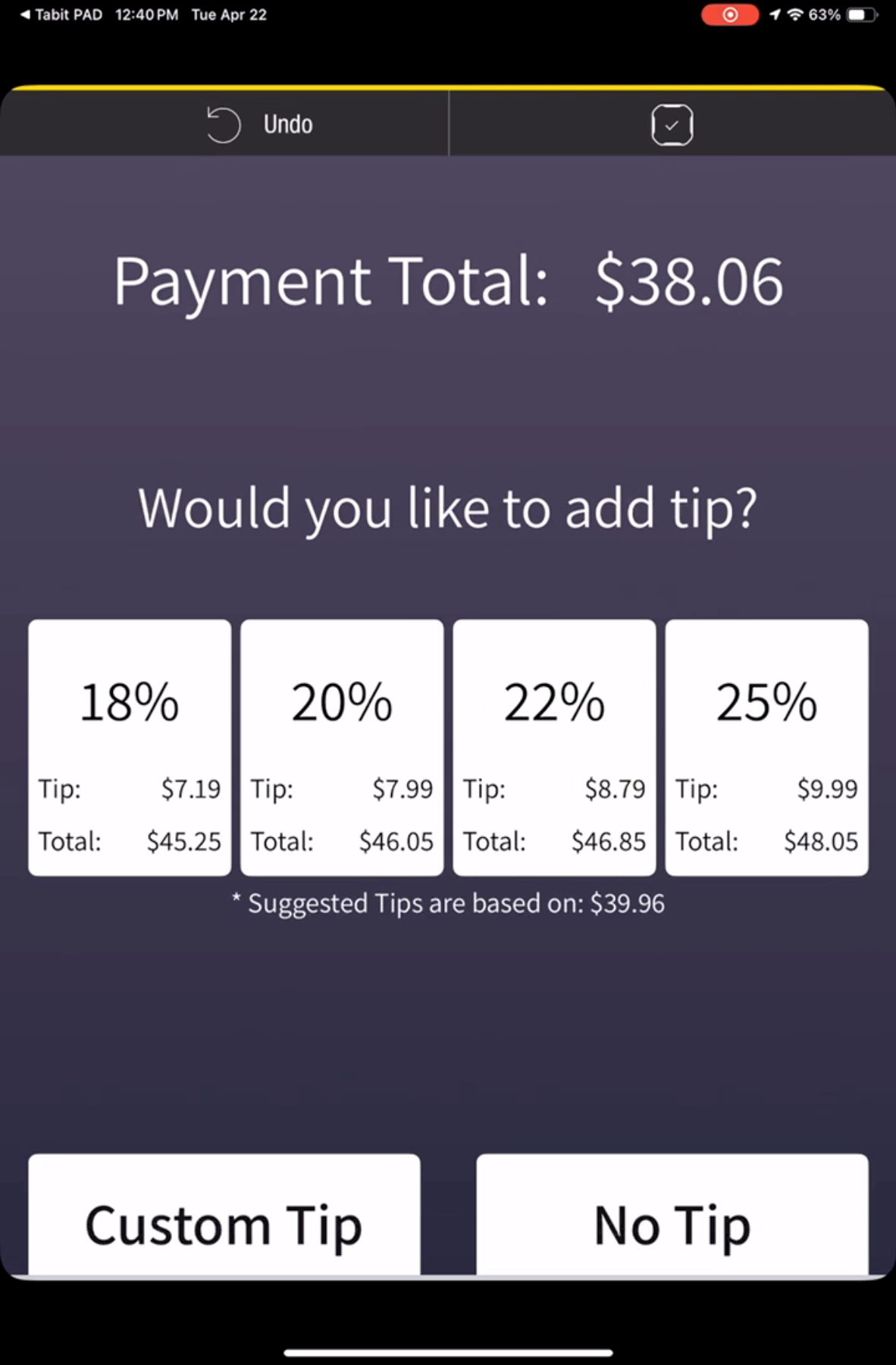
Process the tip as usual and print the receipt if the customer would like it
-
You will be taken back to the payment screen where the payment information is now highlighted in yellow. Dip, tap, or swipe the credit card to process the payment, select Print, and close the order as usual
-
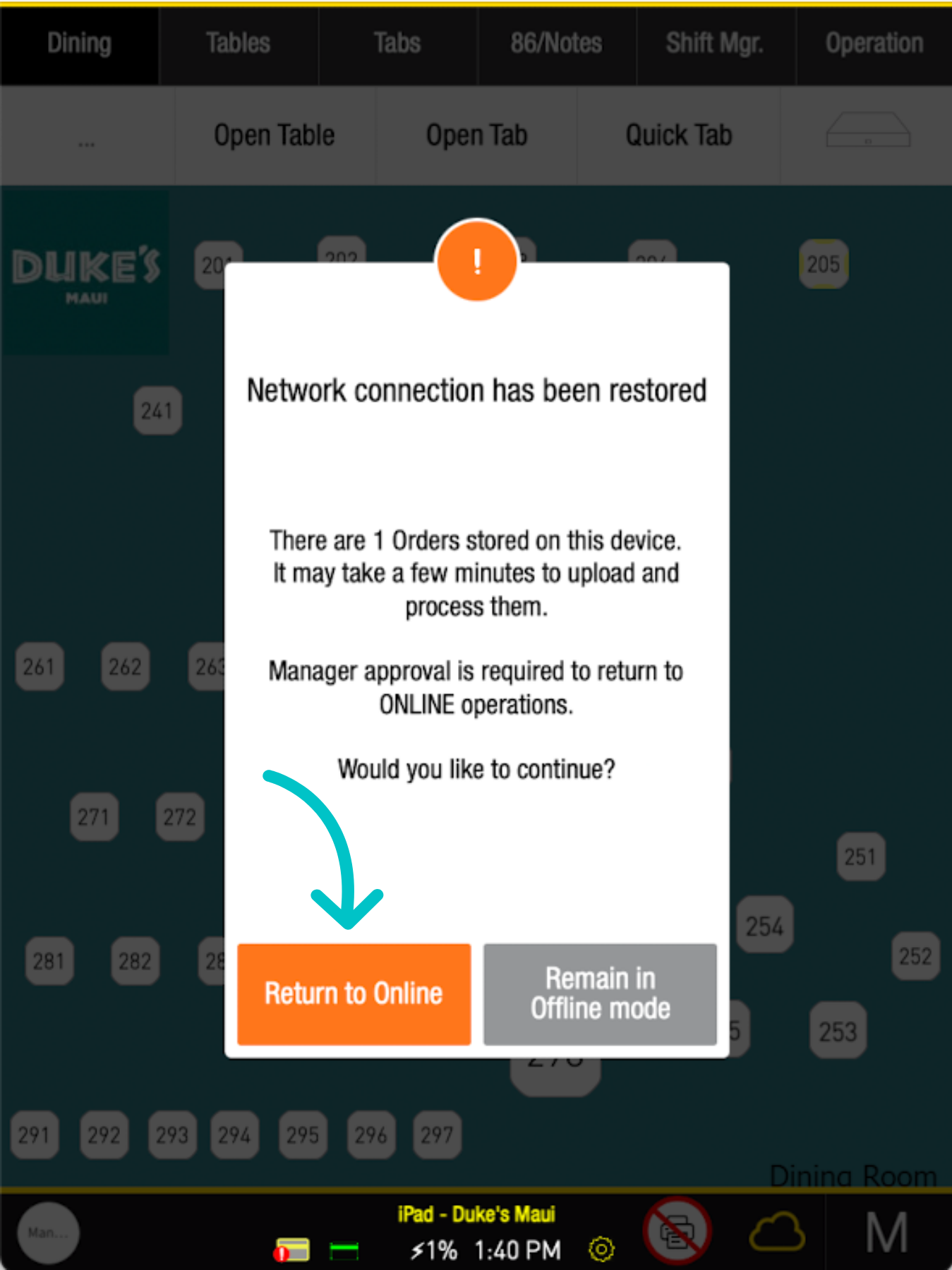
When the internet has been restored, your manager will tell you to go back online. When prompted on the PAD, tap Return to Online
-
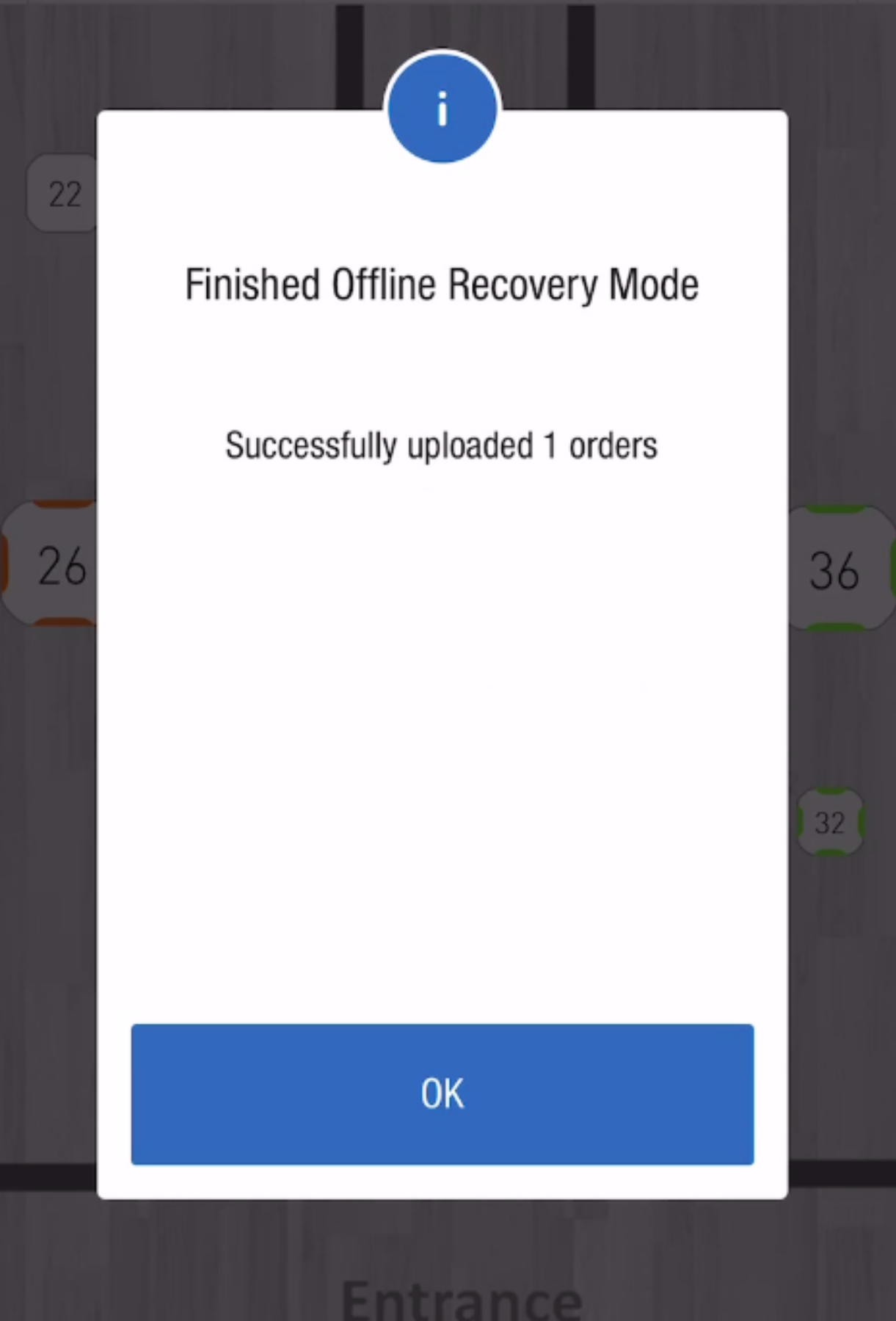
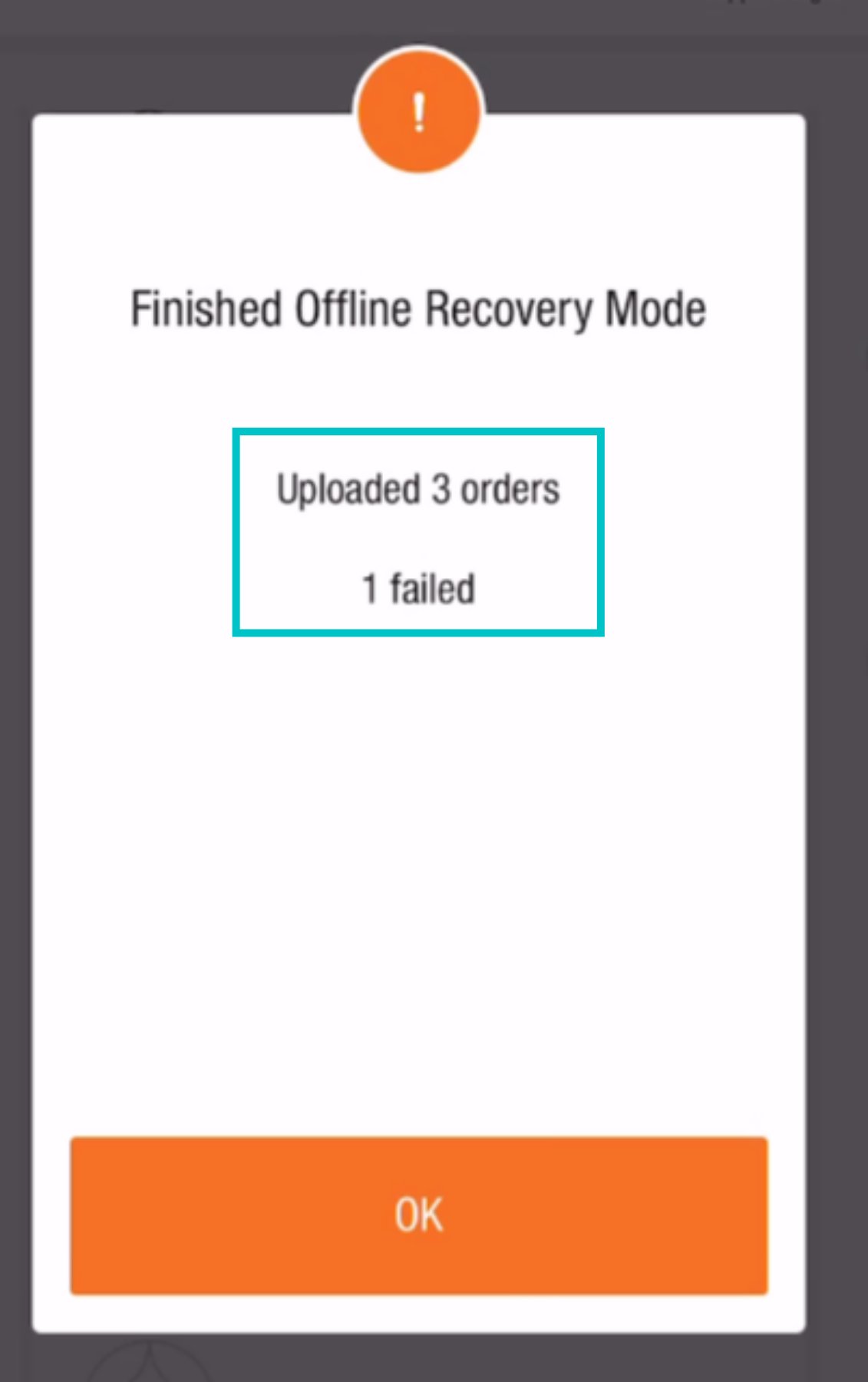
Your orders will update with the number of orders restored to online mode
-
If one or more payments were declined, you will receive an error message. This requires a manager to manually process it
Now your site is back online and you can continue taking orders as usual