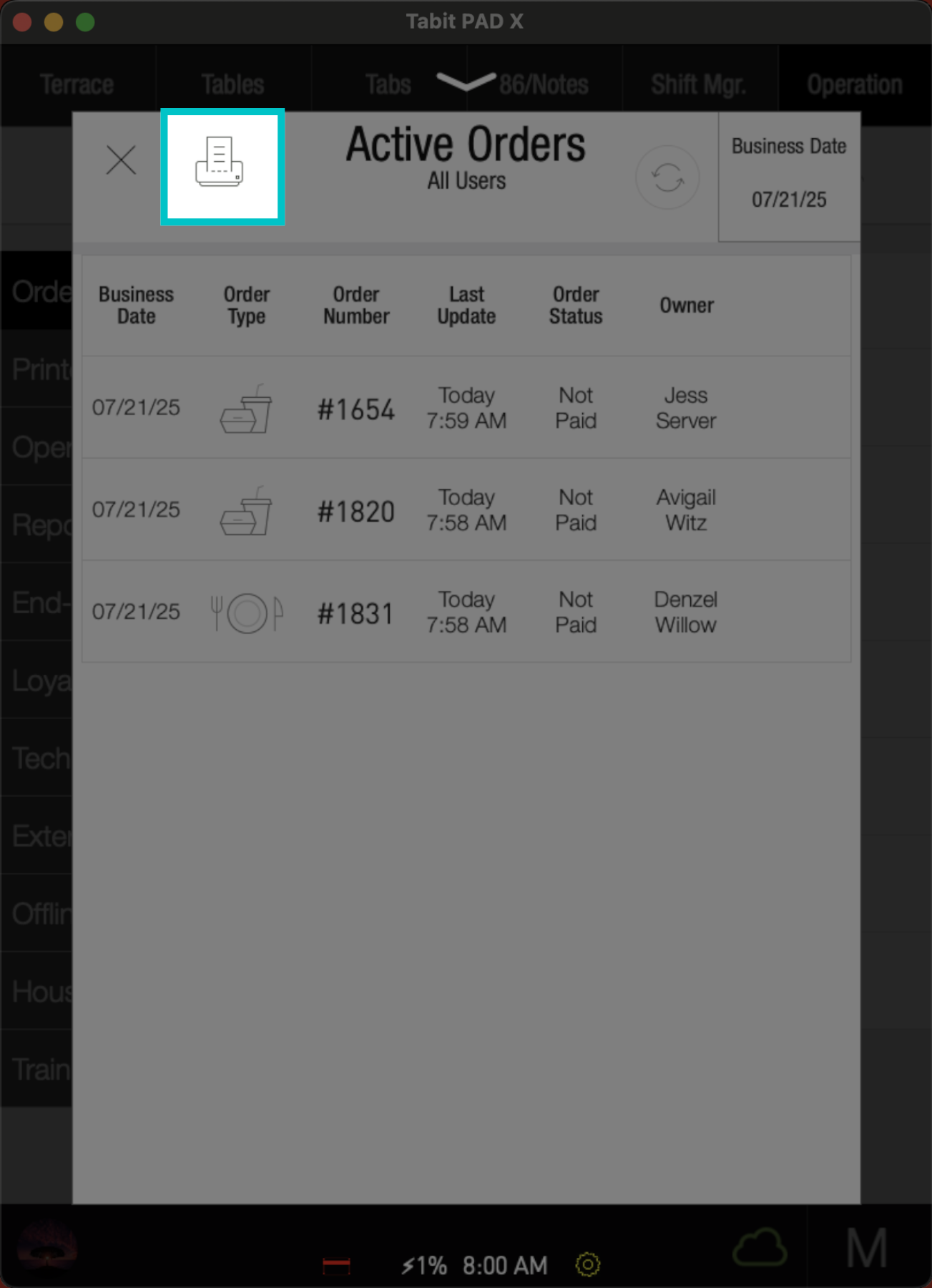
All active orders are accessible in a single location on the PAD when necessary. This is useful when running EOD and there's an open order, or if an online order is not processing correctly.
Viewing all active orders requires a Manager profile
Follow the steps to locate all active orders on the PAD:
-
From a Manager profile, go to the Operations tab
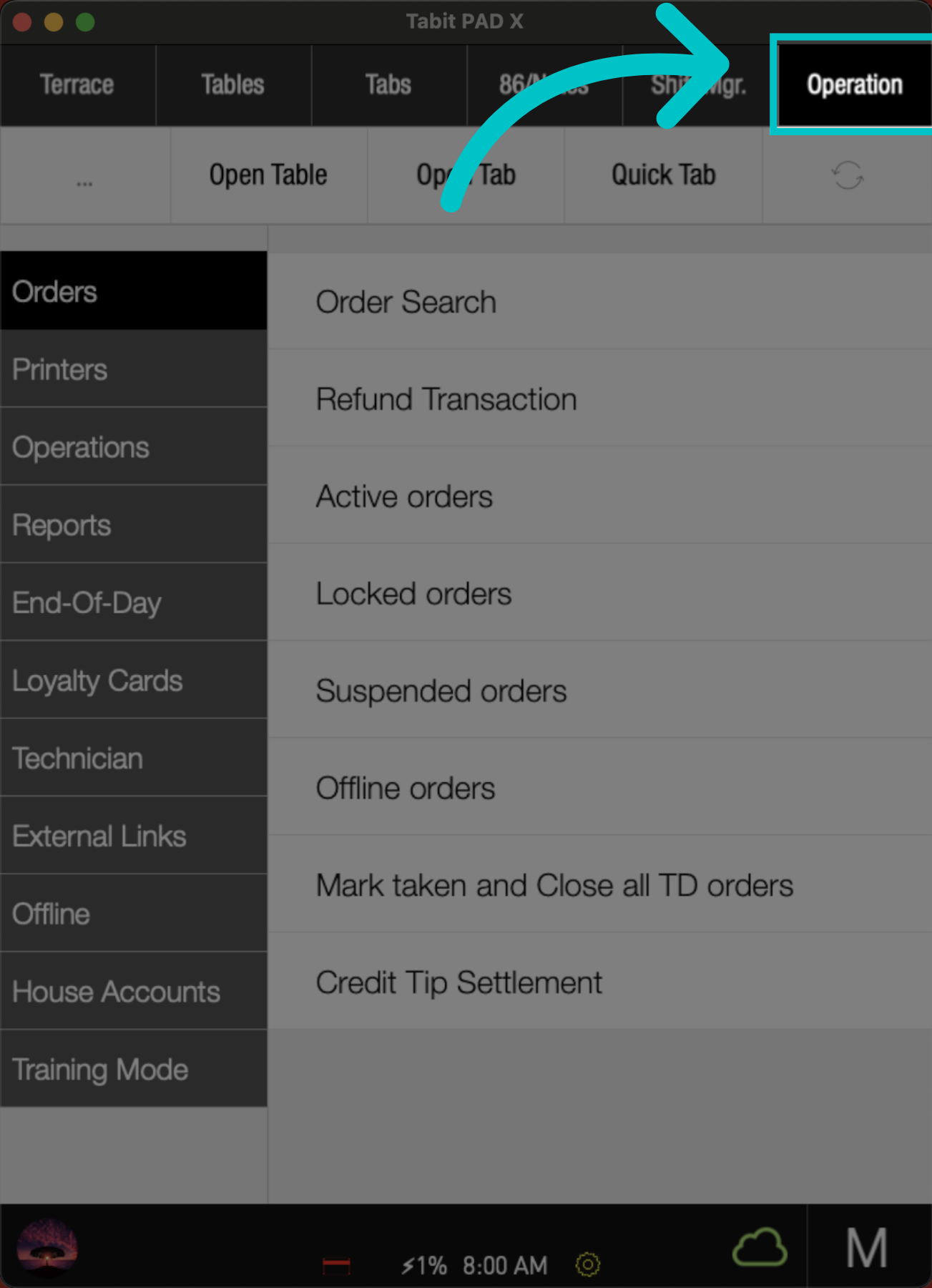
-
And select Active orders
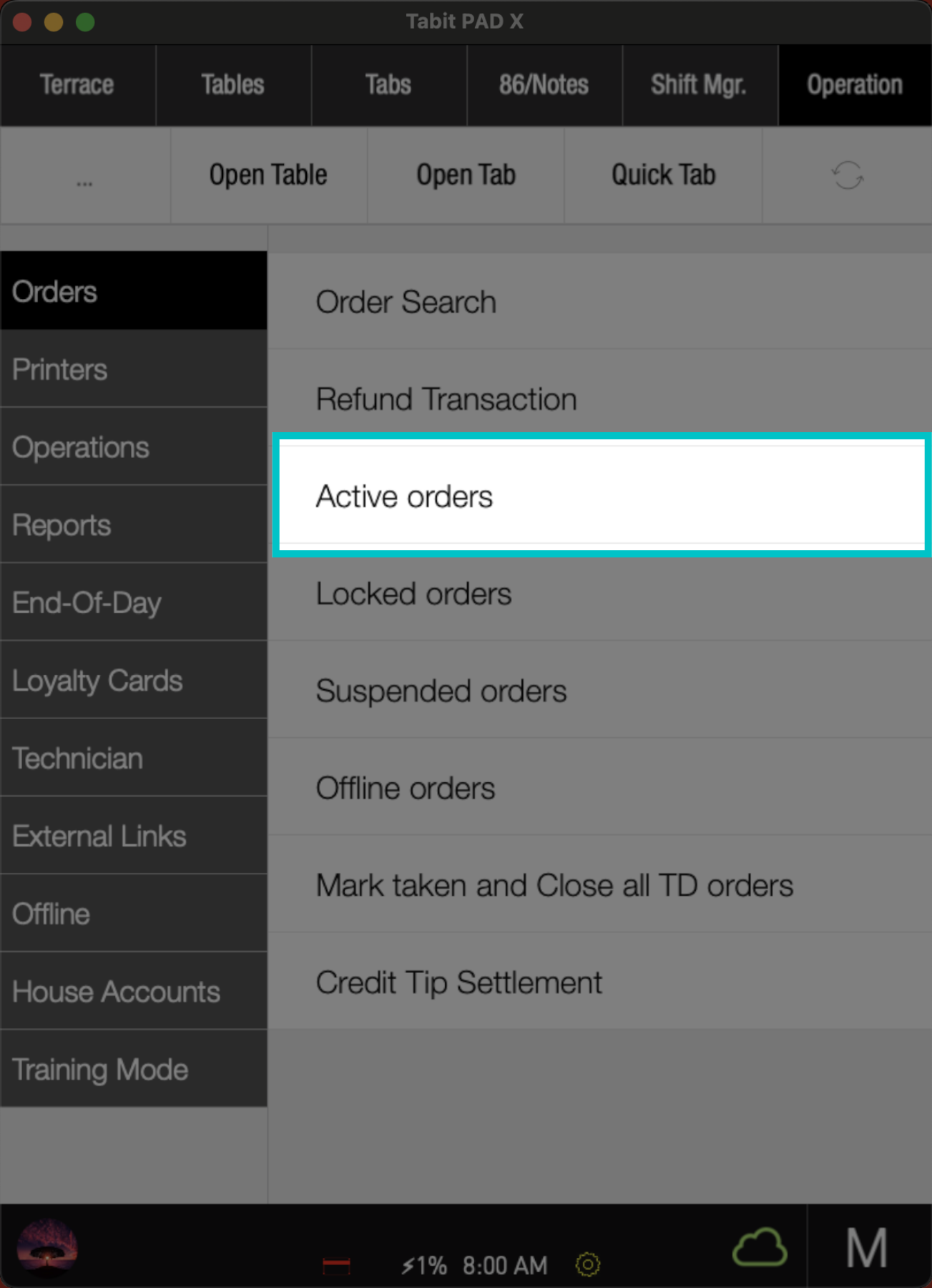
-
A list of all current active orders will appear, including the following information:
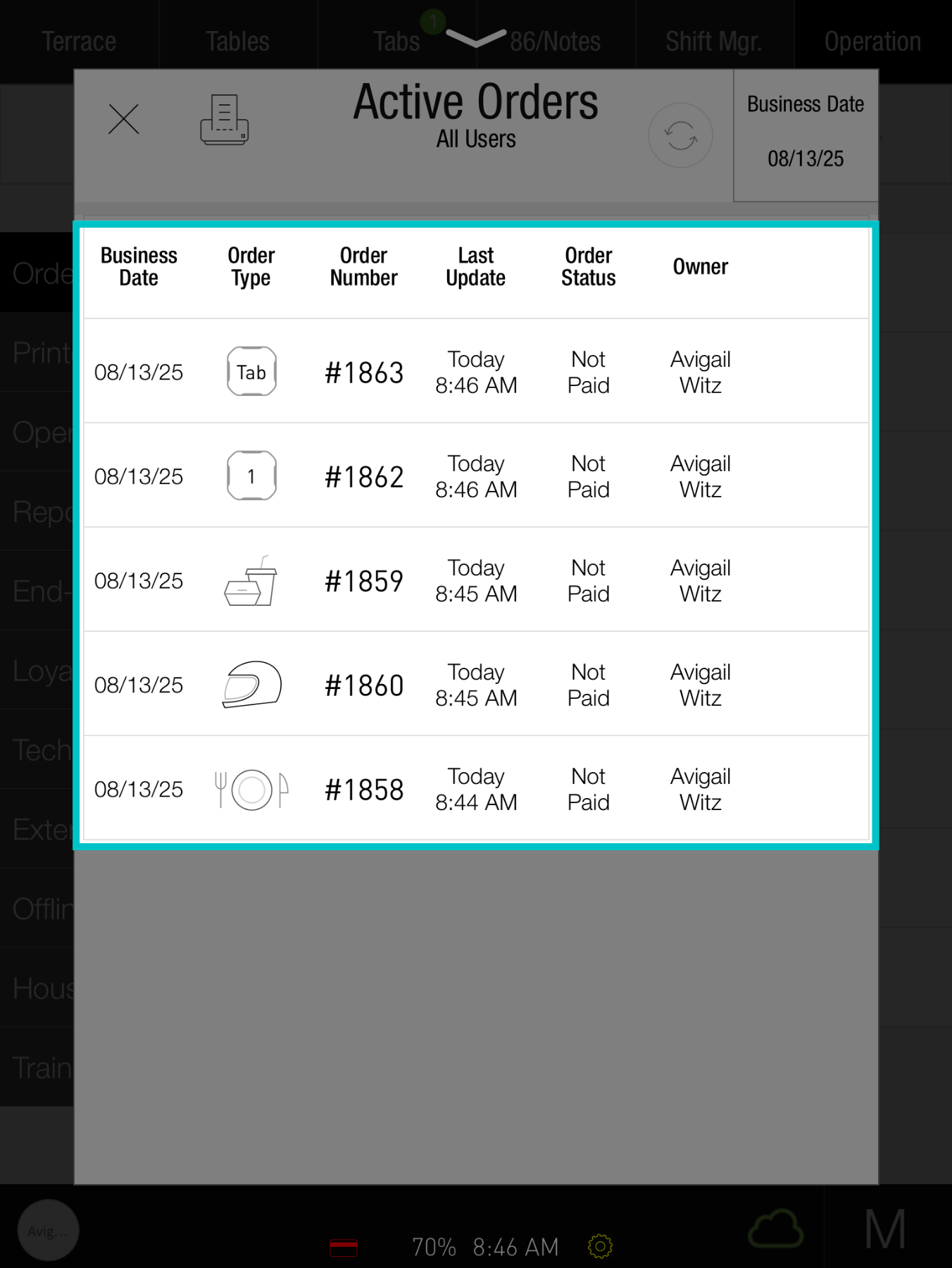
- Business date: The date the order is on
-
Order type (identified with the following icons):
- Tab: Open tab
- Square with number: Seated order and its table number
- Takeaway container: Takeaway order
- Helmet: Delivery order
- Knife and fork: OTC order
- Order number: Unique identifier for the order
- Last update: When the order was last updated
-
Order status:
- Not paid: Waiting for payment
- Ready for close: Payment has been taken, and the order can now be closed
- Owner: The person who owns the order
-
You can access each order from this screen and print the list by selecting the Printer icon in the top left