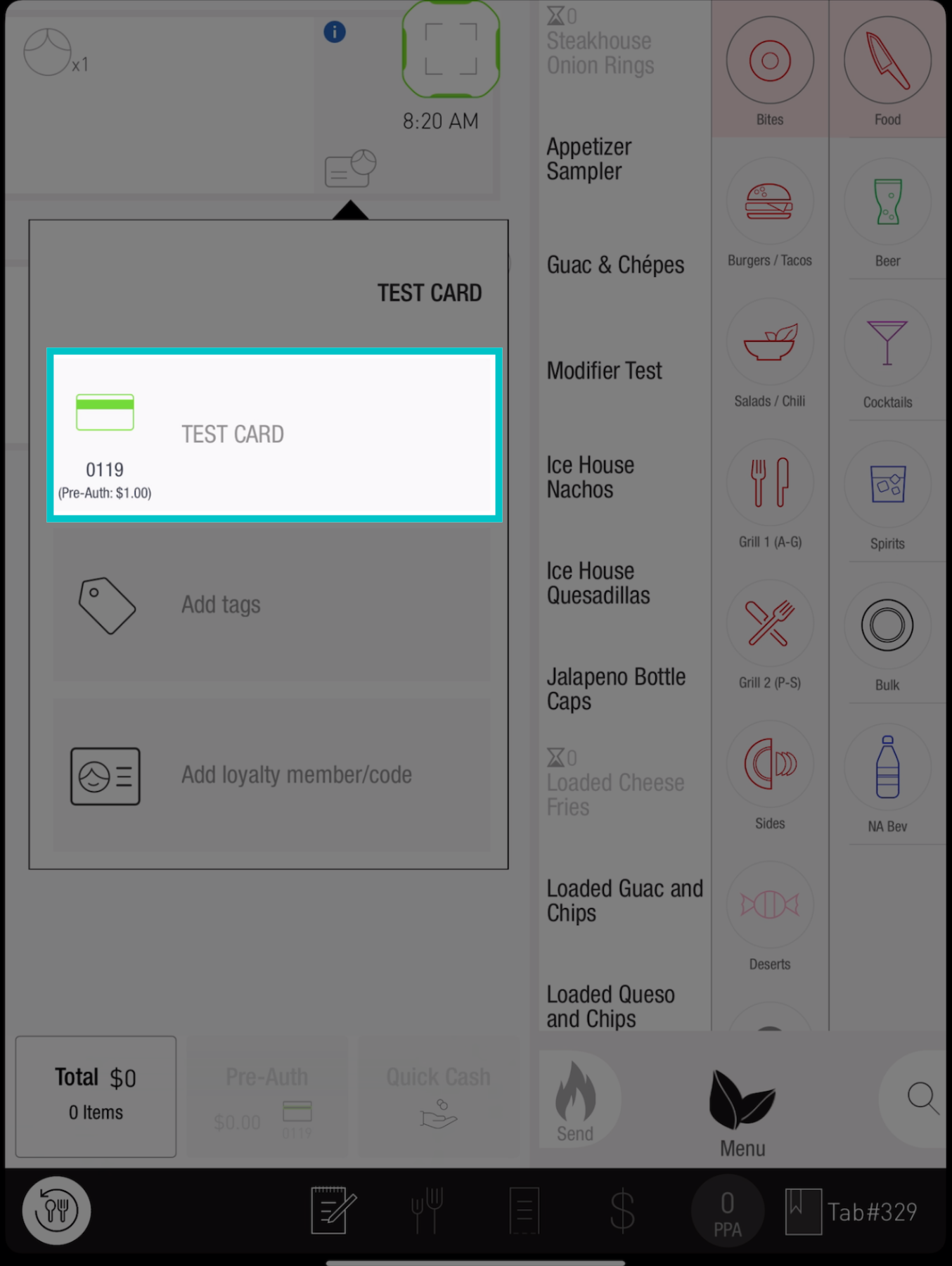
Open tabs let you start on-premise orders without assigning customers to specific tables. This is especially useful in bar environments, during busy rushes, or whenever customers want more flexibility.
Follow the steps below to open a tab:
-
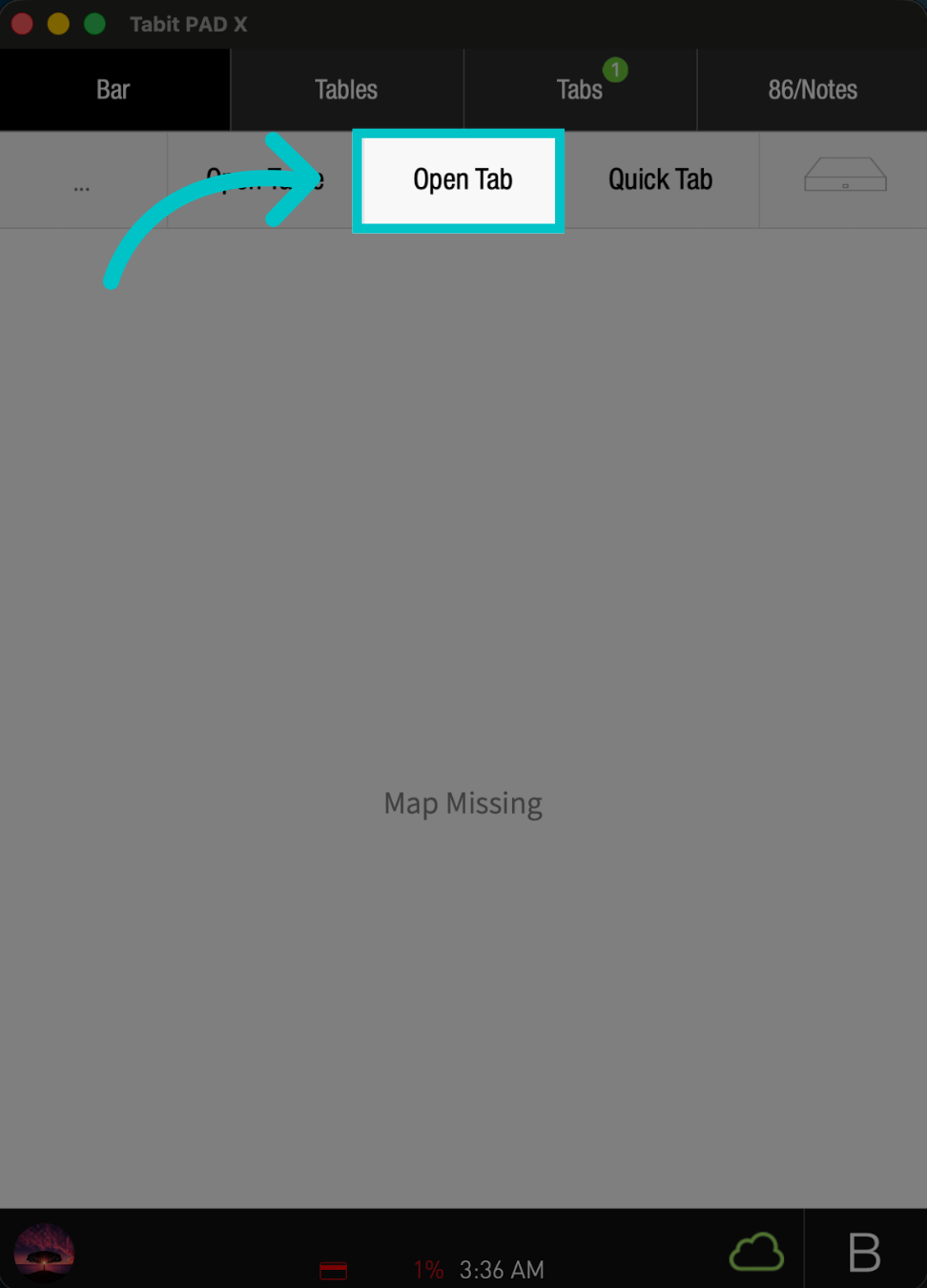
From any screen on the PAD, tap the Open Tab button at the top
-
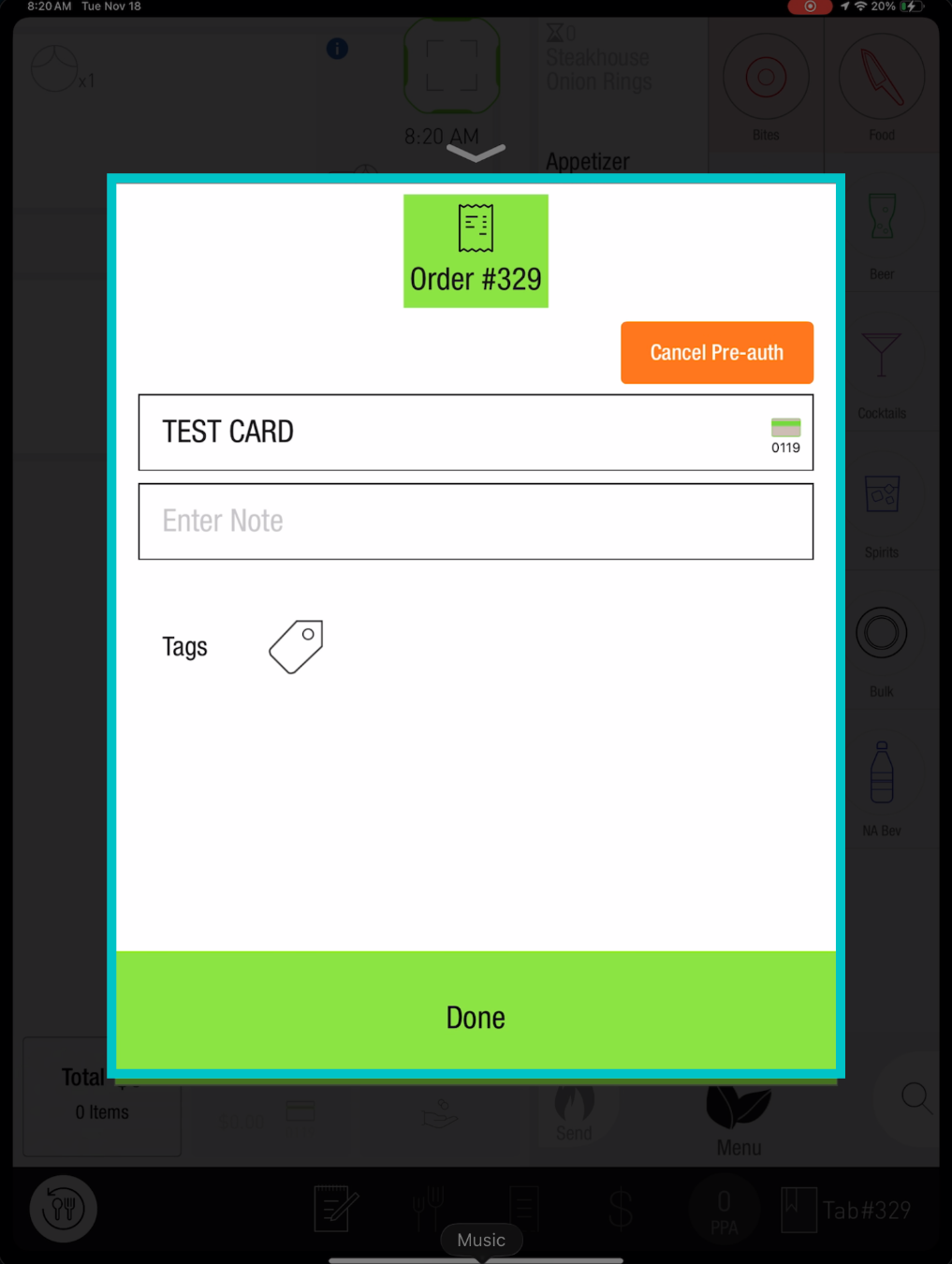
A window will appear. Here, you can either swipe or insert the customer’s credit card to automatically capture their name
-
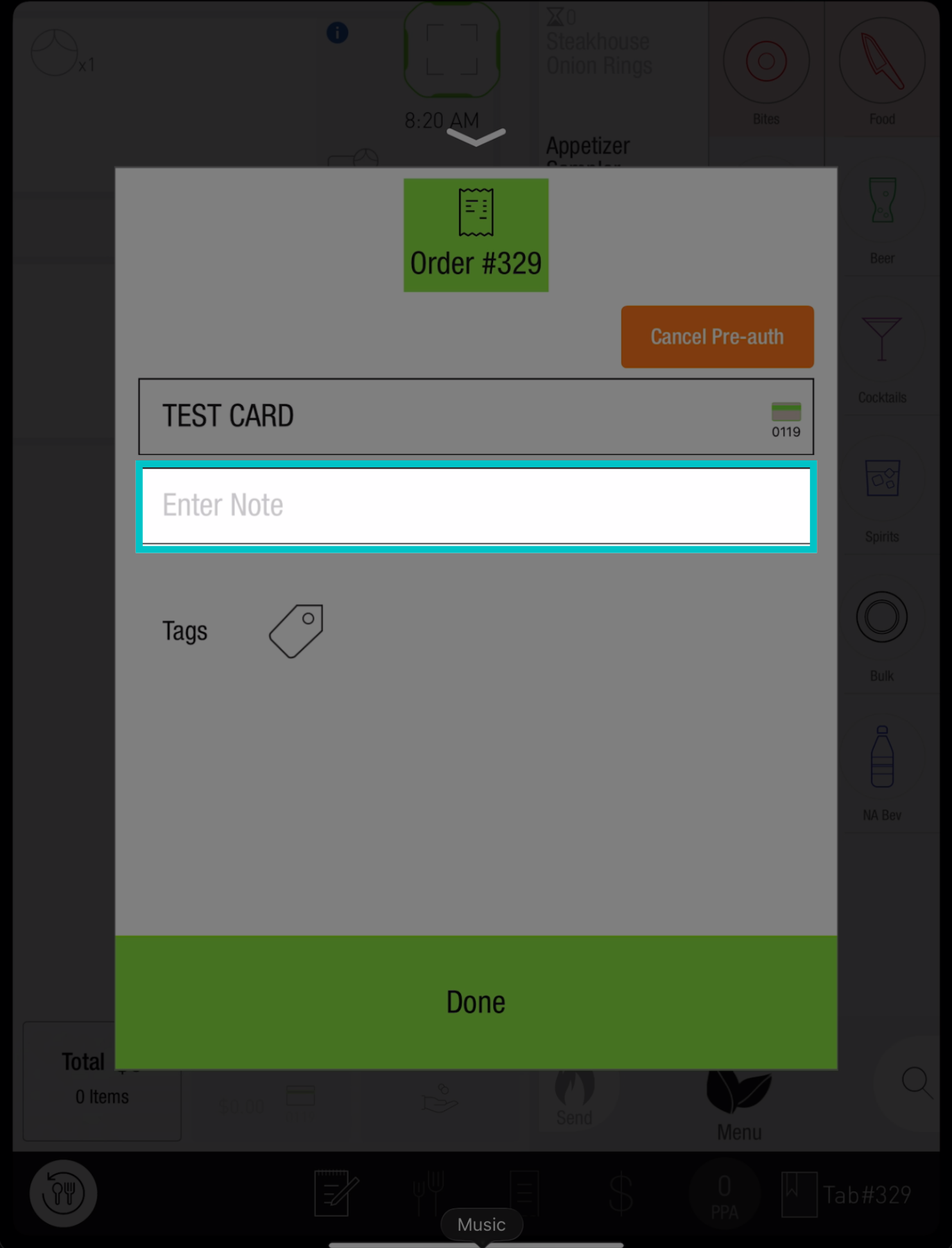
You can also manually type in the customer’s name and add a note if needed
-
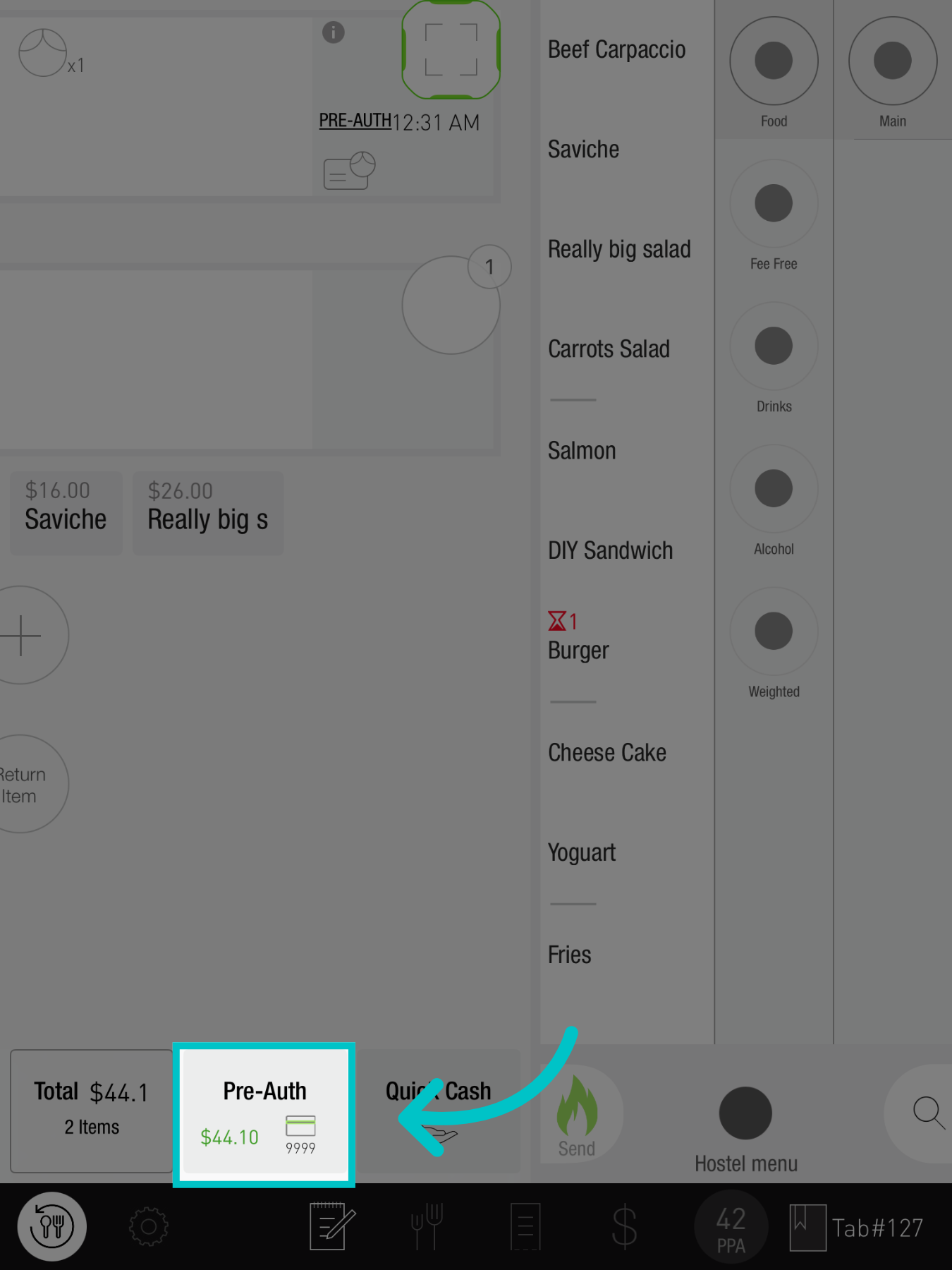
If your location uses pre-authorization, the system will pre-auth the card automatically
To enable pre-authorization, please contact your Tabit representative
-
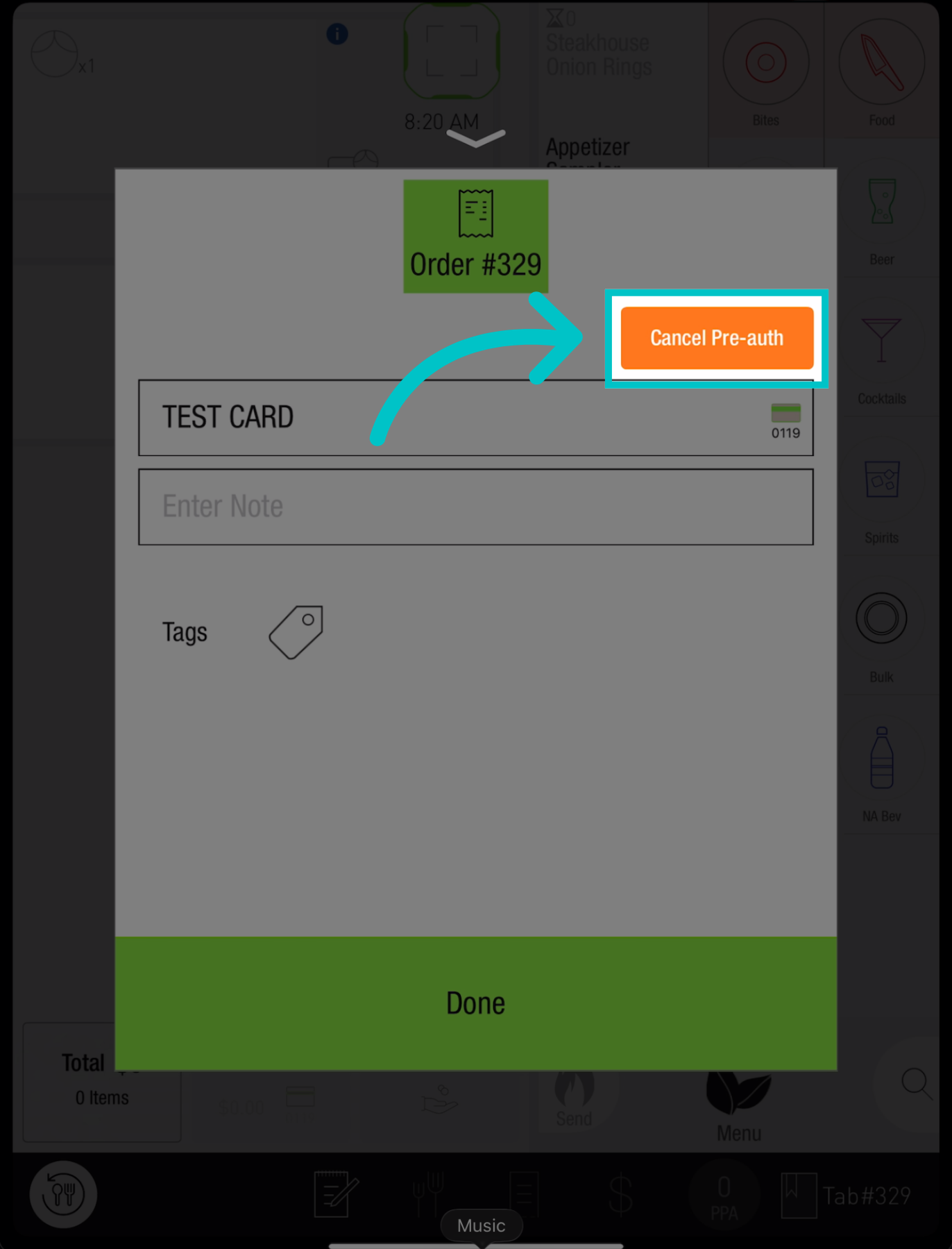
Select Cancel Pre-auth to remove it
-
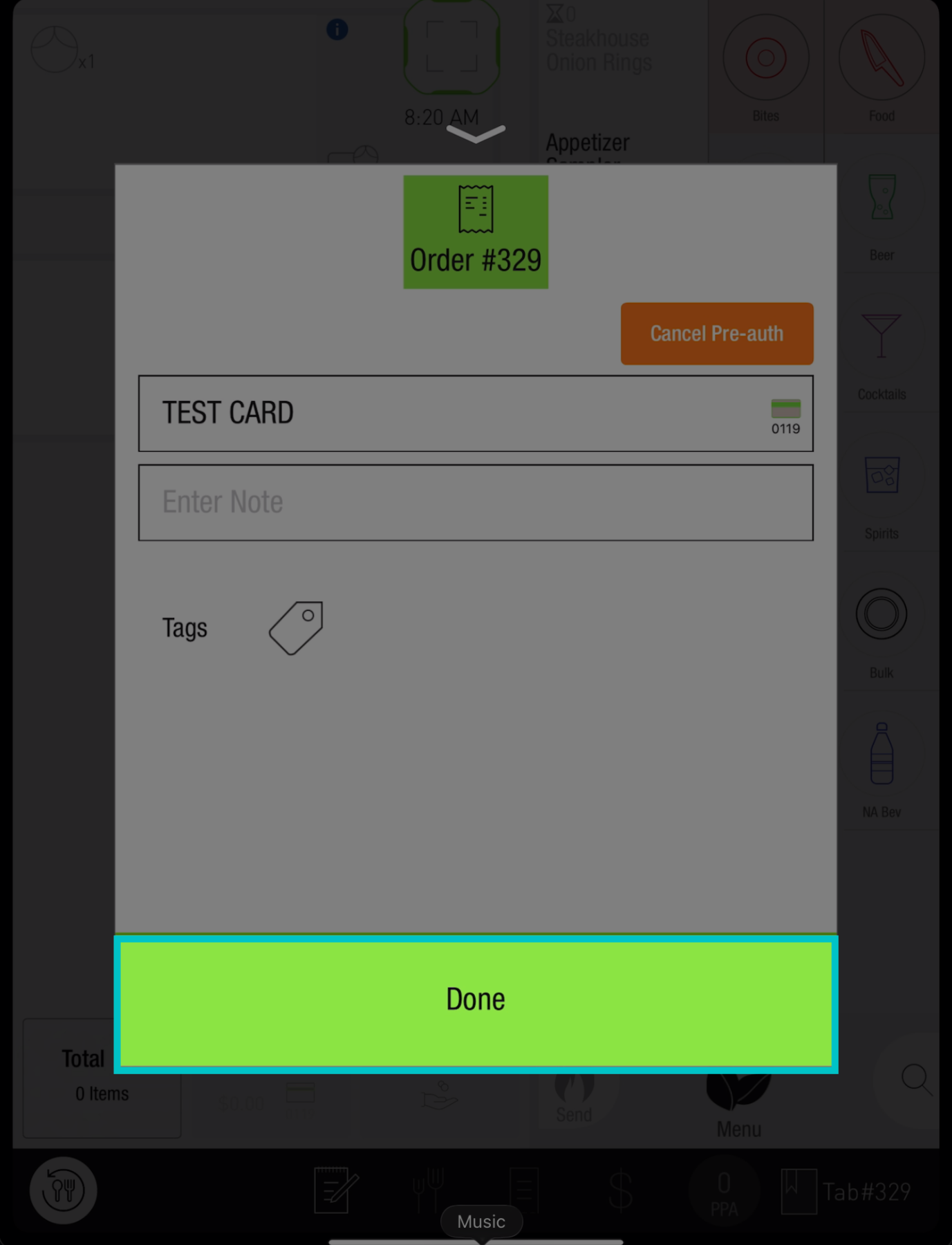
Then tap Done to complete the process
-
Once the information is entered, the tab is ready to use