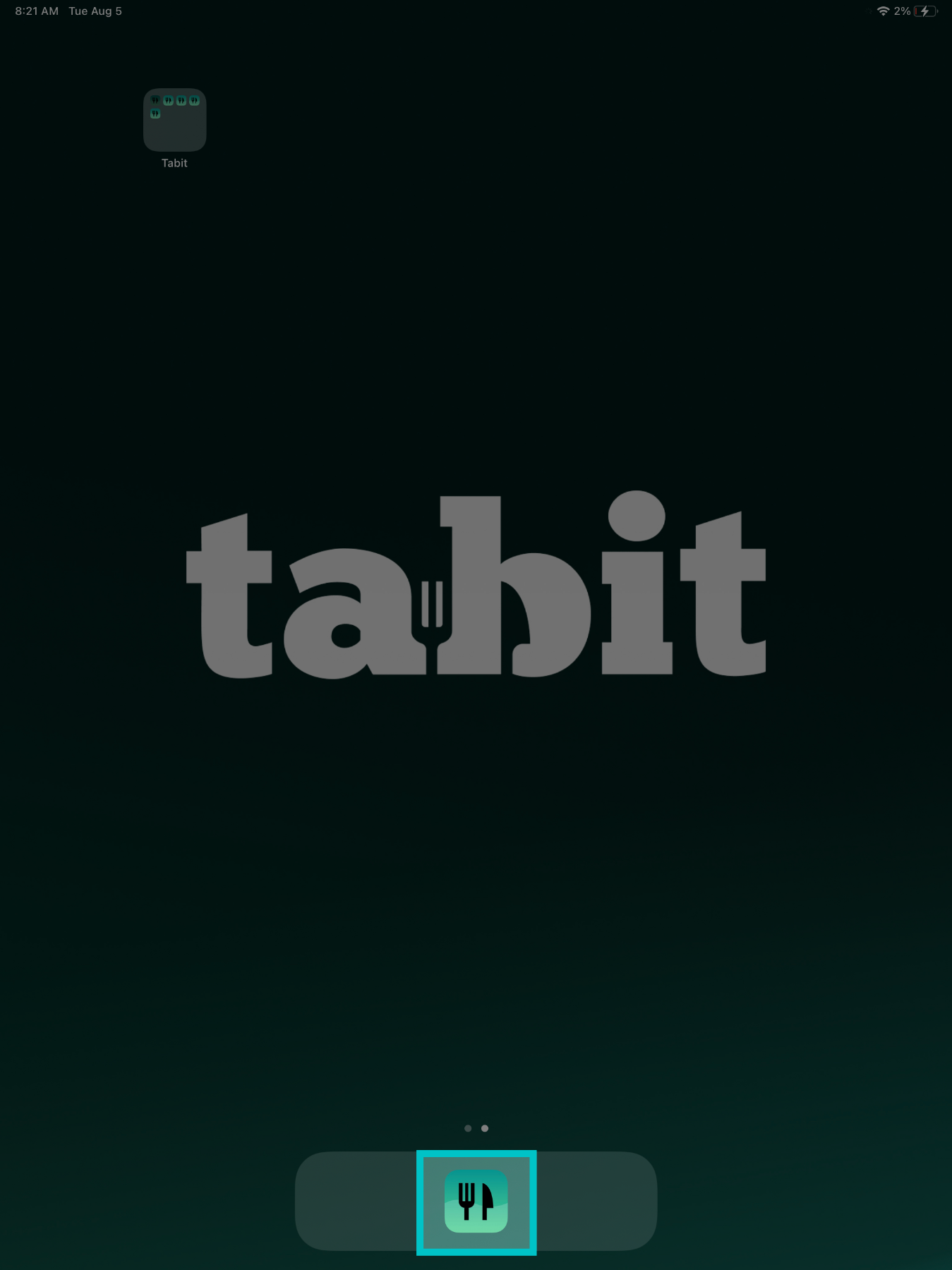
These steps should always be done first when troubleshooting any device
- Power cycle the Ingenico device. You may need to unplug it from its cradle if present
- Power cycle the PAD
- Close and relaunch the Tabit app
Before troubleshooting, ensure your are on the M profile at the bottom-right corner
Follow these steps to solve the most common issues related to pairing:
- Ensure the Ingenico device is powered on with a solid red light
- Log in to the PAD as a manager (ensure you're on the M profile in the bottom right corner)
-
Go to Operations > Technician > Ingenico Device Handler
-
Check that the User Credentials says “Logged In”. If not, contact Tabit Support.
- If the Ingenico device is on but the credit card icon at the bottom is red, proceed to the Pairing Issues section
-
Select Pair or Unpair on the Ingenico Device Handler screen. If you unpair, pair again immediately.
-
Select the device in the list (usually starts with MOB55). The last 6 digits should match the printed label.
- Within 5 seconds, press and release the power button on the device
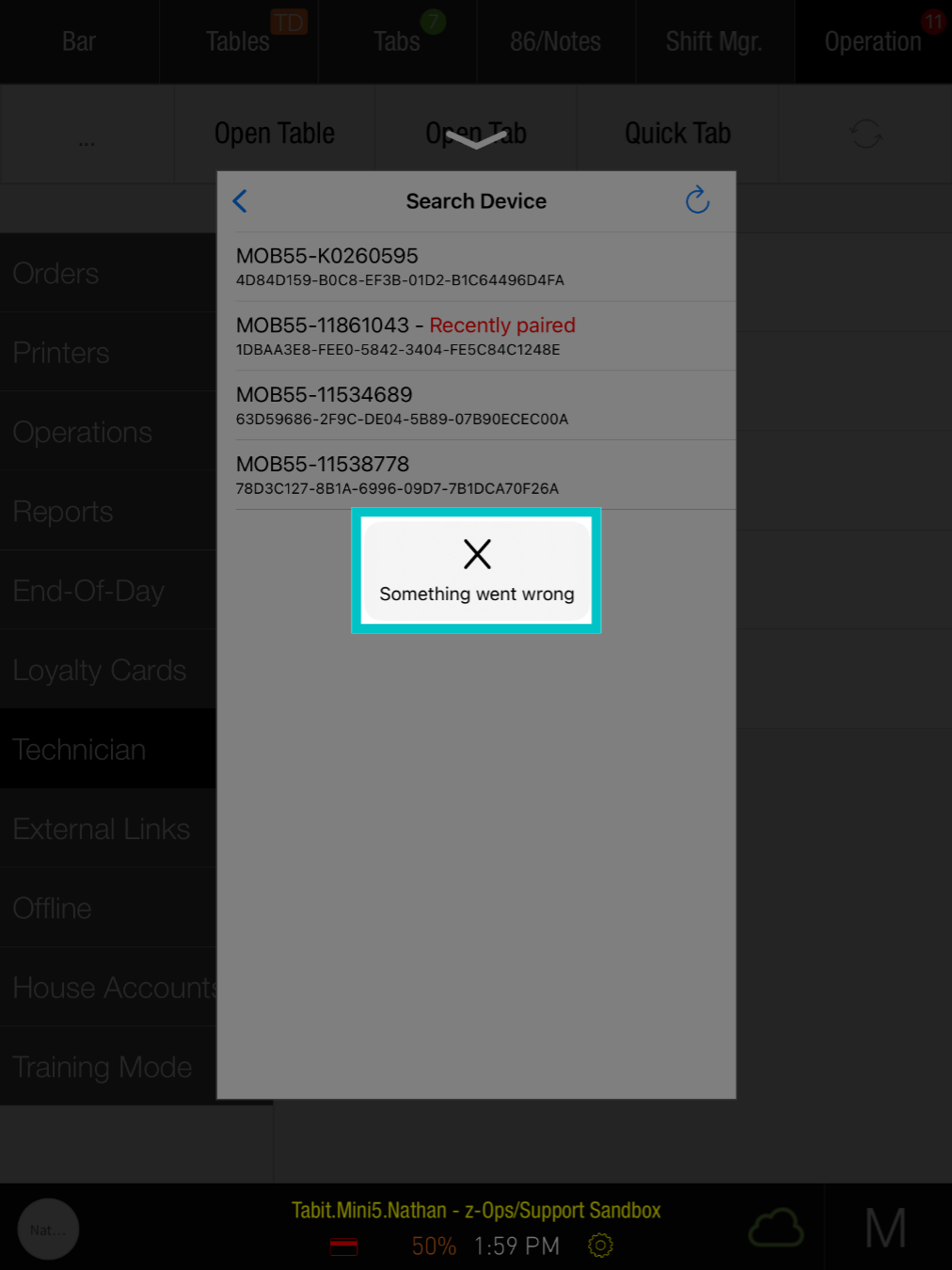
- If you see “Something went wrong”, proceed to the next section
-
On the Bluetooth pairing screen, select Pair
-
On the pairing validation screen, match the light pattern. If it matches, select Confirm
-
Once setup is complete, the blue ribbon will show Insert/Tap/Swipe and the credit card icon will turn green.
-
This message might pop up while you're trying to pair an Ingenico device
-
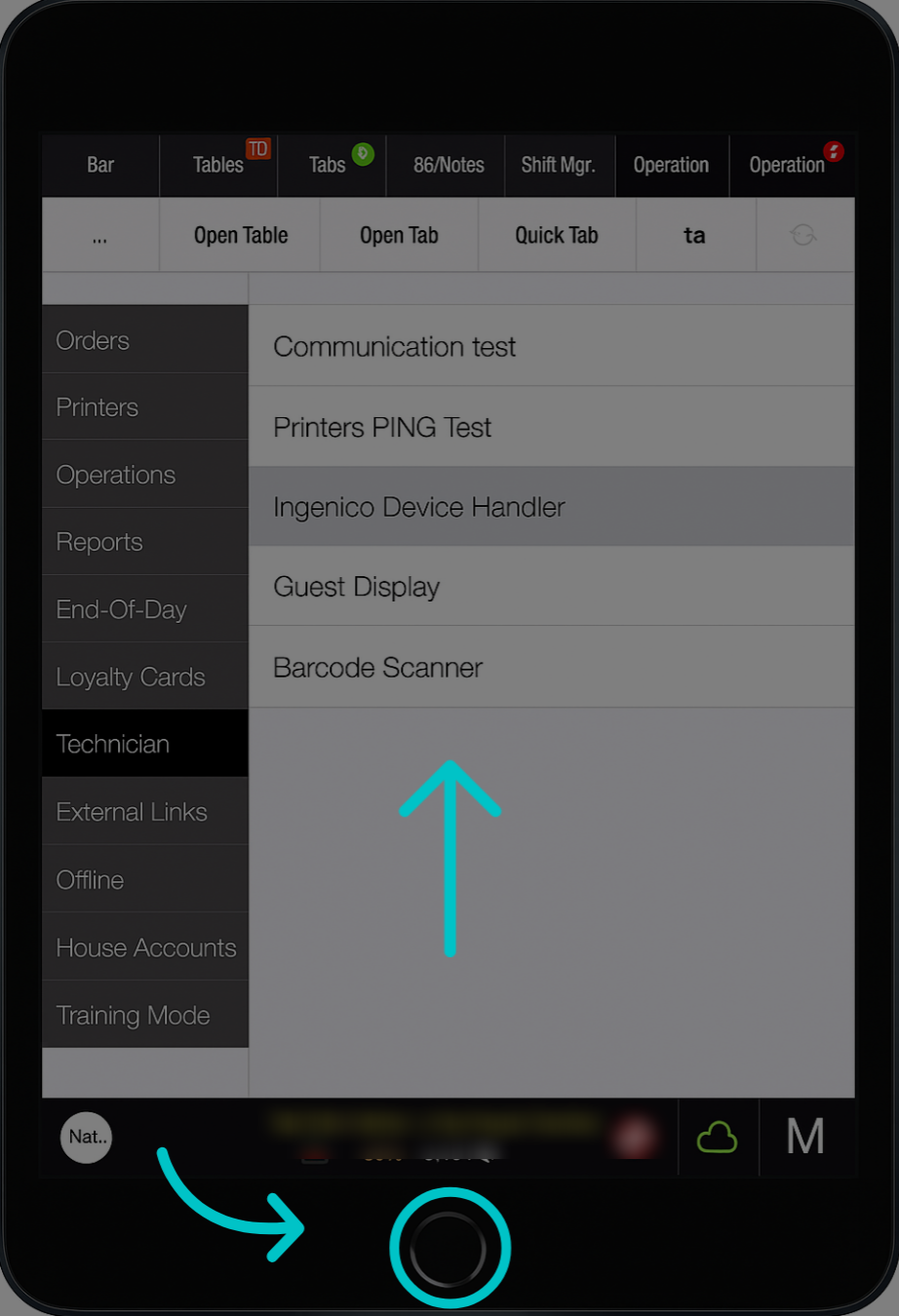
To resolve it, select the home button or swipe up to return to the home screen
-
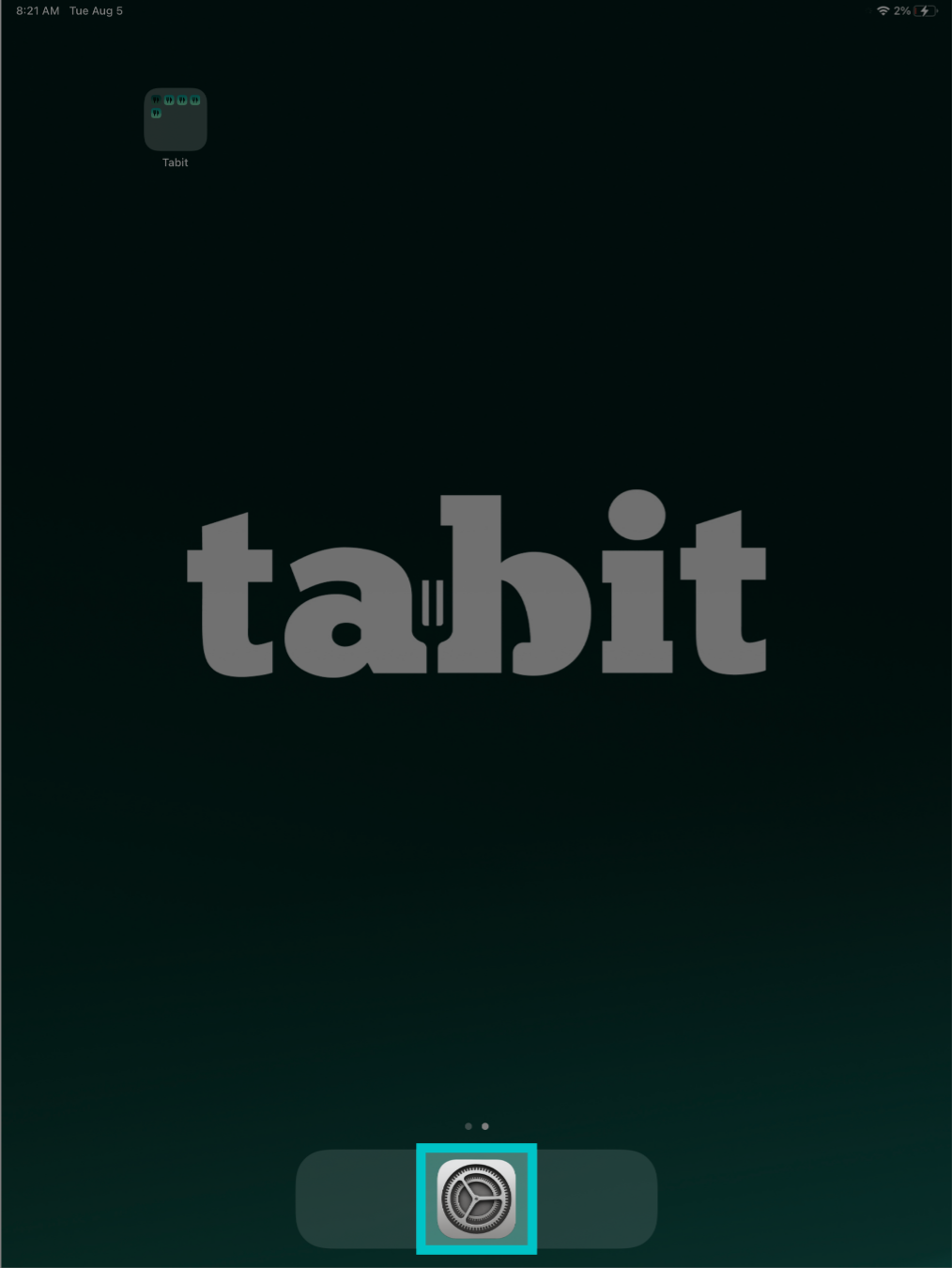
Then enter the Settings application
-
In the side menu, tap Bluetooth and select the 'i' icon next to the Ingenico device name
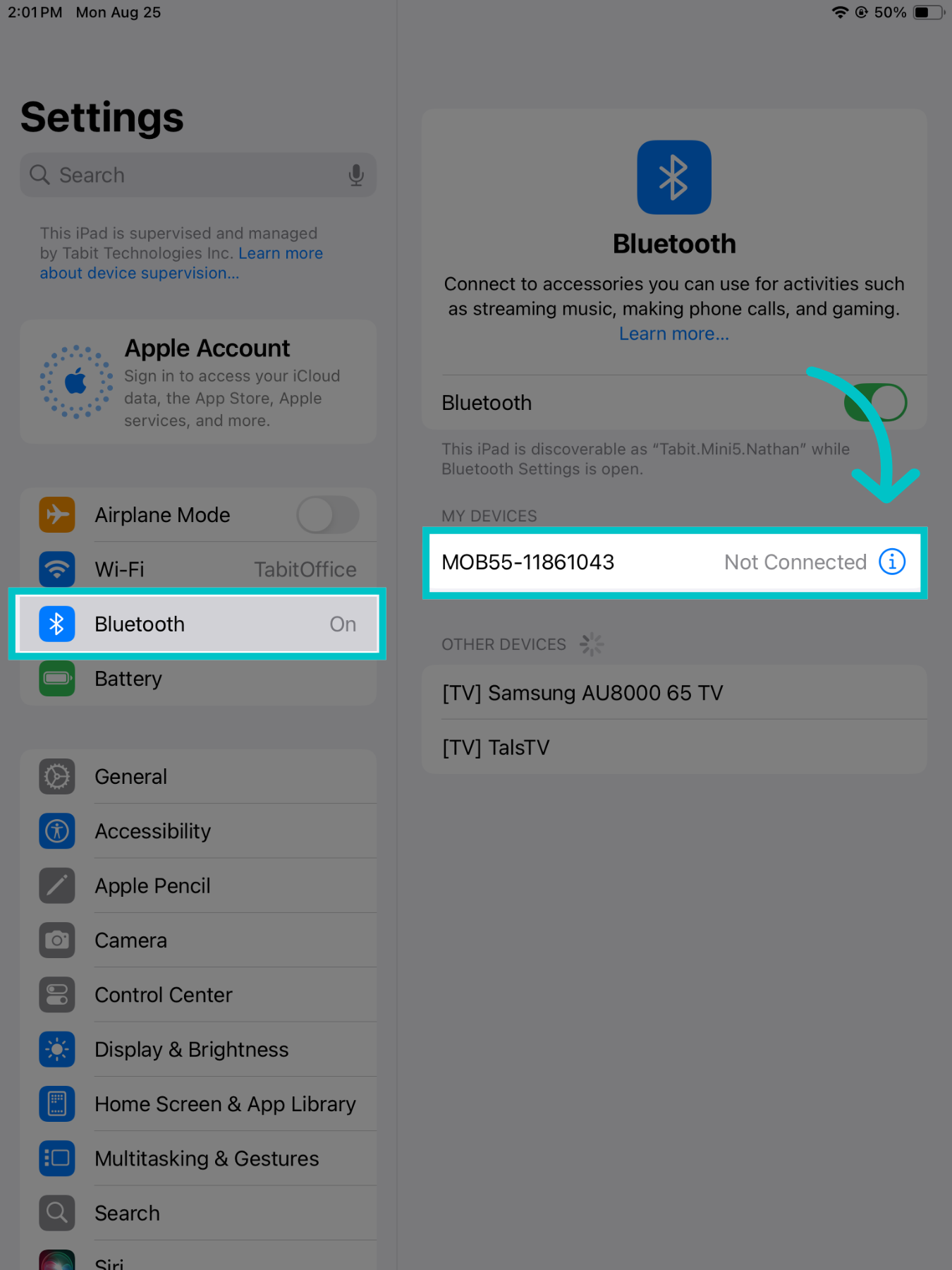
-
Then, select Forget This Device
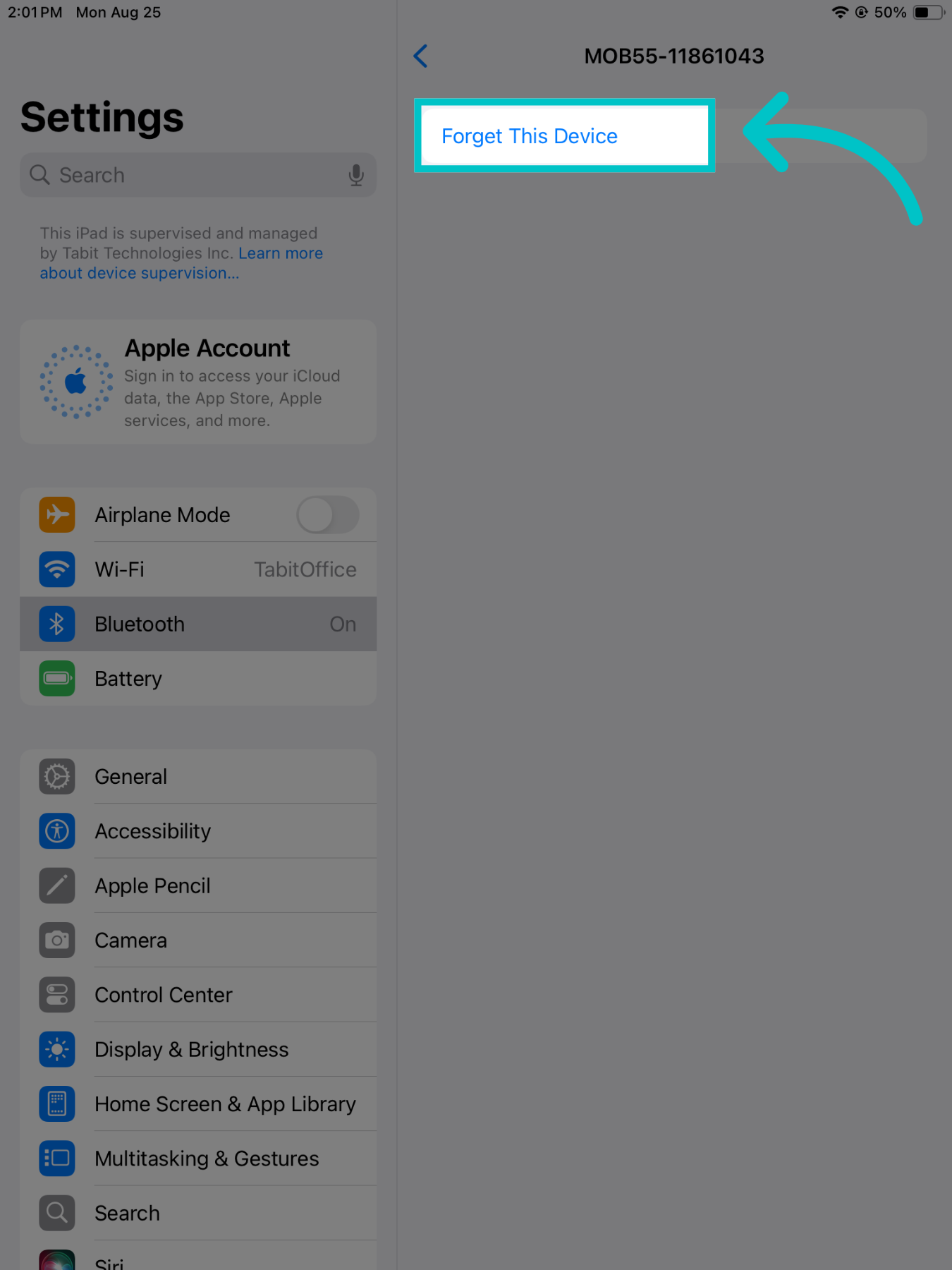
-
And approve to complete the action
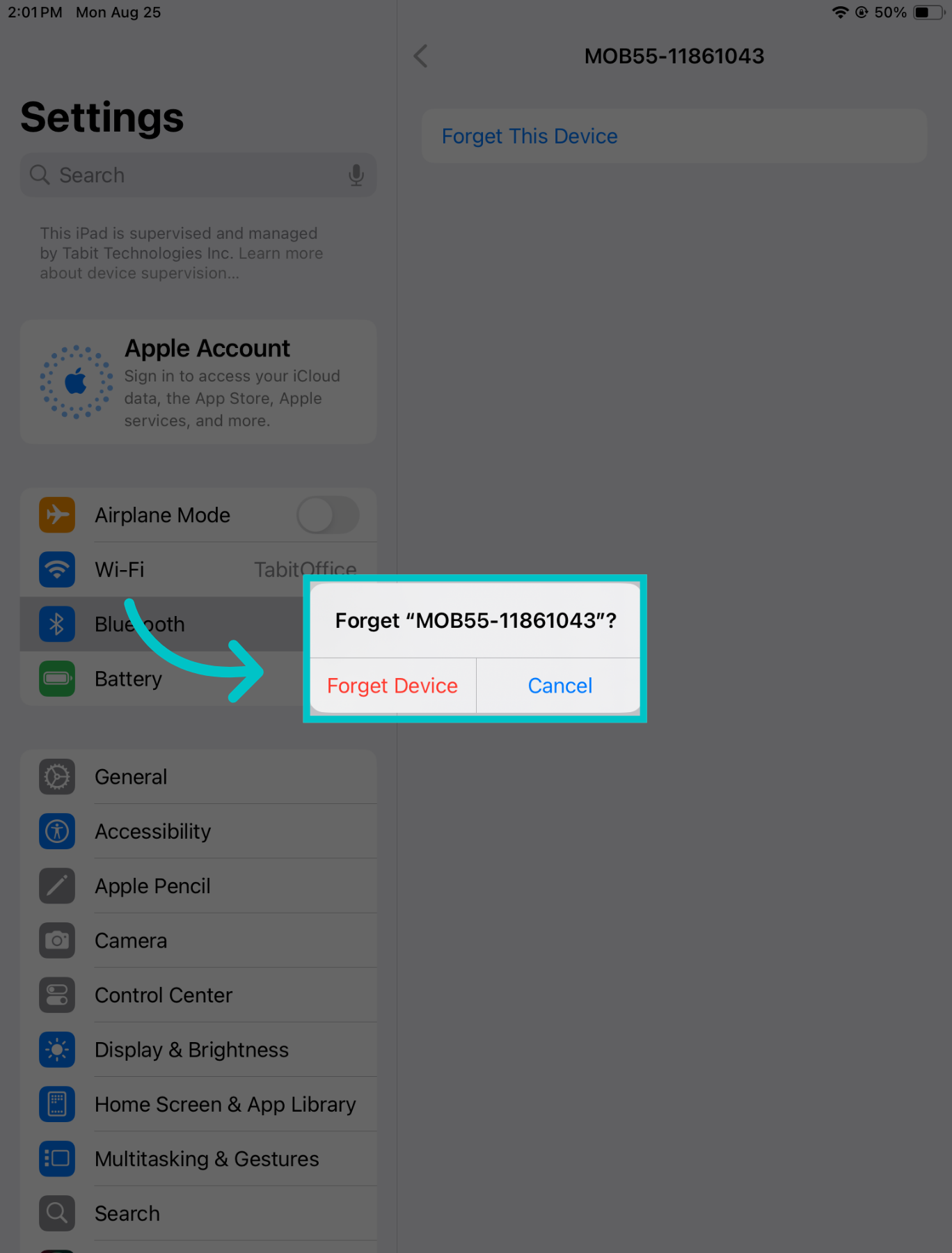
-
Now, return to the Tabit app, and repeat the pairing process according to the instructions in the first accordion of this article