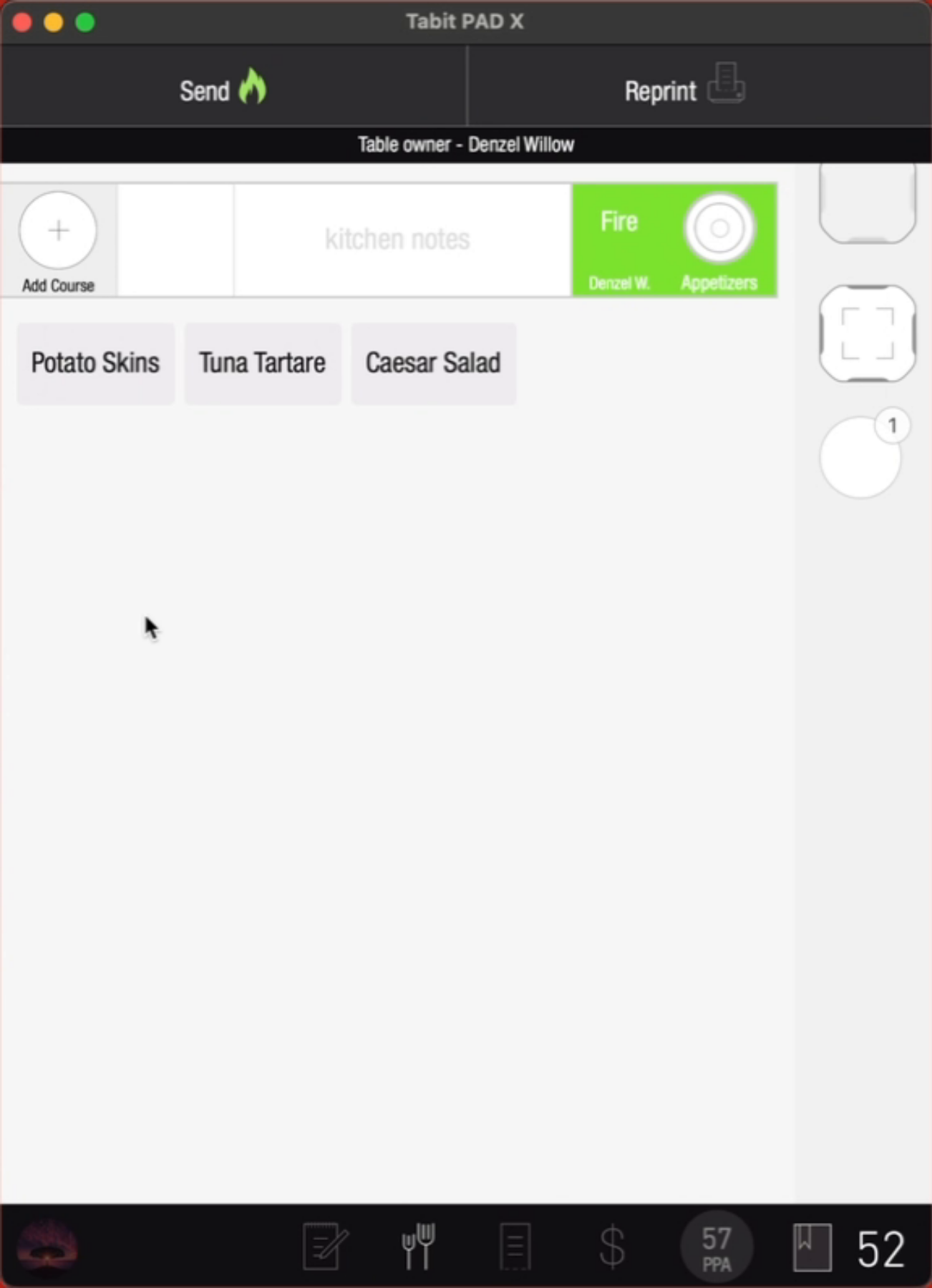
Adding a course is useful when a customer orders a dish from one course but wants it served as part of a different course. For example, if a customer orders a Caesar Salad, typically an appetizer, but wants it as a main dish, changing the item's course will apply the appropriate course settings and help the server manage the order more efficiently.
Follow the steps below to add a course:
-
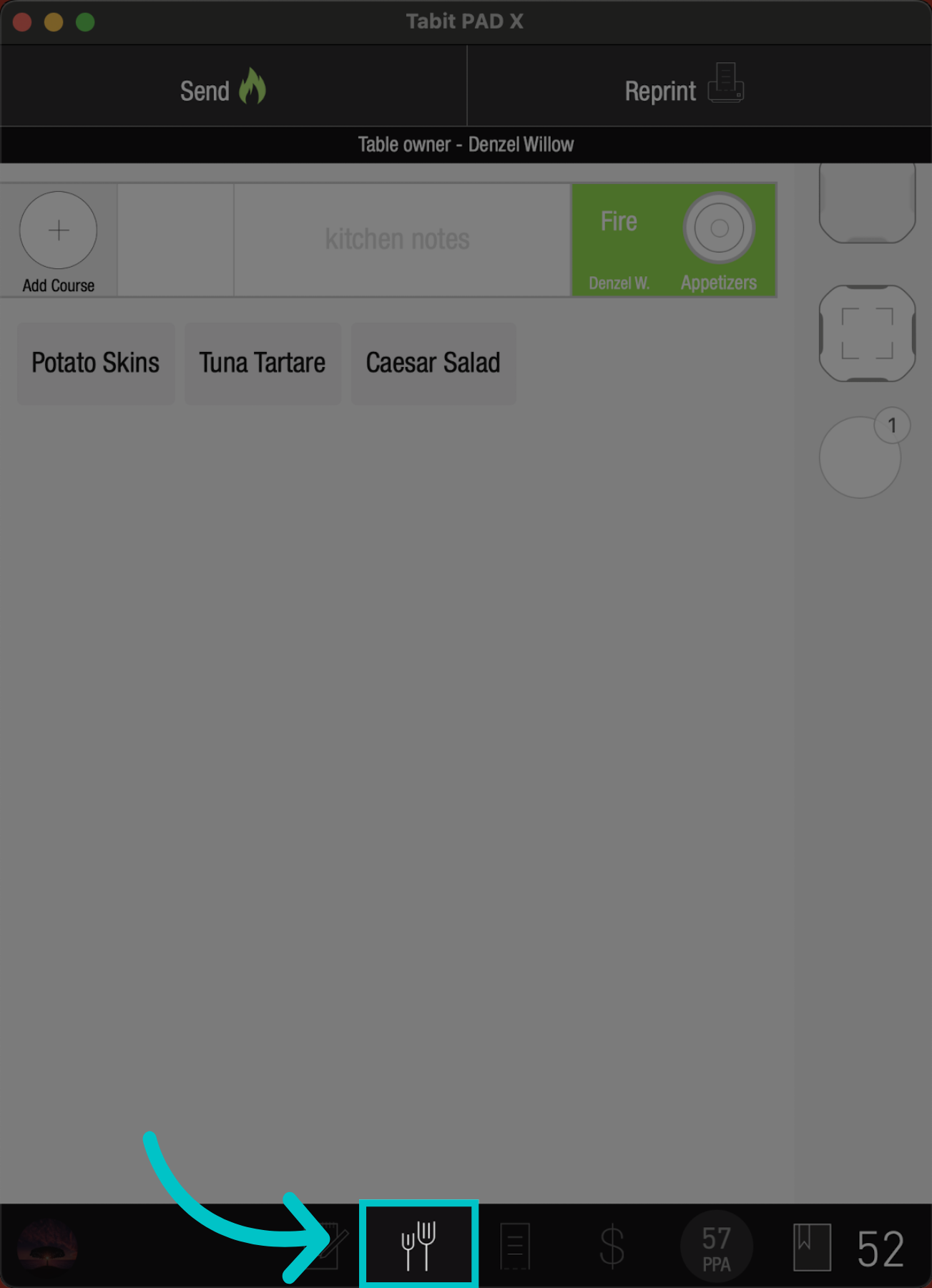
Once items have been added to the order, go to the Coursing screen
-
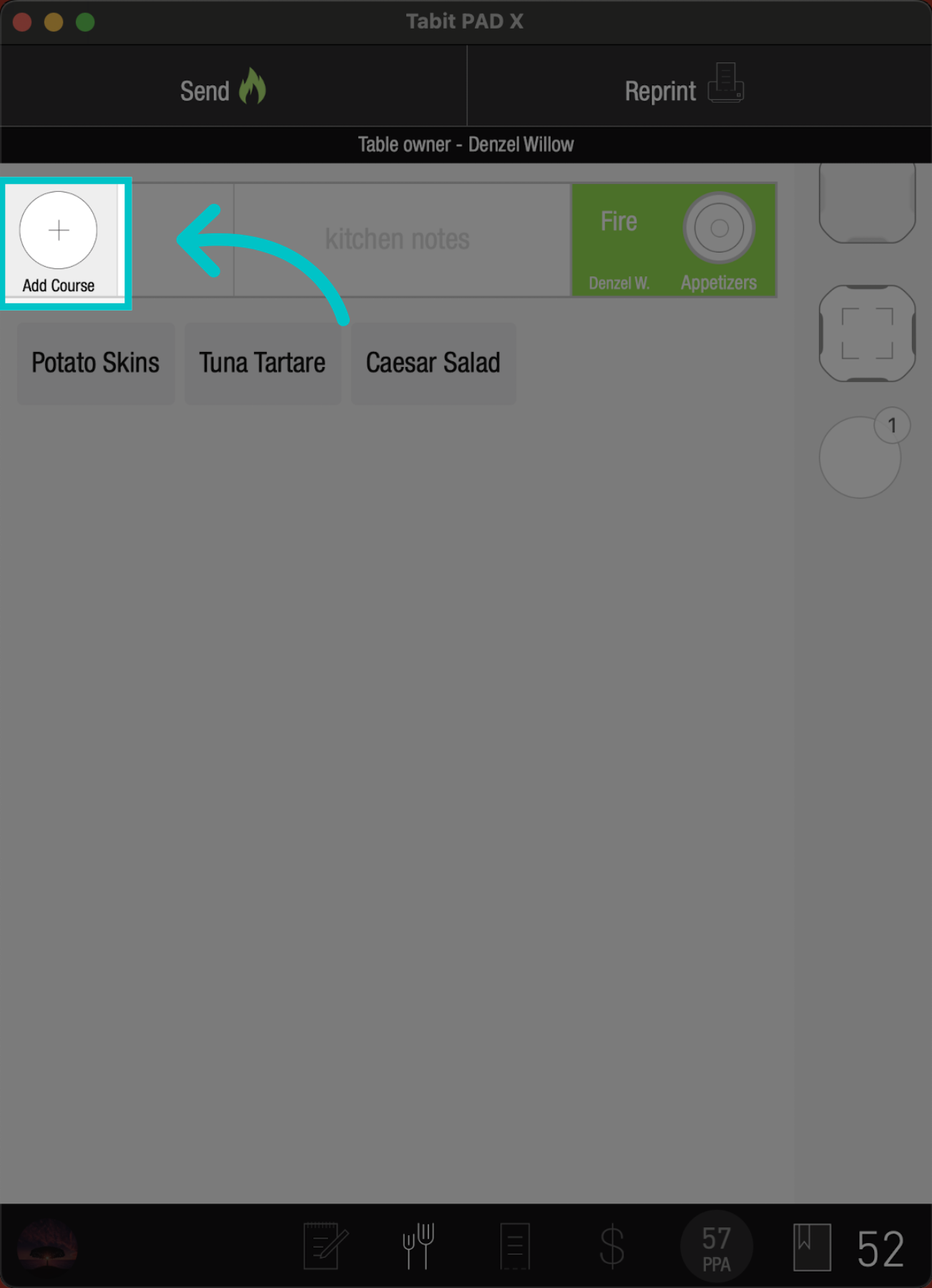
Tap the + Add Course
-
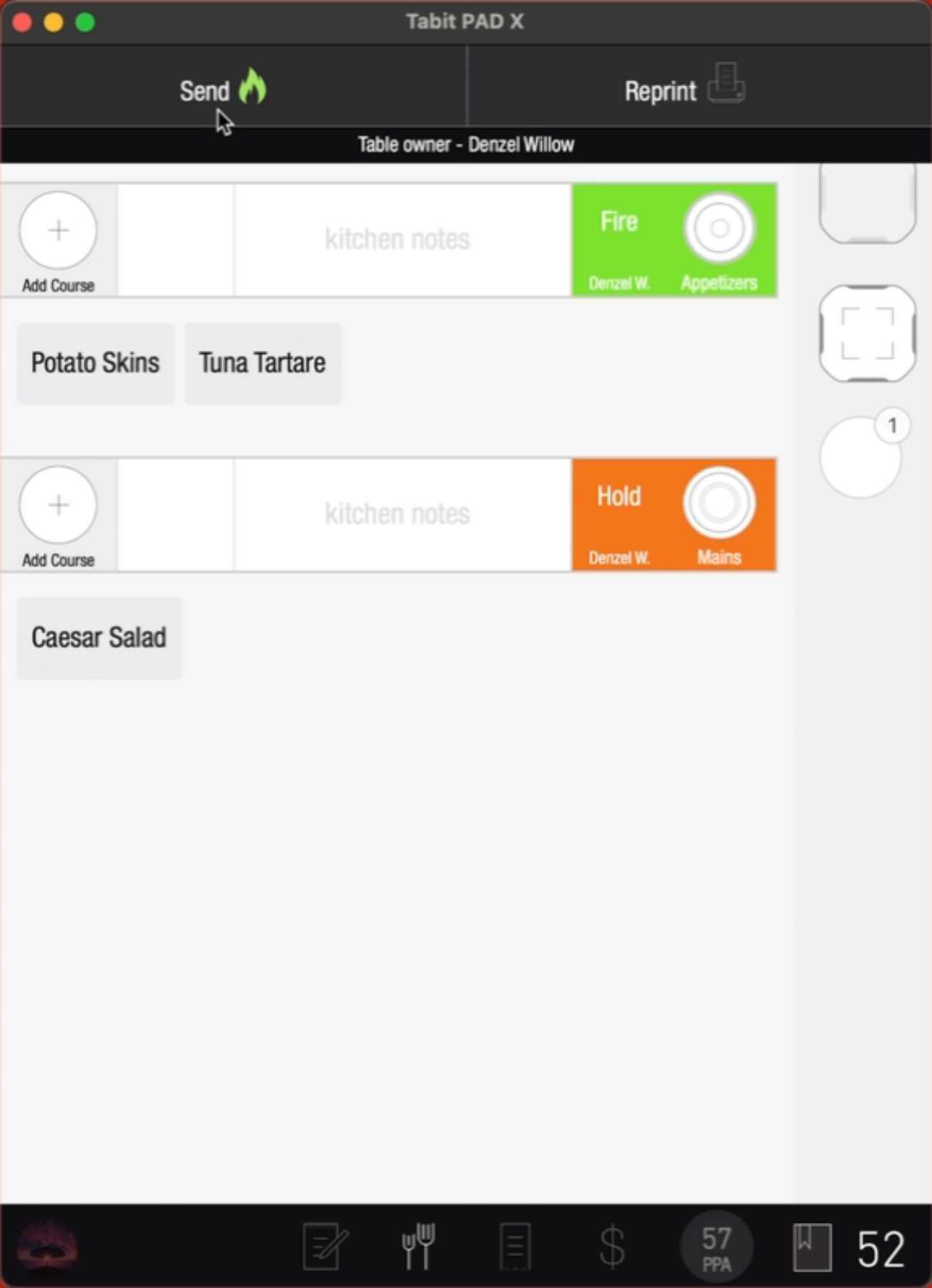
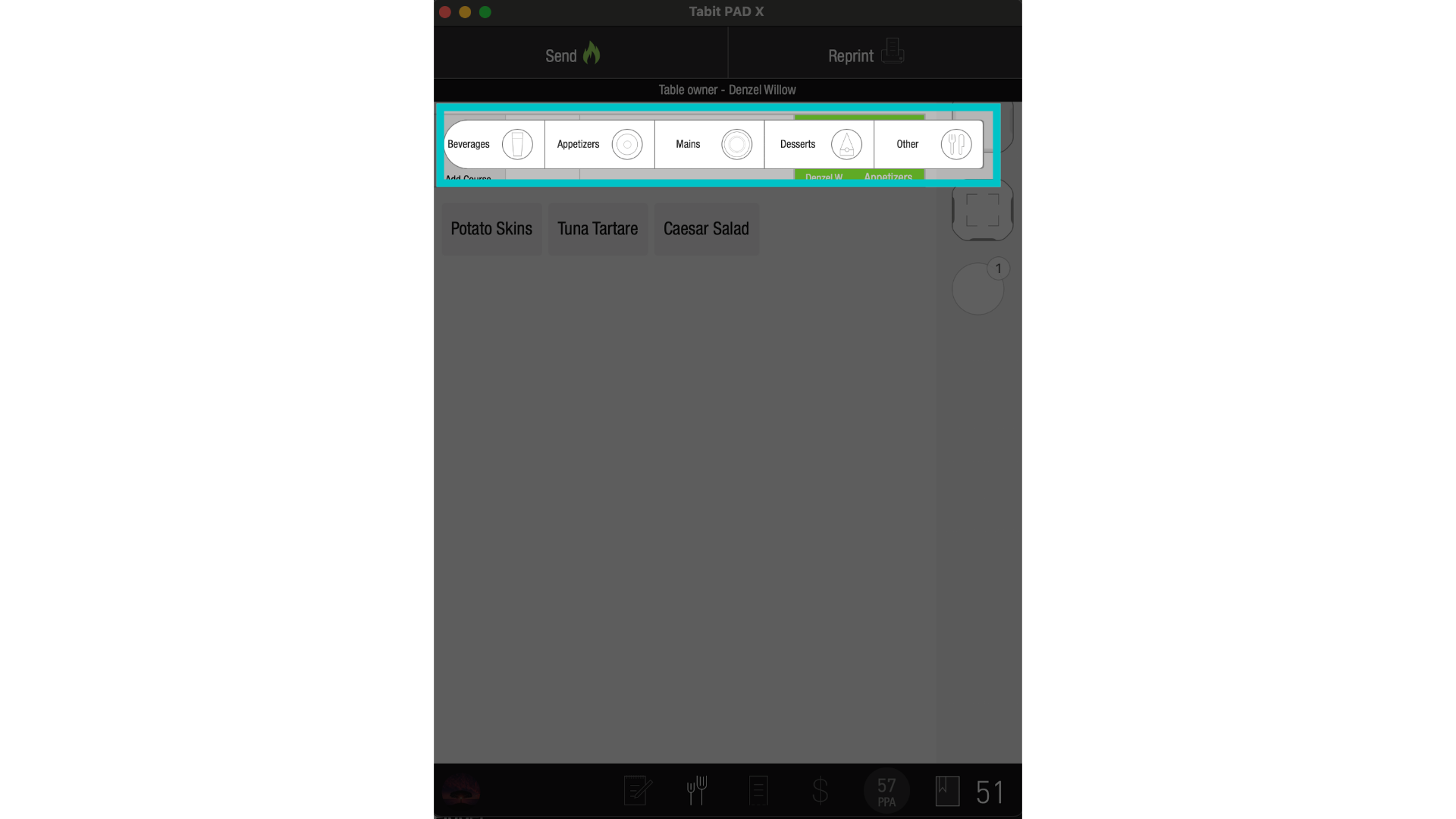
Select the course and move the relevant items to it
-
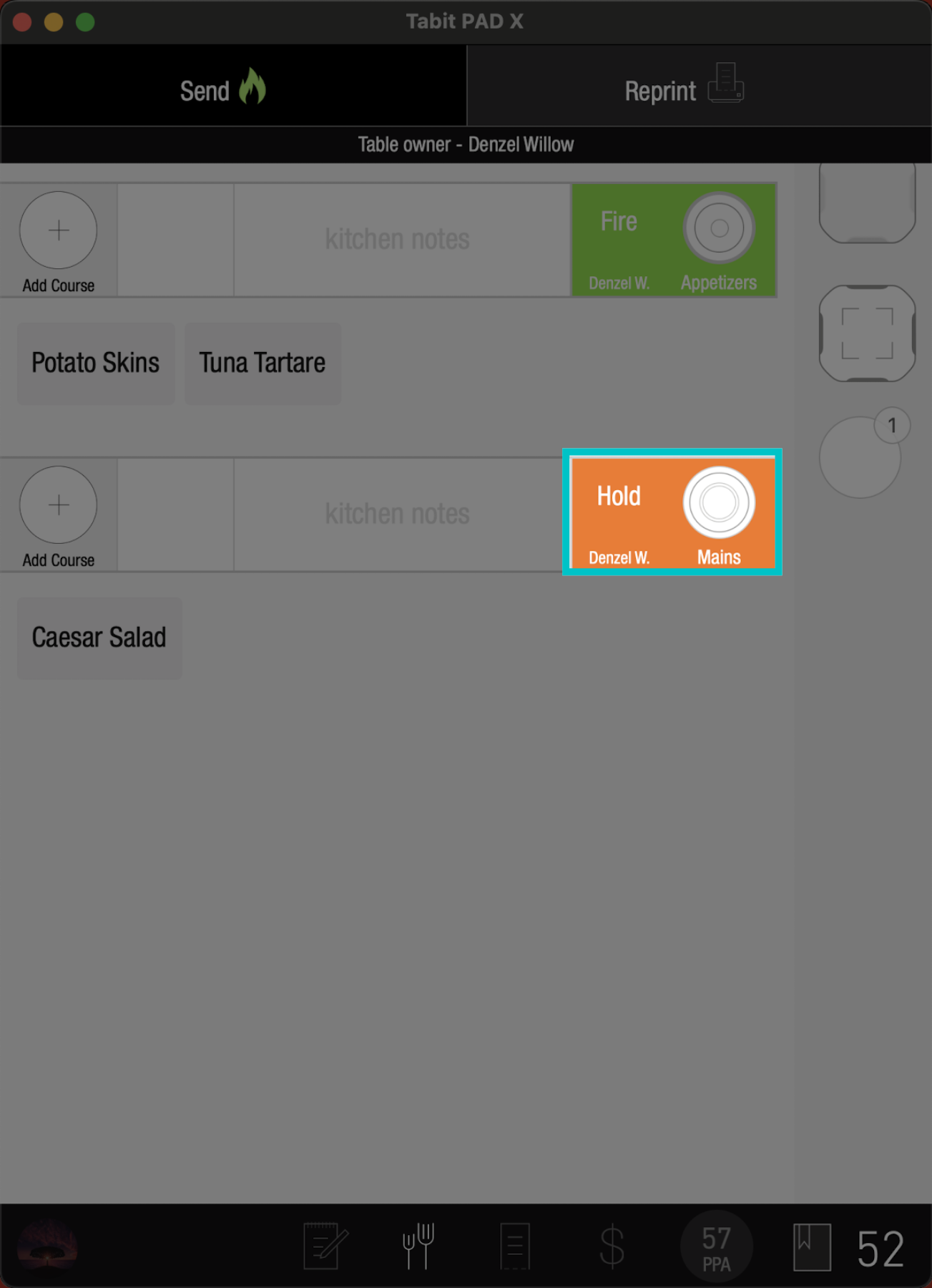
Notice the status of this Course is different than the other one
-
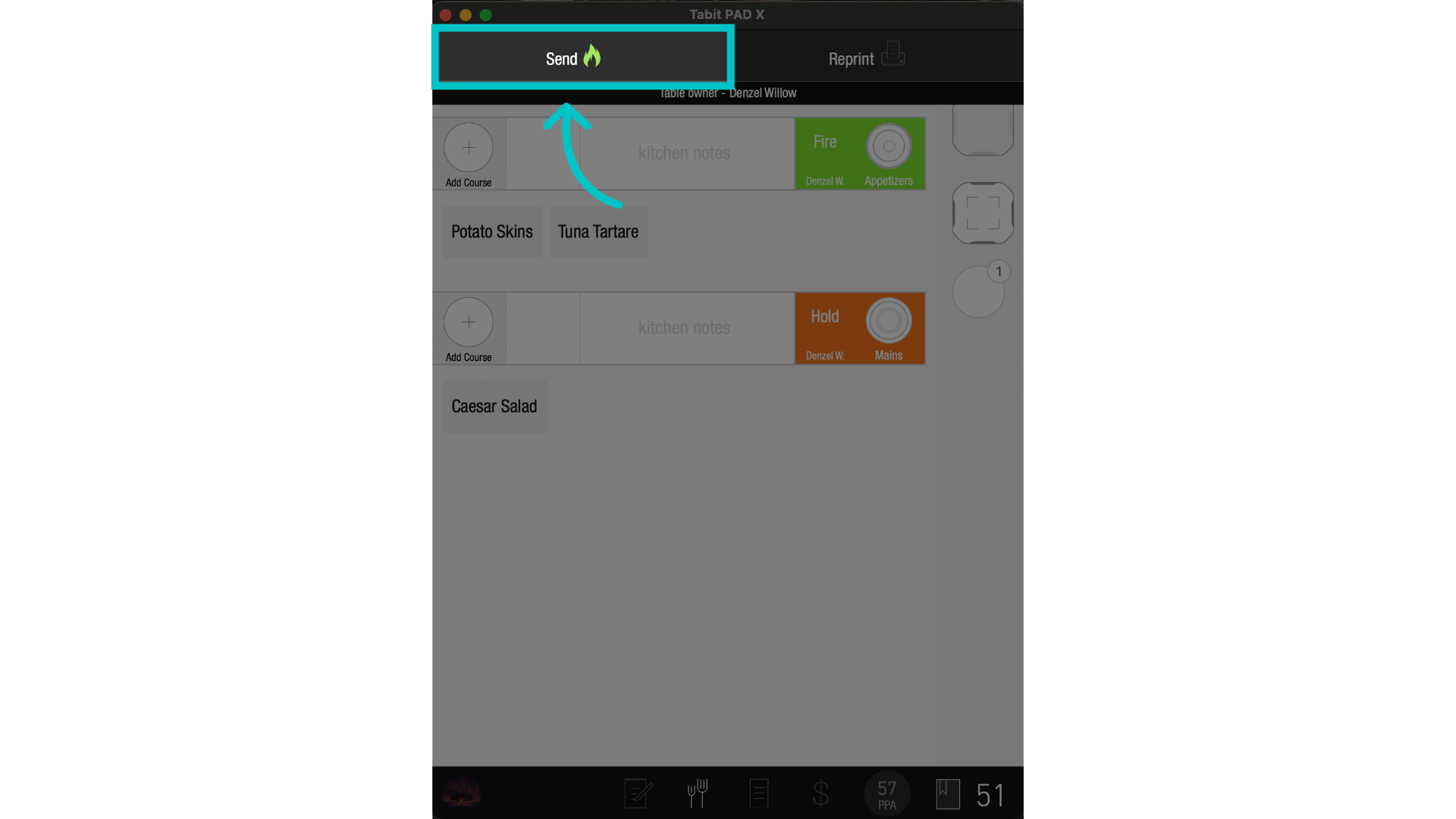
Once all changes are made, select Send to fire the items to the kitchen and continue accordingly