Restaurant menus frequently change, with items being removed or added. Use Tabit Office to update PAD View, ensuring servers have access to the latest menu.
Items cannot be deleted entirely from the system, but removing them from PAD View will make them unavailable when ordering from the PAD
To remove items from HQ PAD view, follow the steps below. After completing the steps, make sure to import the updated PAD view to the relevant sites to apply the changes
There are two ways to make changes to the PAD view:
Removing multiple items is quicker through the PAD View. However, if you are not sure where an item is located on PAD View, it may be easier to find it through the Menu Catalog
Follow the steps below to remove an item from PAD View:
Through the PAD View
-
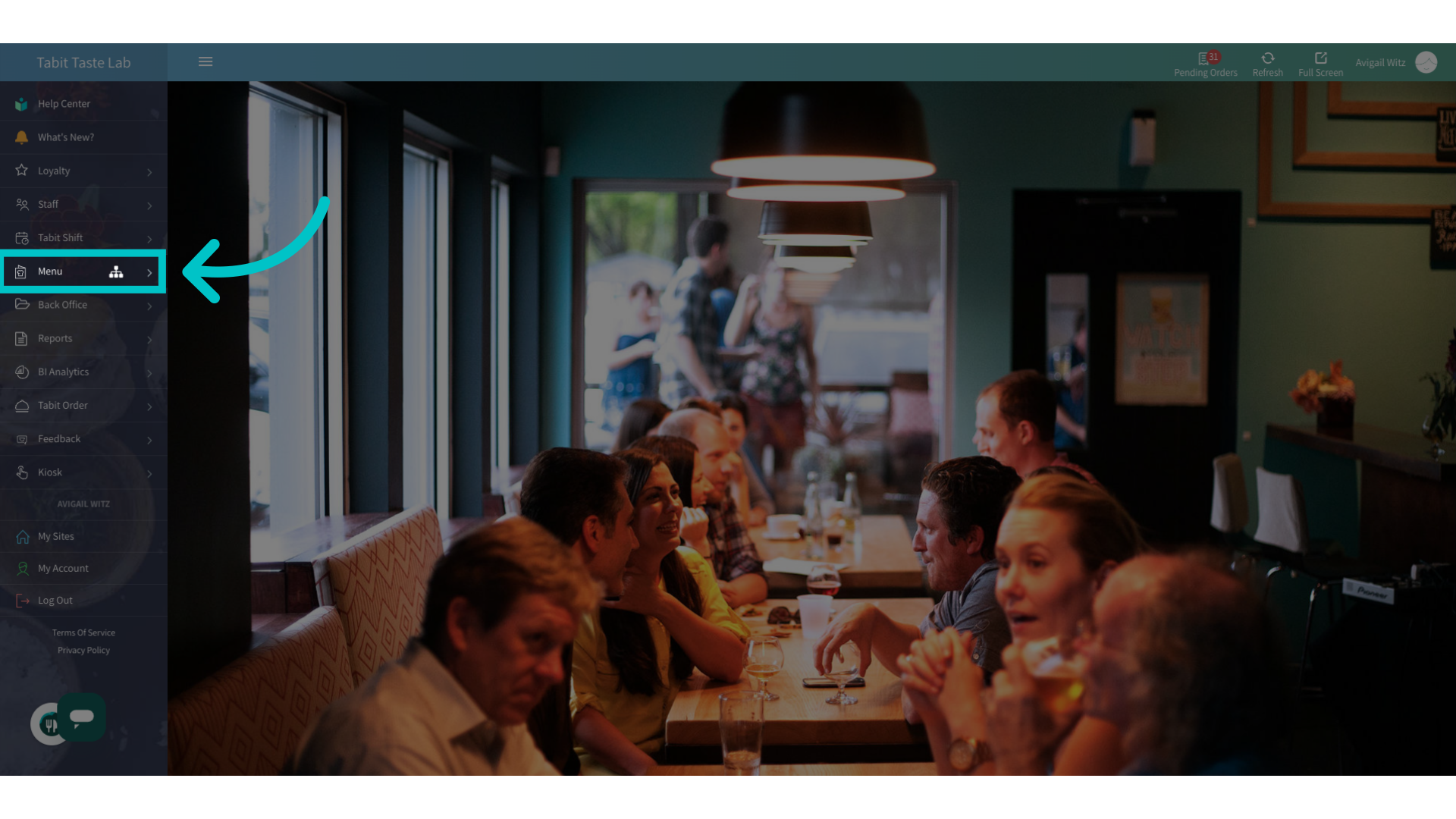
Go to Menu in Tabit Office
-
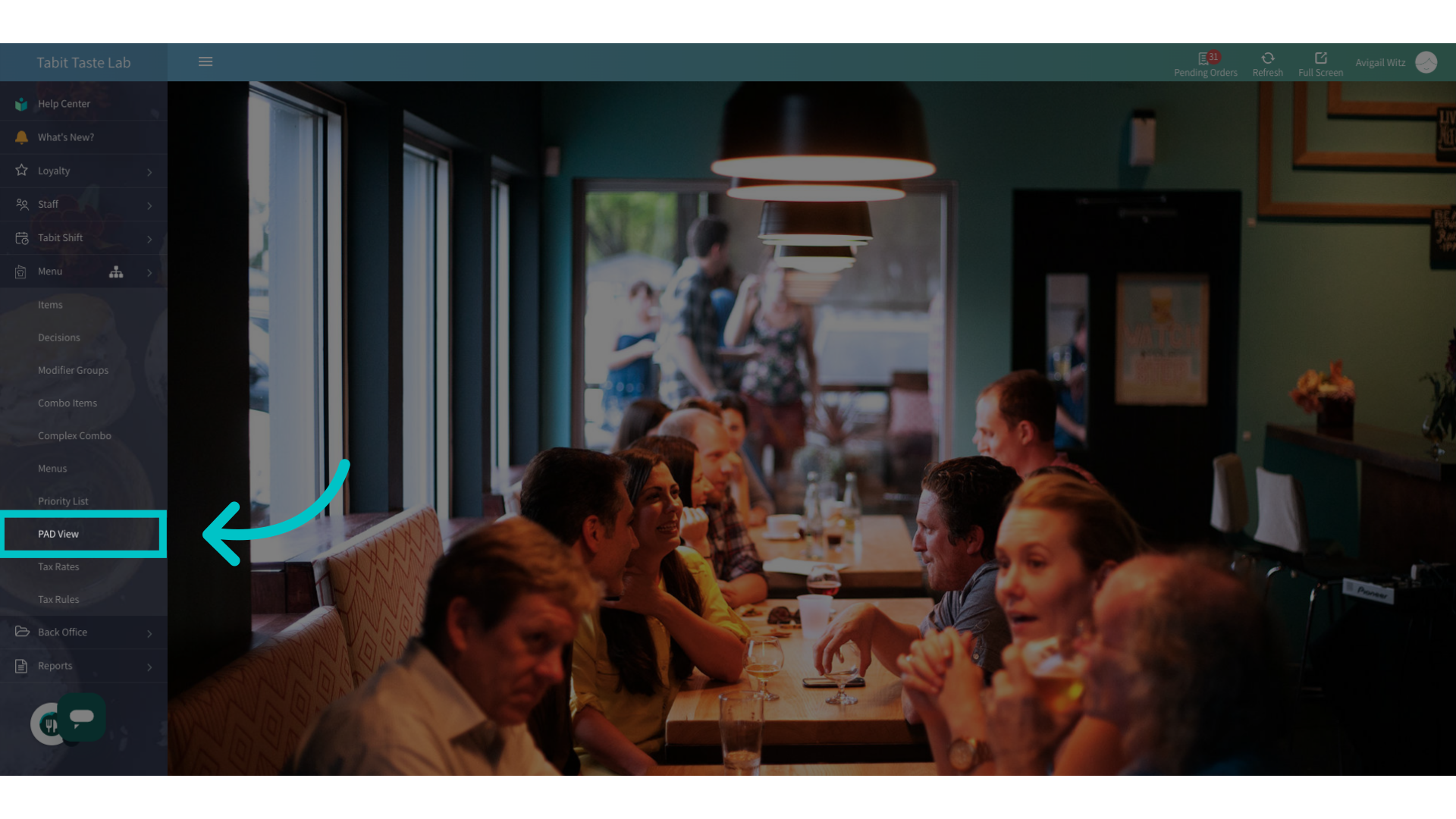
Select the PAD View section
-
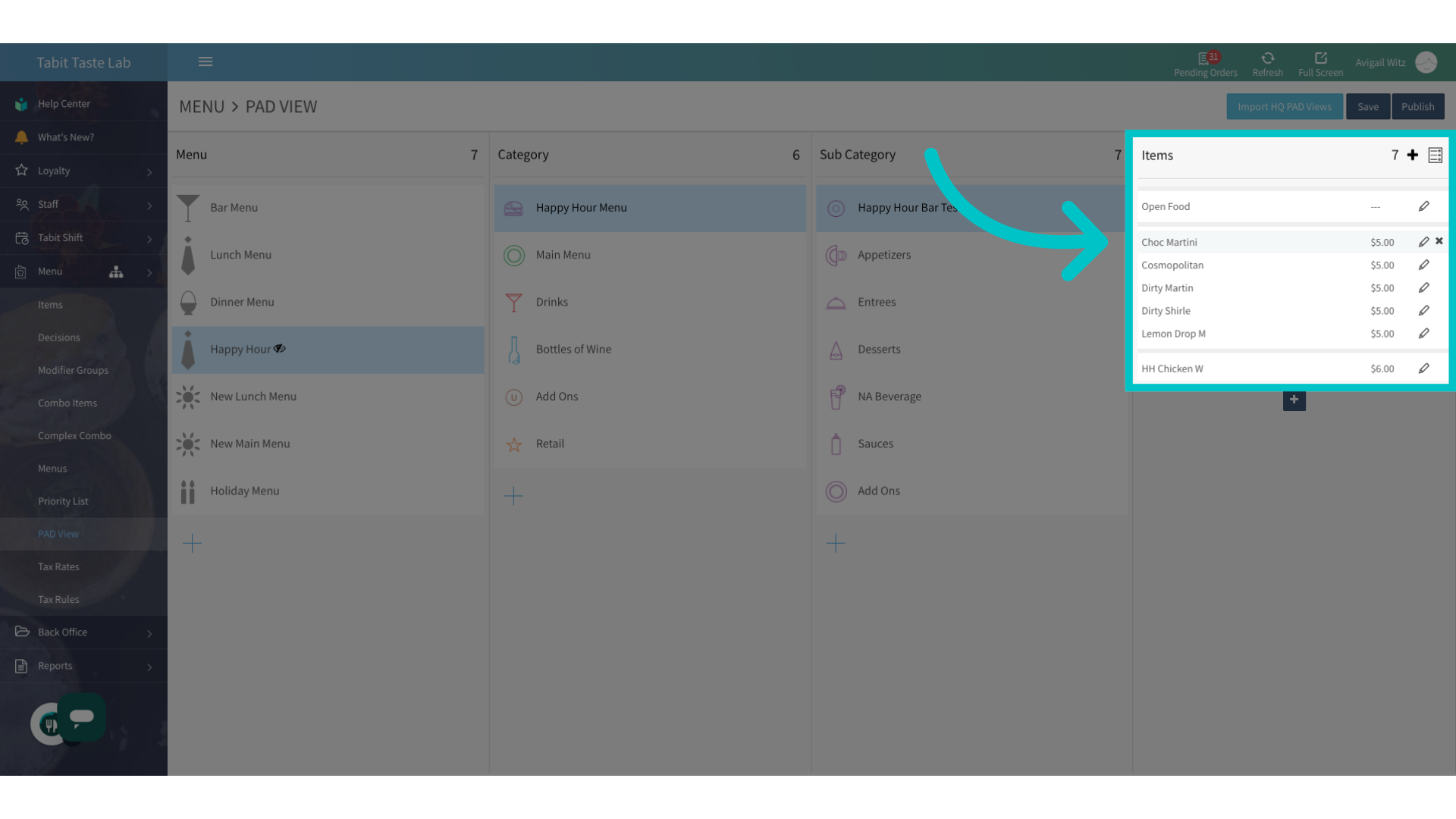
Select the menu view to locate the relevant item
-
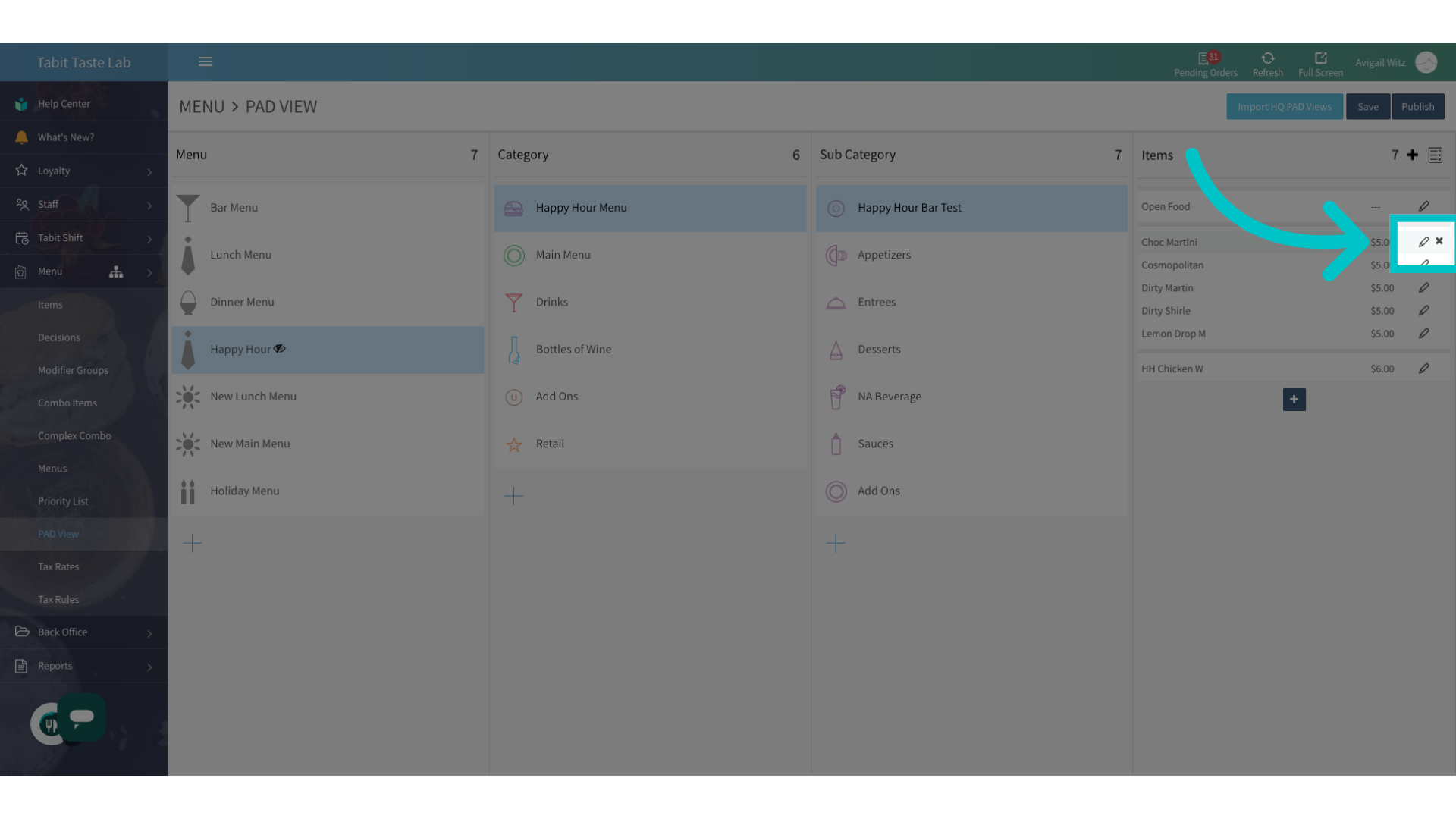
Select the X icon to remove the item
-
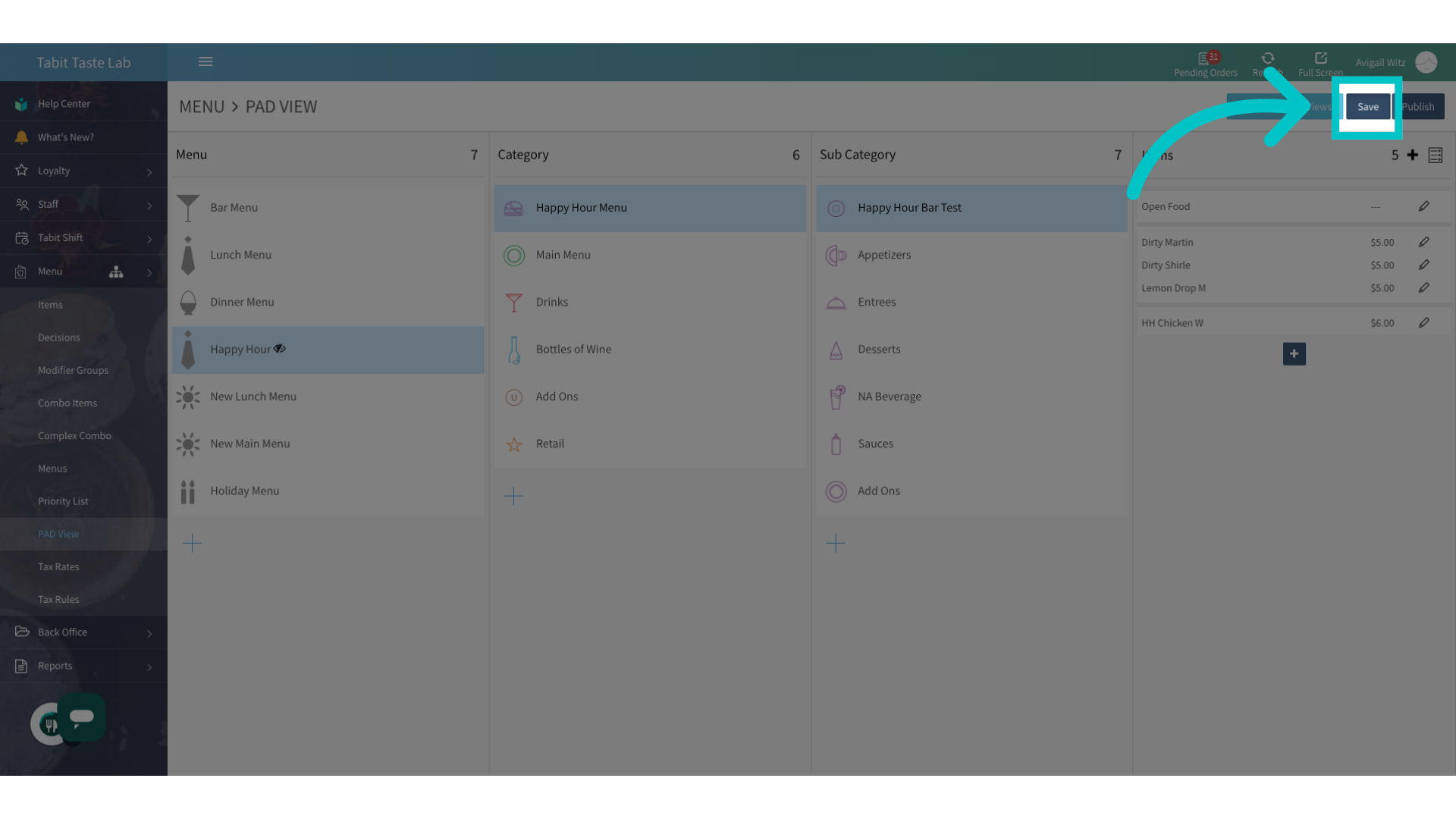
Select Save to keep the changes made
-
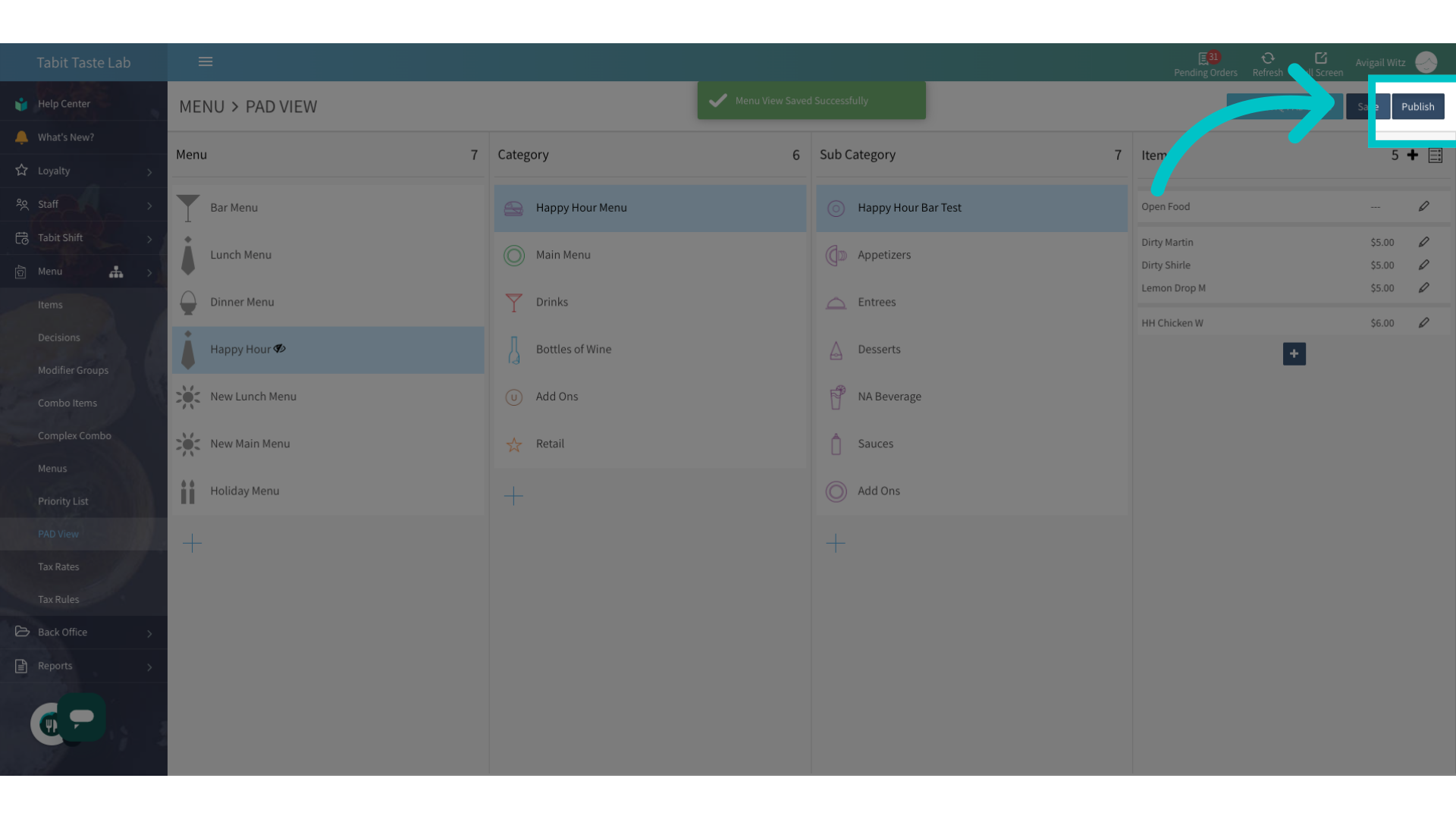
Don't forget to Publish to update the changes on the PAD
Through the Menu Catalog
-
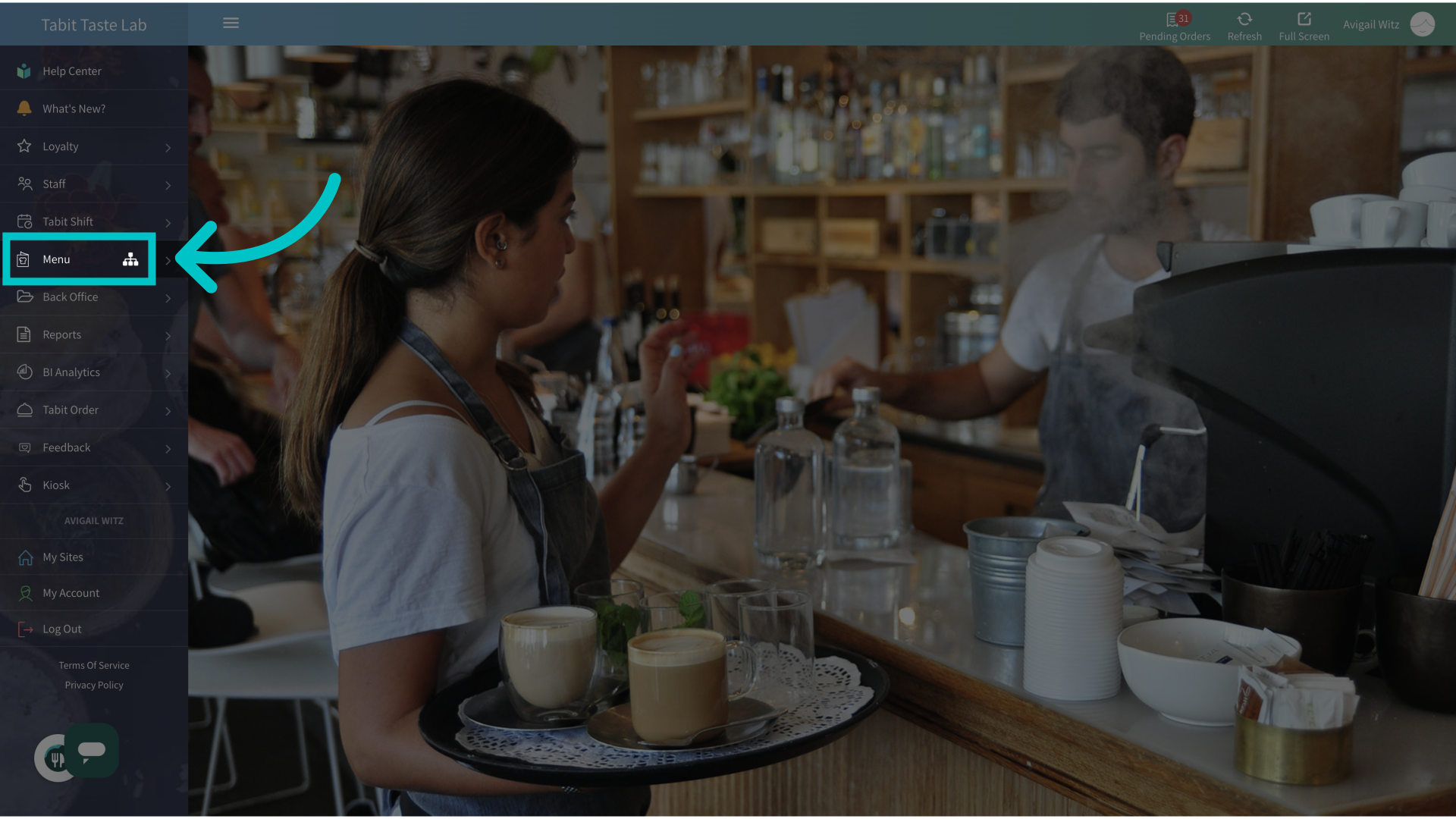
Go to Menu in Tabit Office
-
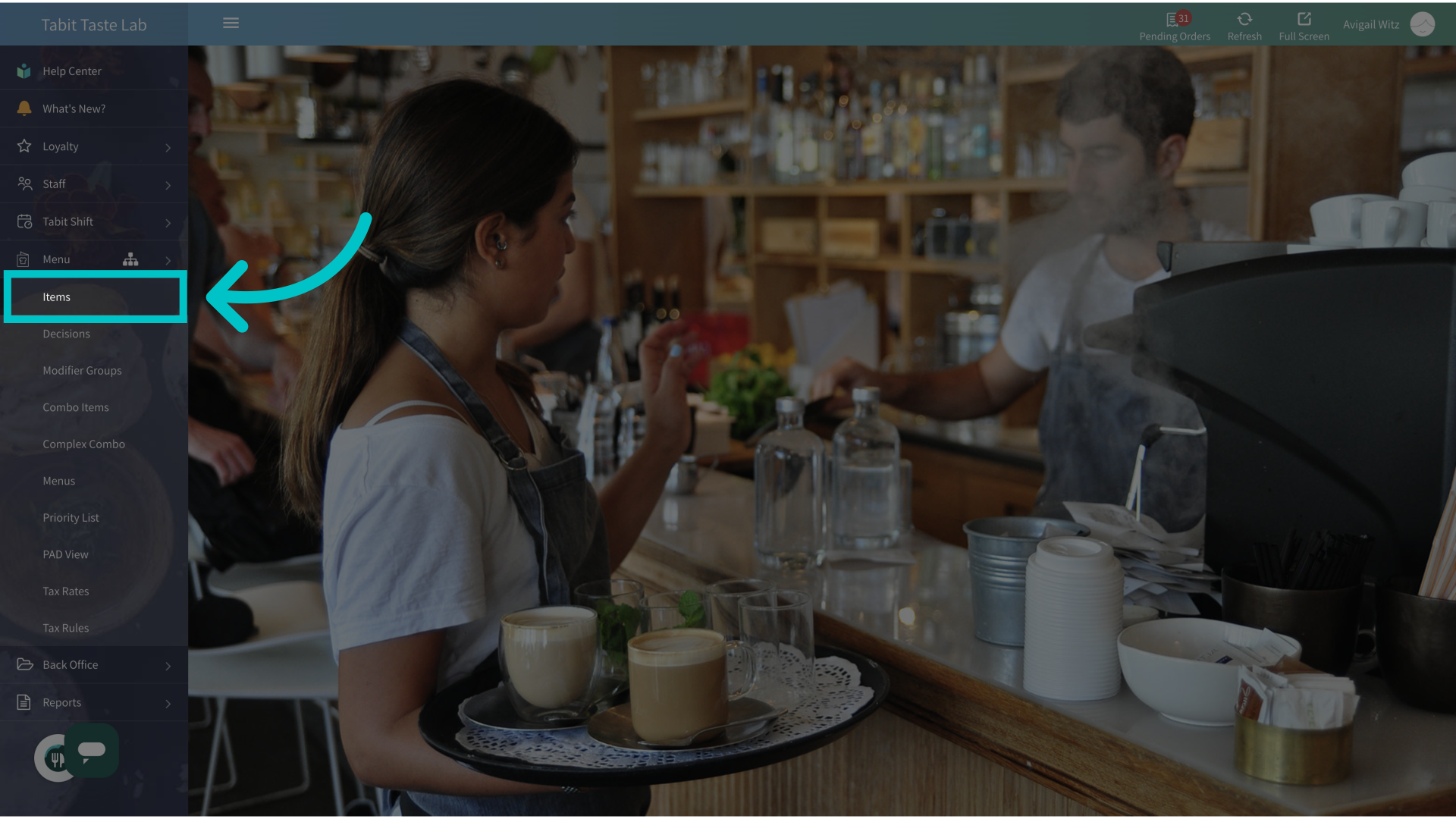
Select the Items section
-
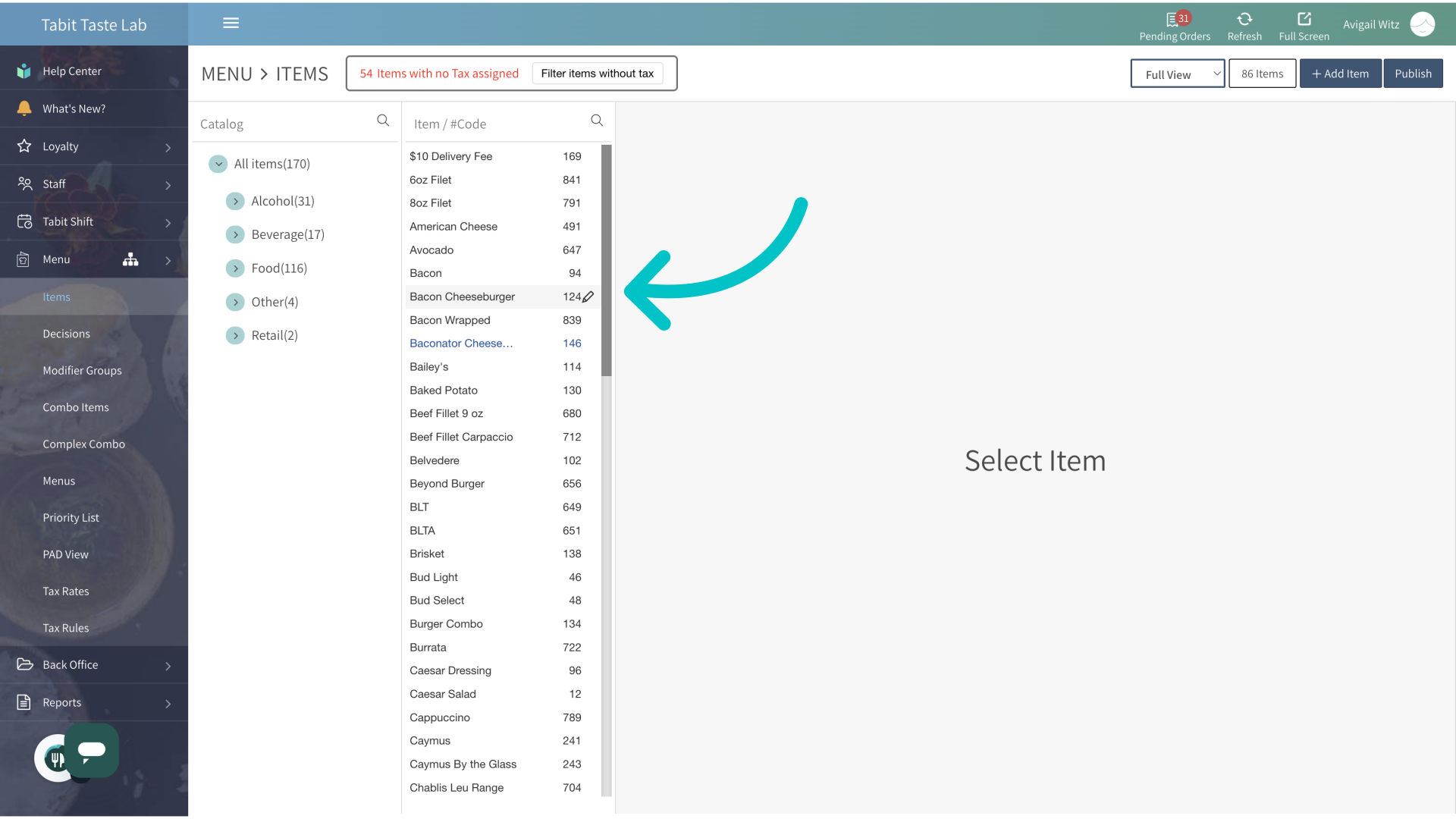
Locate the relevant item
-
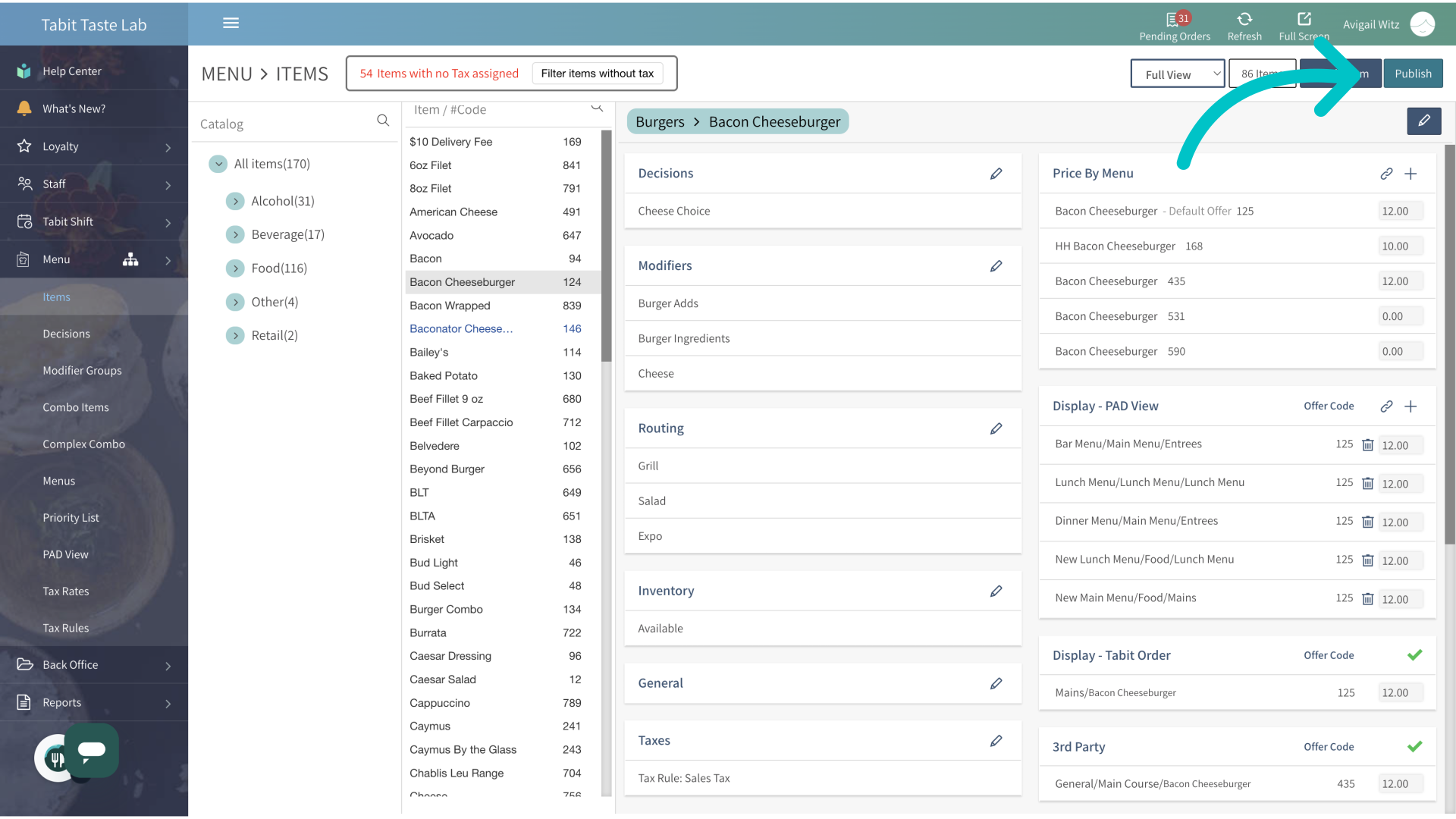
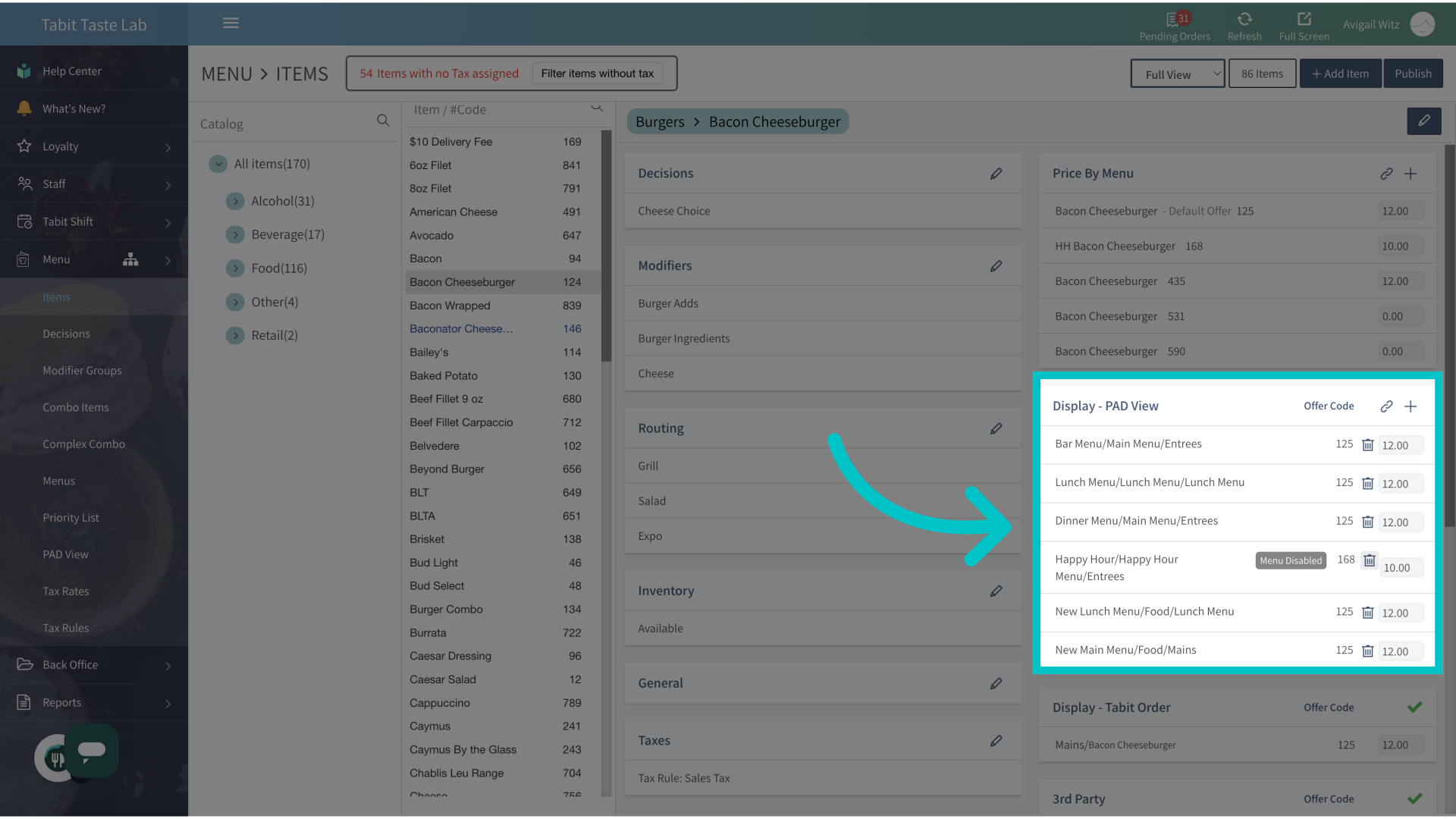
Locate the menu view under Display PAD View
-
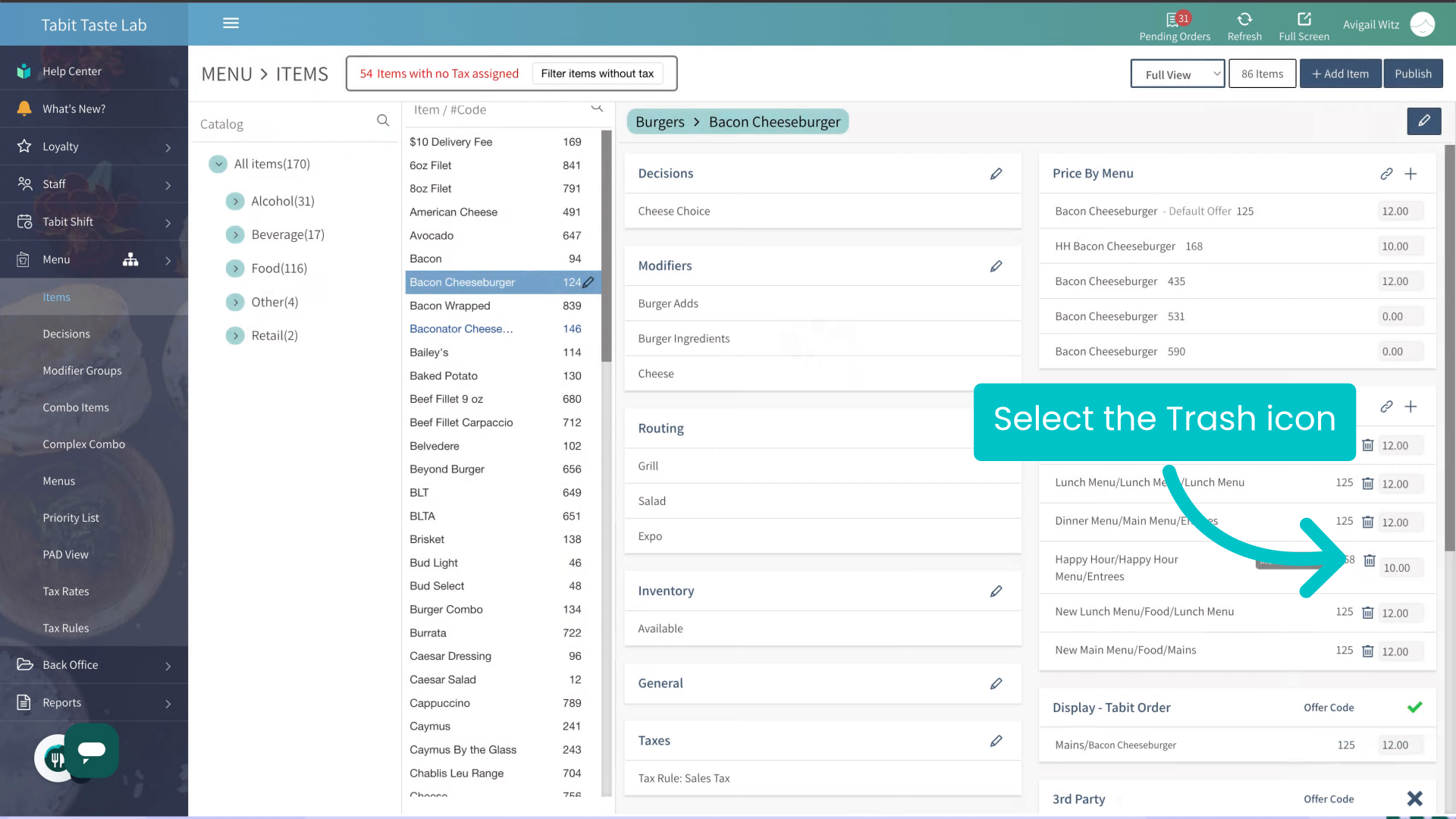
Select the Trash icon to remove the item
-
Select Delete
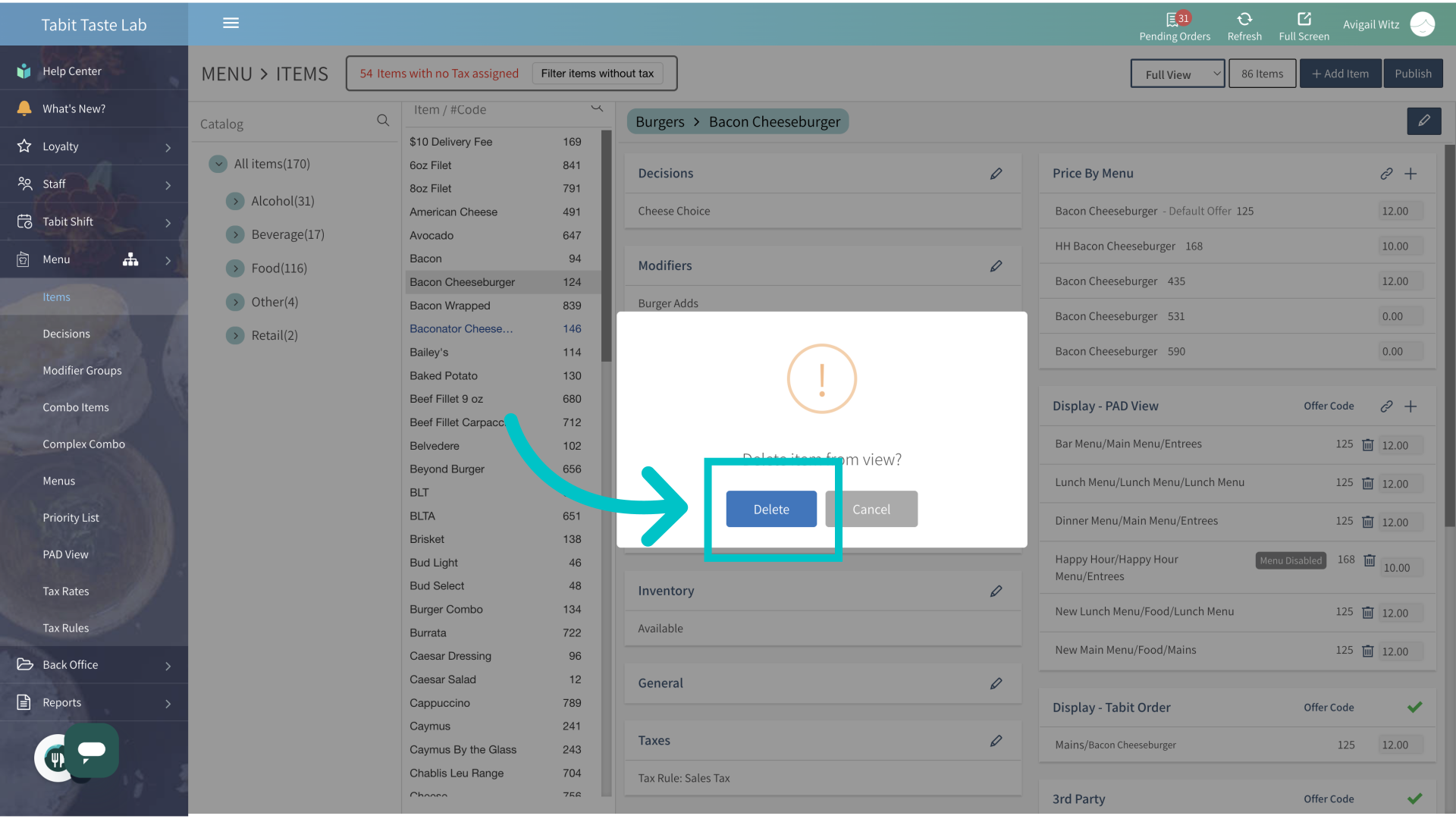
-
Don't forget to Publish to update the changes on the PAD