The Split Check feature allows staff to divide a bill by guest, by item, or to group guests into a single check, all directly from the check screen. Whether guests want to pay separately or together, the process is quick and easy.
| To reverse a split check, select No Split from the drop-down menu. This action must be done before payment |
|
Split check by guest
This split check option offers a quick solution for situations where each guest wants to pay separately for their orders.
-
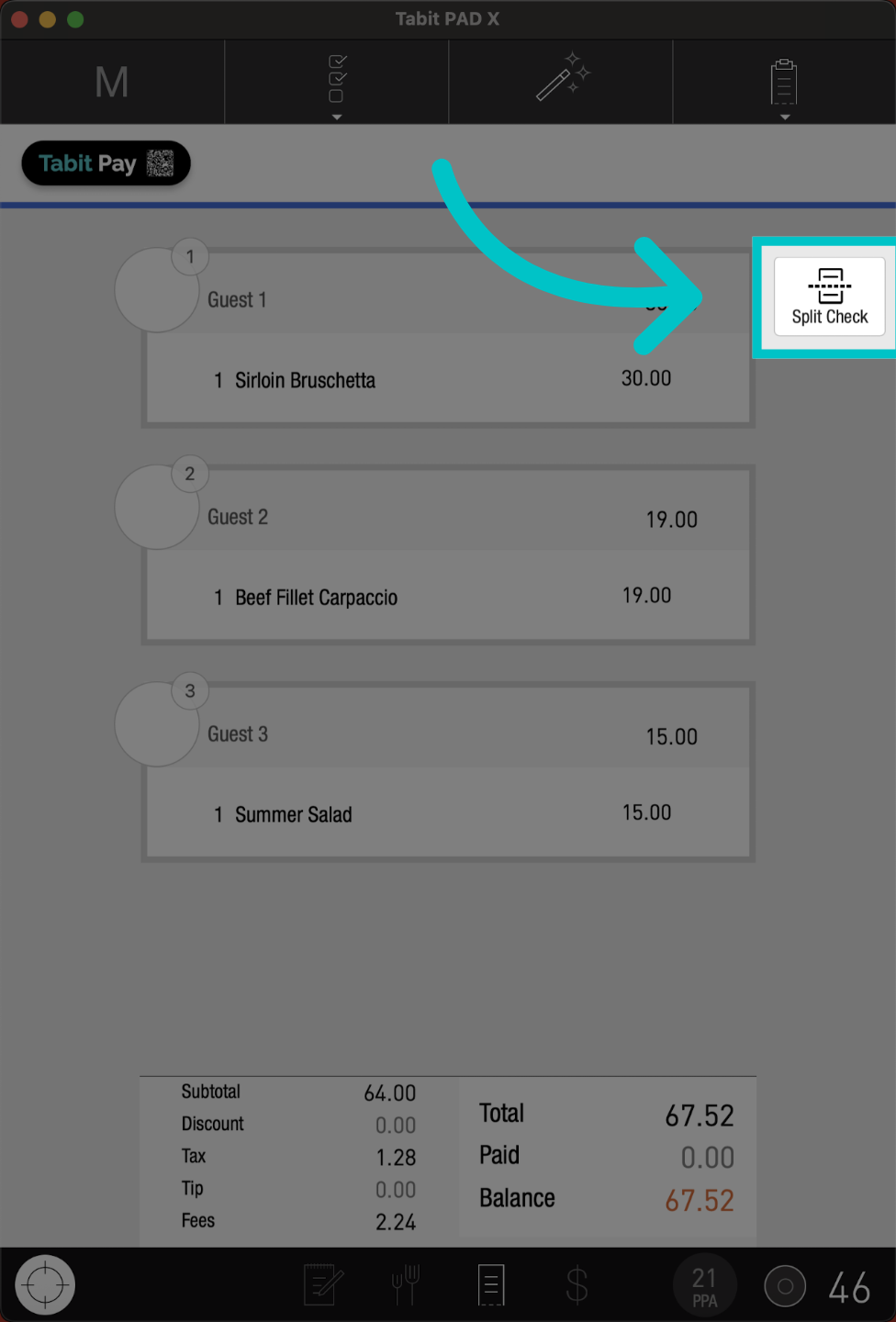
From the check screen, tap Split Check
-
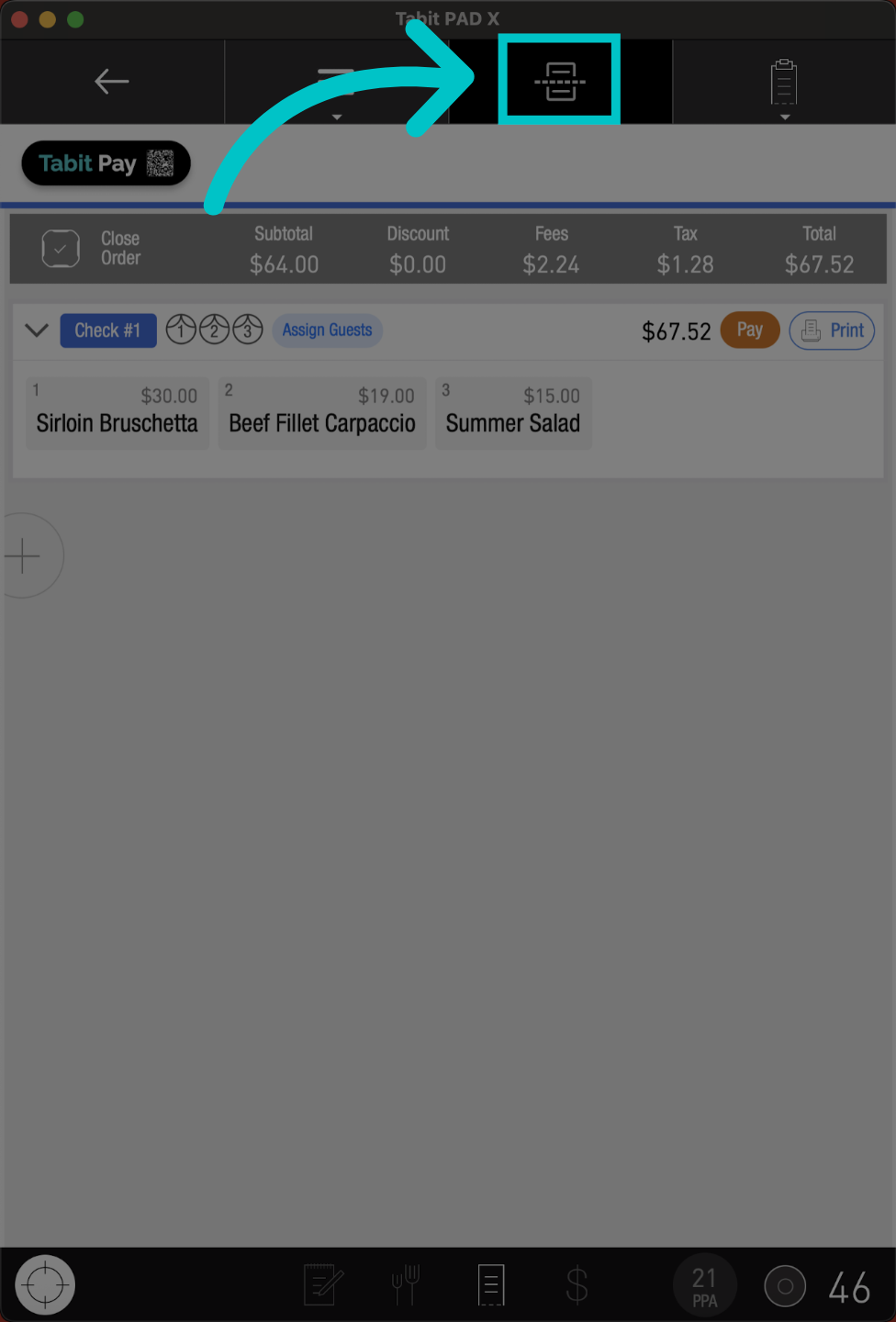
Then, select the Split Check icon at the top
-
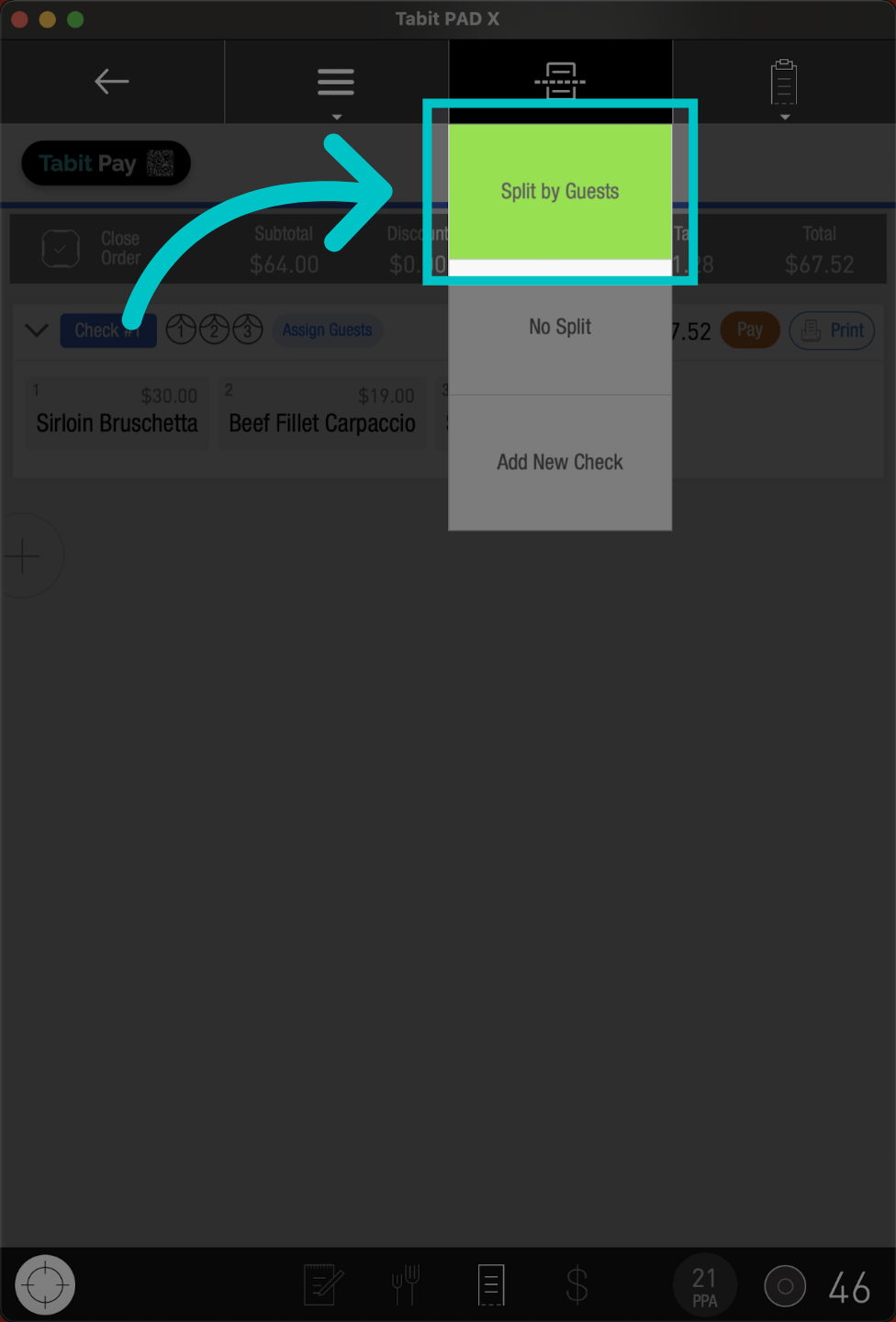
Select Split by Guests
-
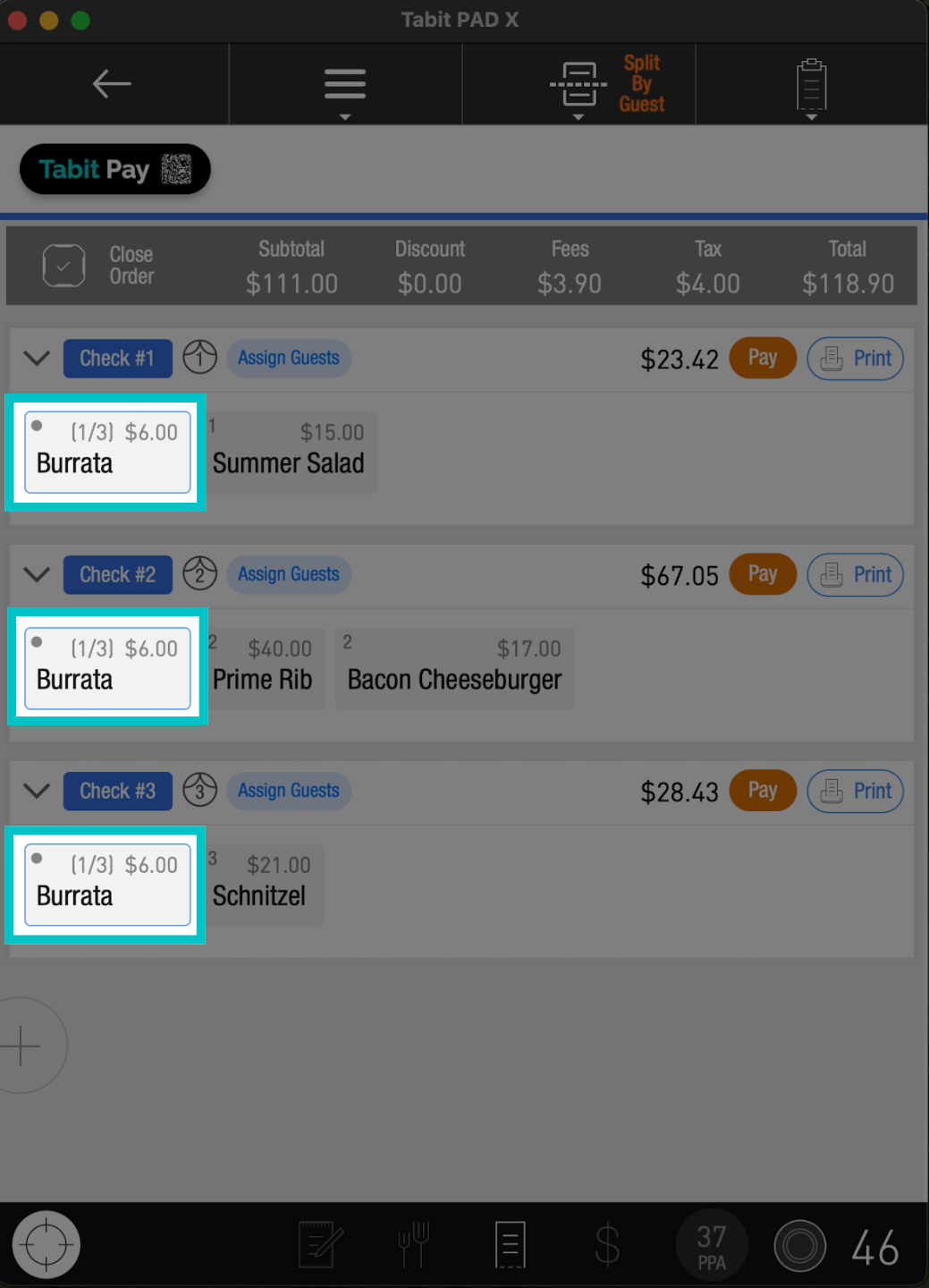
Items from the shared seat will be split evenly between the guests
-
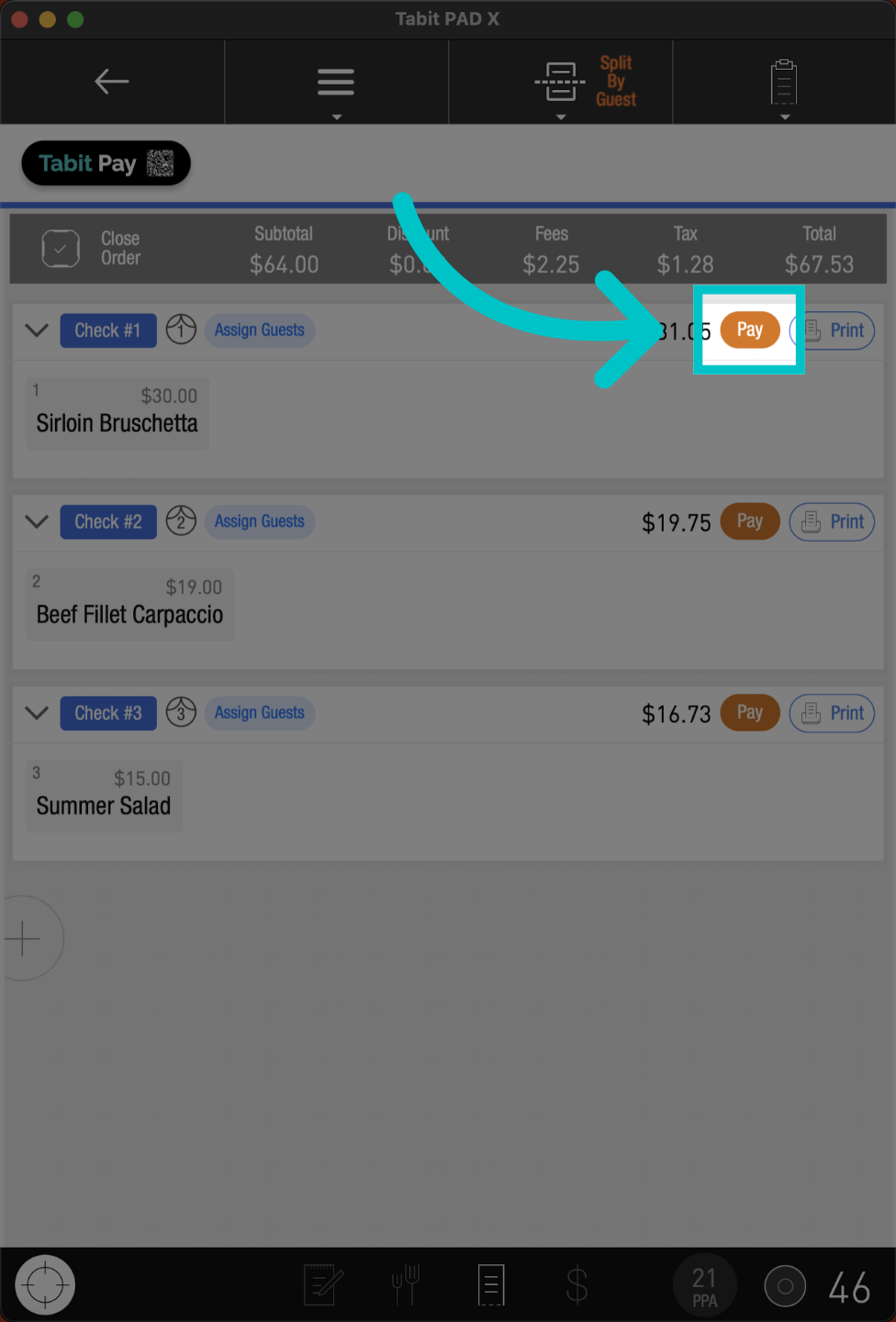
Go to Pay to continue to the payment process and take the first payment
-
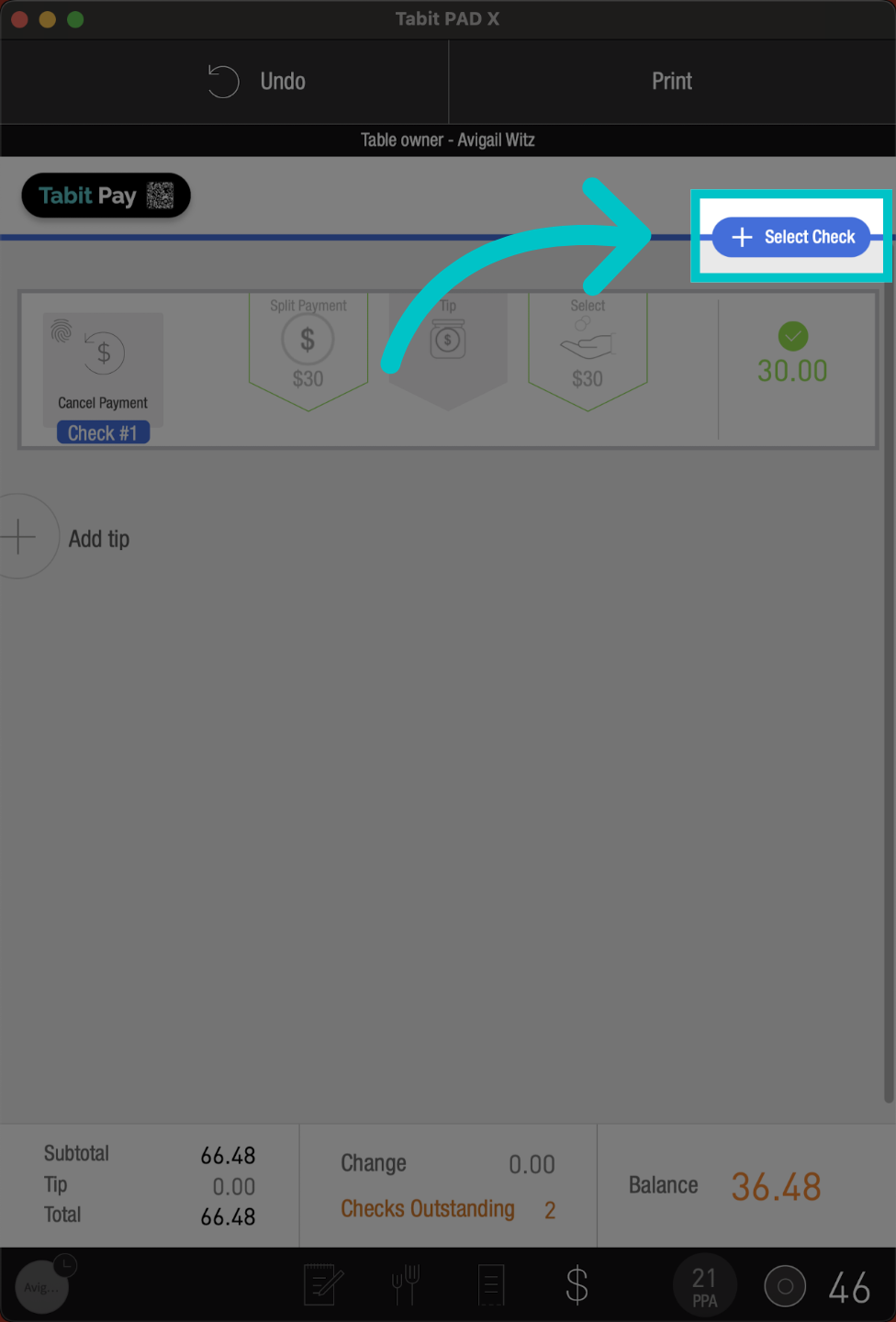
Continue to the next check by tapping + Select Check
-
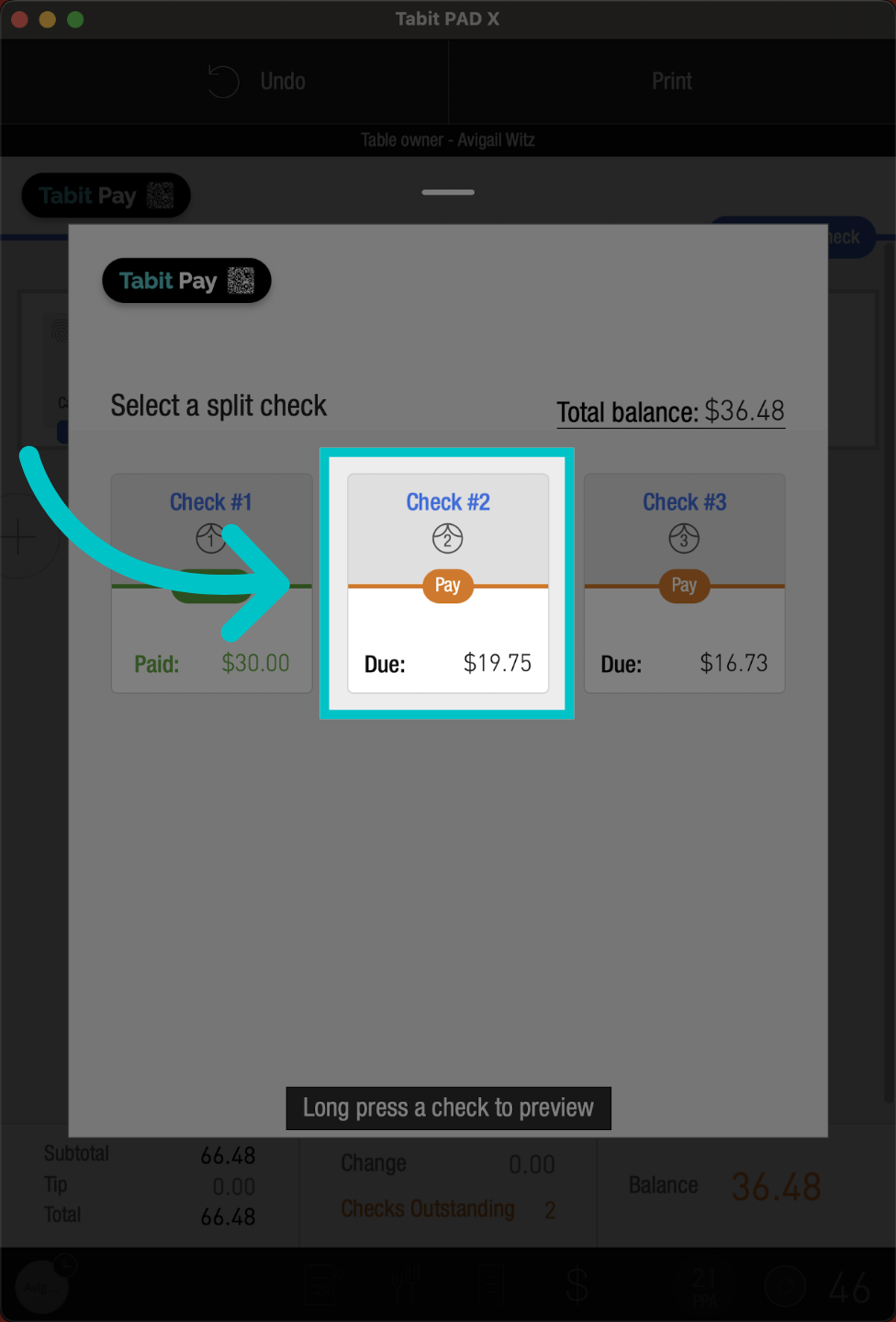
Access the next check for payment
Assign multiple guests to a check
This split check option allows servers to combine multiple guests onto a single check—perfect for families sharing a bill or couples requesting separate payments.
-
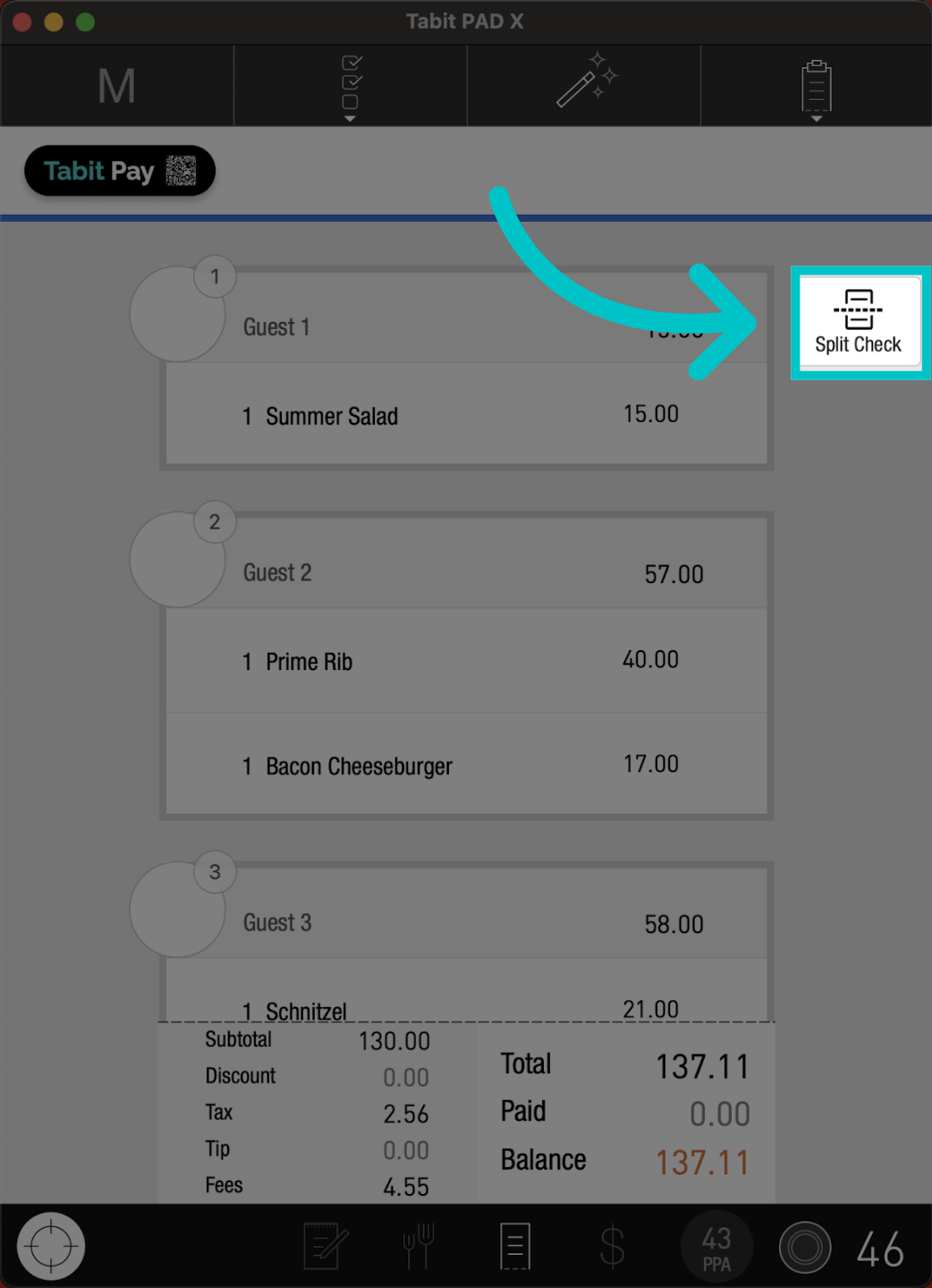
From the check screen, tap Split Check
-
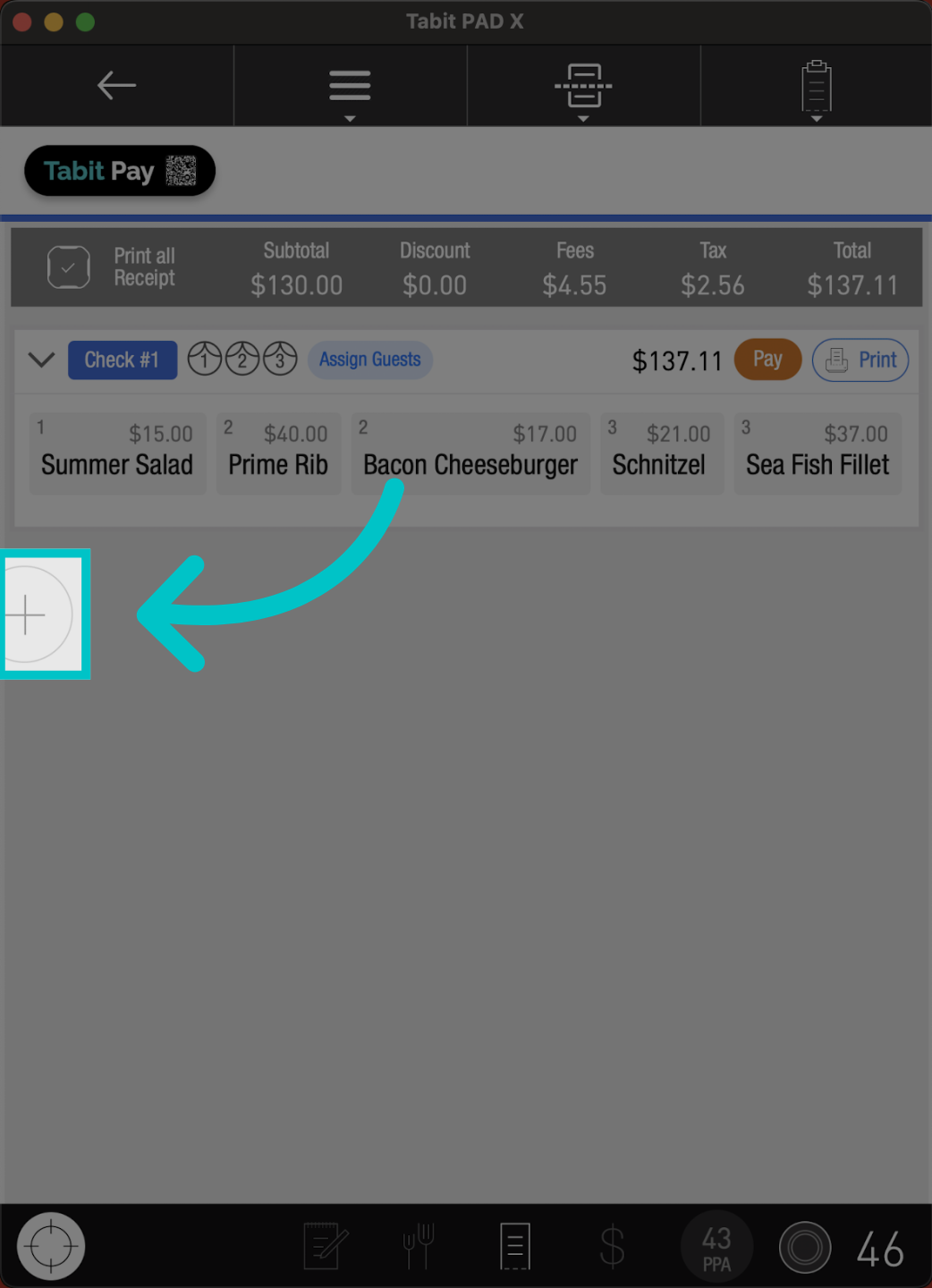
Select the + sign to add a check
-
Then, tap Assign Guests
-
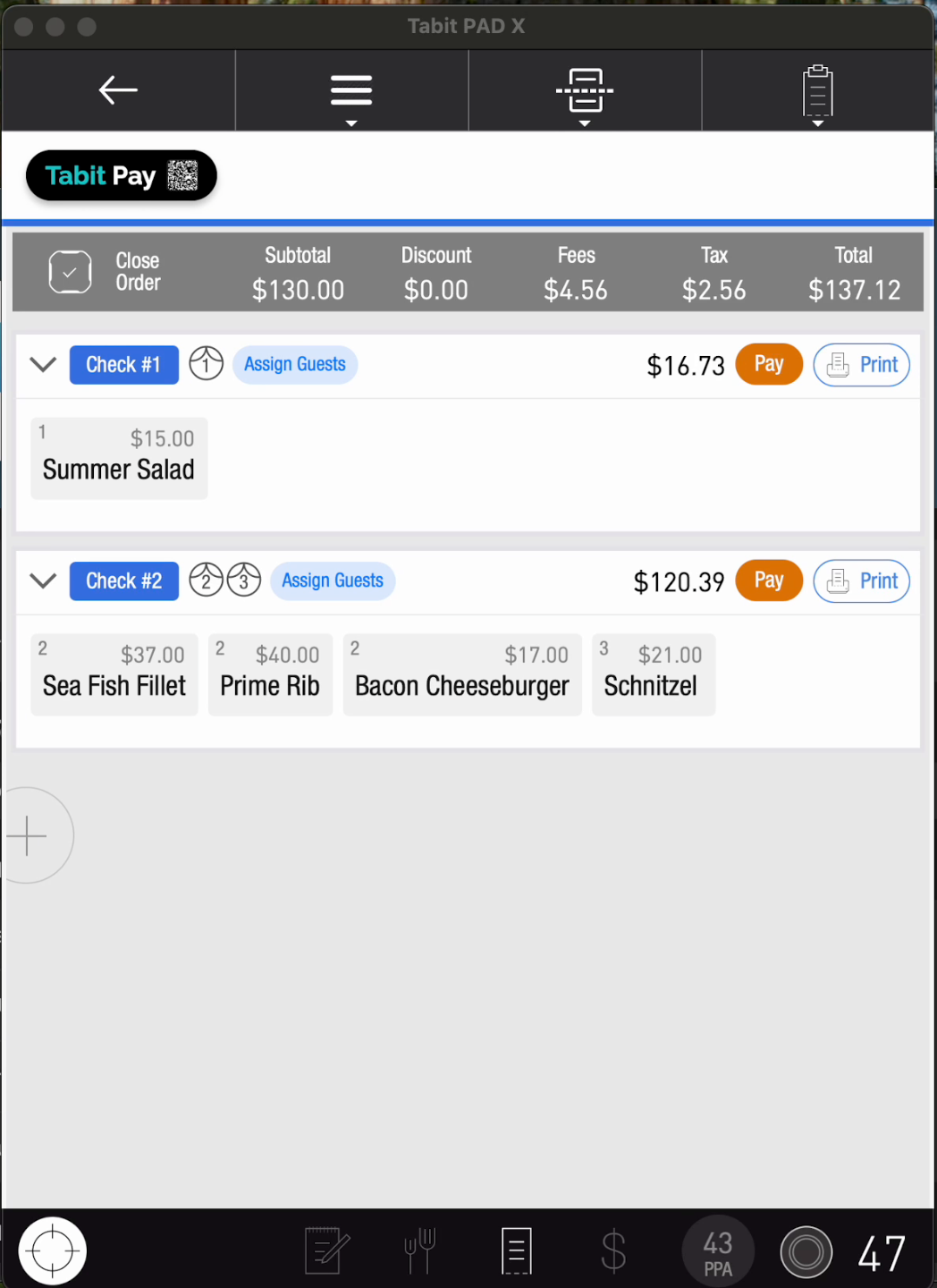
Mark the guests you want to group into one check, and select Assign Selected
-
Then, go to the orange Pay button to continue to the payment process and take the first payment
-
Continue to the next check by tapping + Select Check
Split check by item
With this split check option, guests can pay just for the items they ordered, making it simple to split the bill their way.
-
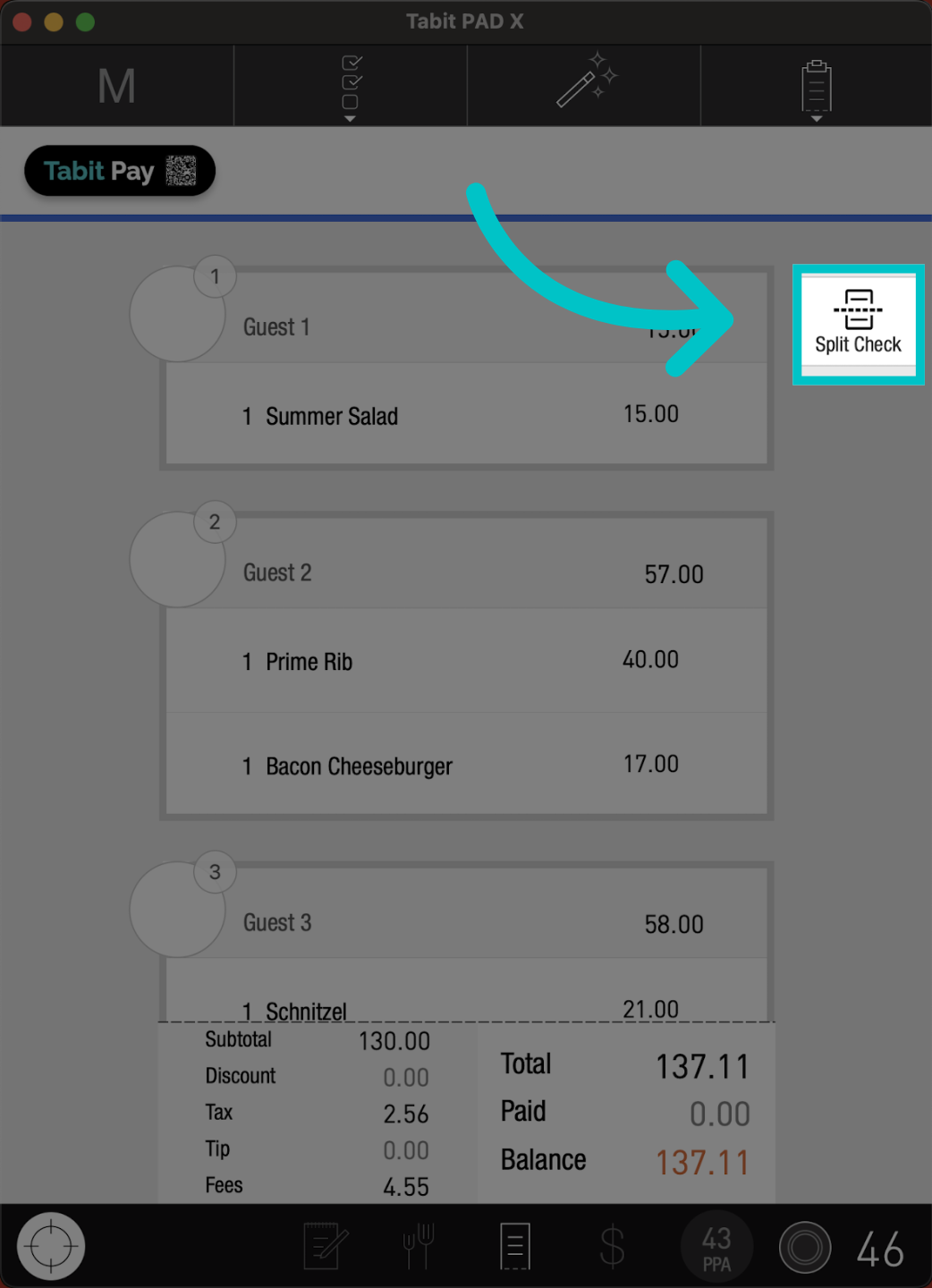
From the check screen, tap Split Check
-
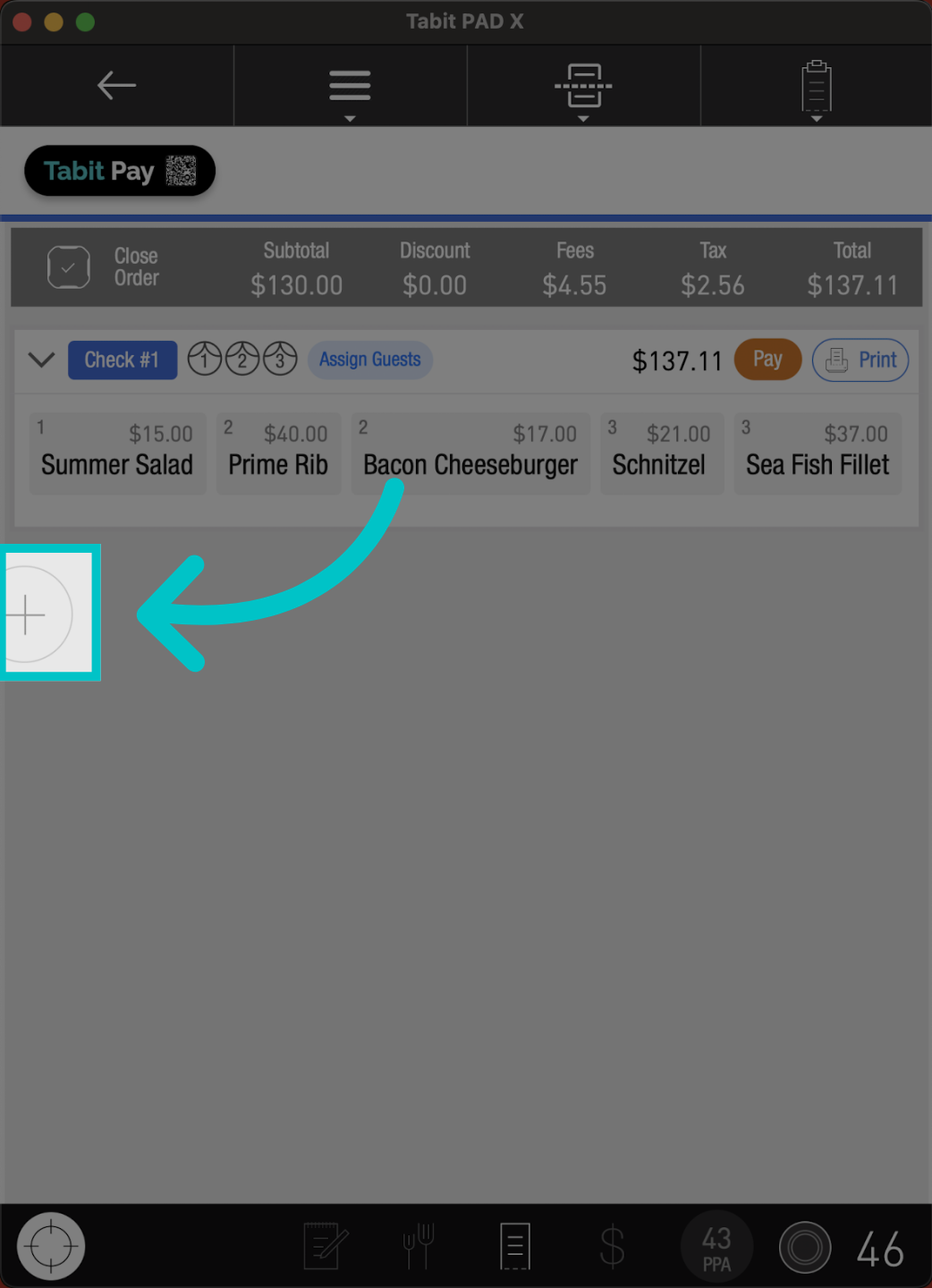
Select the + sign to add a check
-
Now, drag the items to the relevant check as needed
-
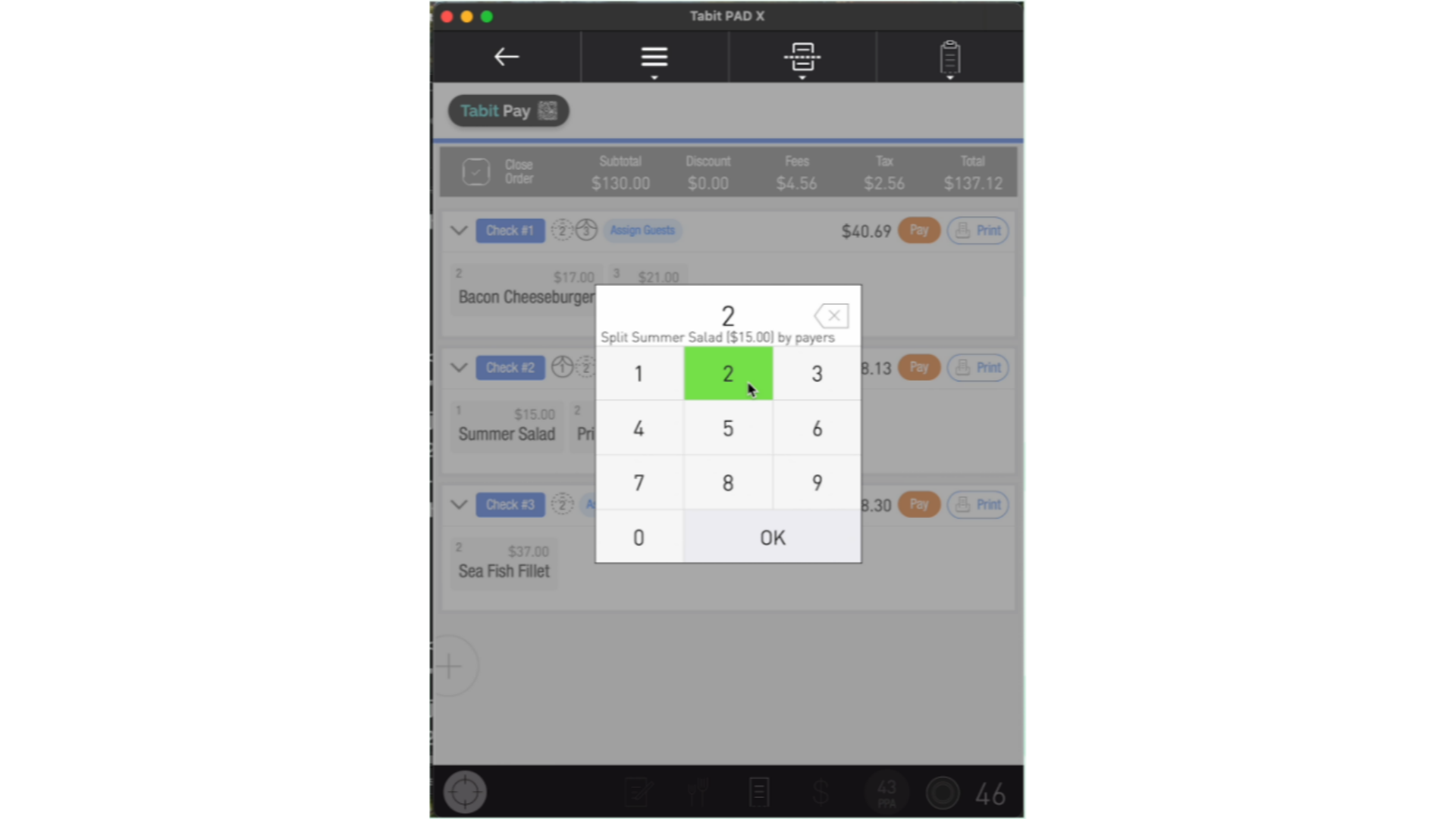
To split one item evenly, double-click the item, and select the guest number
-
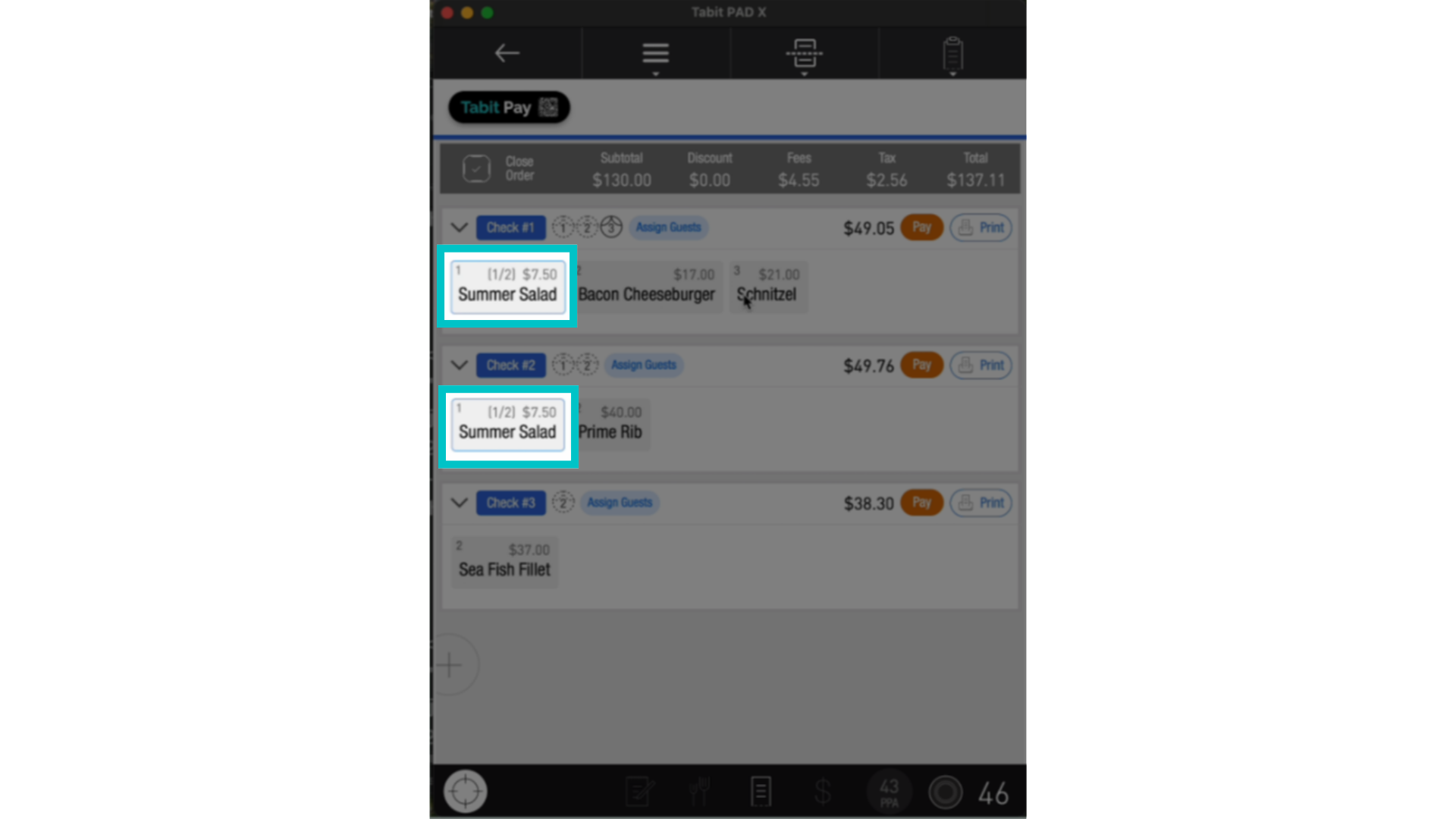
Then, drag the split item to the relevant guest
-
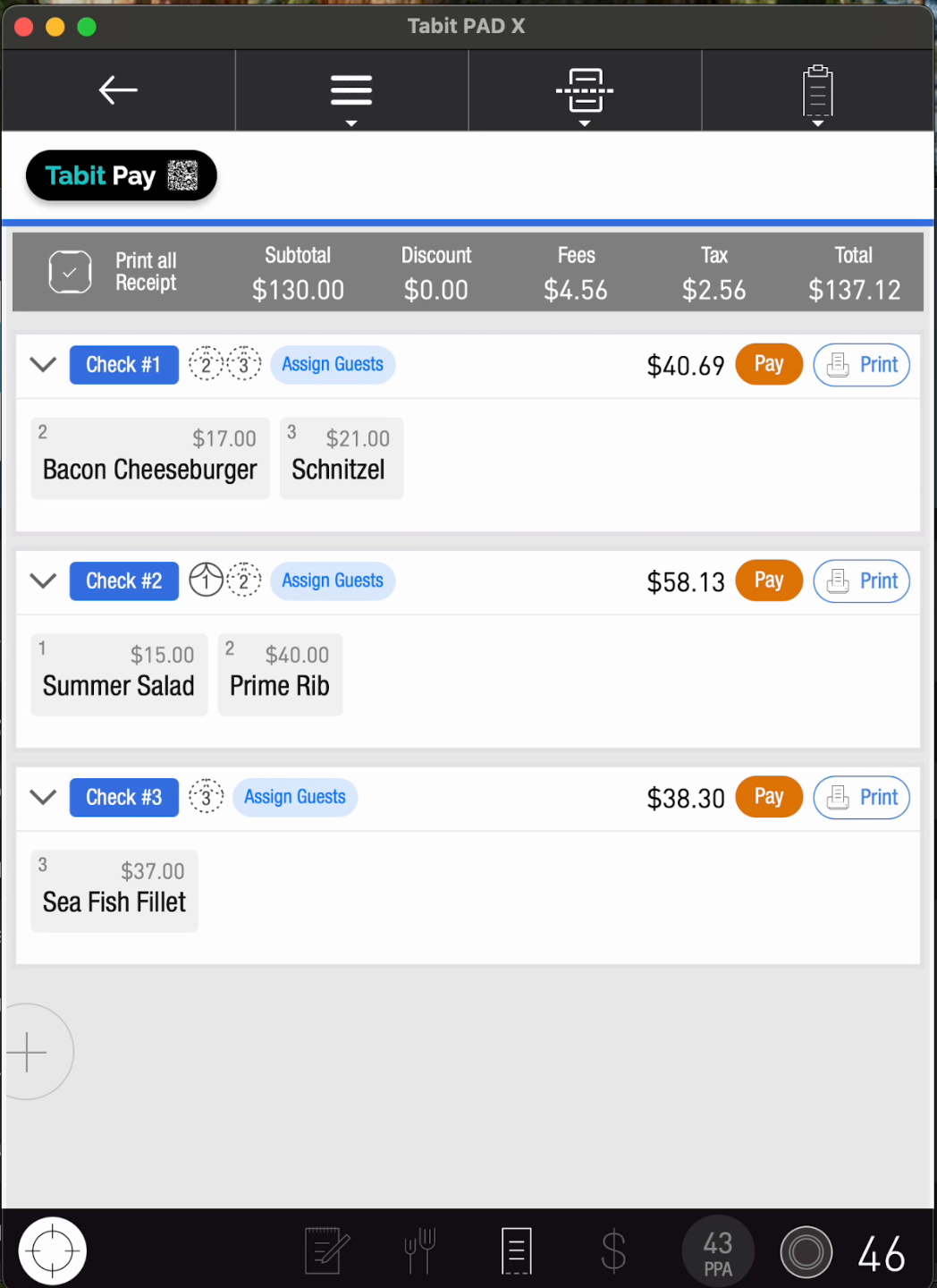
Now, go to the orange Pay button to continue to the payment process and take the first payment
-
Continue to the next check by tapping + Select Check